How to Curve Text in Canva

Curved text adds visual interest and creative flair to your Canva designs. Whether you're creating logos, posters, or social media graphics, learning to curve text helps you achieve professional, eye-catching layouts that stand out from standard designs.
Quick summary
In this tutorial, you'll learn how to apply curve effects to text in Canva. We'll walk through selecting your text element, accessing the Effects menu, and applying the curve transformation to achieve your desired aesthetic.
Why this matters
Curved text is essential for creating dynamic, polished designs that grab attention and convey creativity. It's particularly useful for branding, poster design, and social graphics where standard straight text may feel static or uninspired. Mastering this technique expands your design possibilities and helps you produce more professional-looking work.
Step-by-step guide
- 1
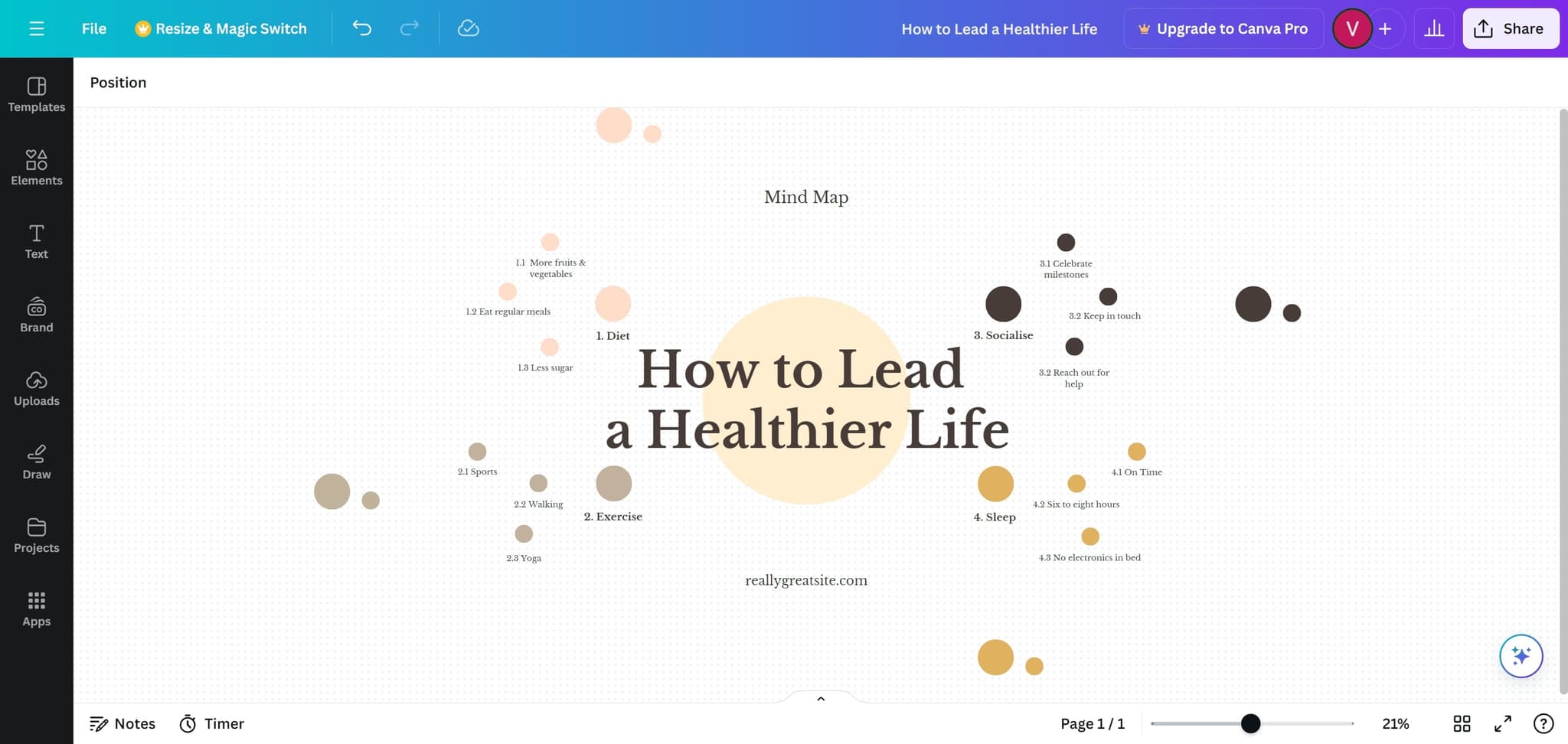
Click on the text element
Start by clicking on the text element you want to curve. This selects the text and prepares it for editing.
- 2
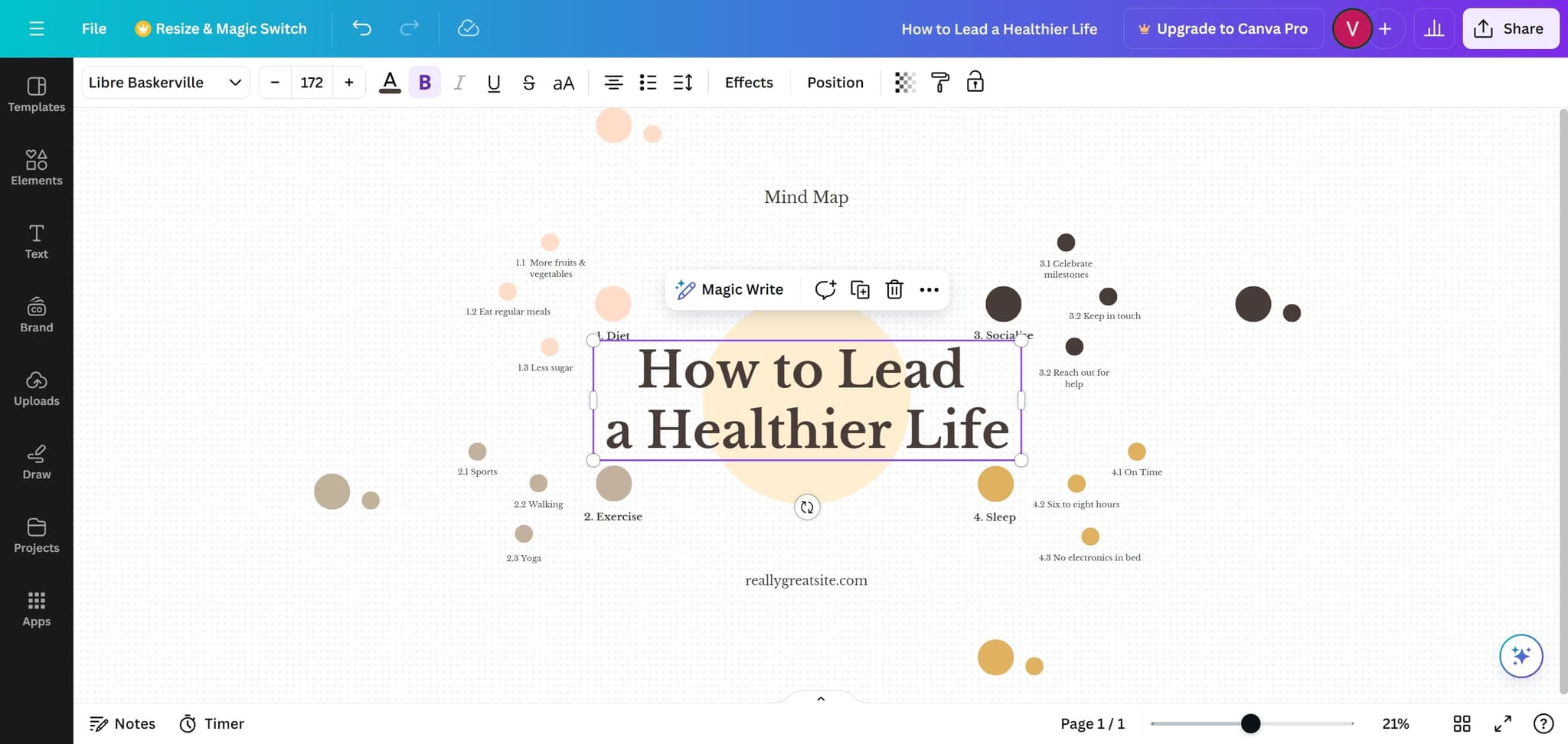
Select your desired text
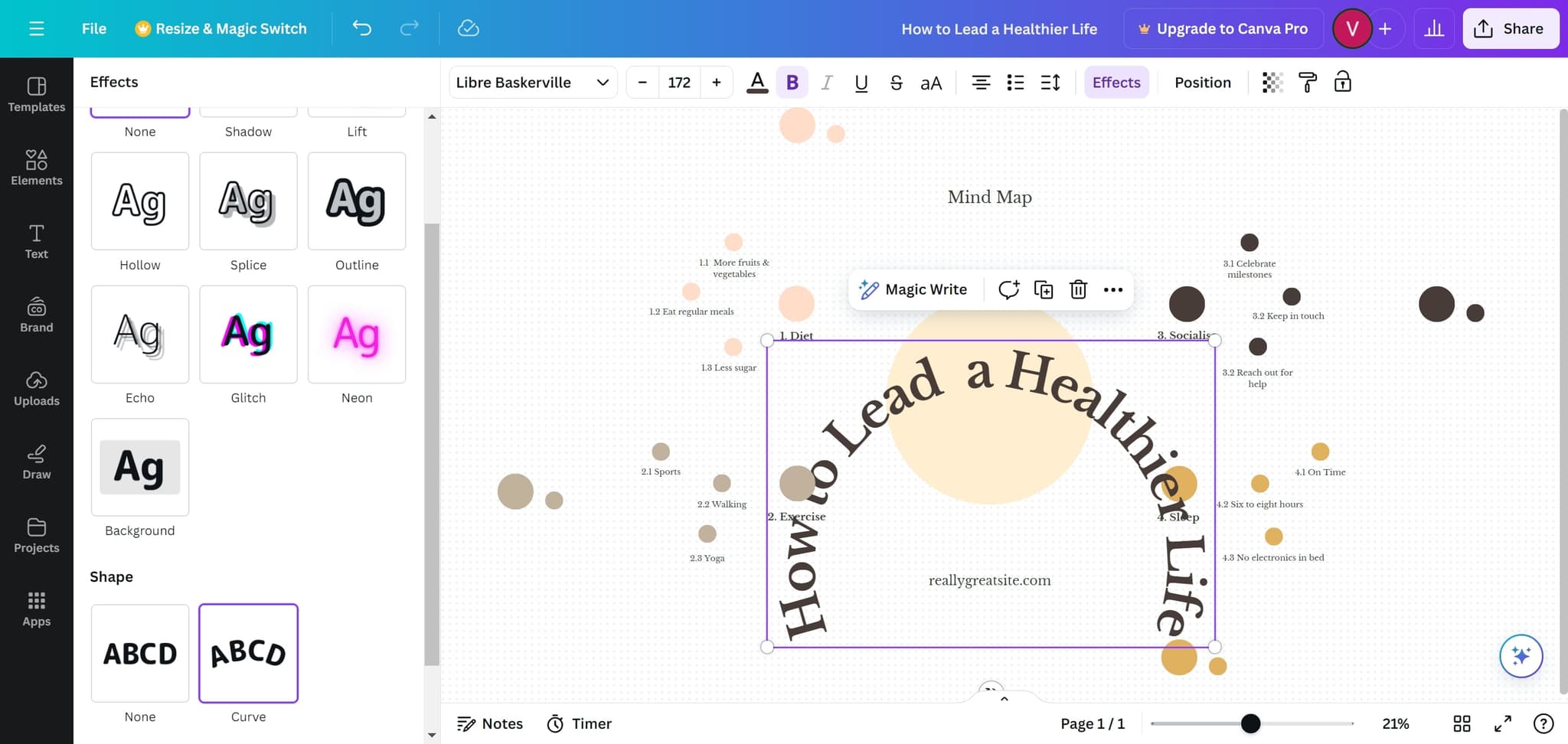
Click on the specific text you want to curve, such as 'a Healthier Life'. This ensures you're modifying the correct text element in your design.
- 3
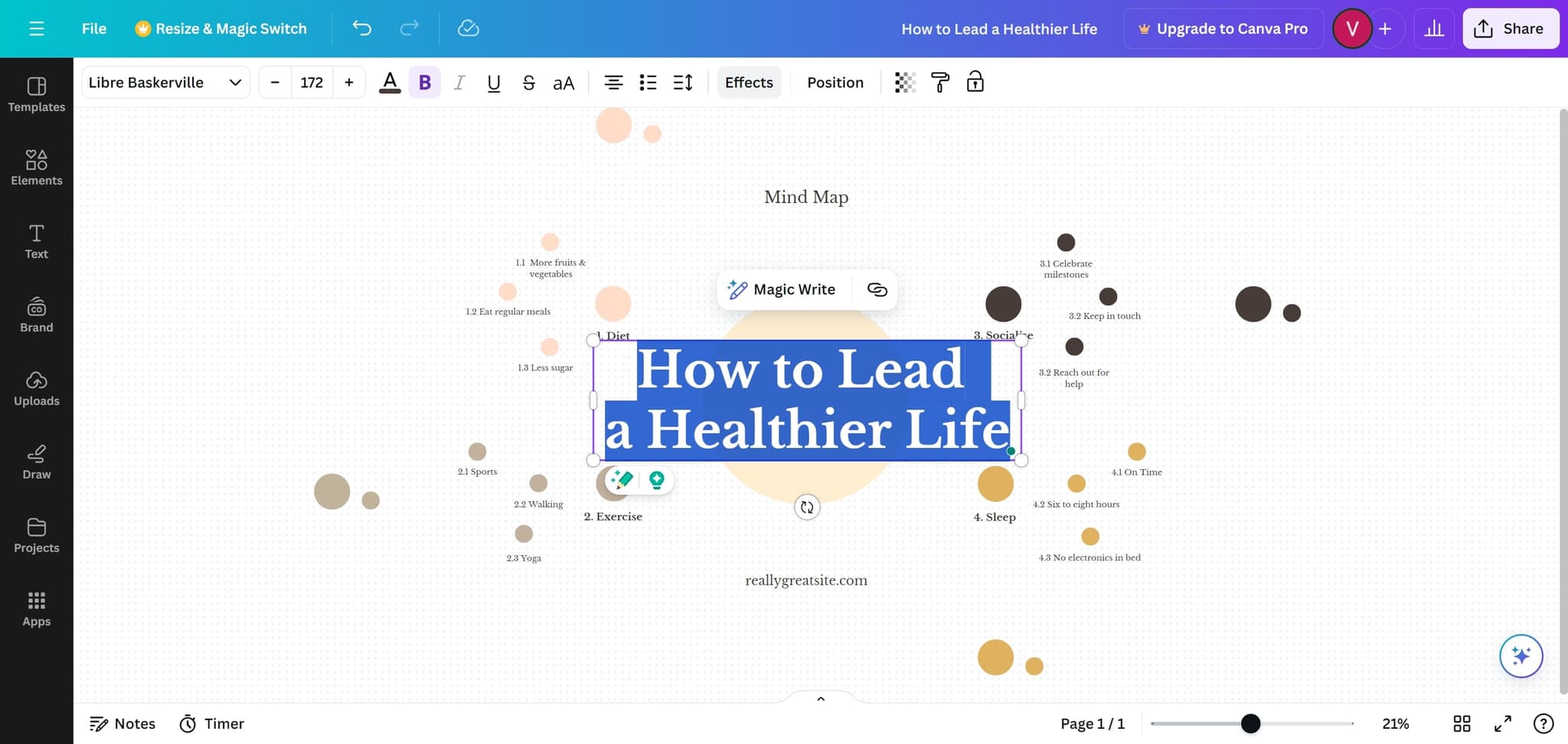
Open the Effects menu
Click on the 'Effects' option from the toolbar or menu. This opens the effects panel where you can access text transformation options including curve effects.
- 4
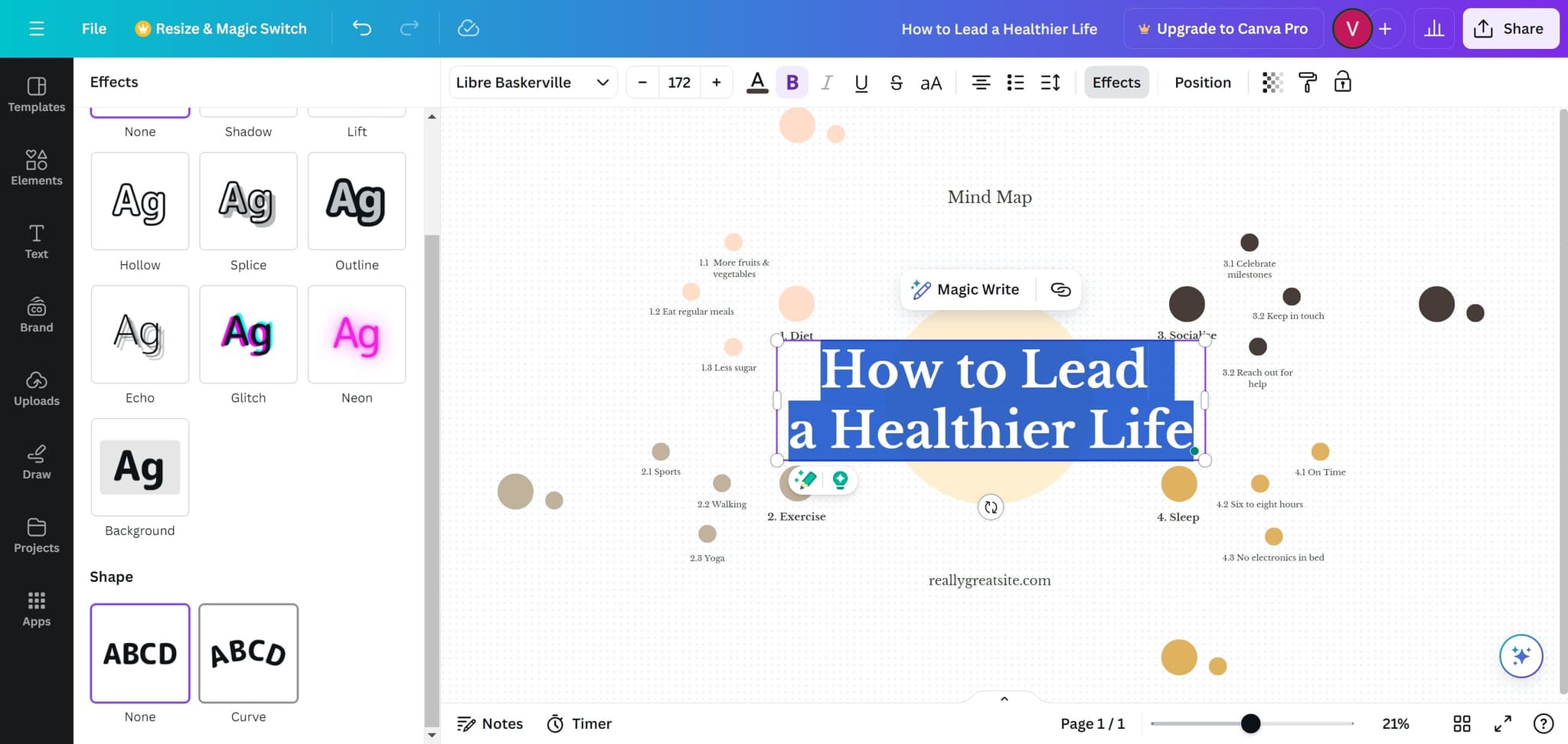
Apply the curve effect
Select your preferred curve effect from the available options. The text will automatically transform to follow the curved path you've chosen.
- 5
Finalize your curved text
Click elsewhere on the canvas to deselect the text and view the final result. Your text now displays with the curve effect applied.
Frequently asked questions
Common questions about how to curve text in canva.
Yes, most curve effects in Canva offer adjustable parameters. After selecting the curve effect, look for sliders or adjustment options that allow you to control the curve's intensity and direction to match your design needs.
Curved text can impact readability, especially with extreme curves or small font sizes. To maintain clarity, use larger fonts, limit the amount of curved text, and ensure sufficient contrast between text and background. Test your design on different devices to verify legibility.
Bold, sans-serif fonts generally work better with curve effects as they remain legible when transformed. Decorative or thin fonts may become harder to read when curved. Experiment with different fonts in your design to find the best balance between style and clarity.
Yes, Canva offers multiple curve direction options. Depending on the effect you choose, you can curve text in an arc, wave, or other patterns. The Effects menu will show you the available directional variations you can apply.
Absolutely. Use the undo function (usually Ctrl+Z on Windows or Command+Z on Mac) to remove the curve effect. Alternatively, you can reselect the text and choose a different effect or remove effects entirely from the Effects menu.