How to draw a line in Canva

Drawing lines in Canva is a fundamental skill for creating custom graphics, diagrams, and designs. Whether you're building flowcharts, adding visual separation, or creating illustrations, mastering the line tool will expand your design capabilities. This guide walks you through accessing and using Canva's drawing features to add lines to your projects.
Quick summary
In this tutorial, you'll learn how to access Canva's drawing tools and navigate to the shapes library to draw lines. You'll discover where the Draw tool is located and how to find the line options within the Shapes menu. By the end, you'll be able to quickly add and customize lines in your Canva designs.
Why this matters
Lines are essential design elements that help organize content, create visual hierarchy, and guide the viewer's eye across your canvas. In professional design work, clean lines separate sections, enhance layouts, and add polish to presentations, infographics, and marketing materials. Knowing how to efficiently draw lines saves time and enables you to produce more sophisticated designs.
Step-by-step guide
- 1
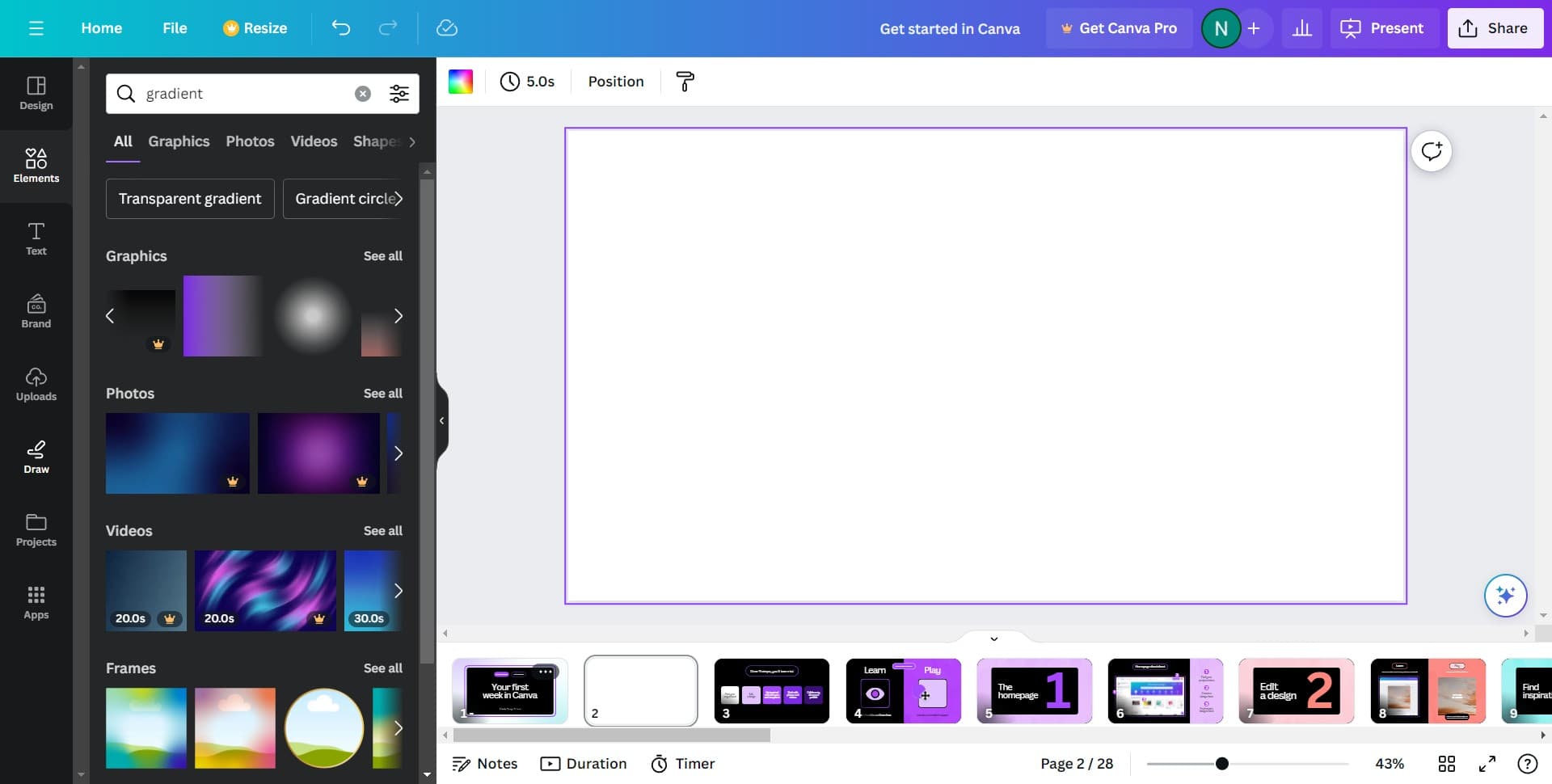
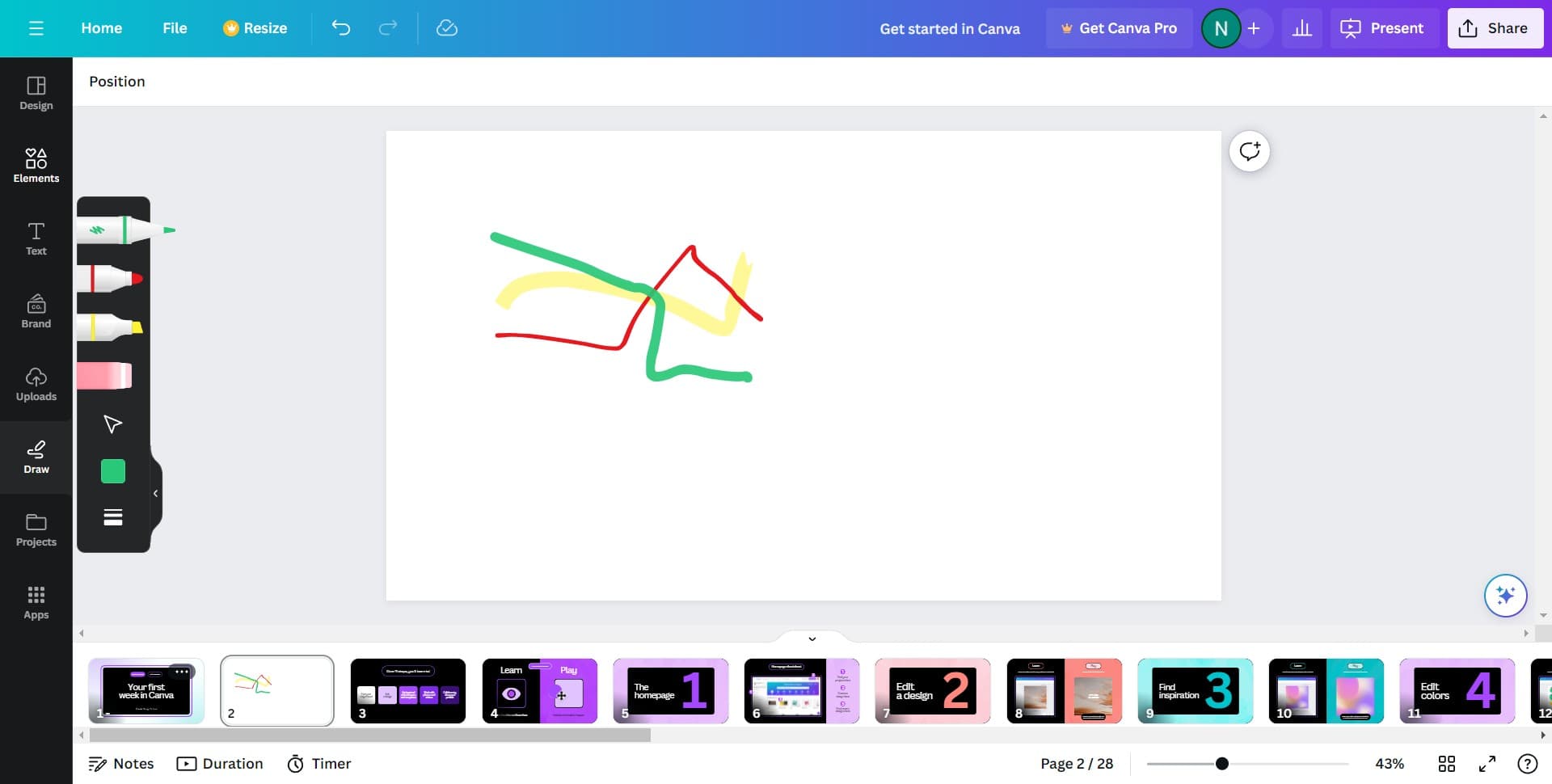
Click on the Draw tool
Locate and click the Draw option in Canva's toolbar. This opens the drawing panel where you can access various drawing tools and options.
- 2
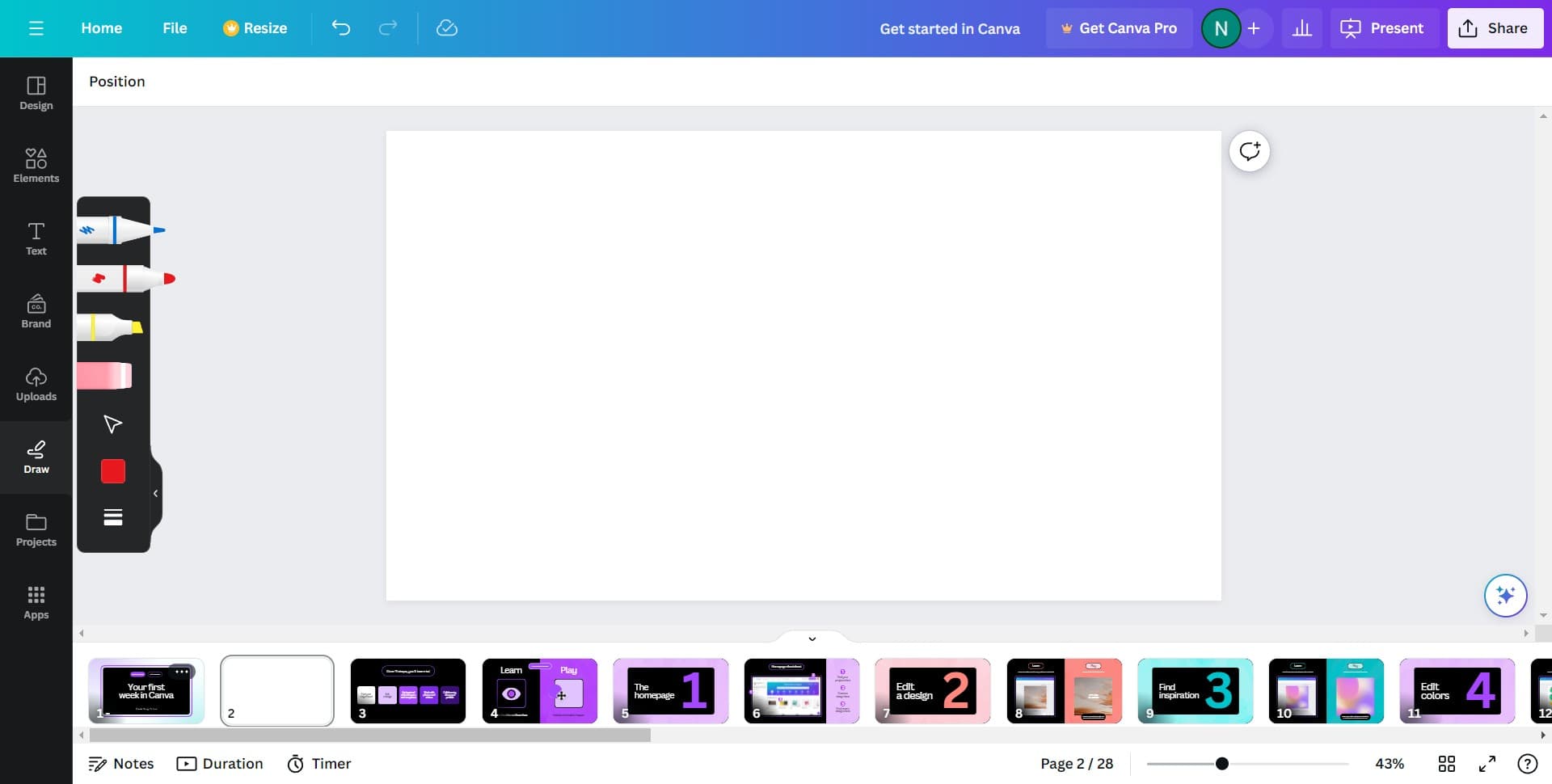
Select your drawing tool
From the drawing menu that appears, choose the tool you want to use. This will prepare Canva for your line drawing action.
- 3
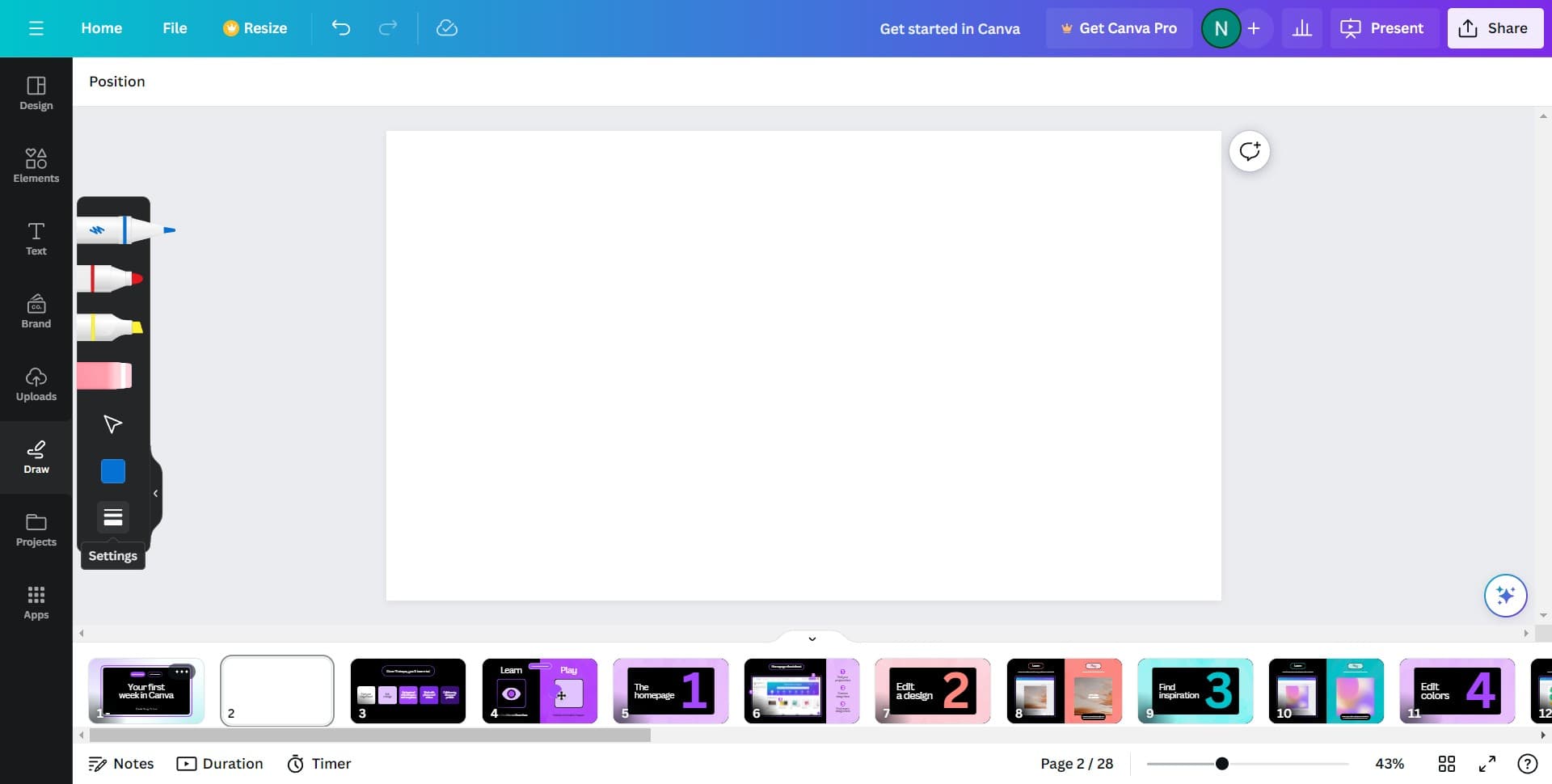
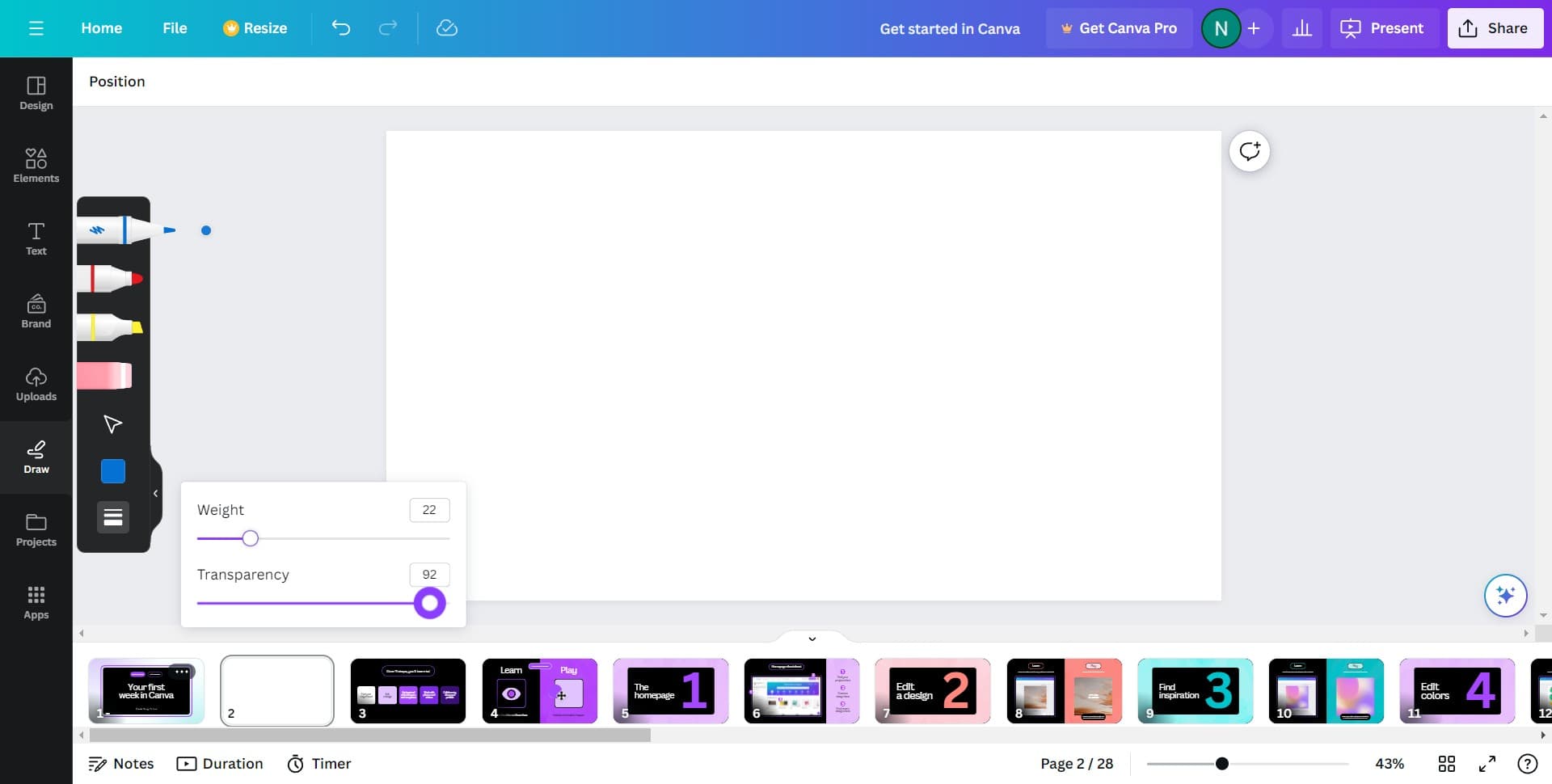
Configure your drawing settings
Adjust any relevant settings such as line thickness, color, or style before drawing. These settings will apply to the line you're about to create.
- 4
Draw your line on the canvas
Click and drag on your canvas to create your line. Release to complete the line and see it appear in your design.
- 5
Finalize your line
Once your line is drawn, you can adjust its position and properties as needed. The line will remain editable on your canvas.
- 6
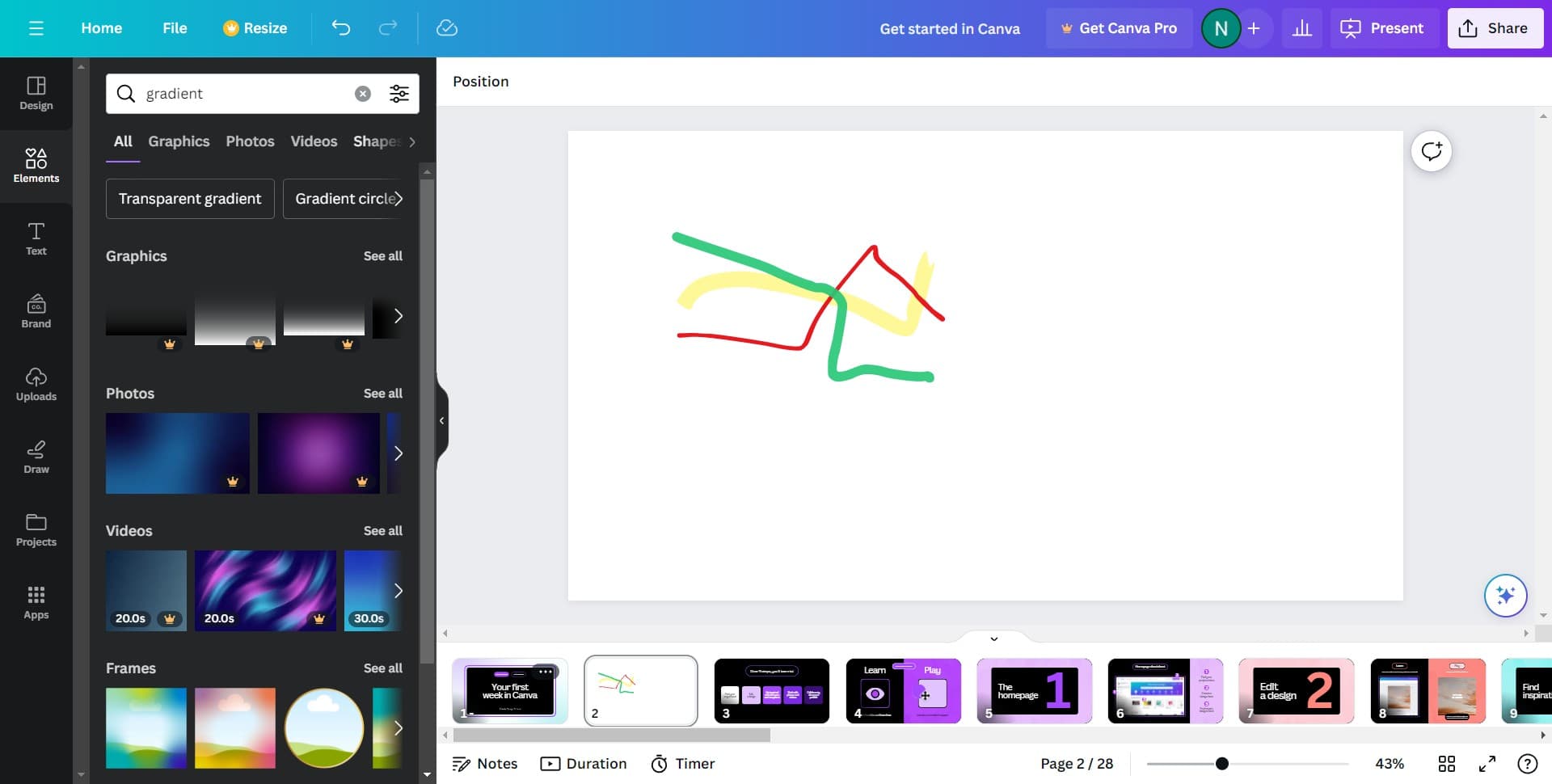
Access the Shapes menu
Click on Shapes in the toolbar to access Canva's built-in shape library. This gives you access to pre-made shapes including various line styles.
- 7
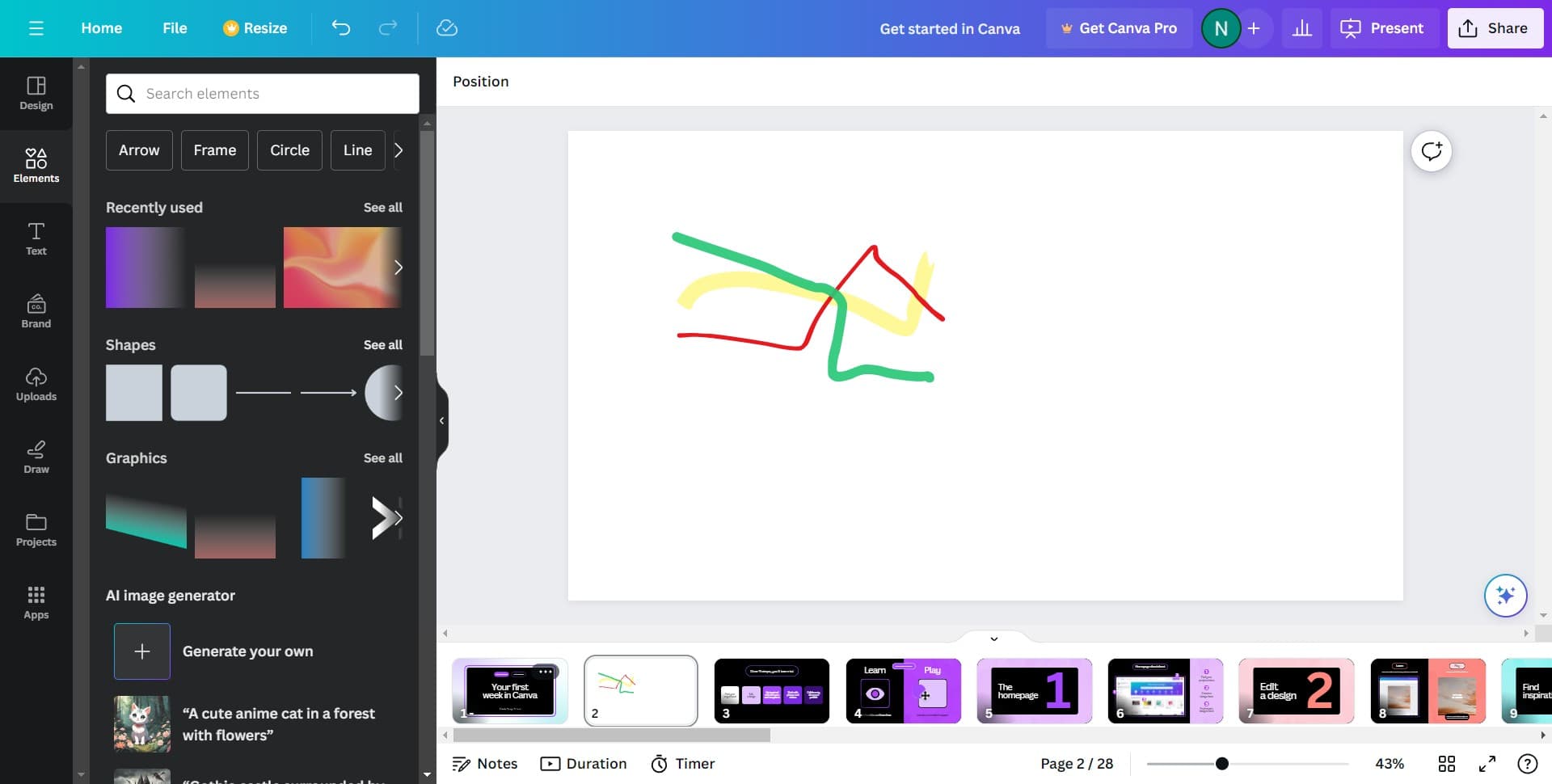
Click See all options
Select See all to view the complete collection of available shapes and line styles. This expands your options beyond the default visible shapes.
- 8
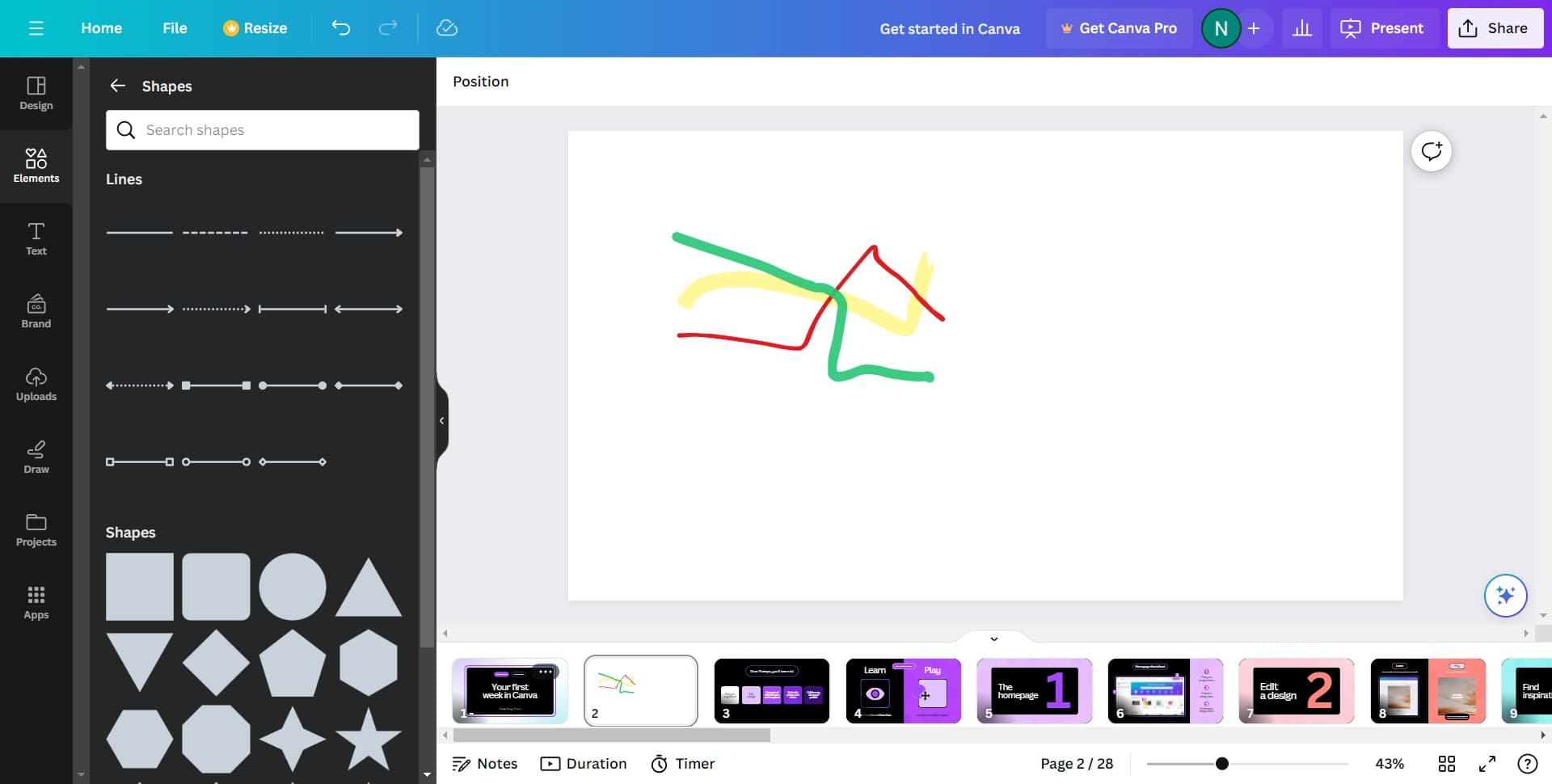
Choose your line shape
Browse through the shapes library and click on the line style you want to use. Your selected line will be ready to place on your canvas.
Frequently asked questions
Common questions about how to draw a line in canva.
Yes, Canva allows you to adjust line thickness before and after drawing. You can modify the stroke width in the tool settings or by selecting the line on your canvas and adjusting its properties in the right-hand panel.
Canva offers various line styles including solid lines, dashed lines, and dotted lines. You can find these options in the Shapes menu under the line category, and there are many more available when you click See all.
After drawing or selecting a line, use the color picker in the toolbar or right panel to change its color. You can choose from Canva's color palette or upload custom colors to match your design.
Canva's draw tool allows you to create straight lines, but you can also use the shapes library to find curved and angled line options. The pen or brush tools in the Draw menu provide more freeform drawing capabilities for custom curves.
Click on the line to select it, then press the Delete key on your keyboard. Alternatively, right-click on the line and choose delete from the context menu.