How to Group on Canva

Grouping elements in Canva allows you to organize multiple objects together, making it easier to move, resize, and manage your design as a cohesive unit. This feature is essential for creating polished, professional designs without accidentally misaligning individual elements.
Quick summary
In this tutorial, you'll learn how to group elements in Canva to streamline your design workflow. We'll walk you through selecting multiple objects and combining them into a single group that you can manipulate as one.
Why this matters
Grouping is critical when working with complex designs that contain many layered elements. By grouping related objects, you prevent accidental movement or misalignment and significantly speed up your editing process, especially when you need to resize or reposition entire sections of your design.
Step-by-step guide
- 1
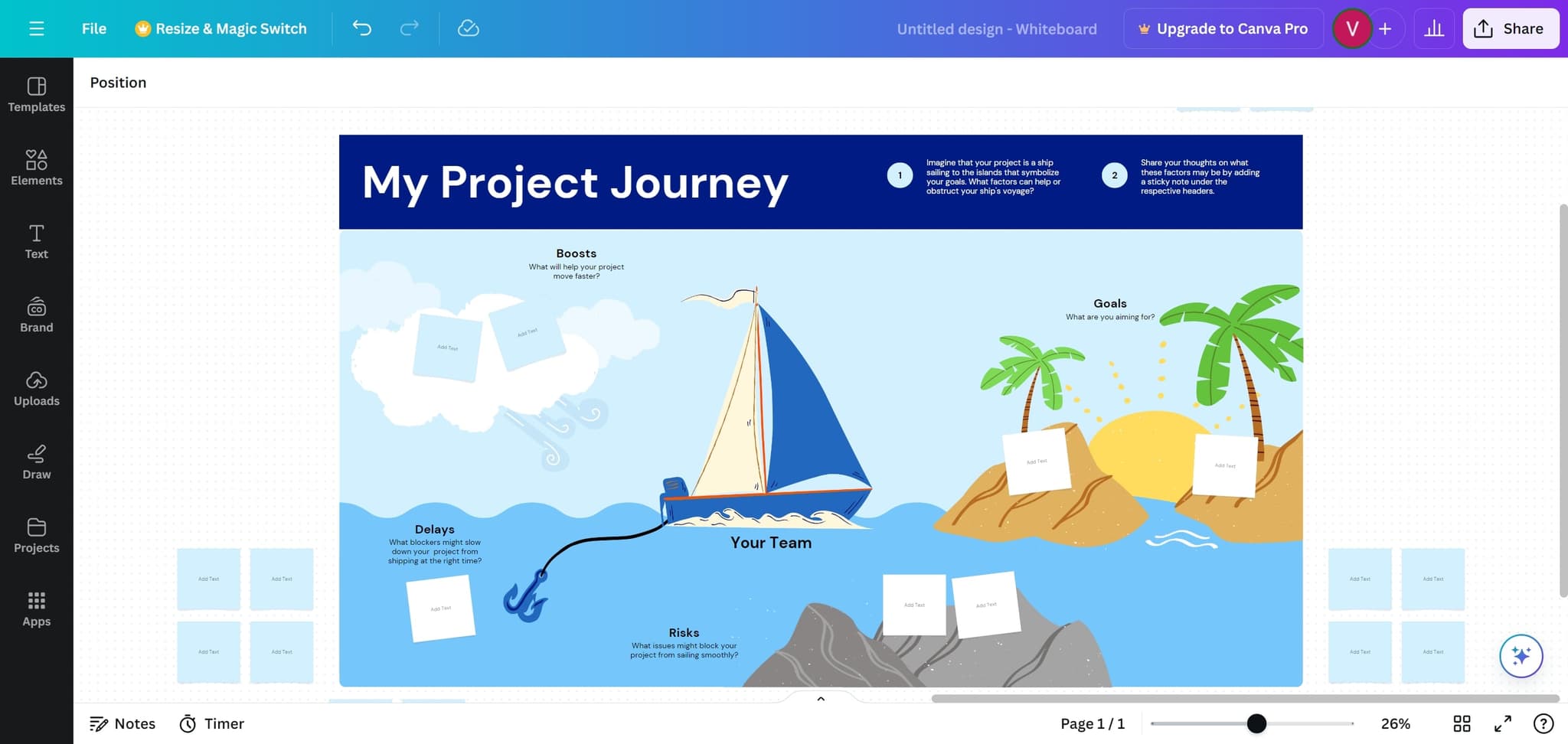
Select Your First Element
Click on the first element you want to group. This will activate the selection tool and highlight the element with selection handles around it.
- 2
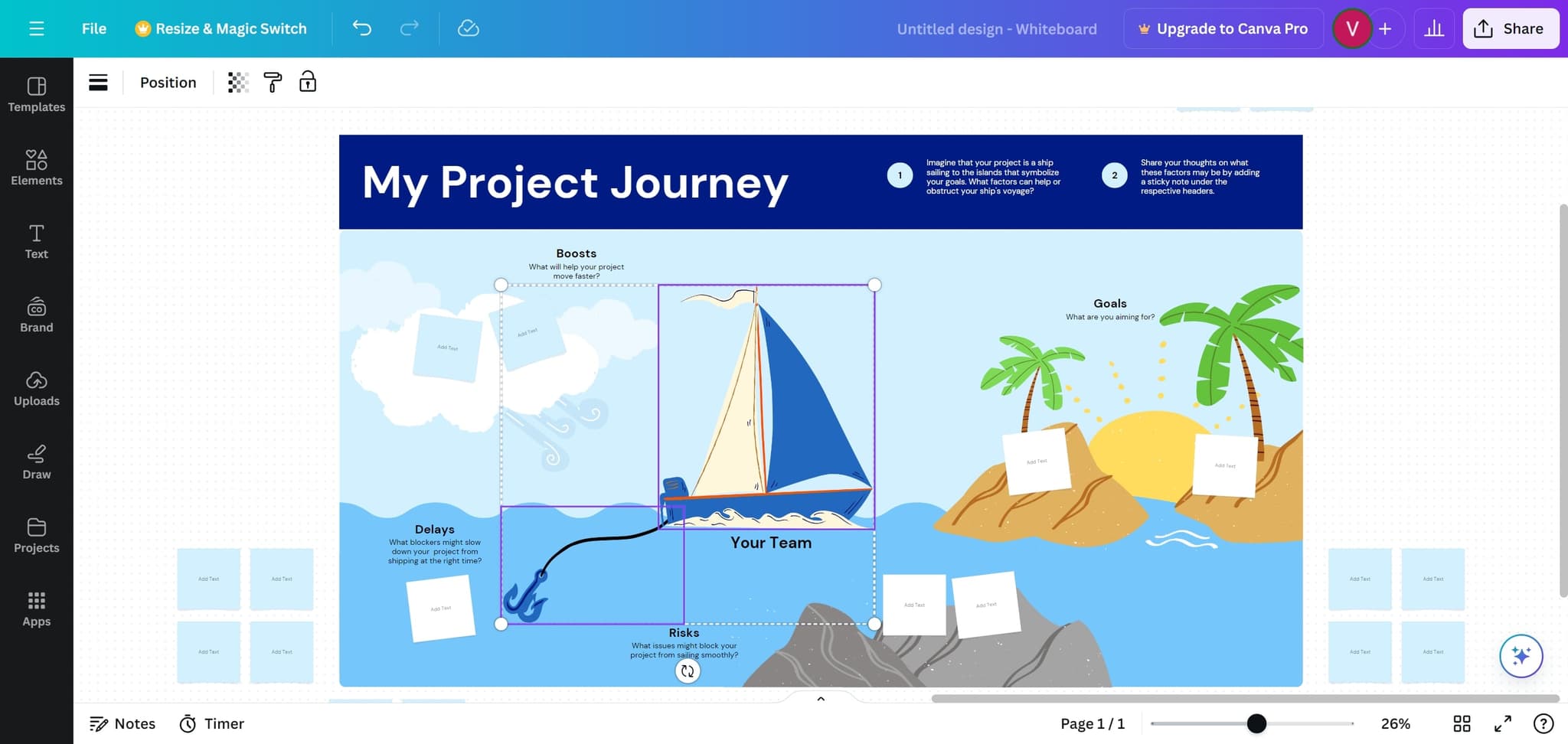
Hold Shift and Select Additional Elements
While holding Shift, click on each additional element you want to include in the group. Each element will be added to your selection, and you'll see all selected items highlighted.
- 3
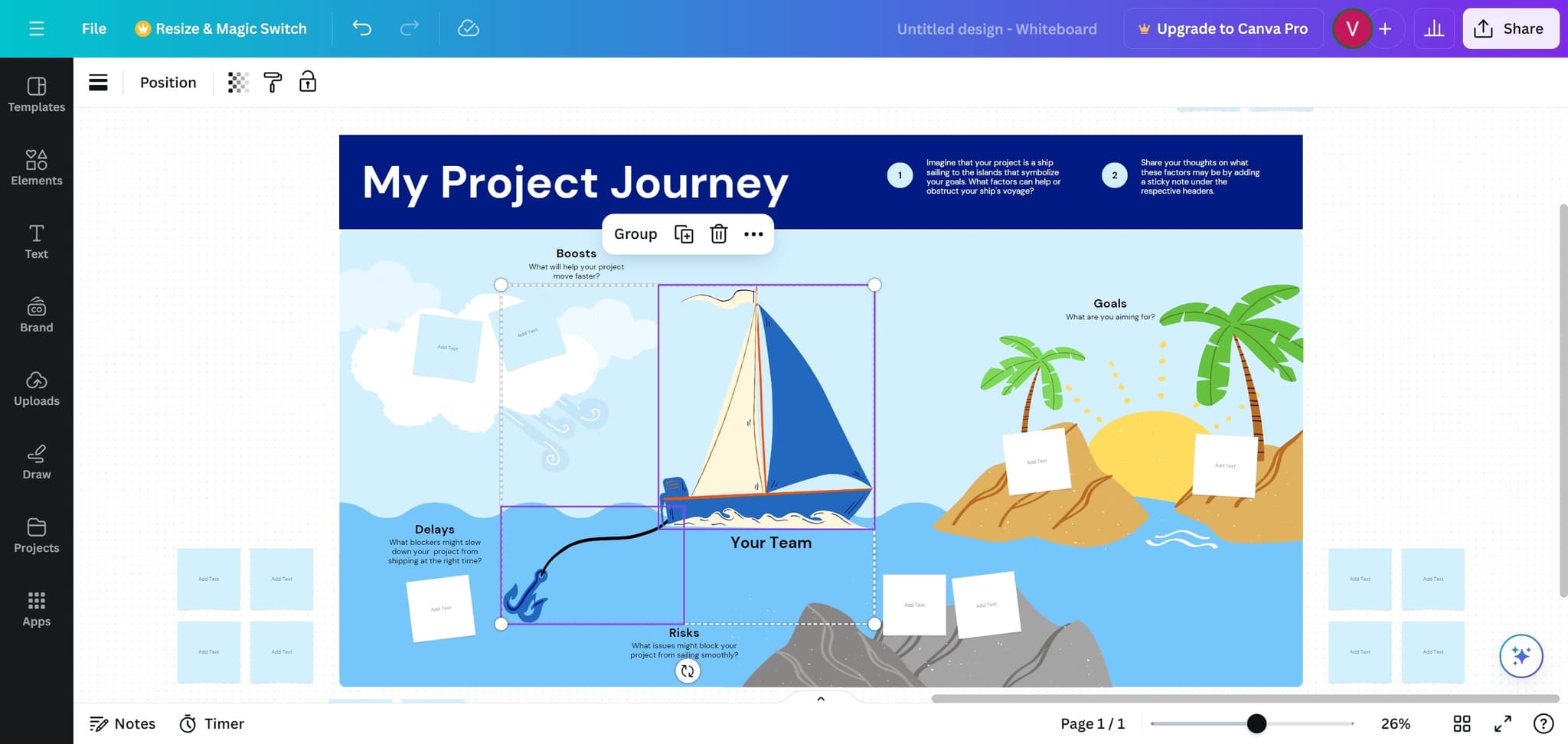
Right-Click on the Selected Elements
Right-click on any of the selected elements to open the context menu. This menu will display the grouping option and other editing commands.
- 4
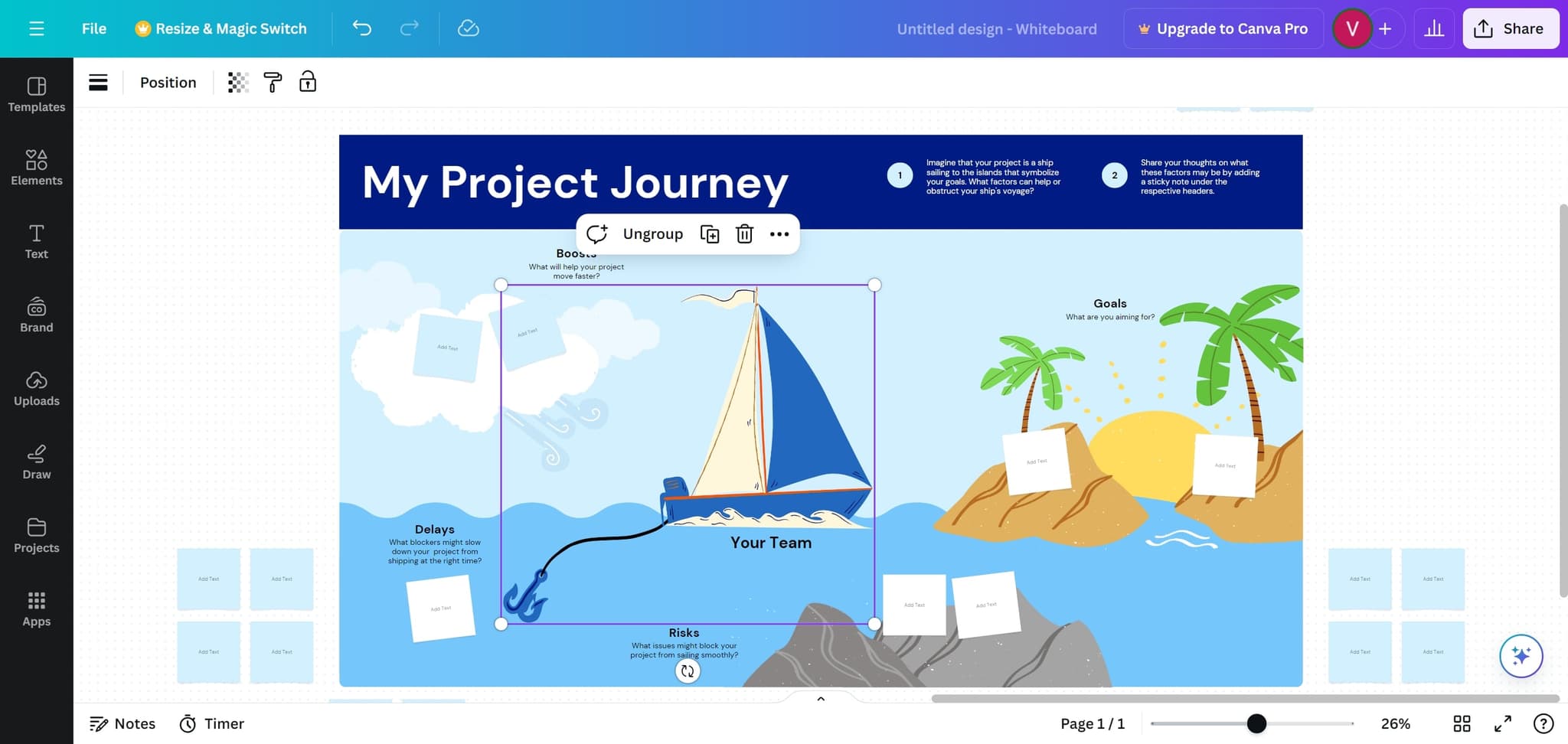
Click the Group Option
From the context menu, select the Group option to combine all selected elements into a single group. The elements will now move and resize together as one unit.
Frequently asked questions
Common questions about how to group on canva.
Yes, you can easily ungroup elements at any time. Simply right-click on the grouped element and select Ungroup from the context menu. This will separate the elements back to their individual states.
On Windows, use Ctrl+G to group selected elements. On Mac, use Cmd+G. These keyboard shortcuts are faster than using the context menu once you've selected your elements.
Yes, Canva allows you to group elements regardless of their layer position. When grouped, they will maintain their relative positions but can be moved together as a single unit.
Double-click on the group to enter group editing mode, which allows you to select and modify individual elements while keeping them grouped. Click outside the group to exit editing mode.
Canva does not have a strict limit on the number of elements you can group together. However, grouping too many elements may impact performance depending on your system's resources.