How to fit the circle frame of your picture in Canva

Adding a circle frame to your picture in Canva is a simple way to create a polished, professional look for your designs. Whether you're working on social media graphics, presentations, or marketing materials, framing images in circles can help them stand out and draw attention to key visual elements.
Quick summary
In this tutorial, you'll learn how to apply a circle frame to your images in Canva by navigating through the Elements menu and selecting from Canva's pre-designed frame library. By following these straightforward steps, you'll be able to transform any rectangular image into an eye-catching circular design.
Why this matters
Circle frames are a versatile design element that works well across different design contexts—from profile pictures to product showcases to decorative accents. Using frames in Canva saves time compared to manually creating shapes and masks, allowing you to maintain design consistency while keeping your workflow efficient.
Step-by-step guide
- 1
Click on Image
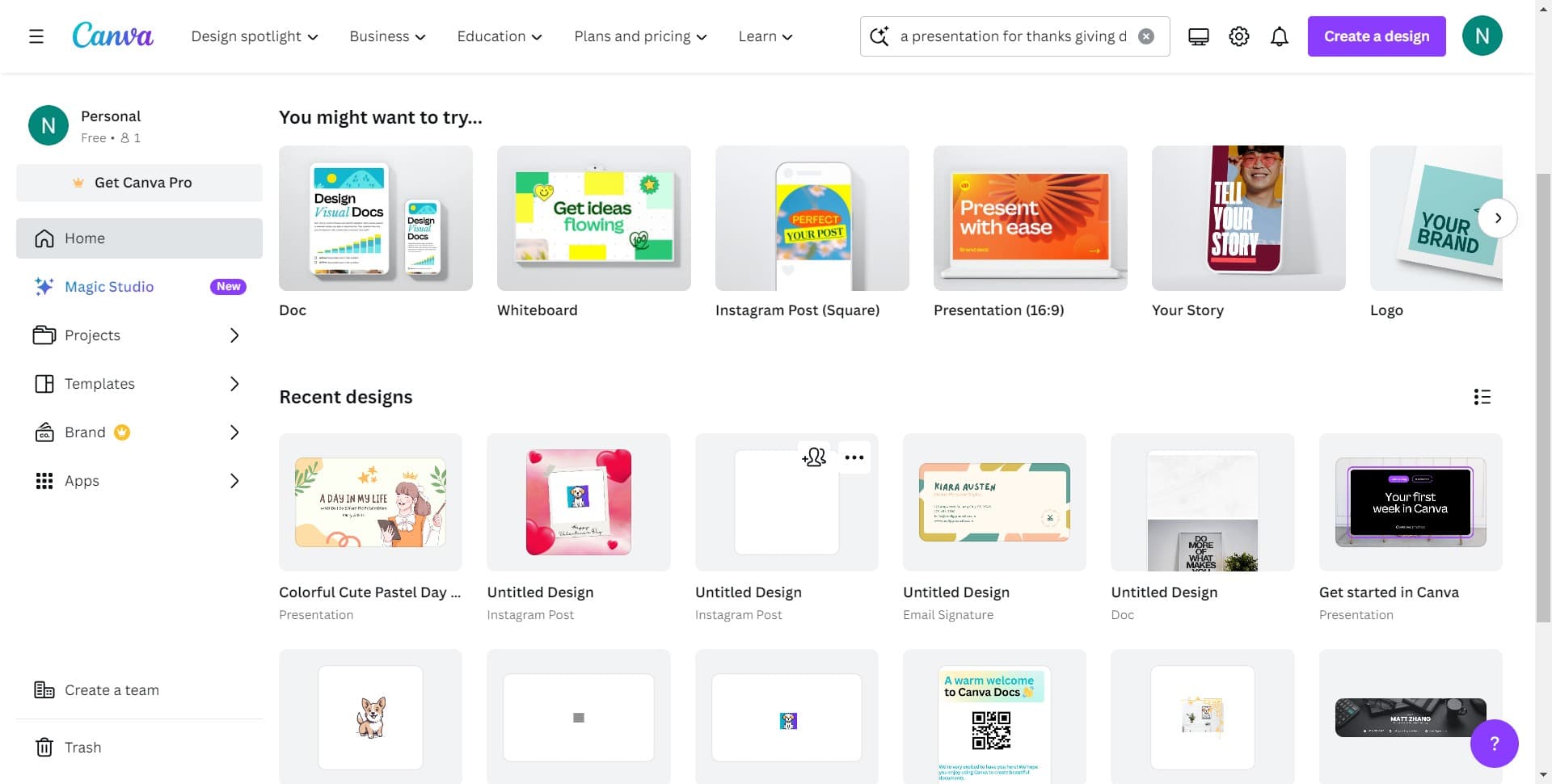
Start by clicking the Image option in the left sidebar or menu. This opens your image library where you can select or upload the photo you want to frame.
- 2
Click on Elements
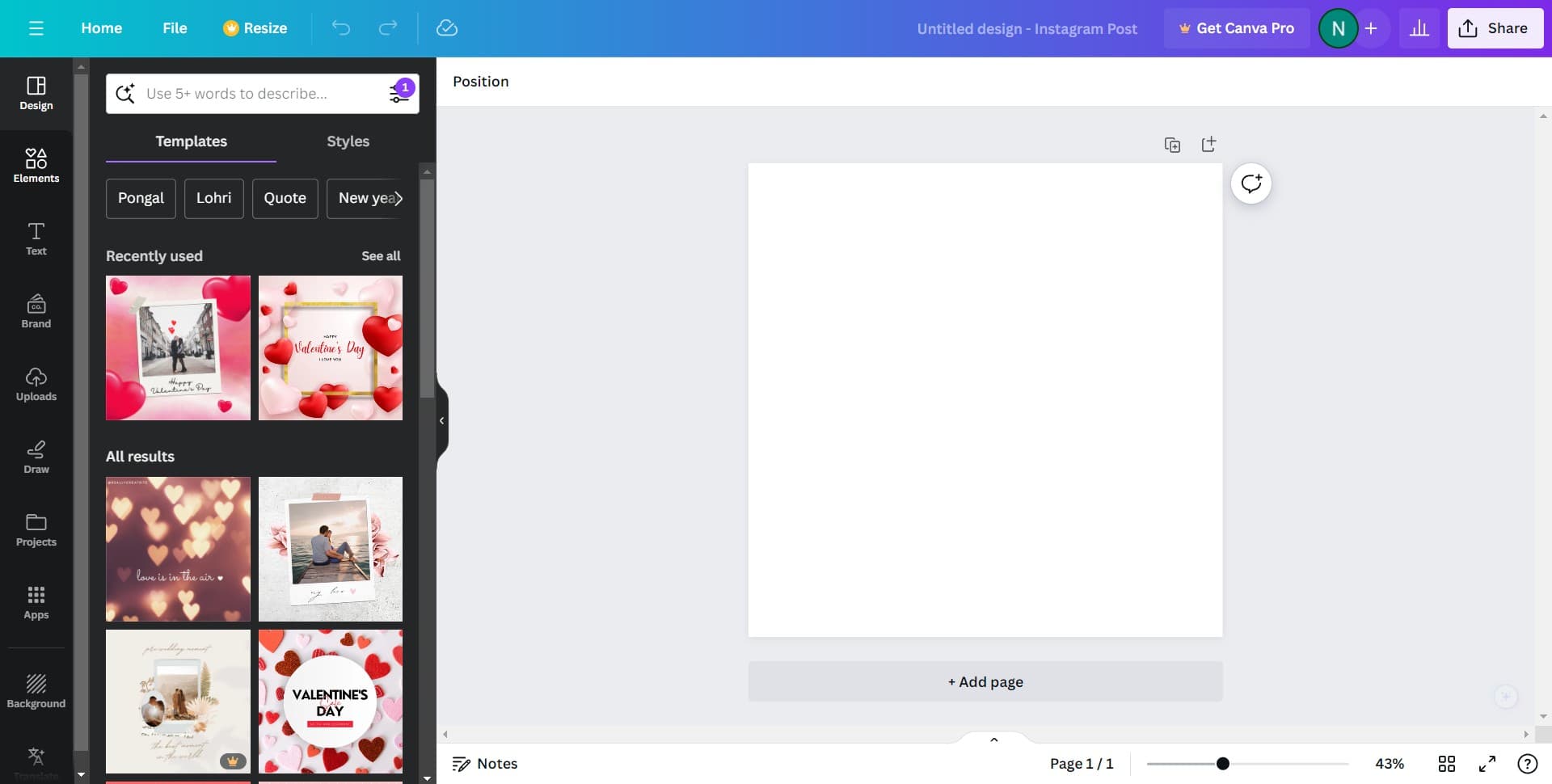
Next, click on Elements from the navigation menu. This gives you access to Canva's collection of design elements, including frames, shapes, and decorative components.
- 3
Navigate to frames section
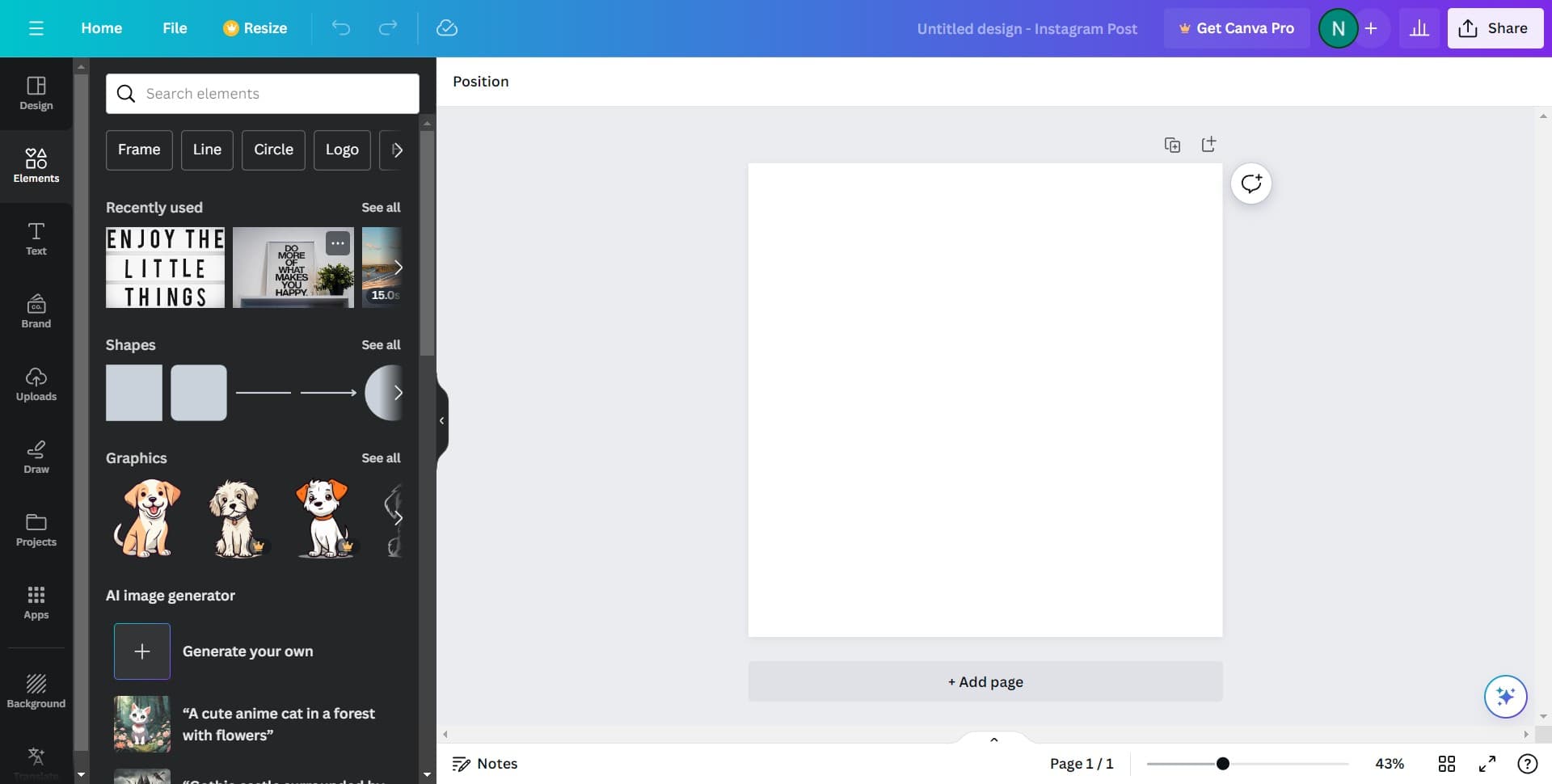
Click on the frames category within Elements to view the available frame options. You'll see a preview of different frame styles you can apply to your images.
- 4
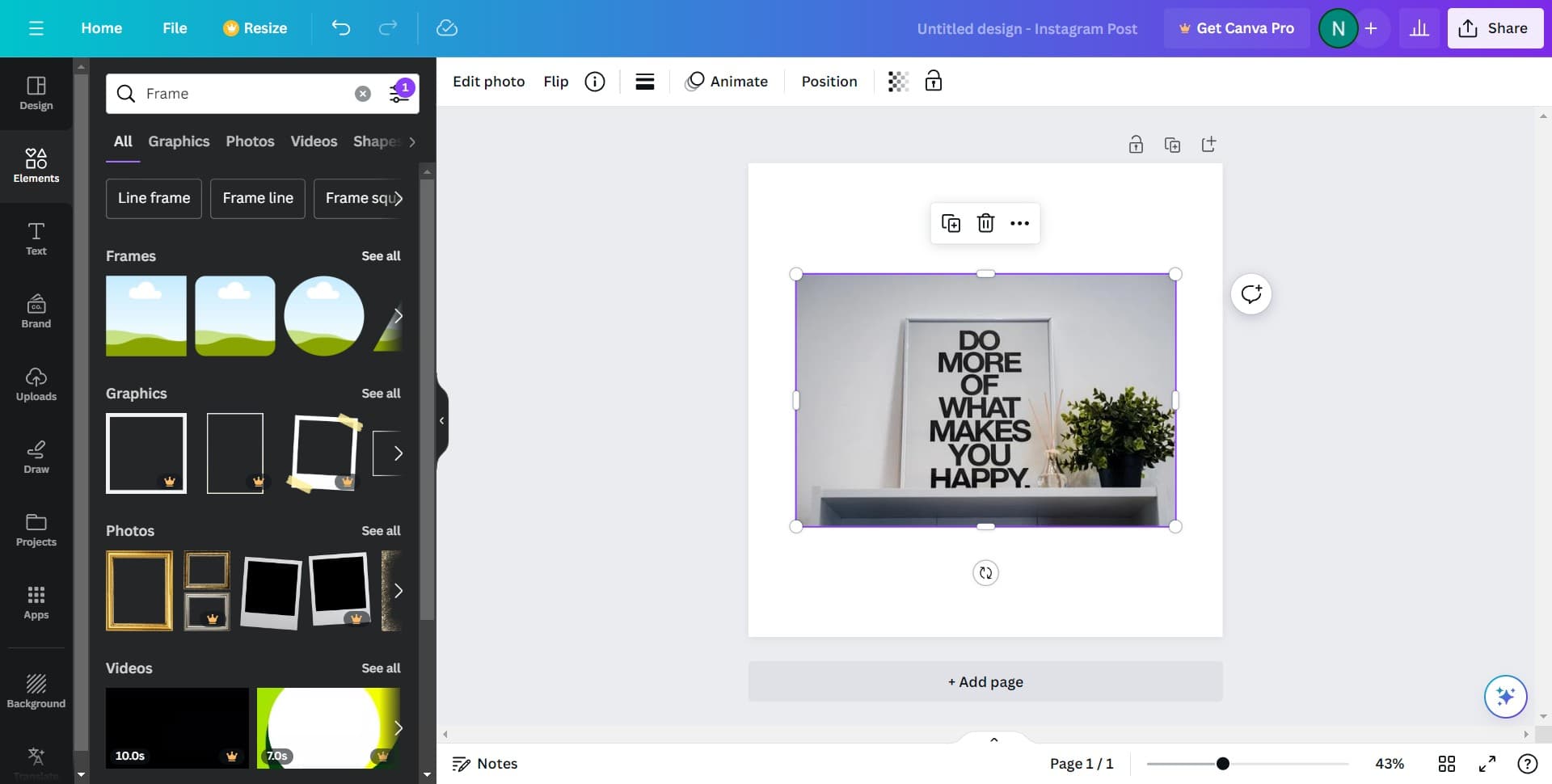
Click on Frame
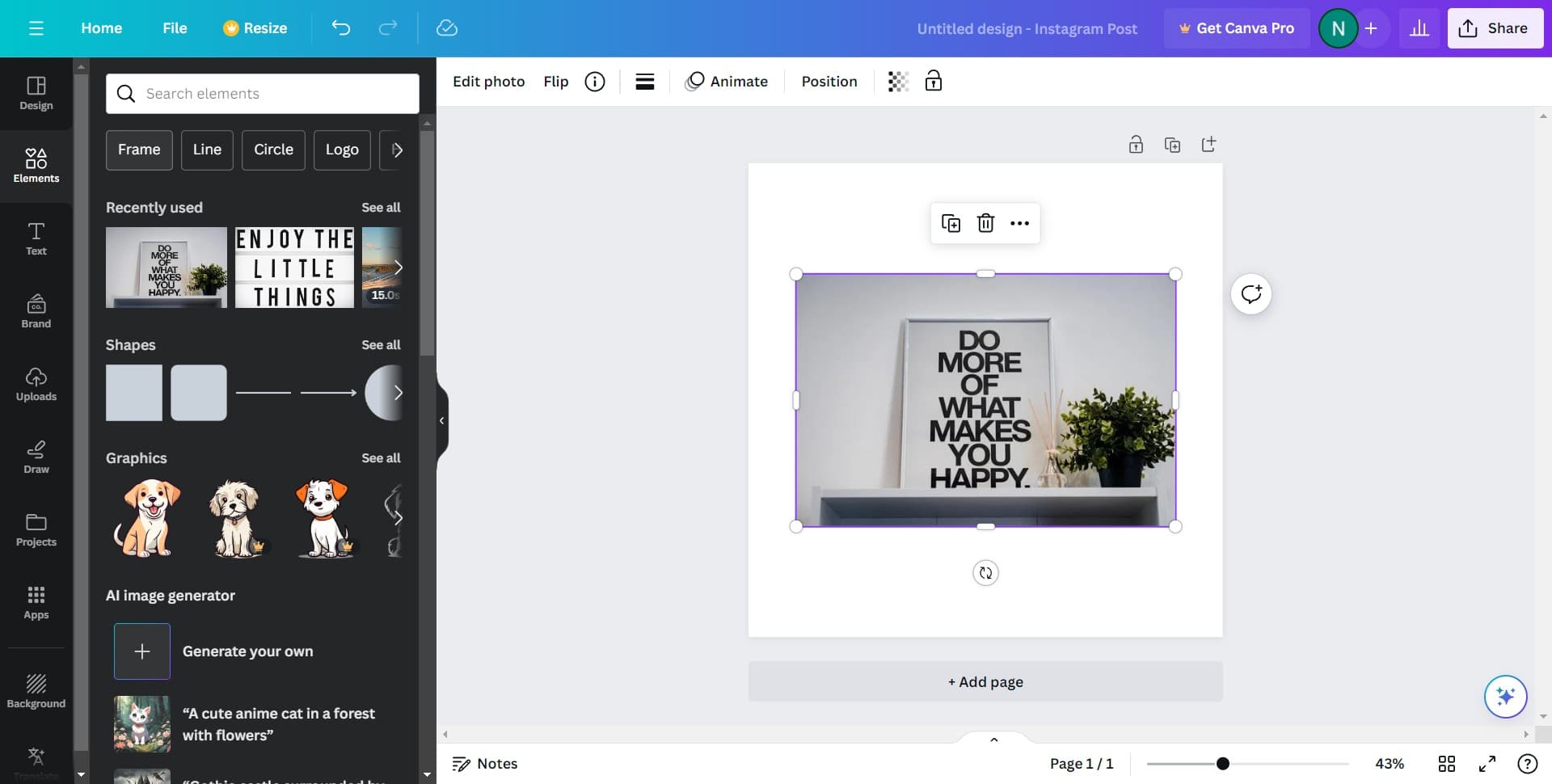
Select the Frame option to narrow down your choices to frame-specific elements. This filters the Elements menu to show only frame-related designs.
- 5
Click See all
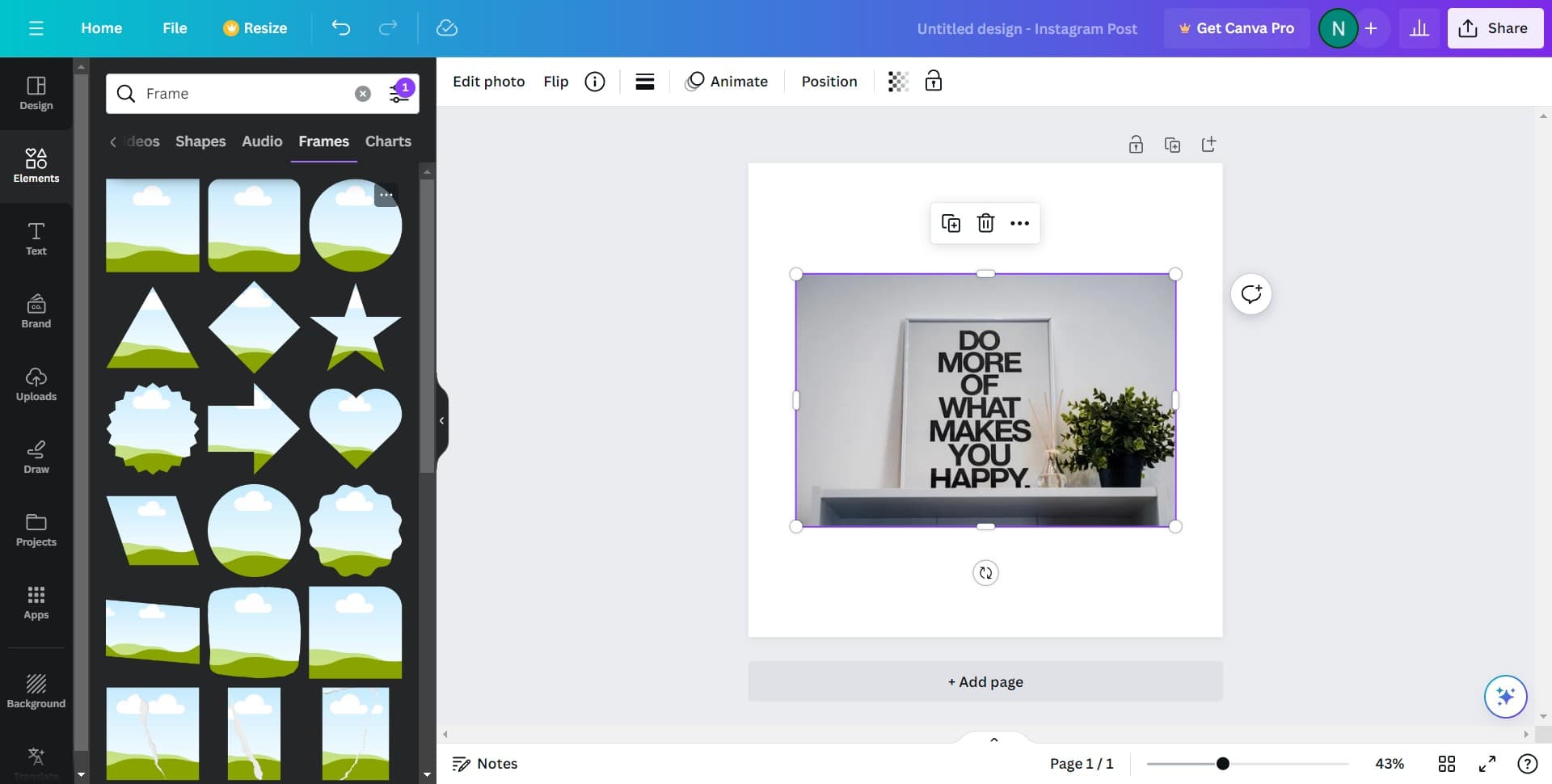
Click the See all button to expand and view Canva's complete frame library. This reveals all available frame styles, including various circle frame options.
- 6
Select your circle frame
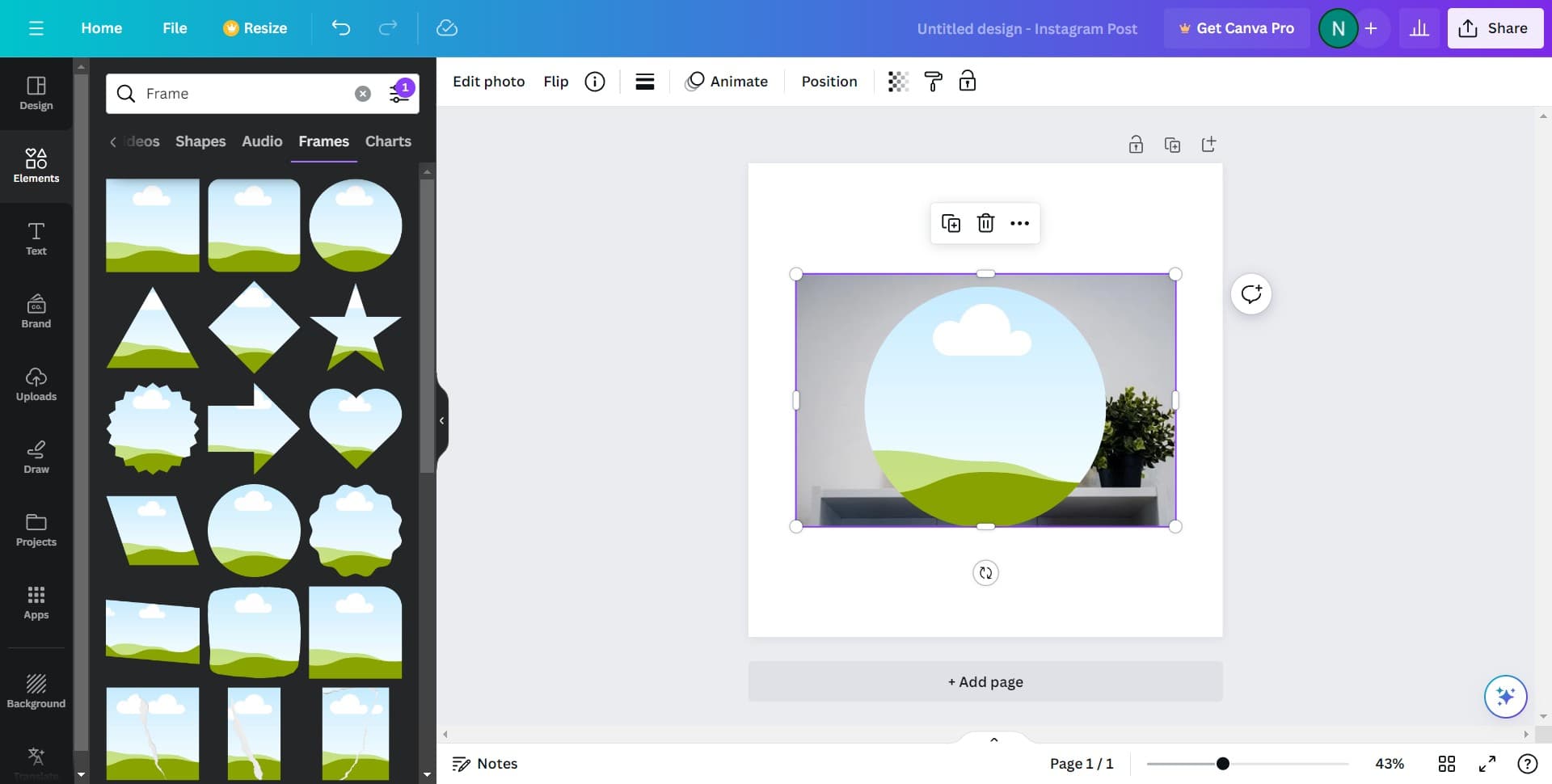
Browse through the frames and click on a circle frame design that matches your aesthetic. Canva will apply the frame to your selected image automatically.
- 7
Adjust and finalize
Use Canva's editing tools to resize, reposition, or customize the framed image as needed. Once satisfied with the result, you can download or publish your design.
Frequently asked questions
Common questions about how to fit the circle frame of your picture in canva.
Yes, after applying the circle frame, you can click and drag the corners or edges to resize it to fit your image perfectly. Canva also allows you to reposition the frame relative to your image using standard drag-and-drop controls.
Canva offers a variety of circle frame designs, from simple outlines to decorative styles with borders and patterns. When you click See all in the frames section, you'll be able to browse all available circle options and choose the one that best fits your design.
You can use any image format that Canva supports, including JPG, PNG, and GIF. Circle frames work with all standard image types, so you have flexibility in which photos or graphics you frame.
Many of Canva's circle frames allow color customization through the editing panel. Depending on the frame style you choose, you may be able to change the border color or background to match your brand or design theme.
Once you've applied and adjusted the circle frame to your liking, click the Download button in the top right corner of Canva. Select your preferred file format and quality settings, then save the image to your device.