How to make photo transparent in Canva

Making photos transparent in Canva is a powerful way to remove unwanted backgrounds and create professional designs. Whether you're designing social media graphics, presentations, or marketing materials, transparency allows your images to blend seamlessly with any background. This guide walks you through the straightforward process.
Quick summary
In this tutorial, you'll learn how to make a photo transparent in Canva by accessing the transparency tools and adjusting your image settings. You'll discover how to remove backgrounds and control opacity levels to achieve the exact look you need for your design project.
Why this matters
Transparent images are essential for creating polished, professional designs that work across multiple contexts. Removing backgrounds allows you to layer images creatively, avoid clashing colors, and maintain design consistency. Mastering this skill in Canva saves time and eliminates the need for external editing tools.
Step-by-step guide
- 1
Click here
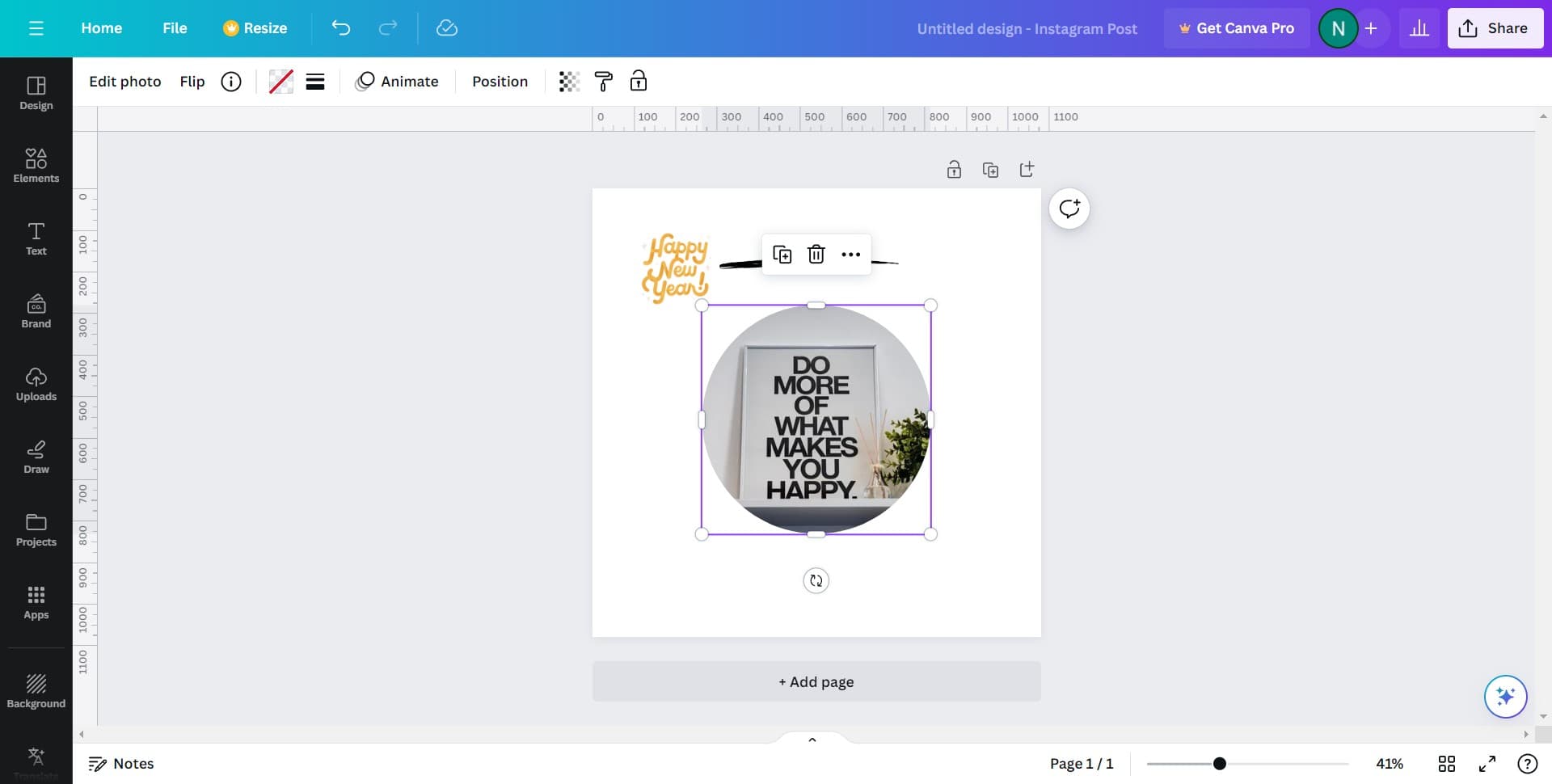
Start by selecting the photo you want to make transparent in your Canva design. This opens the image for editing and allows you to access the transparency options available in the toolbar.
- 2
Click here
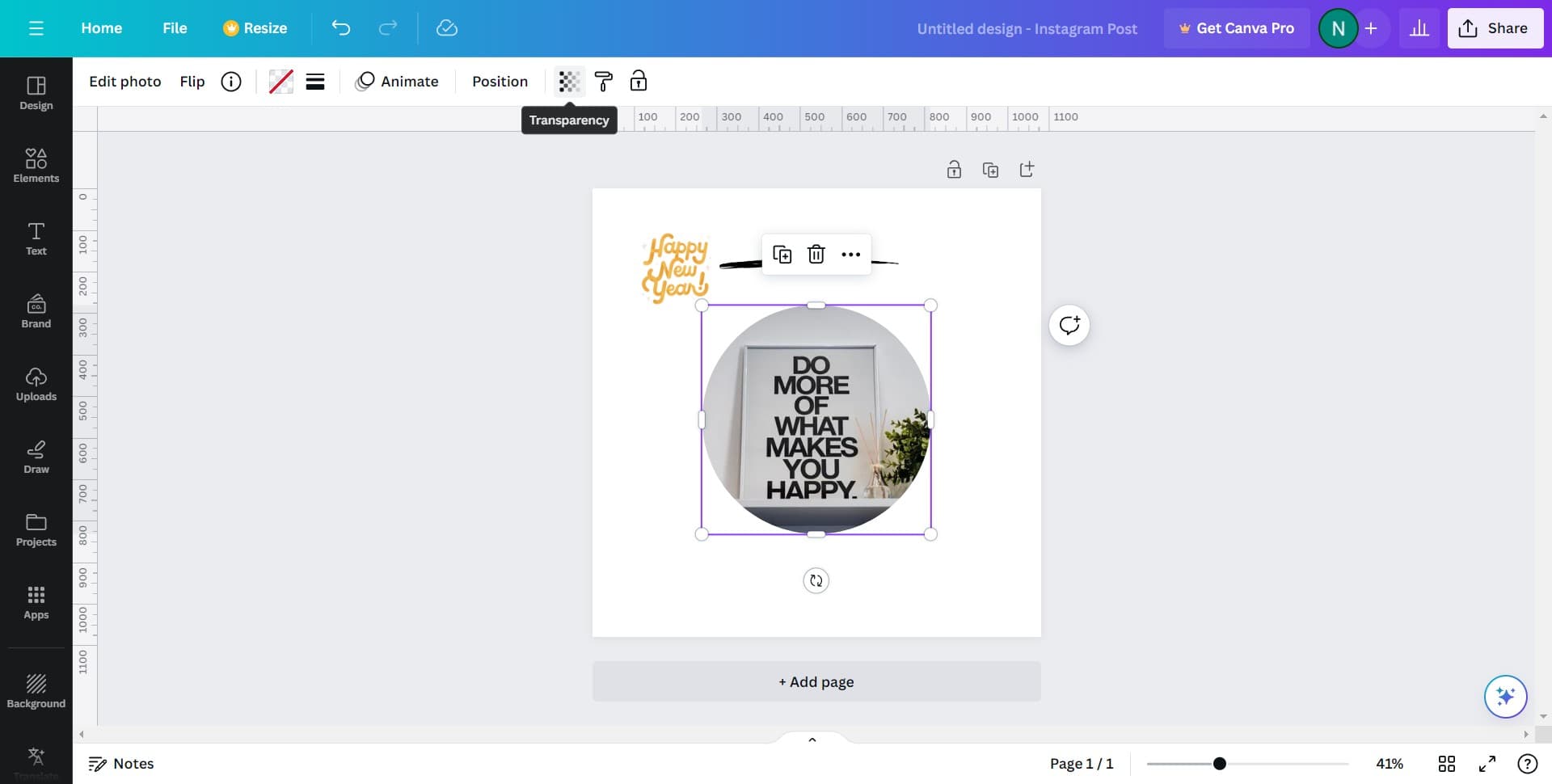
Navigate to the transparency or background removal tool from the menu. This tool will enable you to adjust the opacity of your image or remove its background entirely depending on your design needs.
- 3
Click here
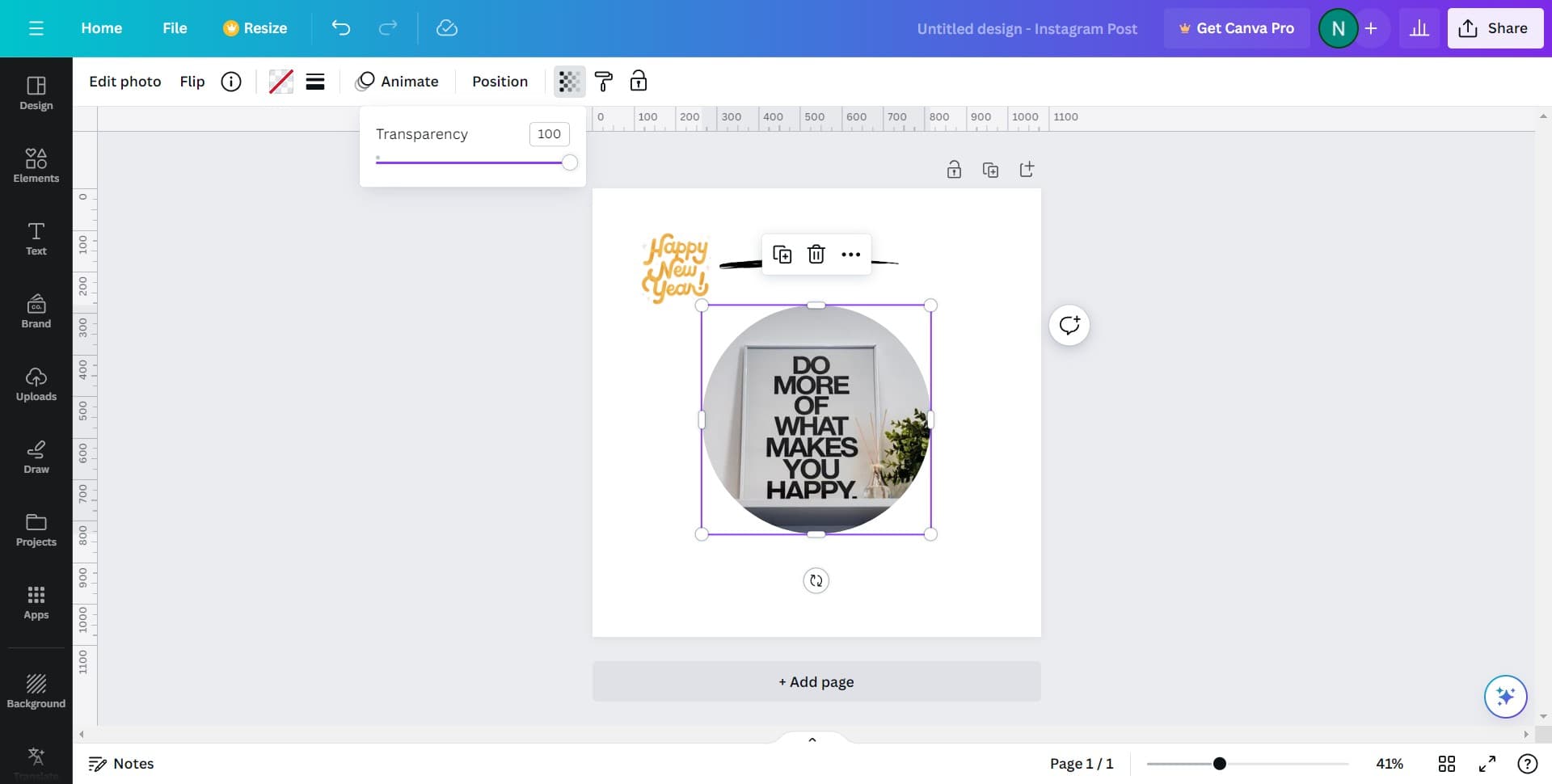
Adjust the transparency settings to your desired level by using the opacity slider or selecting the background removal option. You'll see real-time changes to your image as you make adjustments.
- 4
Click here
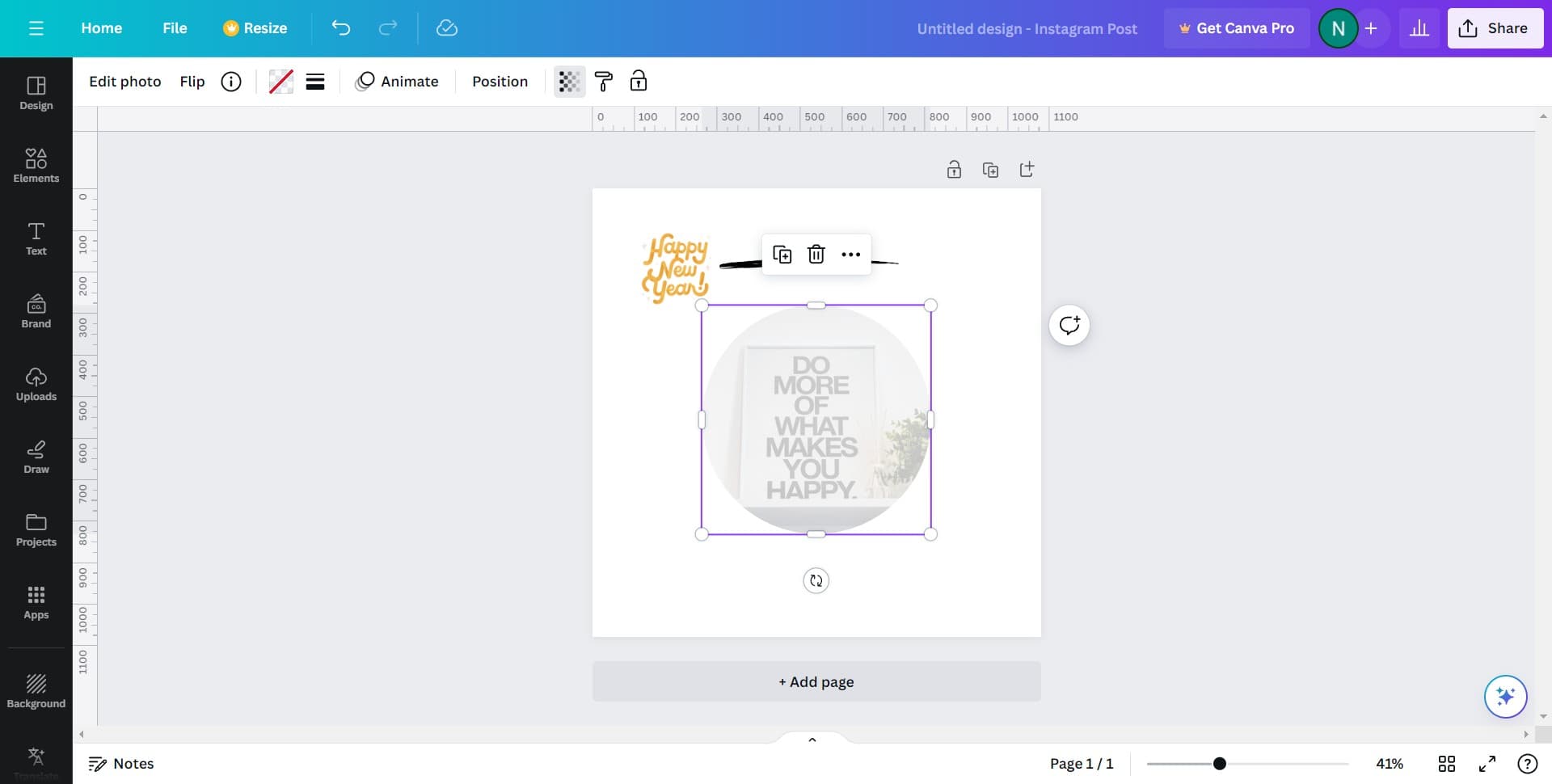
Confirm your changes and apply the transparency effect to finalize your edited image. Your photo is now ready to use in your design with the transparent background or adjusted opacity you selected.
Frequently asked questions
Common questions about how to make photo transparent in canva.
Yes, Canva's background remover tool intelligently detects and removes backgrounds automatically. If you need more precise control over specific areas, you can use the eraser tool to manually remove or adjust transparency on selected portions of your image.
Canva supports most common image formats including PNG, JPG, and WebP. For best results with transparency, save your final design as a PNG file, which preserves transparent backgrounds. JPG format does not support transparency, so keep that in mind when exporting.
Yes, you can use Canva's undo function by pressing Ctrl+Z (or Cmd+Z on Mac) to revert any transparency changes. You can also click on the image again and adjust the transparency settings to restore the original appearance.
The automatic background removal works best on images with clear subject separation from the background. Complex images with similar colors between subject and background may require manual adjustments using the eraser or brush tools for better results.
When exporting, save your design as a PNG file to preserve transparency. Go to the download option, select PNG as your file format, and choose the appropriate quality settings. This ensures your transparent images maintain their transparency in the final file.