How to save a design in Canva

Saving your design work in Canva ensures that all your changes are preserved and can be accessed later. Whether you're working on a social media graphic, presentation, or marketing material, knowing how to properly save your design is essential for protecting your work.
Quick summary
In this tutorial, you'll learn how to save a design in Canva by accessing the File menu and confirming your save action. By the end, you'll understand the straightforward process to preserve all your edits and keep your designs secure.
Why this matters
Regularly saving your designs prevents accidental loss of work due to unexpected interruptions or technical issues. In a professional workflow, maintaining saved versions of your designs ensures you can return to your work at any time and collaborate with team members effectively.
Step-by-step guide
- 1
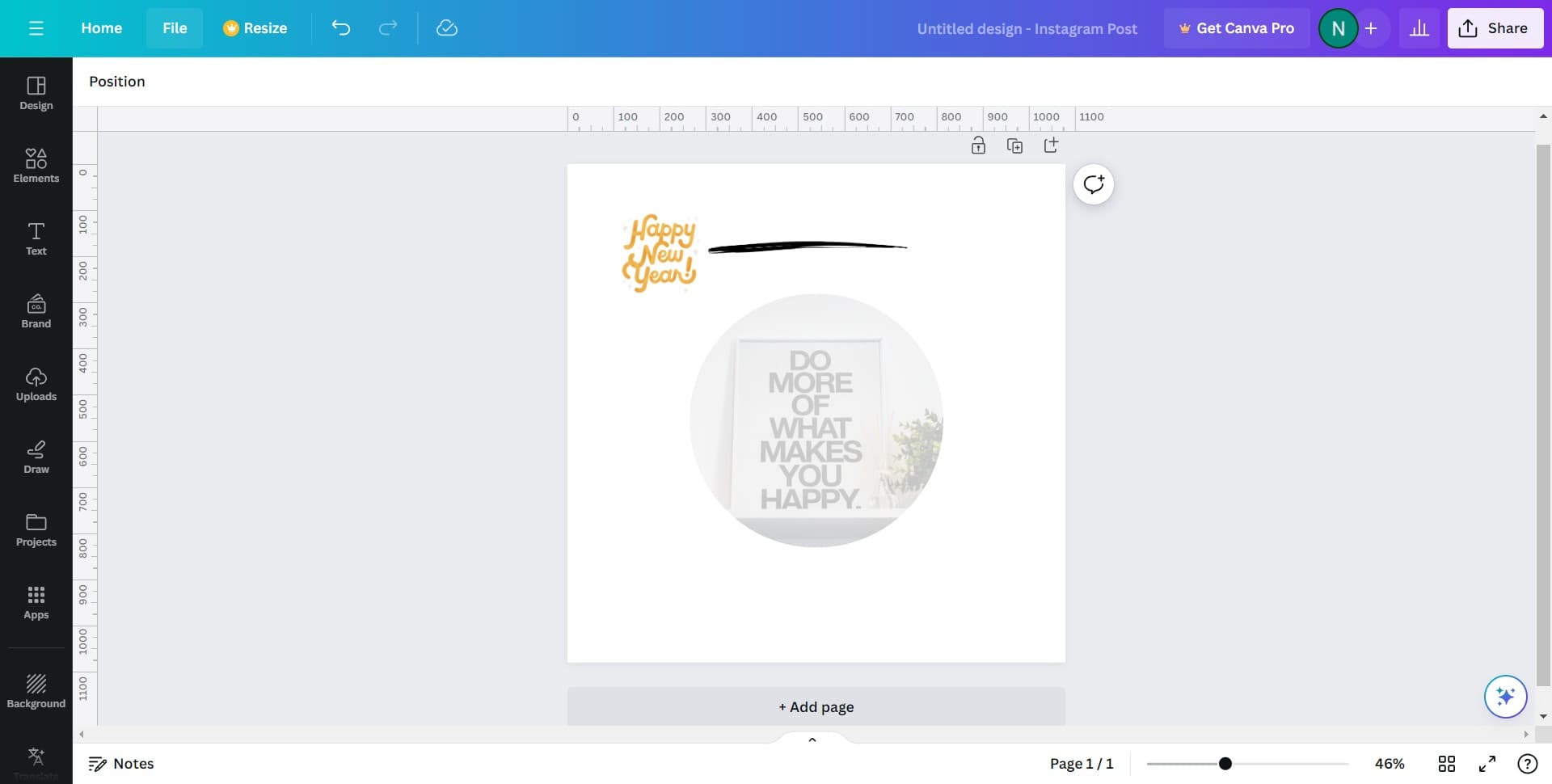
Click on the File menu
Locate and click on the "File" option in the top menu bar of your Canva workspace. This opens the File menu where you'll find various options related to managing your design document.
- 2
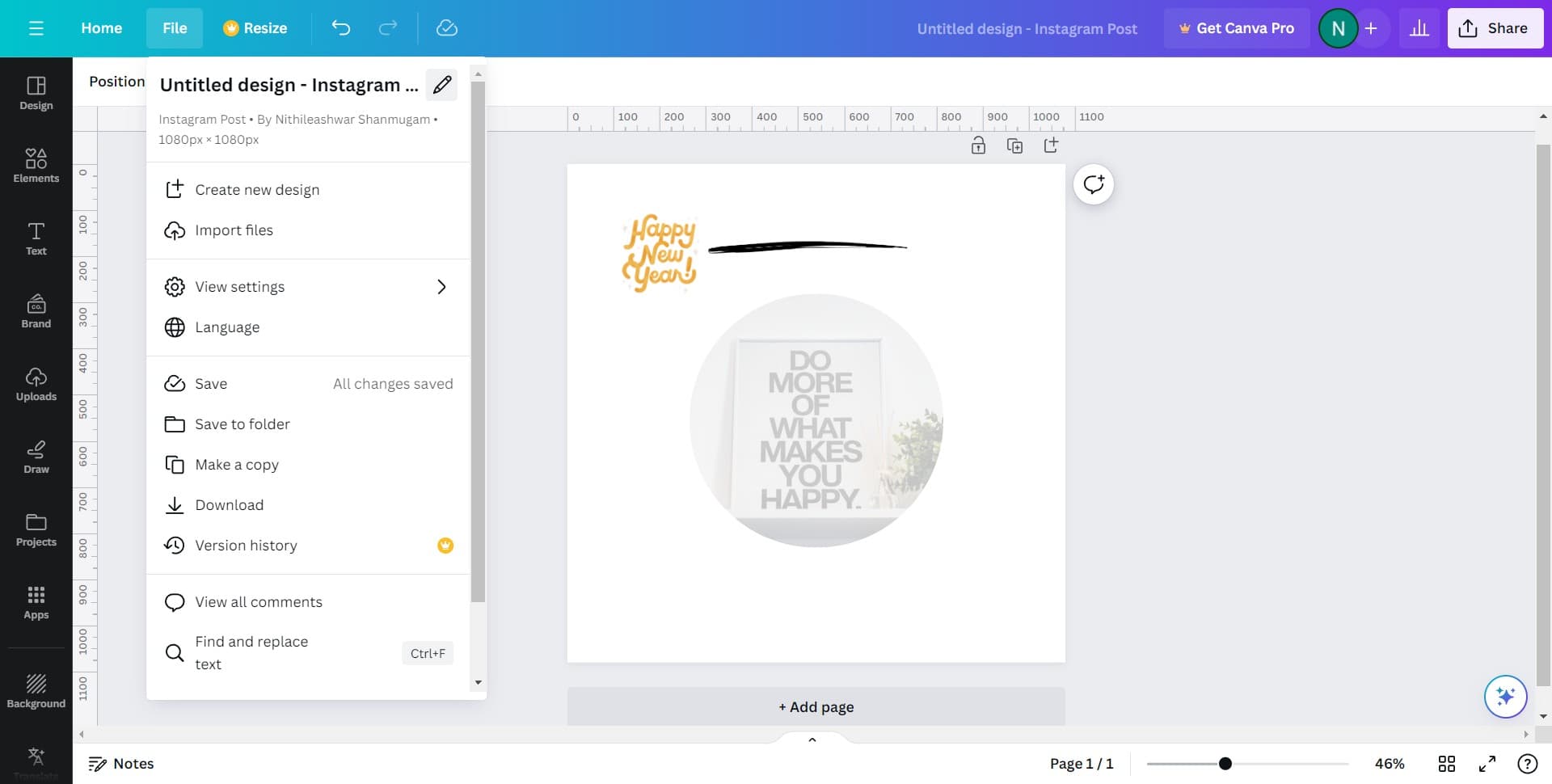
Select the save option
From the File menu dropdown, click on the save option. This action initiates the save process for your current design.
- 3
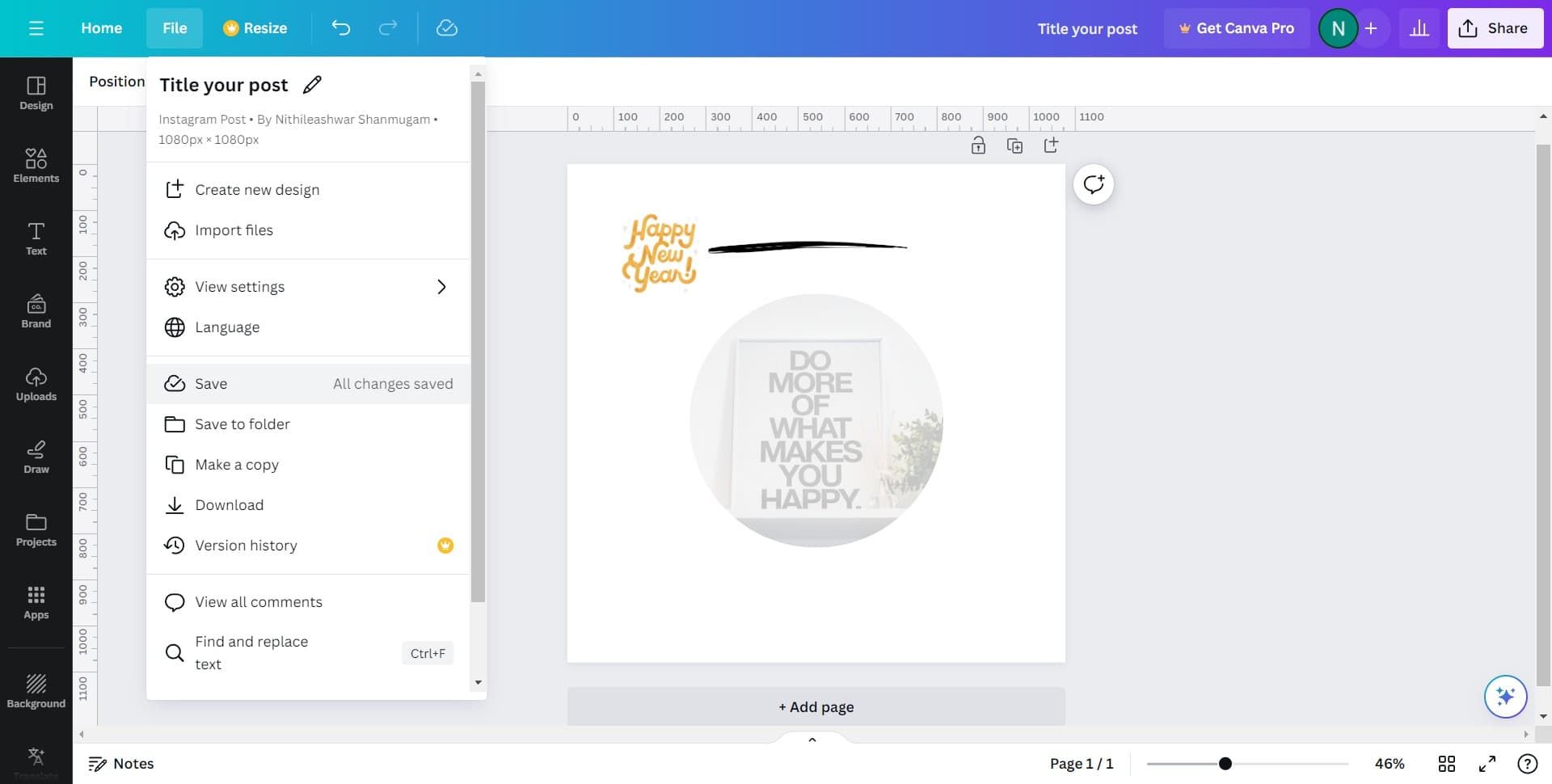
Confirm your save
After clicking save, you'll see a confirmation message stating "All changes saved." This confirms that your design has been successfully saved with all the edits you've made.
Frequently asked questions
Common questions about how to save a design in canva.
Canva does auto-save your work as you make changes, but it's still good practice to manually save using the File menu to ensure all changes are definitely preserved. The explicit save action provides confirmation that your work is secured.
While Canva's auto-save feature typically preserves your work, not manually saving could result in losing recent edits if there's a connection issue or unexpected interruption. Always save your design to guarantee your work is protected.
Yes, Canva allows you to duplicate designs and save them with different names. This way, you can keep multiple versions of your design for comparison or backup purposes without overwriting the original.
All your saved designs are stored in your Canva account and accessible from your dashboard. You can access them anytime by logging into Canva from any device with an internet connection.
Yes, beyond saving within Canva, you can download your design to your computer in formats like PNG, PDF, or SVG. Go to File and look for the download or export option to save a file locally.