How to save my design in Canva

Saving your design in Canva ensures your work is preserved and ready to share or print. Whether you're creating social media graphics, presentations, or marketing materials, knowing how to properly export your design is essential. This guide walks you through the download process step by step.
Quick summary
In this tutorial, you'll learn how to save and download your Canva design in the optimal format for sharing. You'll navigate through Canva's download options, select the best file format, and complete the export process. By the end, your design will be saved and ready to use across any platform.
Why this matters
Properly saving your Canva design ensures you can reuse it, share it with others, or print it without quality loss. Choosing the right file format—like PNG for sharing—guarantees your design looks professional across different devices and platforms. Having a clear download workflow prevents accidental loss of work and streamlines your design process.
Step-by-step guide
- 1
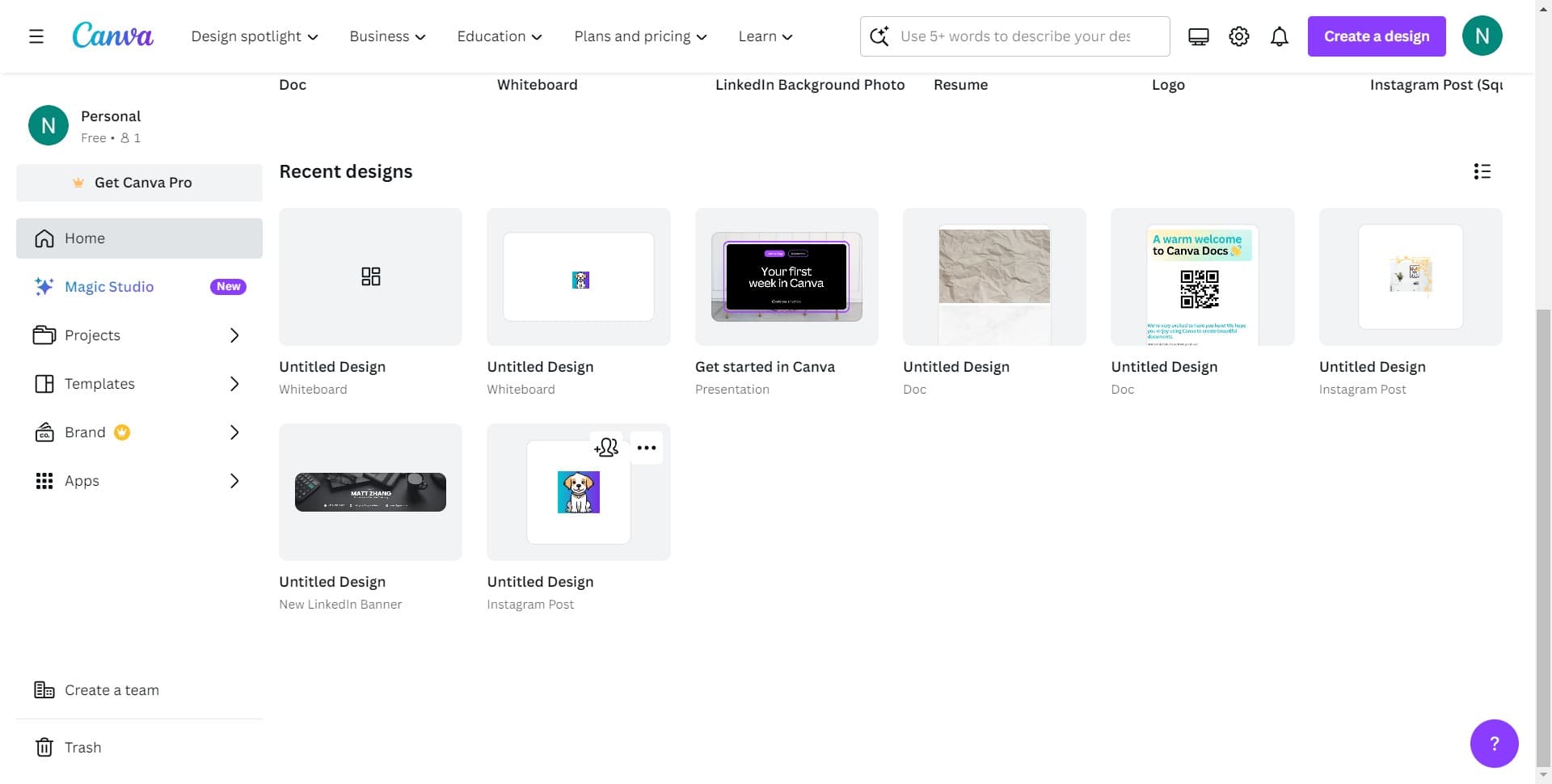
Click on Image
Start by locating and clicking the 'Image' option in Canva's menu. This will open the media or file options available for your current design.
- 2
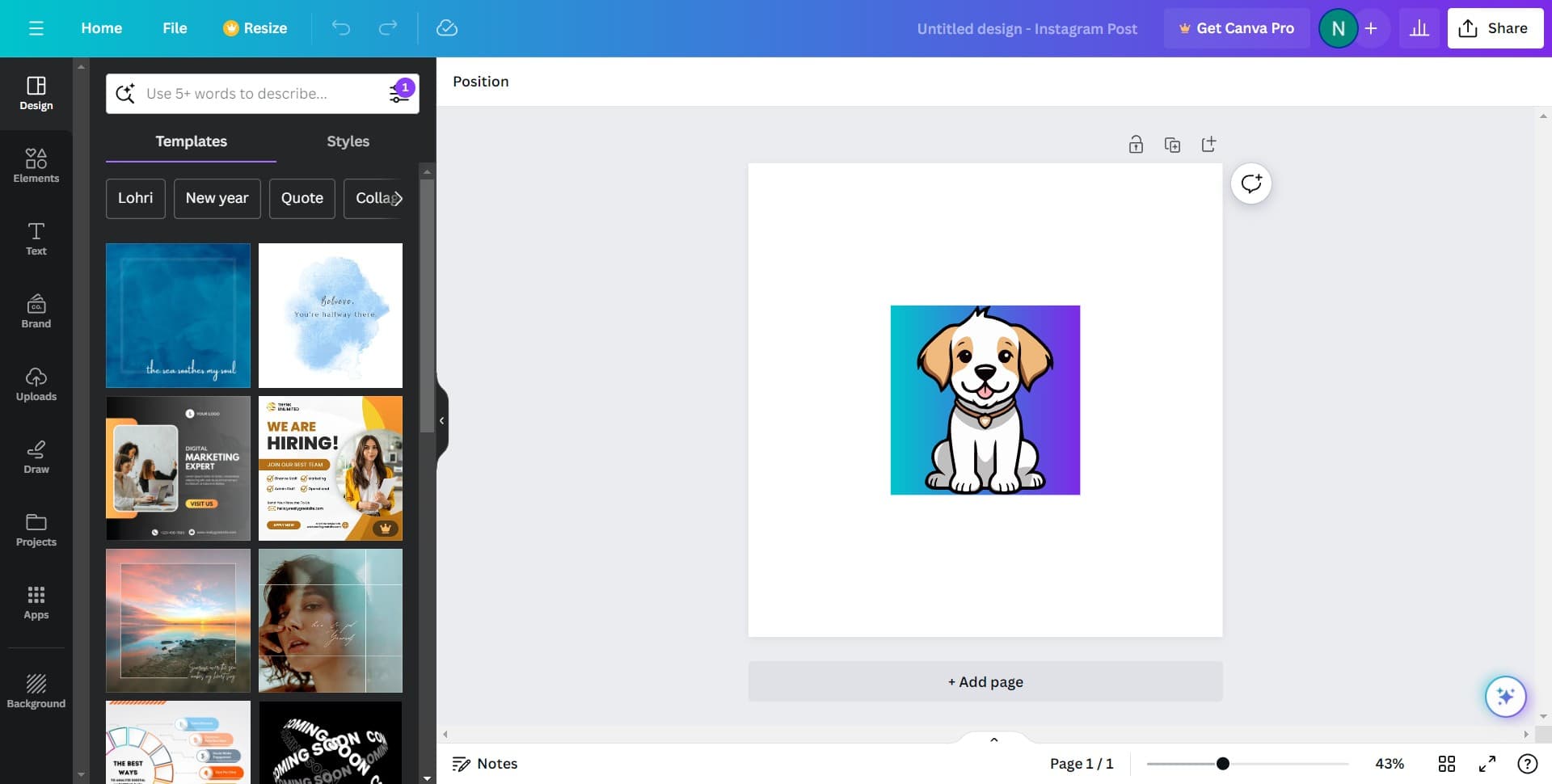
Click on Share
Select the 'Share' button to access sharing and export options. This menu contains all the ways you can distribute or save your design.
- 3
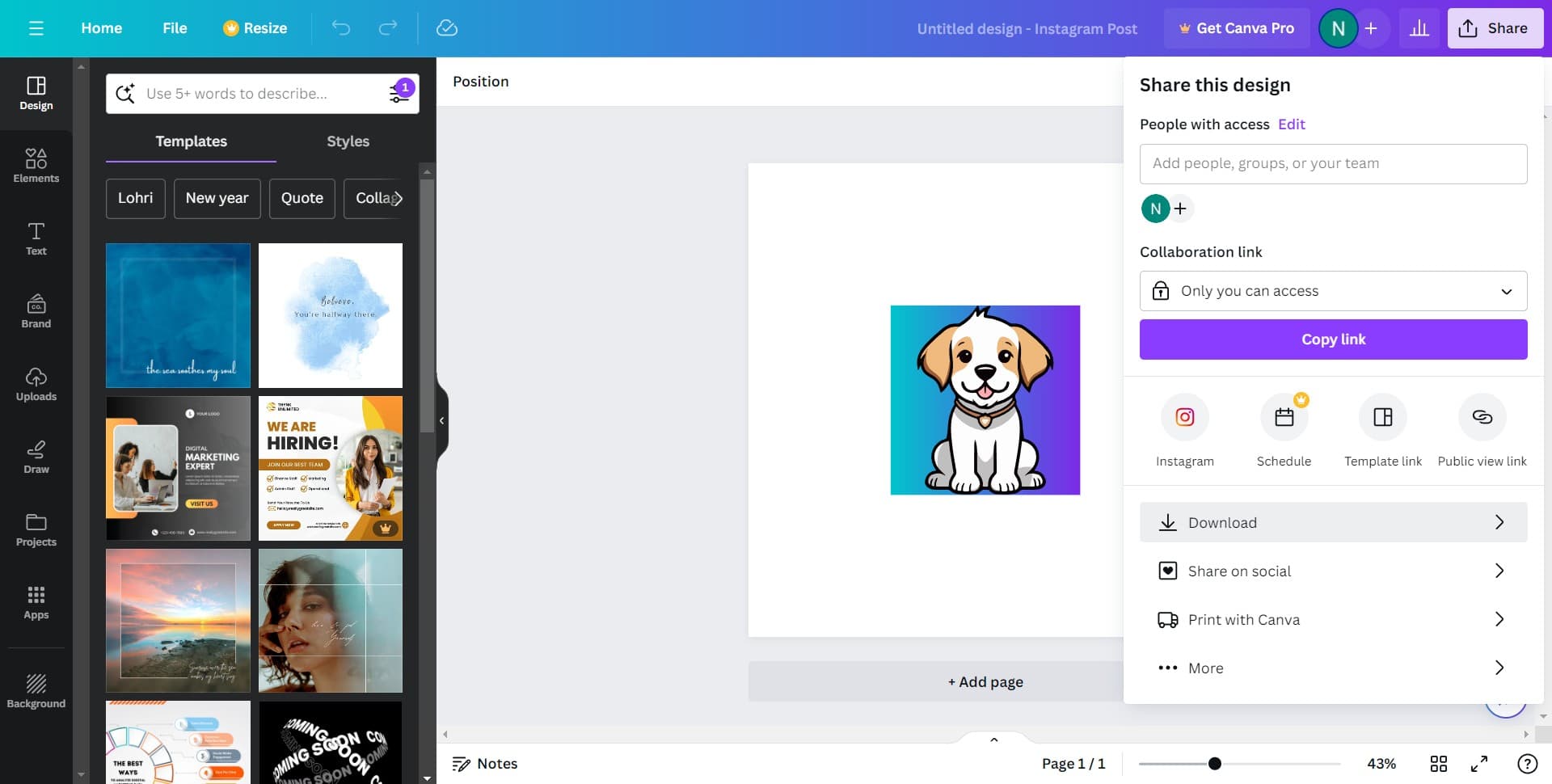
Click Download
Click the 'Download' button to begin the export process. Canva will prepare your design for download and present you with format options.
- 4
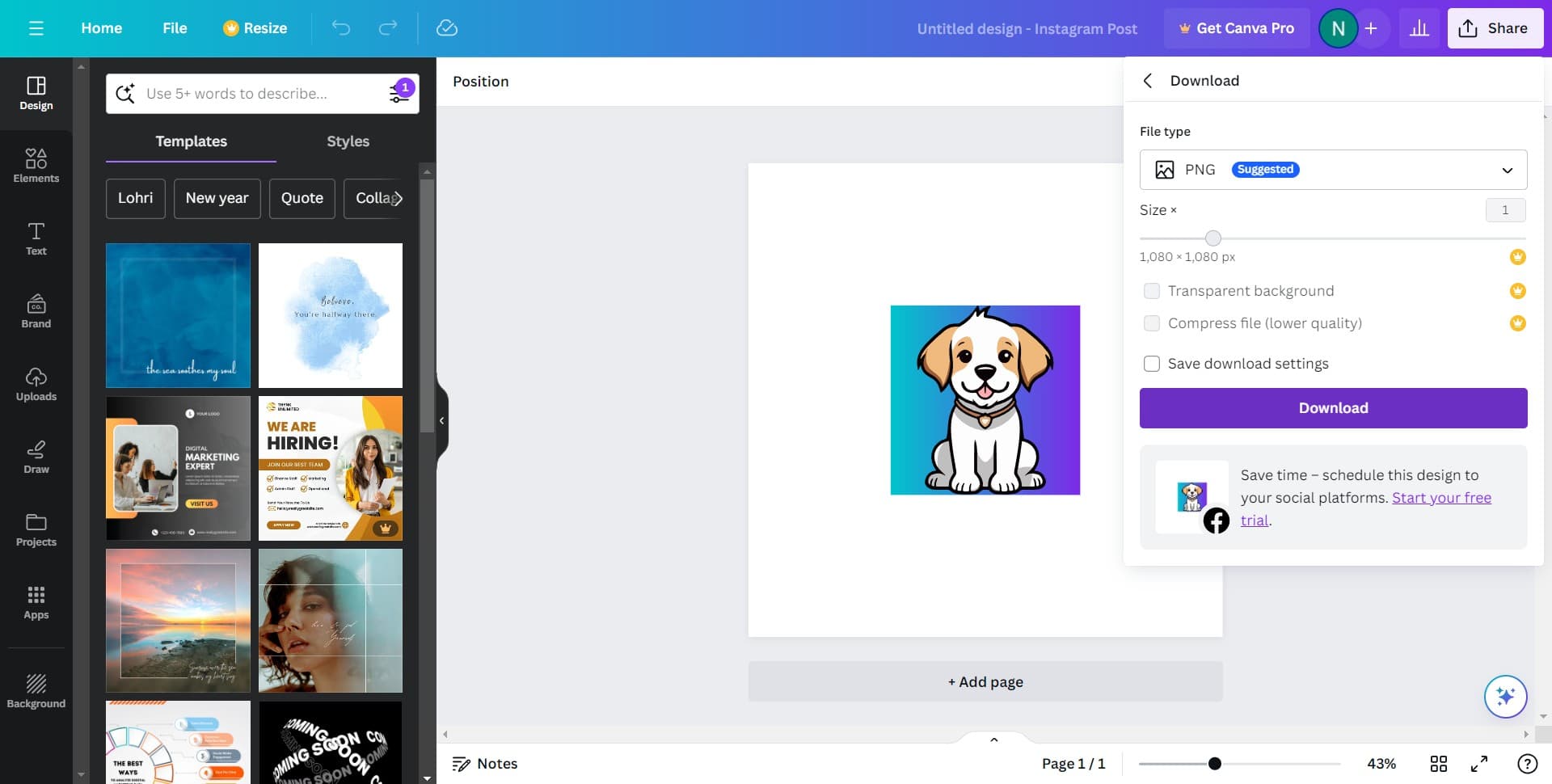
Click Download again
Confirm your download action by clicking 'Download' a second time. This step finalizes your choice and moves you to the format selection screen.
- 5
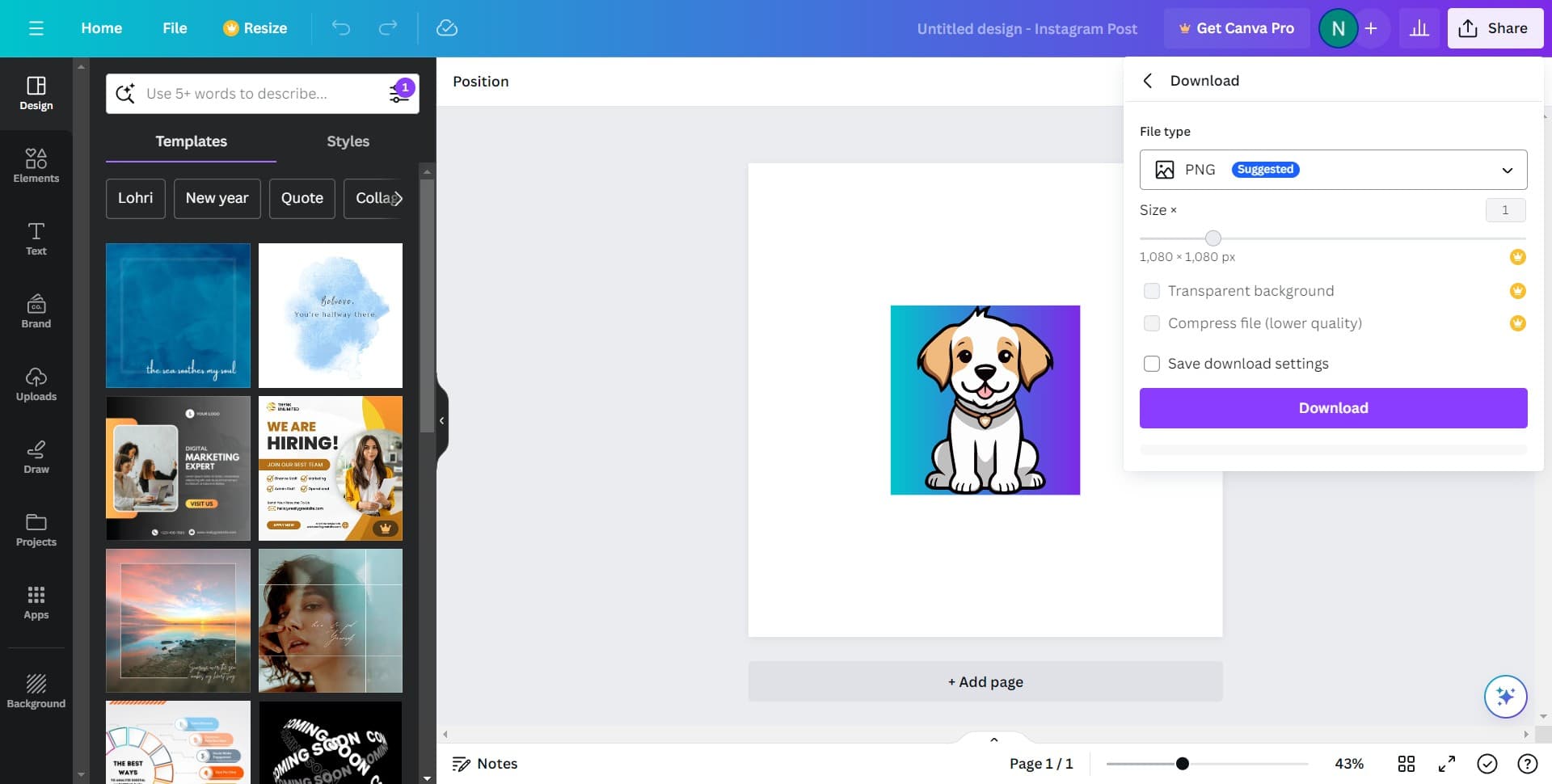
Select PNG Suggested
Choose the 'PNG Suggested' option, which Canva recommends for most designs. PNG format preserves image quality and supports transparency, making it ideal for digital use.
- 6
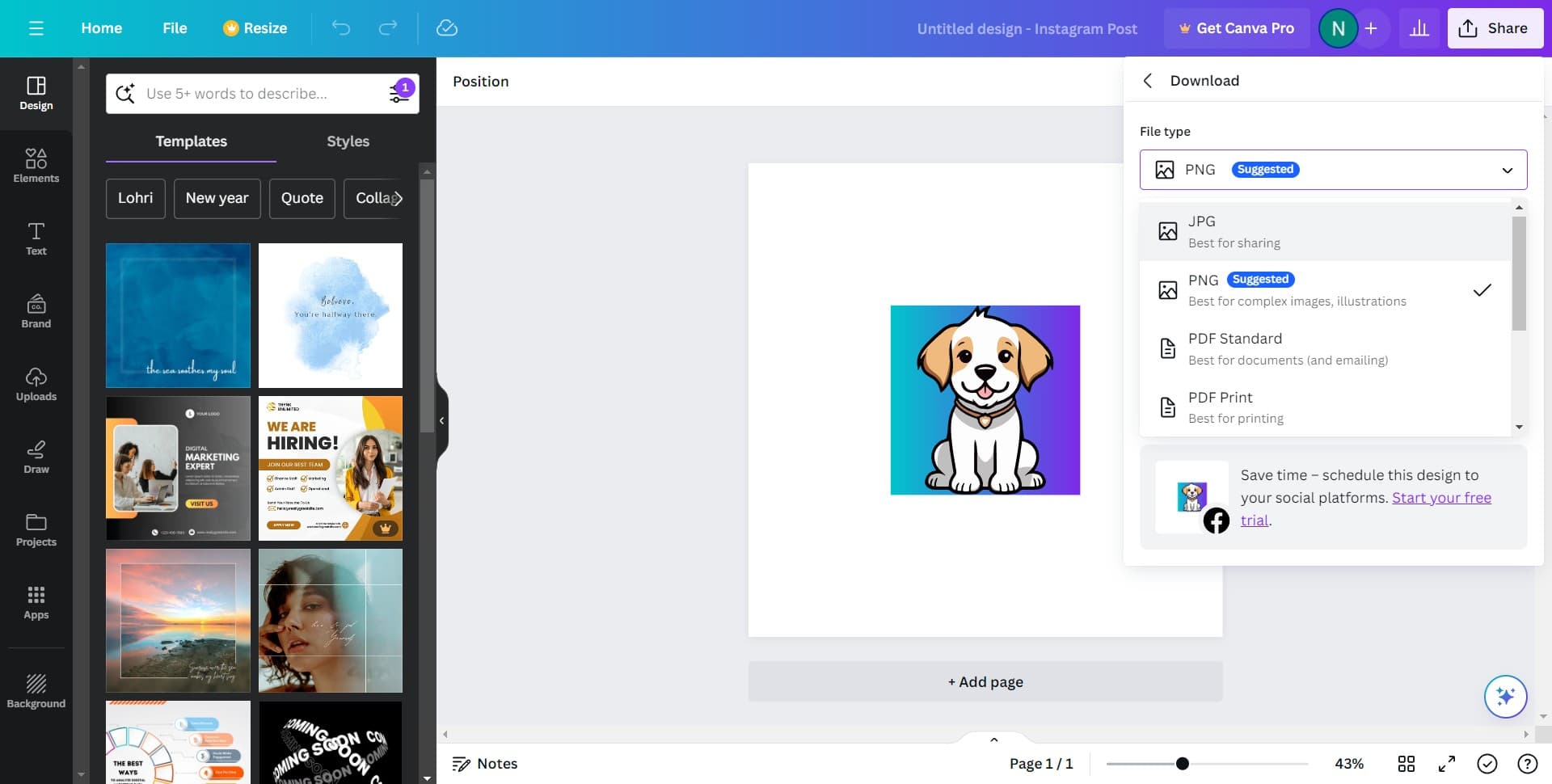
Select Best for sharing
Click on 'Best for sharing' to optimize your PNG file for web and social media platforms. This setting ensures your design displays clearly when shared online.
- 7
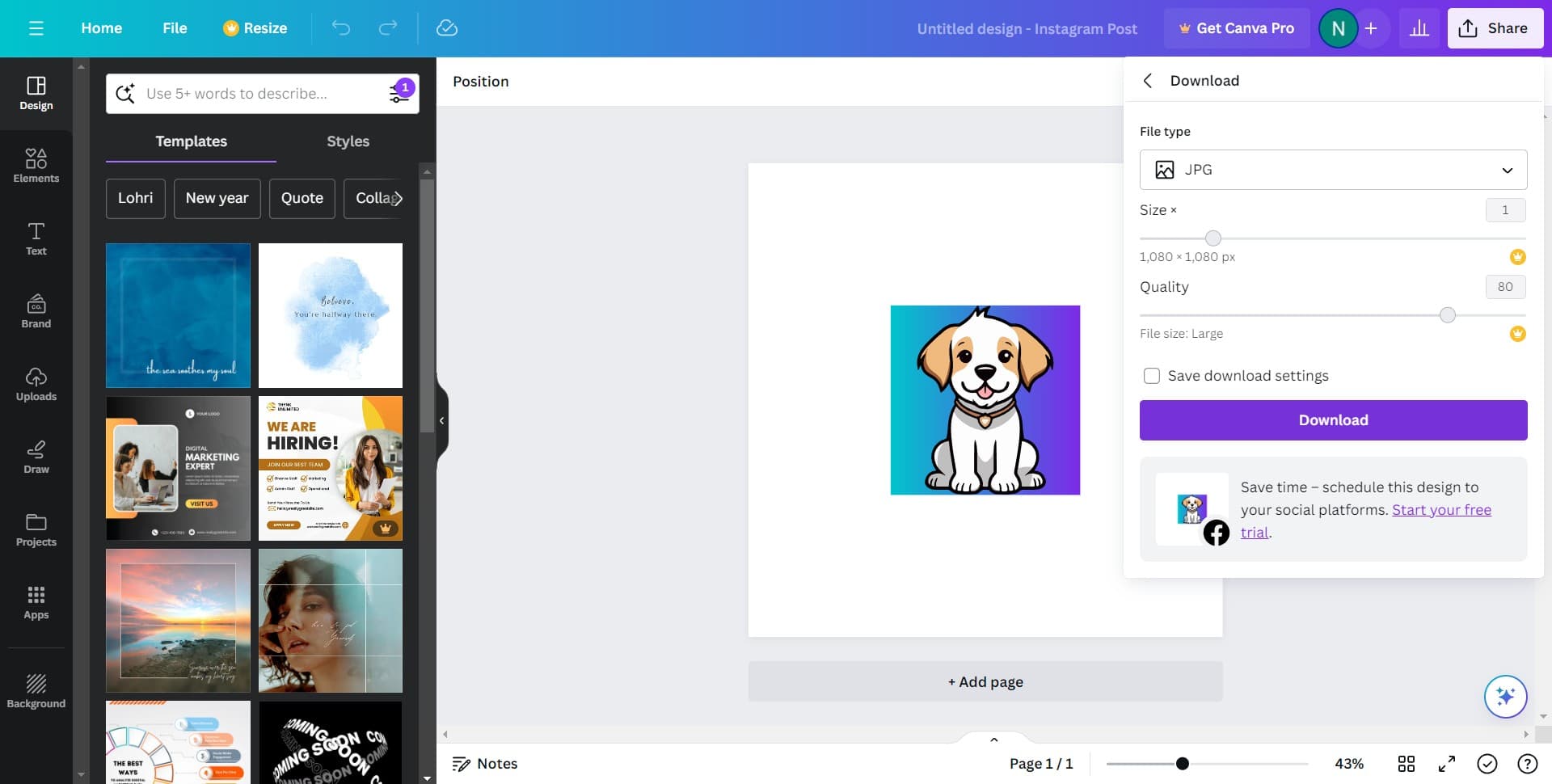
Complete the download
Click the final 'Download' button to save your optimized design file to your device. Your design is now ready to use, share, or upload wherever you need it.
Frequently asked questions
Common questions about how to save my design in canva.
PNG is best for digital sharing and web use because it preserves quality and supports transparent backgrounds. JPG is more compressed, making it better for photographs. PDF is ideal when you need to maintain exact dimensions for printing. Choose based on where and how you'll use your design.
Yes, Canva automatically saves your design to your account as you work. You can access it anytime by logging back in. Downloading creates a file on your device, which is necessary if you want to share it via email, upload it elsewhere, or use it offline.
PNG format maintains high quality when downloaded from Canva. The 'Best for sharing' setting is specifically optimized to balance quality with file size for social media and web use. Your design will look sharp on most screens and platforms.
Check that pop-ups aren't blocked in your browser settings, as downloads may be prevented by pop-up blockers. Refresh the page and try the download again. If issues persist, try a different browser or clear your browser cache.
Once downloaded, the PNG file is a static image and cannot be edited like the original Canva design. To make edits, return to your design in Canva, make changes, and download again. Keep your design open in Canva for future modifications.