How to share a design in Canva

Sharing designs in Canva is essential for collaborating with team members, getting feedback, or allowing others to view your work. This guide walks you through the process of generating and sharing a link to your Canva design with specific access controls.
Quick summary
In this tutorial, you'll learn how to share a Canva design by accessing the share settings, configuring access permissions, and copying a shareable link. By the end, you'll be able to control who can view your design and distribute it securely.
Why this matters
Sharing designs efficiently saves time and enables better collaboration across teams and projects. Managing access permissions ensures your work remains secure while allowing the right people to view, comment on, or iterate on your designs.
Step-by-step guide
- 1
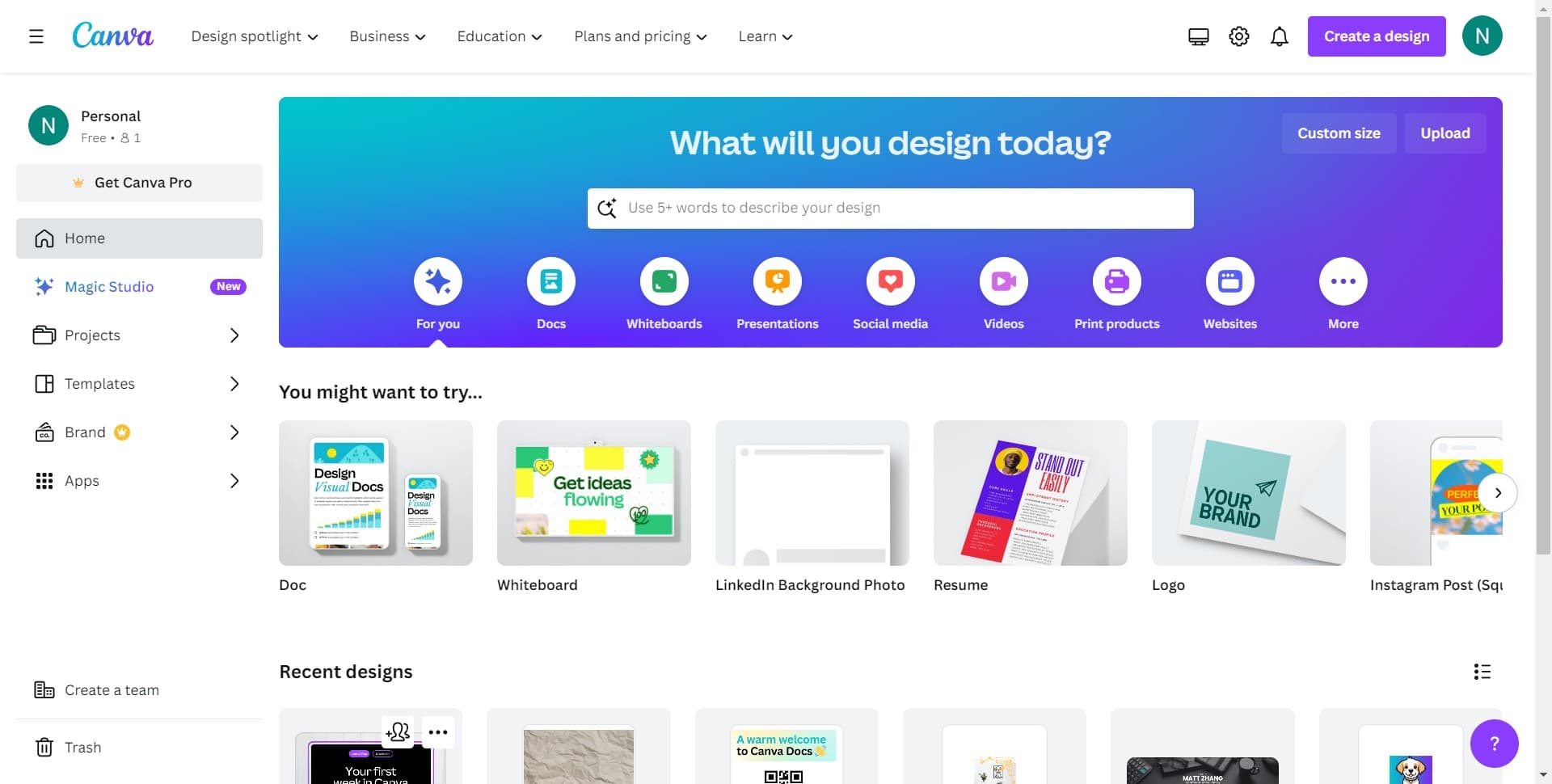
Open your design file
Start by ensuring you have your design open in Canva. This will be the design you want to share with others.
- 2
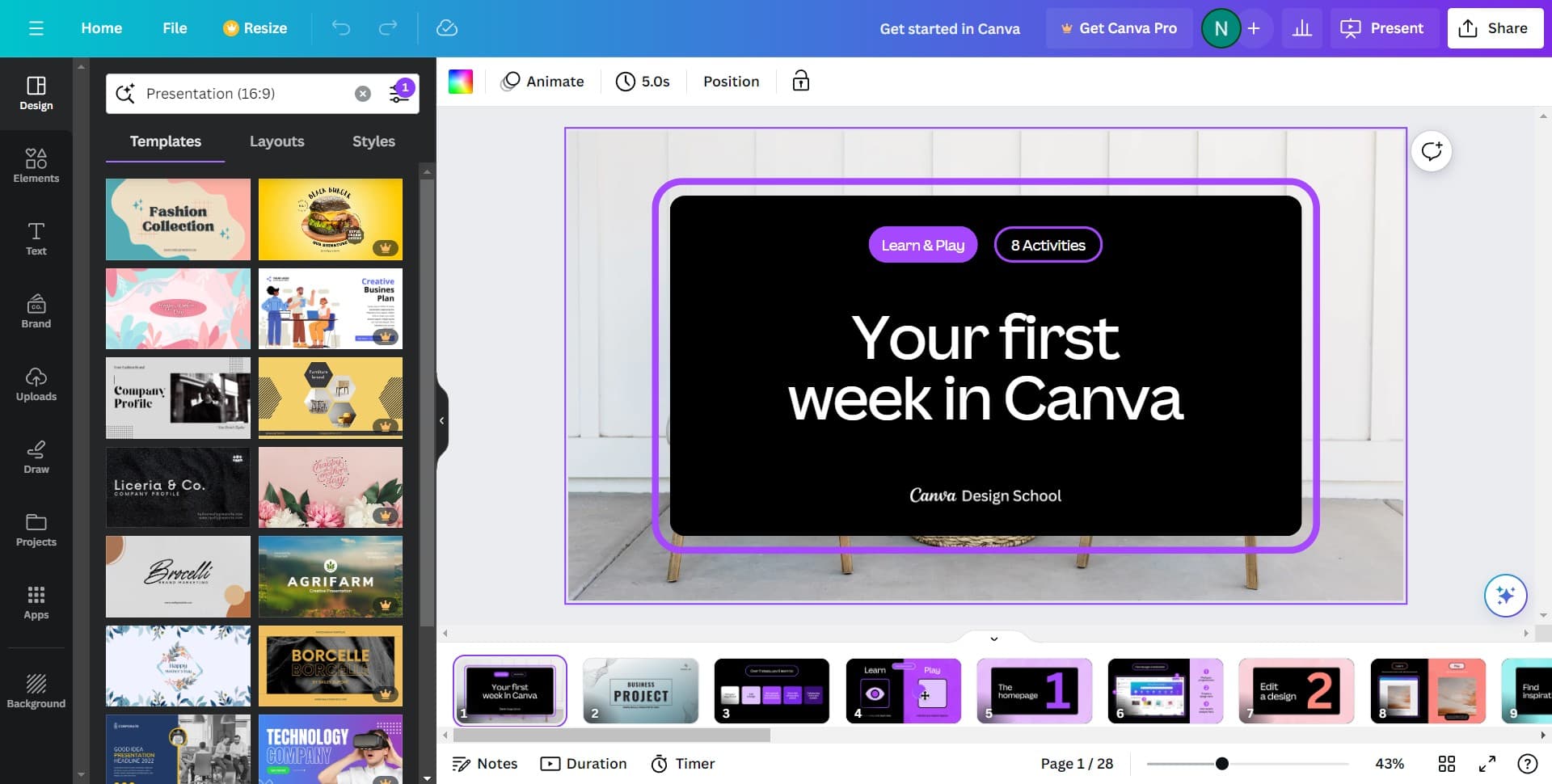
Click on Share button
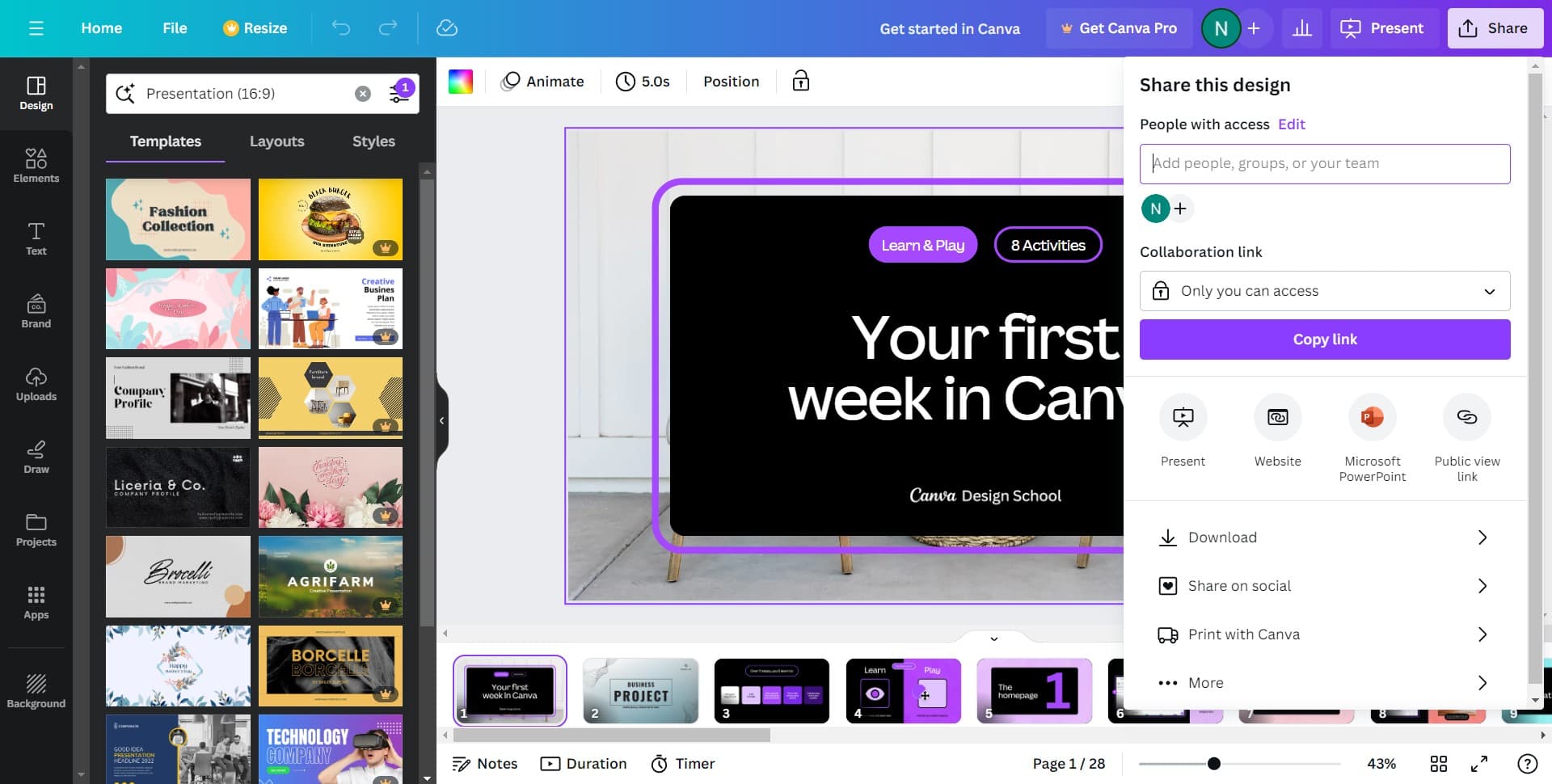
Locate and click the 'Share' button, typically found in the top navigation area of your design workspace. This opens the sharing menu where you can configure access settings.
- 3
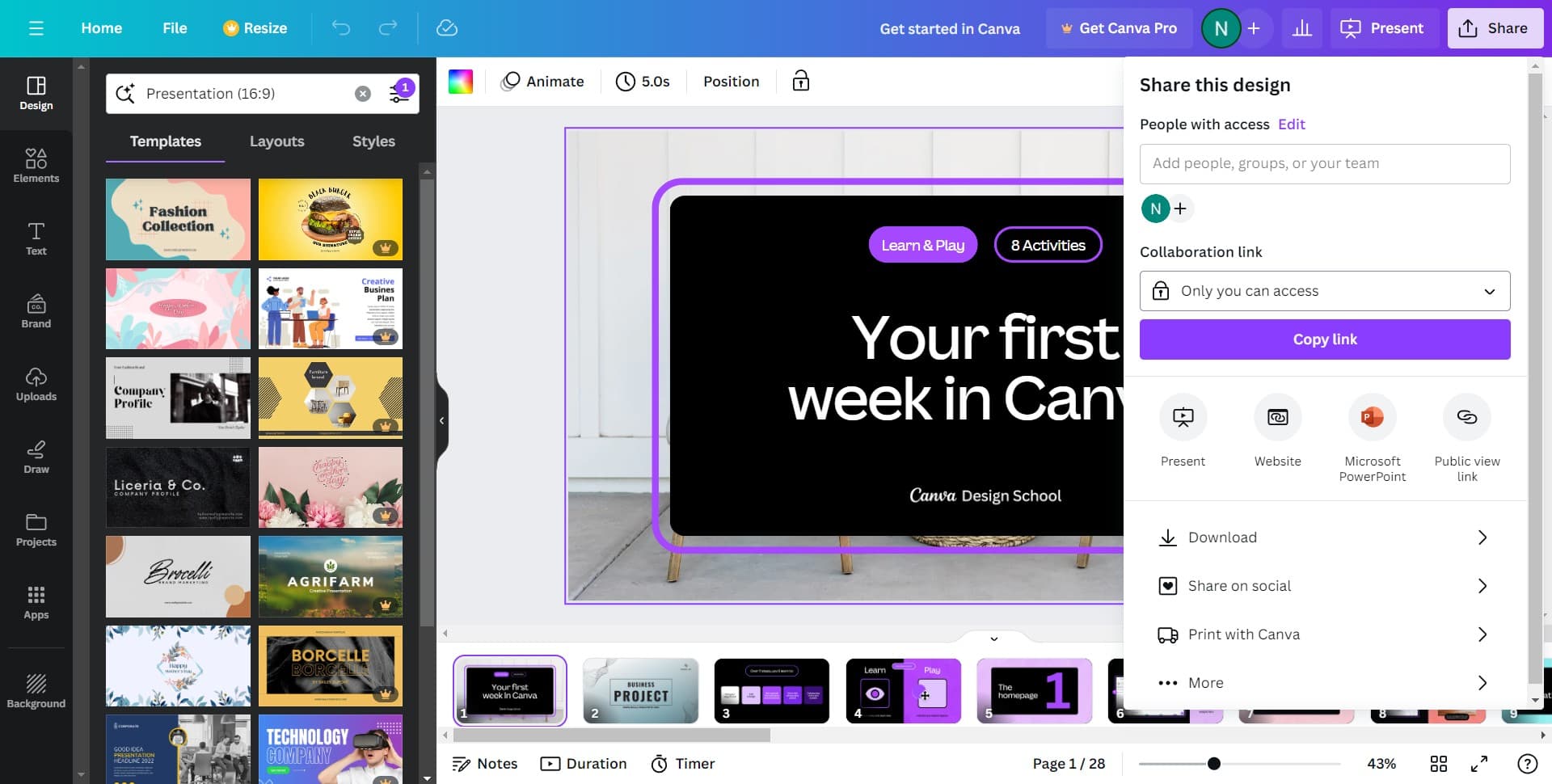
Review access permission settings
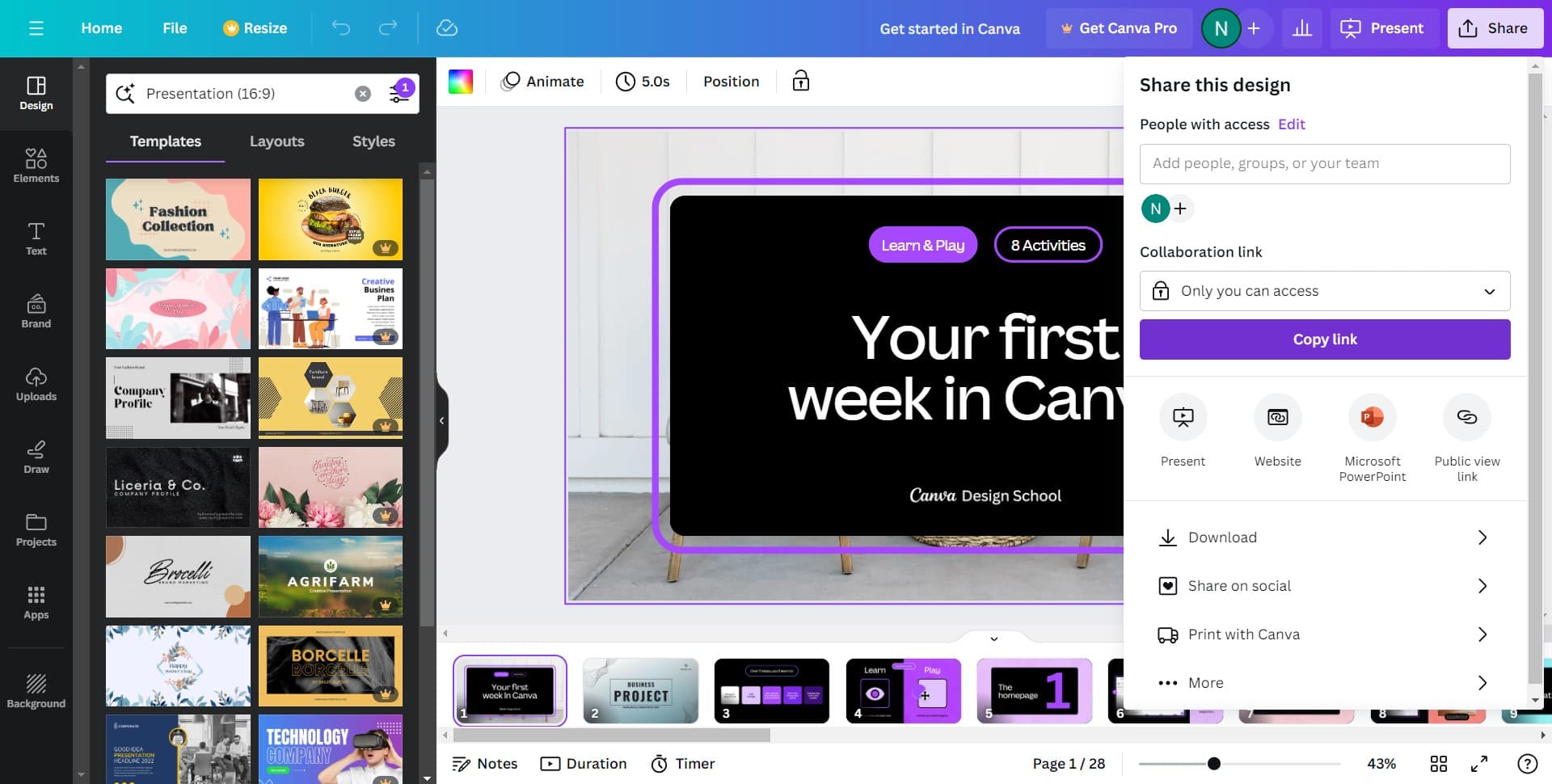
You'll see the current access level displayed as 'Only you can access.' This means the design is private and only visible to you.
- 4
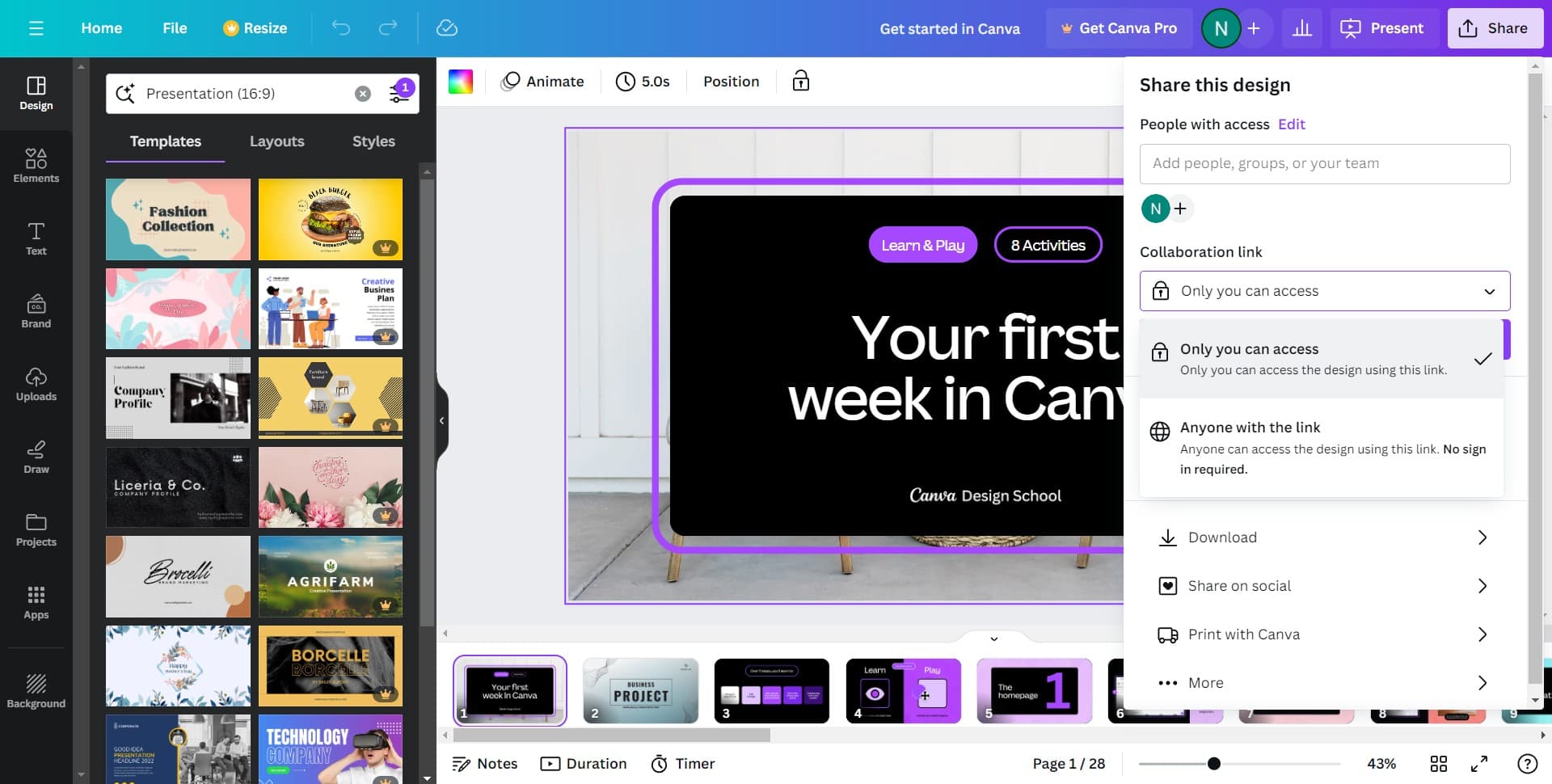
Modify access permissions
Click on the access level option to view and select different permission settings. You can change who is allowed to view or interact with your design based on your sharing needs.
- 5
Select your preferred access level
Choose the appropriate permission level for your use case, such as view-only access or edit access. Confirm your selection to apply the new permissions.
- 6
Copy the shareable link
Click on 'Copy link' to generate and copy the shareable URL to your clipboard. You can now paste this link anywhere to share your design with others.
Frequently asked questions
Common questions about how to share a design in canva.
Yes, Canva offers several access levels including private (only you), shareable link access, and team collaboration options. You can invite specific people by email or generate a link with view-only or edit permissions based on your needs.
View-only access allows people to see your design but prevents them from making changes. Edit access allows collaborators to modify the design directly, which is useful for team projects and feedback iterations.
Yes, you can modify access permissions at any time by returning to the share settings. Changes apply immediately to anyone using the existing link, so you maintain control over who can access your design.
If you change the access level back to private or remove a person's permission, they will no longer be able to view or edit the design. Anyone with the previous link will lose access.
Canva doesn't typically impose strict limits on sharing through links. However, if you're inviting specific collaborators via email, limits may depend on your Canva plan type. Check your account settings or plan details for specific restrictions.