How to translate text from English to Spanish in Canva

Translating text in Canva from English to Spanish opens up your designs to a wider audience. Whether you're creating marketing materials, social media content, or multilingual documents, Canva's built-in translation feature makes it easy to convert your text without leaving the platform.
Quick summary
In this tutorial, you'll learn how to translate English text to Spanish directly within Canva. You'll navigate through Canva's translation tools, select your target language, and apply translations to your design text in just a few clicks.
Why this matters
Expanding your designs to multiple languages increases their reach and impact across different markets and audiences. Manual translation can be time-consuming and error-prone, so using Canva's integrated translation feature saves you time while ensuring consistency in your visual content.
Step-by-step guide
- 1
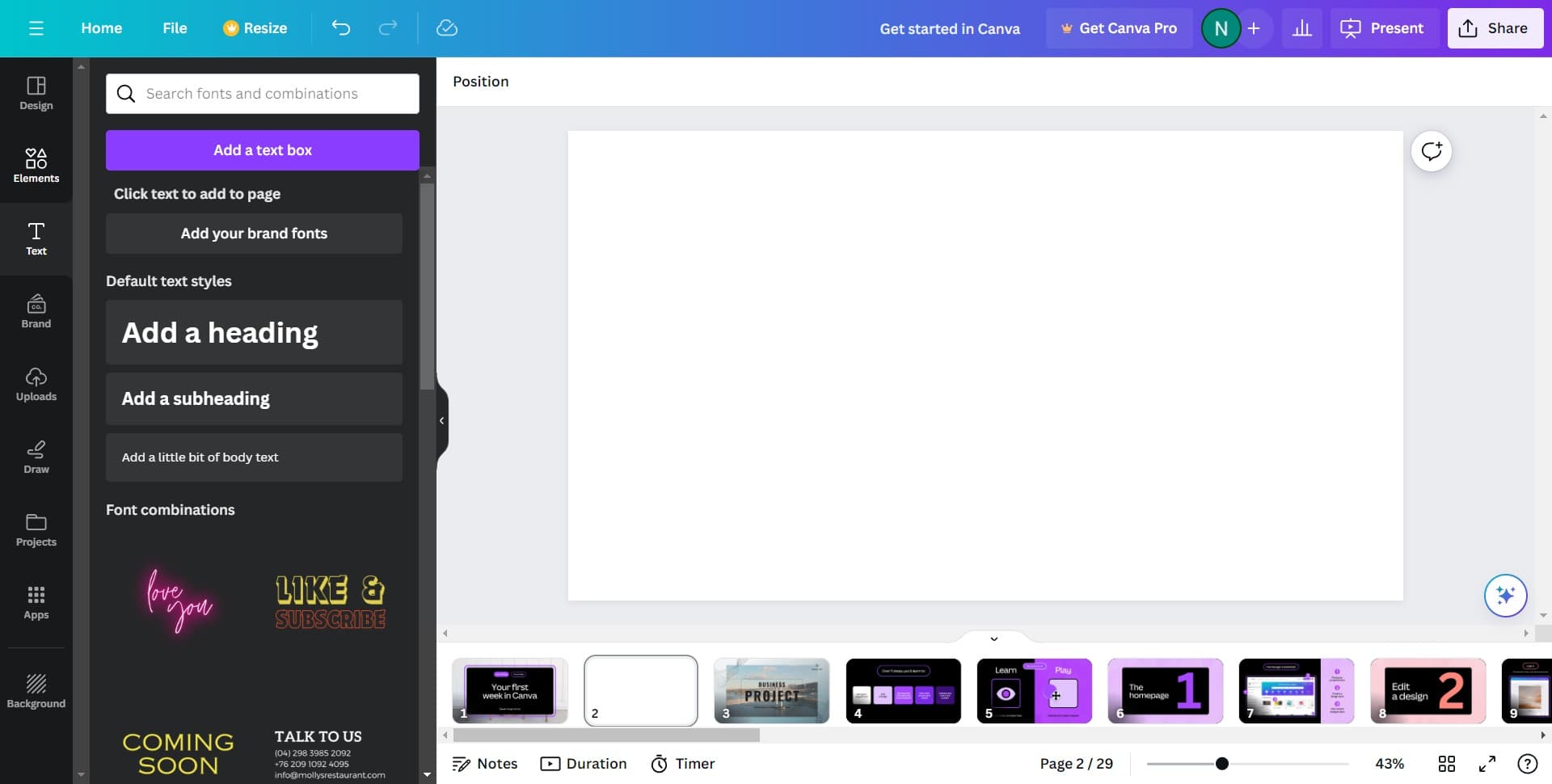
Open your Canva design
Start by opening an existing Canva project or creating a new one. Ensure your design contains the English text you want to translate to Spanish.
- 2
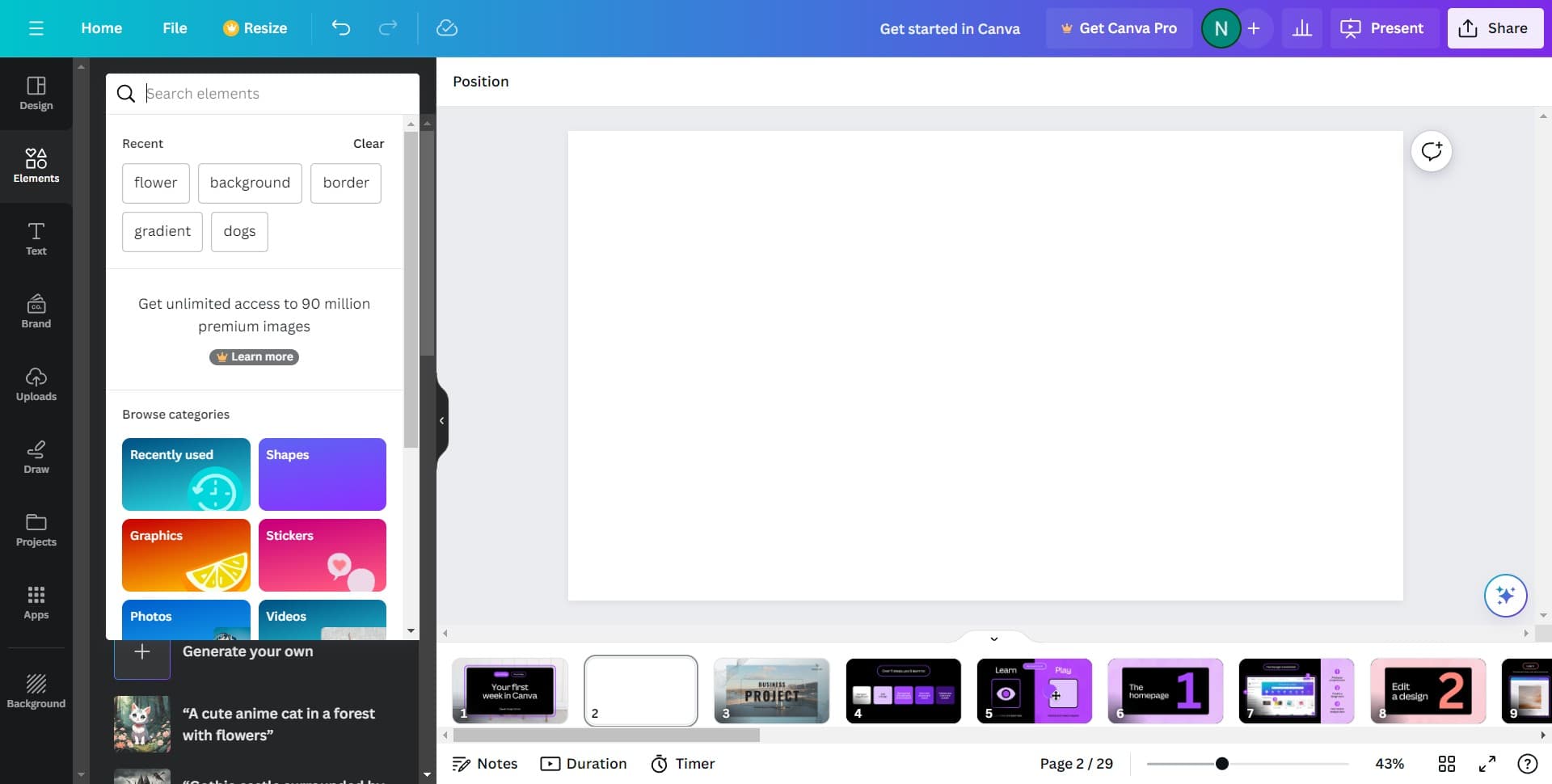
Select the text element
Click on the text box or element in your design that contains the English content you wish to translate. The text will become editable and ready for the next action.
- 3
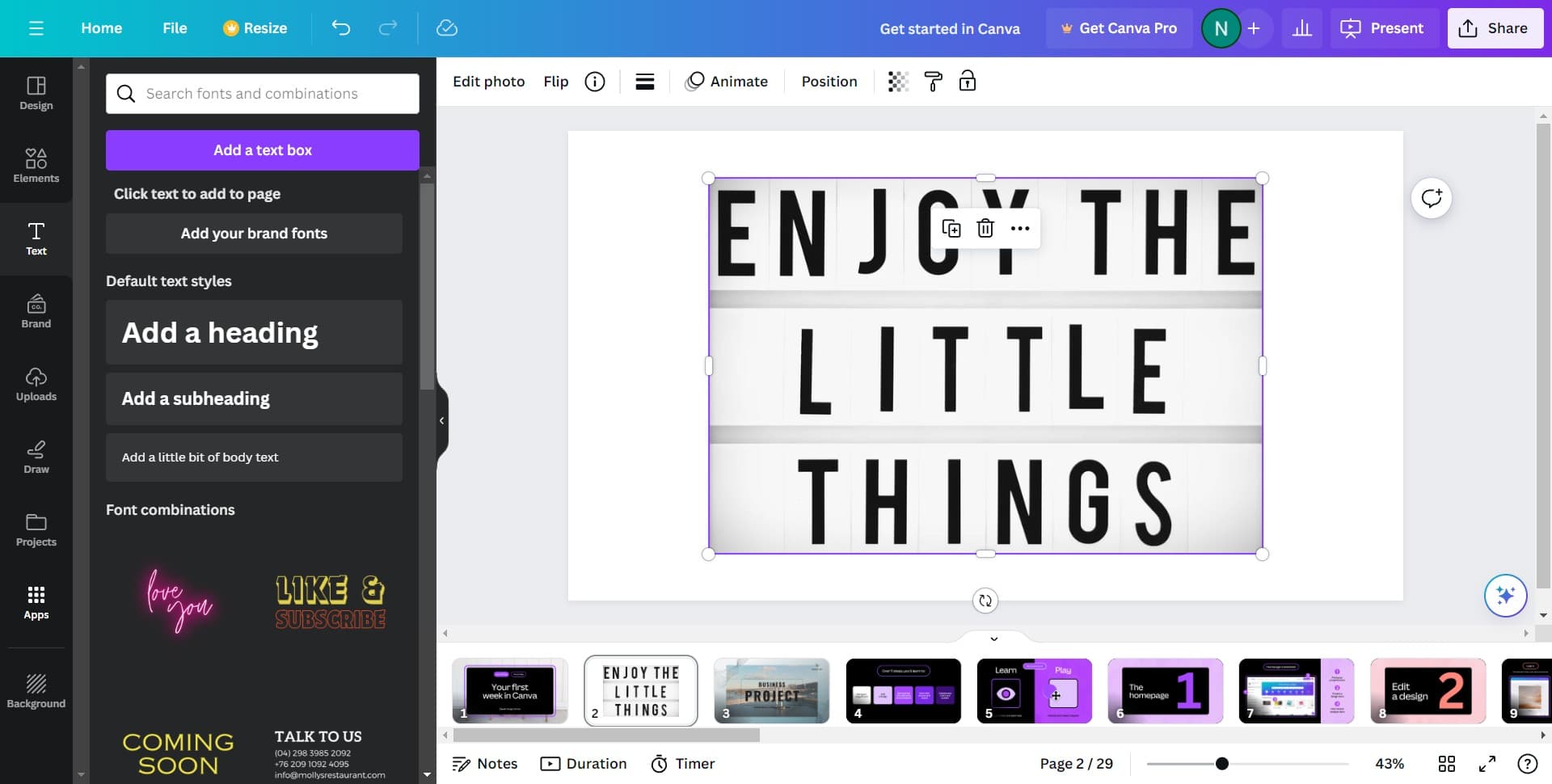
Access the text options
Look for additional options or menu buttons associated with your selected text element. These options will give you access to advanced text features including translation tools.
- 4
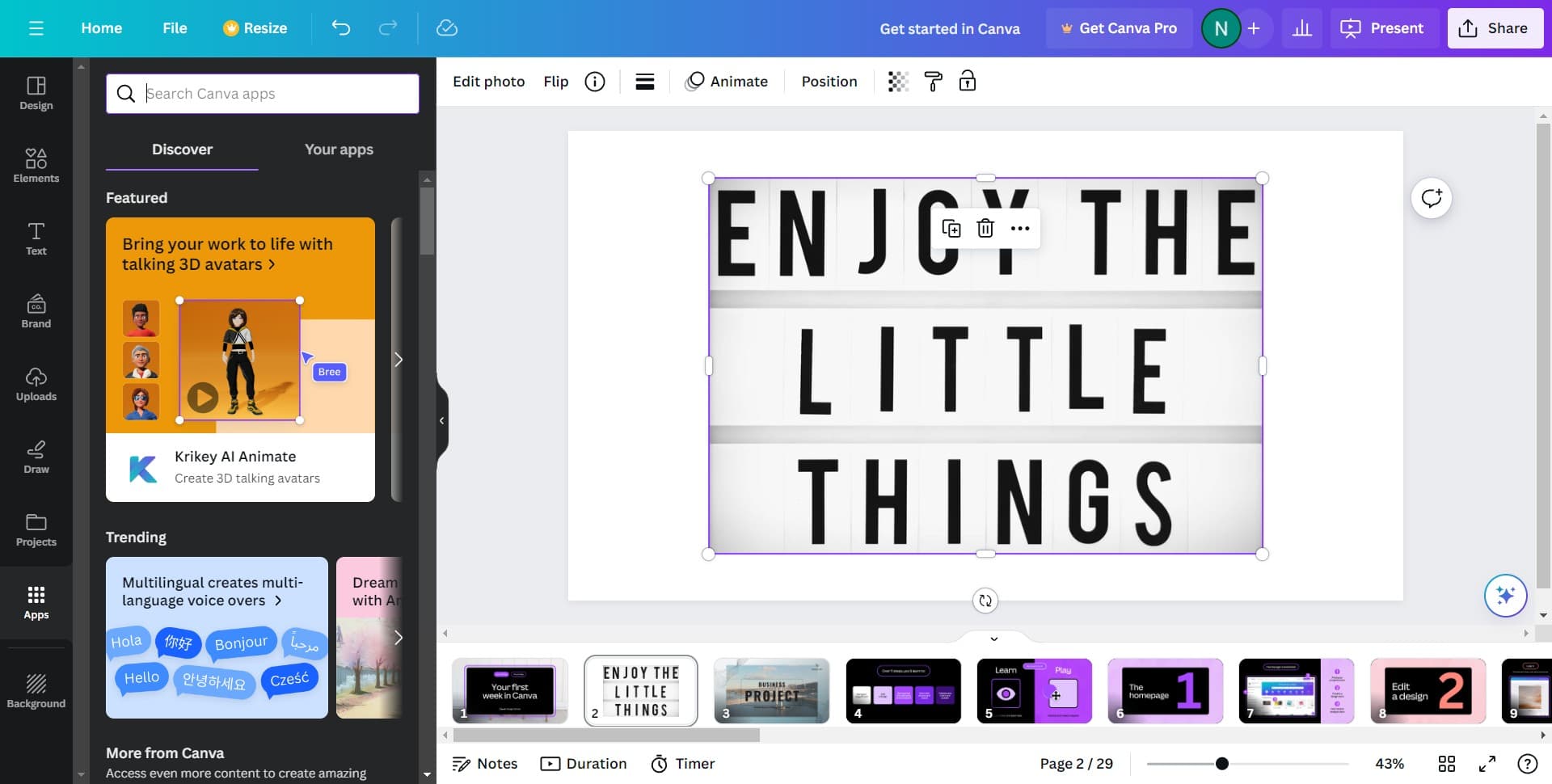
Open the text menu
Click on the menu icon or options button to reveal the full set of text editing and transformation tools available in Canva.
- 5
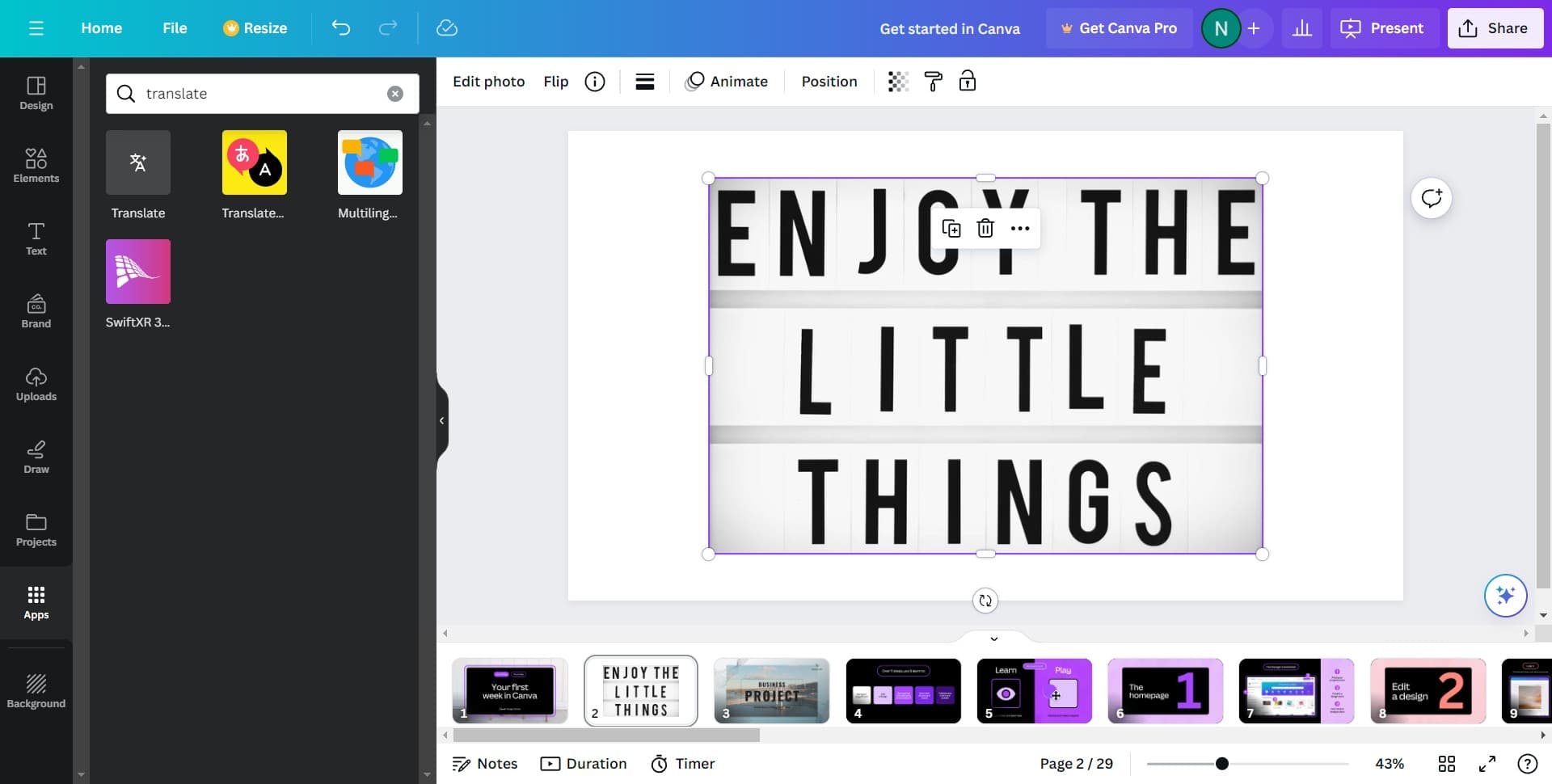
Locate the translation feature
Navigate through the menu to find the translation or language-related options. This is where you'll initiate the text translation process.
- 6
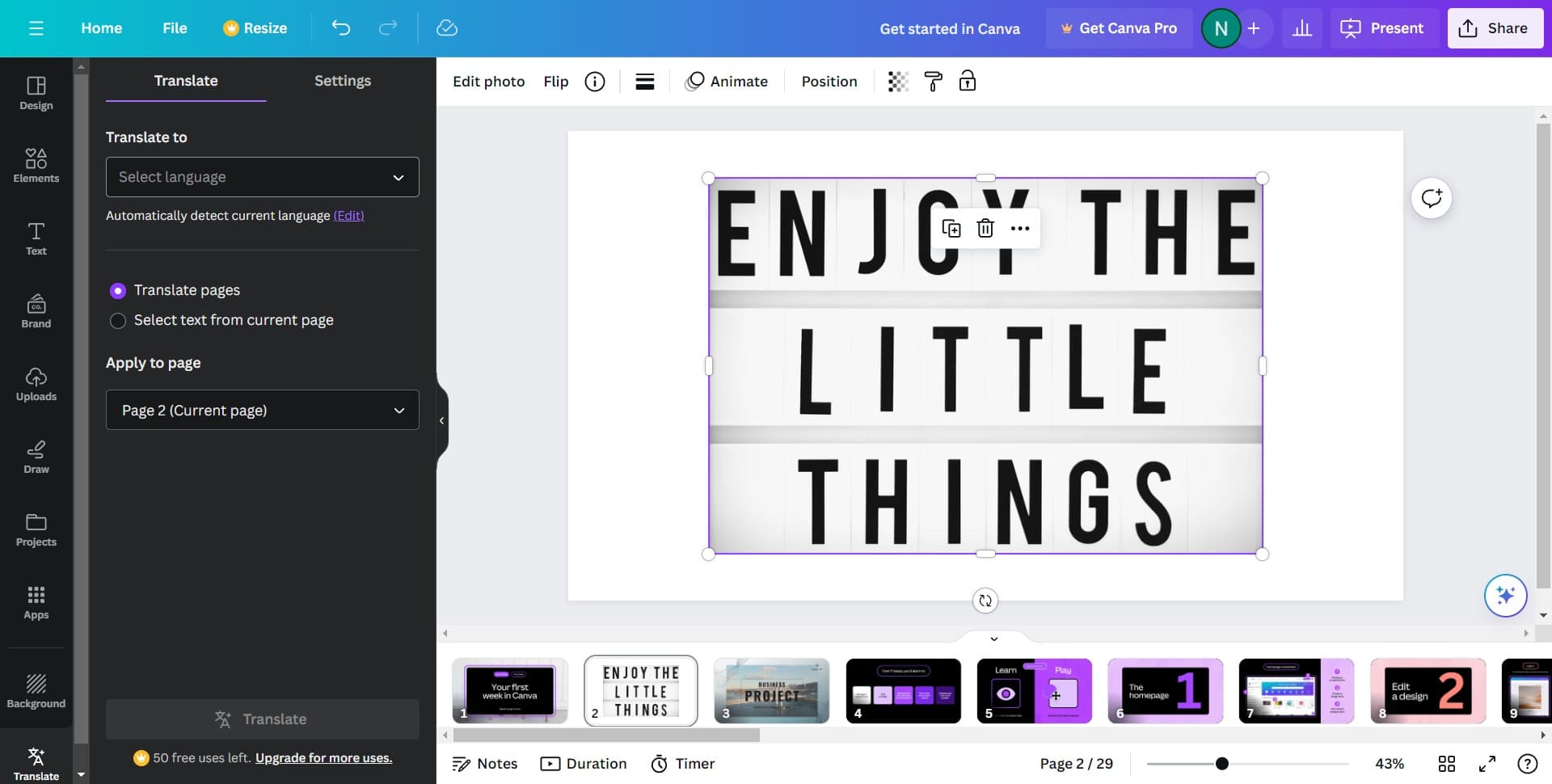
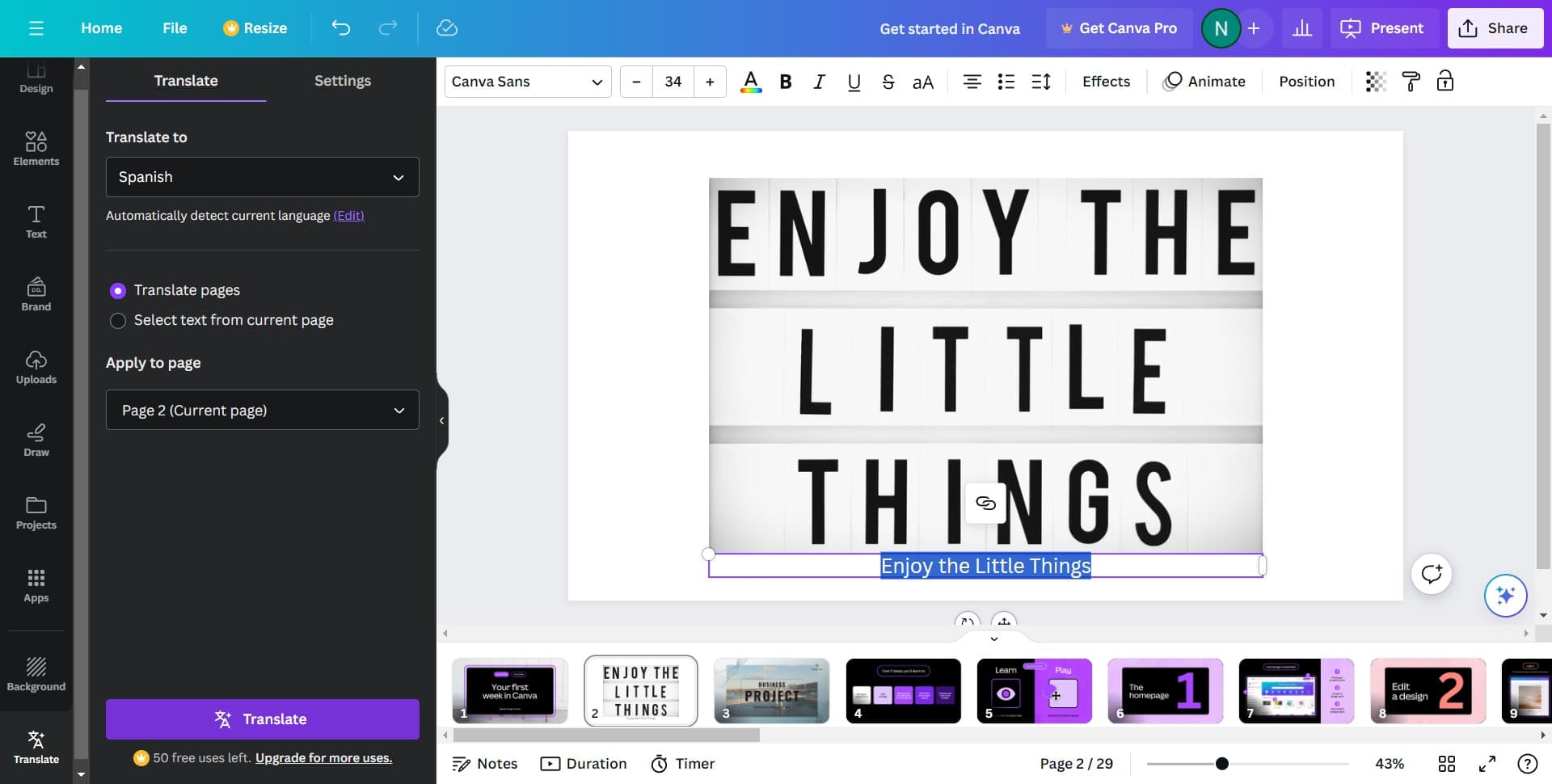
Select language
Click on 'Select language' to choose your target language. A dropdown menu will appear with a list of available languages including Spanish.
- 7
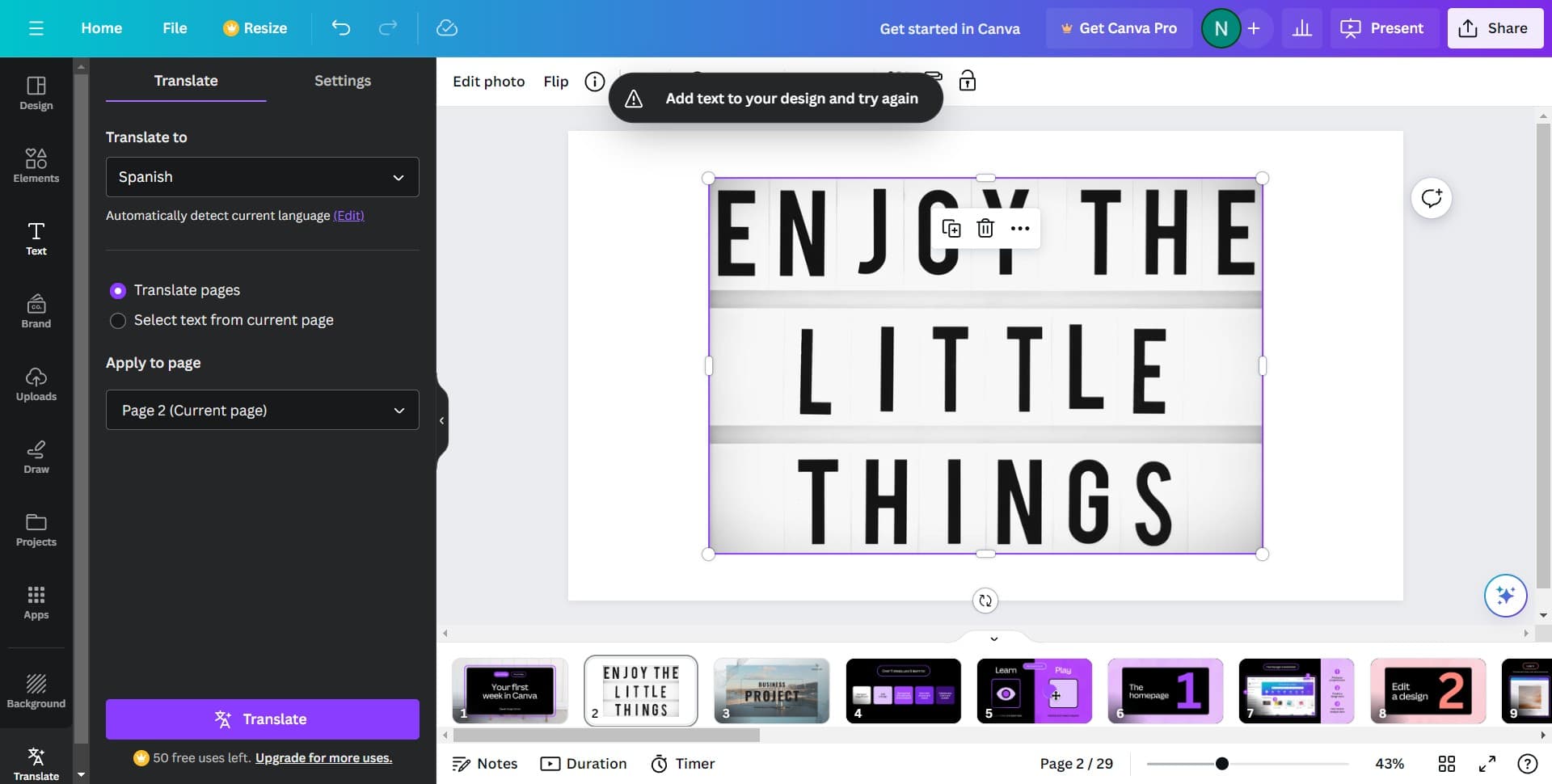
Choose Spanish as target language
From the language dropdown, select Spanish as your desired output language. Confirm your selection to proceed with the translation.
- 8
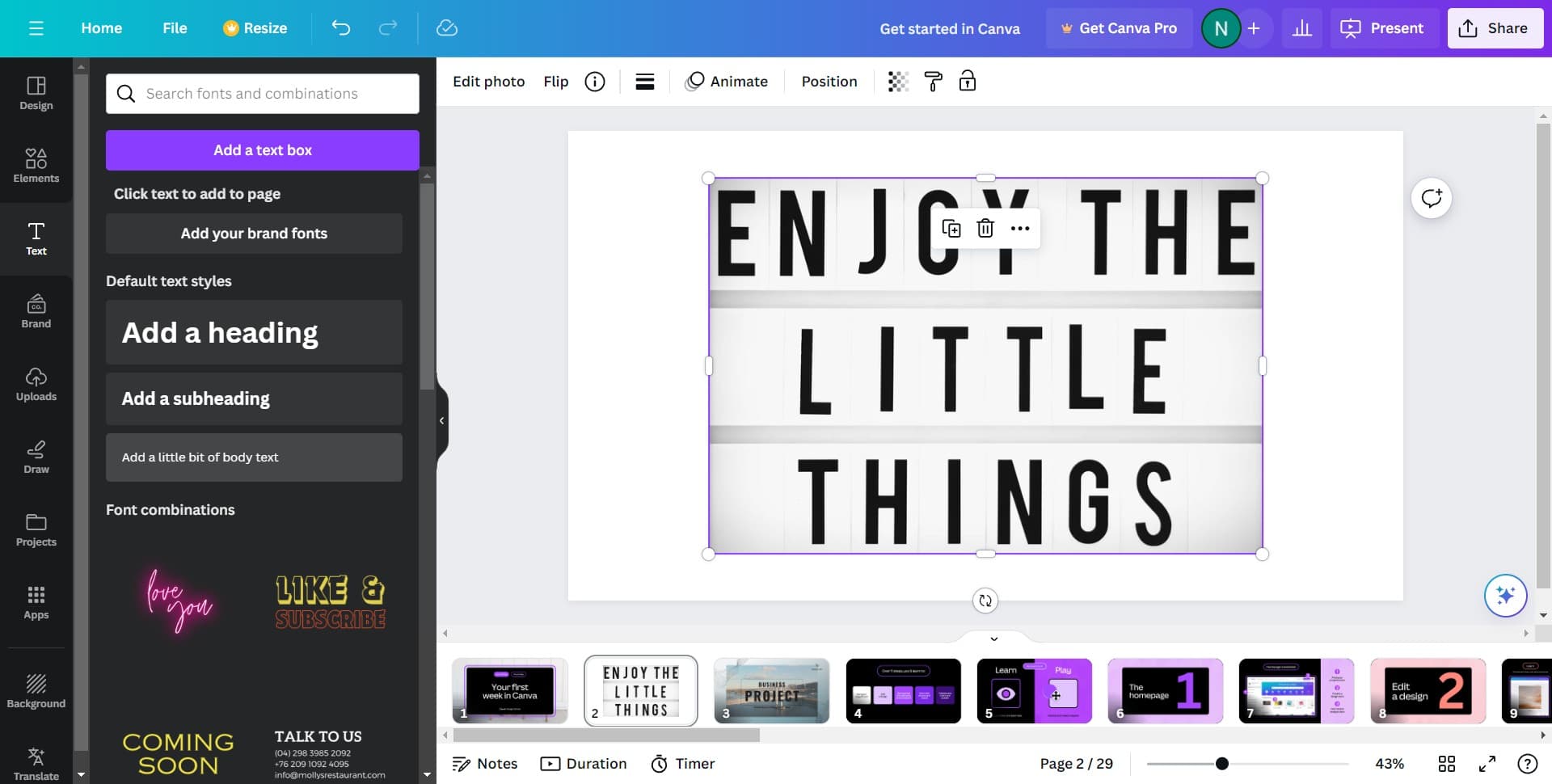
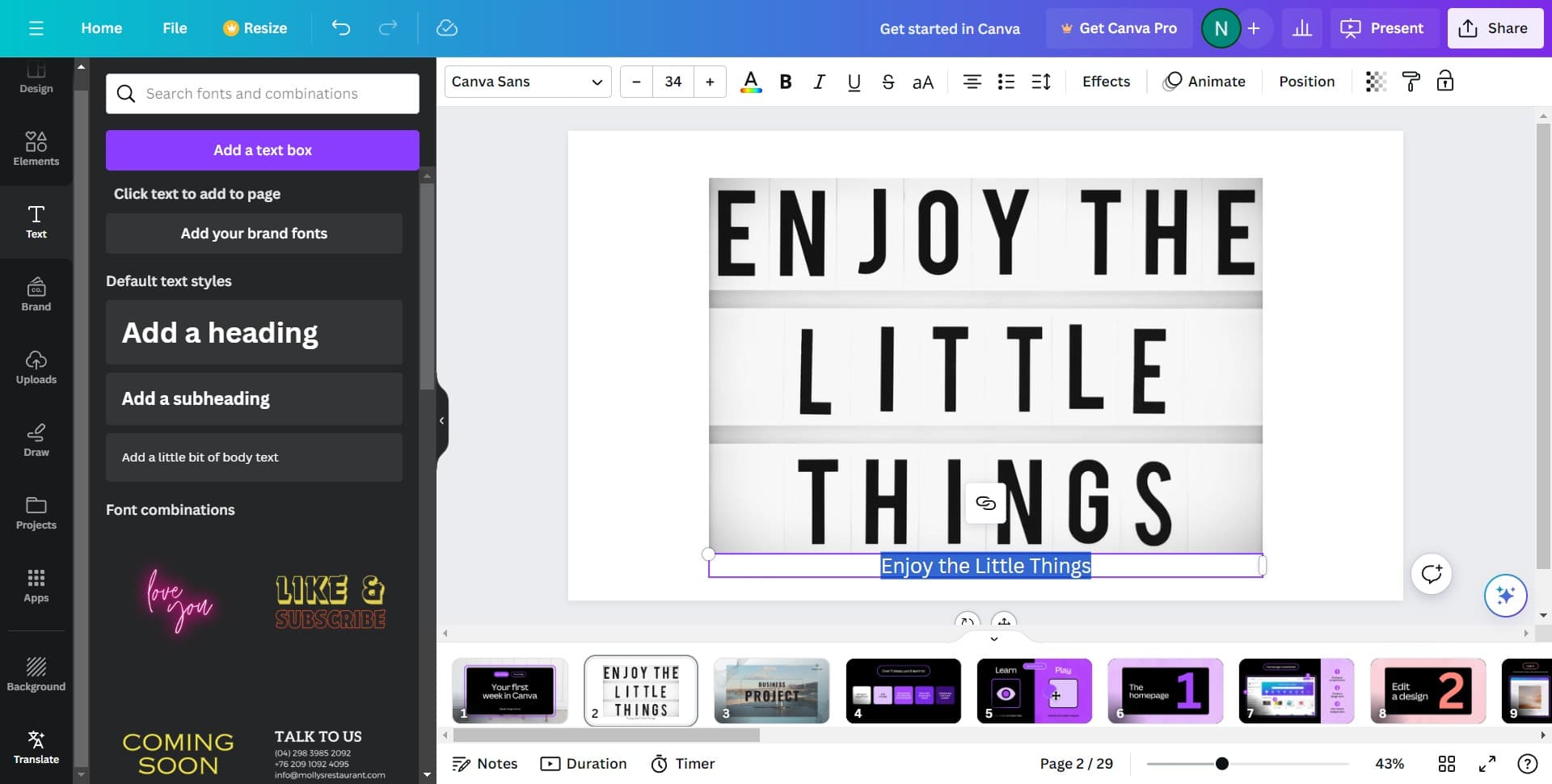
Add body text to translate
Click on 'Add a little bit of body text' or select the specific text content you want translated. Make sure the text you want to translate is highlighted or selected.
- 9
Confirm text selection
Review the selected text to ensure it's the content you want to translate. The system will use this text as the source for translation.
- 10
Click Translate
Click the 'Translate' button to execute the translation. Canva will convert your English text to Spanish and update your design automatically.
Frequently asked questions
Common questions about how to translate text from english to spanish in canva.
Yes, Canva's translation feature supports multiple languages beyond Spanish. When you click 'Select language,' you'll see a comprehensive list of available target languages to choose from for your translation needs.
Yes, you can translate multiple text elements individually. Simply repeat the process for each text box or element you want to translate. Select each element, access the translation feature, choose Spanish, and click Translate.
Canva's translation feature provides quick, automated translations suitable for most design purposes. However, for highly technical or nuanced content, you may want to review the translation or have it checked by a native Spanish speaker to ensure accuracy.
Yes, you can edit the translated text just like any other text in Canva. Simply click on the translated text element and make manual adjustments to ensure it perfectly matches your needs or brand voice.
The translation may affect your layout slightly depending on how the Spanish text fits within the original text box size. Spanish text is often longer than English, so you may need to adjust text box dimensions or font size to accommodate the translated content.