How to use AI to create a presentation in Canva

Creating a polished presentation from scratch can be time-consuming, but Canva's AI-powered templates make the process faster and easier. This guide walks you through using Canva's AI features to generate a professional presentation in minutes, letting you focus on customizing content rather than starting from a blank canvas.
Quick summary
In this tutorial, you'll learn how to leverage Canva's AI capabilities to create a multi-page presentation by selecting an AI-generated template, customizing it to your needs, and preparing it for presentation. You'll discover how to apply design changes across all pages at once and access presentation mode for seamless delivery.
Why this matters
AI-generated presentation templates save significant time while maintaining professional design standards. By automating layout and design decisions, you can spend more effort on your content and messaging rather than wrestling with formatting and visual hierarchy.
Step-by-step guide
- 1
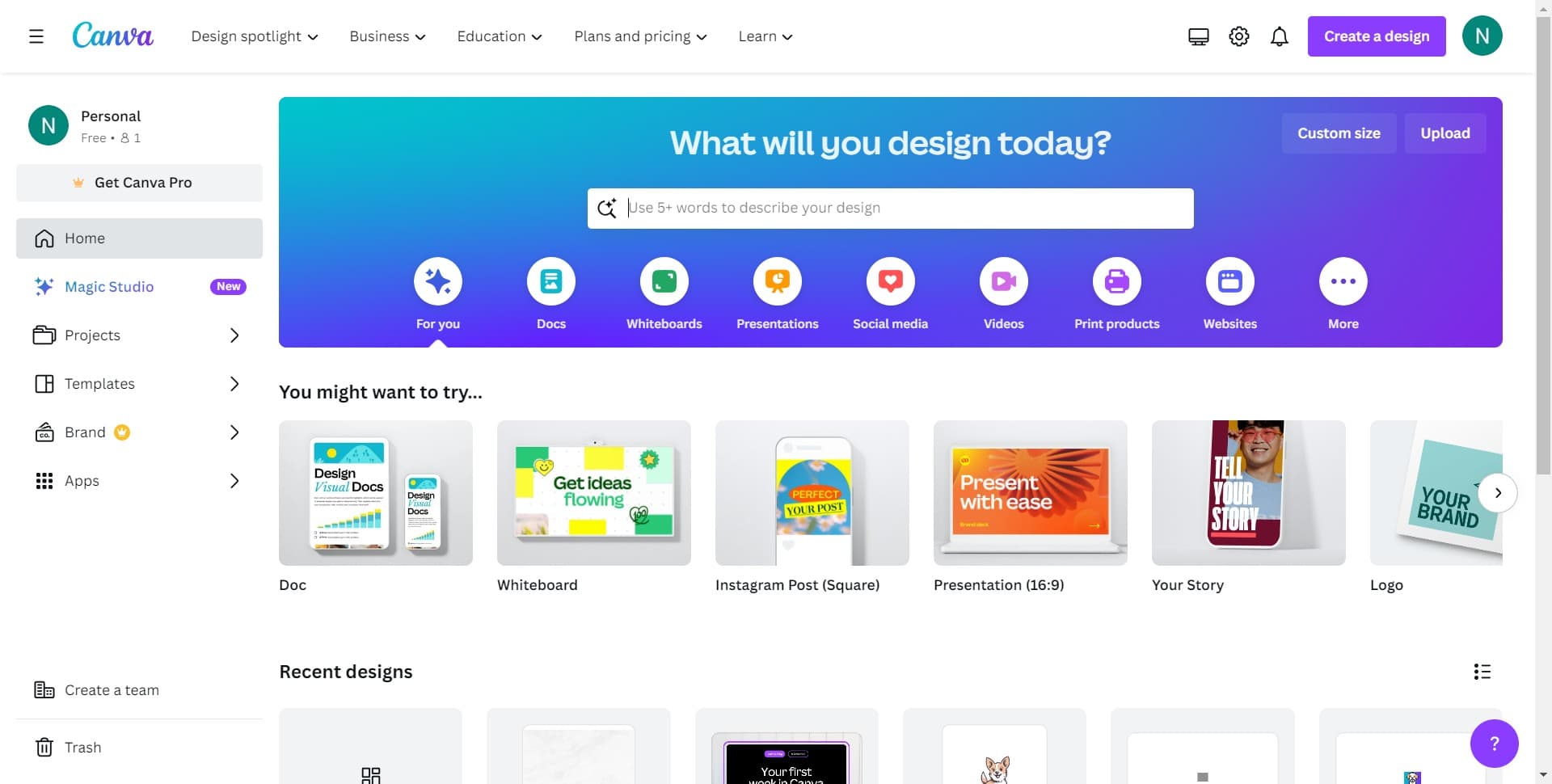
Access Canva's design interface
Navigate to Canva and click to begin creating a new presentation. This opens the main workspace where you can search for templates or start designing from scratch.
- 2
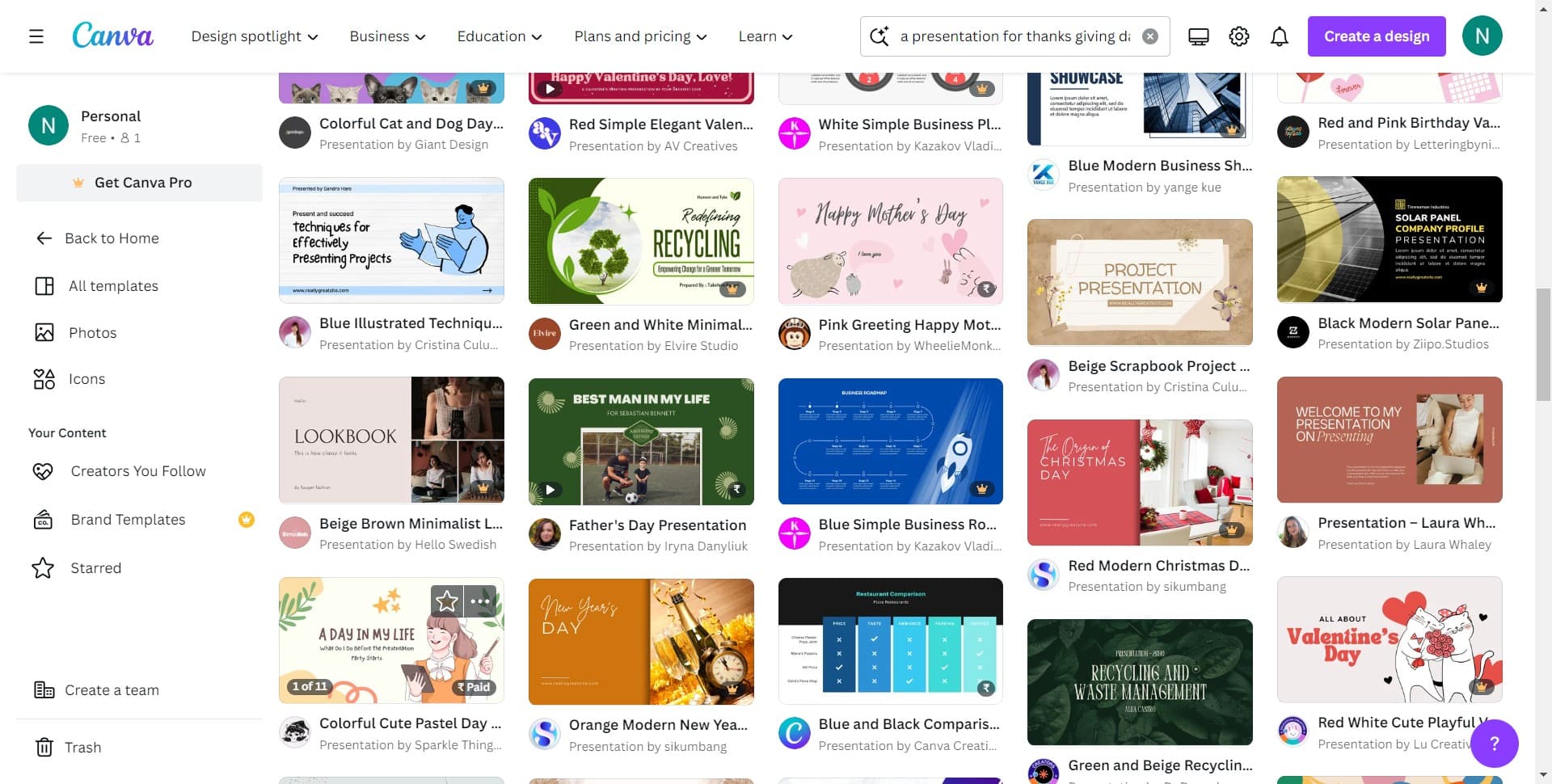
Browse AI presentation templates
Click through Canva's template library to find AI-generated presentation options. Look for templates labeled with AI features or suggested designs that match your presentation topic.
- 3
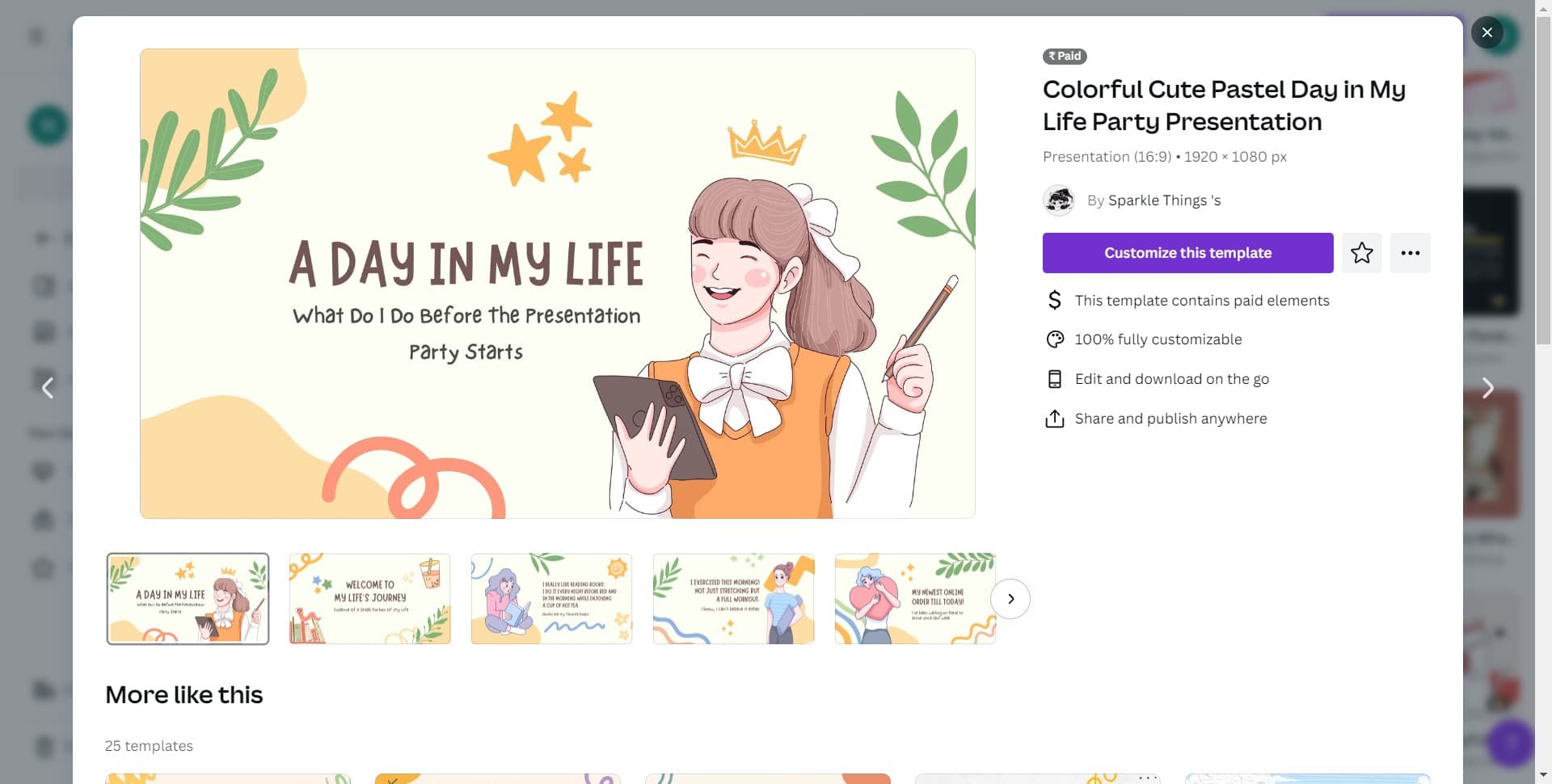
Customize this template
Click on 'Customize this template' to load your selected template into the editor. This opens the full design workspace where you can modify text, colors, images, and layouts for each page.
- 4
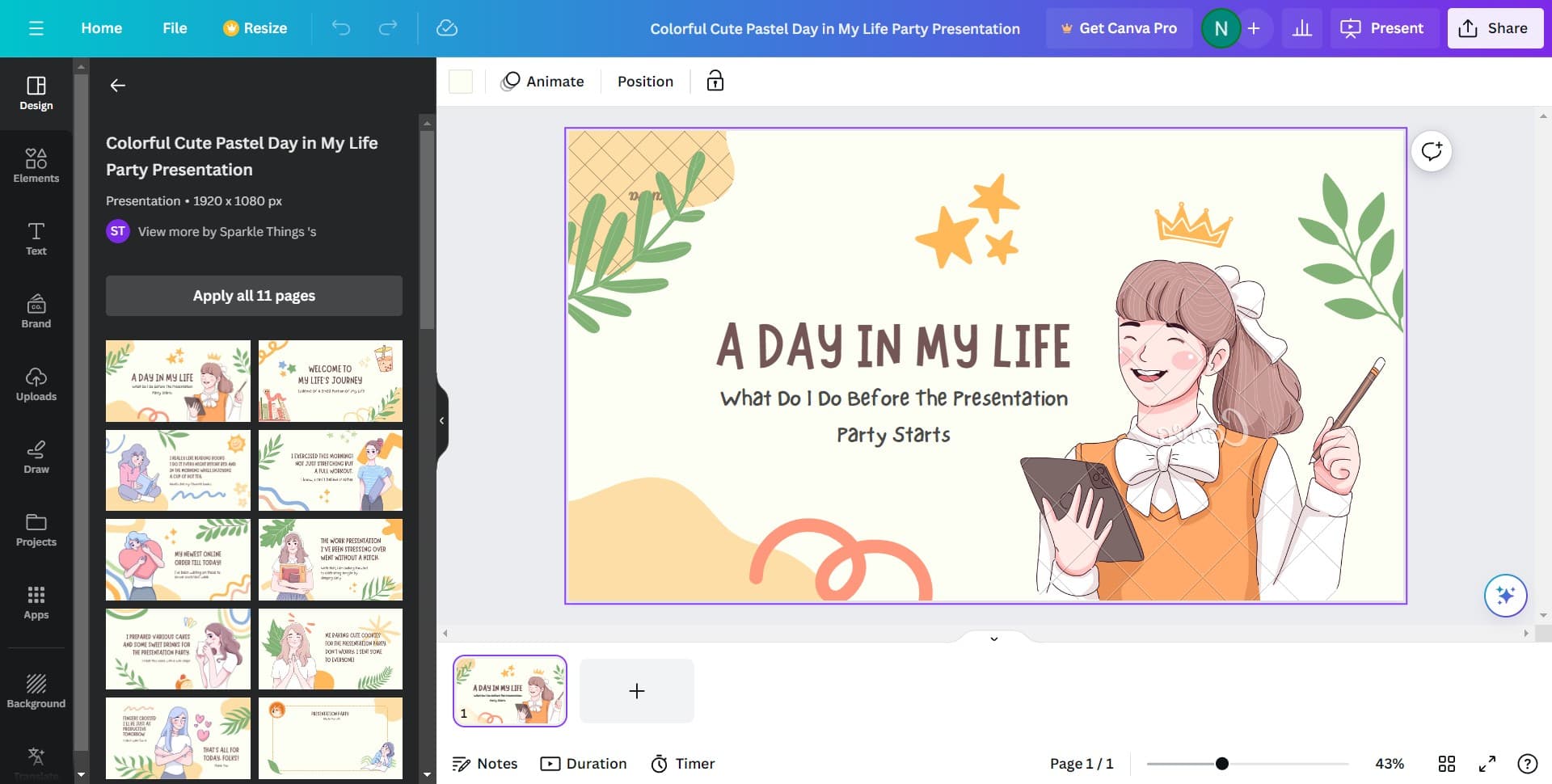
Apply changes across all pages
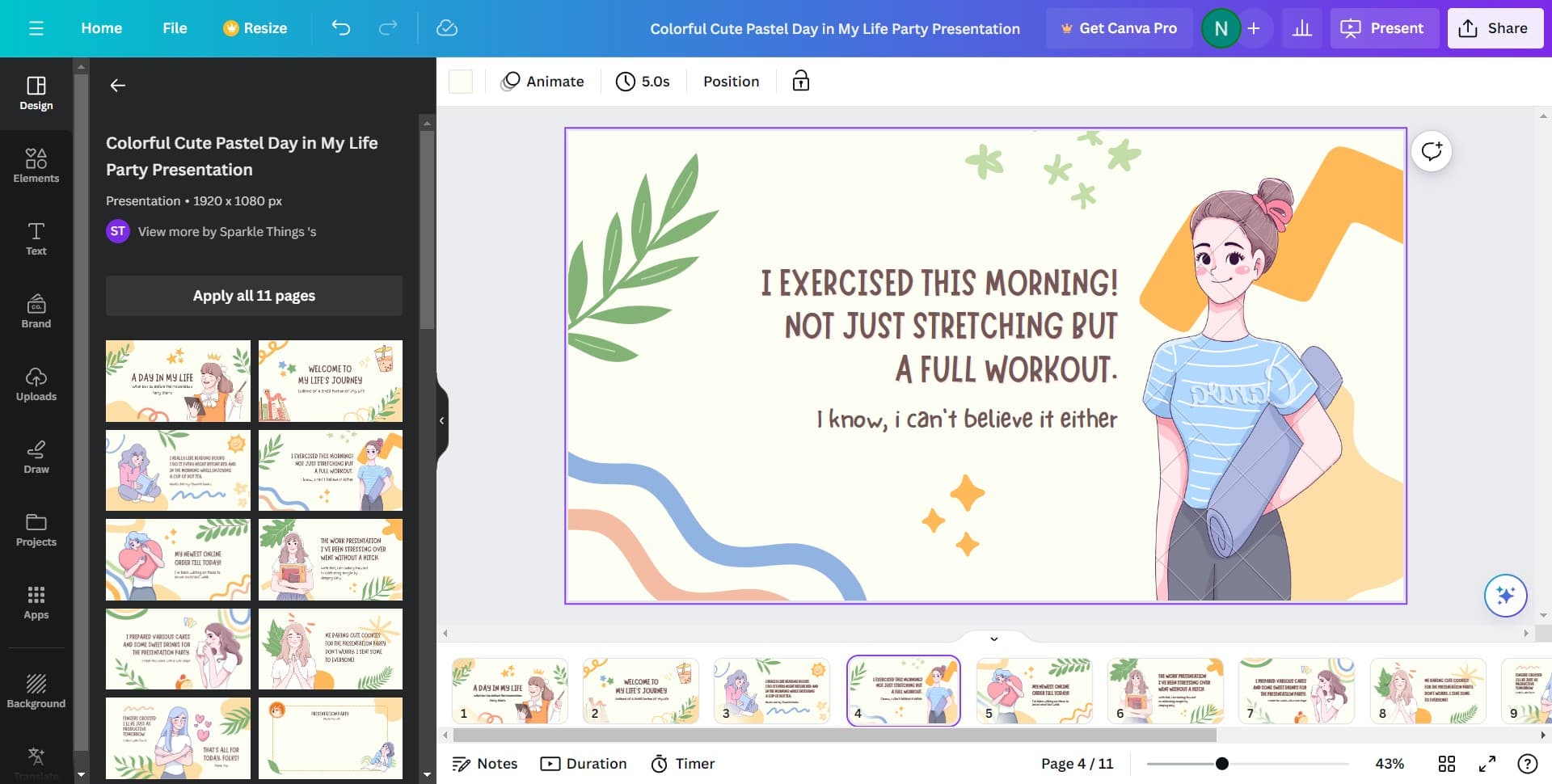
Click 'Apply all 11 pages' to propagate your design changes (such as color schemes, fonts, or branding) uniformly across the entire presentation. This ensures consistency without manually editing each slide.
- 5
Enter presentation mode
Click 'Present' to switch to presentation view. This displays your slides in full-screen format, ready for delivery to your audience.
- 6
Activate presentation controls
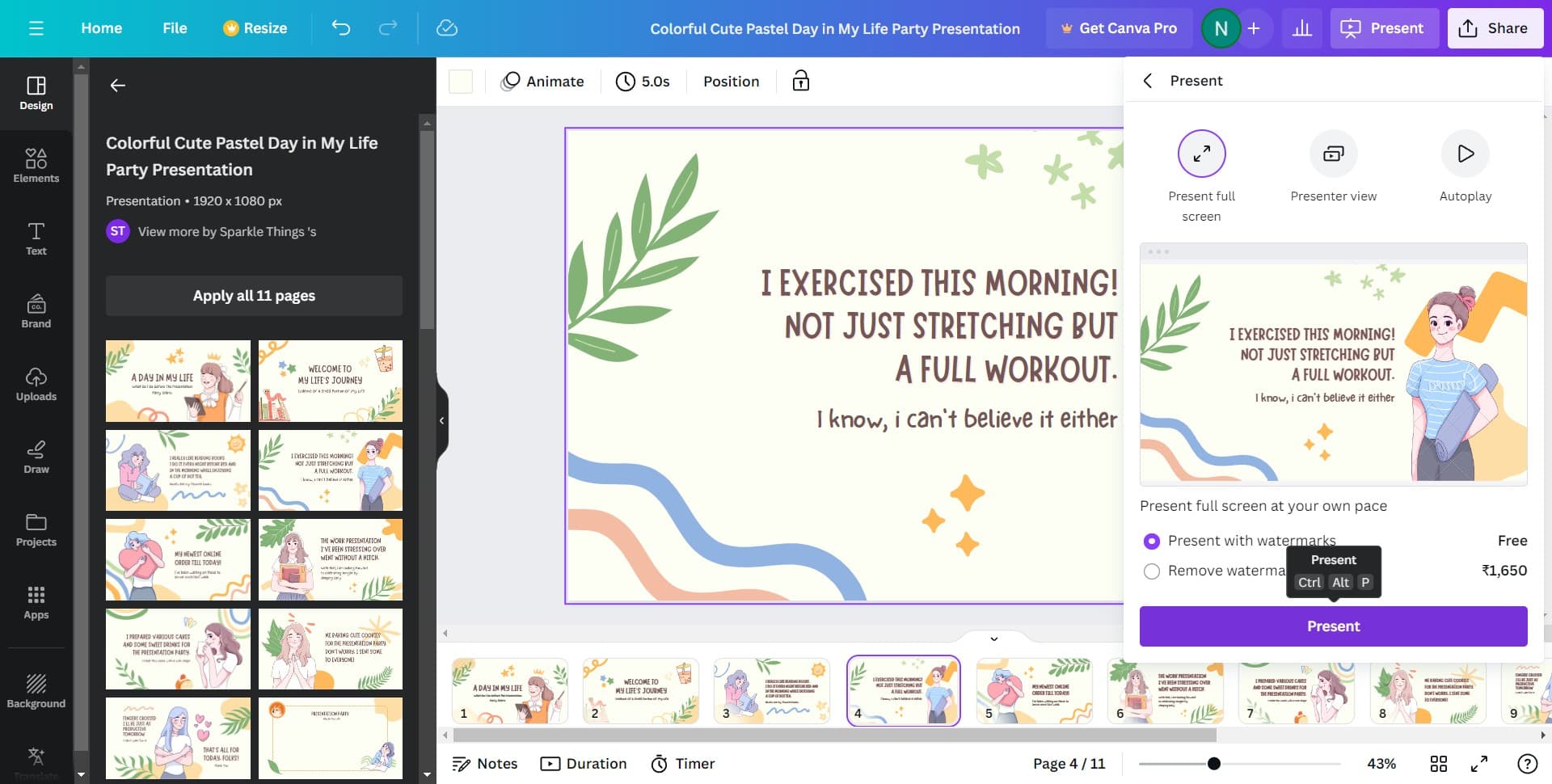
Click 'Present' again to confirm and fully activate the presentation mode with navigation controls. You can now advance through slides seamlessly during your presentation.
- 7
Access additional presentation features
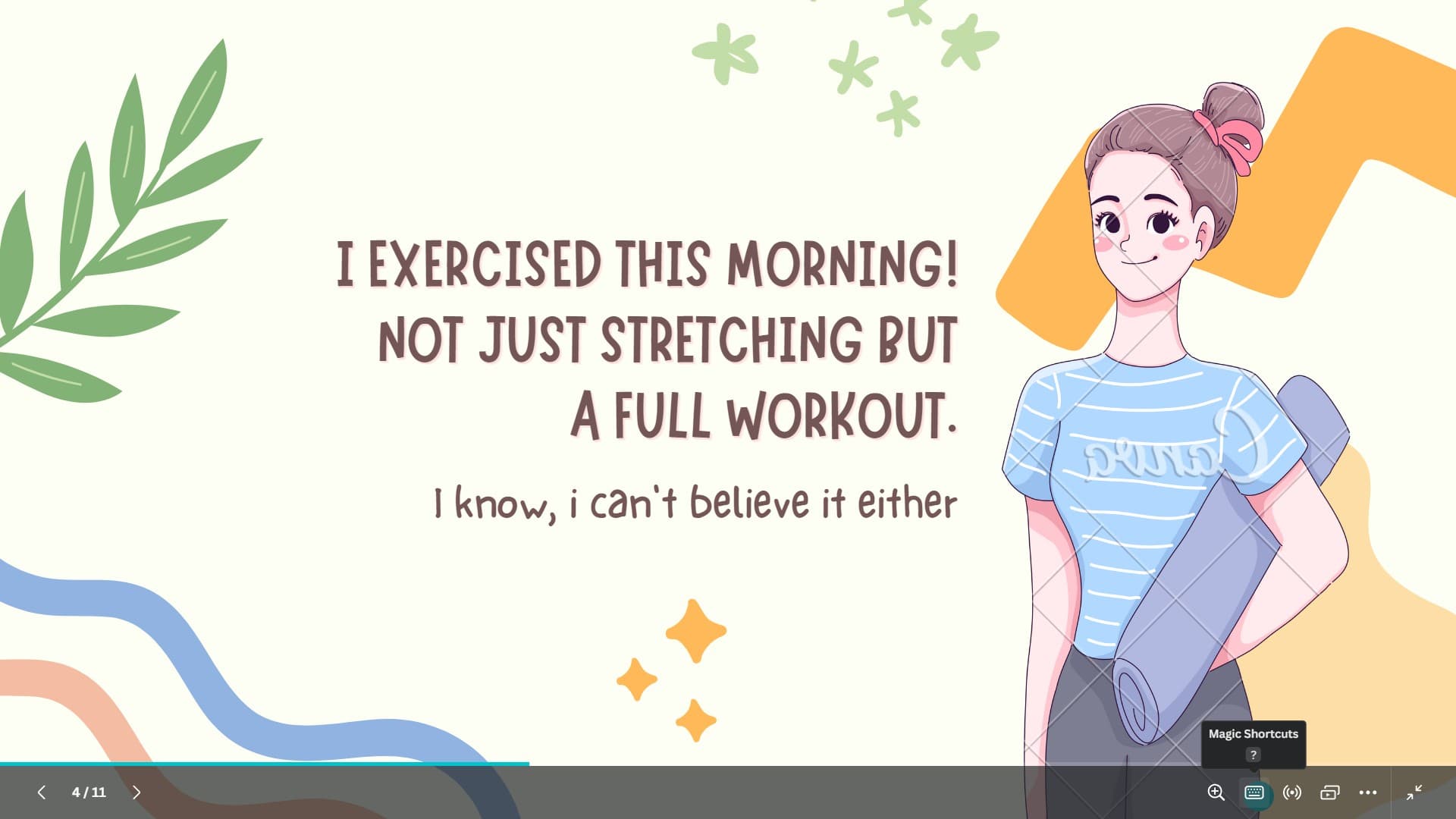
Click here to unlock additional presentation options and settings. This may include speaker notes, slide transitions, or timing controls depending on your Canva subscription level.
- 8
Add dramatic transitions
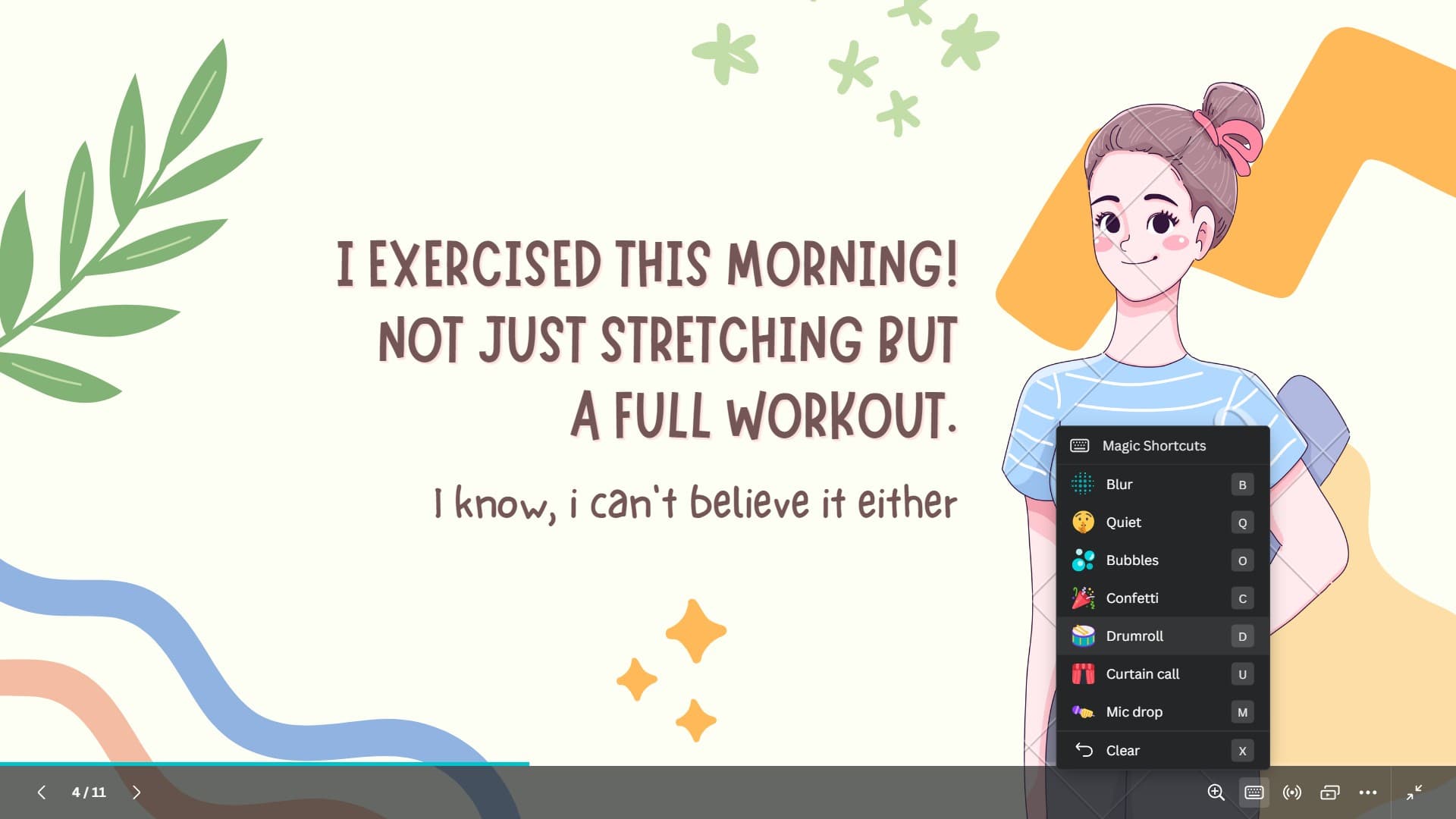
Click on 'Drumroll' to apply an engaging transition effect to your slides. Drumroll creates a dramatic reveal effect that can enhance audience engagement during your presentation.
Frequently asked questions
Common questions about how to use ai to create a presentation in canva.
Yes, you can edit every aspect of your presentation after applying the template. Modify text, swap images, adjust colors, and reorganize content at any time in the editor before presenting.
Applying changes to all pages applies your current design modifications (fonts, colors, layouts) uniformly across every slide in the presentation. This maintains visual consistency without requiring individual edits to each page.
Yes, Canva allows you to download presentations in multiple formats including PDF, MP4, or PNG files. Export options are available in the main menu before or after entering presentation mode.
Canva offers free access to many templates and basic design features, though some advanced AI features and premium templates may require a Canva Pro subscription. Check your account level for available features.
Simply click on text boxes and images within the template to edit them. Replace placeholder text with your content and swap stock images with your own photos or graphics using Canva's upload feature.