How to Add Comments in Fathom

Adding comments in Fathom allows you to annotate your analytics data with notes, insights, and context that help your team understand key events and trends. This feature is essential for collaborative analysis, enabling you to document important findings directly within your dashboard.
Quick summary
In this tutorial, you'll learn how to add comments in Fathom to document insights and share context with your team. We'll walk through accessing the comments feature, creating annotations, and managing them effectively within your analytics workspace.
Why this matters
Comments in Fathom enable teams to maintain institutional knowledge about their analytics data, reducing confusion and miscommunication. By documenting why metrics changed, what events occurred, or what decisions were made, you create a historical record that helps future analysis and decision-making.
Step-by-step guide
- 1
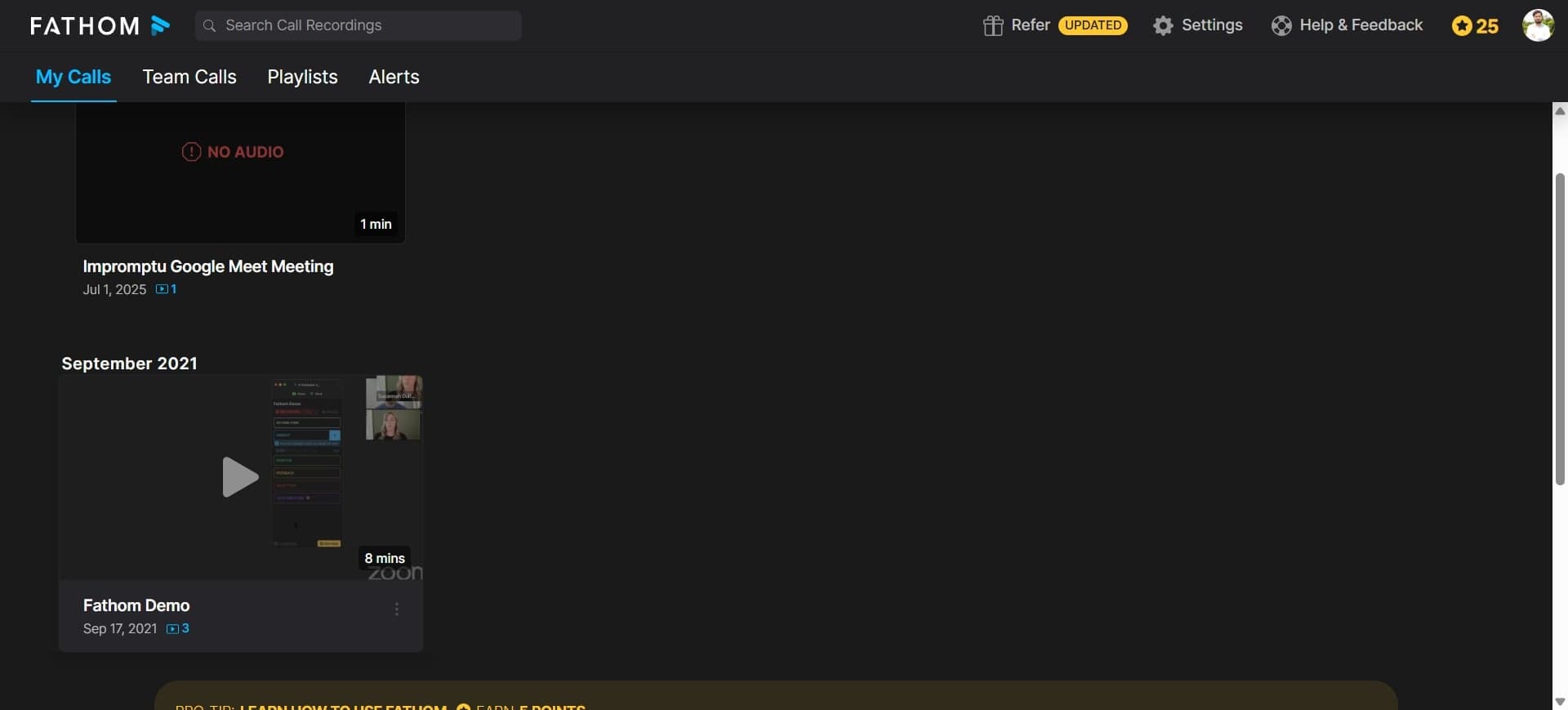
Navigate to your Fathom dashboard
Open Fathom and log in to your account, then select the site or project where you want to add comments. You'll see your analytics dashboard with various metrics and data visualizations displayed.
- 2
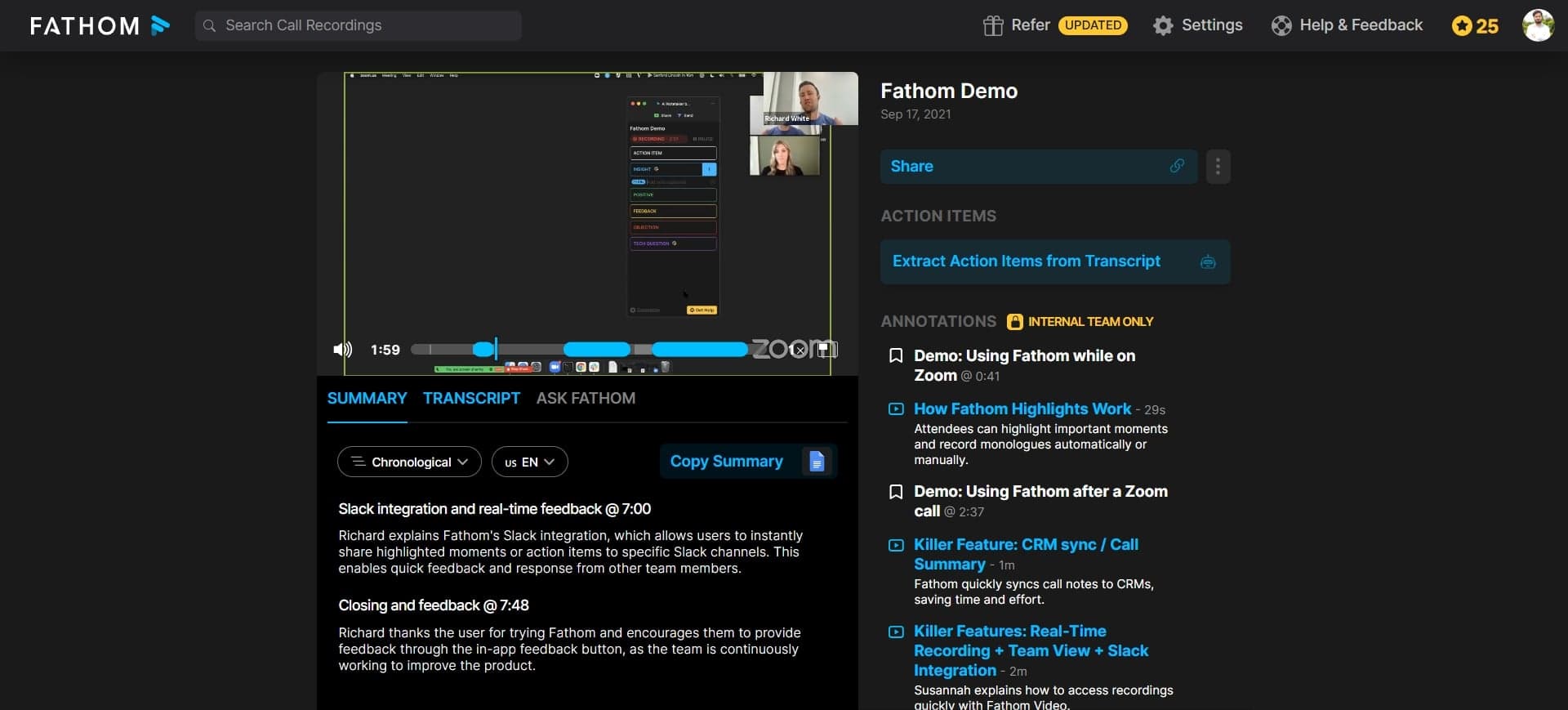
Select the data point or metric
Click on the specific metric, graph, or data point where you want to add a comment. This pinpoints exactly what you're annotating and ensures your comment is contextually linked to that information.
- 3
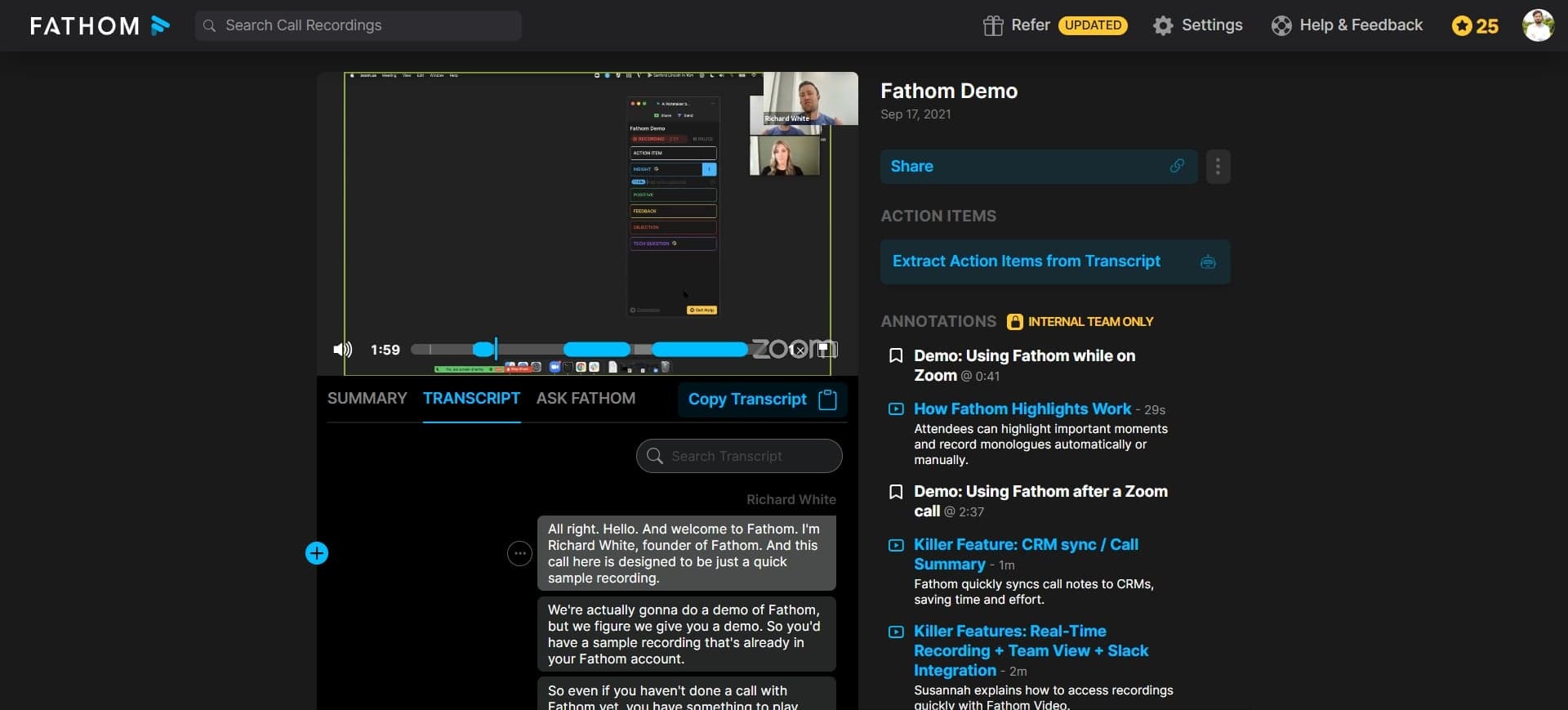
Open the comments panel
Look for the comments icon or option in the interface and click it to open the comments panel. The panel will appear, allowing you to view existing comments and add new ones.
- 4
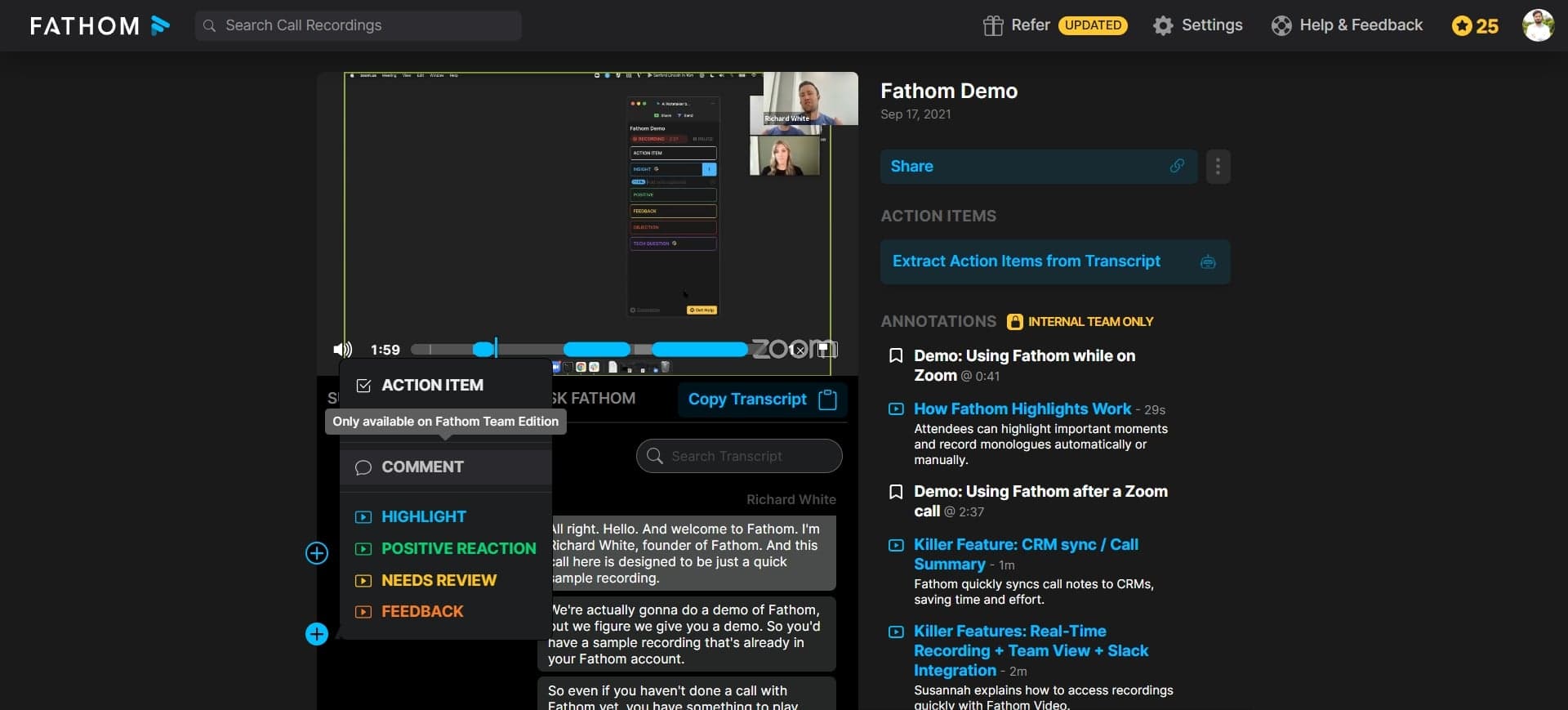
Type and submit your comment
Enter your comment text in the input field, providing clear context or insights about the data point. Click the submit or send button to post your comment, which will then be visible to other team members with access to the dashboard.
Frequently asked questions
Common questions about how to add comments in fathom.
Yes, Fathom allows multiple team members to add comments to the same metric or data point. This creates a collaborative discussion thread where team members can share different perspectives and insights about that specific metric.
Comments are visible to all team members who have access to the dashboard or project where the comment was added. You can manage visibility based on your workspace permissions and sharing settings.
Most comment systems allow you to edit or delete your own comments. Check your Fathom account settings or the comment menu options to see if you can modify or remove comments you've posted.
Include context about why a metric changed, what business event occurred, campaign details, or notable trends you've identified. This helps your team understand the story behind the data and makes future analysis more efficient.
Depending on your Fathom version, you may be able to search or filter comments. Check the comments panel or dashboard interface for search functionality to locate specific comments you or your team have previously added.