How to add frame on Figma

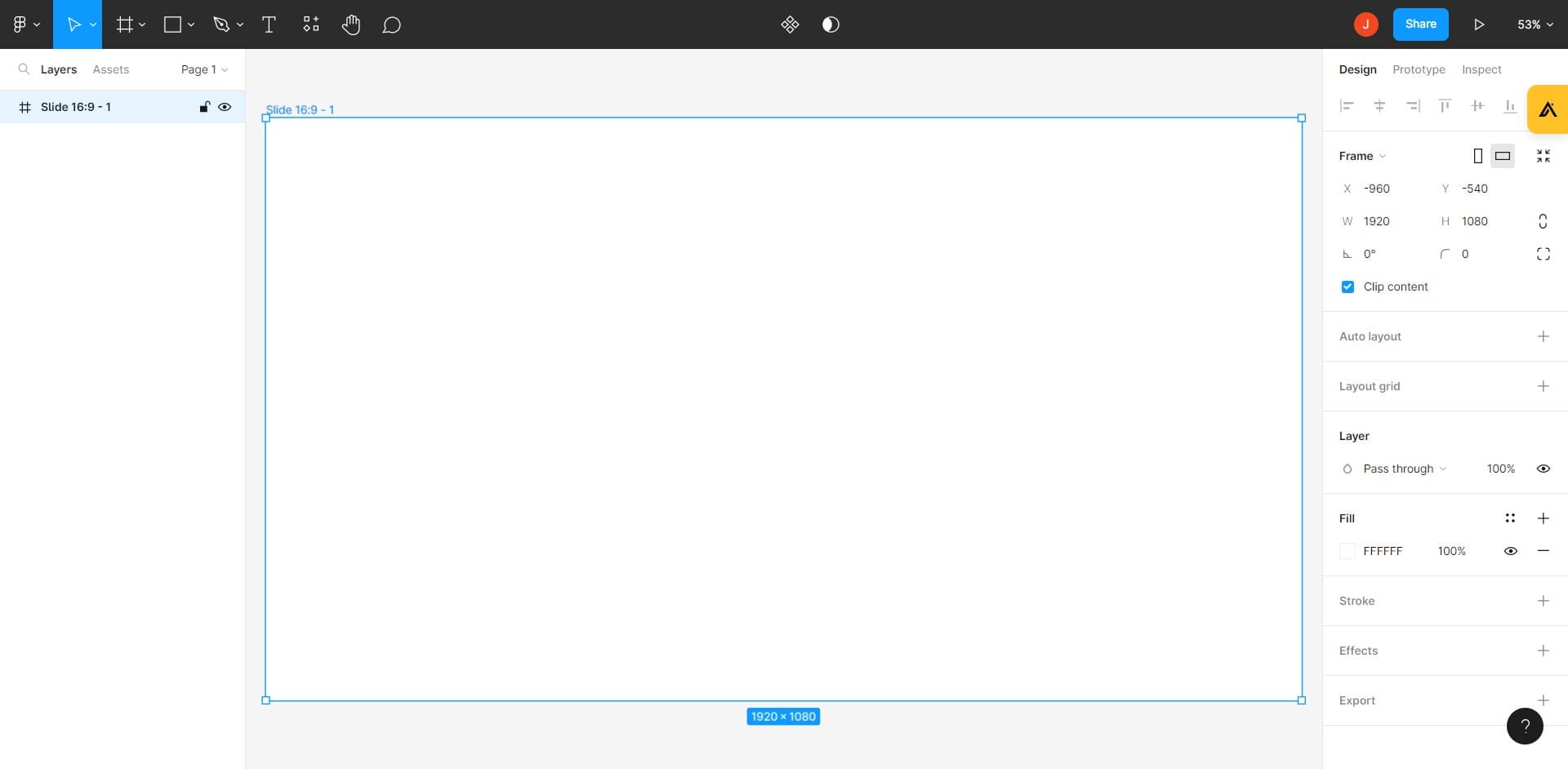
Adding frames in Figma is a fundamental skill for organizing your designs and creating responsive layouts. Frames act as containers for your design elements and are essential for prototyping, exporting, and building component libraries. This tutorial walks you through the process of creating a frame in Figma.
Quick summary
In this tutorial, you'll learn how to create a frame in Figma by accessing the frame tool and selecting a preset template. You'll discover how to navigate the tools panel and apply predefined frame dimensions for common device sizes, streamlining your design workflow.
Why this matters
Frames are critical in Figma because they define the boundaries of your designs and enable proper organization for multi-page projects. Using preset frame sizes like phones and tablets ensures your designs are built to standard dimensions, making it easier to create responsive prototypes and hand off specifications to developers. Understanding how to quickly add frames saves time and maintains consistency across your design system.
Step-by-step guide
- 1
Open your Figma project
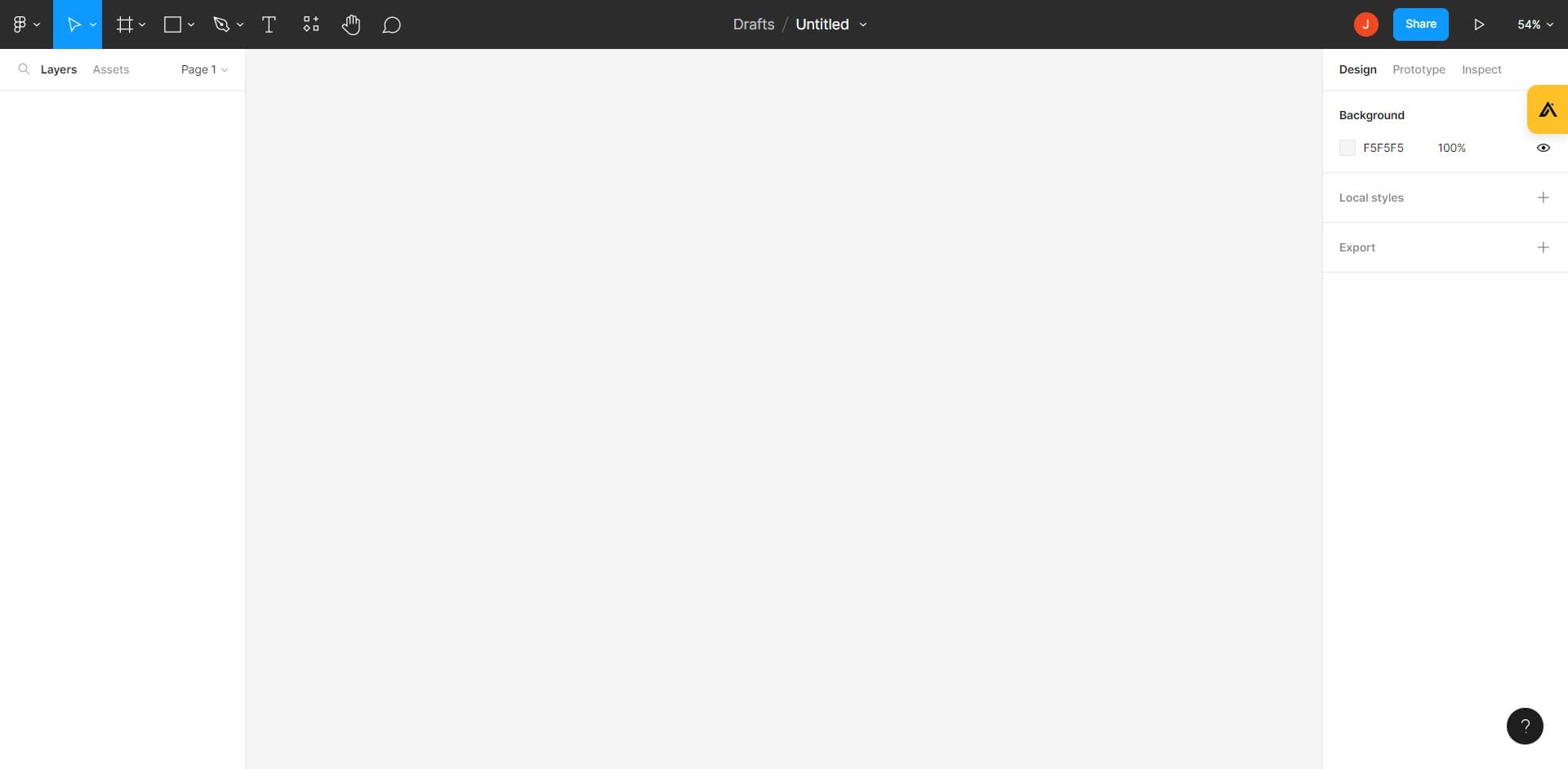
Navigate to your Figma workspace and click on 'Drafts Untitled' to open the file where you want to add a frame. This will bring up the canvas where you can begin creating your design.
- 2
Access the frame creation menu
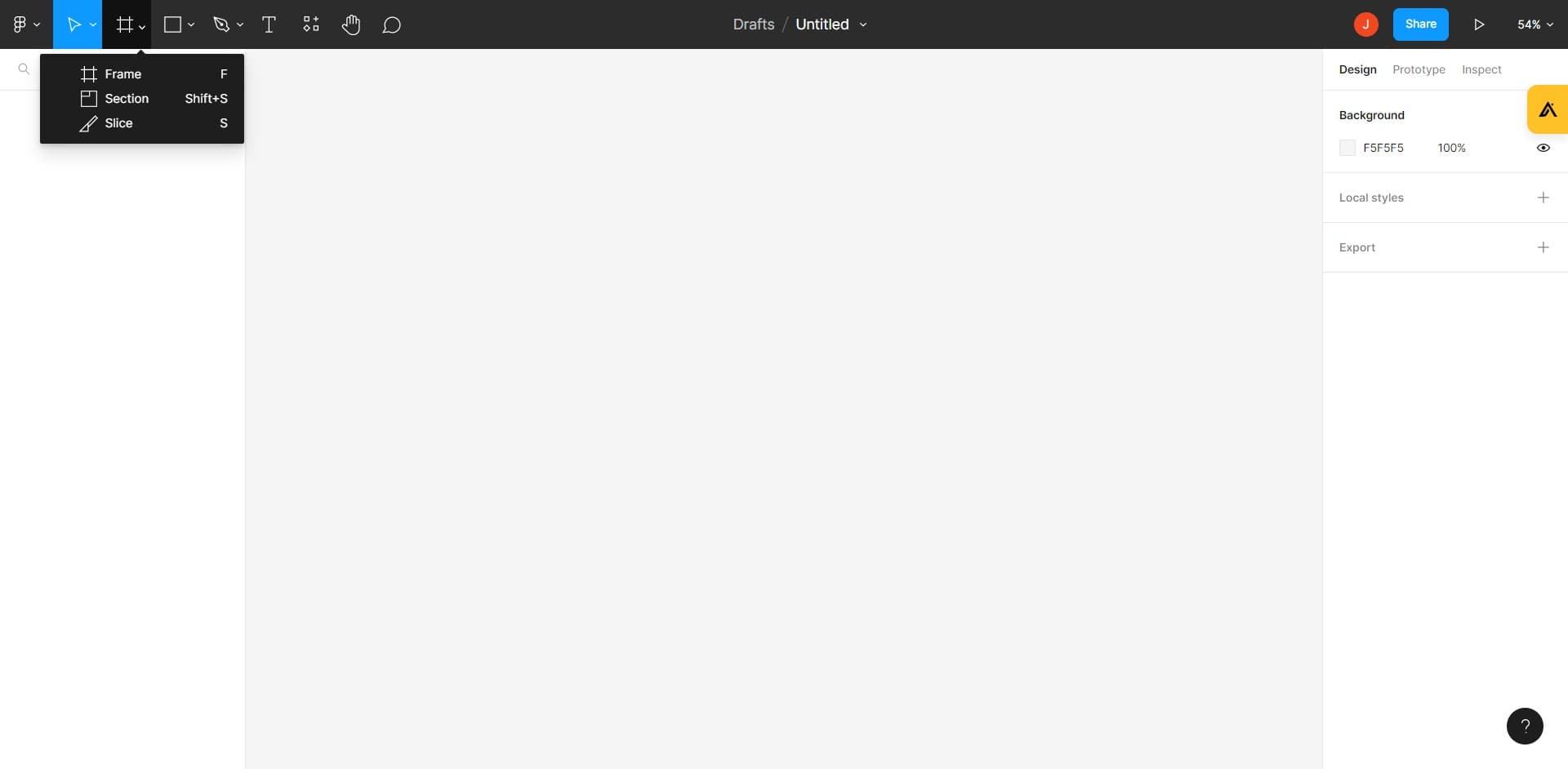
Click on the designated area in the toolbar to open the frame options. This action will prepare the interface to display available frame presets.
- 3
Activate the Frame tool
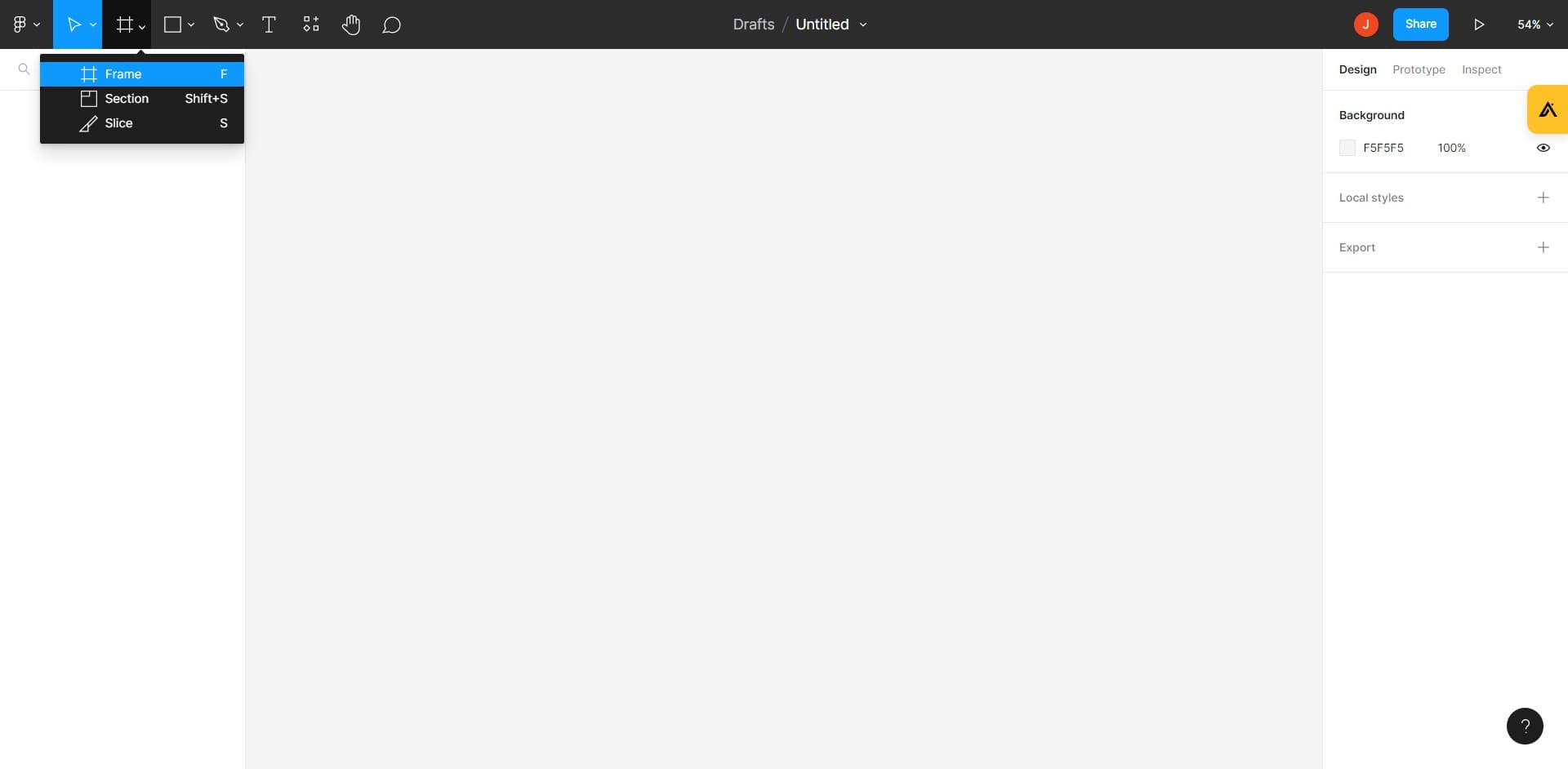
Press or click on the 'F' key to activate the Frame tool in Figma. This shortcut instantly switches your cursor mode to frame creation.
- 4
Select a frame preset
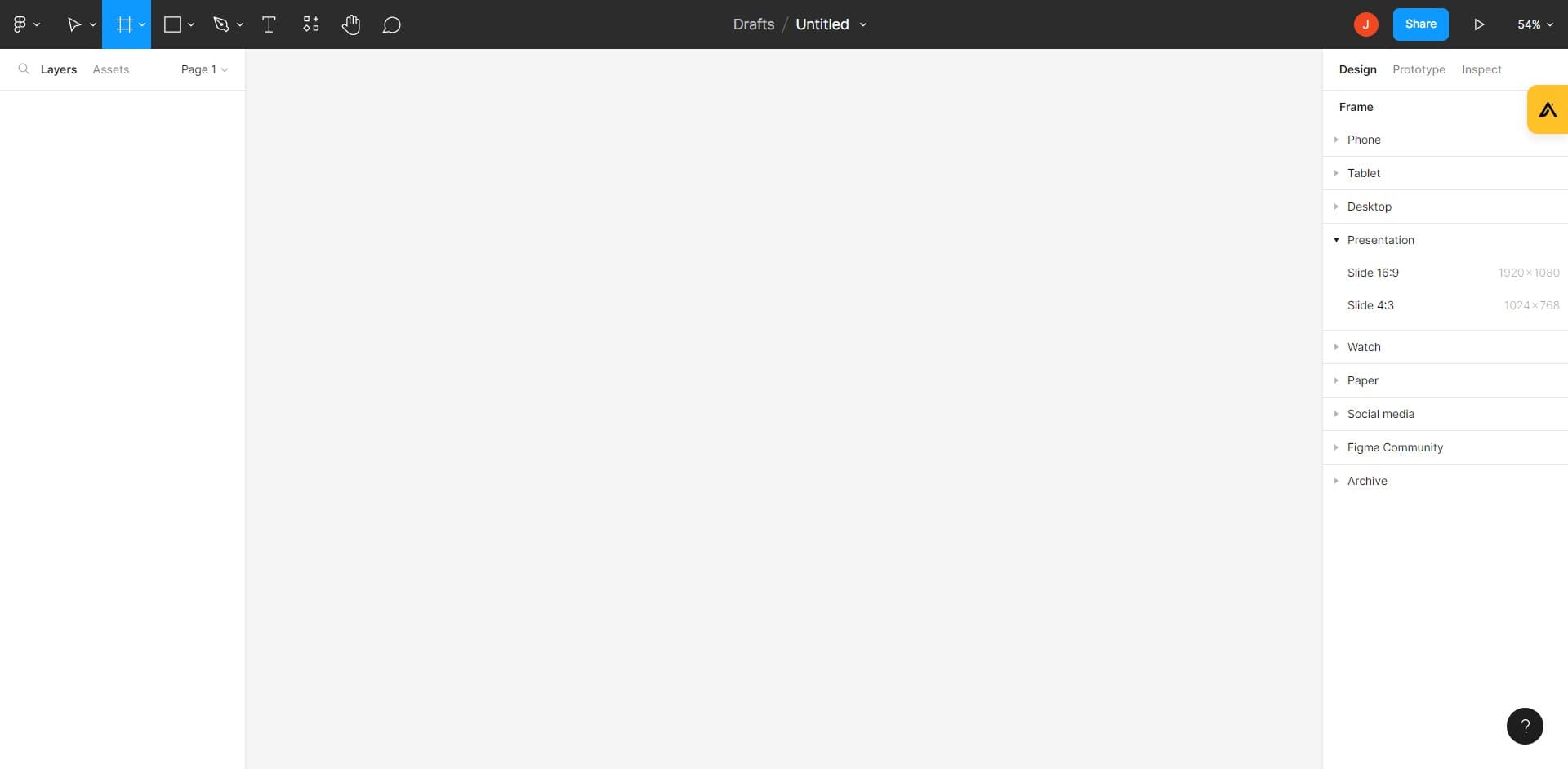
Click on 'Frame Phone Tab...' or another preset option that matches your design needs. Figma will display various predefined frame sizes for common devices and screen sizes.
- 5
Confirm and place your frame
Click on the canvas to place your selected frame in your project. Your frame will now appear on the canvas as a container ready for your design elements.
Frequently asked questions
Common questions about how to add frame on figma.
Frames are specialized containers designed for prototyping, responsive design, and exporting, while groups are simple organizational folders for elements. Frames support layout features like auto-layout and constraints, making them more powerful for complex designs. Groups are useful only for grouping related elements without additional functionality.
Yes, you can easily modify frame dimensions after creation by selecting the frame and adjusting its width and height in the design panel on the right. You can also rename frames, change their background color, and apply other properties to match your design requirements.
Select the preset that matches your target device or platform—use iPhone for mobile, iPad for tablets, or Macbook for desktop designs. You can always adjust the dimensions manually if you need non-standard sizes for your specific project.
Elements placed inside a frame become part of that frame and move together as a unit. This makes it easier to organize your designs, export them, and create prototypes with proper boundaries and constraints.
Absolutely, you can create as many frames as needed in one file, and they'll each function independently. This is ideal for designing multiple screens, pages, or variations of your product within a single organized workspace.