How to adjust the nudge amount in Figma

Adjusting the nudge amount in Figma allows you to control how far objects move when you use keyboard arrow keys, enabling more precise and efficient design work. Whether you prefer small incremental movements or larger jumps, customizing this setting can significantly speed up your design workflow.
Quick summary
In this tutorial, you'll learn how to access Figma's nudge settings and adjust the nudge amount to match your design preferences. By the end, you'll be able to customize how far your selected objects move with each arrow key press.
Why this matters
The nudge amount determines the distance objects move when you press arrow keys, which is essential for fine-tuning layouts and maintaining consistent spacing in your designs. Adjusting this setting ensures you're not constantly undoing large movements or spending time on micro-adjustments, making your design process more efficient and enjoyable.
Step-by-step guide
- 1
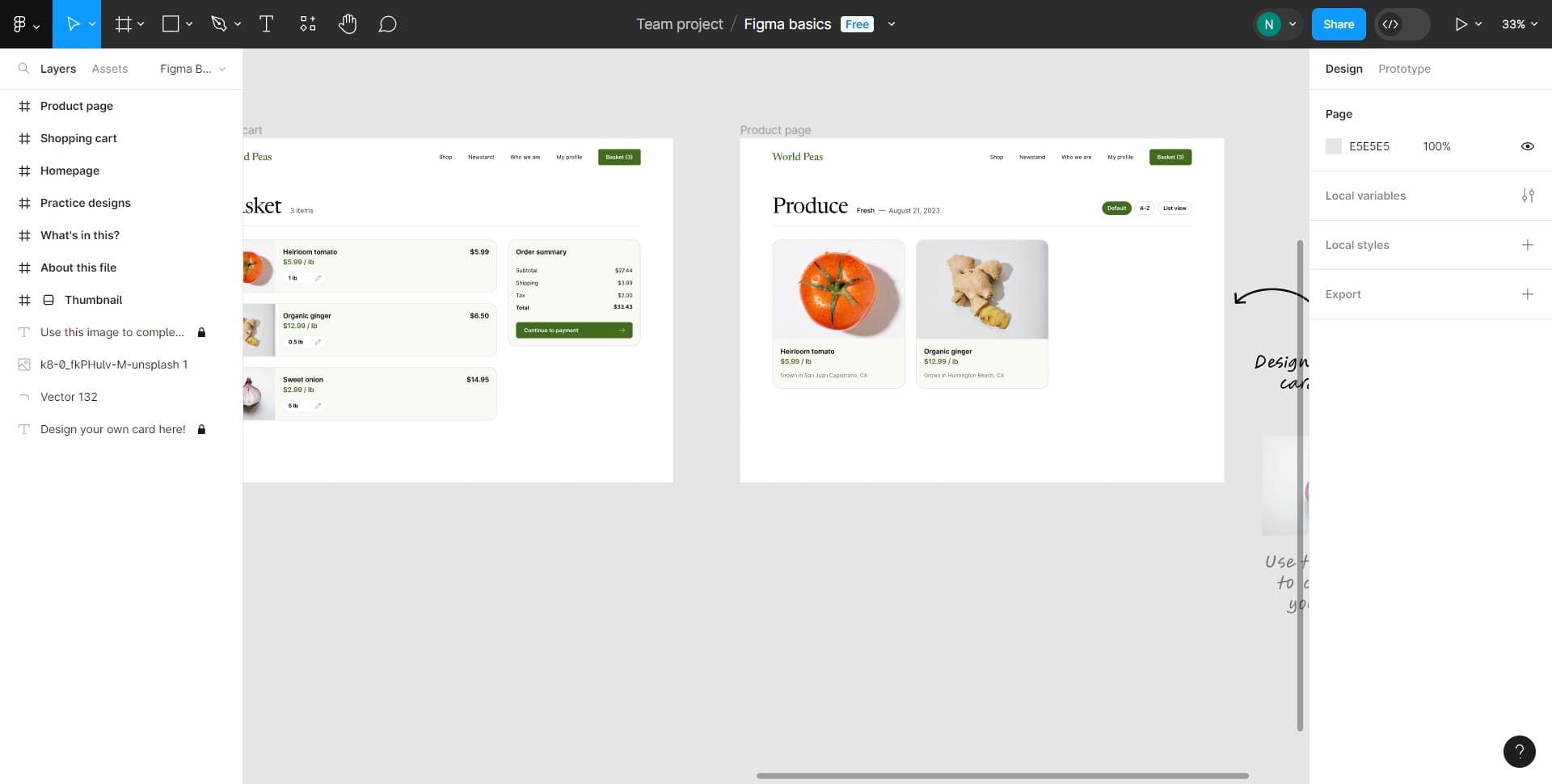
Access the preferences menu
Begin by opening the main menu or preferences area in Figma. Look for the option that provides access to application settings where you can customize behavior and shortcuts.
- 2
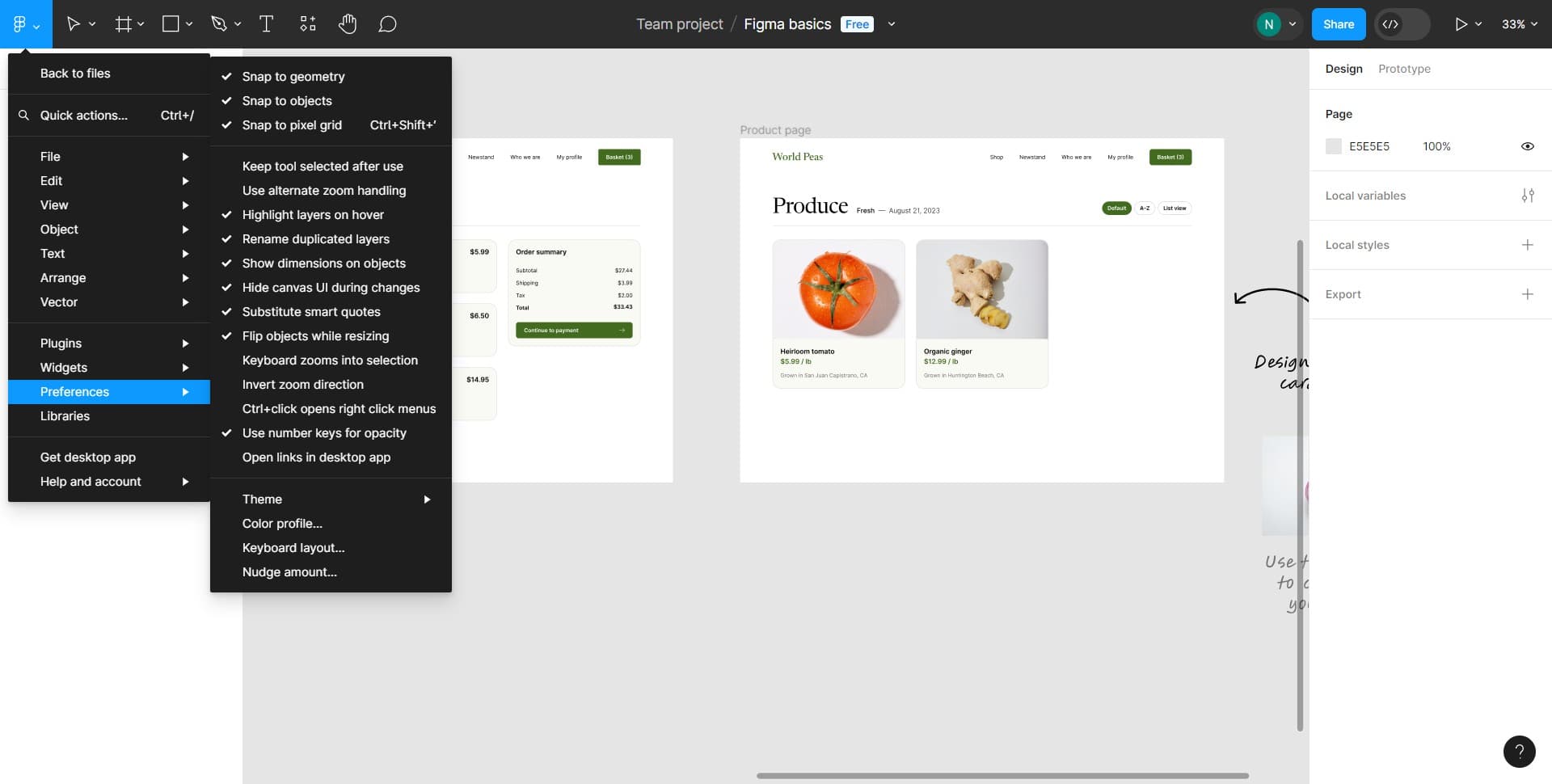
Navigate to keyboard shortcuts
From the preferences menu, locate and select the keyboard shortcuts or settings section. This area contains all customizable keyboard-related options for Figma.
- 3
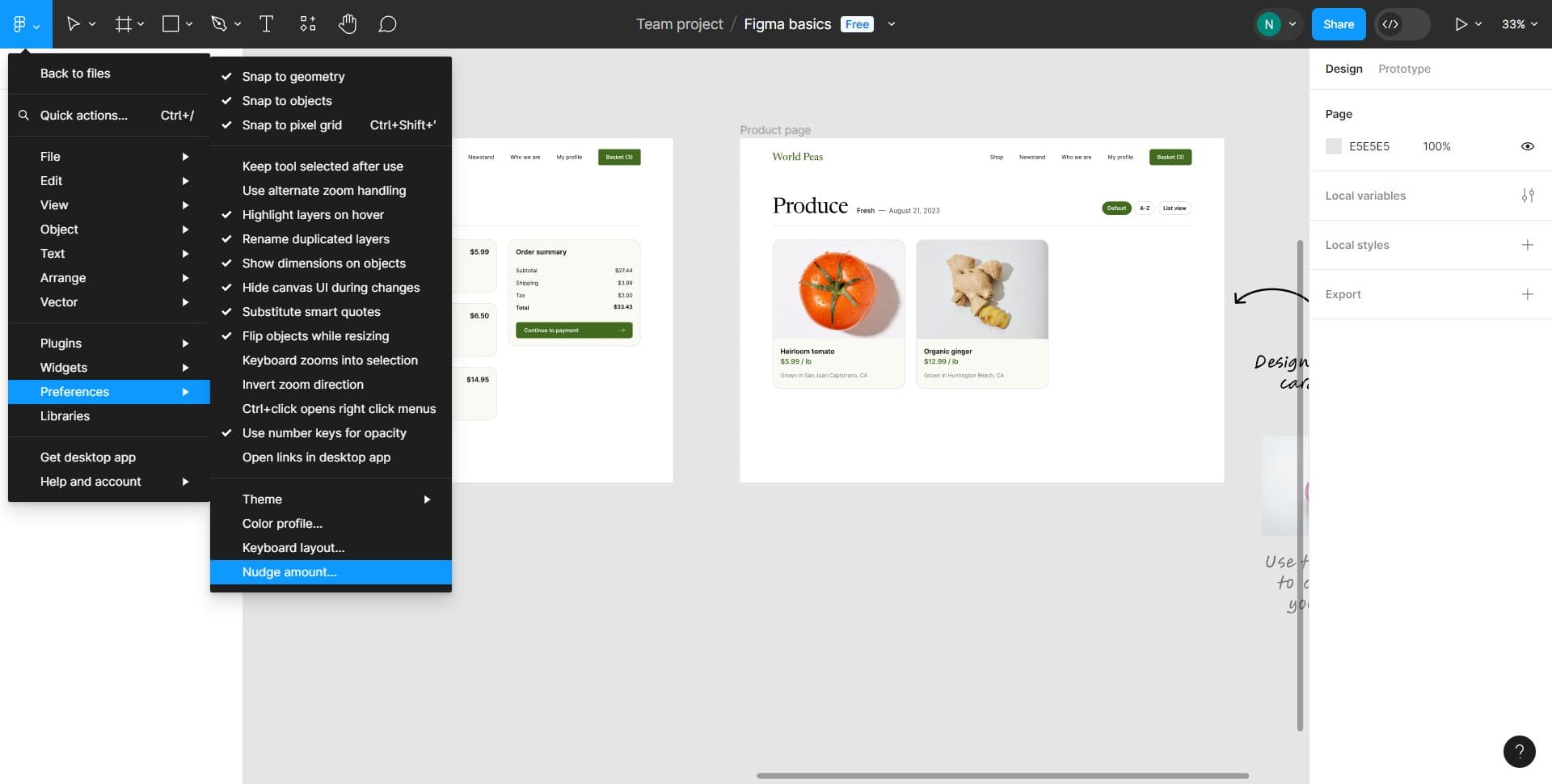
Click on nudge amount setting
Find and click on the 'Nudge amount…' option within the settings. This will open a dialog where you can input your desired pixel value for each arrow key press.
Frequently asked questions
Common questions about how to adjust the nudge amount in figma.
The default nudge amount in Figma is typically 1 pixel per arrow key press. However, this can vary depending on your workspace settings and may have been customized by a team administrator if you're working in a shared file.
No, the nudge amount is a global setting that applies to all objects in your Figma workspace. Once you set it, every object will move by that amount when you use arrow keys. If you need different movement distances, you can temporarily change the setting or use manual dragging.
Nudge amount refers specifically to the distance an object moves when you press an arrow key on your keyboard. This is distinct from dragging with your mouse, which allows for free-form movement without preset increments.
A larger nudge amount is useful when you're making bigger layout adjustments or working on designs with larger spacing requirements. It reduces the number of key presses needed to move objects significant distances, making your workflow faster for high-level positioning tasks.
Yes, each team member can customize their own nudge amount in their personal Figma preferences. The setting is stored locally on each user's account and won't affect other collaborators working on the same files.