How to Complete the Figma App Download

Downloading and installing the Figma desktop app gives you a faster, more reliable design experience with offline access and seamless file syncing. This guide walks you through the complete setup process, from locating the download link to launching the app on your computer.
Quick summary
In this tutorial, you'll learn how to download and install the Figma desktop application. You'll navigate through the setup screens and successfully open the app so you can start designing immediately.
Why this matters
The Figma desktop app offers performance benefits over the browser version, including faster load times, better responsiveness, and the ability to work offline. Installing it ensures your design workflow remains smooth and uninterrupted, whether you're collaborating with teammates or working independently.
Step-by-step guide
- 1
Navigate to Figma download page
Start by visiting the official Figma website and locating the download section. You'll typically find this in the main navigation or by searching for 'download Figma desktop app'.
- 2
Select your operating system
Choose the appropriate installer for your device—either macOS or Windows. Figma will automatically detect your system, but you can manually select if needed.
- 3
Initiate the download process
Click the download button to begin downloading the installer file to your computer. The file size is typically around 150-200 MB, so allow a few moments depending on your internet speed.
- 4
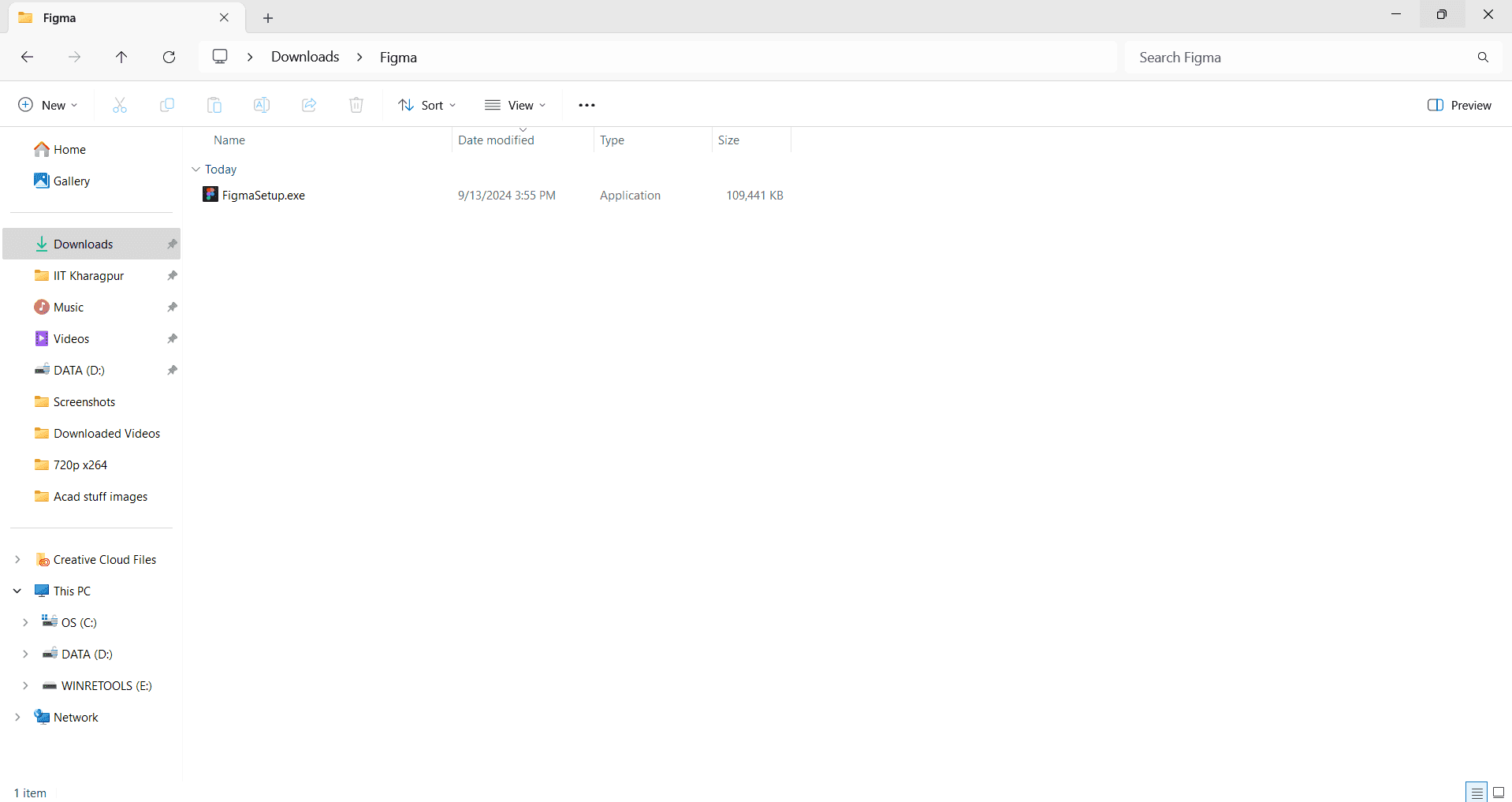
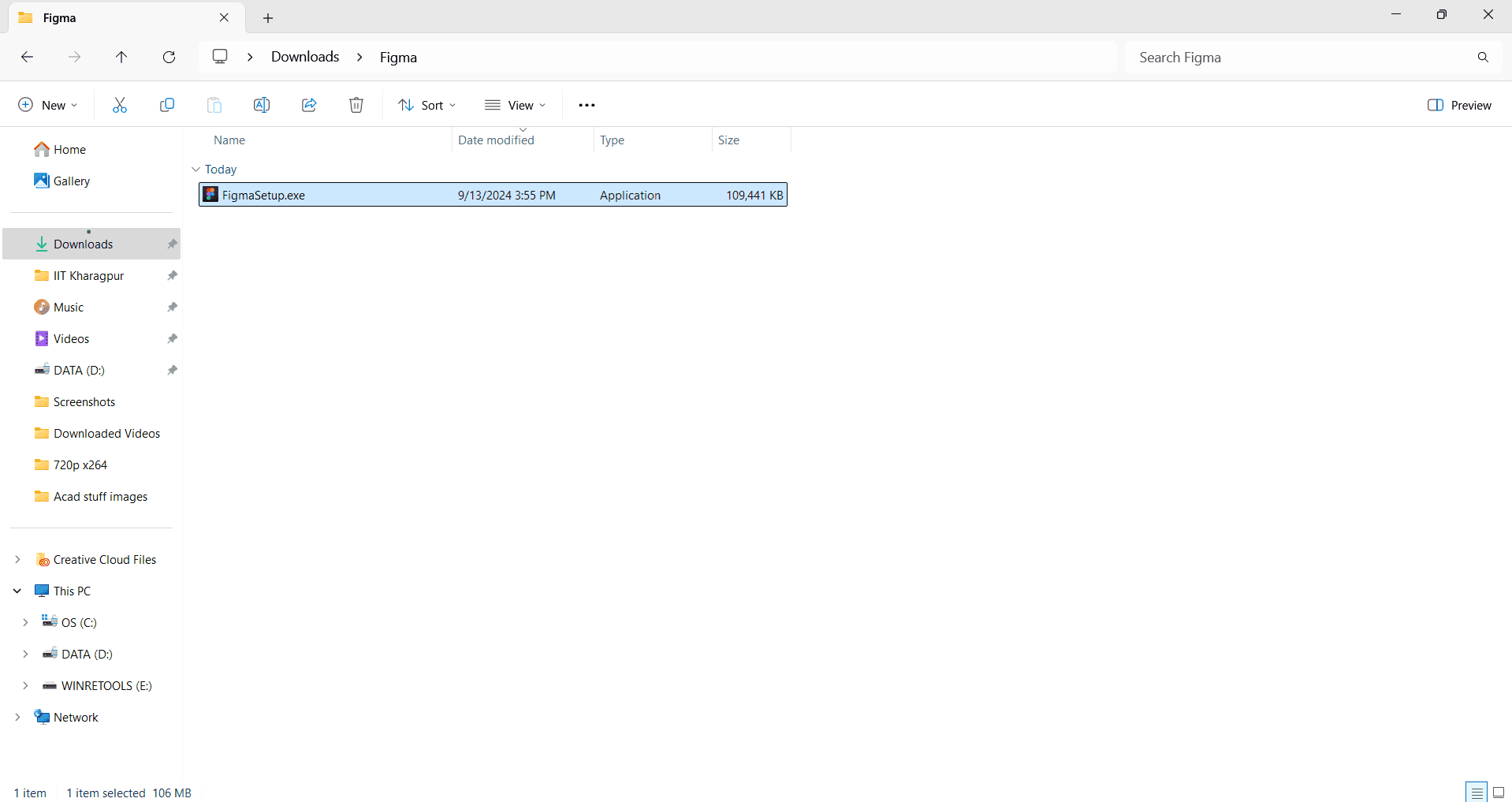
Locate the installer file
Once the download completes, open your Downloads folder or the location where your browser saves files. You'll see the Figma installer file ready to execute.
- 5
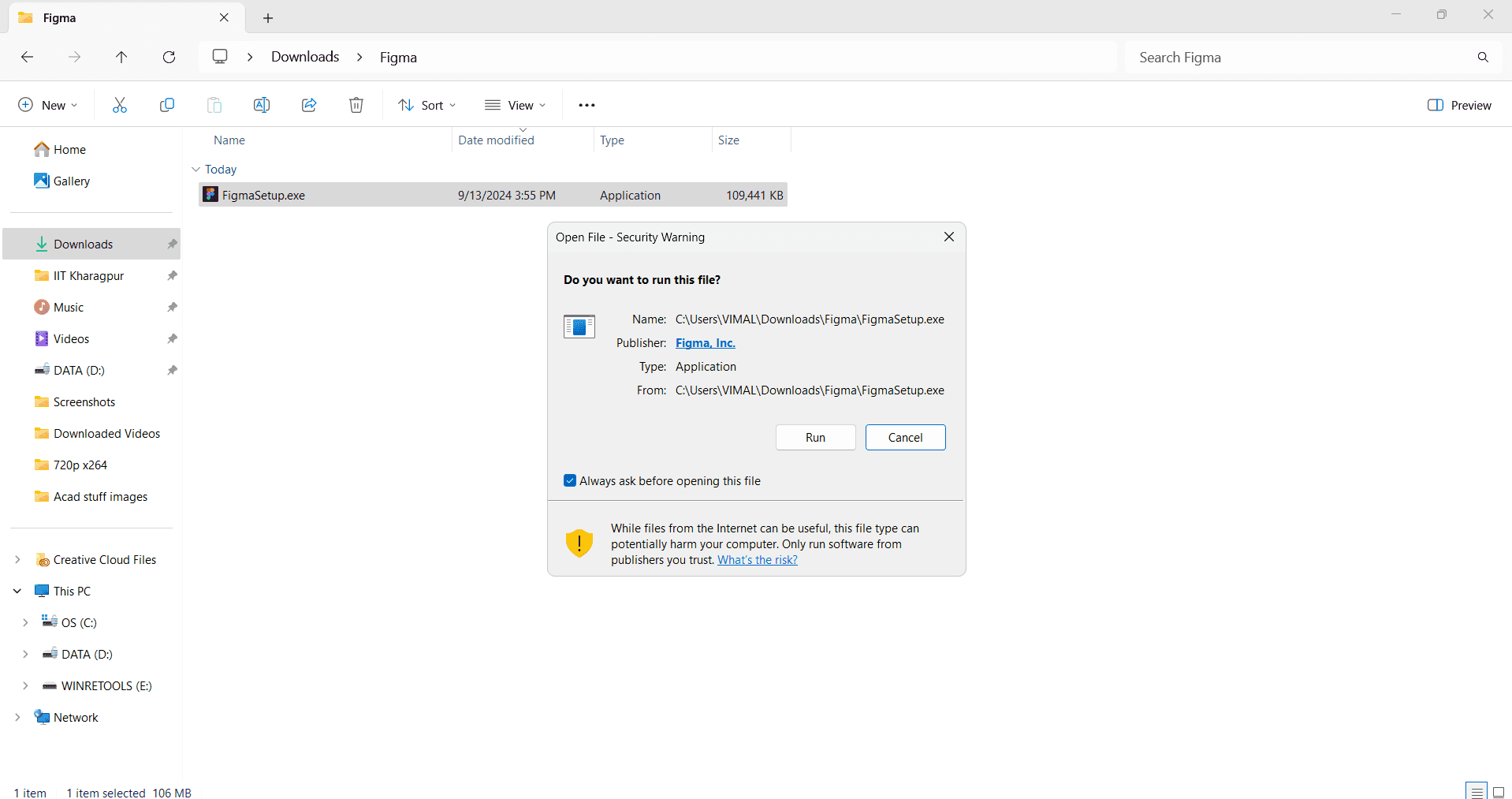
Run the installer
Double-click the installer file to launch the setup wizard. Follow any system prompts to allow the installation to proceed on your machine.
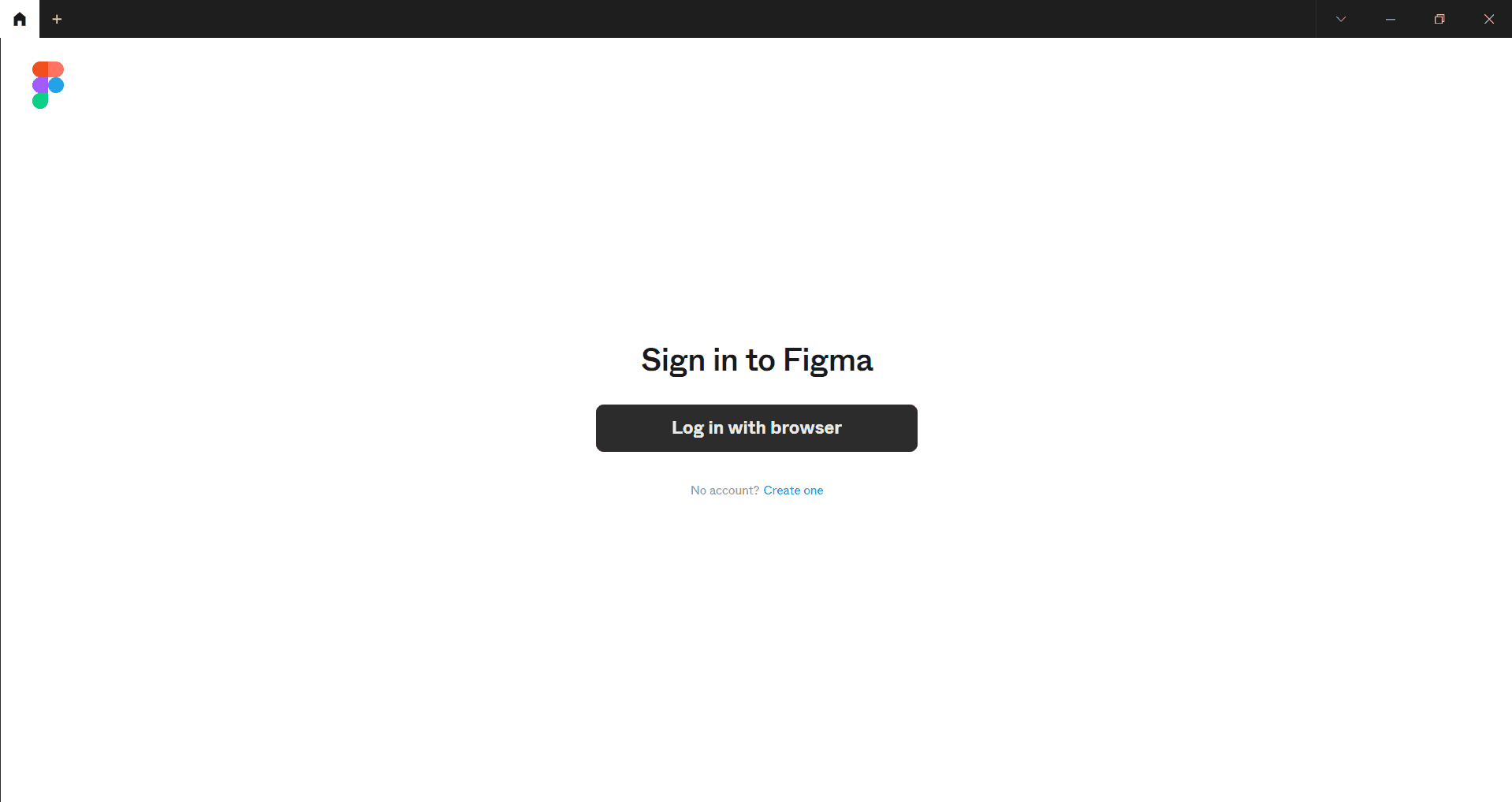
- 6
Click on Open the desktop app
After installation completes, the setup wizard will offer an option to open the desktop app immediately. Click this button to launch Figma and begin your first session.

- 7
Sign in to your account
The Figma login window will appear. Enter your email address and password to authenticate and access your workspace and existing projects.
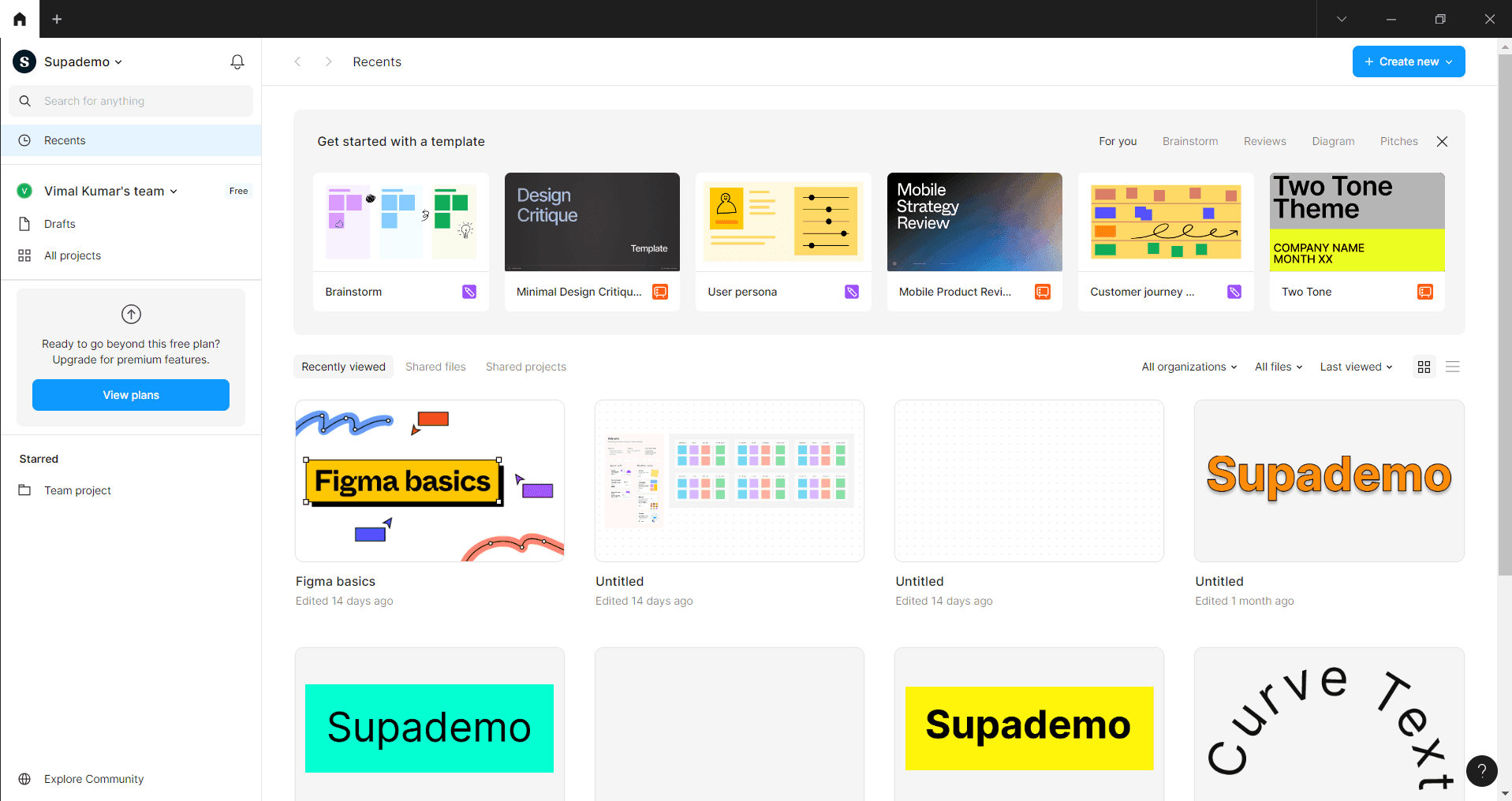
- 8
Confirm successful installation
Once signed in, you'll see your Figma dashboard with your projects and files. The desktop app is now fully installed and ready for use.
Frequently asked questions
Common questions about how to complete the figma app download.
Figma desktop app requires macOS 10.12 or later for Mac users, or Windows 7 and later for Windows users. Your computer should have at least 2 GB of RAM for optimal performance. Check the Figma website for the most current system requirements.
The desktop app allows you to open and work on recently accessed files offline, but new projects and collaboration features require an internet connection. Once you reconnect, all your changes will sync automatically to the cloud.
No, you can use both the browser version and desktop app simultaneously. Many designers prefer having both options available depending on their workflow and current task.
The desktop app typically checks for updates automatically when you launch it. You can also manually check for updates in the app menu under Settings or Preferences, depending on your operating system.
First, ensure you have administrator permissions on your computer. Try restarting your device and downloading the installer again. If problems persist, check your antivirus or firewall settings, as they may be blocking the installation. Contact Figma support if the issue continues.