How to Convert Figma to a Code

Converting Figma designs directly to code eliminates manual hand-off delays and reduces errors between design and development. This workflow streamlines the process of turning your Figma prototypes into production-ready web and app code using dedicated conversion plugins.
Quick summary
In this tutorial, you'll learn how to access Figma's plugin ecosystem, locate the Code Conversion Made Easy plugin, and execute the conversion process to transform your designs into functional code. By following these steps, you'll be able to bridge the gap between design and development seamlessly.
Why this matters
Automating the design-to-code conversion process saves development teams significant time and reduces the back-and-forth communication between designers and engineers. Accurate code generation from Figma designs ensures consistency, minimizes rework, and accelerates time-to-market for web and app projects.
Step-by-step guide
- 1
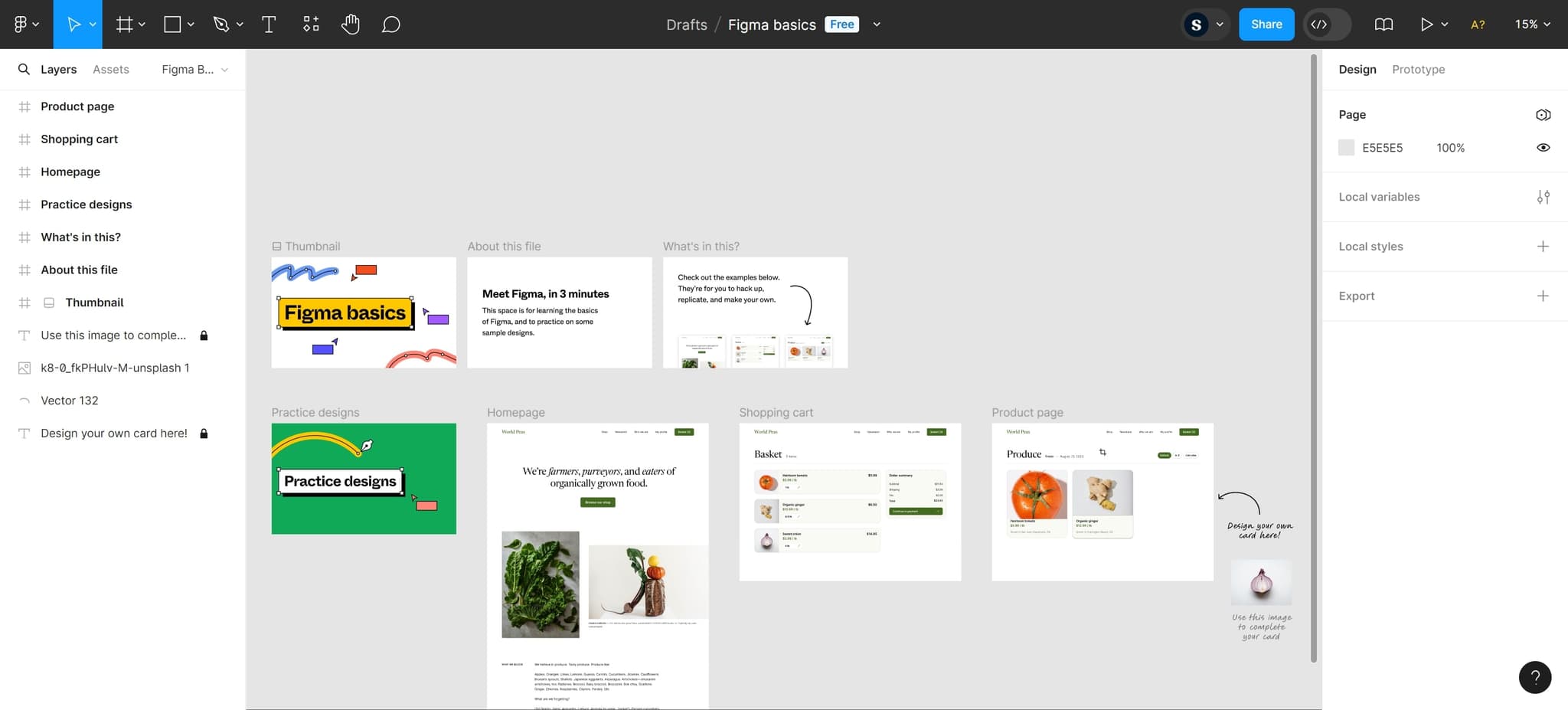
Access Figma to begin
Start by opening Figma in your browser or desktop application. You should have your design file ready with the components or frames you want to convert to code.
- 2
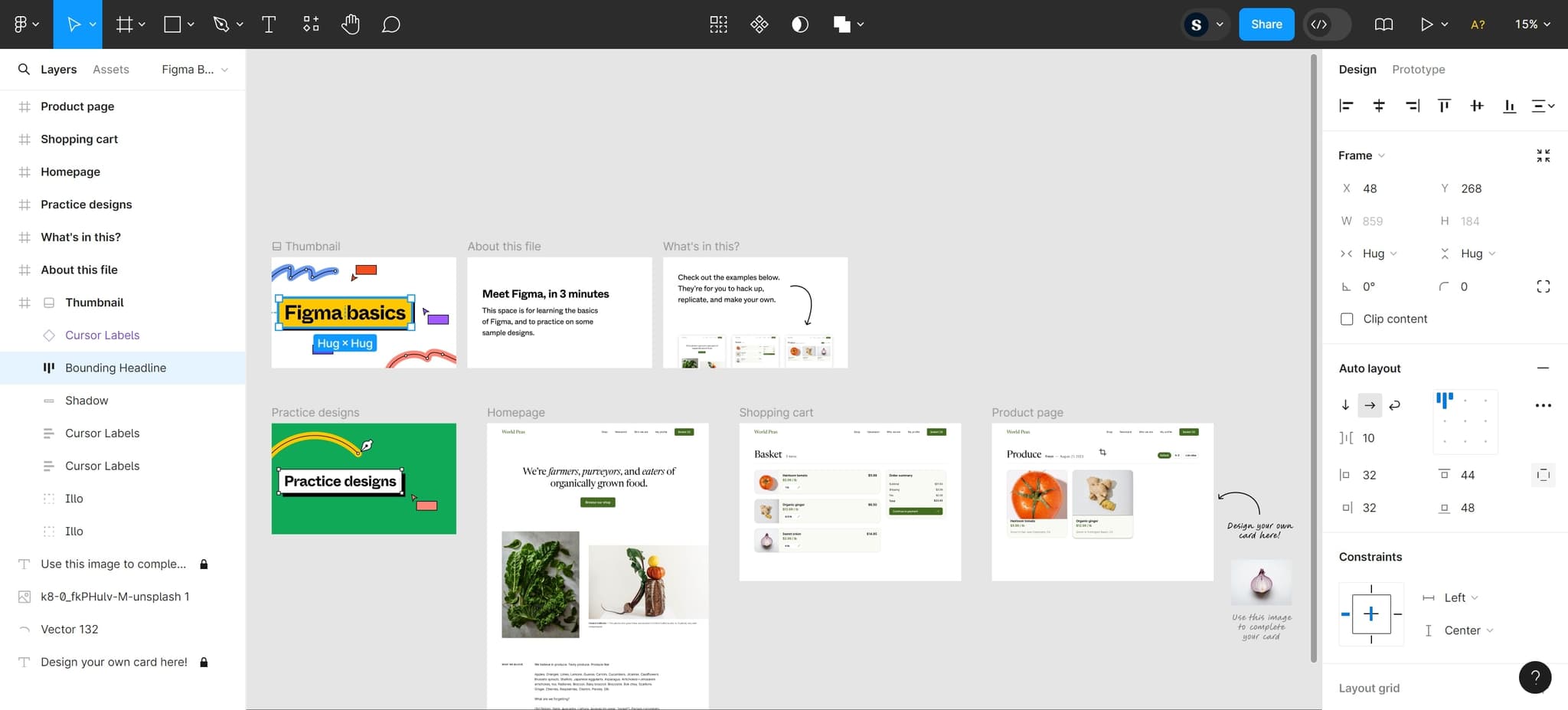
Navigate to the next step
Follow the on-screen prompts to proceed through the initial setup. This prepares your workspace for plugin access.
- 3
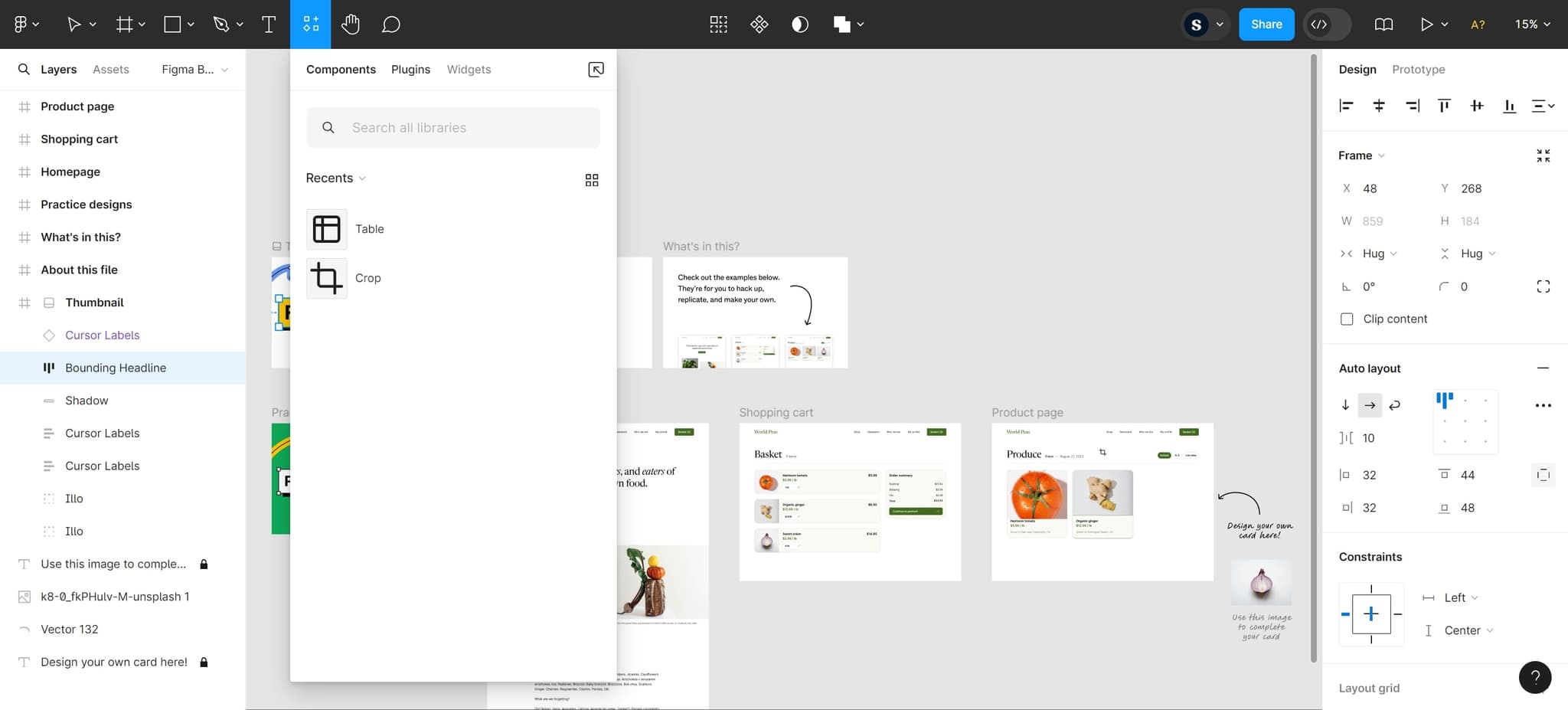
Click on Plugins
In the main Figma menu, locate and click on the Plugins option. This opens the plugin marketplace where you can browse and install extensions to enhance Figma's functionality.
- 4
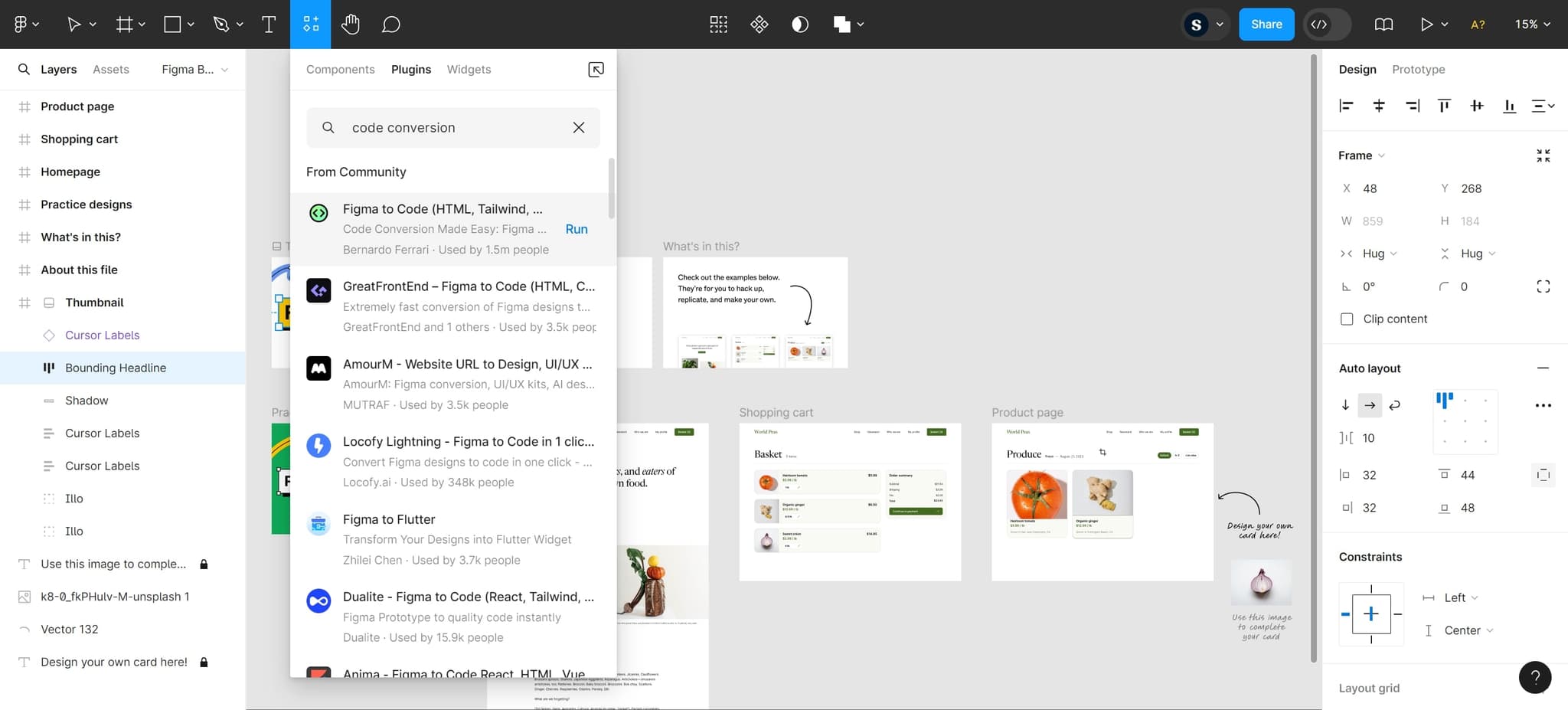
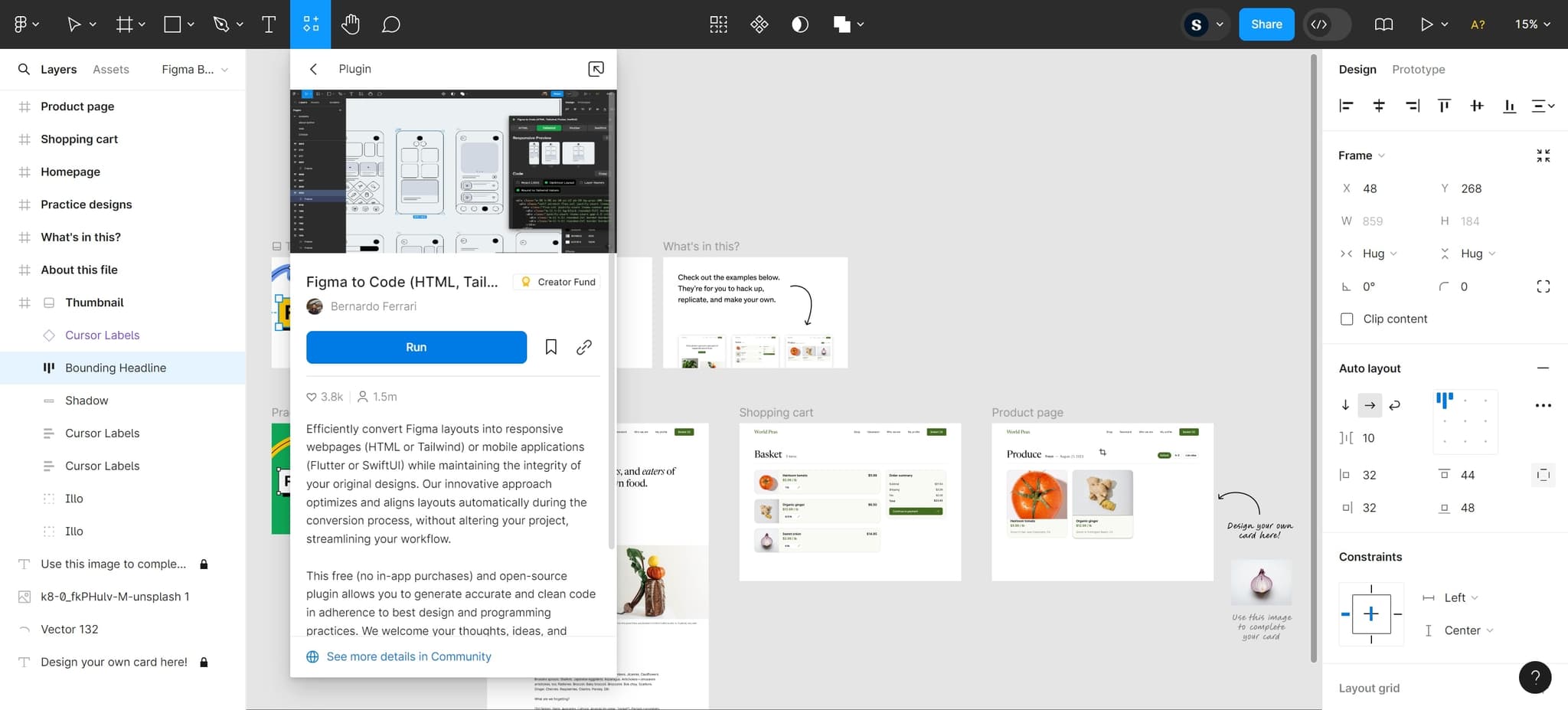
Select Code Conversion plugin
Search for and click on 'Code Conversion Made Easy: Figma to Web & Apps'. This plugin is specifically designed to automate the conversion of your Figma designs into clean, production-ready code.
- 5
Run the conversion process
Click the Run button to initiate the code conversion. The plugin will analyze your selected design elements and generate the corresponding code output.
- 6
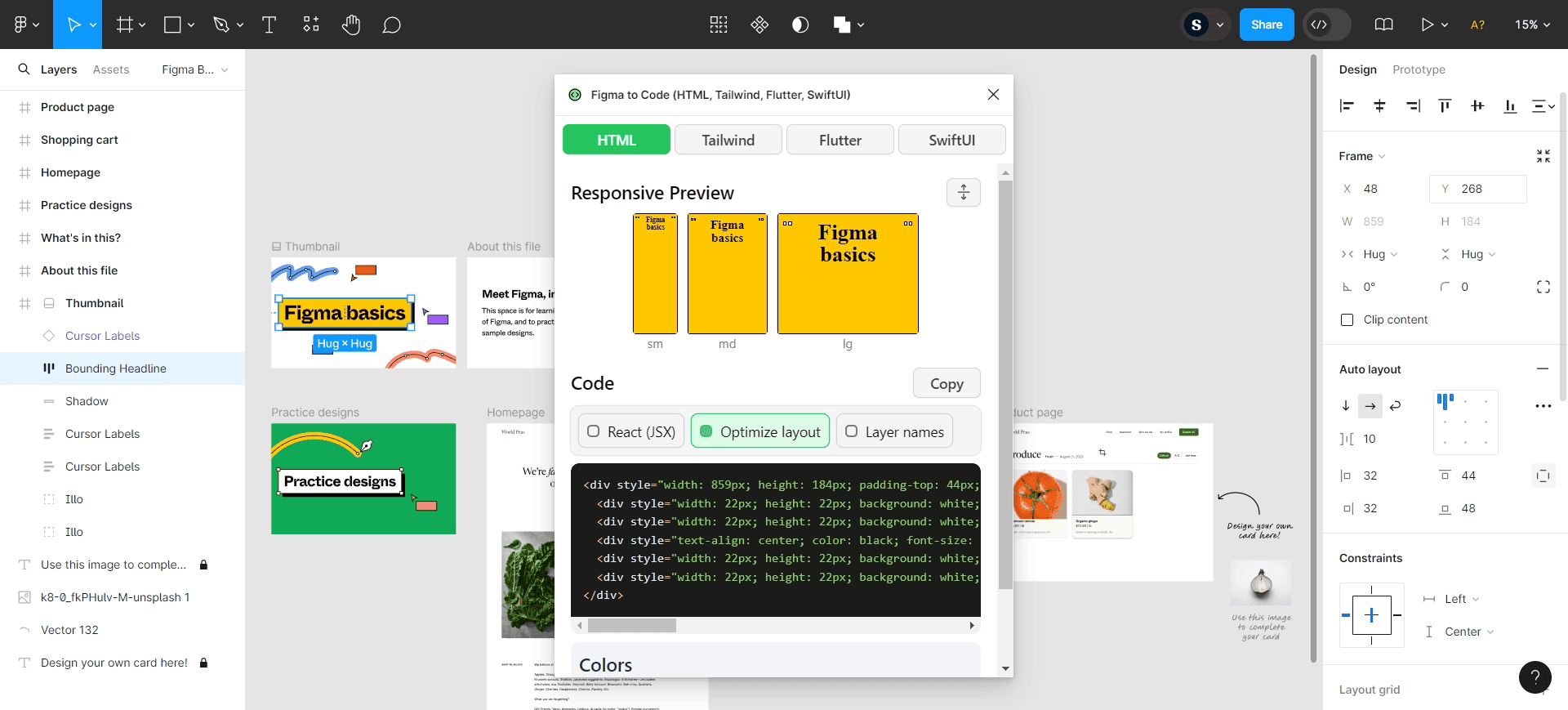
Review and export generated code
Once the conversion completes, review the generated code and export it to your preferred format or development environment. Verify that all design elements have been correctly translated before integrating the code into your project.
Frequently asked questions
Common questions about how to convert figma to a code.
Most Figma designs including layouts, components, frames, and interactive elements can be converted to code. The Code Conversion Made Easy plugin works best with well-organized design systems and standard UI components. Complex animations or custom interactions may require manual adjustments after conversion.
The plugin generates code for web applications and mobile apps, typically supporting HTML, CSS, JavaScript, React, and other popular frameworks. The exact supported formats depend on the plugin version and configuration options available during the conversion process.
Yes, the generated code is fully editable and meant to serve as a starting point for development. You can modify, optimize, and integrate the code with your existing codebase as needed.
You need at least Editor access on a Figma file to run plugins. If you only have Viewer access, you'll need to request Editor permissions or have someone with higher access run the conversion for you.
First, ensure your Figma file is properly structured with clear naming conventions and organized layers. If issues persist, check the plugin documentation for any prerequisites or try simplifying your design. You can also reach out to the plugin developer's support team for troubleshooting assistance.