How to Crop in Figma

Cropping in Figma allows you to remove unwanted portions of an image or element, helping you refine your designs and focus attention on key areas. This essential skill is useful for cleaning up assets, adjusting compositions, and preparing images for export.
Quick summary
In this tutorial, you'll learn how to crop elements in Figma by accessing the crop tool and applying it to your selected layers. By following these straightforward steps, you'll be able to trim and adjust your designs with precision.
Why this matters
Cropping is a fundamental design operation that saves time and improves visual clarity in your projects. Whether you're working with imported images or vector elements, mastering this workflow ensures your designs remain clean, professional, and focused on the content that matters most.
Step-by-step guide
- 1
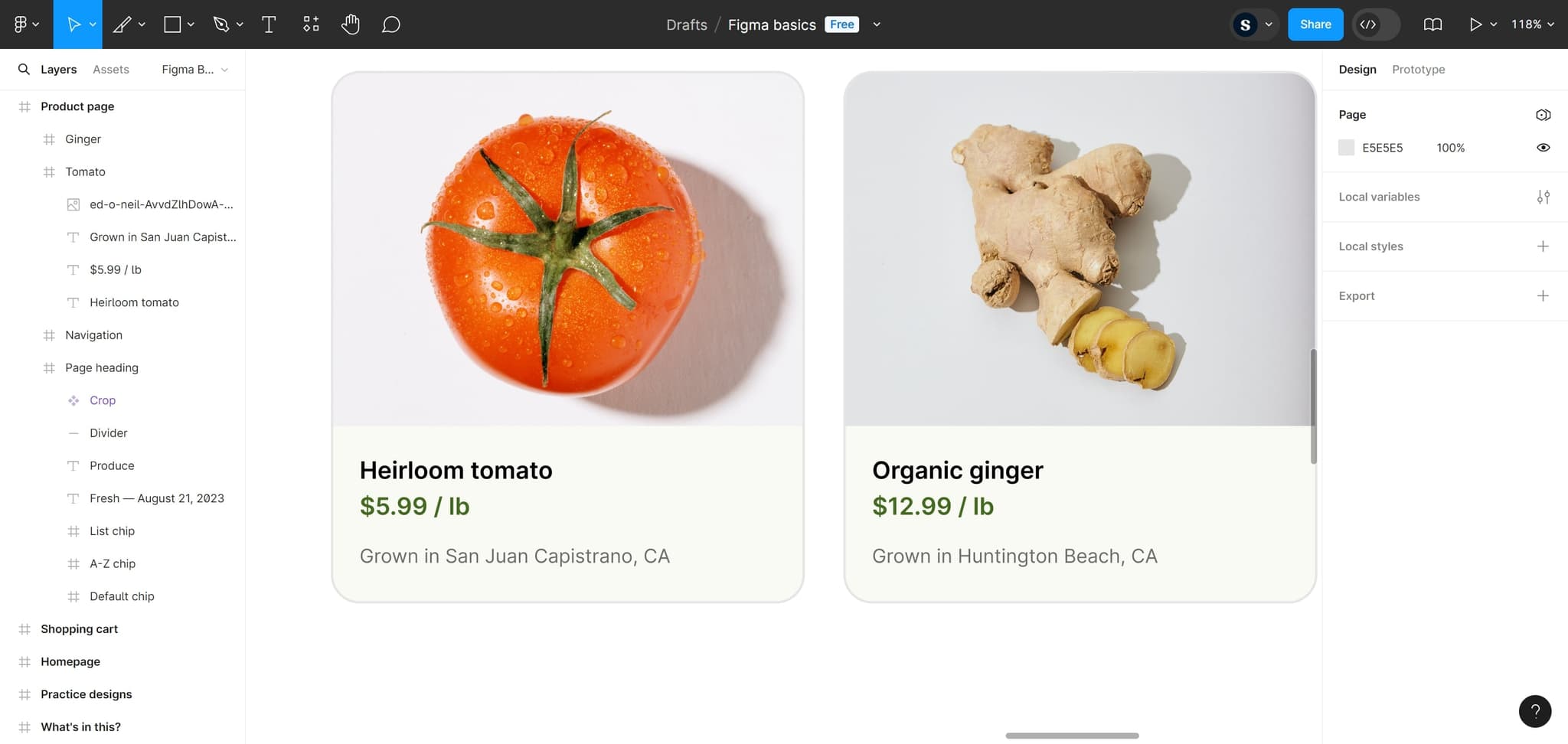
Open your Figma project
Start by launching Figma and opening the project file you want to work with. Ensure you have the canvas visible and ready for editing.
- 2
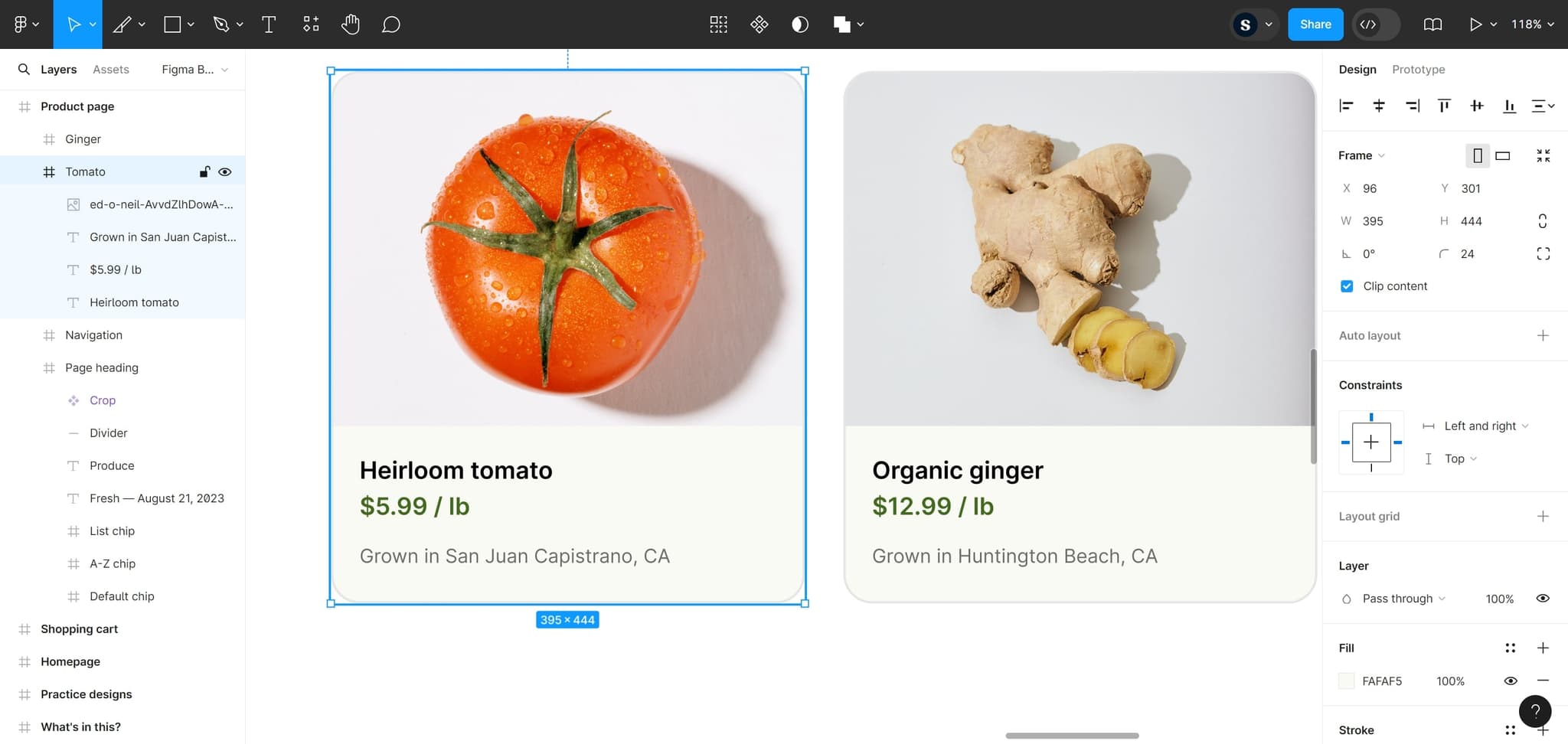
Access the design tools
Navigate to the tools panel to prepare for the cropping operation. This step ensures you have access to all available editing options.
- 3
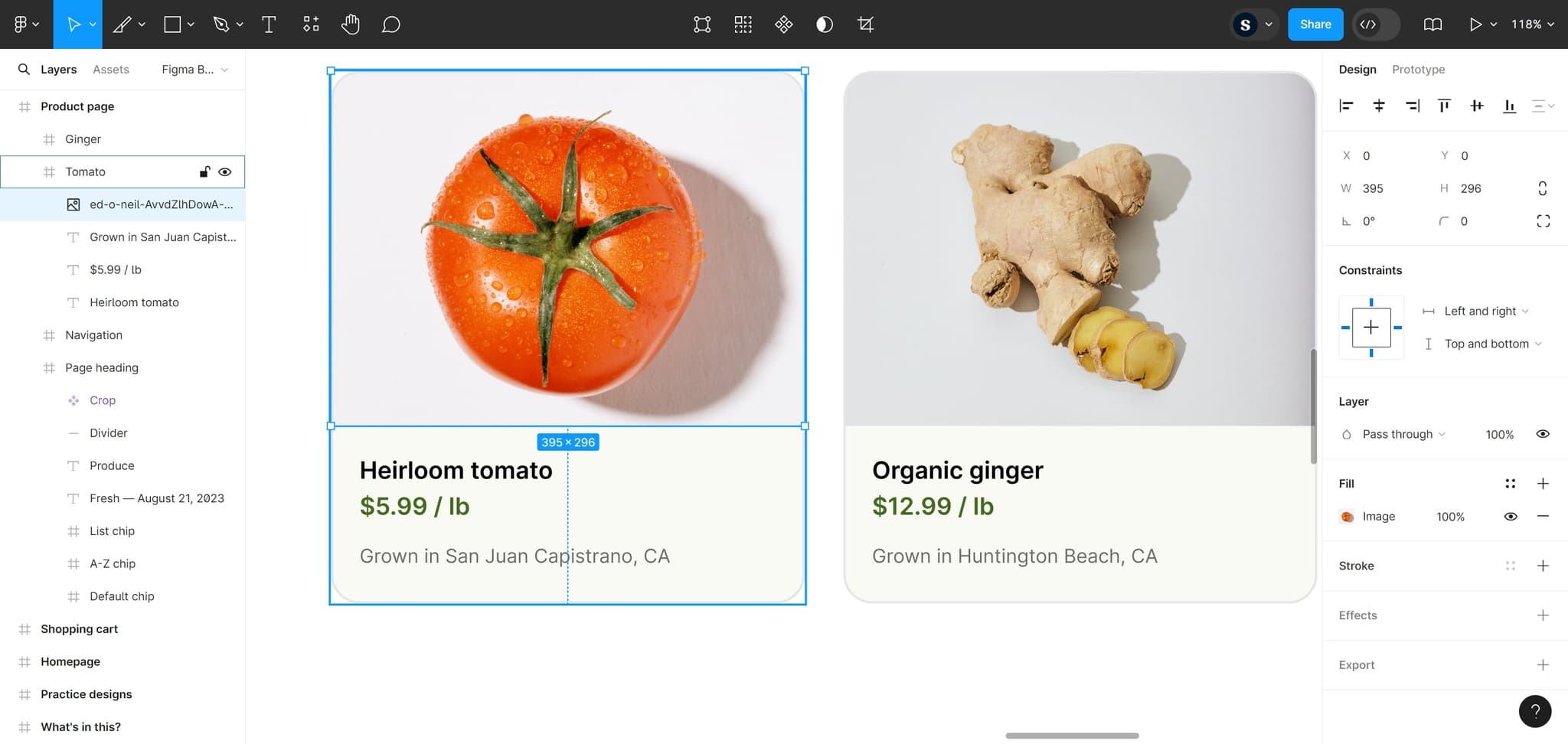
Locate the crop feature
Move to the area where the crop functionality is accessible. Take note of the interface elements that will help you proceed with the next action.
- 4
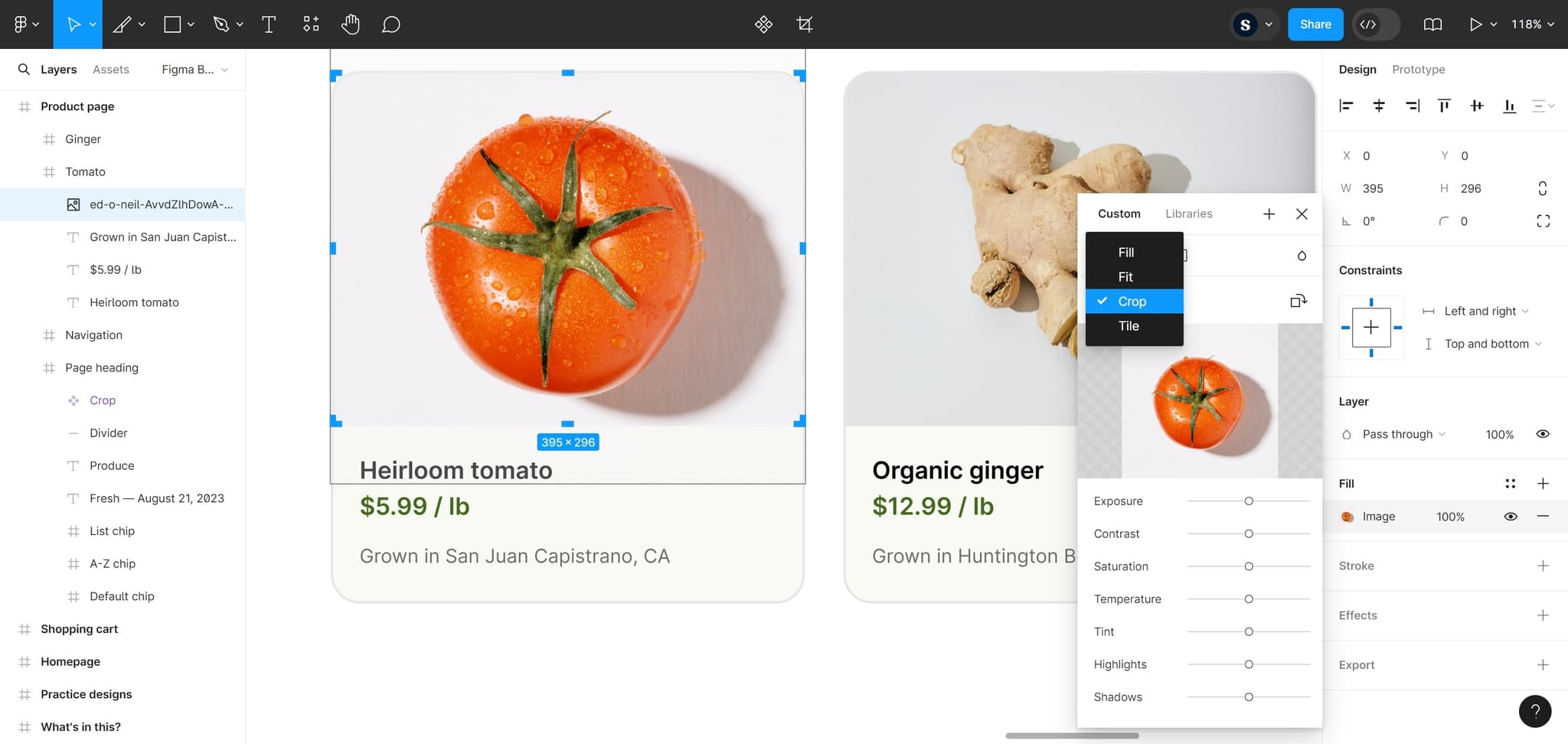
Click on Crop
Select the Crop option from the available tools or menu. This activates the crop mode and prepares your element for adjustment.
- 5
Select your element
Click on the image or element you want to crop. The element will become active and ready for cropping adjustments.
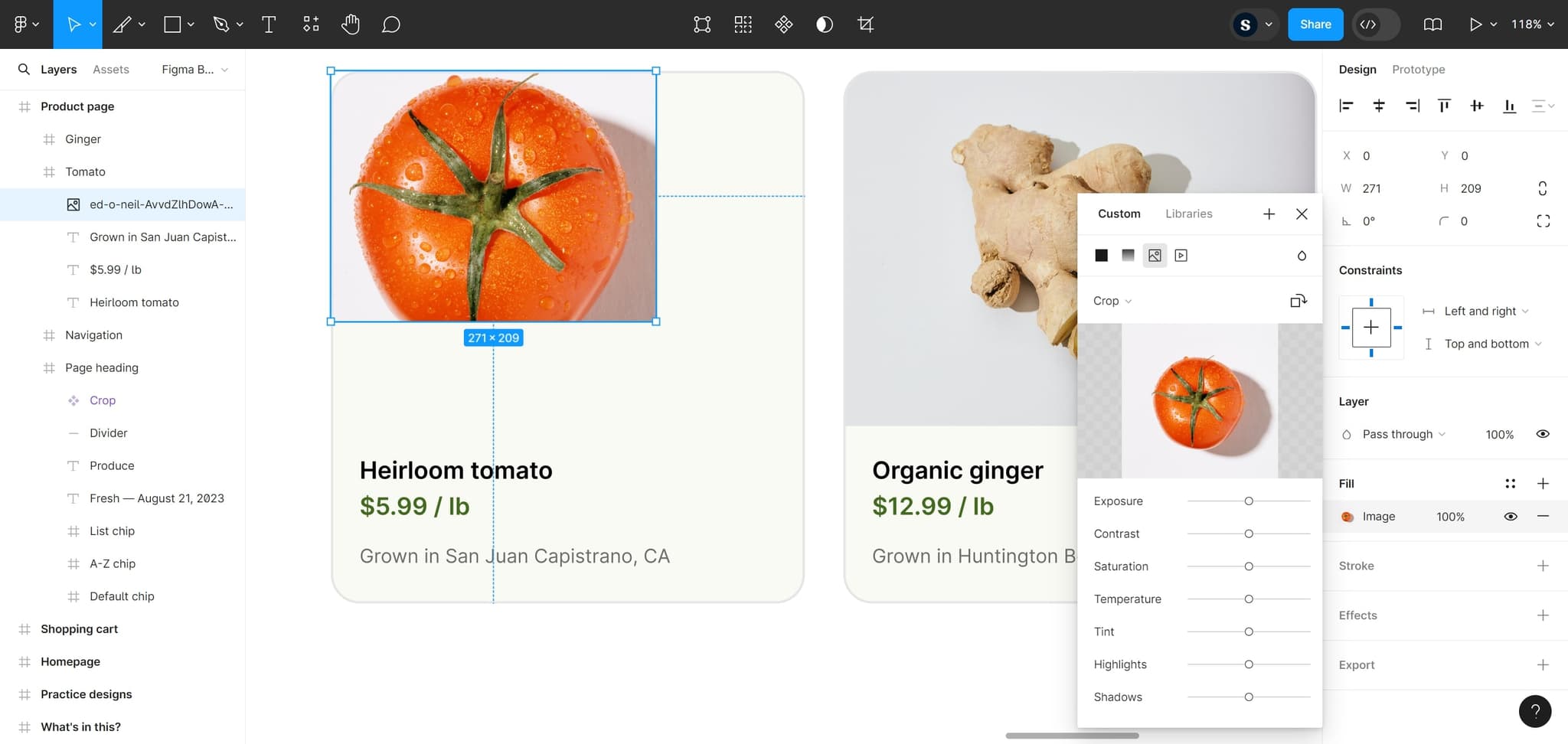
- 6
Apply crop settings
Finalize your crop by confirming the changes. Your element is now cropped according to your specifications.
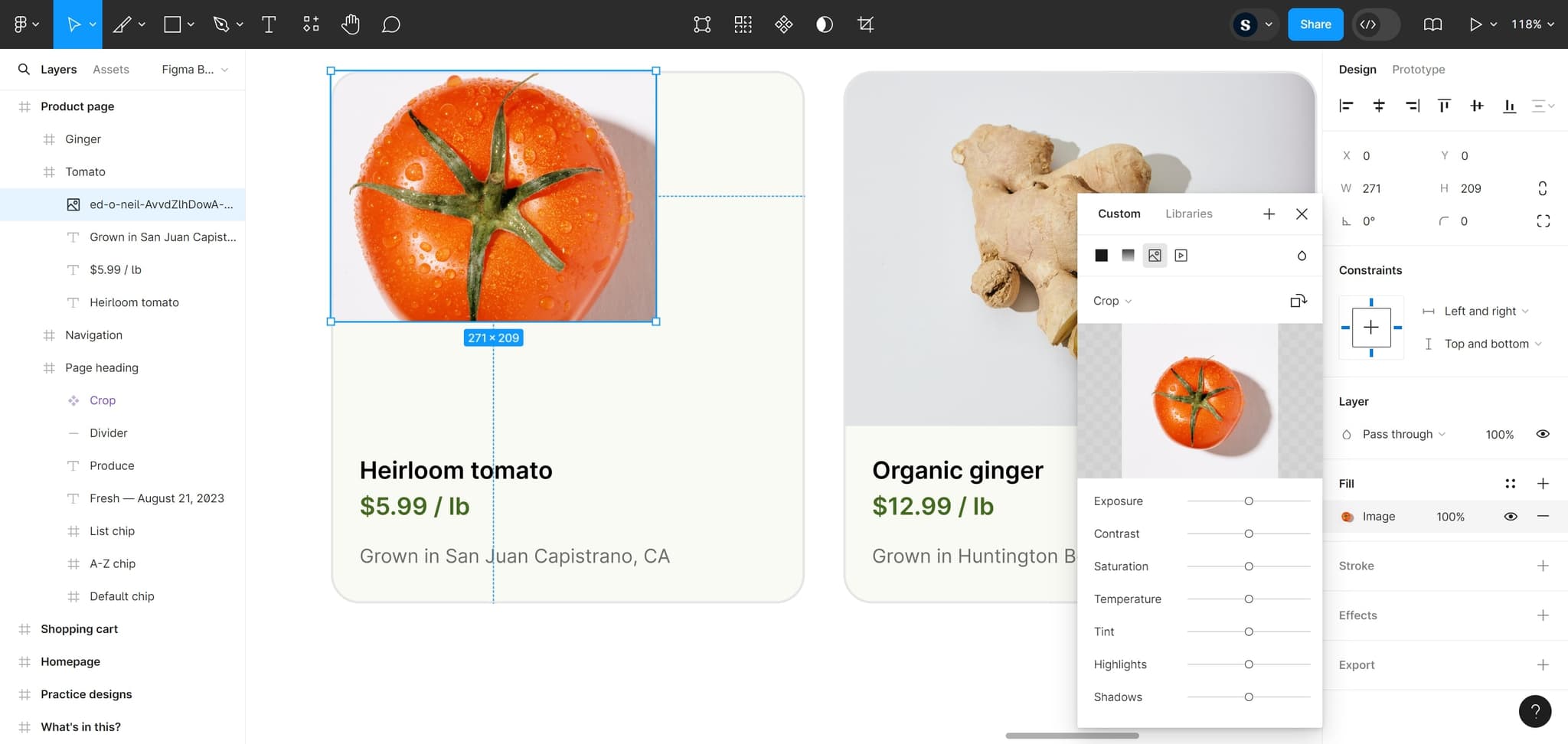
Frequently asked questions
Common questions about how to crop in figma.
Yes, you can undo a crop operation by pressing Ctrl+Z (or Cmd+Z on Mac) immediately after cropping. Figma maintains your full edit history, so you can revert to previous versions of your design at any point.
No, cropping in Figma does not permanently delete image data when you use the crop tool properly. You can always adjust or remove the crop mask later to reveal the hidden portions of your element.
Yes, you can crop both raster images and vector shapes in Figma. The crop tool works on most layer types, allowing you to refine your designs regardless of whether you're working with imported assets or native Figma objects.
After activating the crop tool, you can drag the corner and edge handles to adjust the crop area precisely. Many users also input specific numerical values in the design panel for pixel-perfect cropping when exact dimensions are needed.
Yes, when you crop an element, only the visible portion will be included in your export by default. If you need to preserve the original image data for future edits, consider duplicating your layer before cropping or using a mask instead.