How to Curve Text in Figma

Curving text in Figma allows you to create dynamic, non-linear typography that wraps around shapes and follows custom paths. This technique is essential for creating eye-catching designs, logos, and labels that stand out from standard horizontal text layouts.
Quick summary
In this tutorial, you'll learn how to curve text in Figma using the ARC plugin. You'll discover how to select your text, access the curving tool, and apply custom bends to create visually engaging typography for your designs.
Why this matters
Curved text is a powerful design element that adds visual interest and helps direct the viewer's eye through your composition. Whether you're designing packaging, posters, or branded graphics, mastering text curves in Figma enables you to create more sophisticated and professional-looking designs without relying on external image editors.
Step-by-step guide
- 1
Click to begin
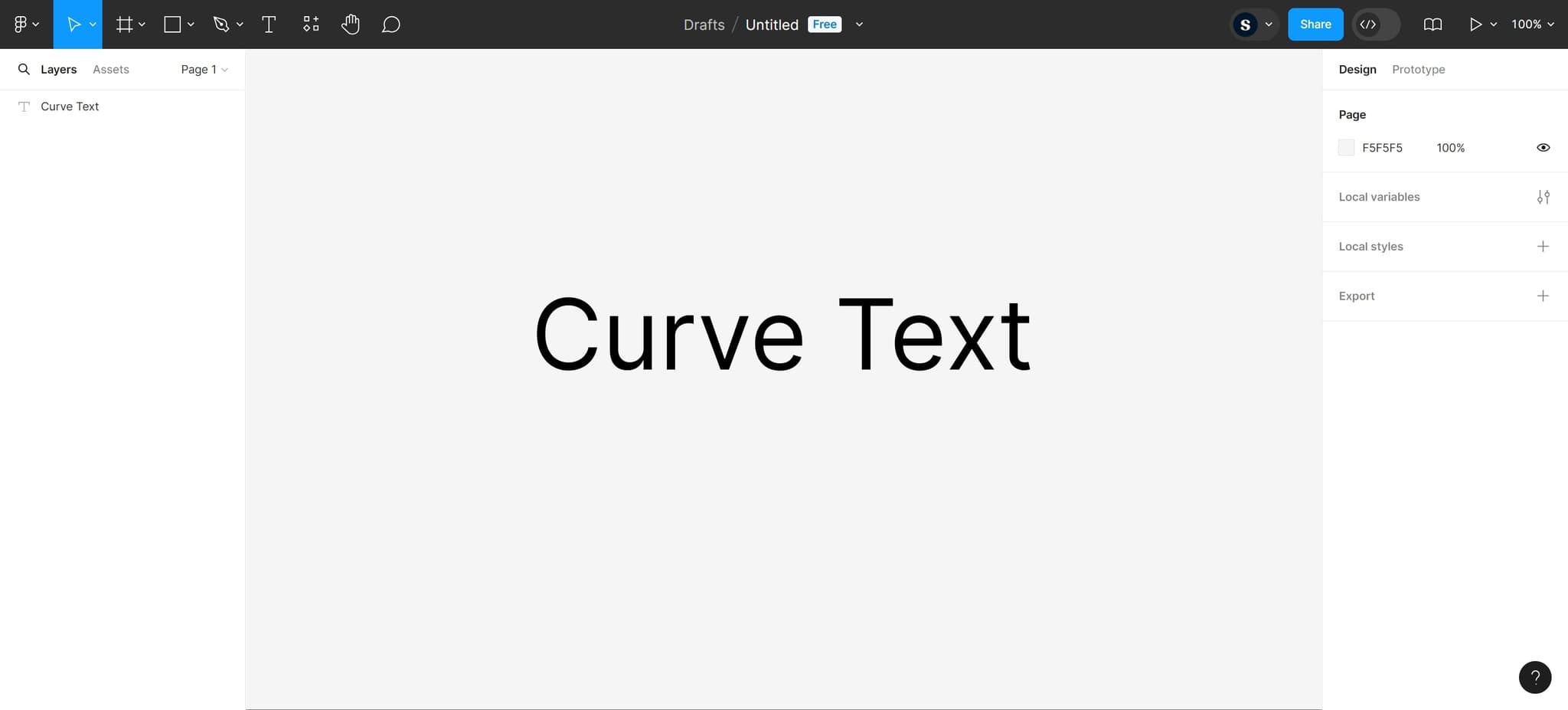
Start by clicking the designated area in Figma to initiate the text curving workflow. This action prepares your workspace for the next steps in the process.
- 2
Select your text element
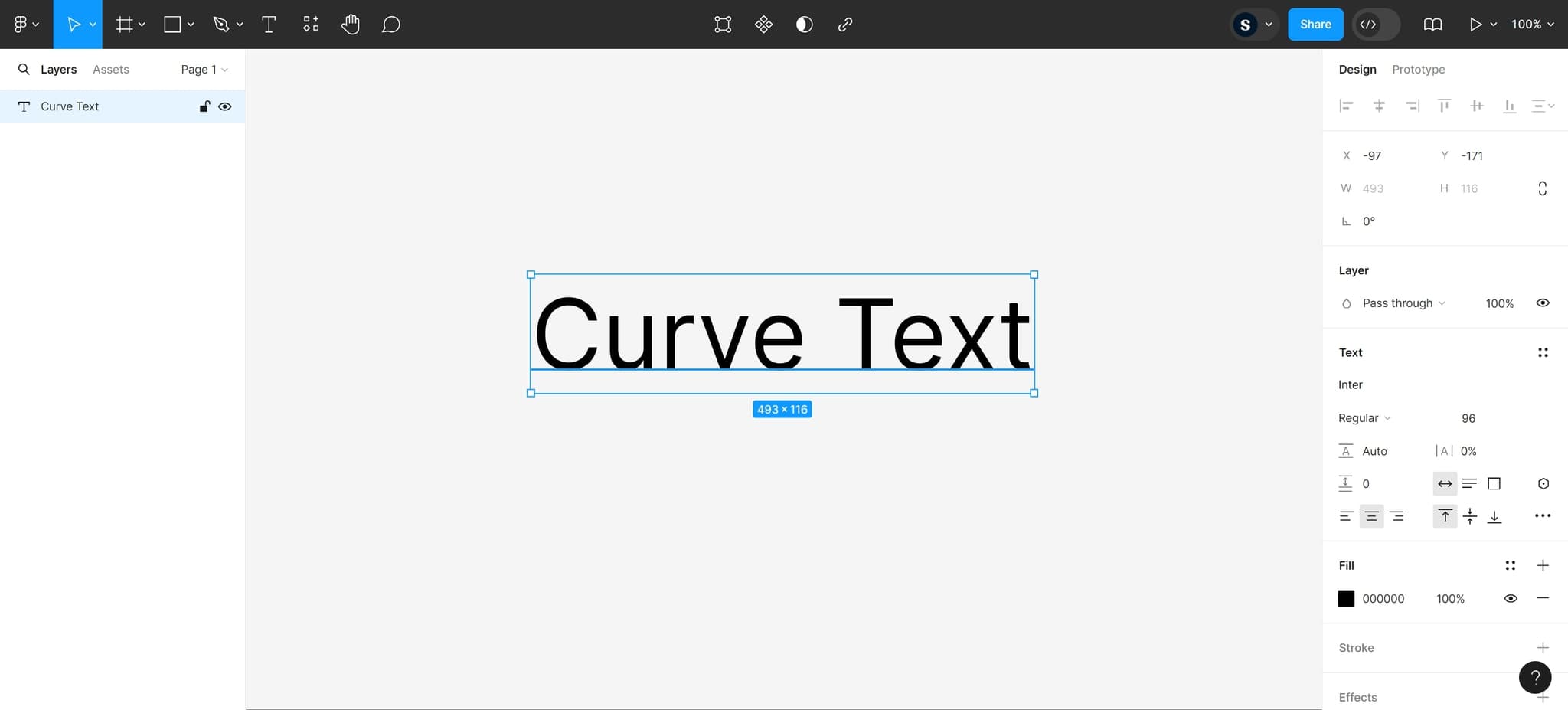
Click on the text element you want to curve. Ensure the text layer is selected in your canvas or layers panel before proceeding to the next step.
- 3
Select the element again
Click on the element once more to confirm your selection. This ensures Figma has properly registered your text element for modification.
- 4
Access the ARC plugin
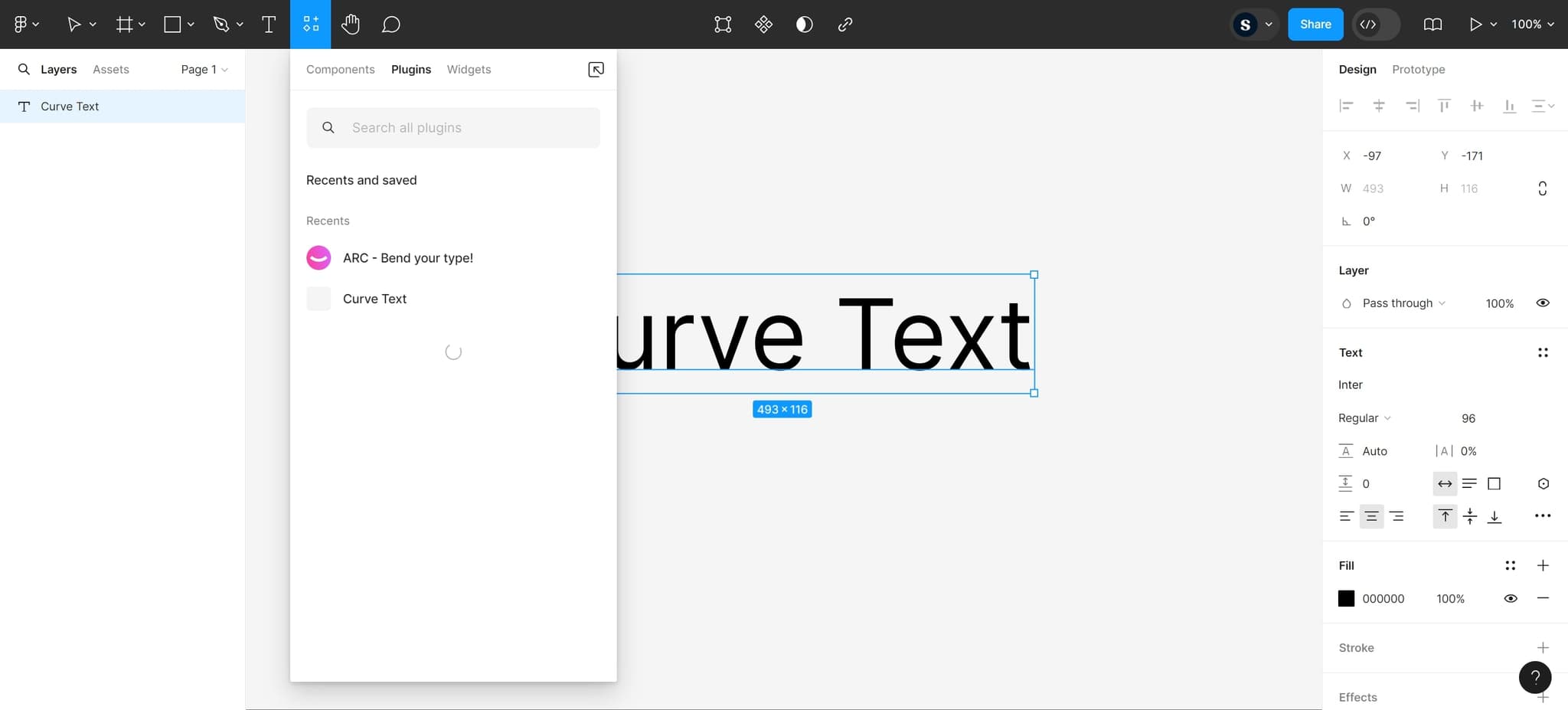
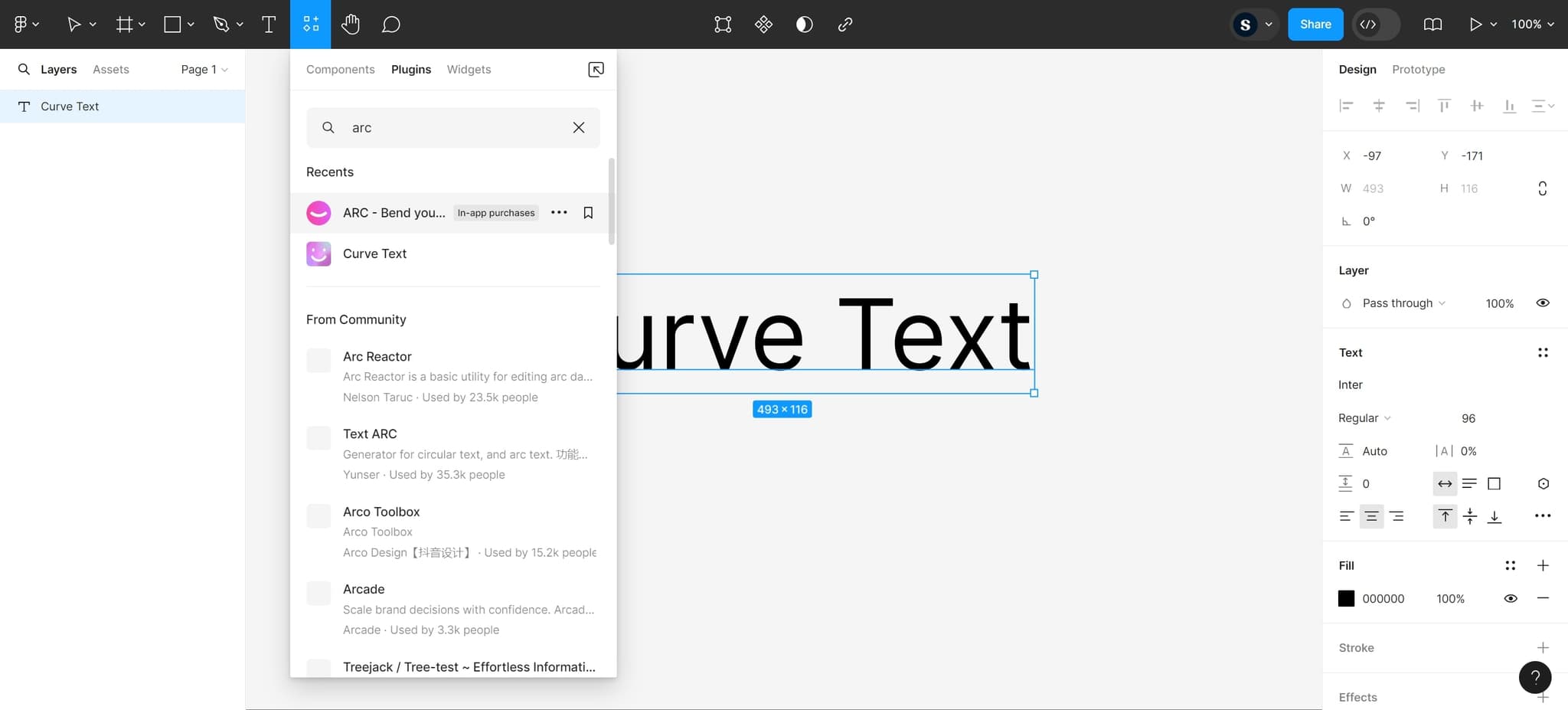
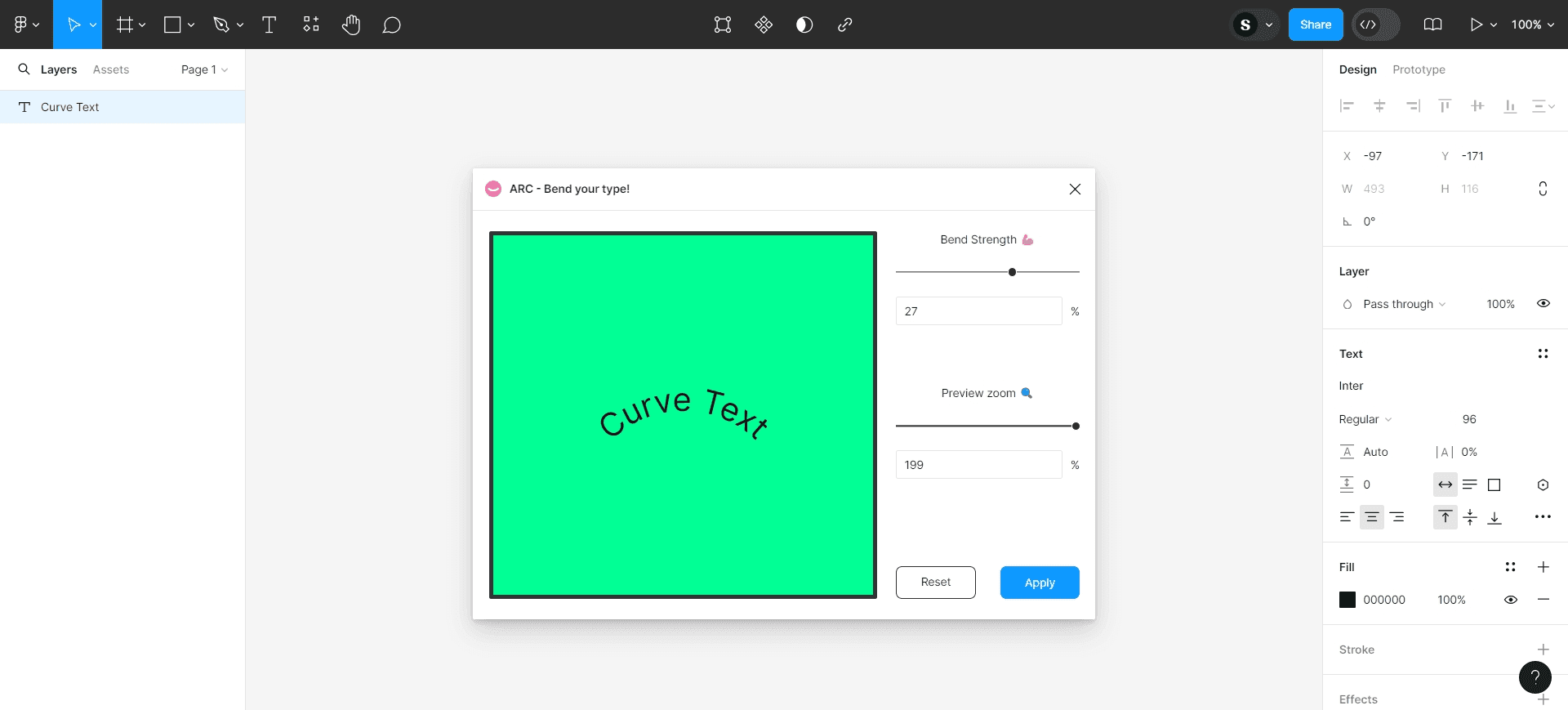
Click on the ARC - Bend your type! plugin option. This opens the ARC tool interface, which provides the controls you need to curve your selected text.
- 5
Configure curve settings
Use the ARC plugin controls to adjust the curve parameters according to your design needs. You can control the bend intensity, direction, and other variables to achieve your desired text effect.
- 6
Upload or export your design
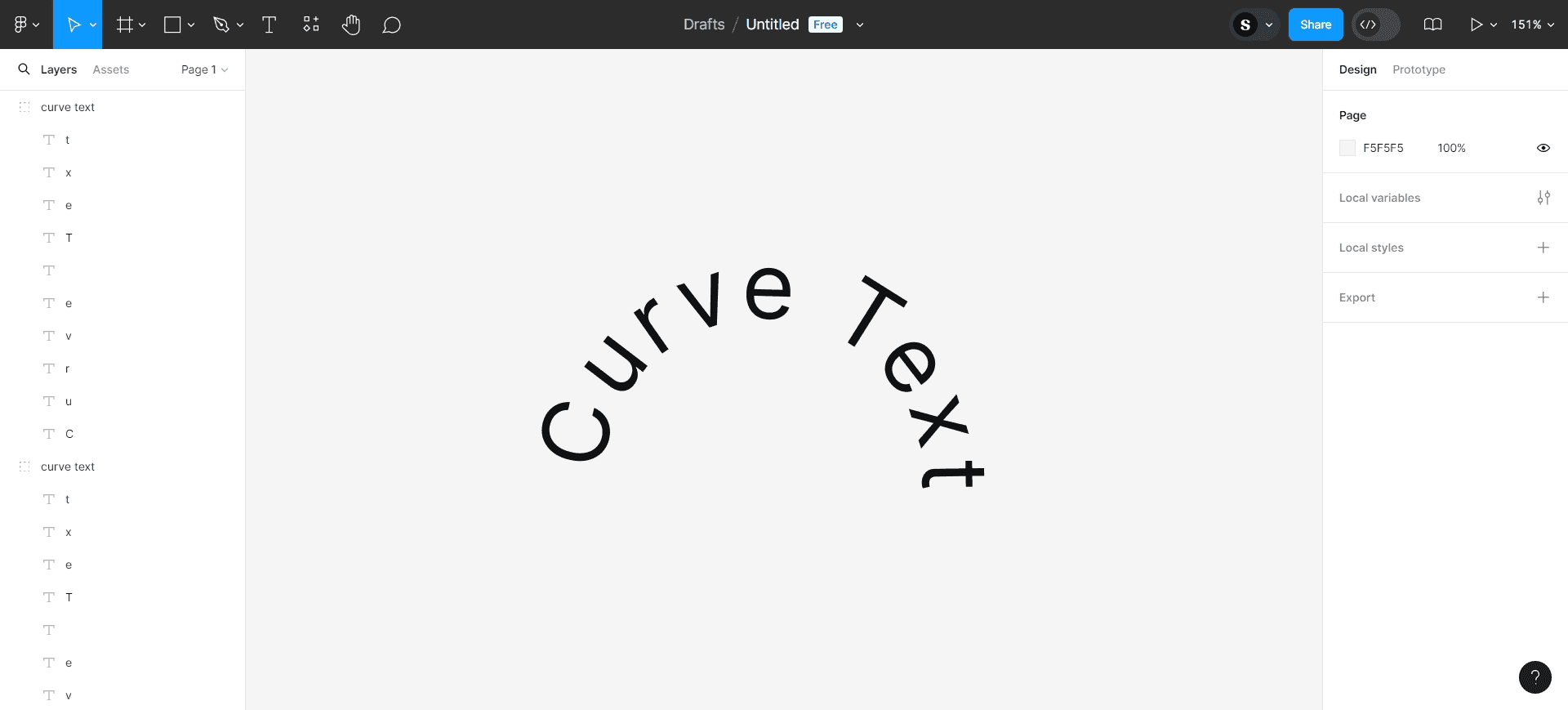
Once you're satisfied with your curved text, upload or export your design as needed. Your curved text is now part of your Figma project and ready for further refinement or export.
- 7
Save your work
Ensure your project is saved in Figma to preserve your curved text design. You can now use this technique across other projects or share your design with collaborators.
Frequently asked questions
Common questions about how to curve text in figma.
Yes, the ARC plugin allows you to apply curves to text. While standard Figma doesn't have native path-based text wrapping, the ARC plugin provides an effective solution for bending text in various directions and intensities to match your design needs.
You'll need to check Figma's plugin marketplace for current pricing information on the ARC plugin. Many design plugins offer both free and premium versions with varying feature sets.
Your curved text can be edited by selecting it and reapplying the ARC settings if needed. Changes to the text content should preserve the curve effect, though you may need to adjust the curve parameters depending on the length of your new text.
The ARC plugin provides controls to adjust curve direction and intensity. You can experiment with different settings to create curves that bend upward, downward, or in circular patterns depending on your design requirements.
While the ARC plugin is a popular choice, you can also explore other Figma plugins designed for text manipulation or convert text to outlines and manually curve them. However, dedicated plugins like ARC provide the most efficient and non-destructive approach to text curving.