How to Make a Button in Figma

Creating buttons in Figma is a fundamental skill for designing user interfaces. This guide walks you through the process of building a functional button component using Figma's core tools and grouping features.
Quick summary
In this tutorial, you'll learn how to construct a button in Figma by selecting elements, drawing a rectangle, and organizing your components into groups. By the end, you'll understand how to build reusable button components that can be used across your design system.
Why this matters
Buttons are critical interactive elements in any digital product, and building them properly in Figma ensures consistency across your designs. Creating buttons as grouped components allows you to maintain design standards and make updates efficiently across multiple projects and screens.
Step-by-step guide
- 1
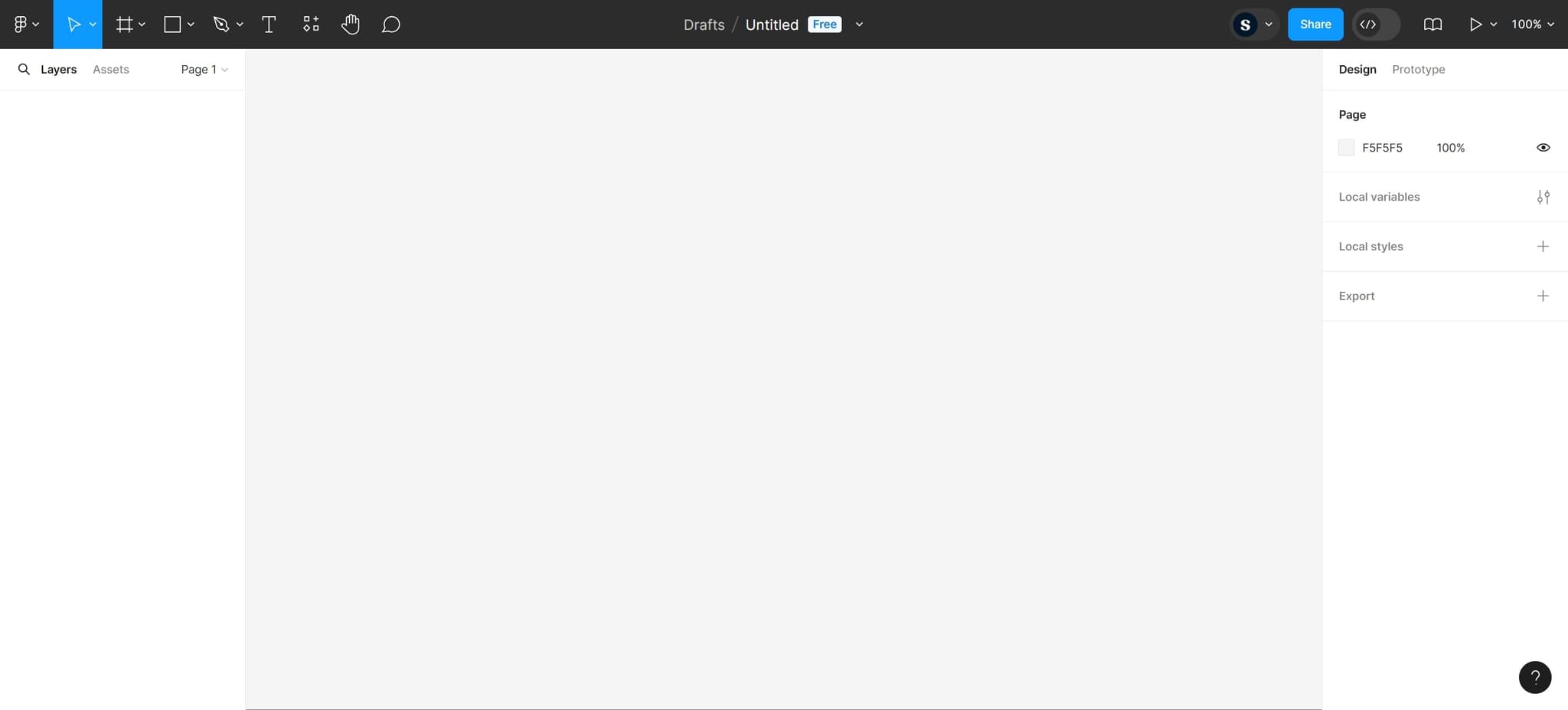
Select the first element
Click on the element you want to include in your button. This begins the process of assembling your button components.
- 2
Select the second element
Click on another element to add it to your selection. You can hold Shift while clicking to add multiple elements to your selection.
- 3
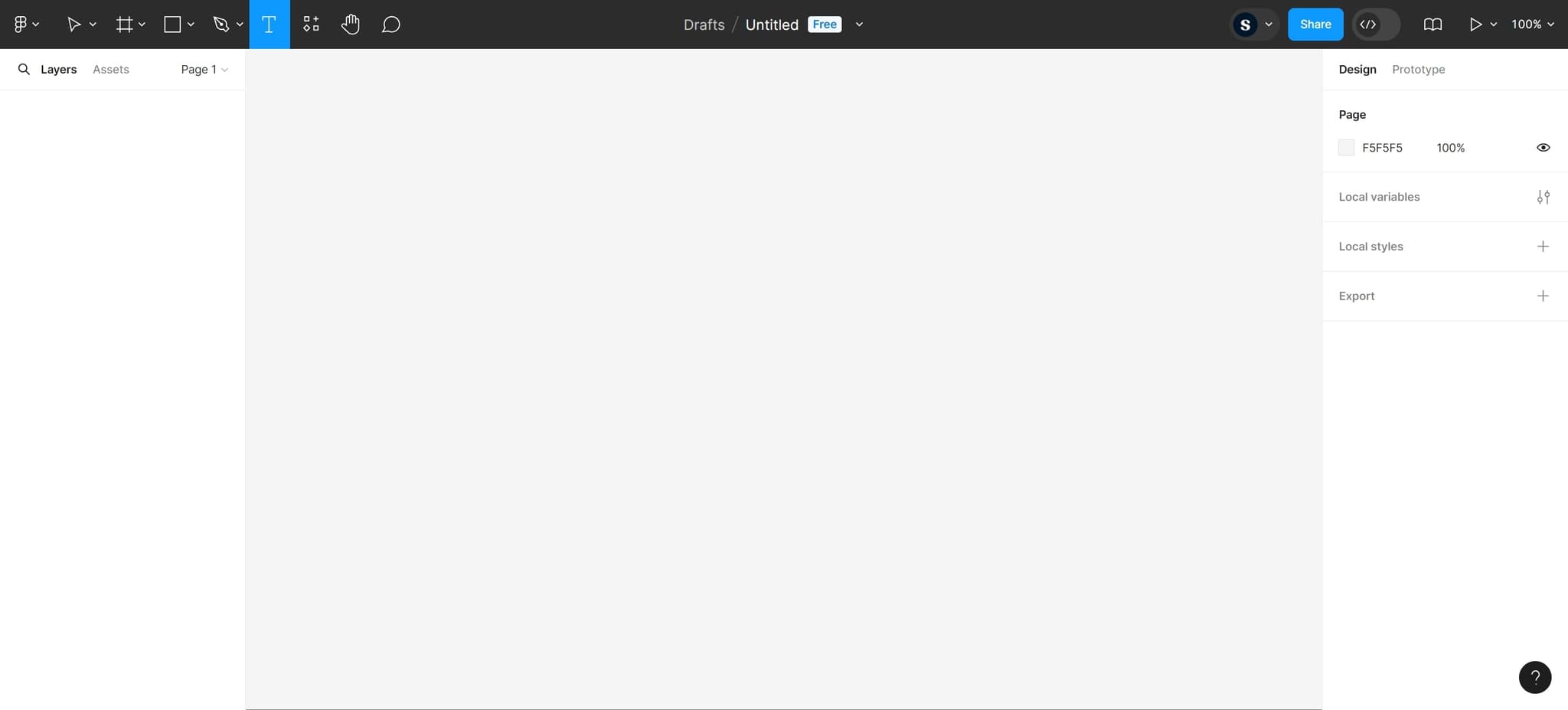
Select the third element
Click on the final element you need for your button design. This completes your initial element selection.
- 4
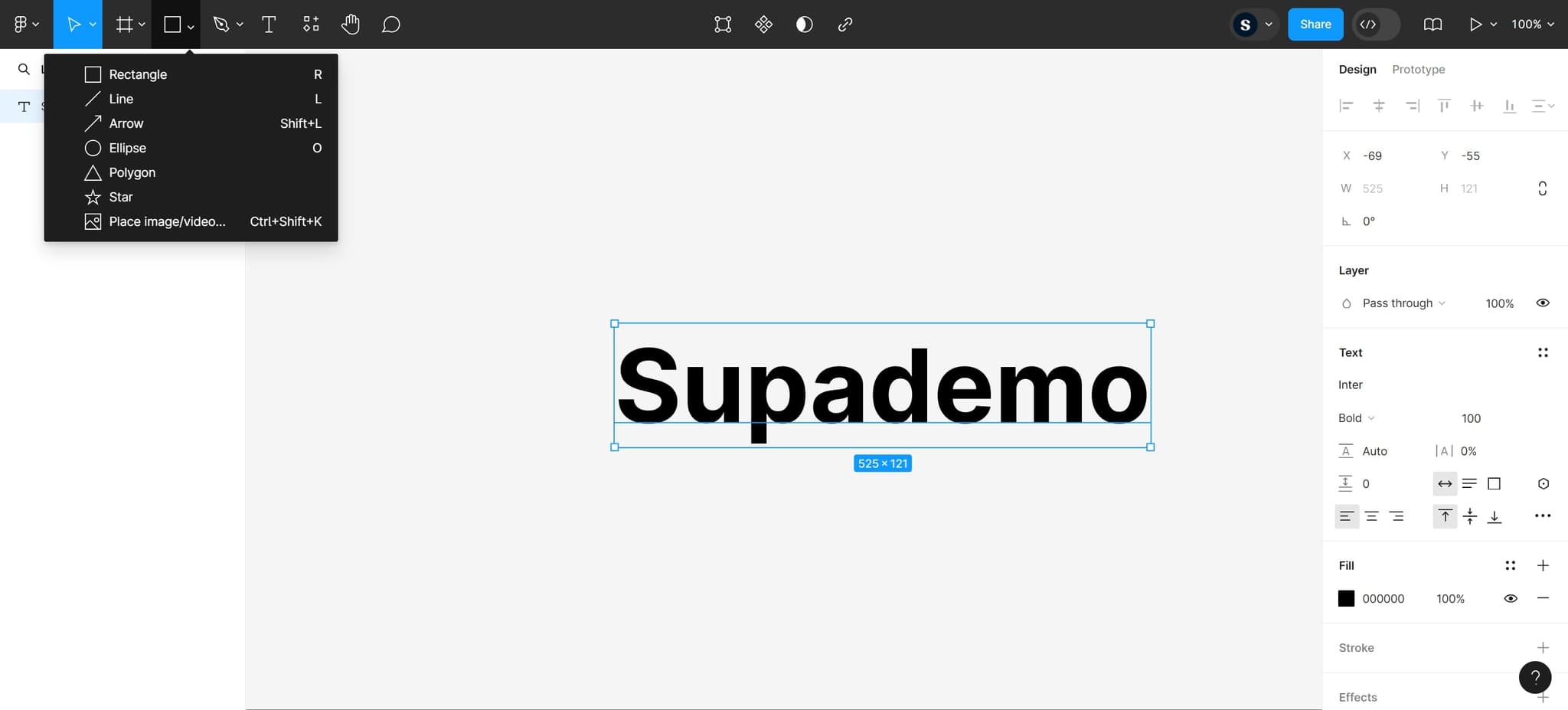
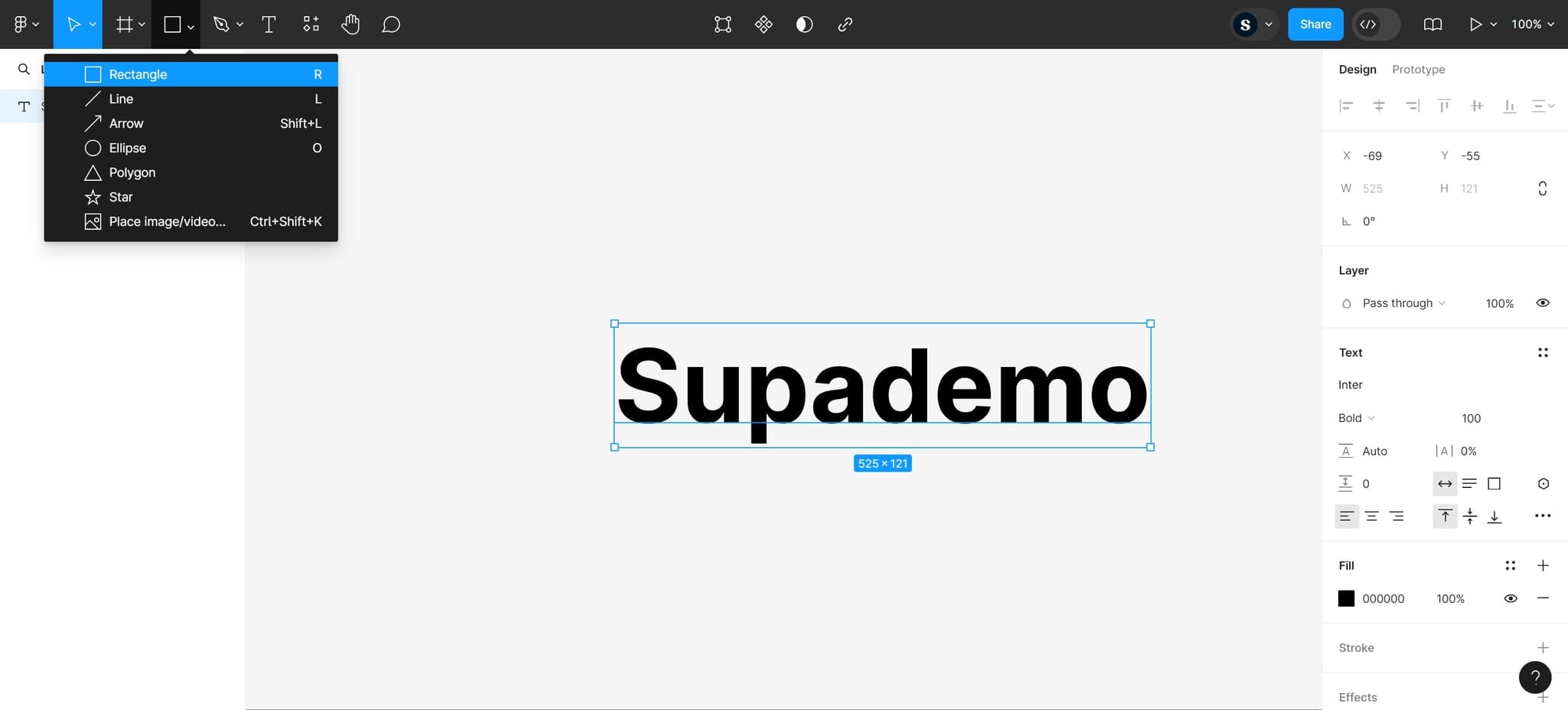
Draw a rectangle shape
Click on the Rectangle tool to create a rectangular shape that will serve as the button's background or container. You can drag to define the size and position of your rectangle.
- 5
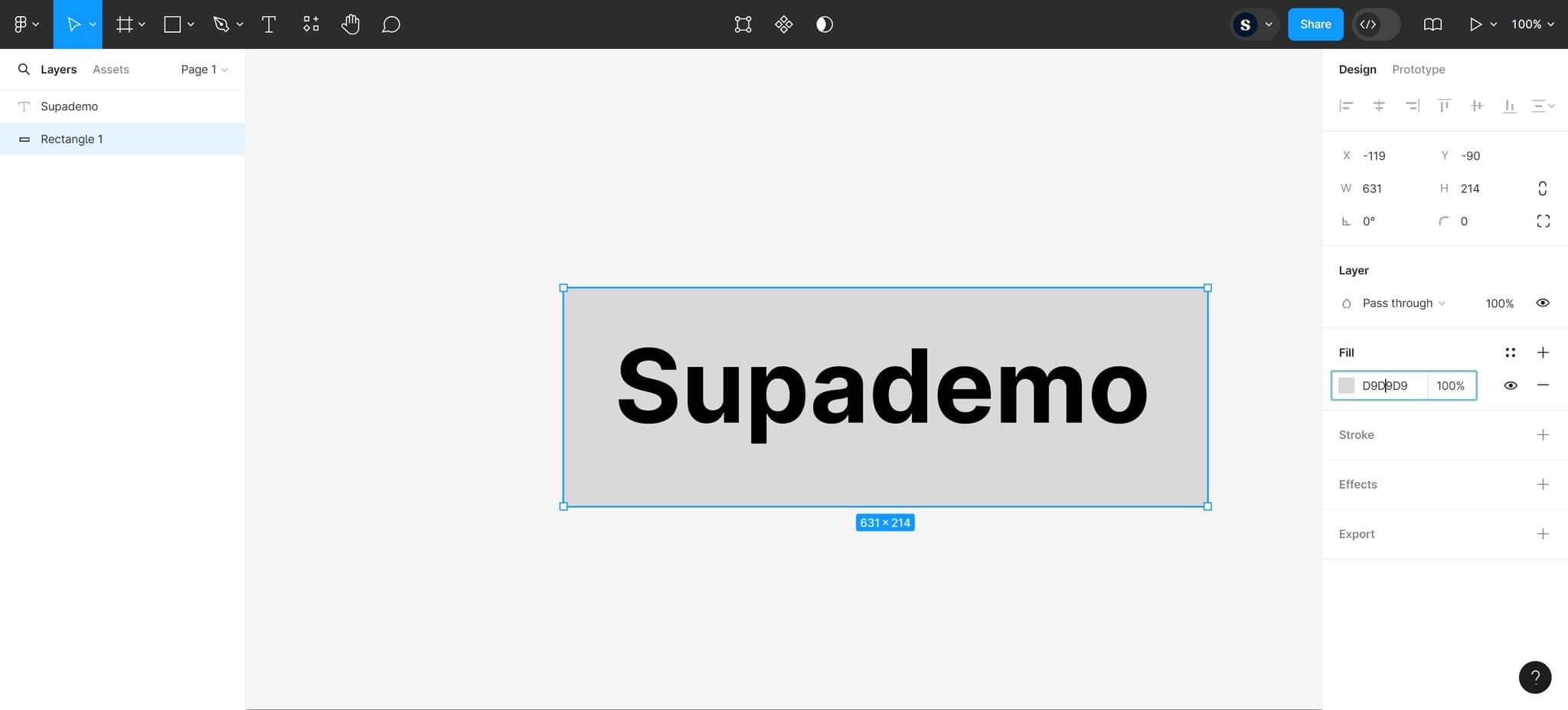
Apply button styling
Click on this area to access styling options for your button, such as fill color, stroke, and corner radius. Customize the appearance to match your design specifications.
- 6
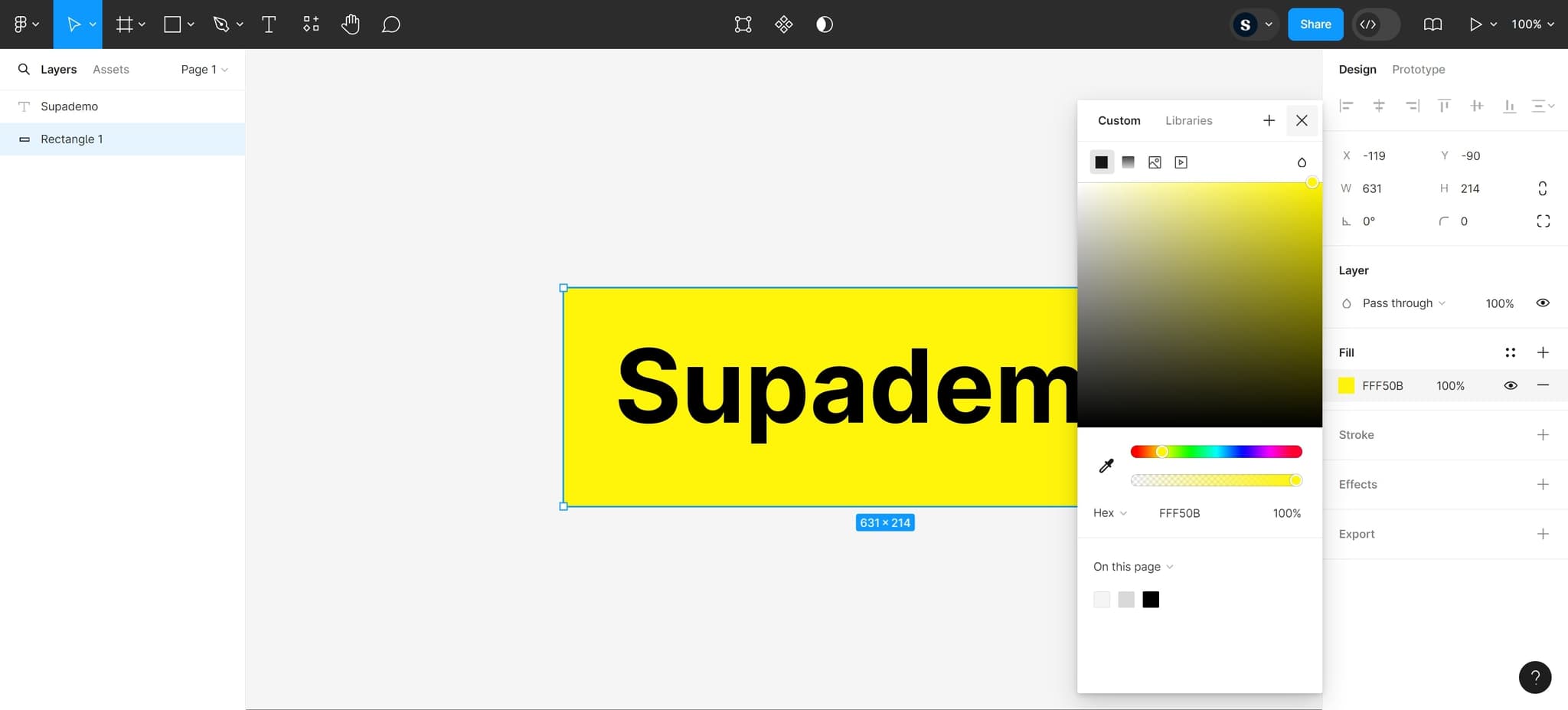
Finalize button appearance
Click here to confirm and apply your styling changes. Your button elements should now have consistent visual properties.
- 7
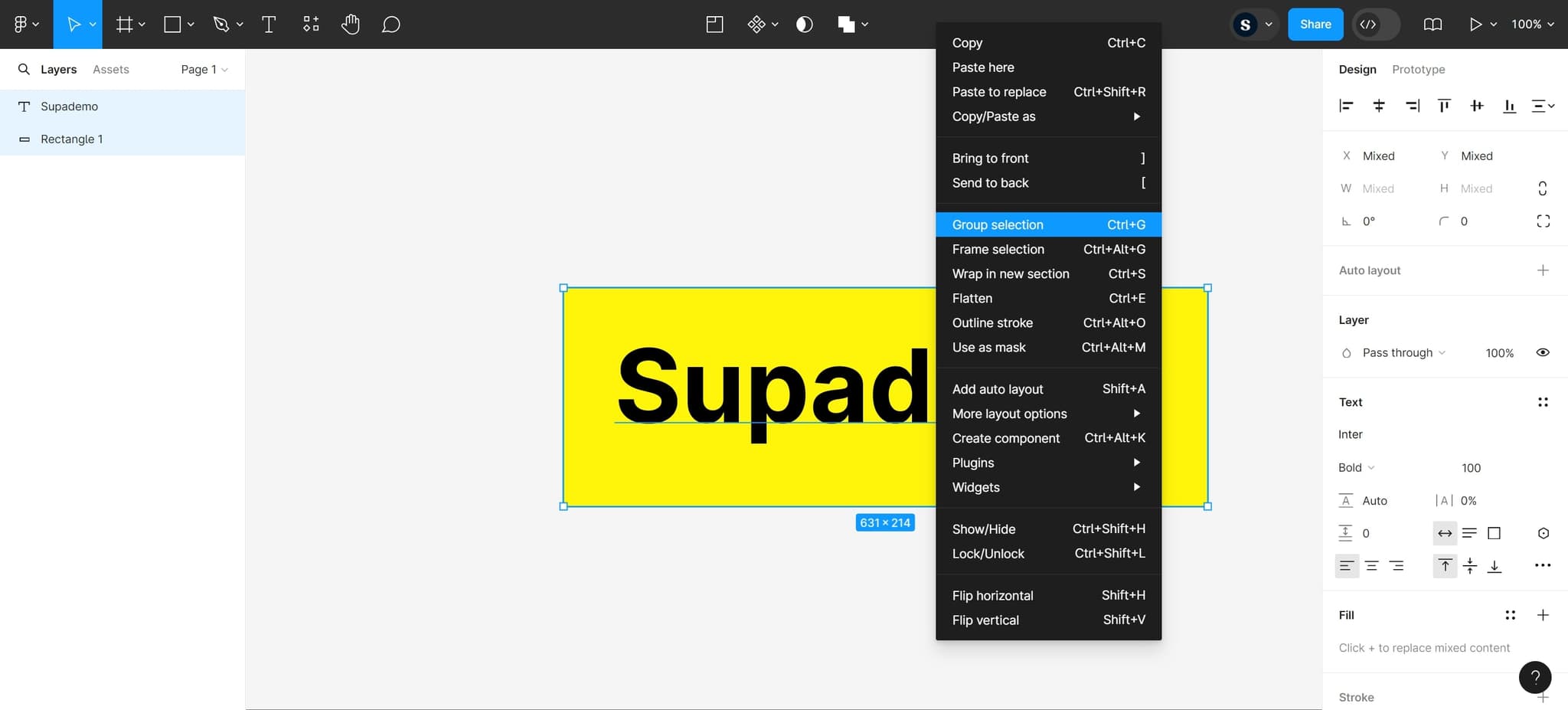
Group button components
Click on Group selection to organize all your button elements into a single grouped component. This makes it easier to move, copy, and manage your button across your design.
- 8
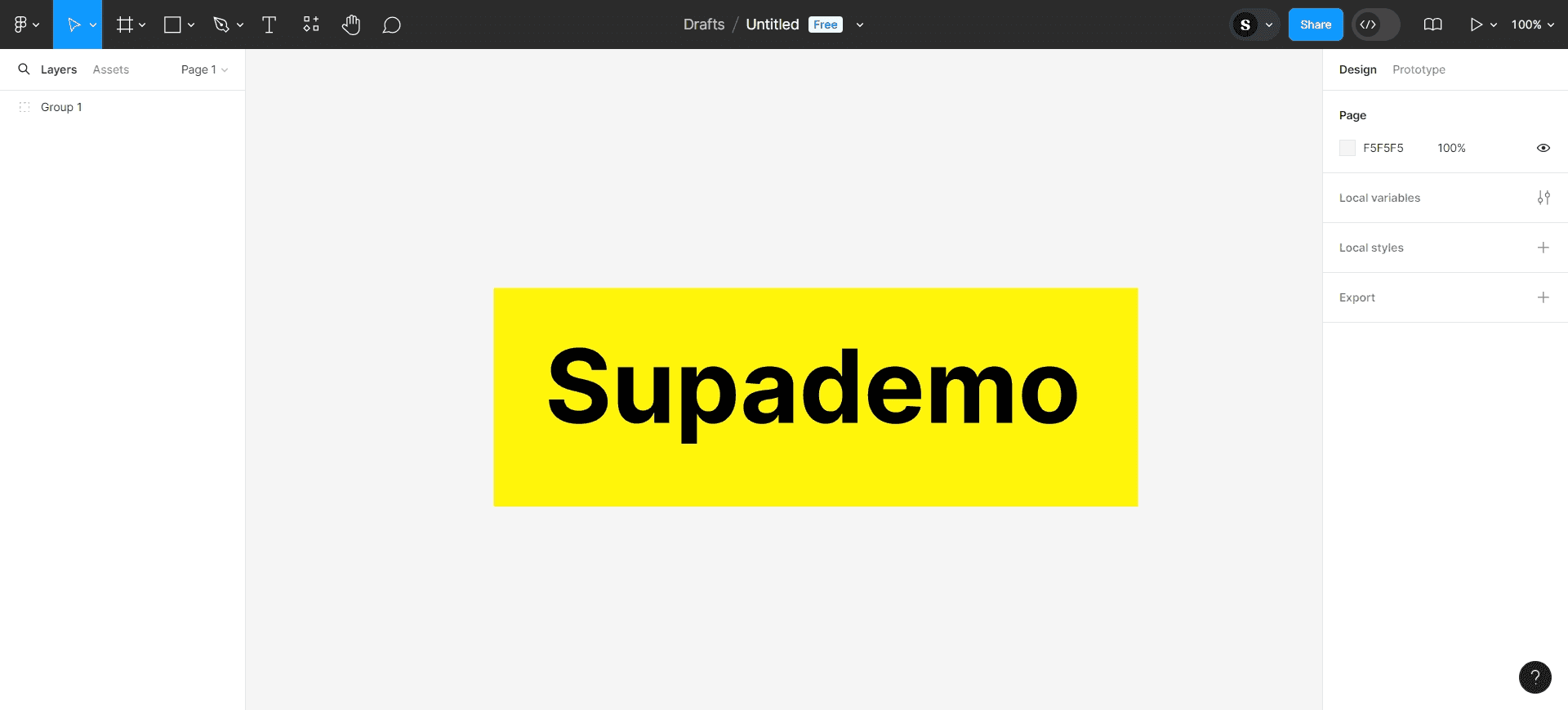
Complete button creation
Your button is now ready to use. You can duplicate it, adjust its properties, or convert it to a component for reuse throughout your design system.
Frequently asked questions
Common questions about how to make a button in figma.
Yes, after grouping your button elements, you can right-click and select Create component to make it reusable. This allows you to maintain consistent buttons across multiple frames and projects, with updates automatically applied to all instances.
If your button is a component, you can edit the main component and all instances will update automatically. If it's just a group, you'll need to edit each instance individually or ungroup and modify the elements separately.
Use the Text tool in Figma to add a label to your button. Place it on top of your rectangle shape and group both elements together so the text and background move as one unit.
It's best to add your text first, then group all elements together including the rectangle background and text. This ensures your complete button unit stays organized and moves together.
Yes, you can create multiple variants of your button component in Figma to represent different states like hover, active, and disabled. Use the component variants feature to manage these different states within a single main component.