How to rename multiple layers in Figma

Renaming layers efficiently is essential for maintaining organized and readable Figma files, especially when working with complex designs. This guide walks you through the process of renaming multiple layers quickly using Figma's built-in tools and keyboard shortcuts. You'll learn how to streamline your workflow and keep your design assets properly labeled.
Quick summary
In this tutorial, you'll discover how to rename multiple layers in Figma using the rename function and keyboard shortcuts. You'll navigate to your design file, access the layers panel, and apply naming conventions to keep your project organized and easy to navigate for team collaboration.
Why this matters
Clear layer naming is critical for maintaining design consistency and improving collaboration within teams. When layers are properly labeled, other designers can quickly understand your design structure, reducing confusion and speeding up the handoff process. Well-organized layers also make it easier to locate specific elements during future edits and iterations.
Step-by-step guide
- 1
Access your Figma workspace
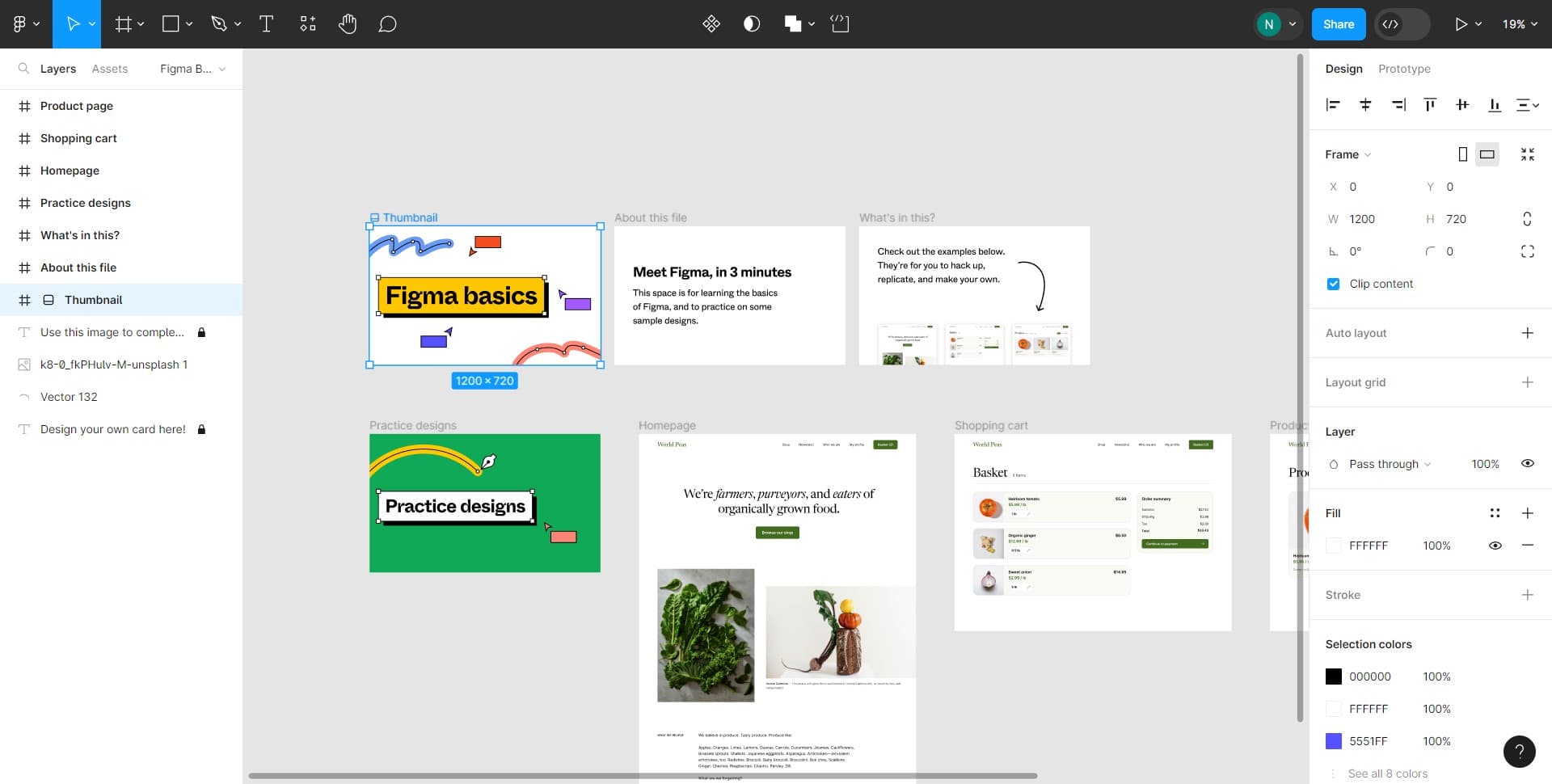
Start by opening Figma and navigating to your dashboard. You'll see your recent projects and files available for editing.
- 2
Open your design file
Select the file containing the layers you want to rename. This will open the canvas and display your design elements along with the layers panel on the right side.
- 3
Navigate to practice designs
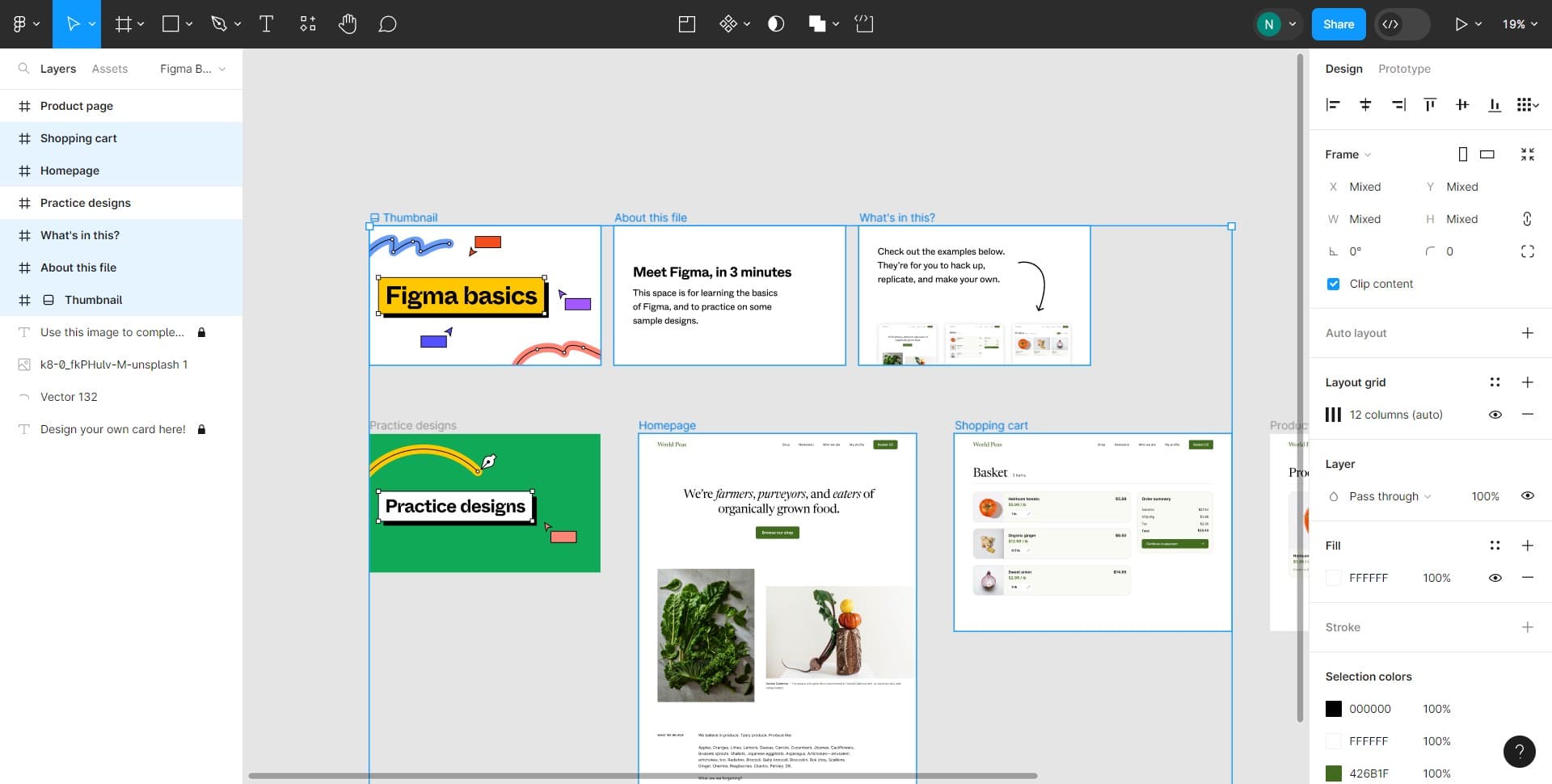
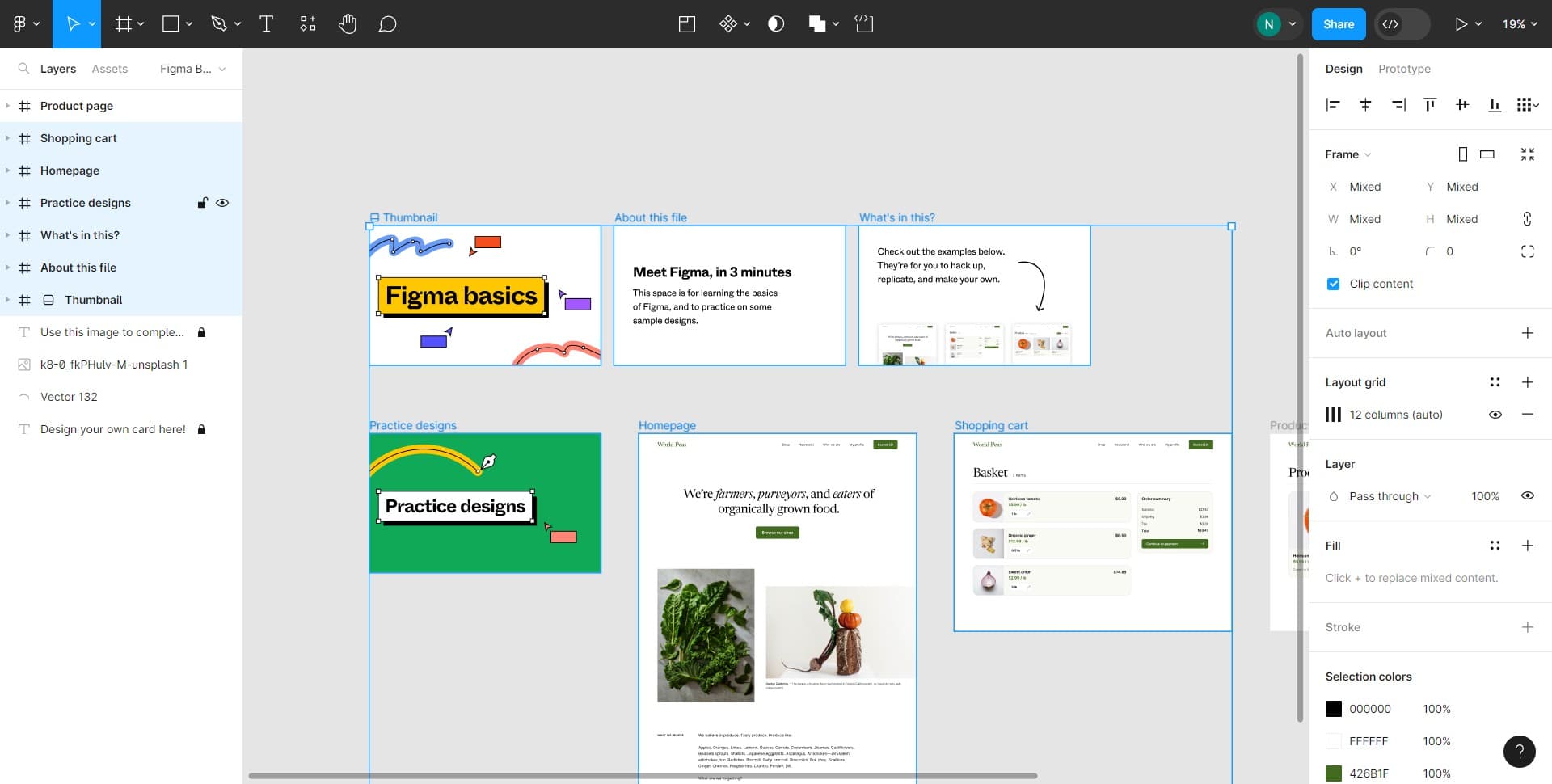
Click on the 'Practice designs' section to access a sample file where you can safely practice renaming layers without affecting your active projects.
- 4
Access the rename function
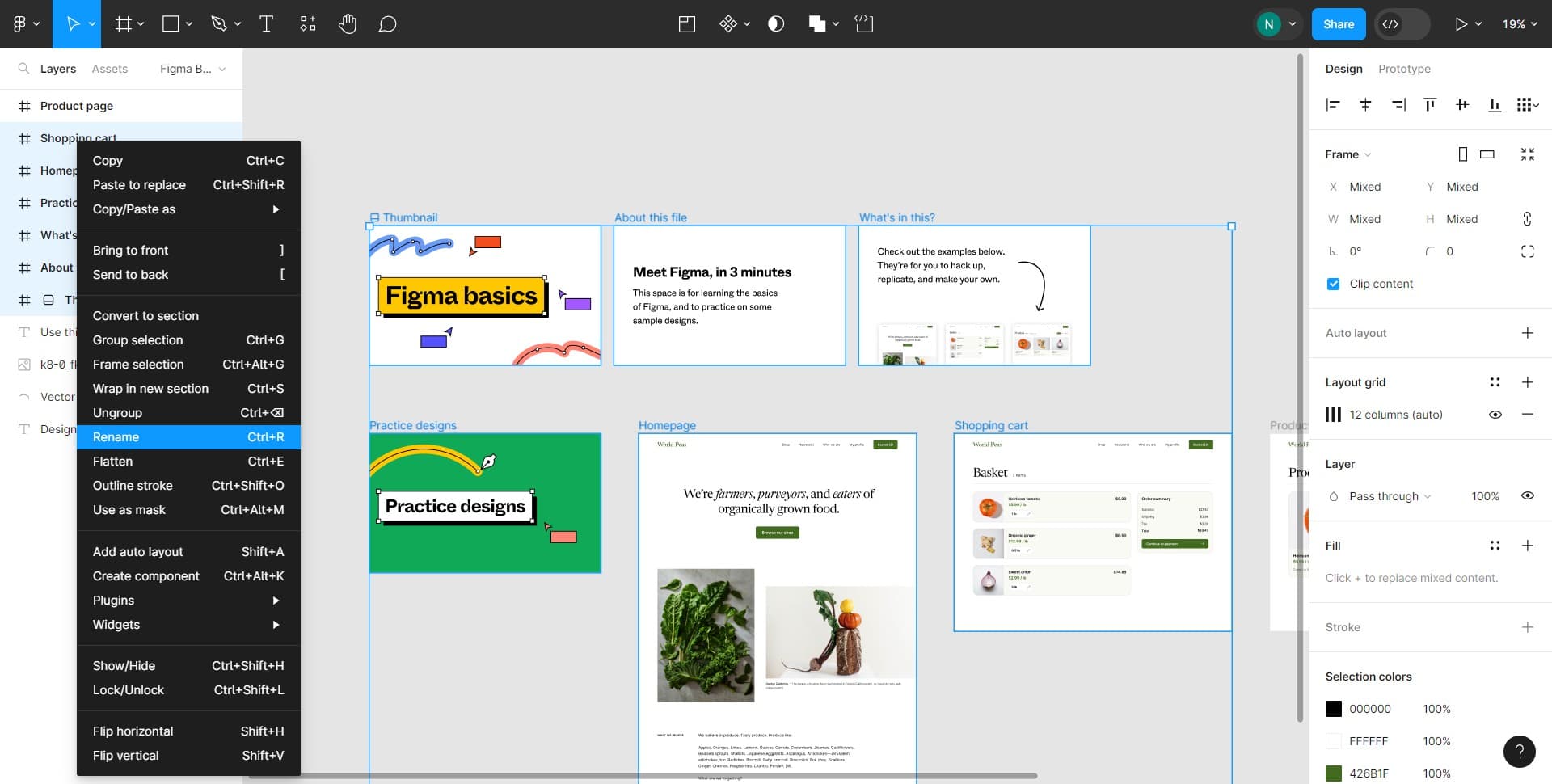
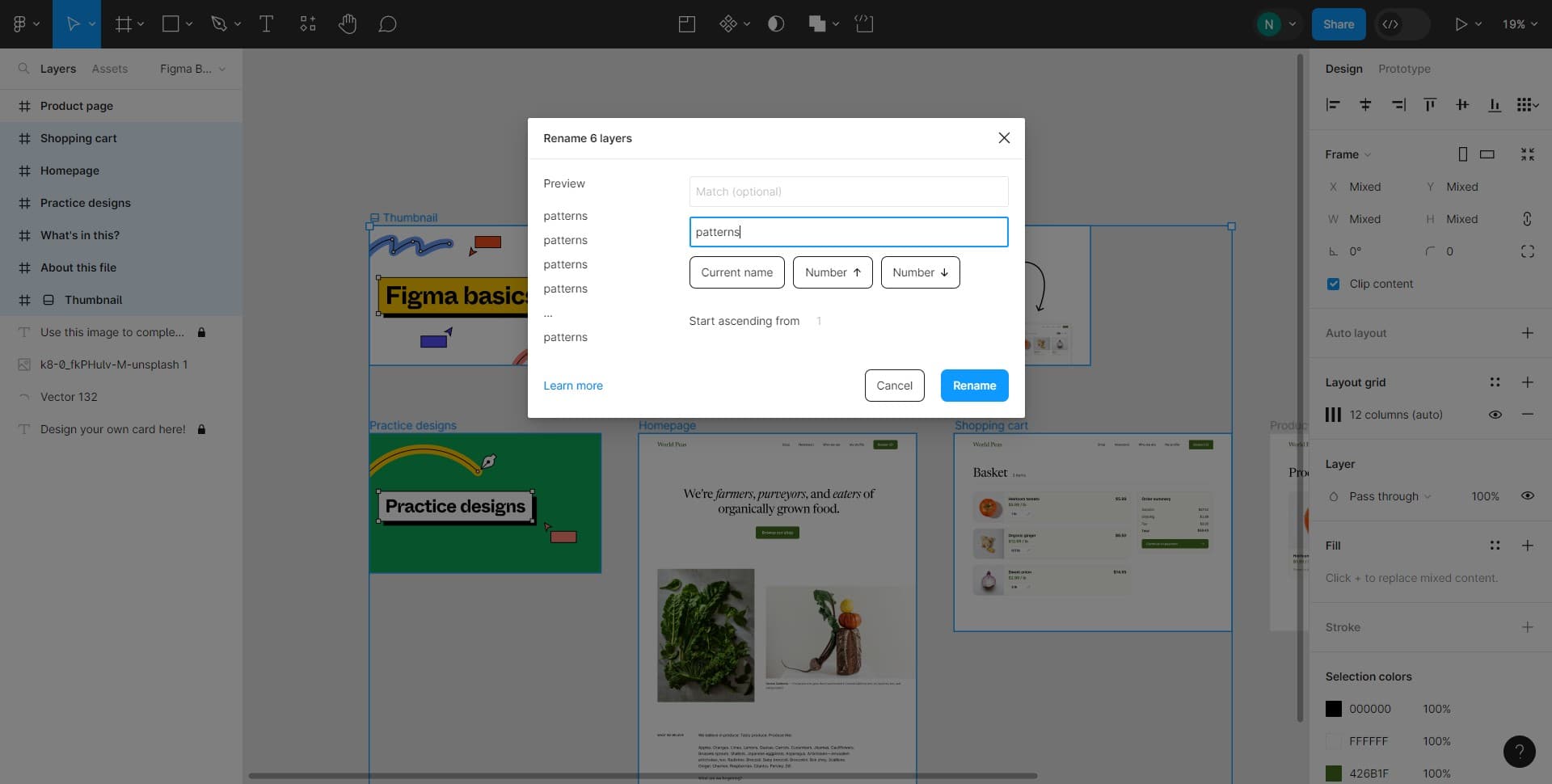
Right-click on a layer to bring up the context menu, then select 'Rename' or use the keyboard shortcut Ctrl+R (or Cmd+R on Mac) for faster access. This opens the layer name field for editing.
- 5
Enter the new layer name
Type the new descriptive name for your layer that clearly indicates its purpose or content. Press Enter to confirm the change and move to the next layer.
- 6
Confirm and repeat
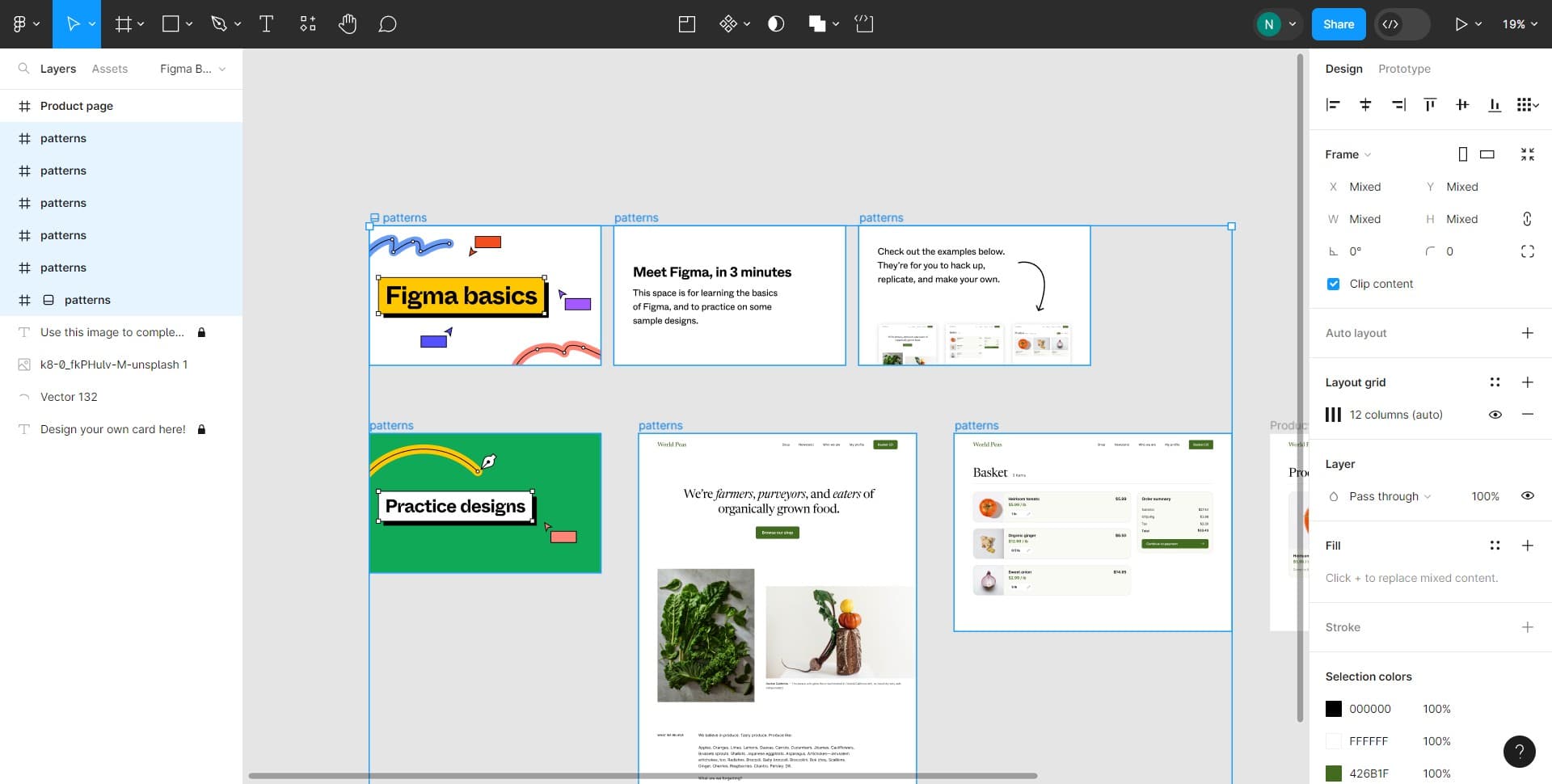
Continue this process for each layer you need to rename. Use consistent naming conventions throughout your file to maintain clarity and make future edits more efficient.
Frequently asked questions
Common questions about how to rename multiple layers in figma.
Figma doesn't have a built-in feature to rename multiple layers simultaneously. However, you can rename layers one at a time using the right-click context menu or Ctrl+R shortcut, which makes the process quick and efficient. Establishing a naming convention before you start helps ensure consistency across all your layers.
The keyboard shortcut Ctrl+R (Cmd+R on Mac) is the fastest method to rename a selected layer. Simply click on the layer you want to rename, press the shortcut, type the new name, and press Enter to move to the next layer. This approach eliminates the need to right-click and navigate menus.
Yes, use clear, descriptive names that indicate the layer's purpose or content, such as 'Header Button' or 'Background Image'. Organize names hierarchically using slashes if needed, like 'Navigation/Menu Item', and avoid generic names like 'Group 1' or 'Shape'. Consistent naming conventions make collaboration easier and files more maintainable.
Figma doesn't have native batch renaming with patterns, but you can use third-party plugins available in the Figma community to automate this process. Alternatively, you can manually rename layers following a consistent pattern, which is still relatively quick with the Ctrl+R shortcut method.
No, renaming layers won't affect your design elements, prototypes, or interactions. Layer names are purely organizational and exist only within your Figma file. You can rename layers freely without any impact on how your design functions or appears to viewers.