How to add background color on Google Docs

Customizing the background color of your Google Docs document can enhance readability and create a professional appearance tailored to your needs. This guide walks you through the process of changing your page background color in Google Docs, whether you're working on a report, presentation draft, or creative project.
Quick summary
In this tutorial, you'll learn how to access Google Docs' page setup options and apply a custom background color to your document. You'll discover where to find the color settings and how to set your preference as the default for future documents.
Why this matters
Background color customization helps reduce eye strain during extended reading and makes documents visually distinct for organization purposes. Whether you're color-coding projects or creating branded documents, controlling background color is an essential formatting skill that improves both aesthetics and usability.
Step-by-step guide
- 1
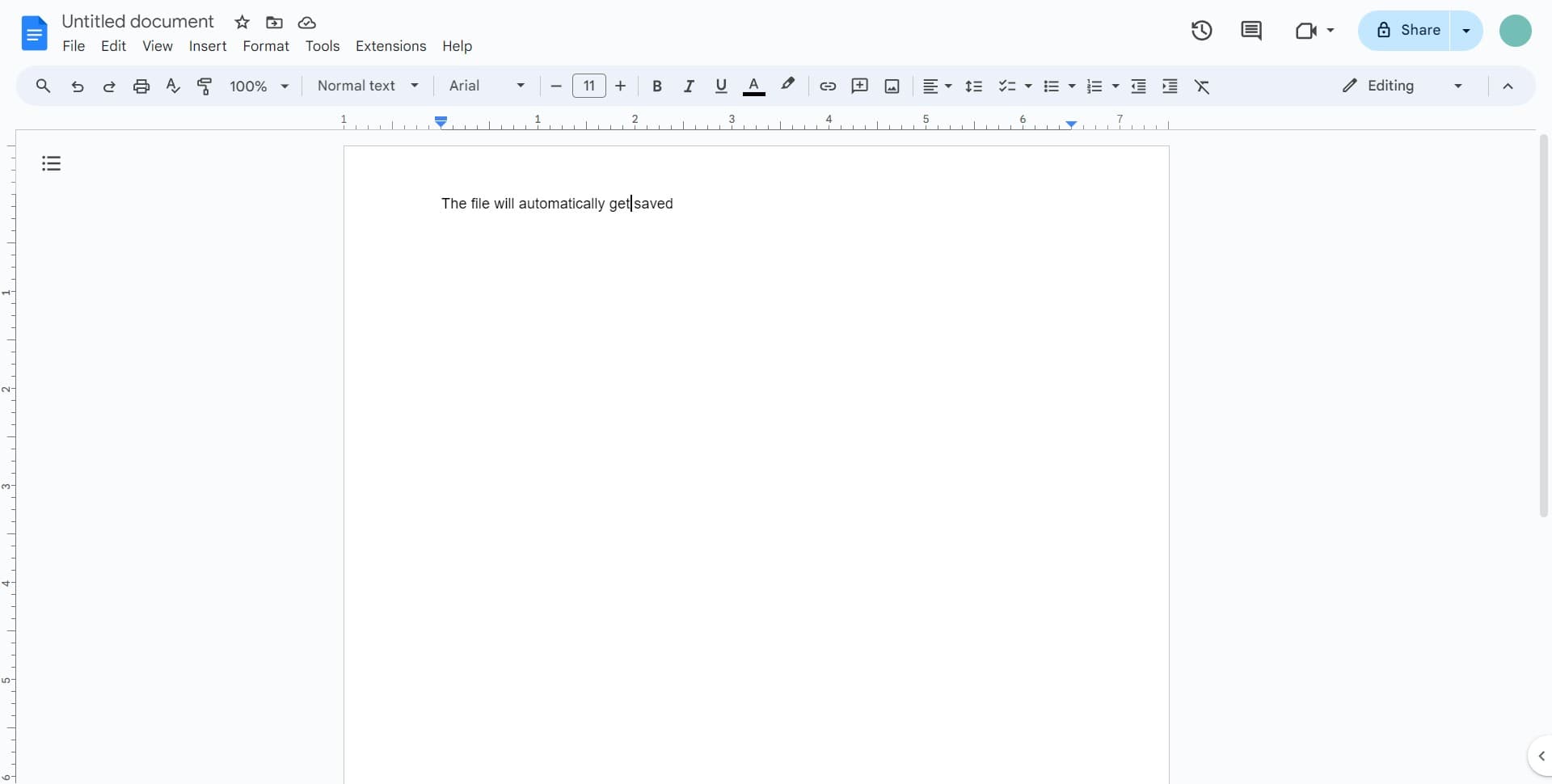
Open your Google Docs document
Start by navigating to Google Docs and opening the document you want to customize. Ensure you have editing access before proceeding to the menu options.
- 2
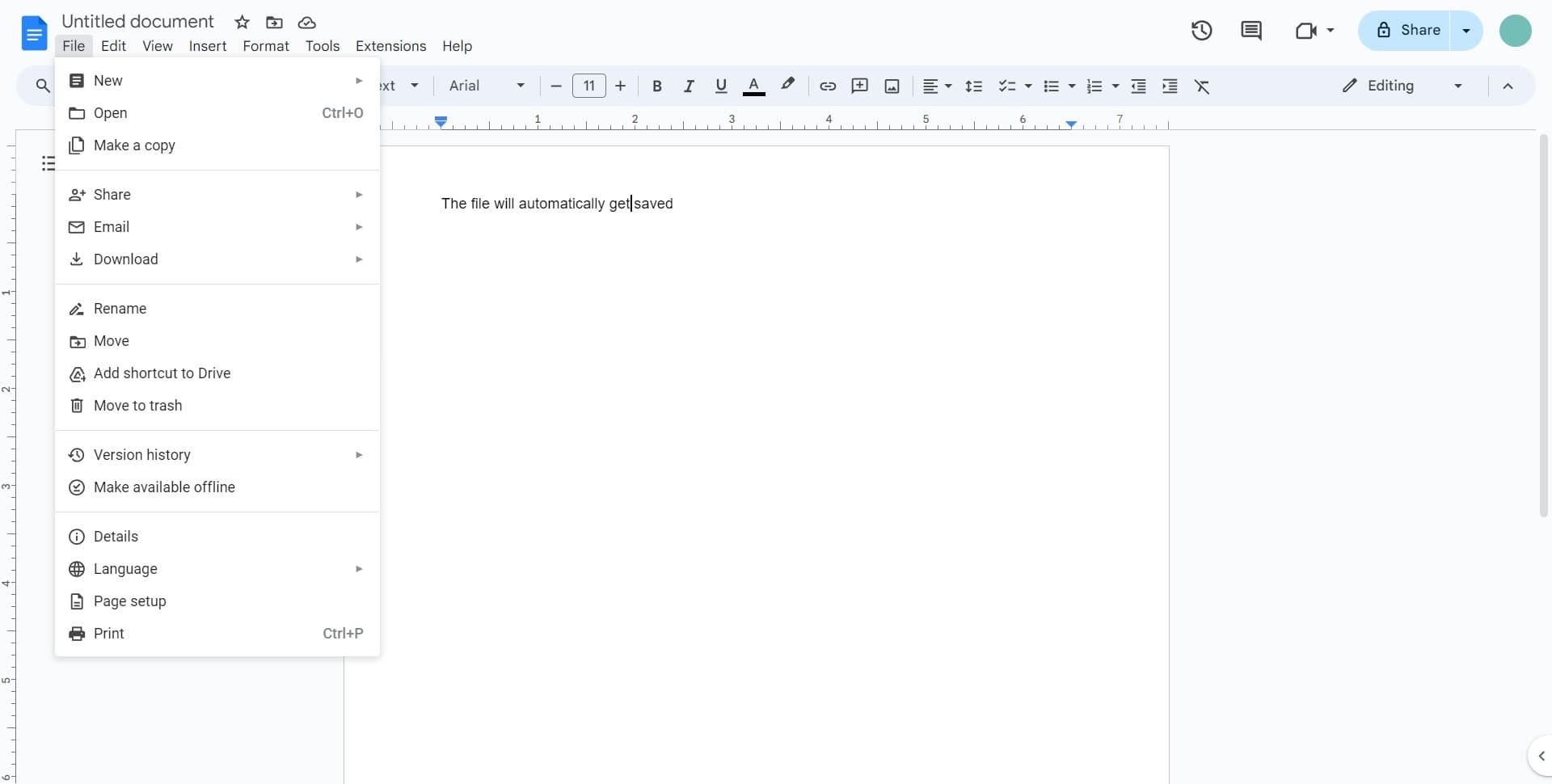
Click on File menu
Locate and click the 'File' menu in the top-left corner of your Google Docs interface. This will open a dropdown menu with various document options.
- 3
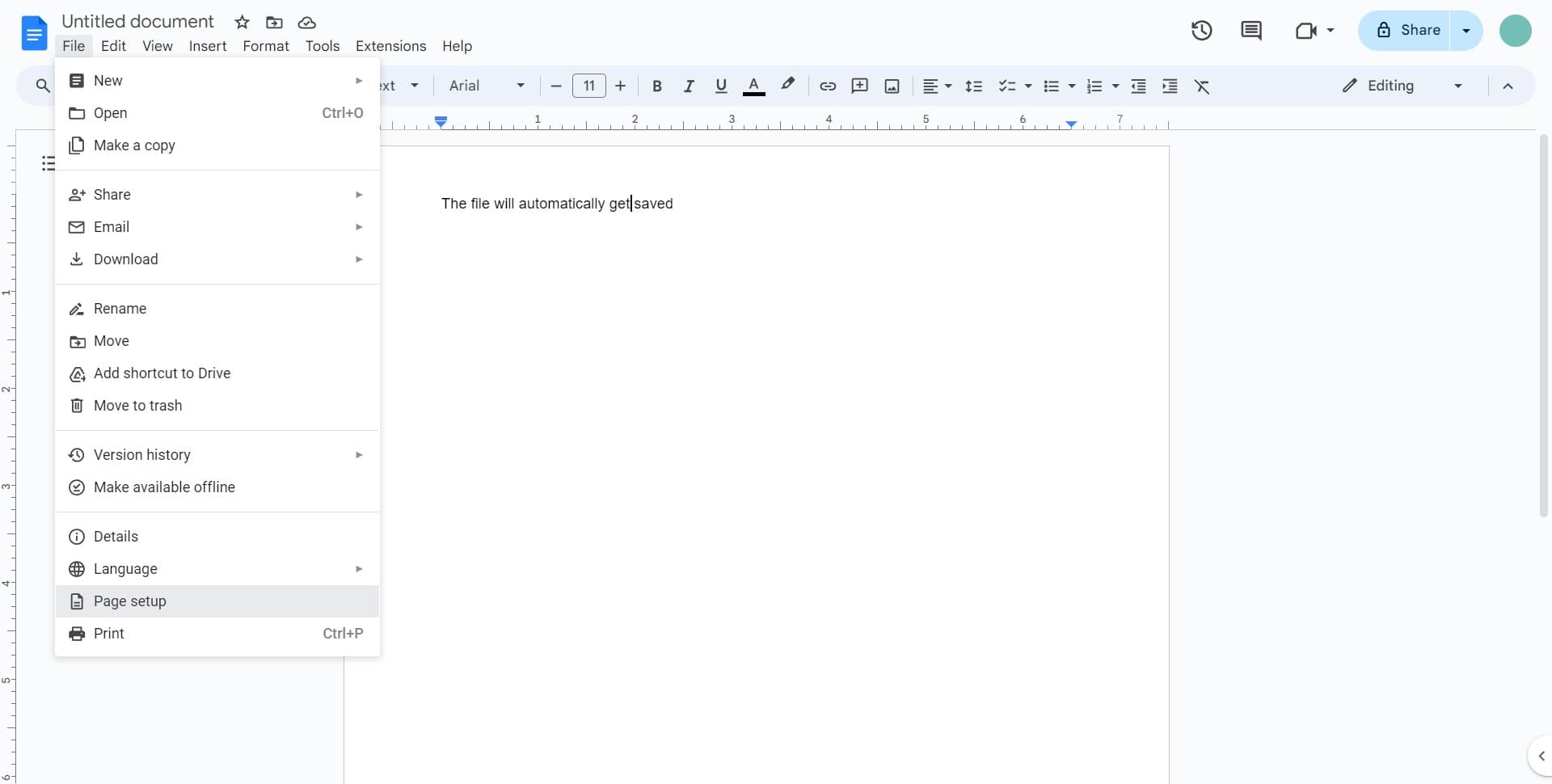
Select Page setup option
From the File dropdown menu, find and click on 'Page setup'. This will open a dialog box where you can adjust document-level formatting settings.
- 4
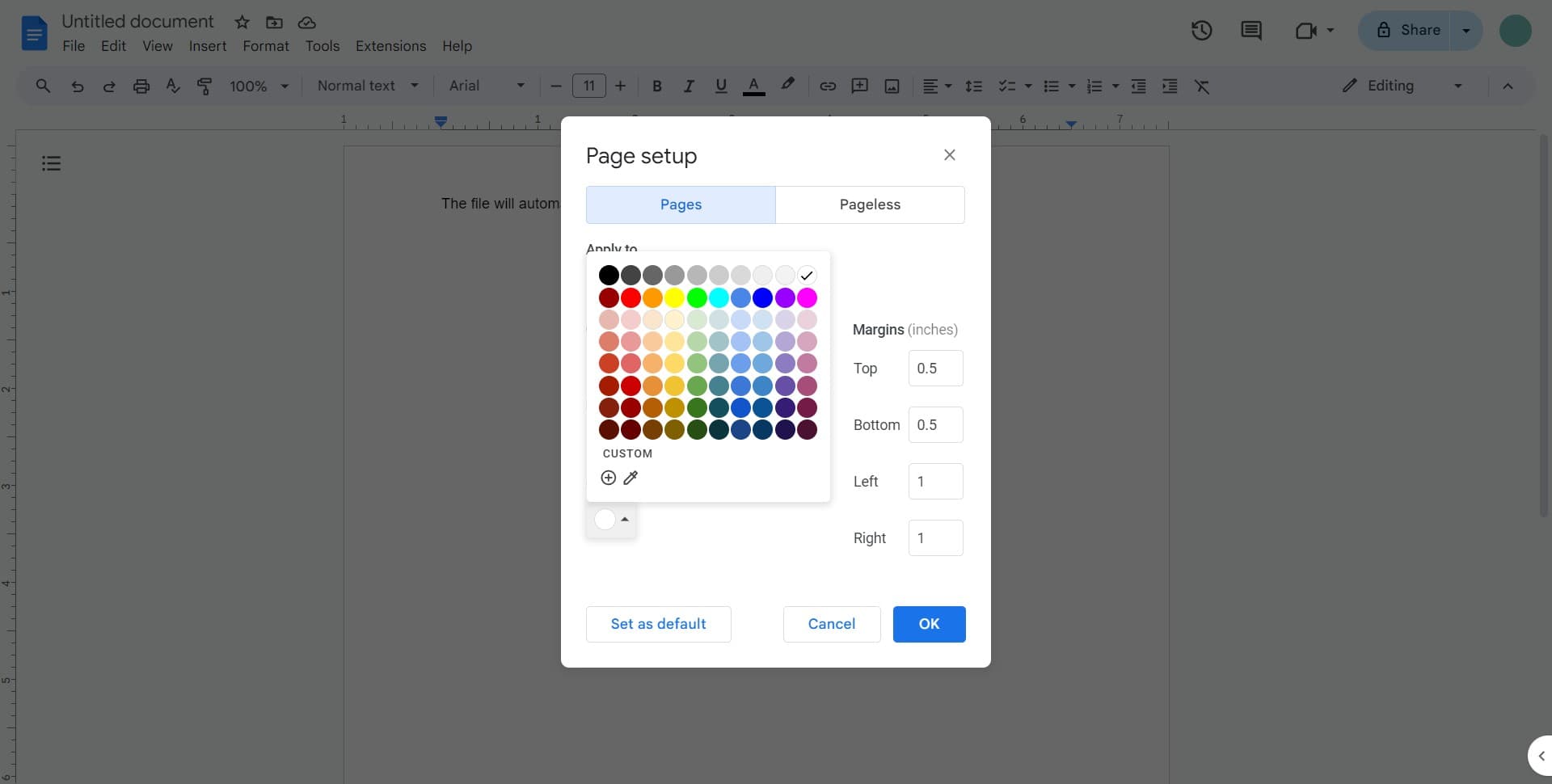
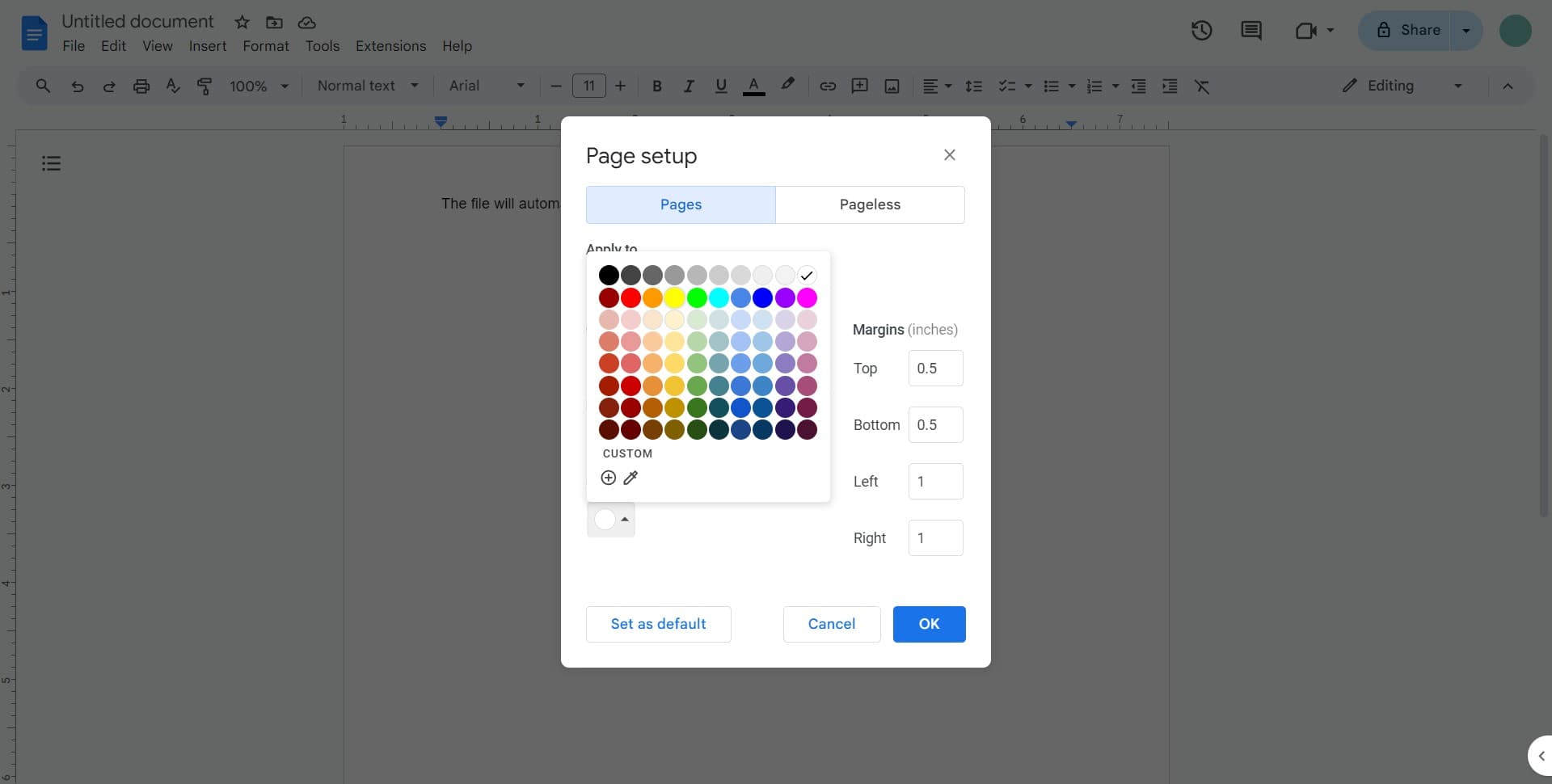
Choose your background color
In the Page setup dialog, locate the color selection option and click on it to reveal the color palette. Select your desired background color from the available options or enter a custom color code if needed.
- 5
Apply your color selection
After selecting your preferred background color, confirm your choice by clicking the appropriate button in the dialog box. You'll see your document's background update immediately.
- 6
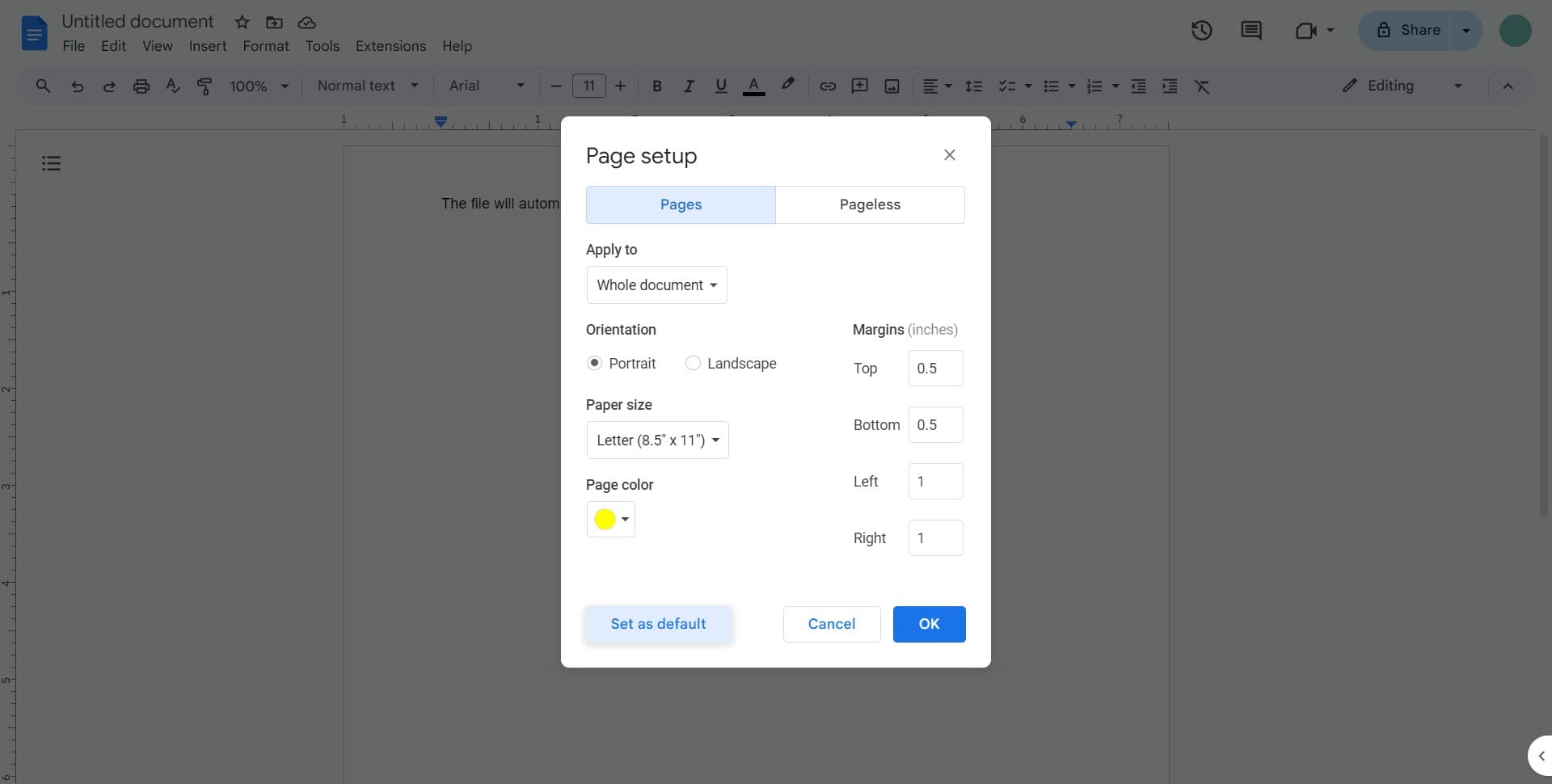
Set as default for future documents
Click on 'Set as default' if you want this background color to apply to all future Google Docs you create. This eliminates the need to repeat the process for new documents.
- 7
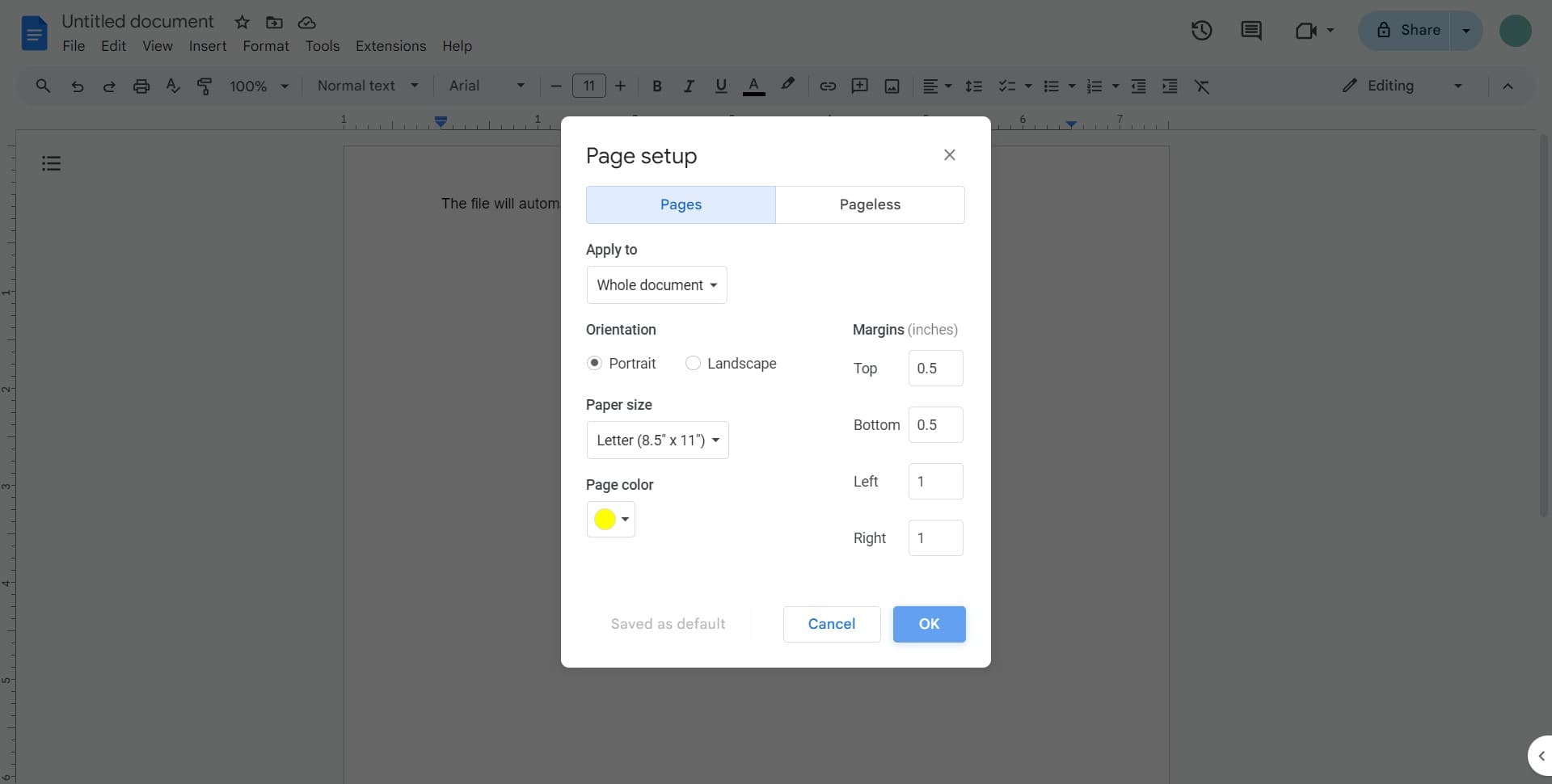
Confirm and save your changes
Click 'OK' to finalize your page setup changes. Your document will now display the custom background color across all pages.
Frequently asked questions
Common questions about how to add background color on google docs.
Google Docs applies background color to the entire document uniformly—you cannot set different colors for individual pages. If you need multiple colors, consider creating separate documents or using page breaks with different section formatting.
Yes, background colors will print by default. If you want to print without the background color, you can adjust your printer settings to exclude backgrounds or temporarily change the background color before printing.
Return to File > Page setup, click on the color selector, and choose white or no color to remove the background. You can change to a different color anytime using the same process.
Google Docs provides a palette of preset colors for quick selection. You can also enter a custom color using hex codes or RGB values if you need a specific shade not available in the preset options.
Yes, the background color will be visible to anyone who views or edits the shared document. They will see the same background color unless they change it themselves through their own Page setup settings.