How to export a Google doc into a PDF

Exporting a Google Doc as a PDF is one of the most common ways to share documents in a universal format that preserves formatting across devices. Whether you need to send a finalized document to colleagues, clients, or print it, converting to PDF ensures your document looks exactly as intended. This guide walks you through the straightforward process.
Quick summary
In this tutorial, you'll learn how to export a Google Doc into a PDF file format. You'll navigate through Google Docs' File menu and select the appropriate download option to save your document as a PDF on your computer.
Why this matters
PDF exports are essential for document distribution because they maintain consistent formatting, fonts, and layout regardless of the recipient's software or device. Many professional workflows, legal documents, and print-ready materials require PDF format for compliance and quality assurance. Mastering this export process saves time and ensures your documents are shared in the most compatible format.
Step-by-step guide
- 1
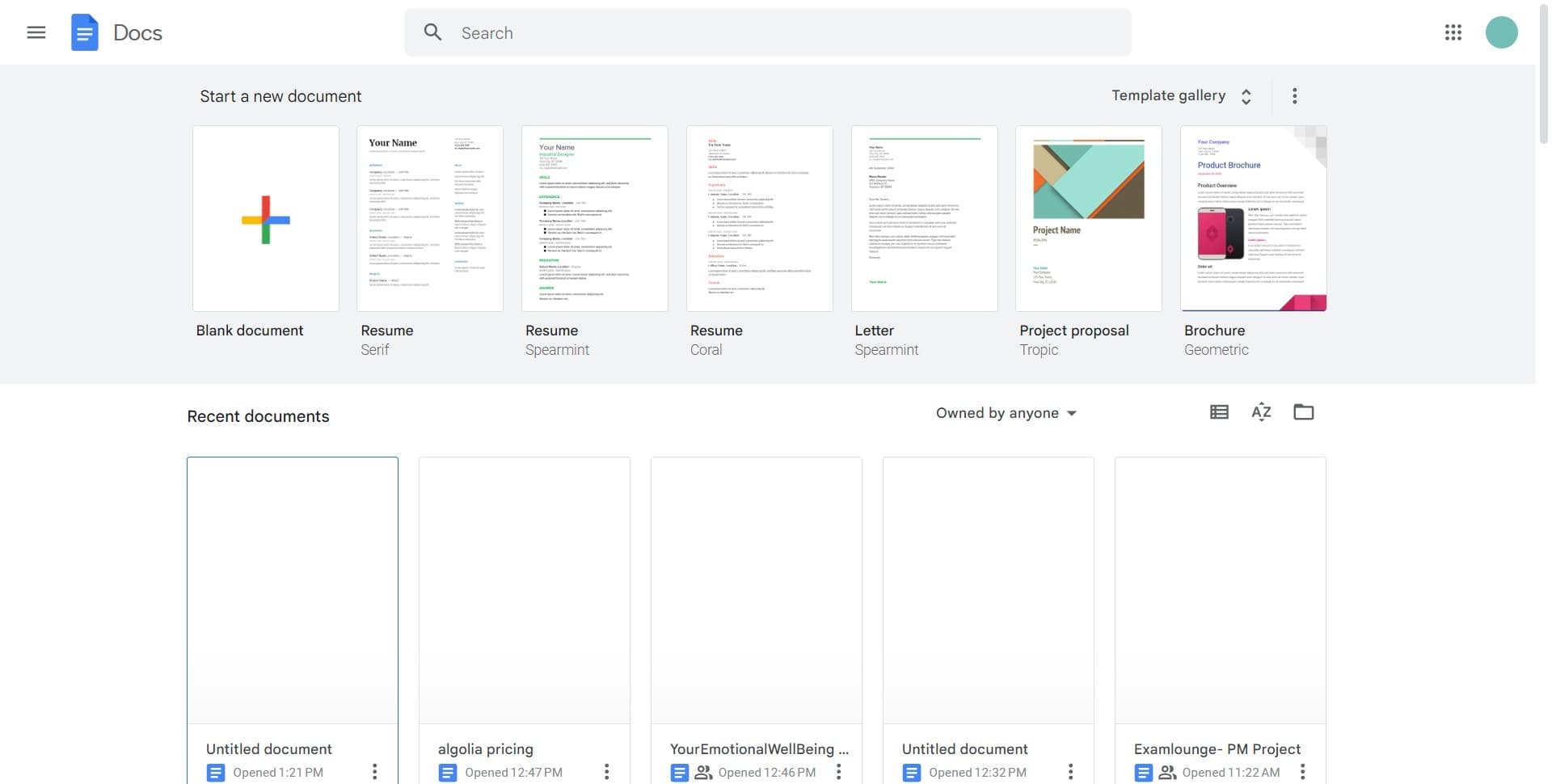
Open your Google Doc
Navigate to Google Docs and open the document you want to export. Make sure all your edits are complete before proceeding to the export step.
- 2
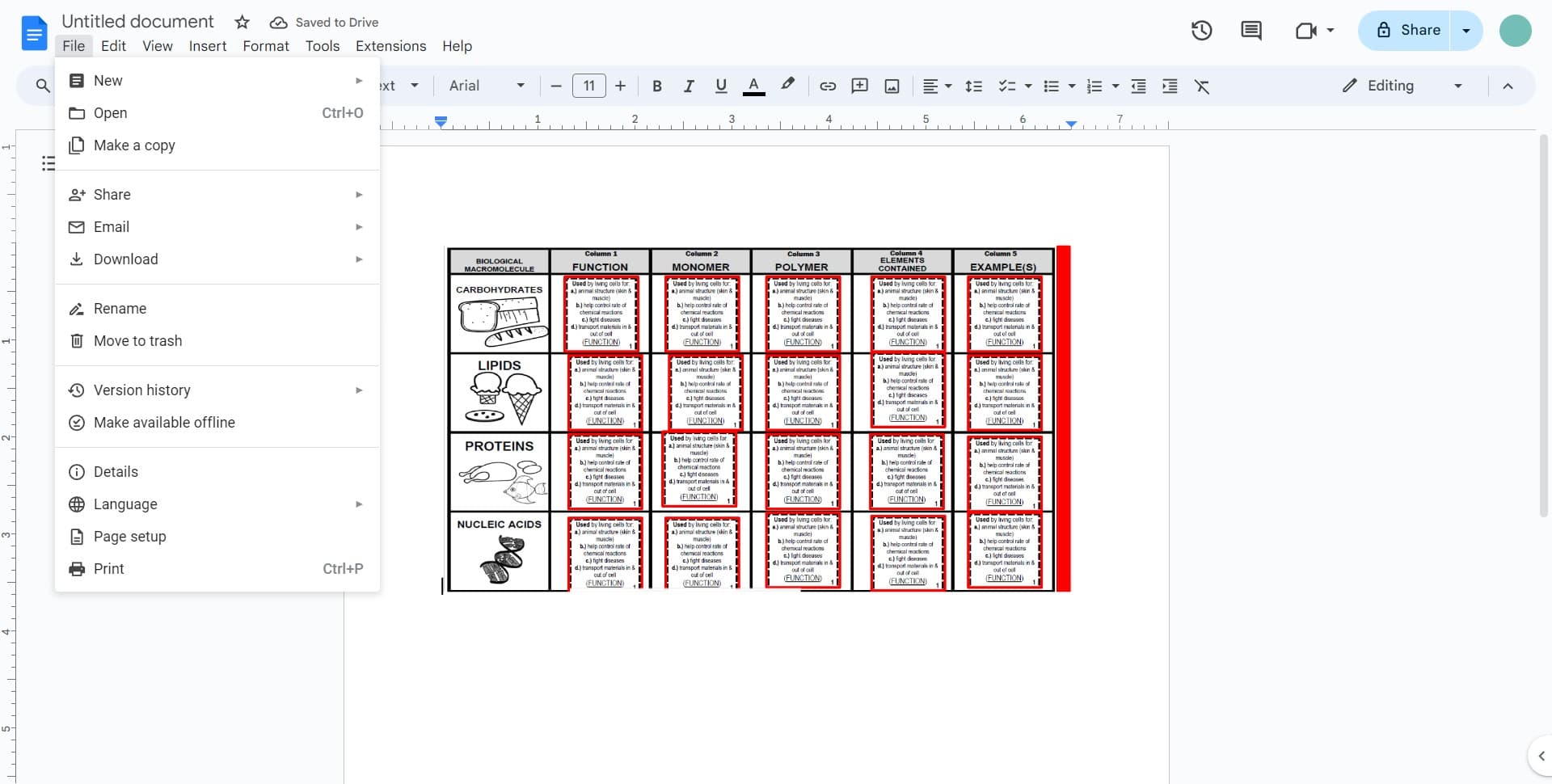
Click on File menu
In the top-left corner of your Google Doc, click the 'File' menu. This will open a dropdown menu with various document options.
- 3
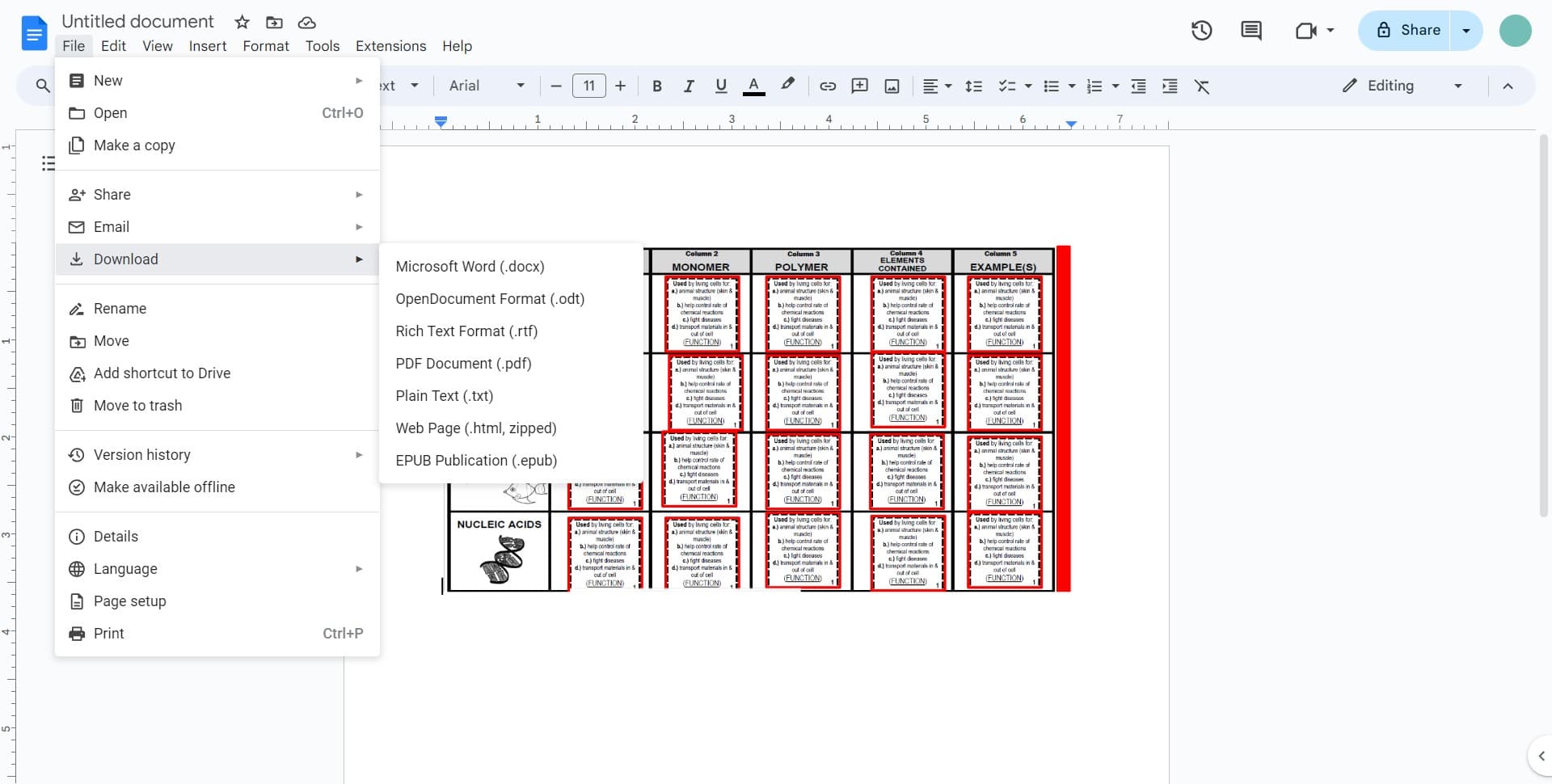
Select Download option
From the File menu, hover over or click on 'Download' to see the available export format options. You'll see a submenu appear with different file format choices.
- 4
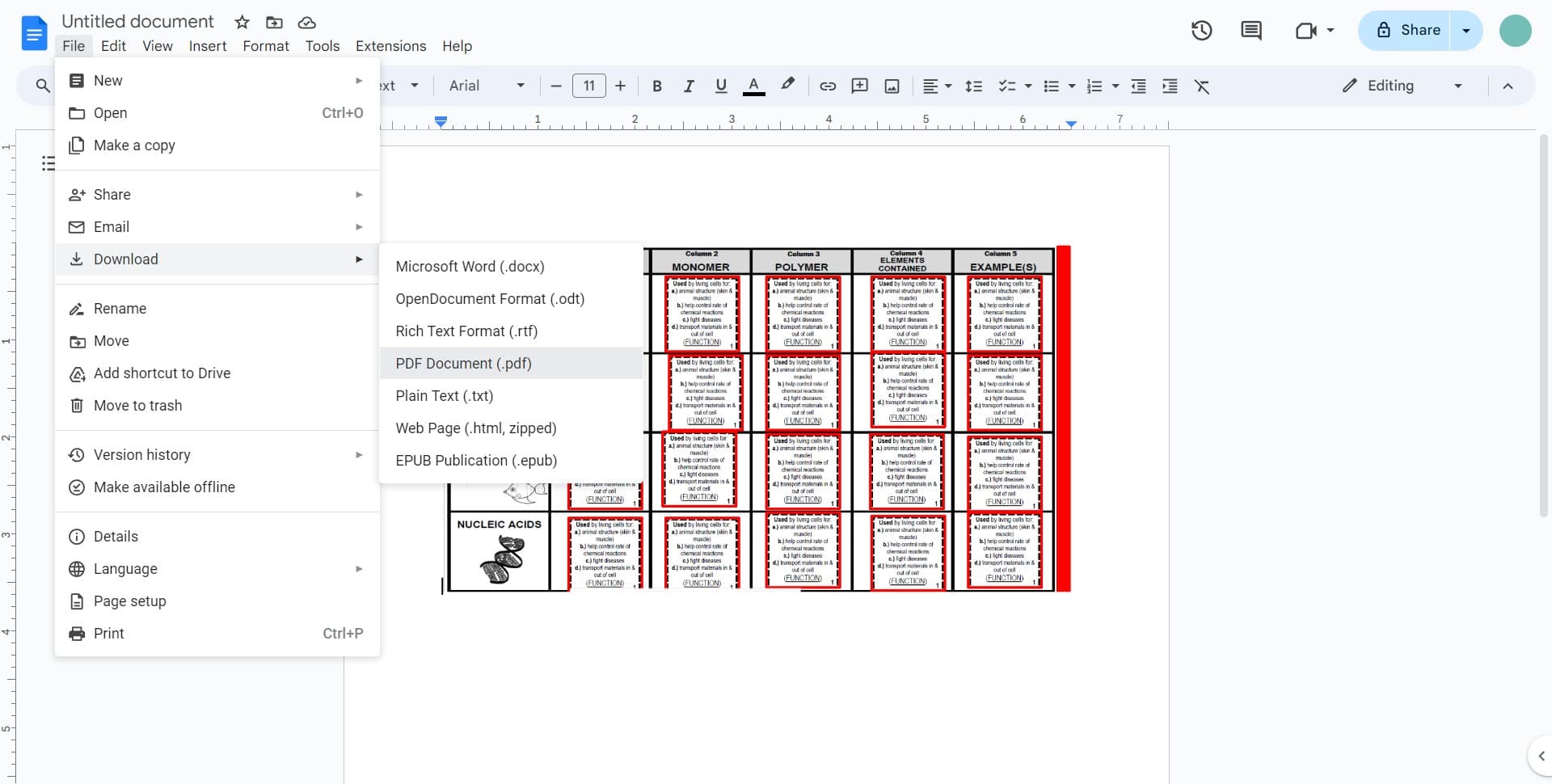
Choose PDF Document format
Click on 'PDF Document (.pdf)' from the submenu. Google Docs will immediately process your document and download it as a PDF file to your computer's default downloads folder.
Frequently asked questions
Common questions about how to export a google doc into a pdf.
Yes, exporting to PDF preserves all formatting, fonts, images, and layout from your Google Doc. This is one of the key advantages of using PDF format for document distribution. The PDF will look identical to how your Google Doc appears on screen.
Yes, the PDF export function automatically includes all pages of your Google Doc in a single PDF file. There's no need to select individual pages; the entire document is exported as one continuous file.
By default, the PDF downloads to your computer's Downloads folder. You can change the download location in your browser settings if needed, or move the file after download to your preferred location.
PDFs can be edited with specialized PDF editing tools, but basic editing is limited compared to Google Docs. If you need to make changes after export, it's best to edit the original Google Doc and export again as a new PDF.
Google Docs doesn't have a strict file size limit for PDF exports, though very large documents with many high-resolution images may take longer to process. Most standard documents export without any issues.