How to insert image in Google Docs

Adding images to your Google Docs documents enhances visual communication and breaks up text-heavy content. Whether you're creating a report, presentation, or collaborative document, knowing how to insert images quickly is essential. This guide walks you through the process of uploading images directly from your computer.
Quick summary
In this tutorial, you'll learn how to insert images into Google Docs by accessing the Insert menu and uploading files from your computer. You'll navigate through the menu options and complete the upload process to embed images into your document.
Why this matters
Images make documents more engaging and help convey information more effectively than text alone. In professional and educational settings, the ability to quickly insert images improves document quality and saves time during collaboration. Mastering this skill ensures your Google Docs are visually polished and impactful.
Step-by-step guide
- 1
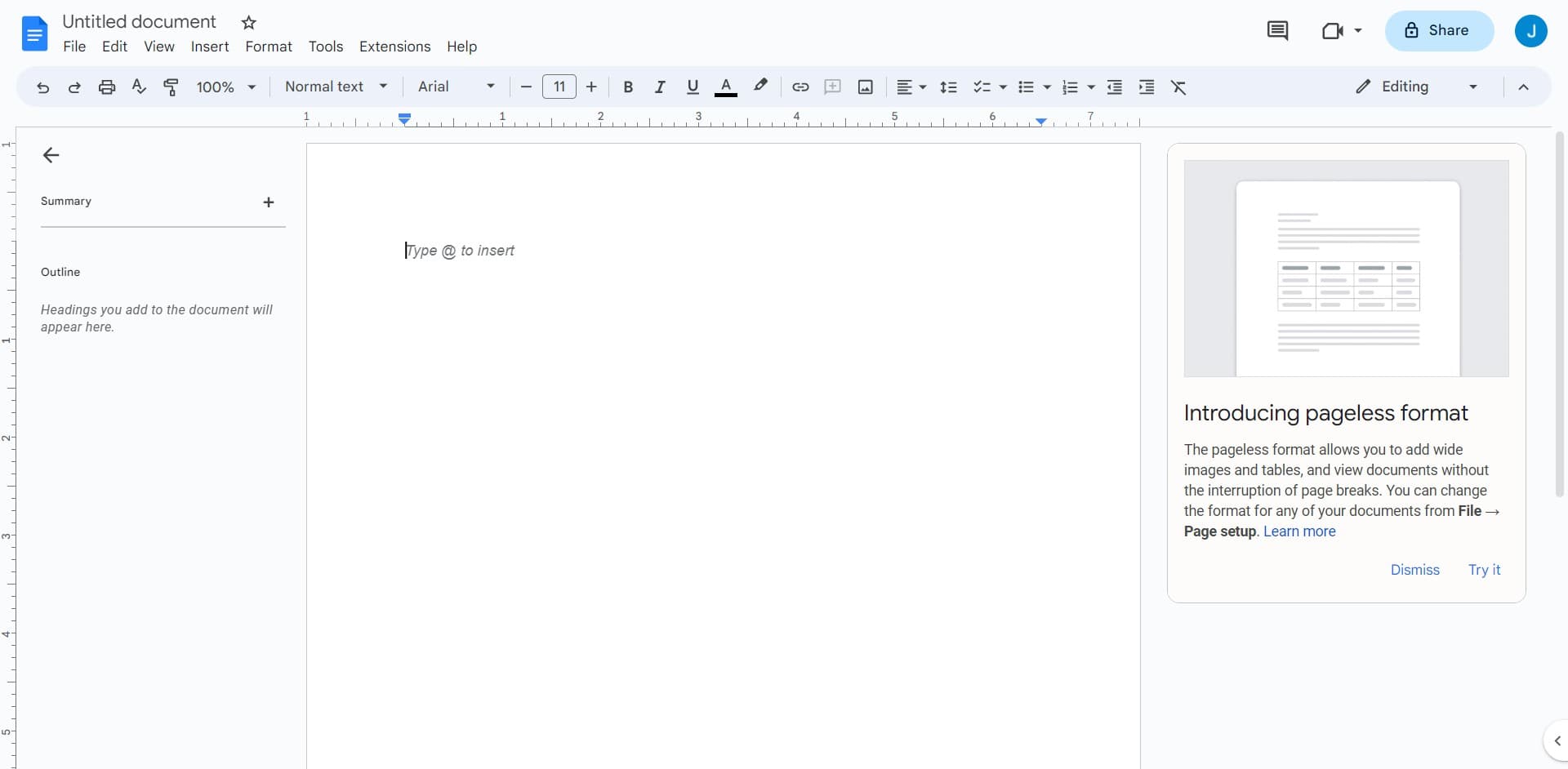
Open the Insert menu
Click on the menu bar at the top of your Google Docs document where you'll see options like File, Edit, View, and Insert. This menu provides access to all content insertion tools available in Google Docs.
- 2
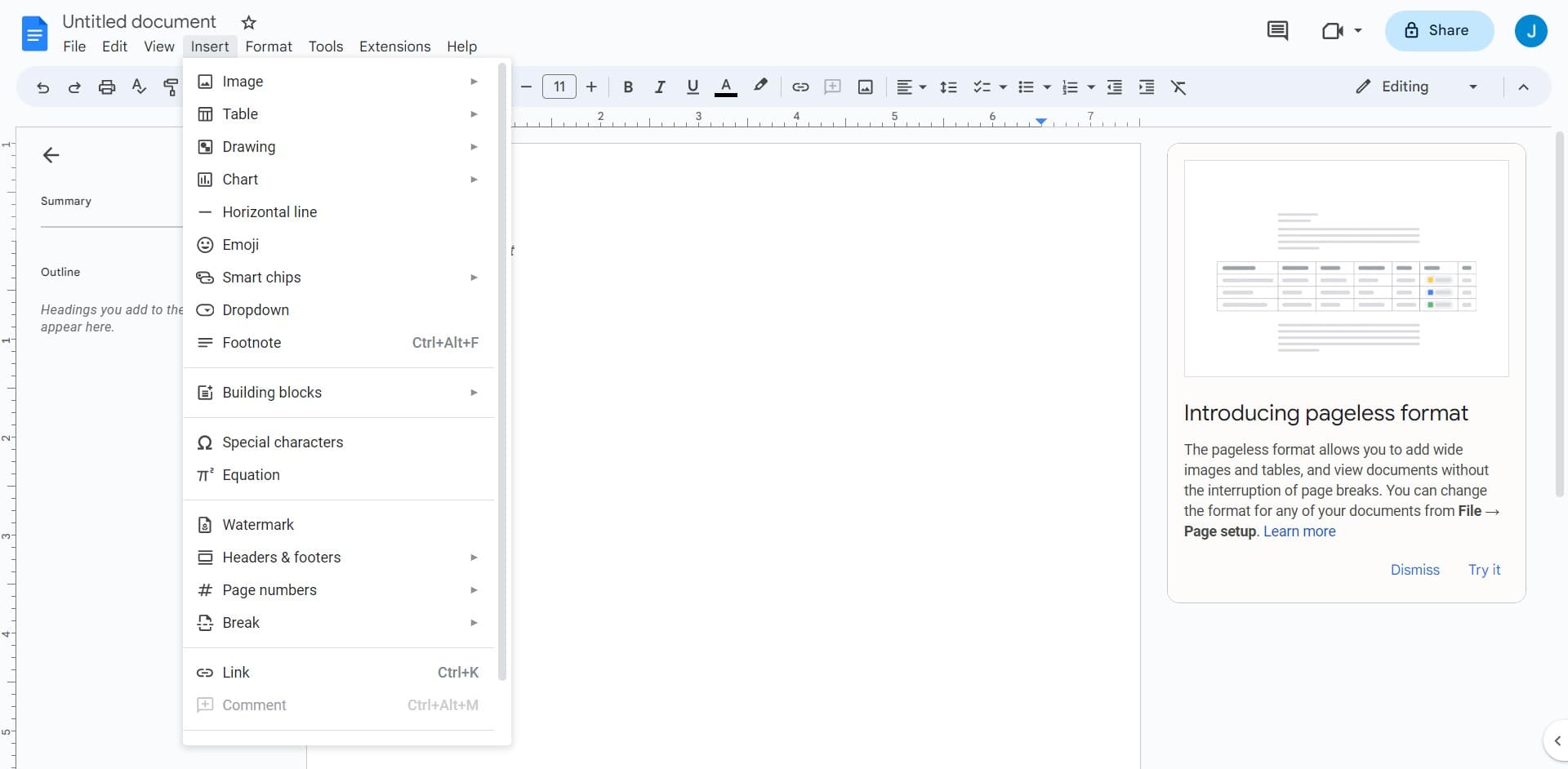
Select Insert option
Click directly on the 'Insert' menu item to expand a dropdown list of content types you can add to your document. This will reveal options for images, tables, charts, and other elements.
- 3
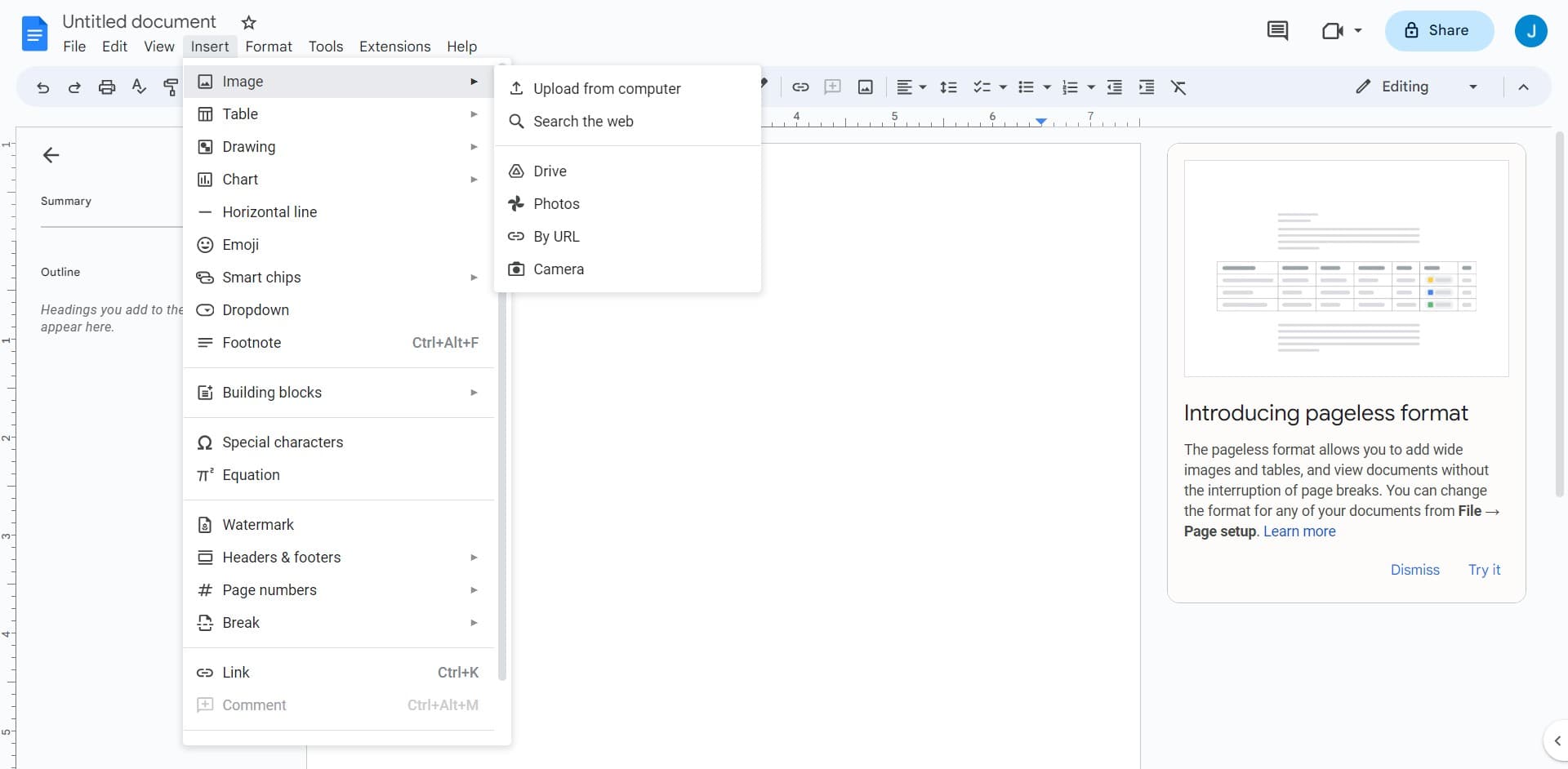
Navigate to Image submenu
Look for the 'Image' option in the dropdown menu, which will have an arrow indicating additional choices. Click on it to see the available image insertion methods.
- 4
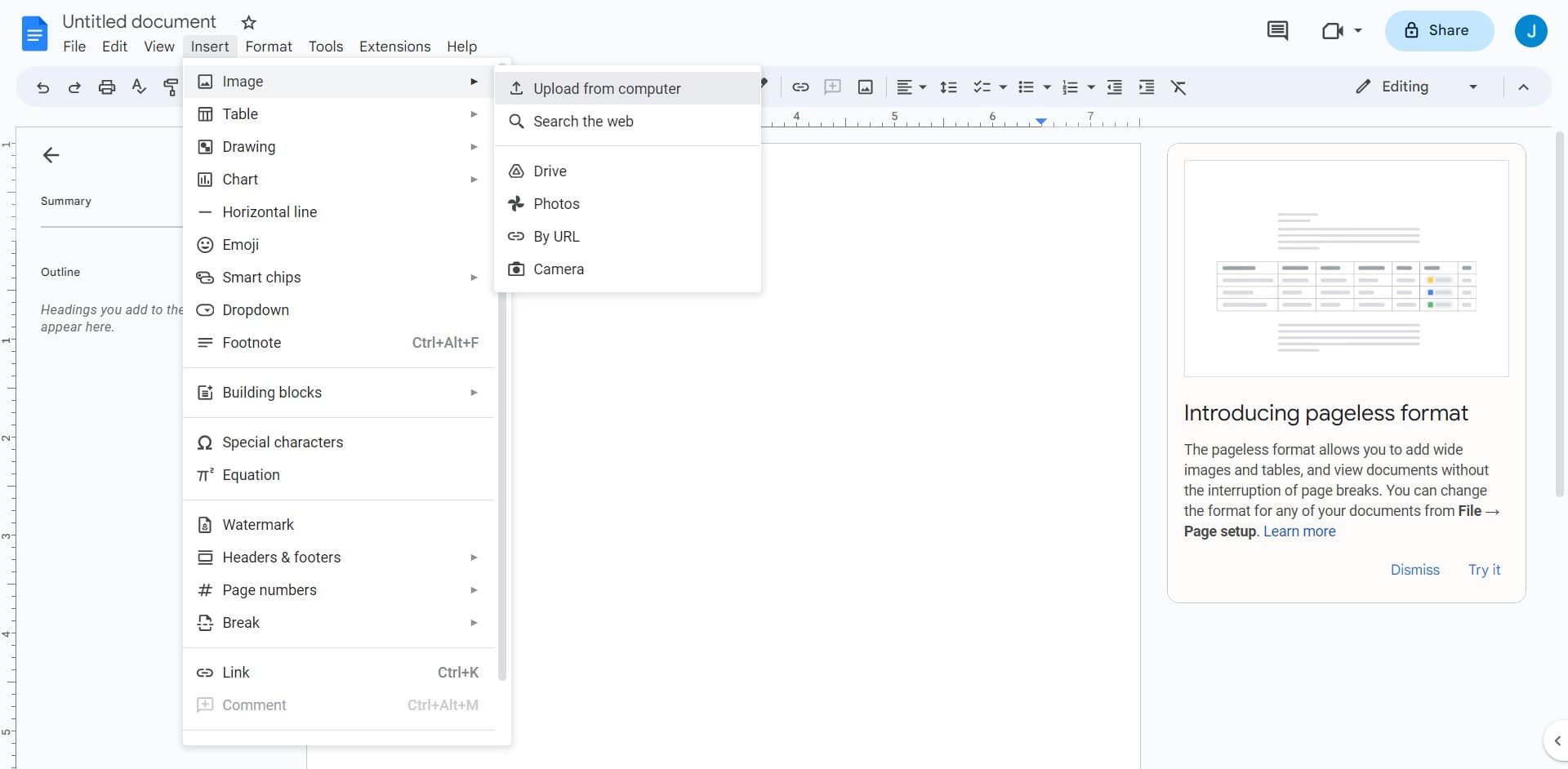
Choose Upload from computer
Select 'Upload from computer' from the Image submenu to open your device's file browser. This option allows you to search for and select image files stored on your local machine.
- 5
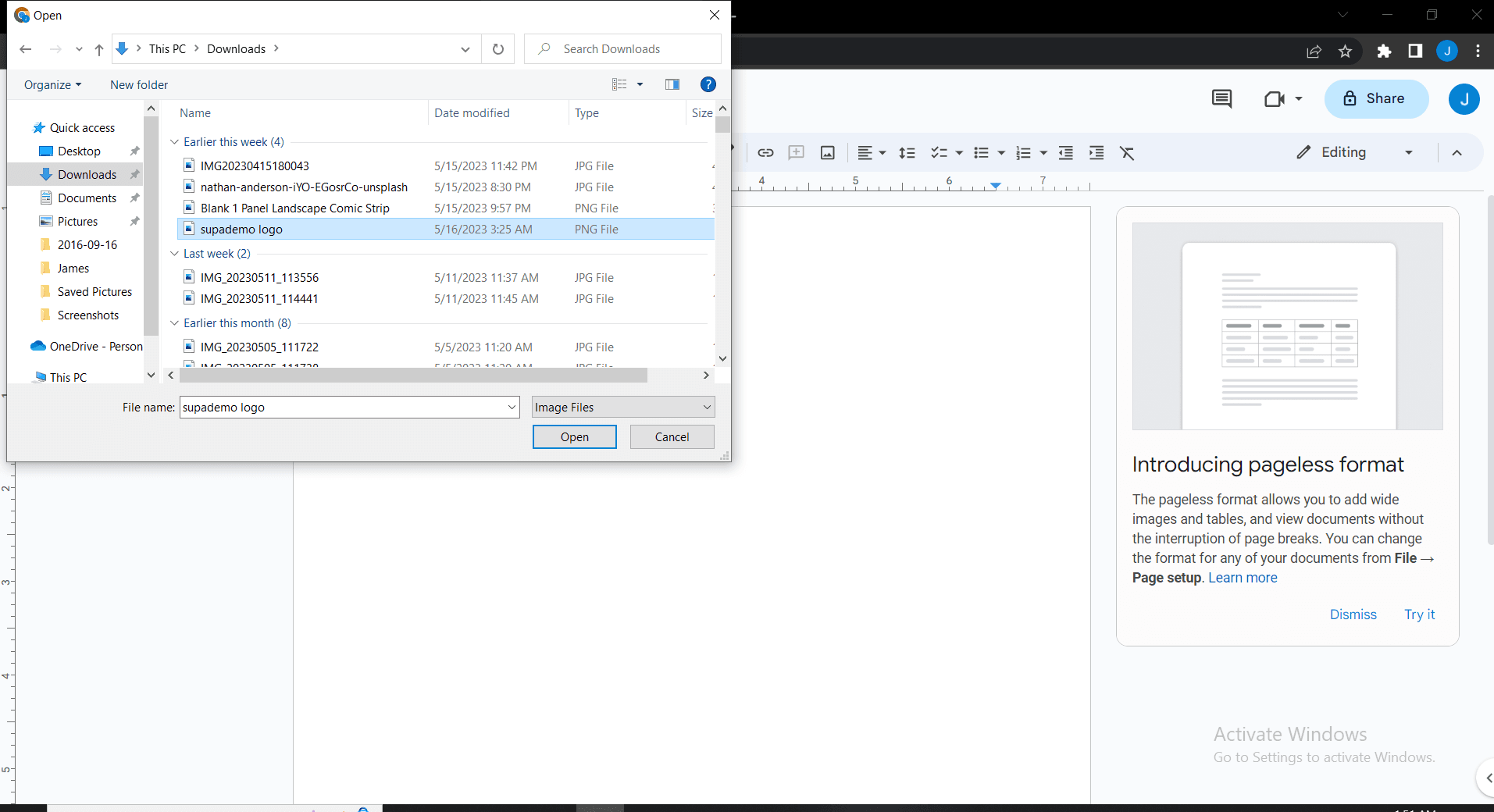
Upload your image file
Browse your computer's file system to locate the image you want to insert, select it, and confirm the upload. Google Docs will process the file and insert it into your document at the cursor position.
- 6
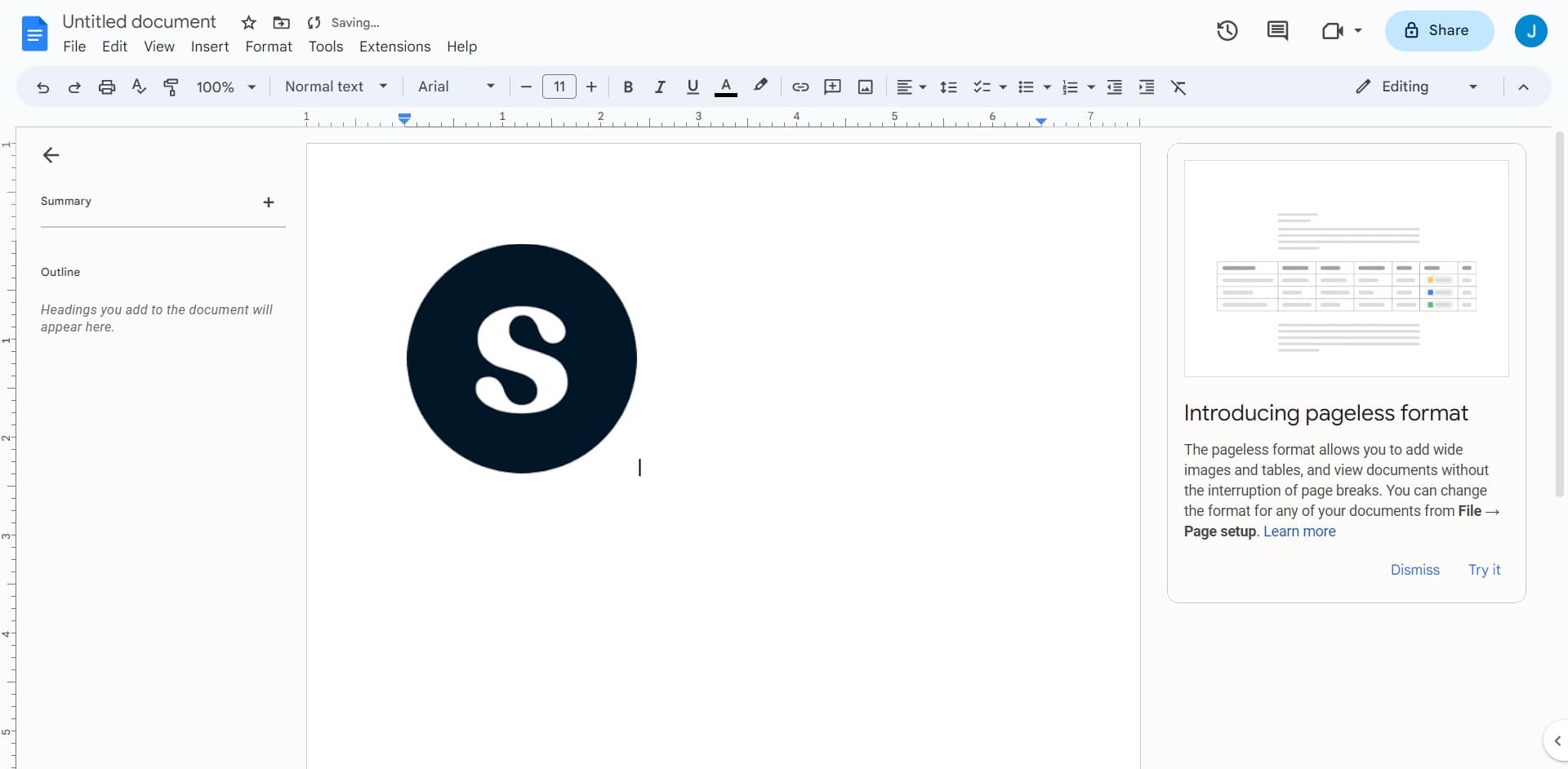
Confirm image insertion
Once the image finishes uploading, it will appear in your document. You can now resize, reposition, or adjust the image properties as needed.
Frequently asked questions
Common questions about how to insert image in google docs.
Google Docs supports common image formats including JPEG, PNG, GIF, and WebP. You can upload images in these formats without any issues. If you have images in other formats, you may need to convert them first.
Google Docs allows you to upload images up to 50 MB in size. If your image exceeds this limit, you'll need to compress it or reduce its dimensions before uploading.
Yes, Google Docs offers multiple image insertion options. You can search the web, use Google Drive, or paste image URLs directly. The Insert menu provides these alternatives alongside the 'Upload from computer' option.
Click on the image in your document to select it, then use the corner handles to resize or drag it to reposition. You can also right-click the image to access formatting options like text wrapping and alignment.
Yes, multiple collaborators can view and edit the document containing images in real time. However, only one person can edit image properties at a time, and changes are automatically saved to the shared document.