How to track your word count in Google Docs

Tracking word count in Google Docs is essential for meeting writing requirements, managing content length, and monitoring your productivity. This guide walks you through accessing the word count tool and understanding your document's statistics in just a few clicks.
Quick summary
In this tutorial, you'll learn how to open the word count dialog in Google Docs and view detailed statistics about your document. By the end, you'll be able to quickly check your word count whenever you need to verify document length or meet specific writing targets.
Why this matters
Word count tracking matters for writers, students, and professionals who must adhere to specific length requirements for essays, articles, or content guidelines. Regularly monitoring word count helps you stay on pace with your writing goals and ensures your content meets submission standards.
Step-by-step guide
- 1
Access the Tools menu
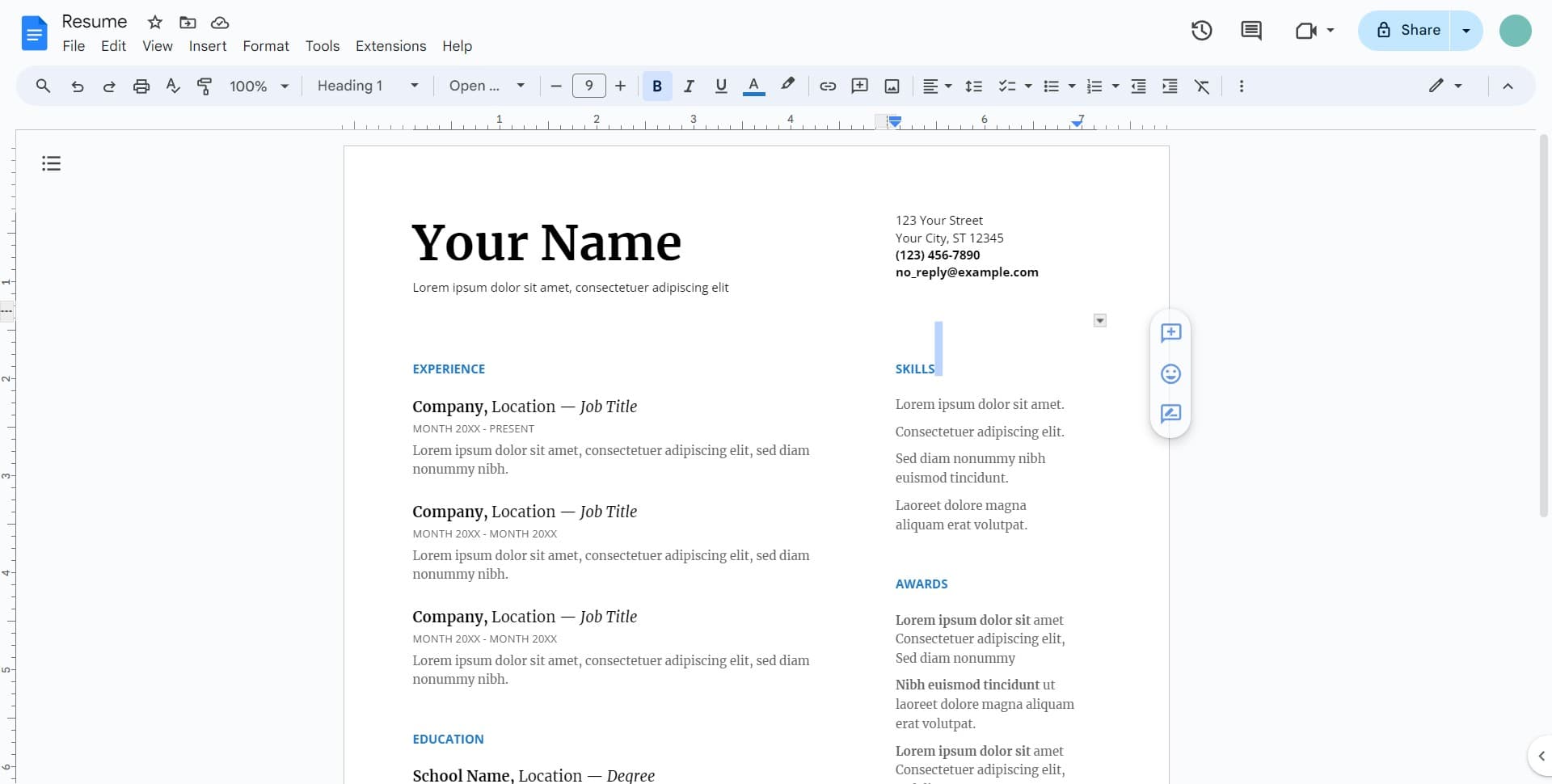
Start by locating and clicking the menu option to access Google Docs' tools. This opens the main menu where you can find various document utilities and settings.
- 2
Navigate to word count option
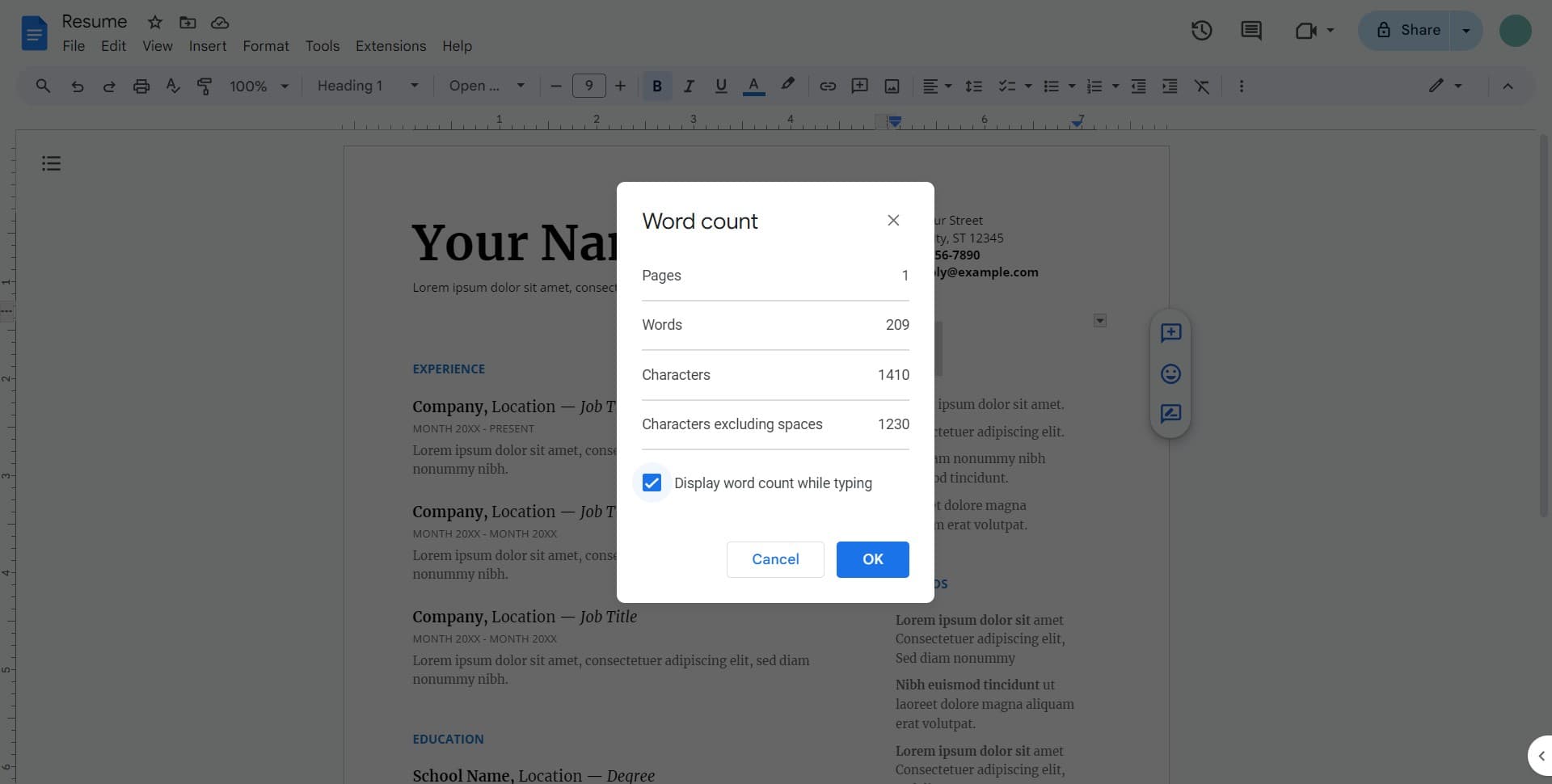
Look for the word count feature within the available options. Click to select it and proceed to the next step.
- 3
Confirm the dialog box
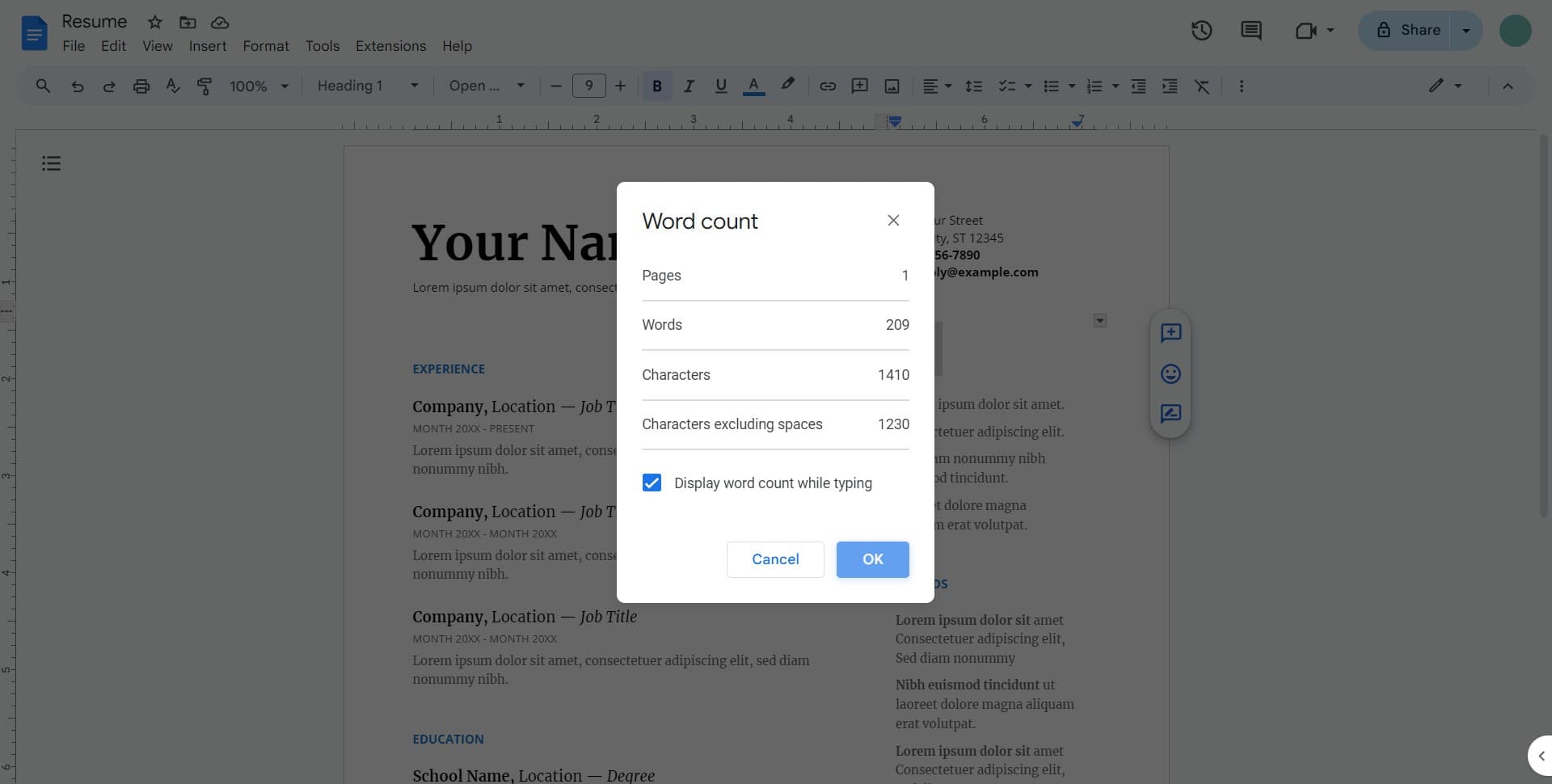
A word count dialog box will appear on your screen. Click the OK button to confirm and close this dialog after reviewing your statistics.
- 4
Review document statistics
Take note of the various metrics displayed in the word count panel. This shows you comprehensive information about your document's length and composition.
- 5
Check your total word count
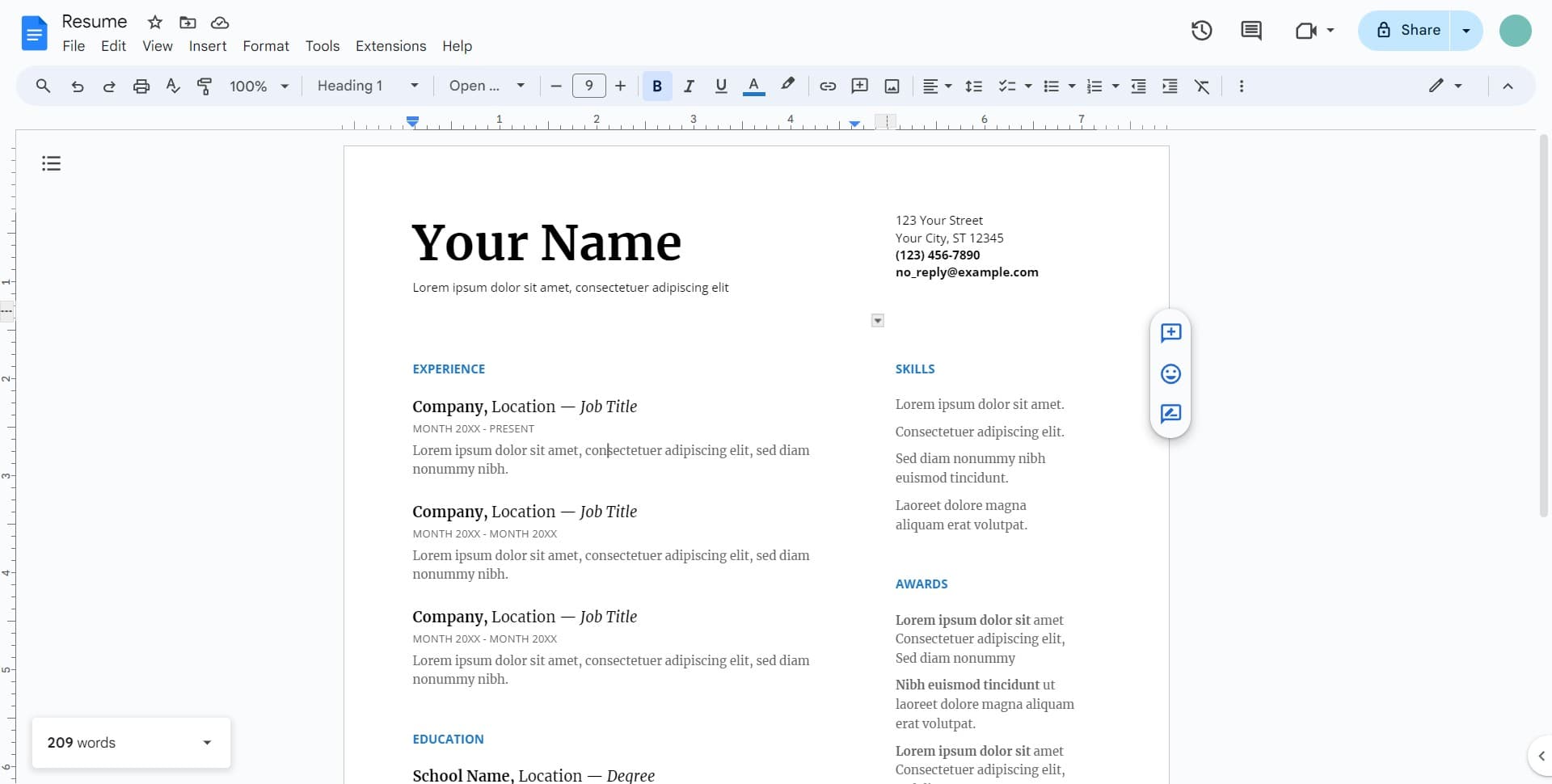
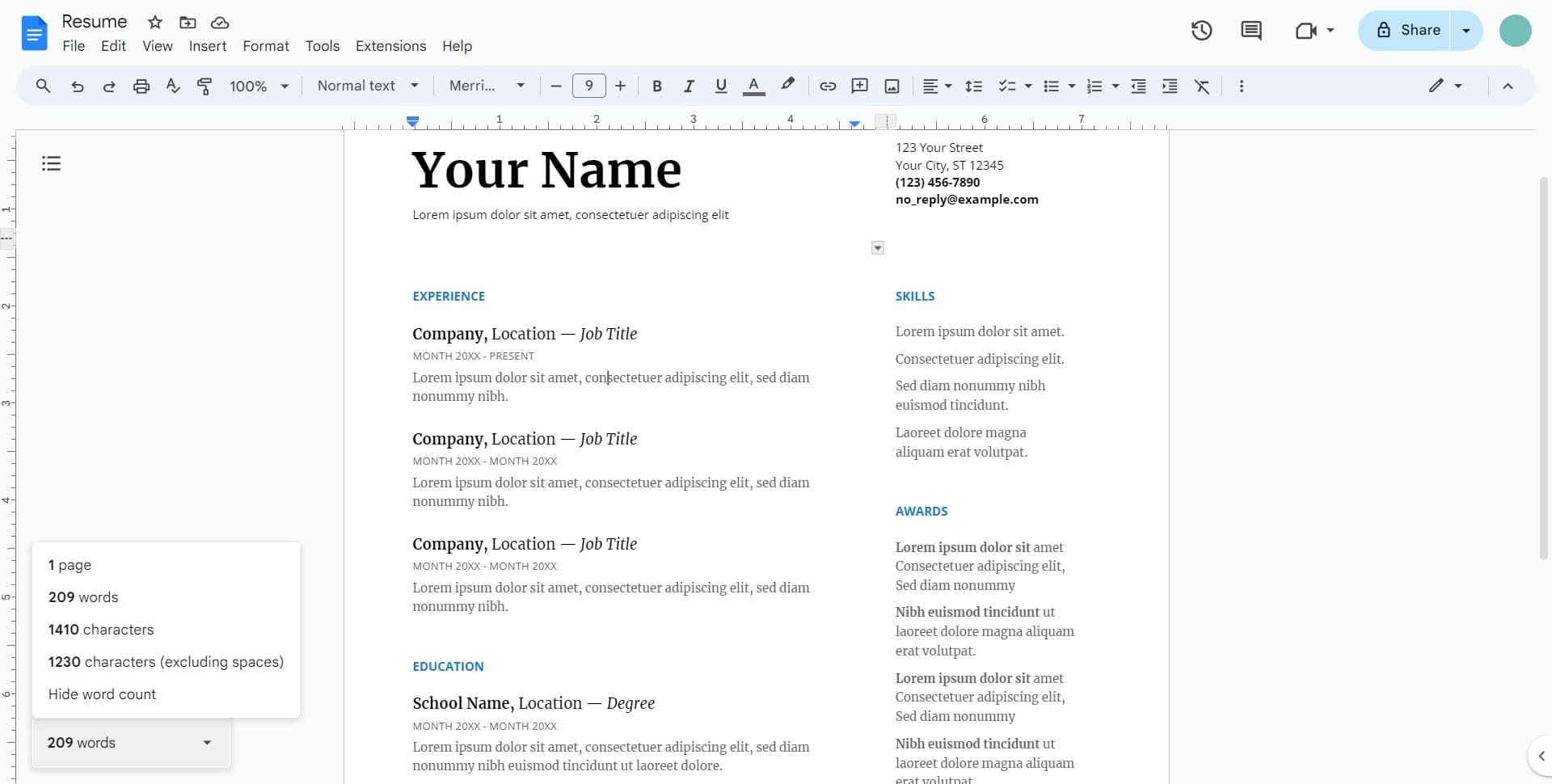
Your document's total word count is now visible—in this case, 209 words. You can use this information to verify that your document meets any required length specifications.
Frequently asked questions
Common questions about how to track your word count in google docs.
Open your Google Docs document, click on the Tools menu at the top, and select Word count from the dropdown. A dialog box will appear showing your document's word count and other statistics. You can access this anytime during your writing process.
The word count dialog displays your total word count along with additional statistics such as the number of pages, characters, and characters excluding spaces. This gives you a comprehensive view of your document's size and composition.
Yes, you can keep the word count dialog box open as you work on your document. This allows you to monitor your progress in real-time without needing to reopen the dialog repeatedly.
Google Docs doesn't have a built-in keyboard shortcut for word count, but you can quickly access it through the Tools menu. On Mac, you can use Command+Shift+C after opening Tools, and on Windows, you can use Ctrl+Shift+C in some cases.
The word count in Google Docs counts words in the main document body. Headers, footers, and comments are typically not included in the standard word count, so the number reflects only the content in your document's primary text area.