How to open a word document in Google Docs

Opening a Word document directly in Google Docs eliminates the need to convert files manually or use third-party tools. Google Docs can import and display Word files seamlessly, allowing you to edit and collaborate on your documents in the cloud.
Quick summary
In this tutorial, you'll learn how to open a Word document in Google Docs by uploading your file and accessing it through Google's file browser. You'll use Google Docs' built-in file upload feature and the Open dialog to locate and import your Word document.
Why this matters
Opening Word documents in Google Docs enables real-time collaboration, automatic cloud backup, and access from any device with an internet connection. This workflow is essential for teams that need to work on shared documents without being tied to desktop software.
Step-by-step guide
- 1
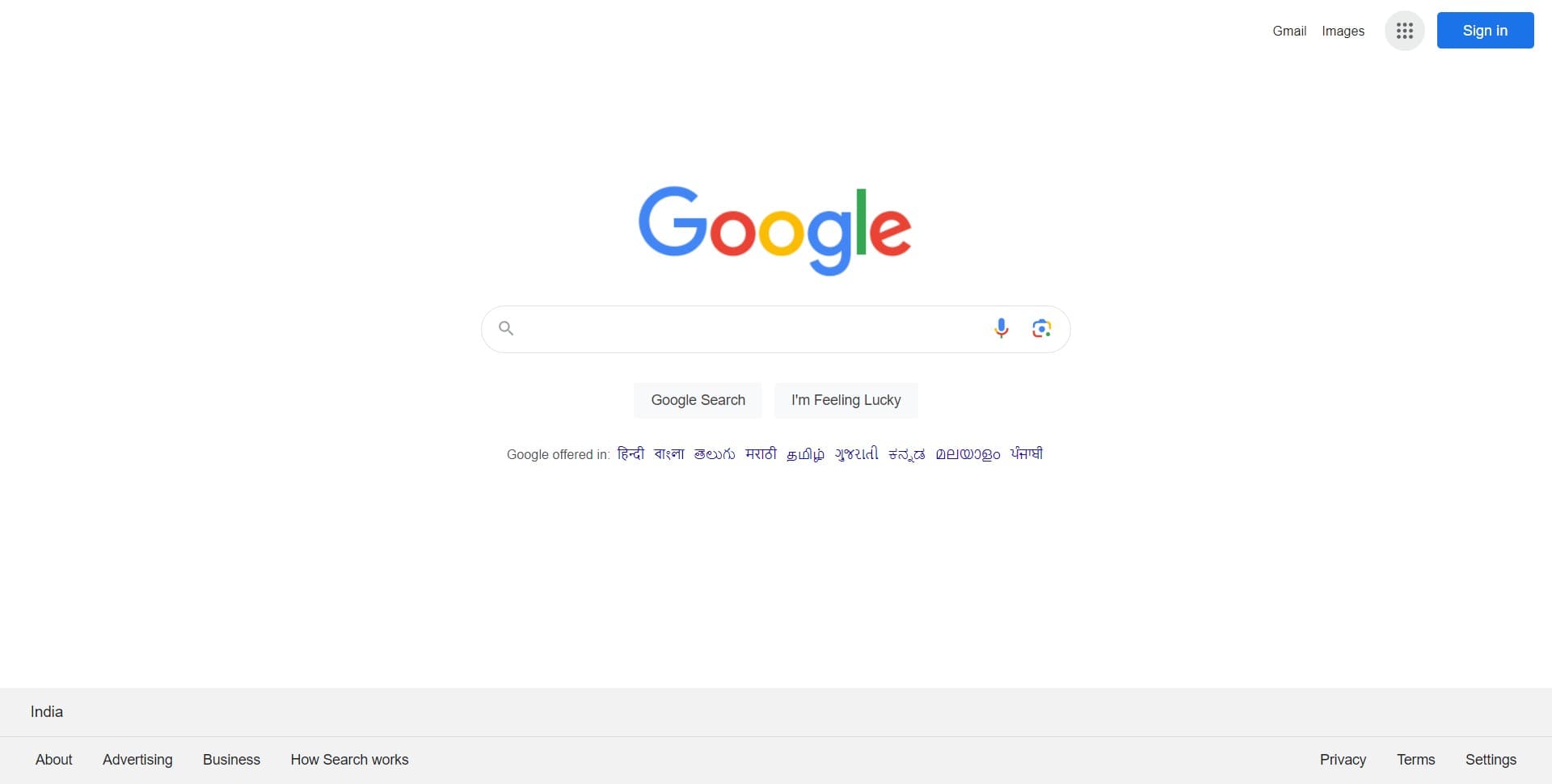
Start the upload process
Click the designated upload button or area to begin importing your Word document. This action opens the upload interface where you can select a file from your computer.
- 2
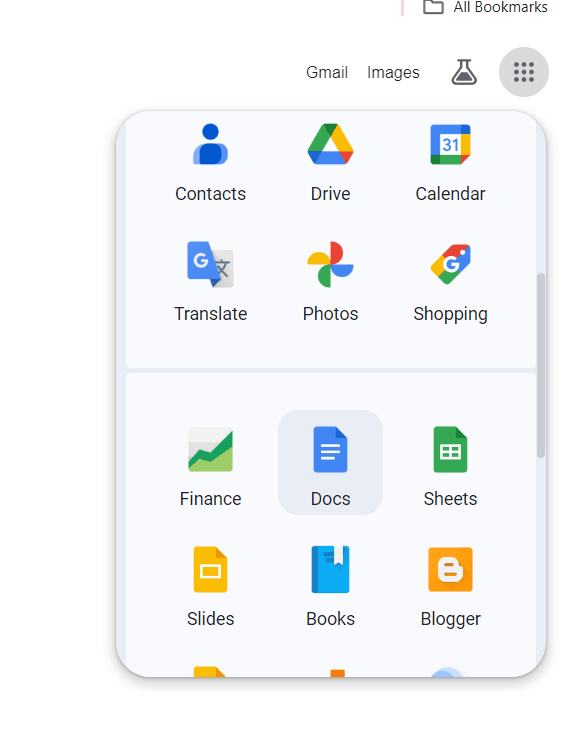
Select upload as your method
Choose the upload option from the available file import methods. This option allows you to browse and select a Word document directly from your device's storage.
- 3
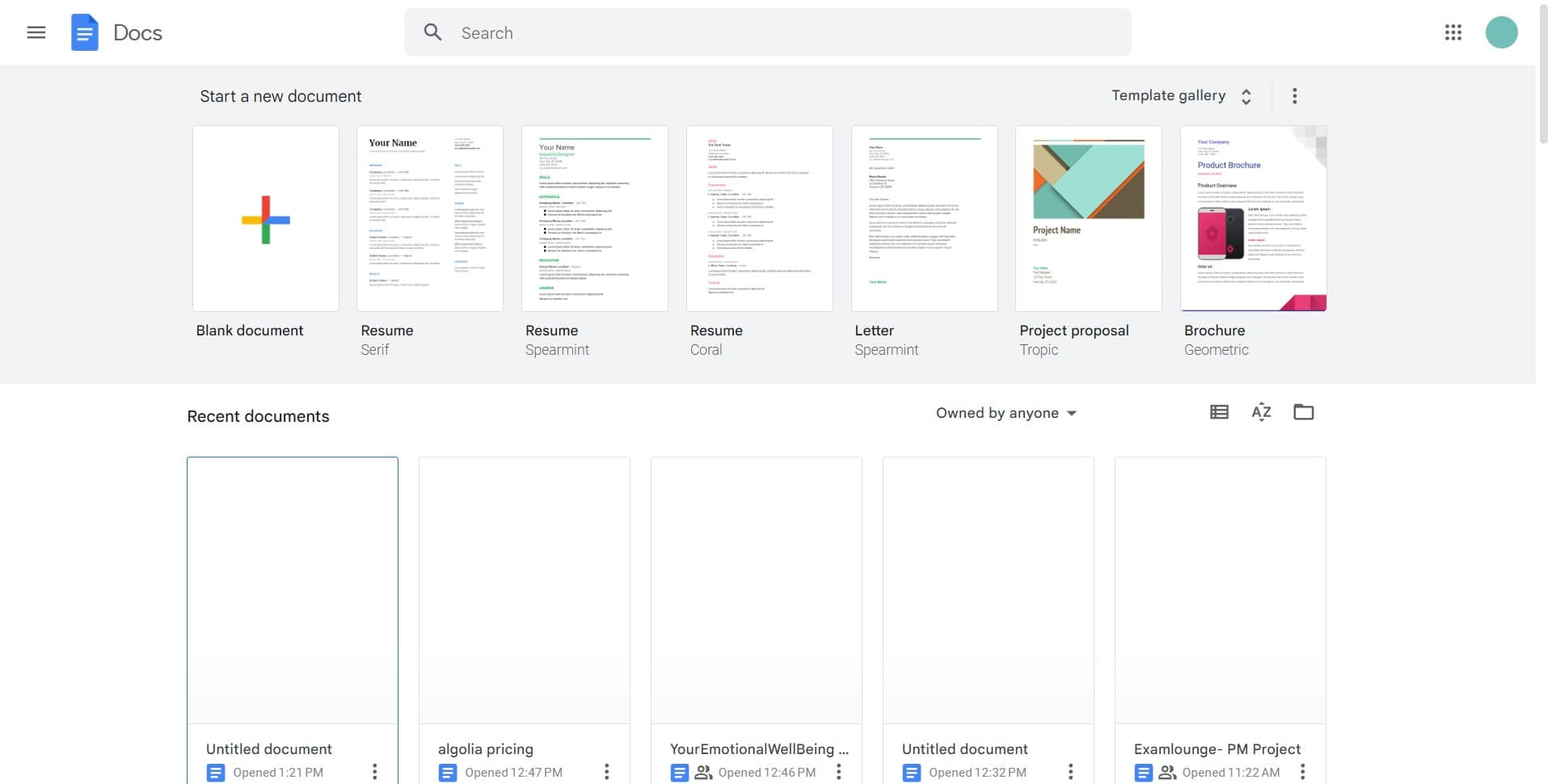
Navigate to the file menu
Access the File menu to reveal additional options for opening and importing documents. This menu provides centralized access to all document management features.
- 4
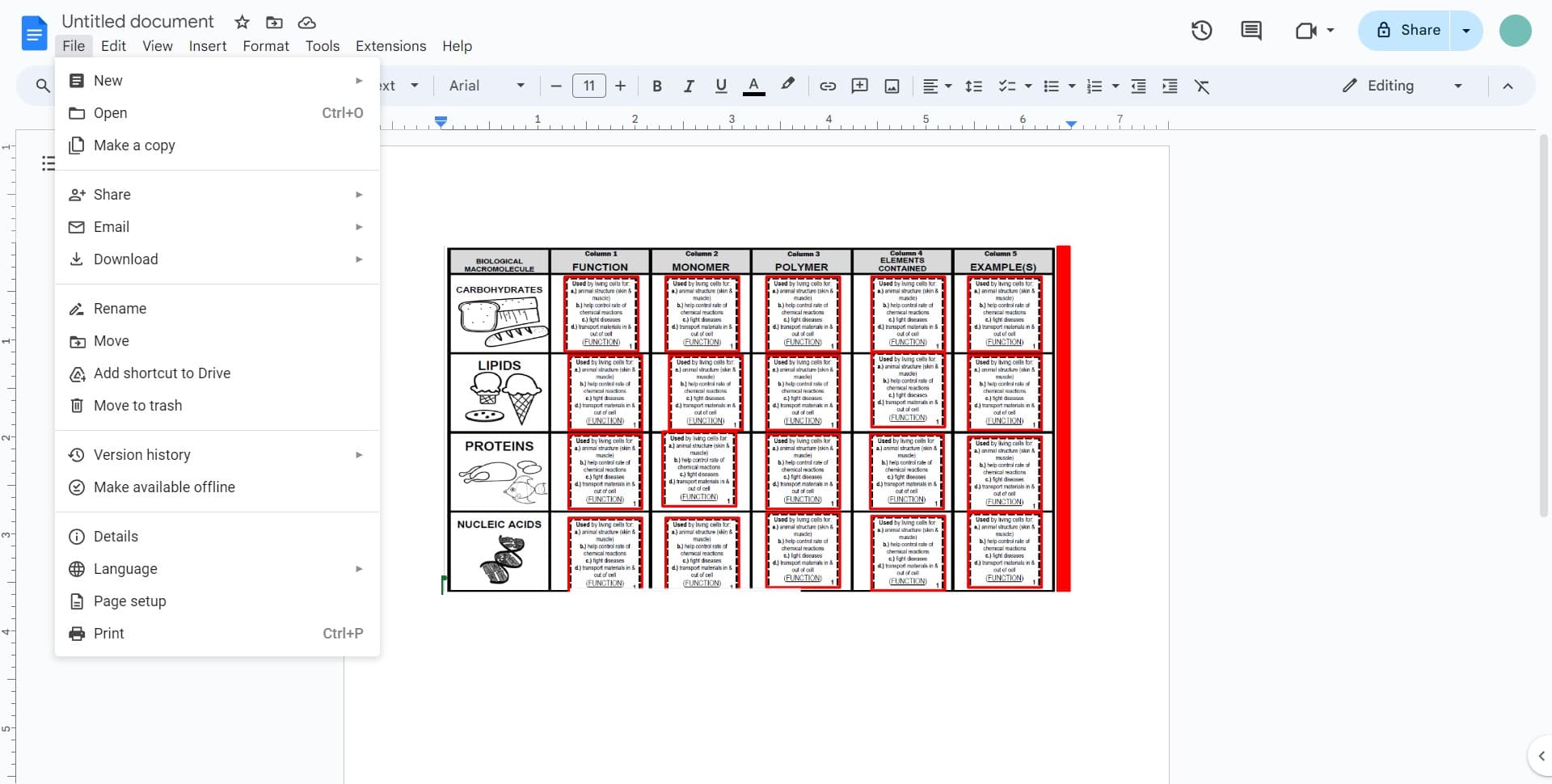
Click on File
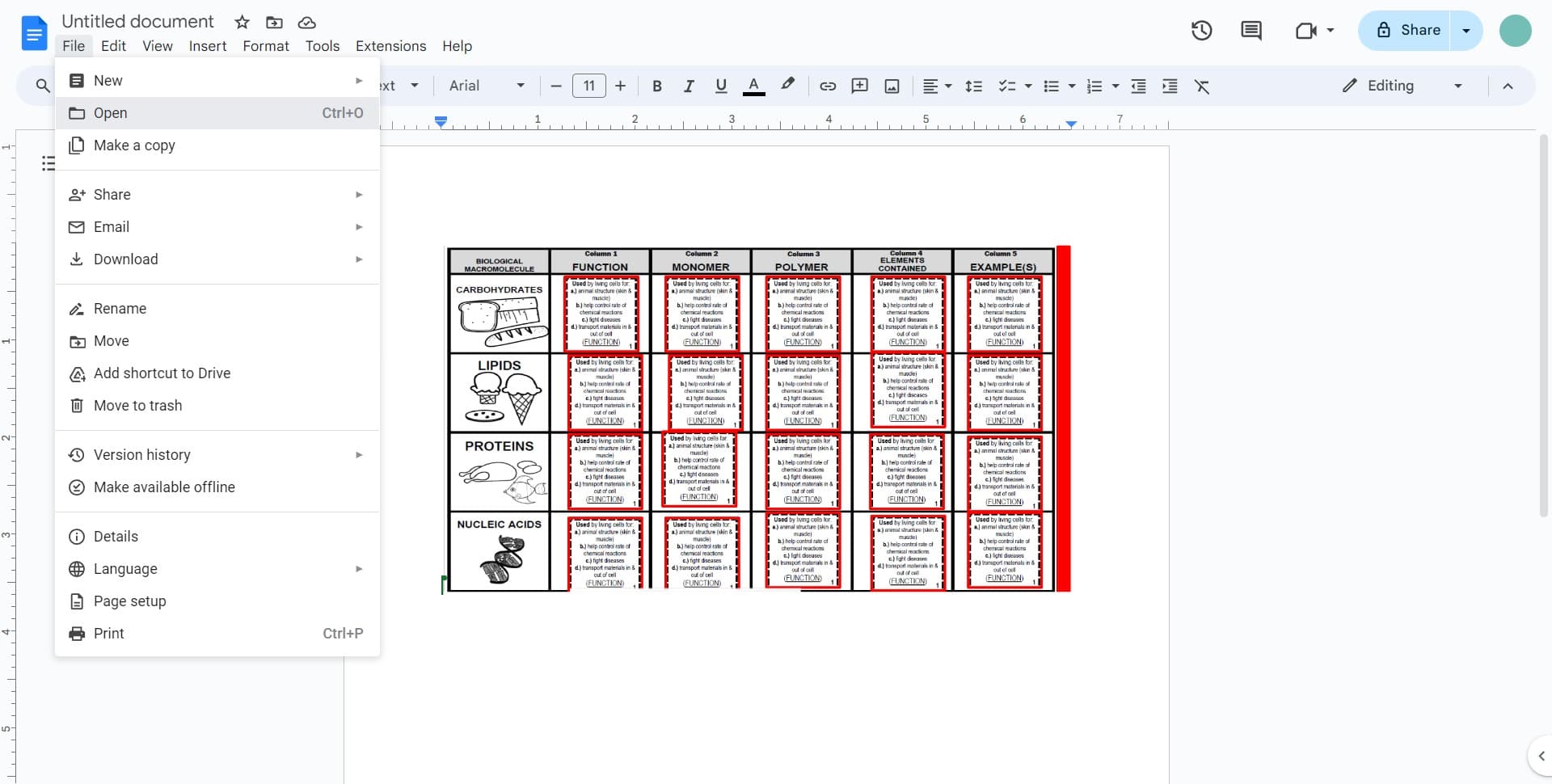
Select the File menu from the top navigation bar. This opens a dropdown menu with options for creating, opening, and managing documents.
- 5
Select Open option
Click on the Open option to access your file browser. You can also use the keyboard shortcut Ctrl+O to open this dialog directly.
- 6
Proceed with file selection
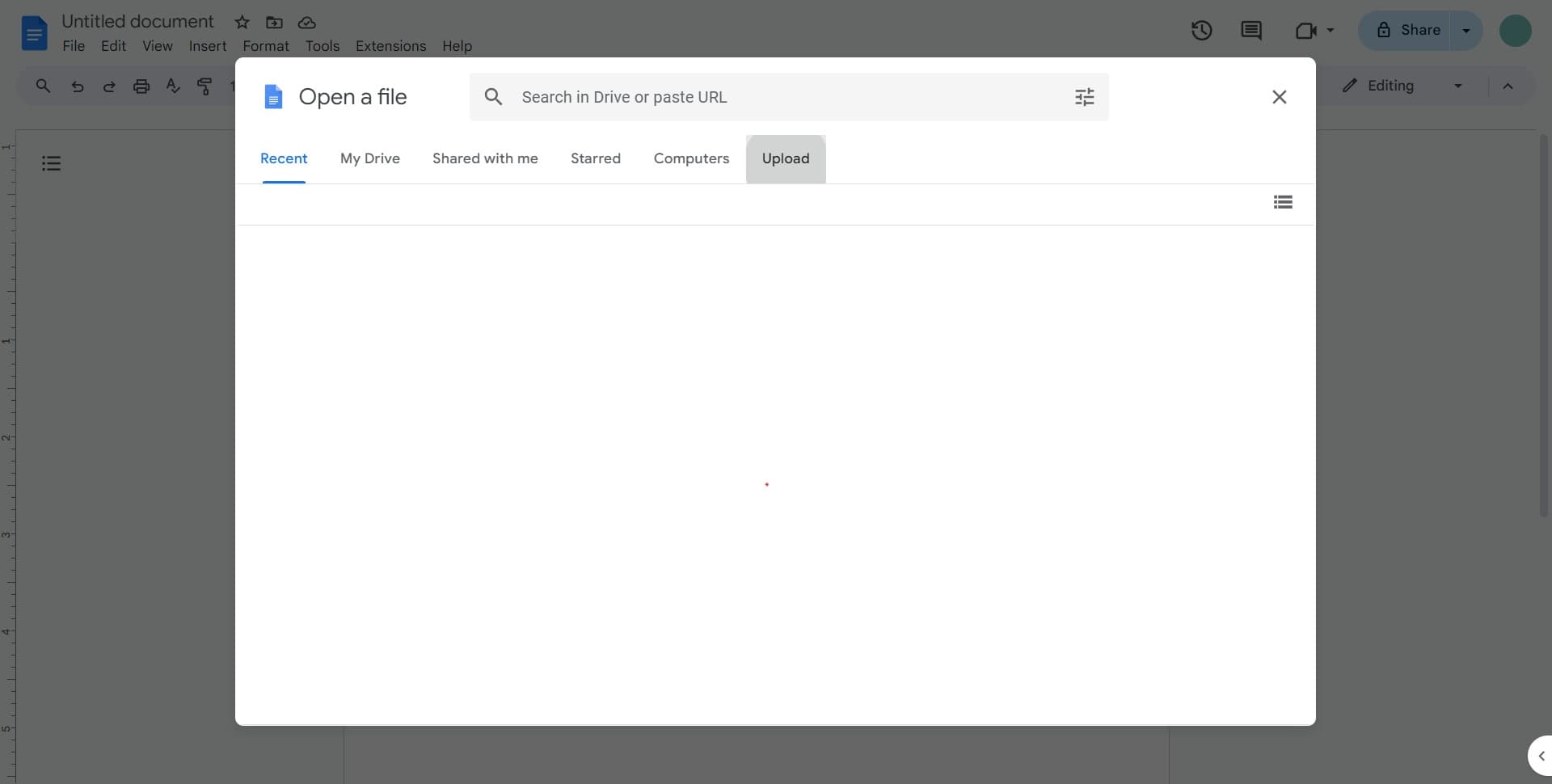
Follow the prompts to navigate to the next step in the file opening process. The interface will guide you toward your stored documents and upload options.
- 7
Click Browse
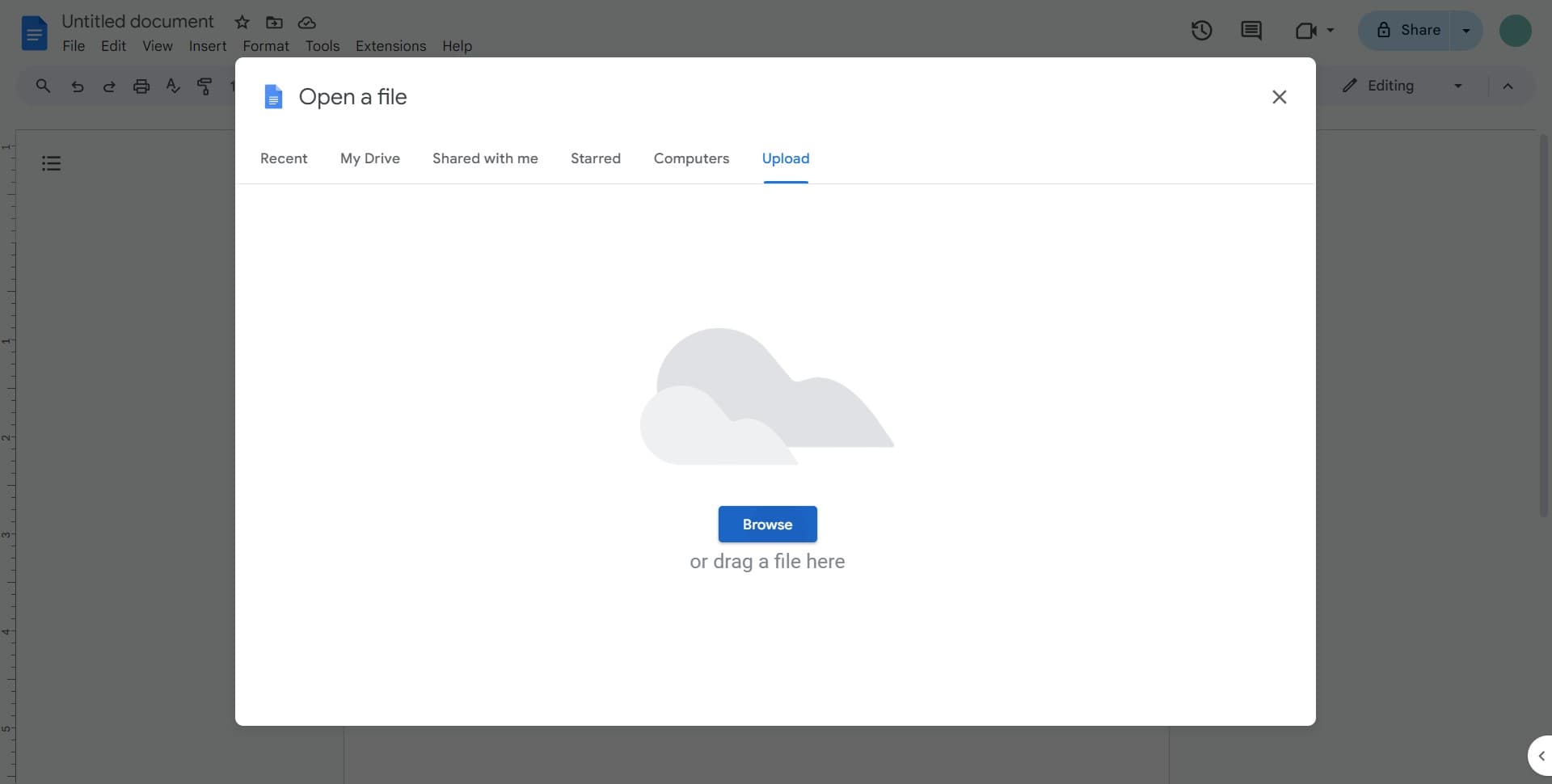
Select the Browse button to open your device's file explorer. This allows you to navigate to the location where your Word document is stored.
- 8
Complete the import
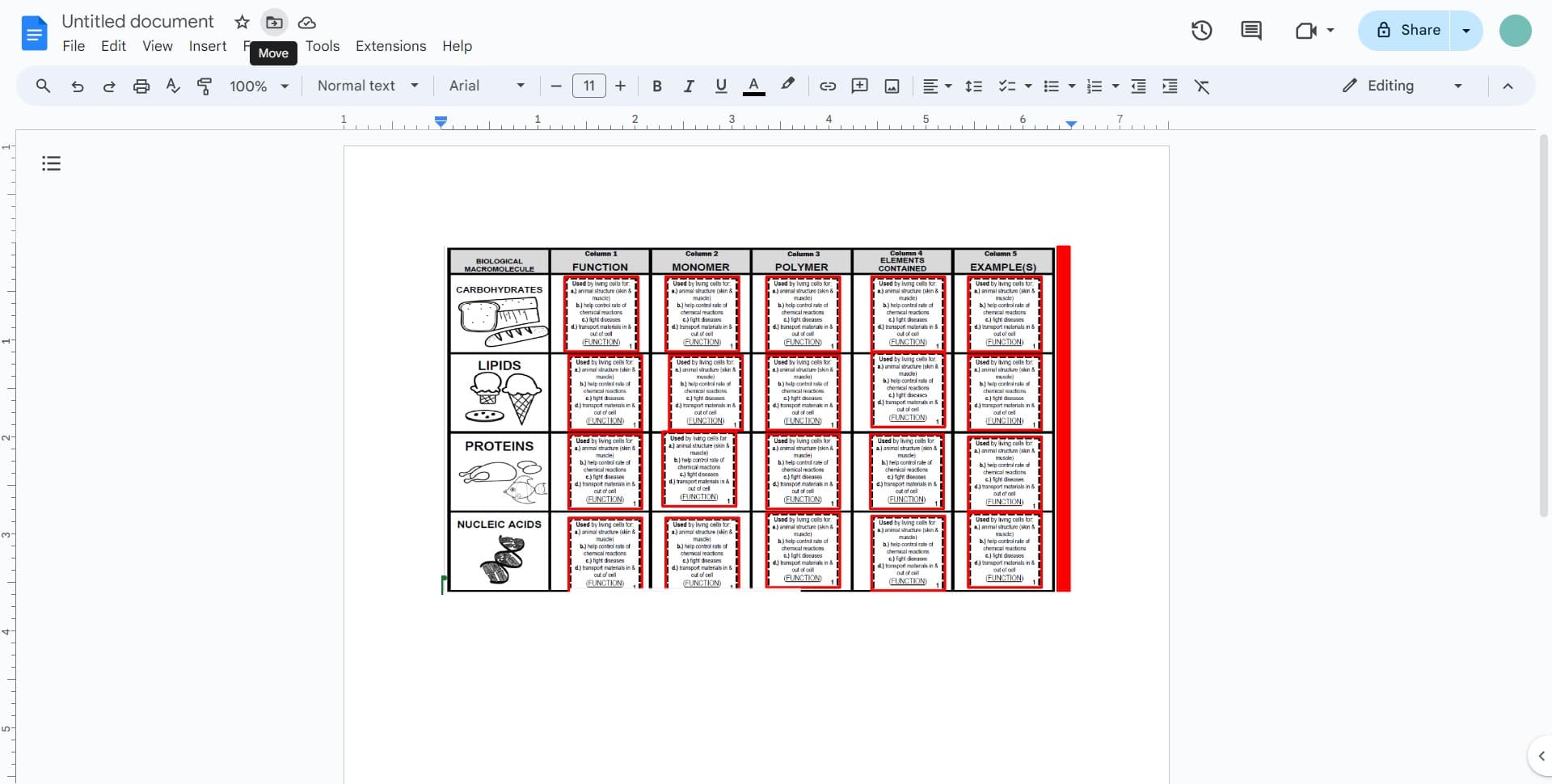
Confirm your selection and complete the import process. Your Word document will now open in Google Docs for editing and collaboration.
Frequently asked questions
Common questions about how to open a word document in google docs.
Google Docs supports most Word document formats, including .docx and .doc files. However, some advanced formatting, macros, or custom fonts may not transfer perfectly. You can always review the converted document and make adjustments as needed.
No, opening a Word document in Google Docs creates a copy in your Google Drive and does not modify your original Word file. You can edit the Google Docs version without affecting the original document on your device.
Open the File menu in Google Docs, select Download, and choose Microsoft Word (.docx) from the format options. Google Docs will convert and download your document to your device in the Word format.
Yes, once your Word document is open in Google Docs, you can share the link with others to enable real-time collaboration. Multiple people can edit the document simultaneously and see changes as they happen.
Minor formatting differences can occur during conversion. Review the document in Google Docs and use the formatting tools to adjust fonts, spacing, and layout as needed. For complex documents, you may need to make manual adjustments to match the original appearance.