How to track your word count in Google Docs

Tracking word count in Google Docs helps you meet writing requirements, monitor content length, and stay within editorial guidelines. Whether you're writing an essay, article, or report, knowing your word count at a glance is essential. This guide walks you through accessing Google Docs' word count feature in just a few clicks.
Quick summary
In this tutorial, you'll learn how to quickly check your word count in Google Docs using the built-in word count tool. You'll navigate to the Tools menu, open the word count dialog, and view detailed statistics about your document including total words, characters, and pages.
Why this matters
Monitoring word count is critical for meeting assignment requirements, adhering to publication guidelines, and planning content structure. Many academic institutions, publishers, and content platforms enforce strict word limits, making this feature invaluable for writers. Having instant access to accurate word count data ensures you can adjust your writing efficiently without guessing or manual counting.
Step-by-step guide
- 1
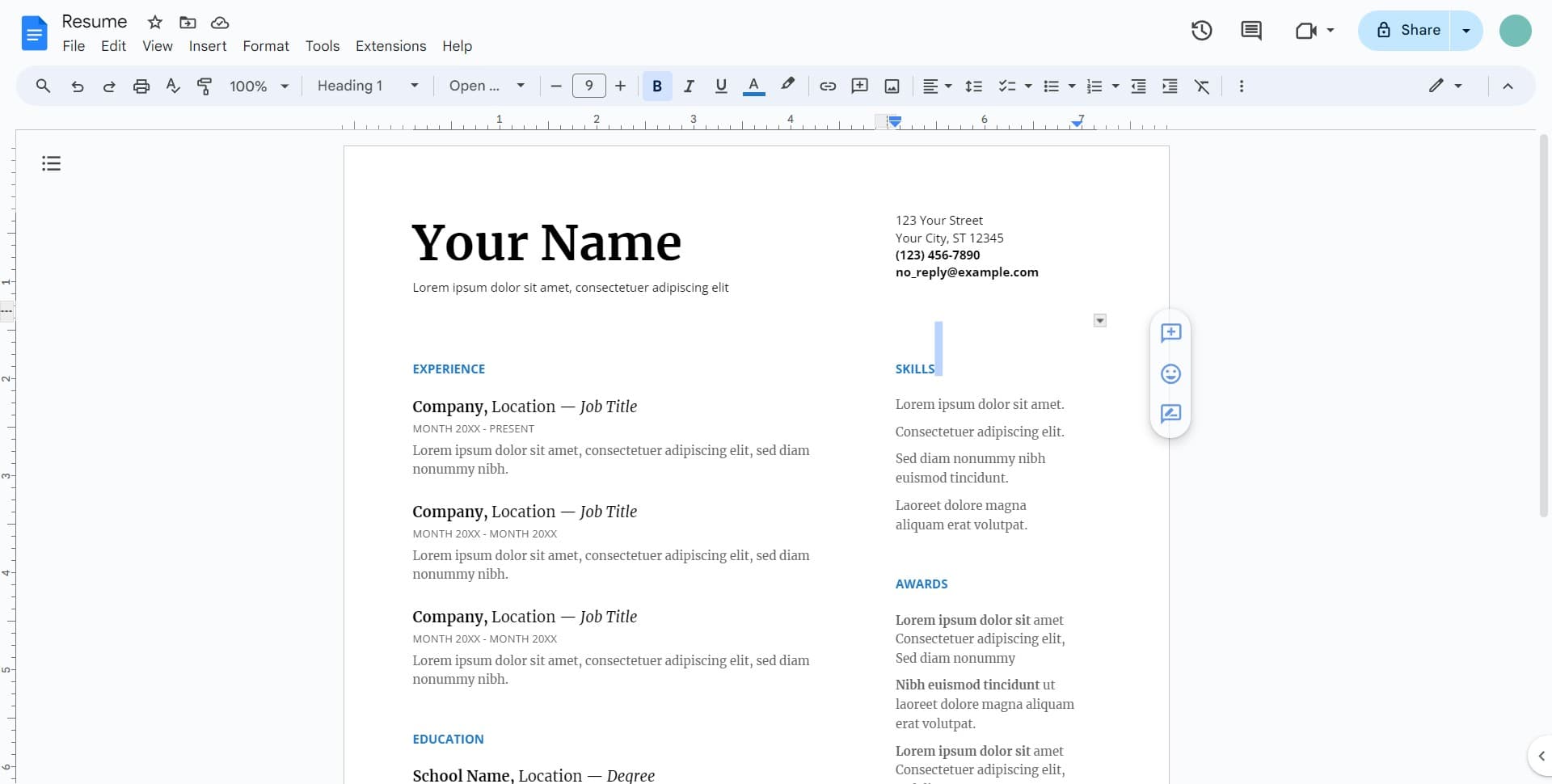
Open Google Docs document
Start by opening the Google Docs document you want to check. Make sure the document is fully loaded and ready for editing before proceeding to the next step.
- 2
Access the Tools menu
Click on the Tools menu located in the top navigation bar. This menu contains various document analysis and formatting options, including the word count feature.
- 3
Select word count option
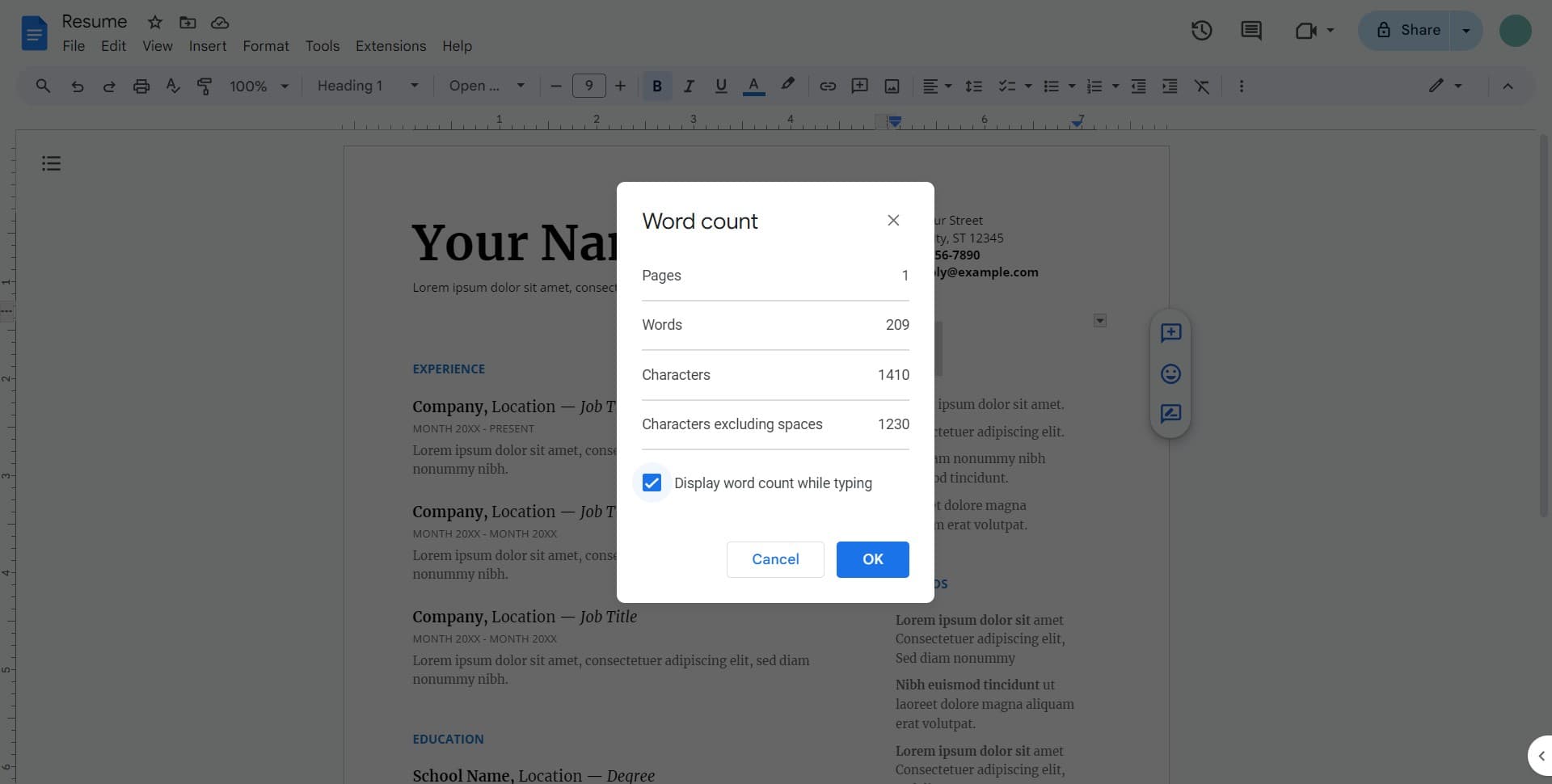
Click on the word count option from the Tools dropdown menu. The word count dialog box will appear, displaying detailed statistics about your document.
- 4
Review the statistics
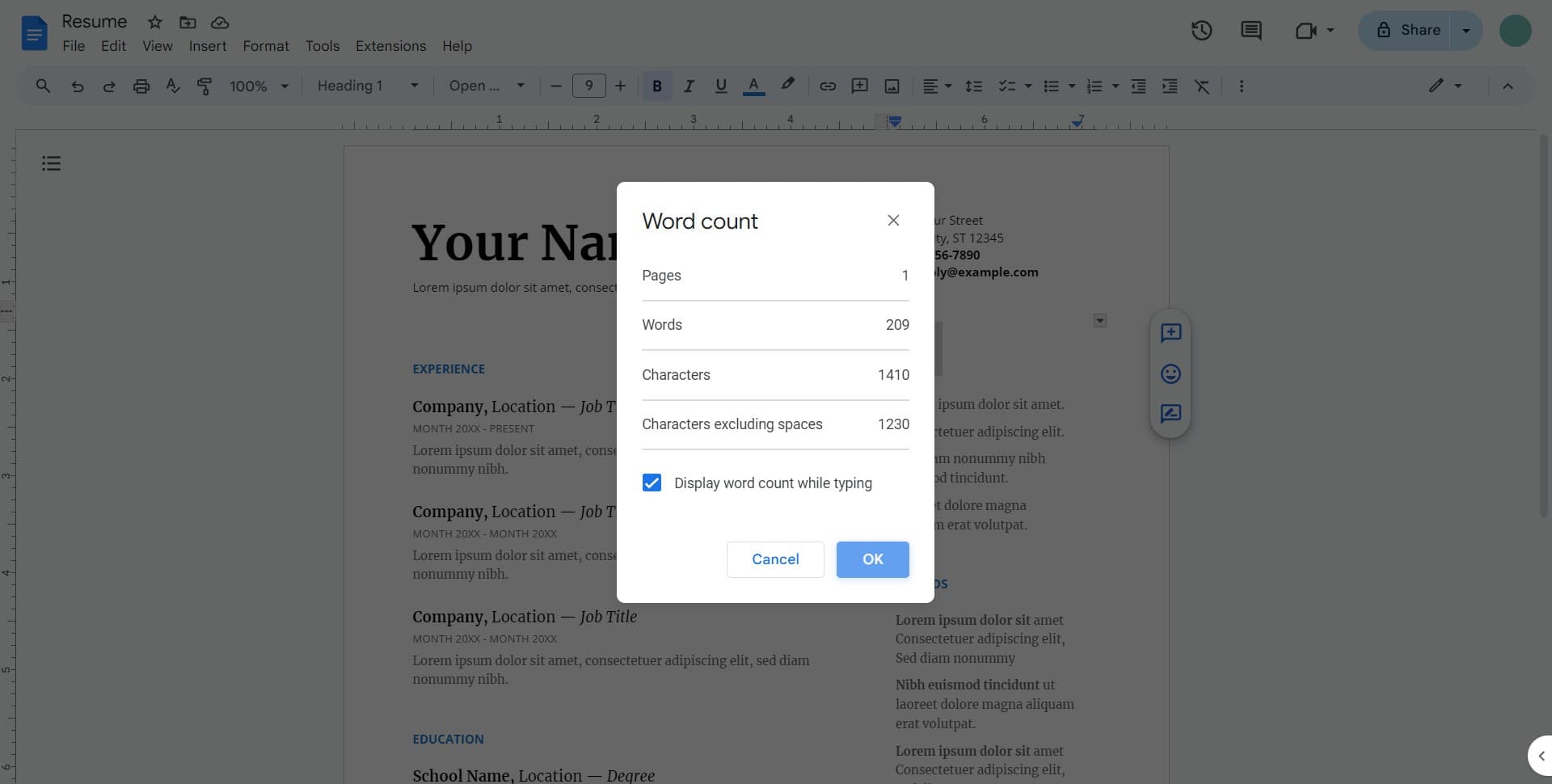
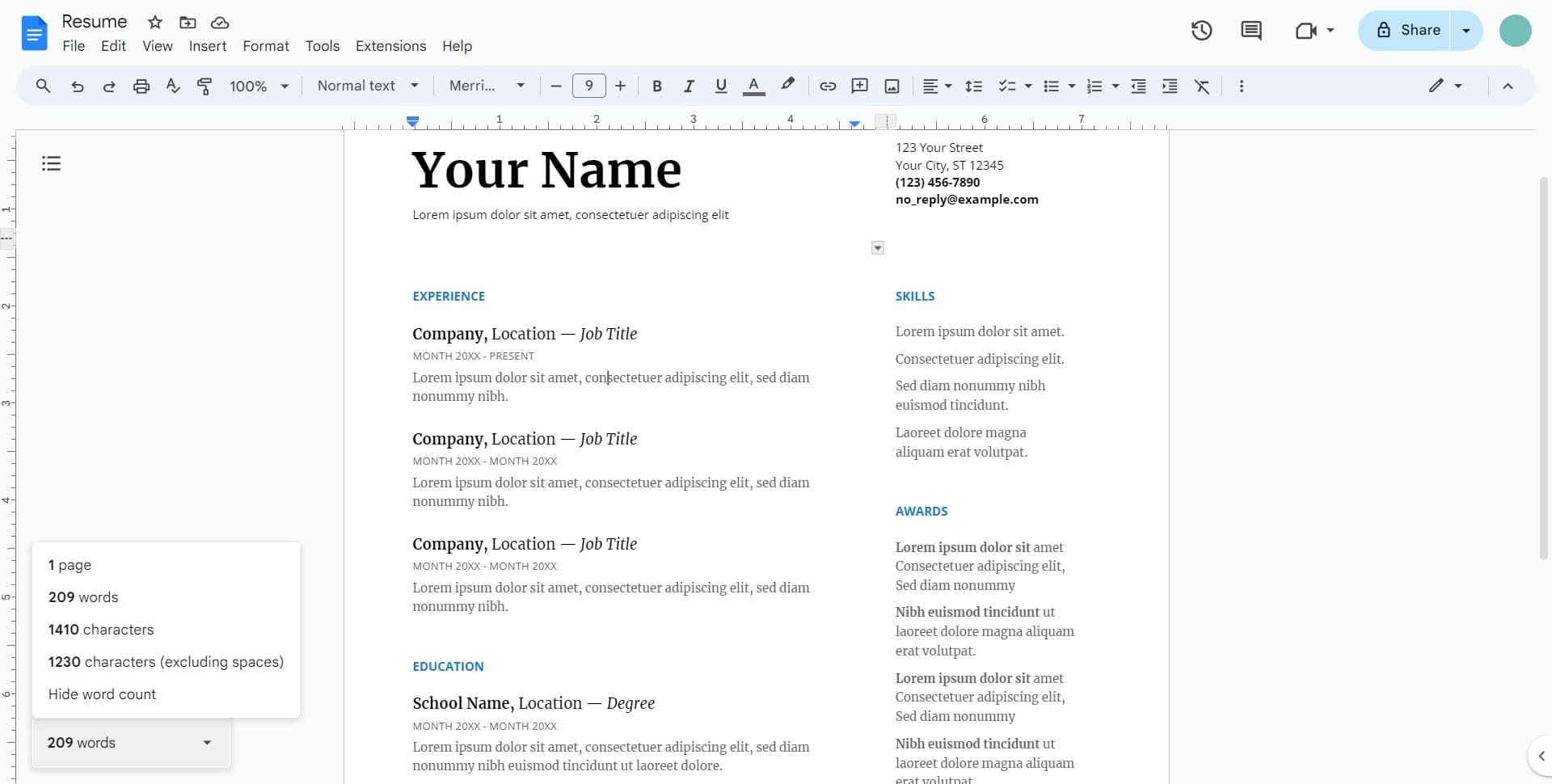
The word count dialog shows your total word count along with additional metrics like character count and page count. Take note of these statistics for your writing requirements.
- 5
Close the word count dialog
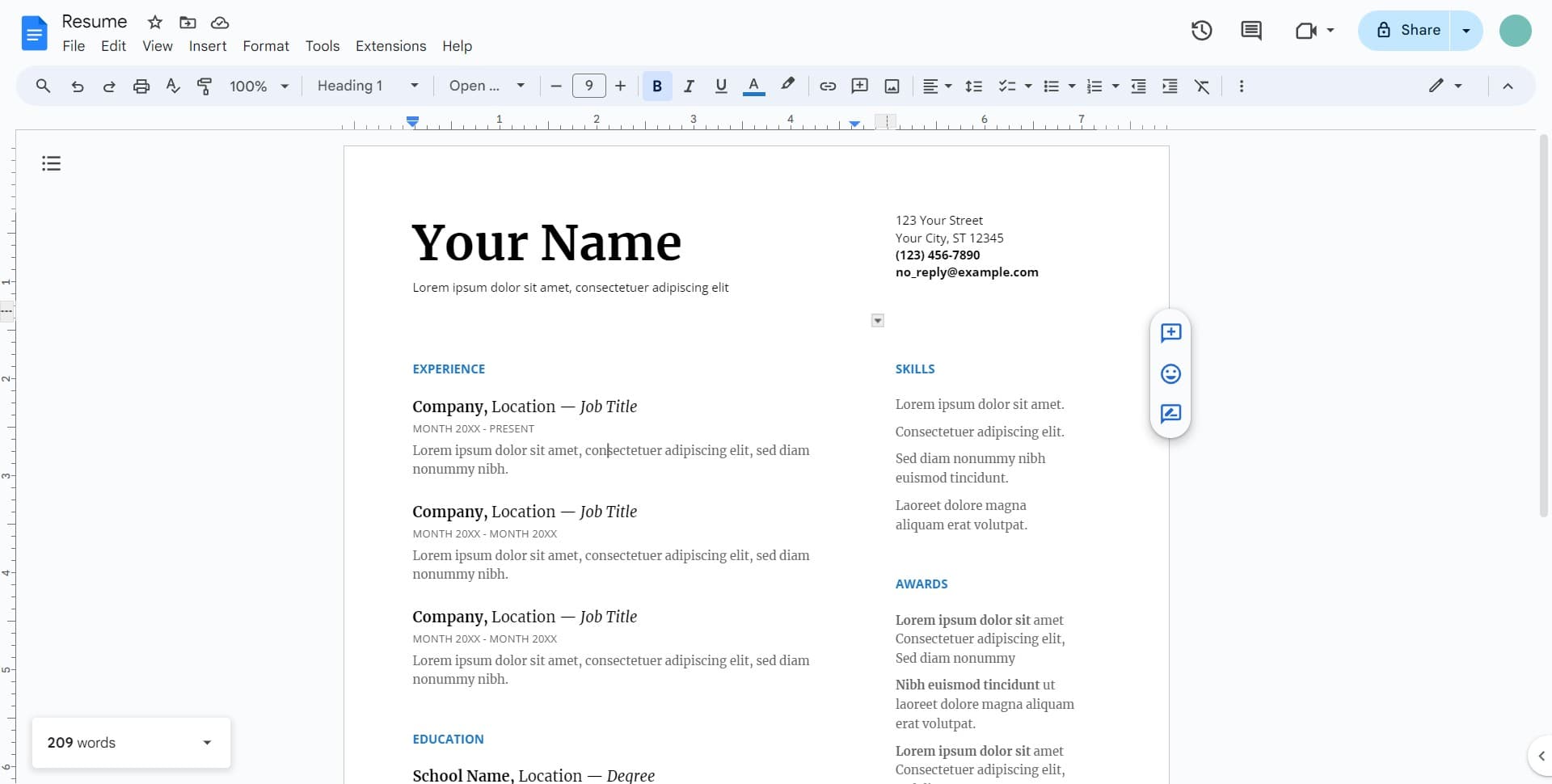
Click the OK button to close the word count dialog and return to your document. You can reopen this dialog at any time to check updated word count as you continue writing.
Frequently asked questions
Common questions about how to track your word count in google docs.
Google Docs updates word count automatically as you type, but the word count dialog displays a snapshot when you open it. The word count information is always current and reflects your latest edits.
Google Docs counts any sequence of characters separated by spaces as a word. This includes contractions, hyphenated words, and numbers. Punctuation marks alone are not counted as words.
Yes, you can enable the word count tool to display continuously at the bottom of your document. Access this by going to Tools menu and selecting Word count, then checking the option to show word count at the bottom of the page.
Select only the text you want to count by clicking and dragging to highlight it. Then open the word count dialog from the Tools menu to see statistics for just the selected text.
On Windows, you can use Ctrl+Shift+C to quickly open the word count dialog. On Mac, use Command+Shift+C. These shortcuts provide faster access than navigating through the Tools menu.