How to Get Email Notifications for New Google Form Responses

Staying on top of Google Form responses is critical for timely follow-ups and data collection. This guide walks you through enabling email notifications so you receive instant alerts whenever someone submits your form.
Quick summary
In this tutorial, you'll learn how to configure email notification settings in Google Forms to receive real-time alerts for new responses. By the end, you'll have automatic notifications delivered directly to your inbox.
Why this matters
Email notifications ensure you never miss important form submissions, whether you're collecting customer feedback, survey data, or registration information. This workflow is essential for time-sensitive processes where immediate awareness of new responses drives faster action and better customer service.
Step-by-step guide
- 1
Open your Google Form
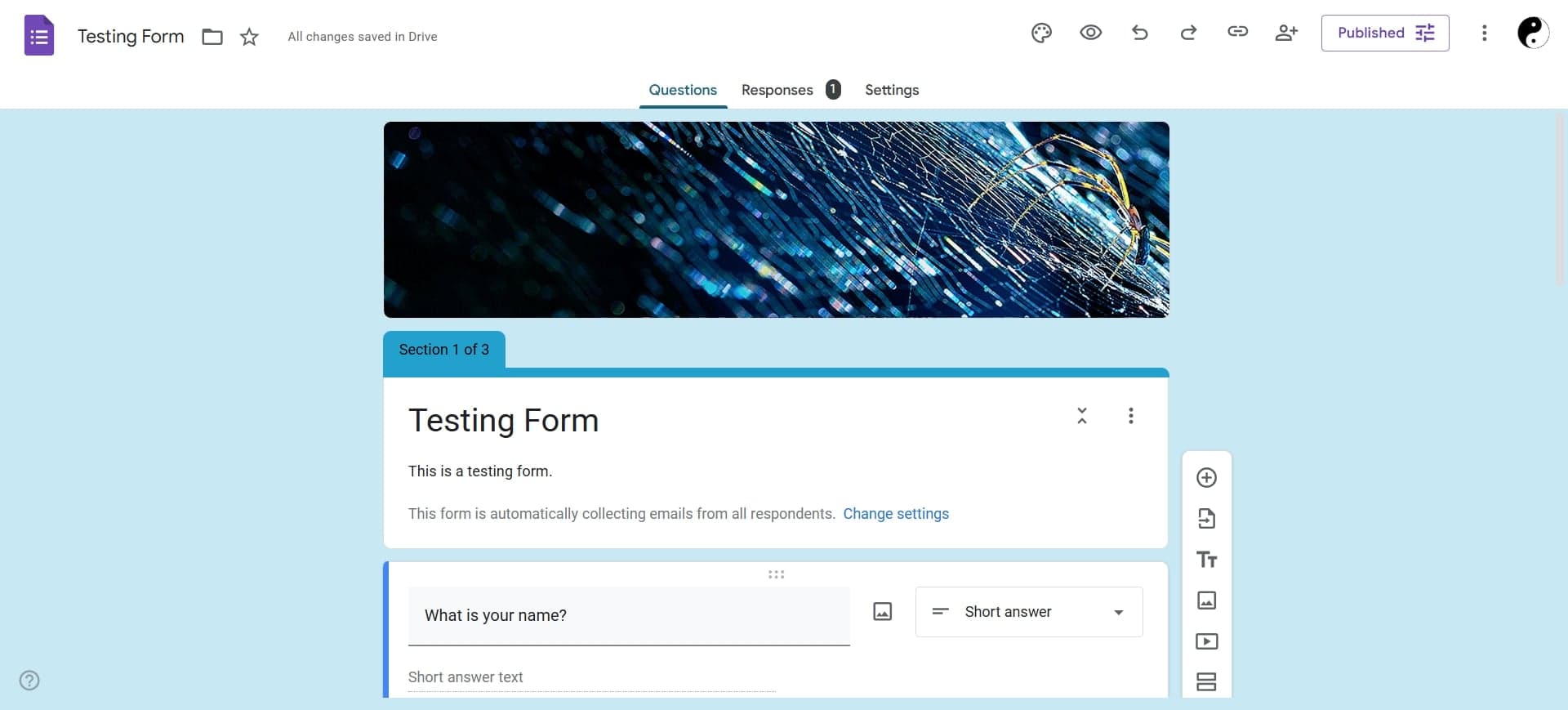
Navigate to Google Forms and select the form for which you want to enable notifications. You'll need editor access to modify notification settings.
- 2
Click the Responses tab
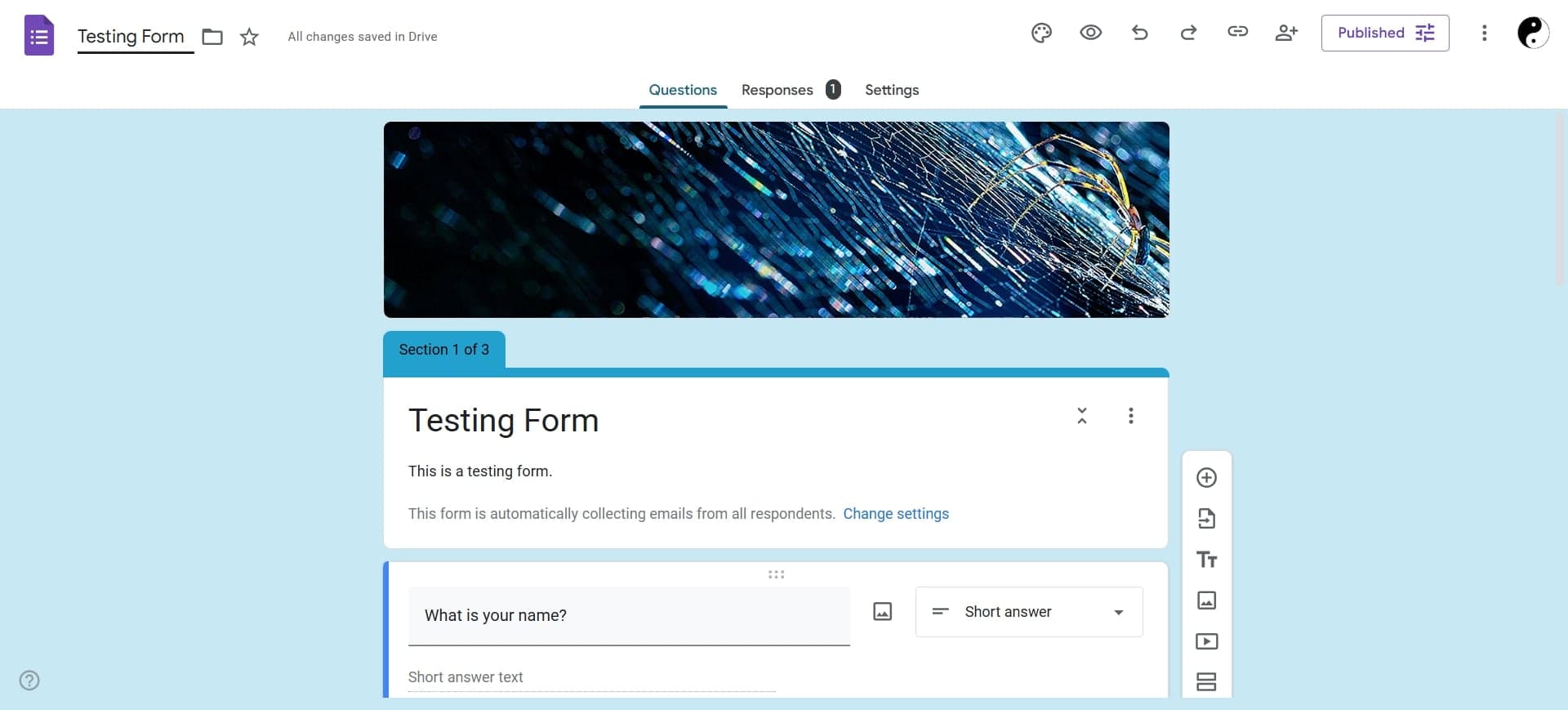
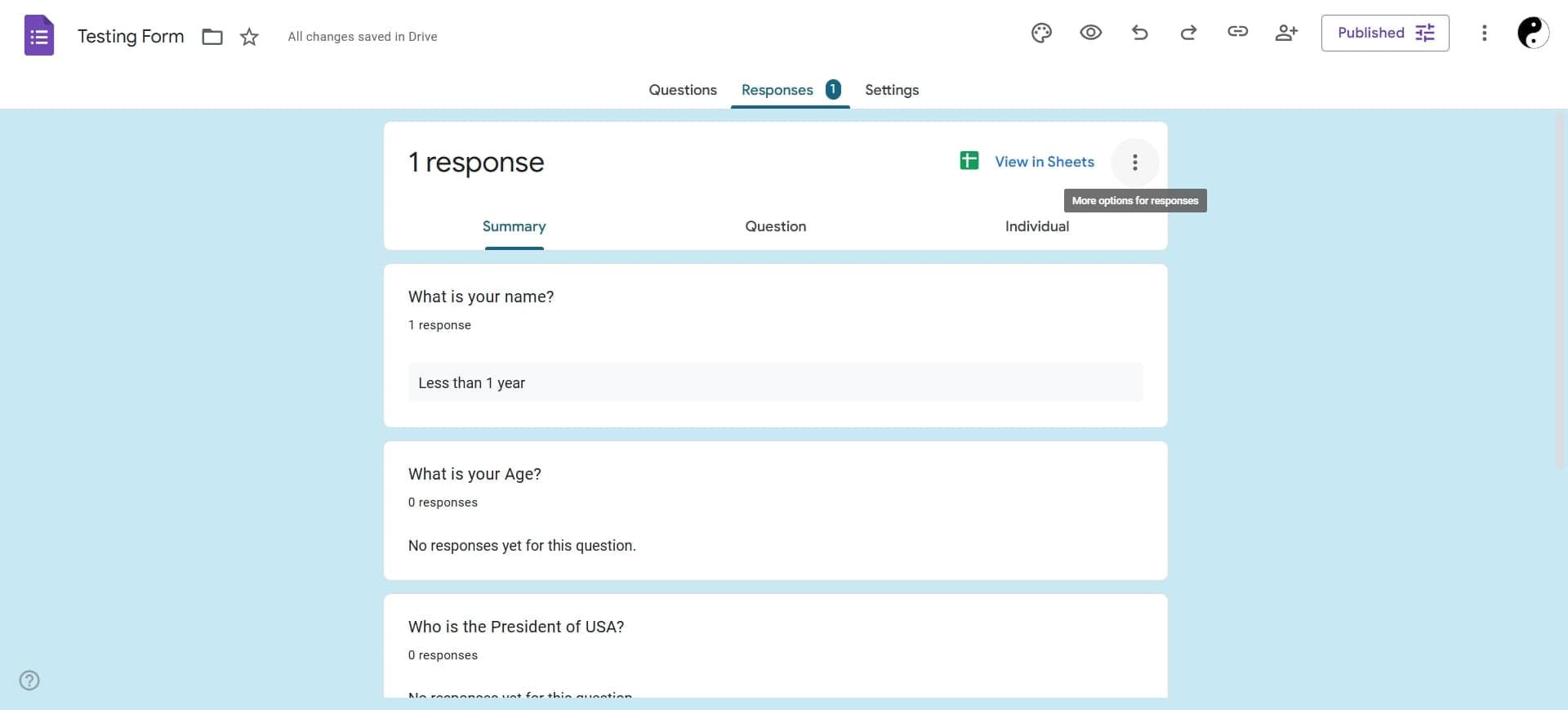
At the top of your form, click on the Responses tab to view response settings and configuration options.
- 3
Select notification preferences
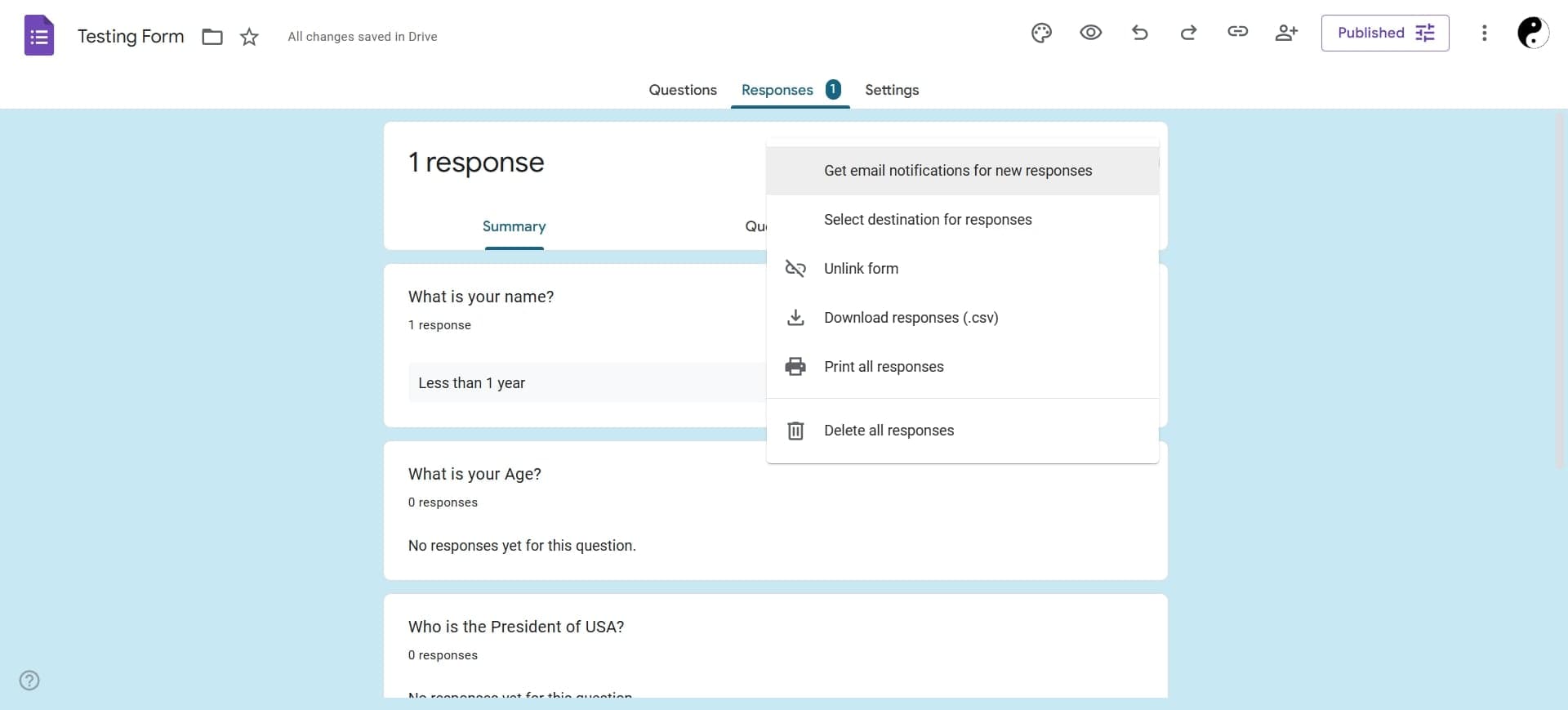
Look for the notification icon (bell icon) in the toolbar or click the menu icon to access notification settings. Choose your preferred notification frequency: get notified for each response or receive a summary email.
- 4
Confirm your email address
Verify that the email address associated with your Google account is correct, as notifications will be sent there. You can now close the settings panel—your notifications are active.
Frequently asked questions
Common questions about how to get email notifications for new google form responses.
Yes, if you select the option to notify for each response, you'll receive an individual email for every new submission. Alternatively, you can choose to receive a daily summary email instead, which groups all responses from that day into one message.
Notifications are sent to the email address associated with your Google account. If you need a different person to receive notifications, you can share the form with them as an editor, and they can enable notifications on their own account.
Return to the Responses tab and click the notification settings icon, then select the option to disable notifications. You can re-enable them at any time using the same process.
Google Forms doesn't offer filtering by specific questions within the native notification settings. However, you can use Google Sheets integration combined with third-party automation tools to create conditional notifications based on response content.
No, email notifications are sent only when a form is fully submitted. Draft responses that are saved but not completed will not trigger notifications.