How to Make a Google Form Anonymous

Google Forms is a powerful tool for collecting feedback, survey responses, and user data. Making your form anonymous protects respondent privacy and encourages honest answers by removing identifying information from submissions.
Quick summary
In this tutorial, you'll learn how to configure Google Forms to collect responses anonymously. We'll walk through the settings and options that prevent email addresses and identifying details from being recorded with form submissions.
Why this matters
Anonymous forms are essential when you need unbiased feedback, conduct sensitive surveys, or comply with privacy requirements. By removing the ability to track who submitted what response, you create a safer environment for honest participation and protect respondent confidentiality.
Step-by-step guide
- 1
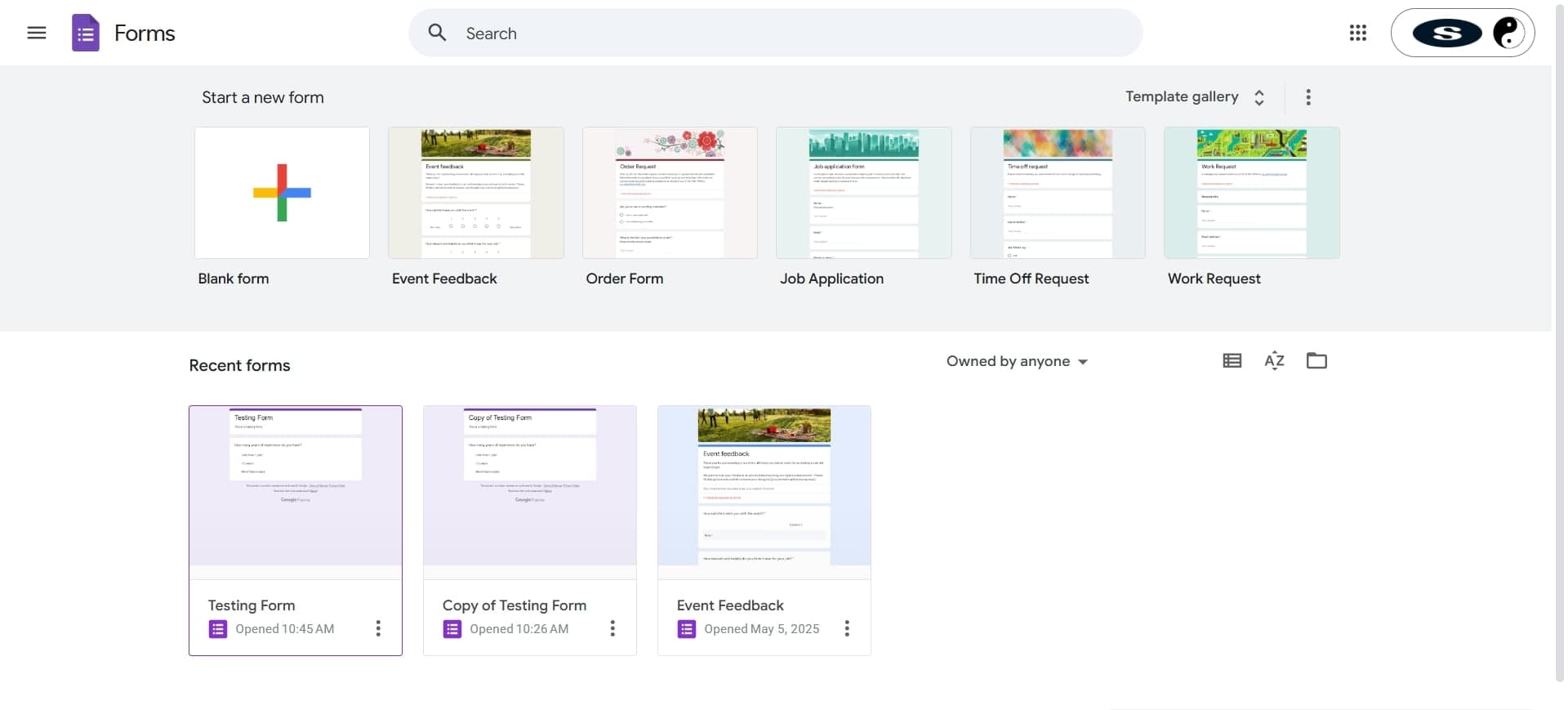
Open your Google Form
Navigate to Google Forms and select the form you want to make anonymous, or create a new one. Once open, you'll see the form editor with all available customization options.
- 2
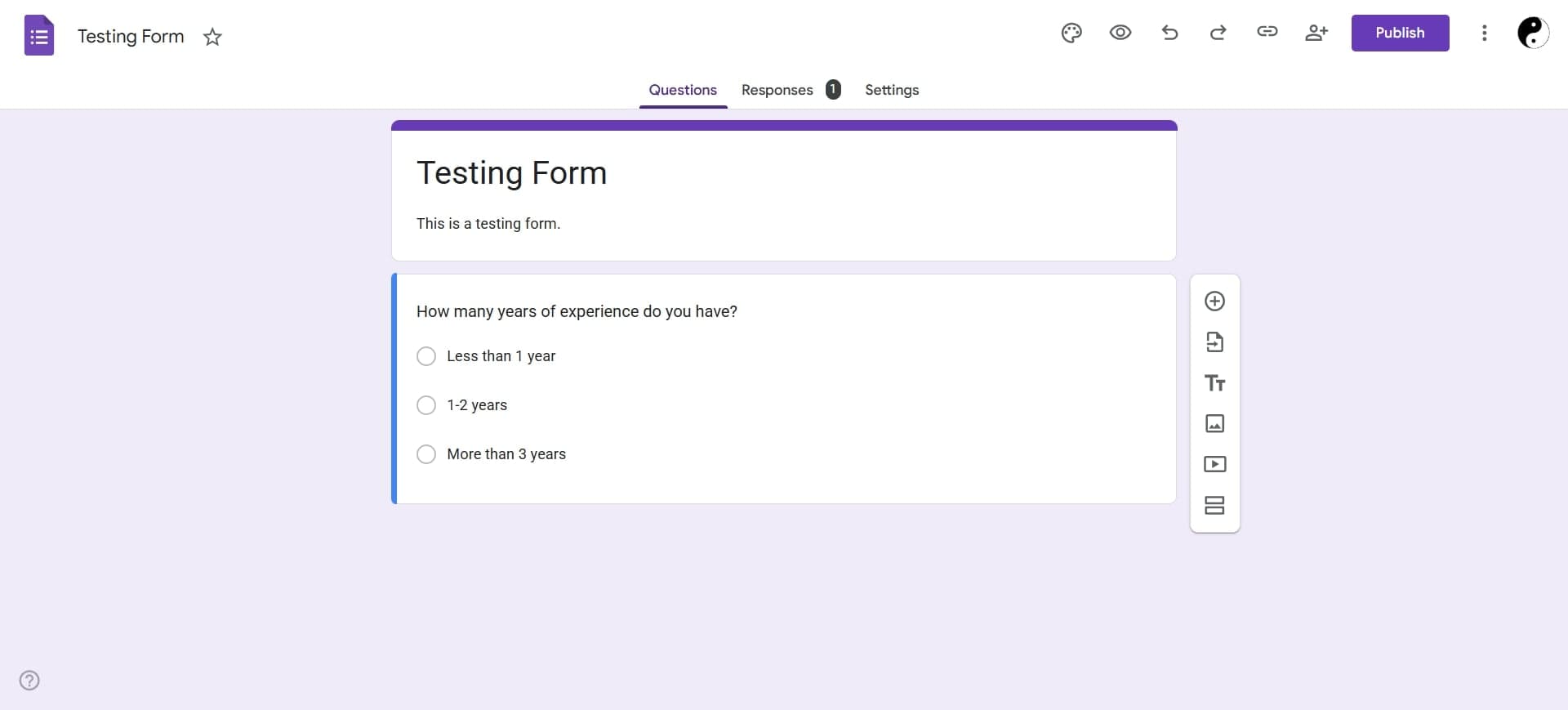
Access the Settings menu
Click the three-line menu icon (hamburger menu) or locate the Settings option in the top navigation. This opens the form configuration panel where you can manage responses and privacy options.
- 3
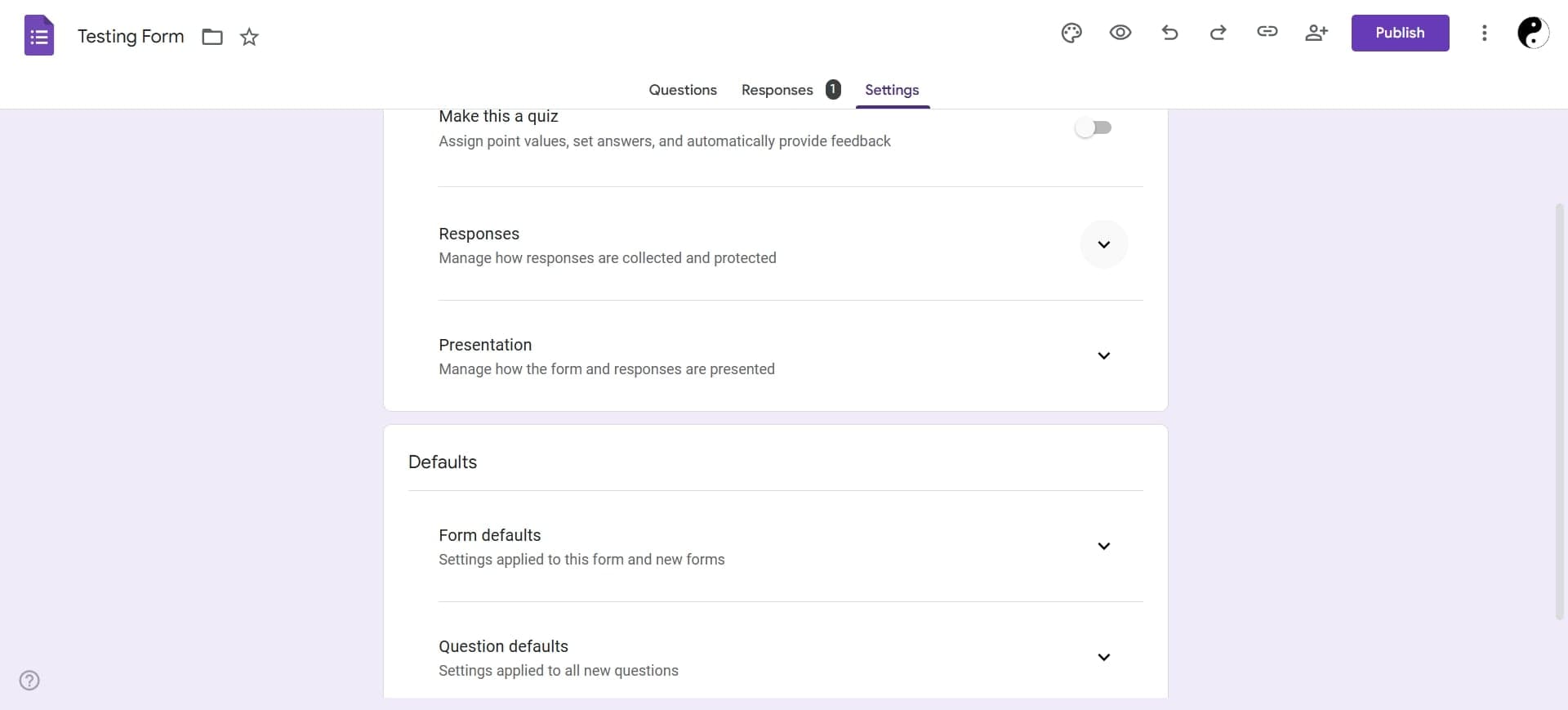
Navigate to the Responses tab
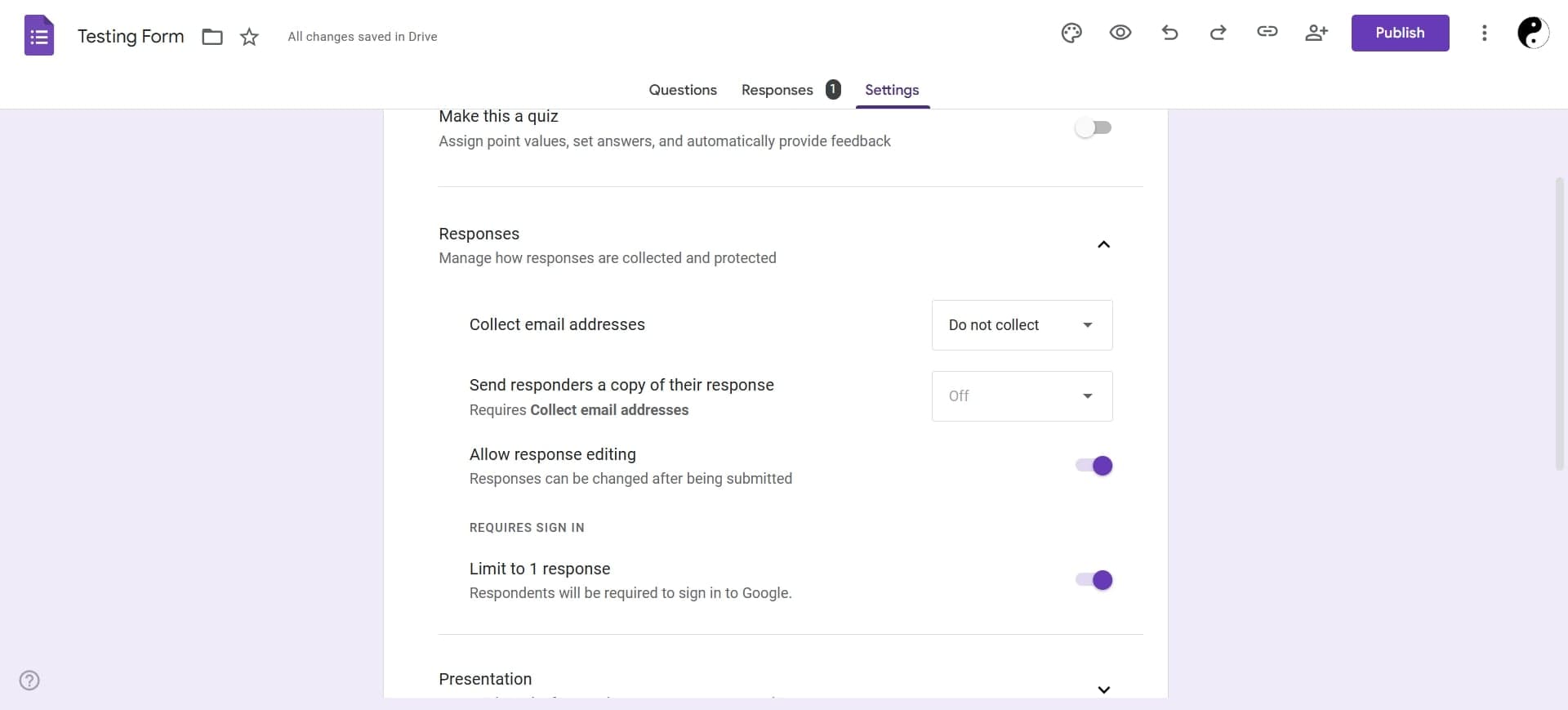
In Settings, find and click the Responses tab to access submission collection options. This section controls how Google Forms records and displays respondent information.
- 4
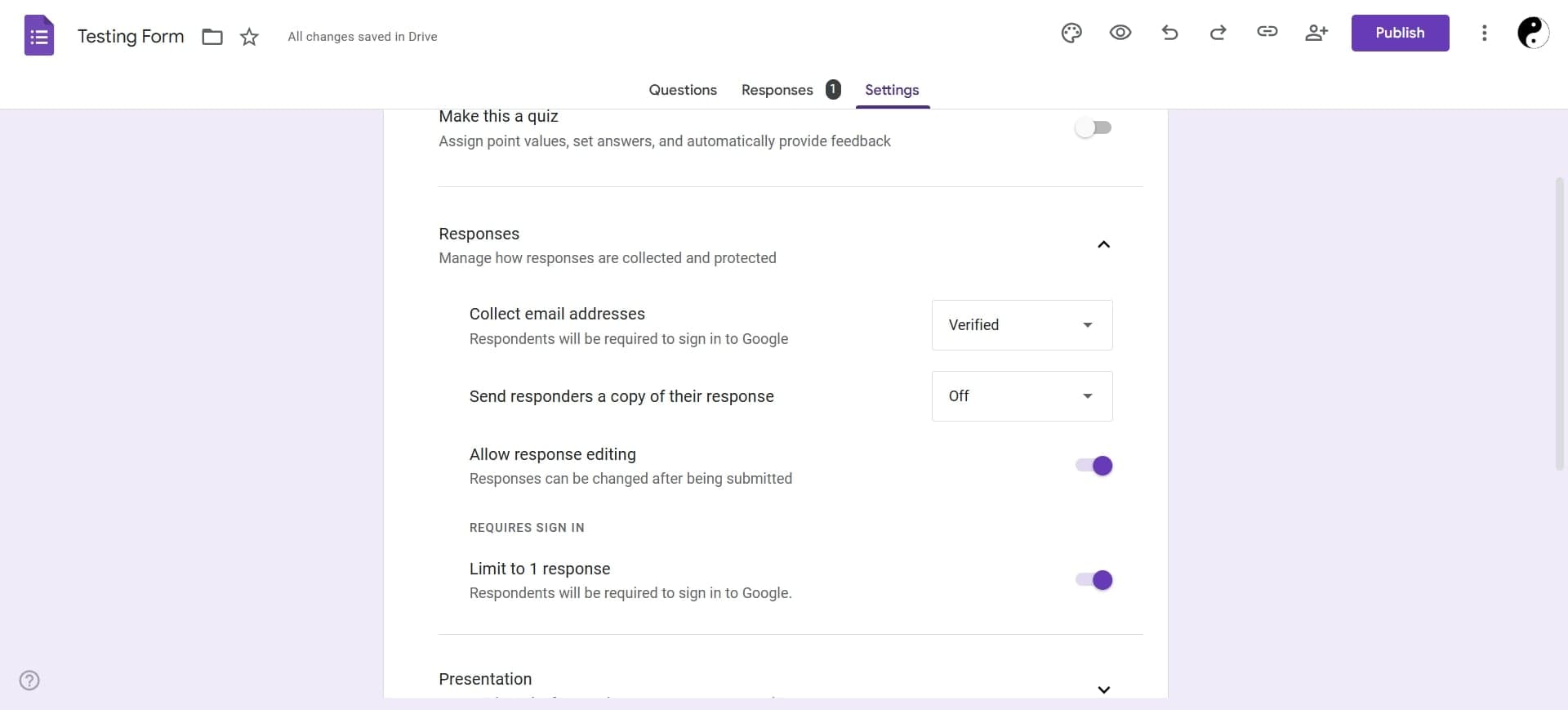
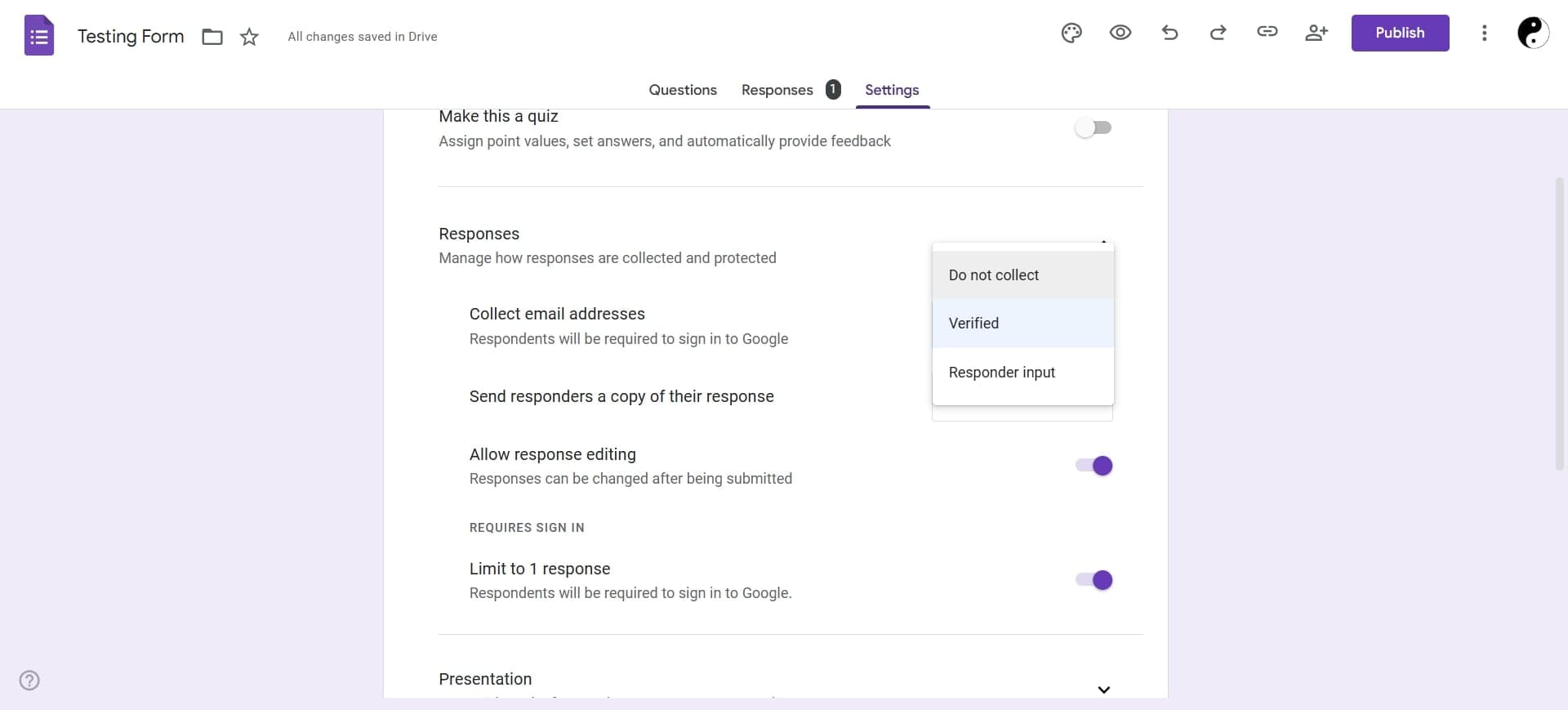
Disable email collection
Look for the option that says 'Collect email addresses' and toggle it OFF. When disabled, Google Forms will not record or display the email addresses of people who submit your form.
- 5
Turn off response identification
Ensure that the 'Respondent validation' or 'Require sign-in' option is turned OFF so responses are not linked to Google accounts. This prevents Google Forms from tracking which account submitted each response.
- 6
Save your settings
Click the Save or Update button to apply these changes to your form. Your form is now configured to accept anonymous responses without collecting identifying information.
Frequently asked questions
Common questions about how to make a google form anonymous.
Existing responses may still show email addresses if they were collected before you disabled the setting. However, all new submissions after you turn off email collection will not include this information. If you need to remove previously collected emails, you may need to manually edit the response sheet or delete old responses.
No. If you require respondents to sign in with a Google account, Google Forms will automatically track their identity. To keep responses truly anonymous, you must disable the 'Require sign-in' option and ensure email collection is turned off.
After you submit a test response to your own form, check the Responses tab to confirm no email address or account information appears. You should only see the answers to your questions, with no identifying data attached to any submission.
Respondents won't see a specific label stating the form is anonymous, but they won't be prompted to enter an email or sign in. If you want to reassure participants, you can add a note in the form description explaining that responses are collected anonymously.
You can enable email collection while adding a privacy note in your form description explaining how data will be used and protected. Alternatively, you can ask respondents to create a unique identifier (like a code) at the start of the form for tracking purposes while keeping the form publicly anonymous.