How to see Google Form responses

Google Forms makes it easy to collect feedback, survey responses, and data from your audience. Once responses start coming in, knowing how to access and review them is essential for analyzing results and taking action on the feedback you receive.
Quick summary
In this tutorial, you'll learn how to view and access Google Form responses efficiently. We'll walk you through navigating to the responses section, viewing individual entries, and understanding the different ways Google Forms displays your collected data.
Why this matters
Being able to quickly access and review form responses is critical for making data-driven decisions. Whether you're gathering customer feedback, running a survey, or collecting registration information, knowing where to find your responses ensures you can analyze results promptly and act on insights.
Step-by-step guide
- 1
Open your Google Form
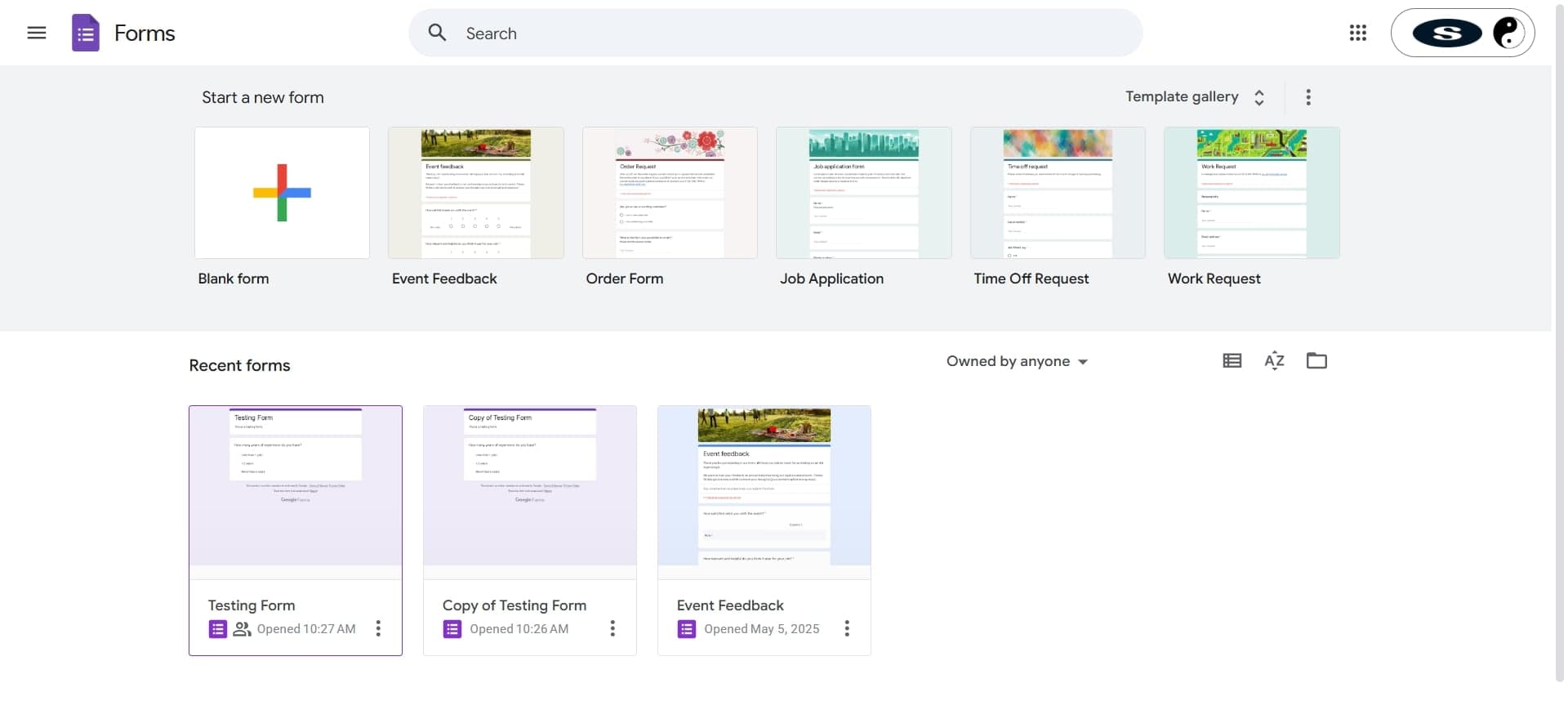
Navigate to Google Forms and select the form you want to view responses for. You can access your forms from the Google Forms homepage or through Google Drive.
- 2
Navigate to the Responses tab
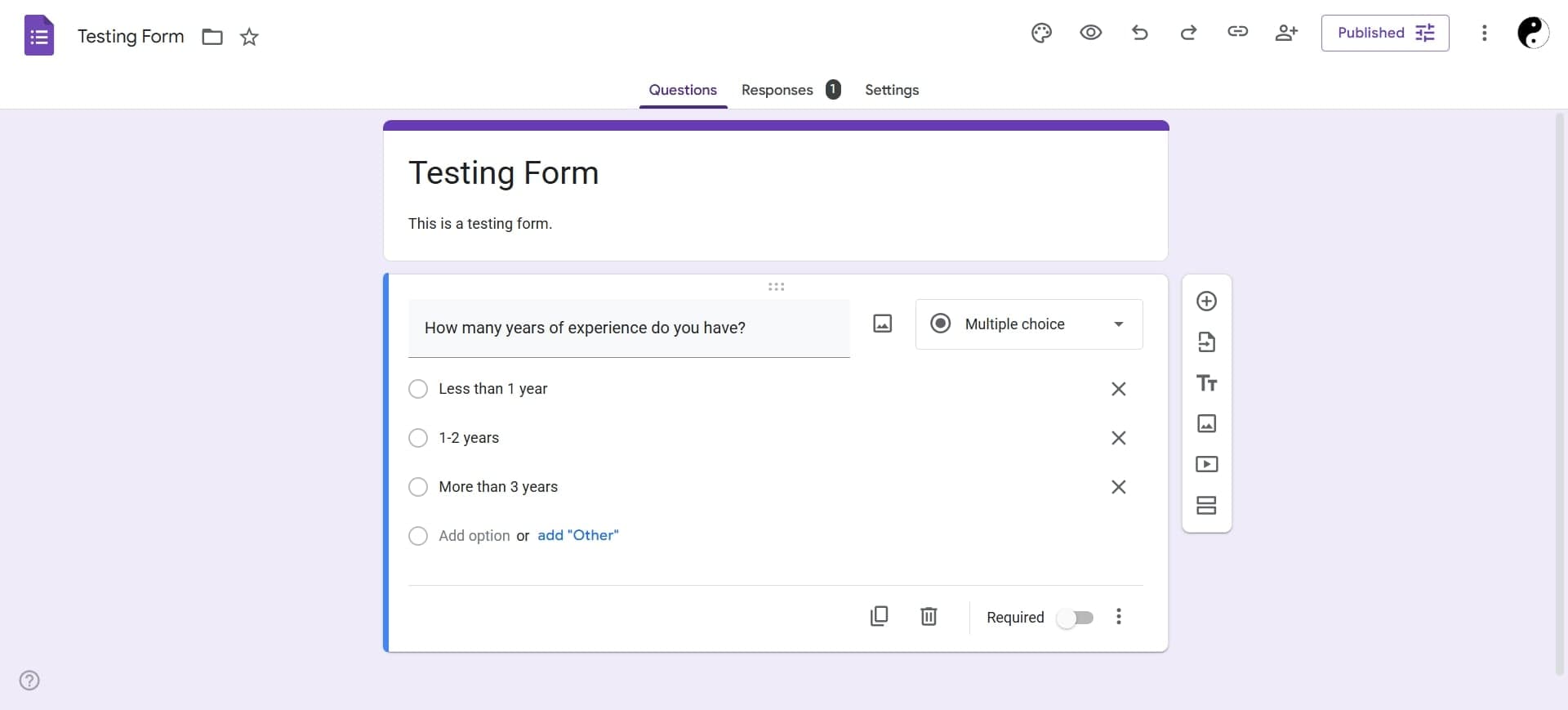
Click the Responses tab at the top of your form. This section displays a summary of all responses received, including response count and completion statistics.
- 3
Review individual form responses
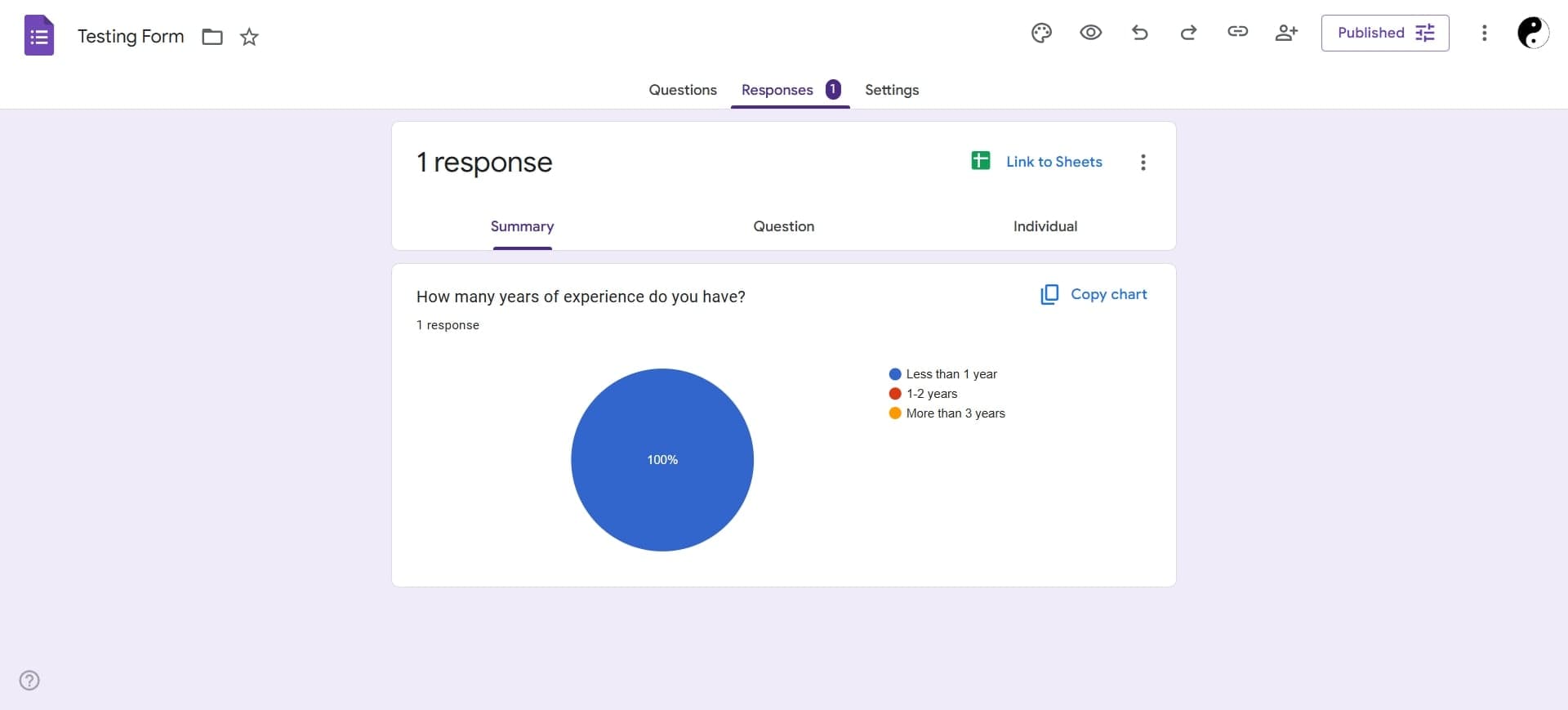
Click on individual response entries to view complete answers for each respondent. You can also browse through responses sequentially using the navigation arrows to examine each submission in detail.
Frequently asked questions
Common questions about how to see google form responses.
Yes. In the Responses tab, click the three-dot menu icon and select 'Download responses (.csv)' to export all responses as a spreadsheet. This allows you to analyze data in Google Sheets or other applications.
The Responses tab automatically displays charts and summaries for each question in your form. Click on the question preview area to see visualization options like pie charts, bar graphs, and response percentages.
Google Forms doesn't have a built-in filter feature in the platform itself. However, exporting responses to Google Sheets gives you full filtering and sorting capabilities for analyzing subsets of your data.
Open the individual response you want to delete, click the trash/delete icon in the toolbar at the top of the response window. The response will be permanently removed from your form's data.
Summary view shows aggregate data and charts for all responses combined. Individual responses view lets you see each person's complete answers in detail. Both tabs are available in the Responses section.