How to Add HubSpot Extension to Gmail

The HubSpot extension for Gmail integrates your email workflow with HubSpot's CRM, allowing you to log emails, track opens, and manage contacts directly from your inbox. This integration streamlines communication and ensures no customer interaction goes unrecorded.
Quick summary
In this tutorial, you'll learn how to install and configure the HubSpot extension in Gmail, enabling seamless CRM synchronization with your email communications. By following these steps, you'll be able to access HubSpot's full email capabilities without leaving Gmail.
Why this matters
Adding the HubSpot extension to Gmail eliminates manual data entry and ensures all customer emails are automatically logged in your CRM. This improves team visibility, enables better follow-up tracking, and helps maintain a complete communication history for every contact.
Step-by-step guide
- 1
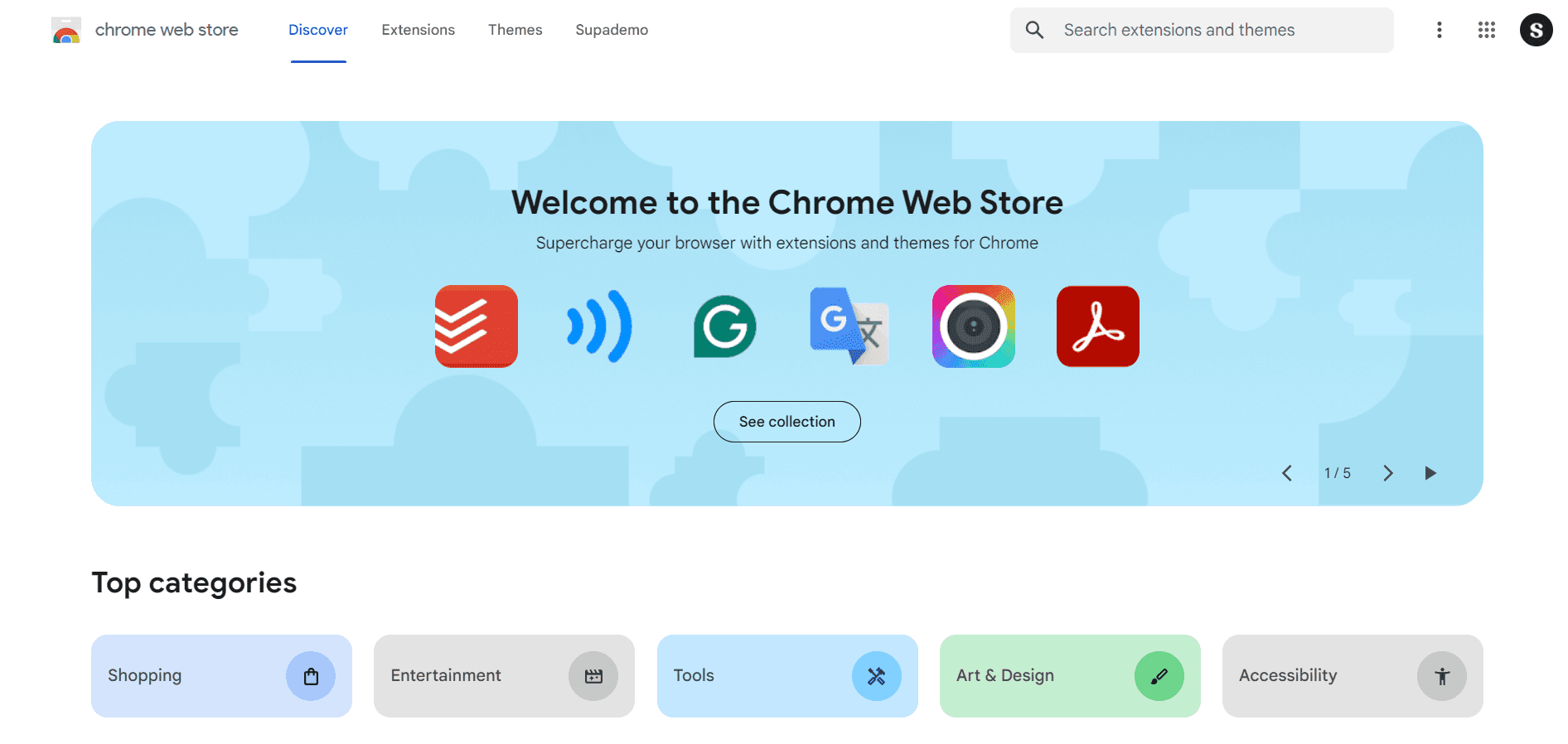
Open Gmail and access extensions
Log into your Gmail account and locate the extensions menu, typically found in the left sidebar or settings area. Look for the option to add or manage extensions to begin the installation process.
- 2
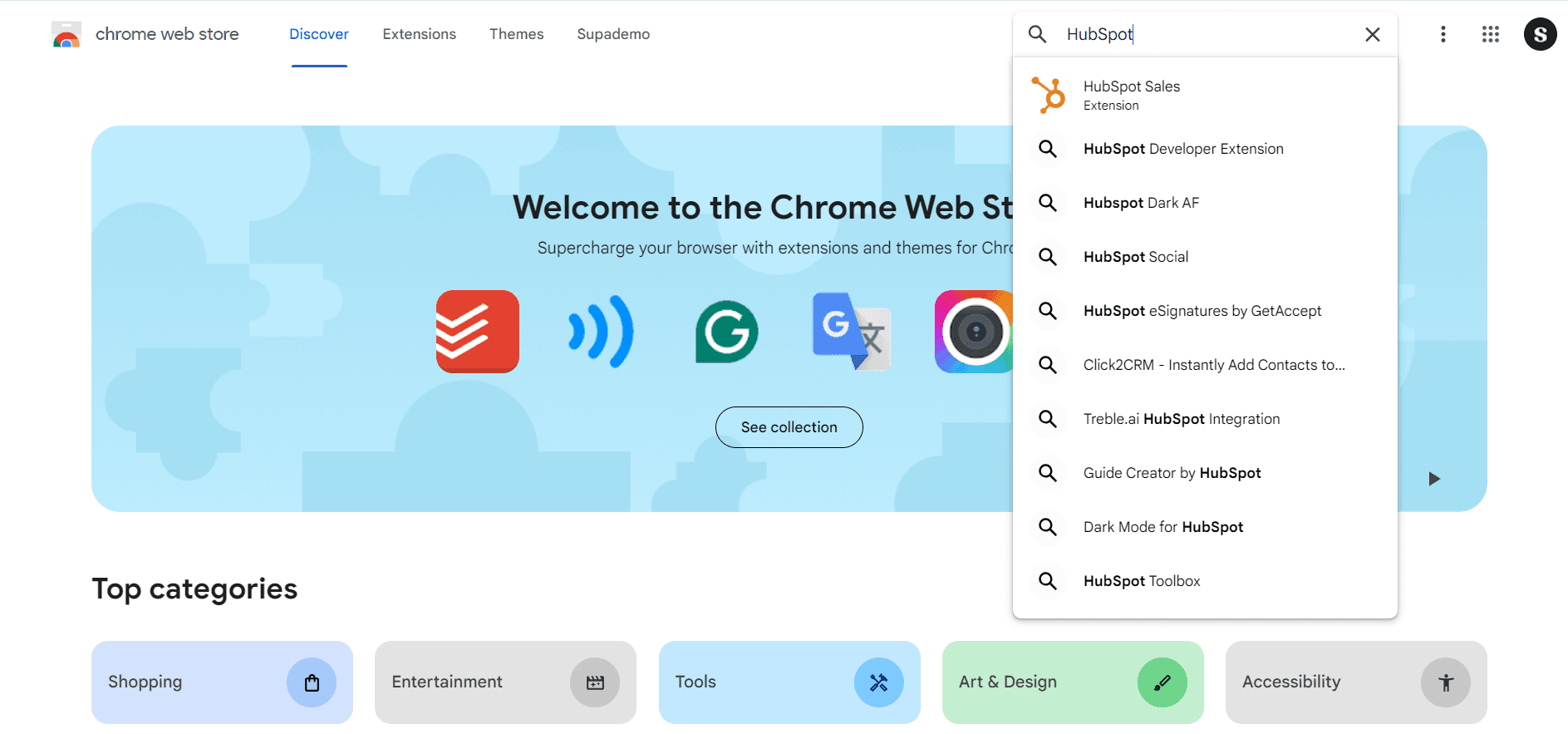
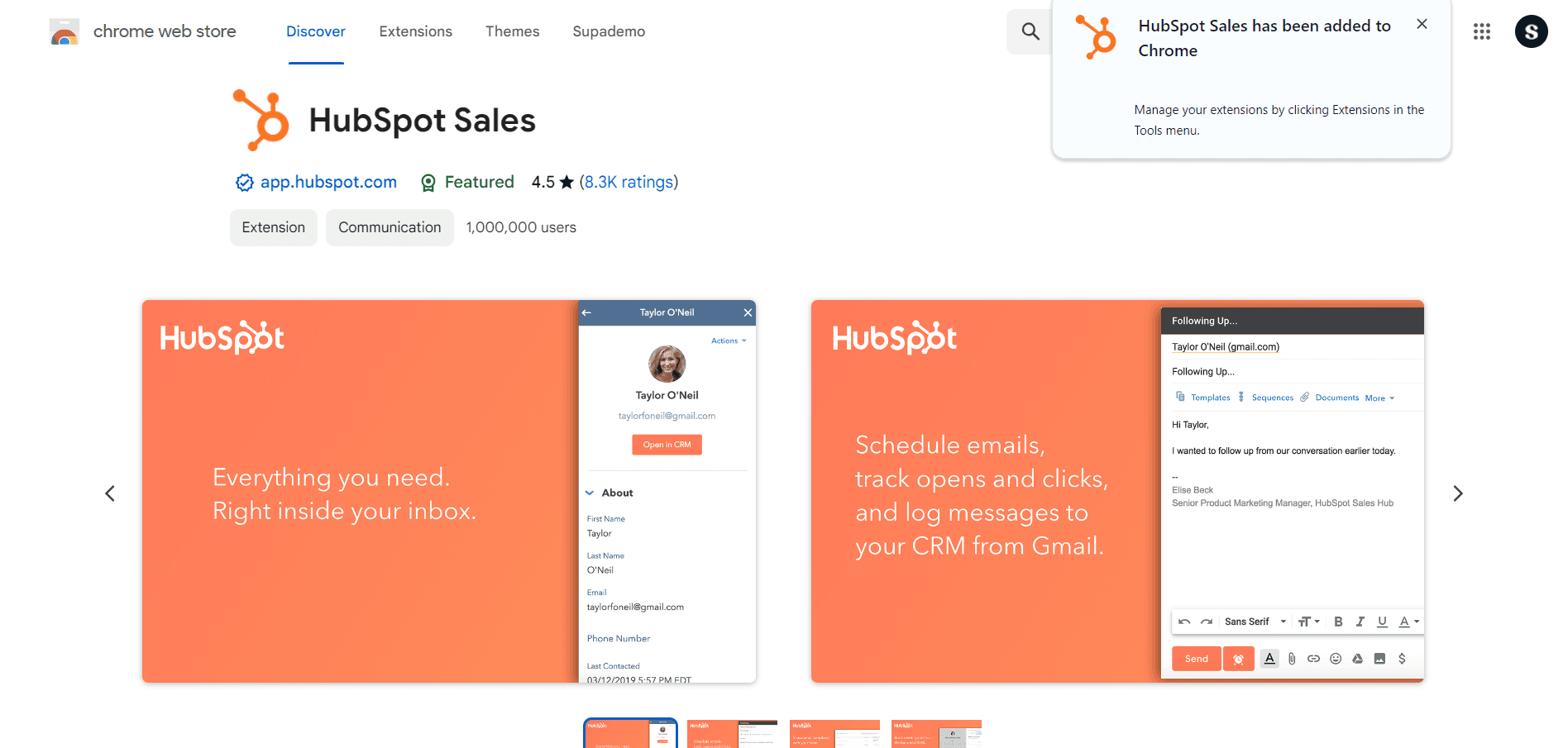
Search for HubSpot extension
Use the extension marketplace search function to find the official HubSpot for Gmail extension. Ensure you're selecting the extension published by HubSpot to guarantee security and compatibility.
- 3
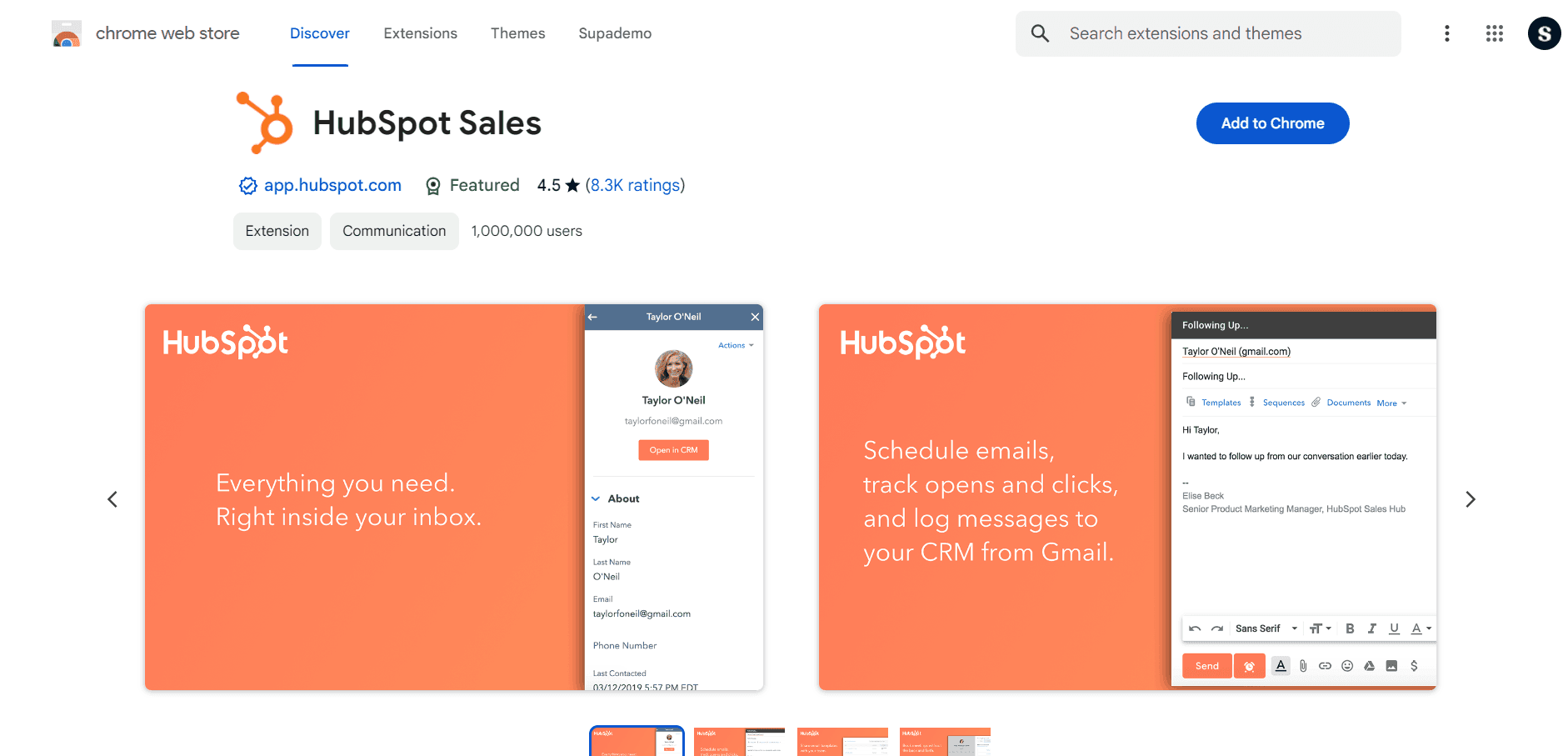
Install the HubSpot extension
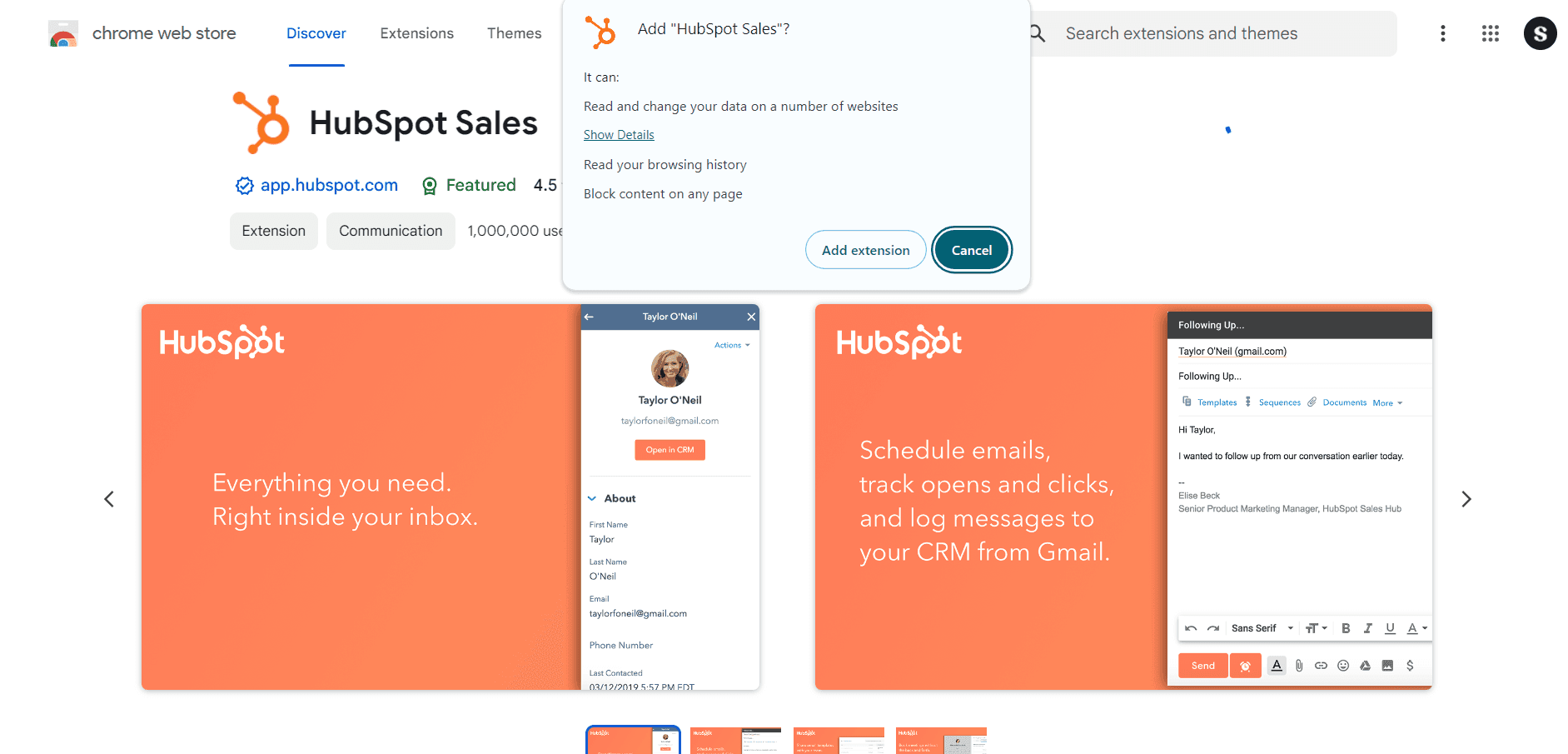
Click the install or add button to begin the installation process. Gmail will prompt you to authorize the extension and grant necessary permissions to access your email and contacts.
- 4
Authorize and authenticate
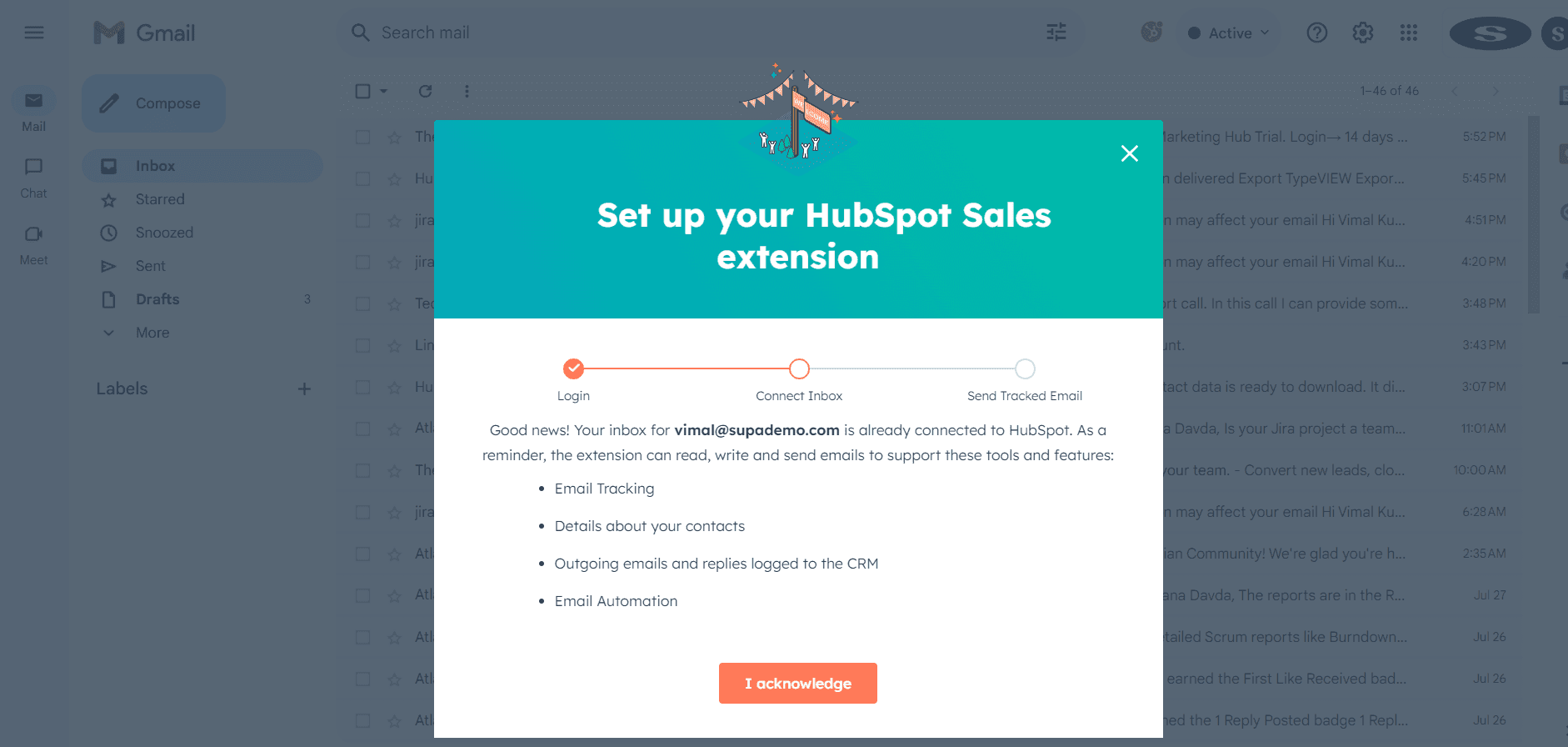
Complete the authorization flow by signing in with your HubSpot account credentials when prompted. This step connects your Gmail inbox to your HubSpot portal and enables data synchronization.
- 5
Configure extension settings
Once installed, access the extension's settings to customize preferences such as auto-logging behavior, email tracking, and contact sync options. Adjust these settings to match your team's workflow and CRM management practices.
- 6
Verify installation and test functionality
Send a test email or open an existing conversation to confirm the HubSpot extension appears in your Gmail interface. Check that you can log emails, view contact information, and access CRM data directly from the extension panel.
Frequently asked questions
Common questions about how to add hubspot extension to gmail.
The HubSpot Gmail extension is available to all HubSpot users at no additional cost beyond your existing HubSpot subscription. Some advanced features may require a specific HubSpot plan tier, so check your account permissions if you encounter any restrictions.
The extension can be configured for automatic email logging, but you have control over this behavior through the settings. You can choose to manually log emails, enable auto-logging for specific contacts, or set it to log all emails depending on your preference.
The extension needs access to read your emails, contacts, and calendar to enable logging and tracking features. These permissions allow HubSpot to sync your communication history with your CRM records and match emails to contacts.
Yes, the extension works on any device where you access Gmail, including desktop and mobile browsers. Your HubSpot account and settings sync across devices, so your preferences remain consistent.
Try refreshing your Gmail page or clearing your browser cache, then check that the extension is enabled in your Gmail settings. If problems persist, uninstall and reinstall the extension, or verify that your HubSpot account has the necessary permissions.