How to Change Marketing Contact Status in HubSpot

Customizing contact properties in HubSpot allows you to track marketing-specific information and manage contact status more effectively. This guide walks you through creating a new marketing contact property to better organize and segment your contacts within the HubSpot CRM.
Quick summary
In this tutorial, you'll learn how to navigate to HubSpot's contact properties settings and create a custom property for tracking marketing contact status. You'll configure the property type, set validation rules, and finalize the setup to enhance your contact management workflow.
Why this matters
Managing contact status effectively helps your marketing and sales teams prioritize outreach, improve lead scoring, and maintain data consistency across campaigns. Custom properties enable you to capture marketing-specific information that aligns with your unique business processes and reporting needs.
Step-by-step guide
- 1
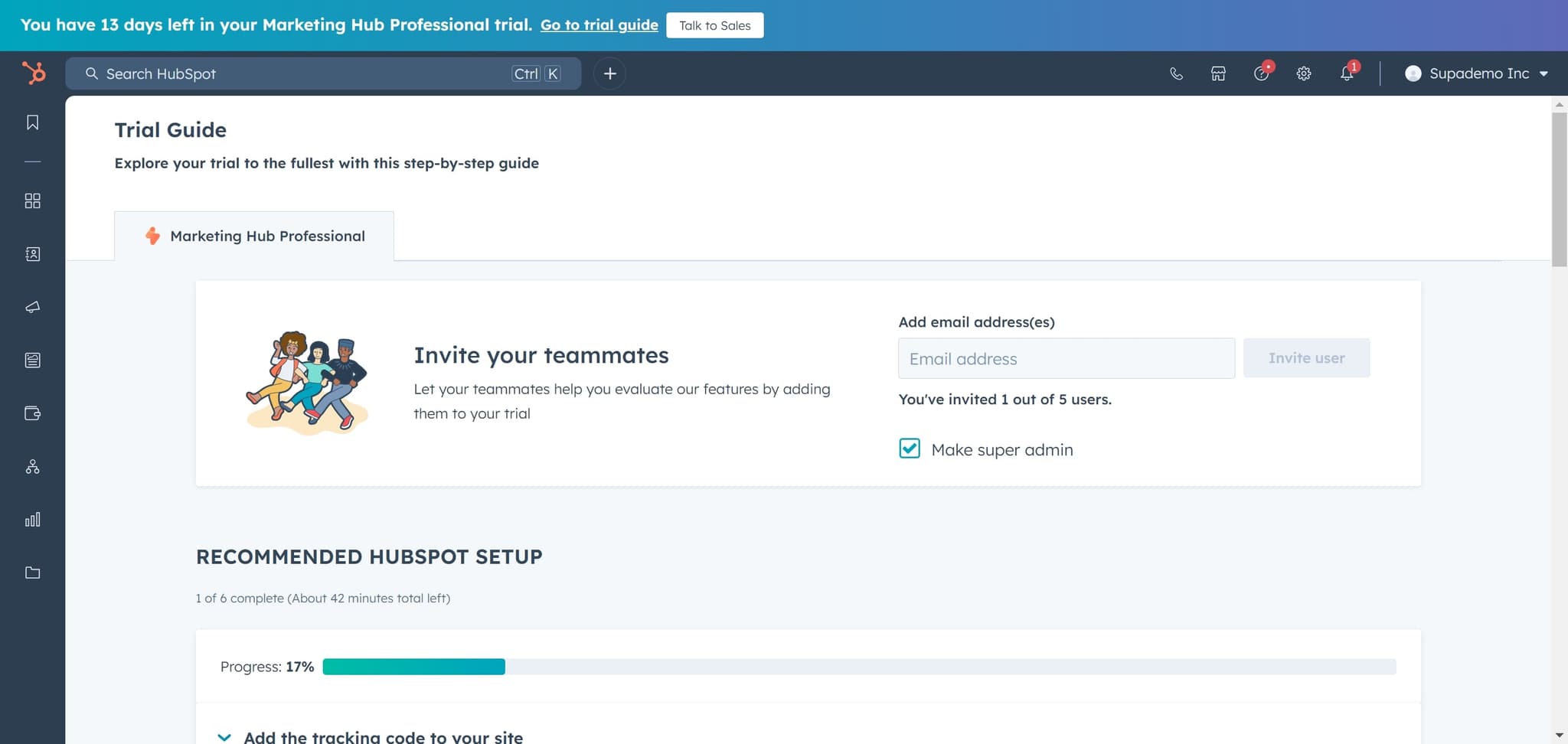
Access the Trial Guide
Click on "Trial Guide" to open the main navigation menu. This is your entry point to accessing HubSpot's core features and modules.
- 2
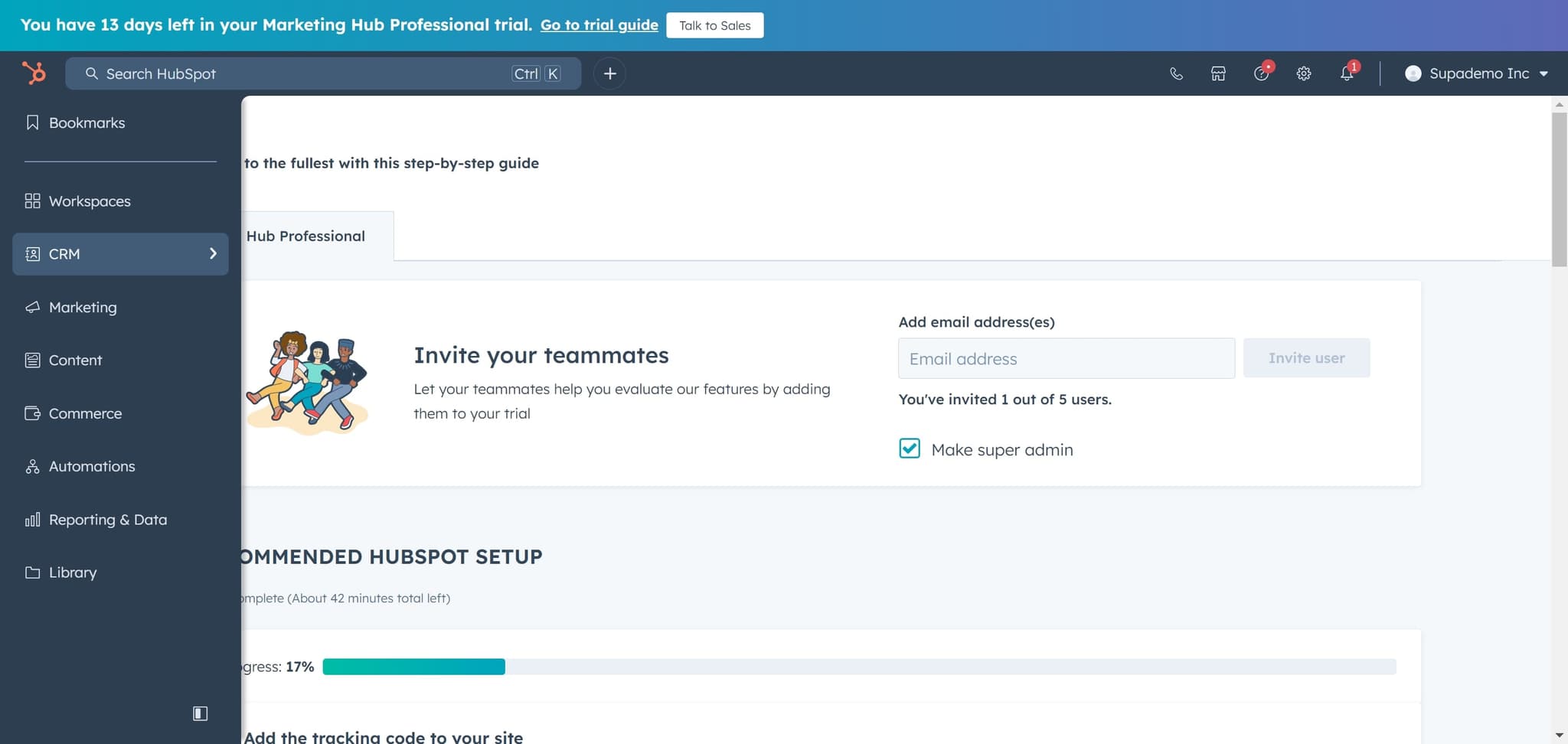
Navigate to CRM
Click on "CRM" from the menu options. This opens HubSpot's customer relationship management interface where all contact data is stored.
- 3
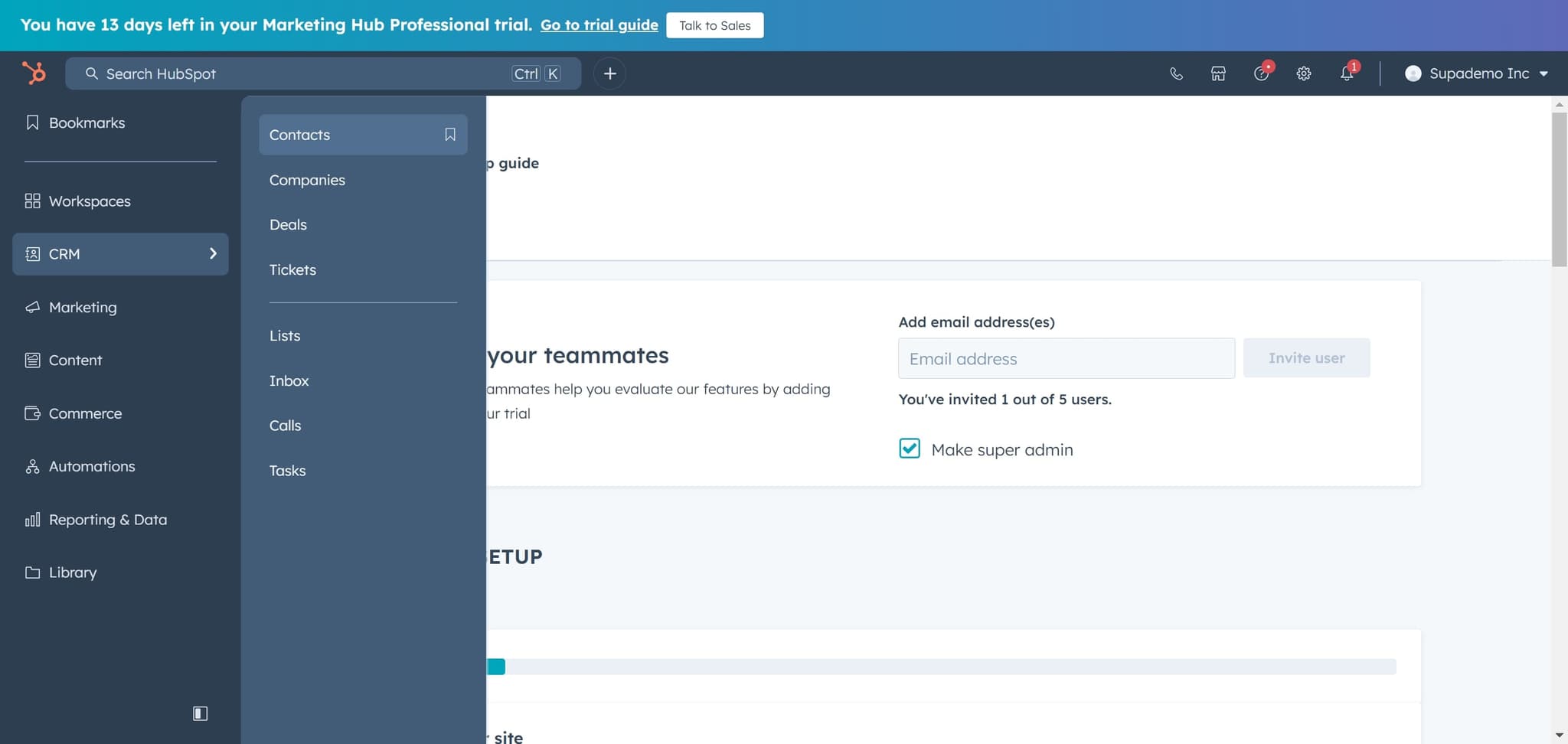
Open Contacts Section
Click on "Contacts" to access your contact database. You'll see a list of all your contacts and available management options.
- 4
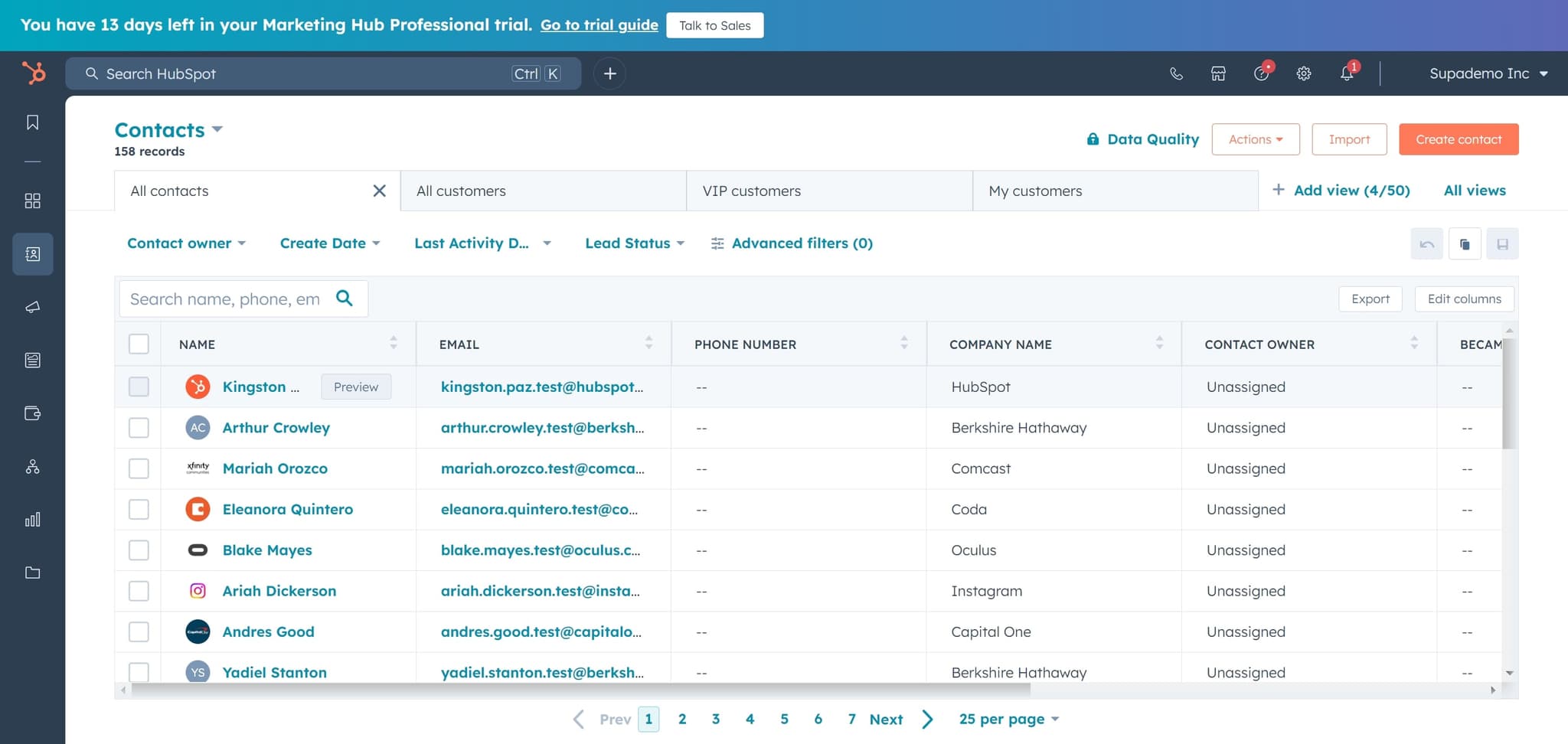
Select Contact Record
Click on the specific contact record you want to work with. This allows you to view or modify details for that individual contact.
- 5
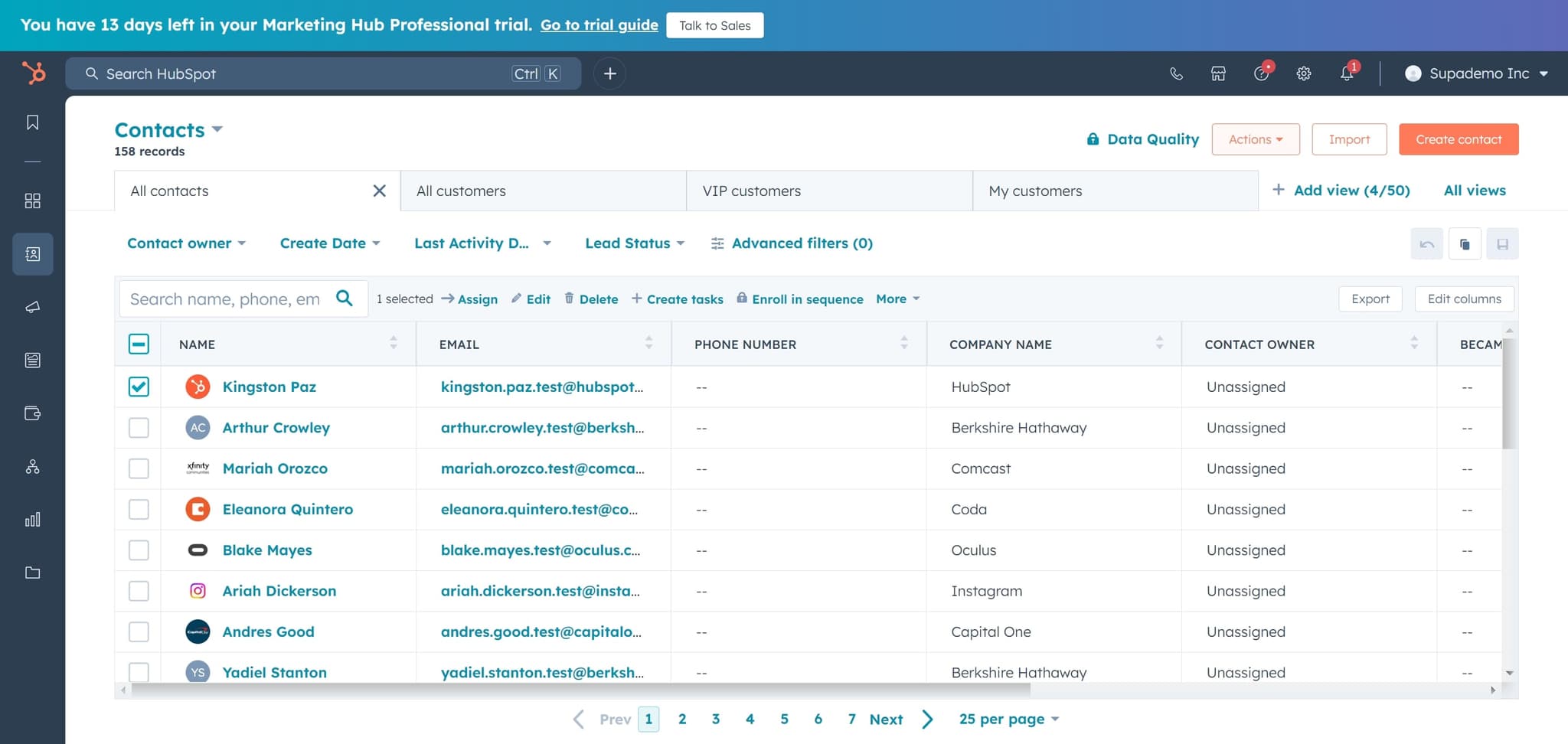
Click Actions Menu
Click on "Actions" to reveal a dropdown menu of available operations. This menu provides quick access to common contact management tasks.
- 6
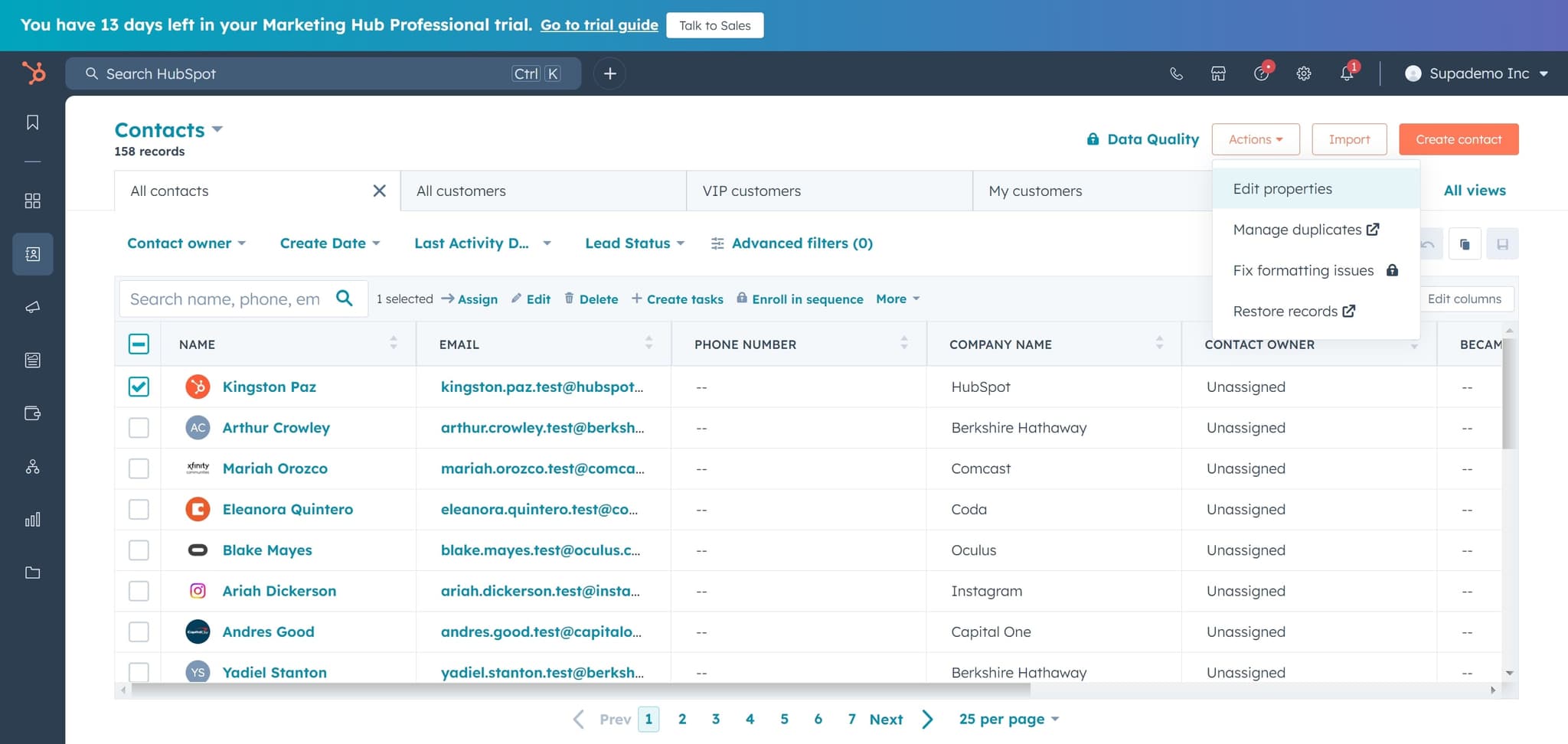
Select Edit Properties
Click on "Edit properties" from the Actions menu. This option lets you modify the properties associated with your contacts.
- 7
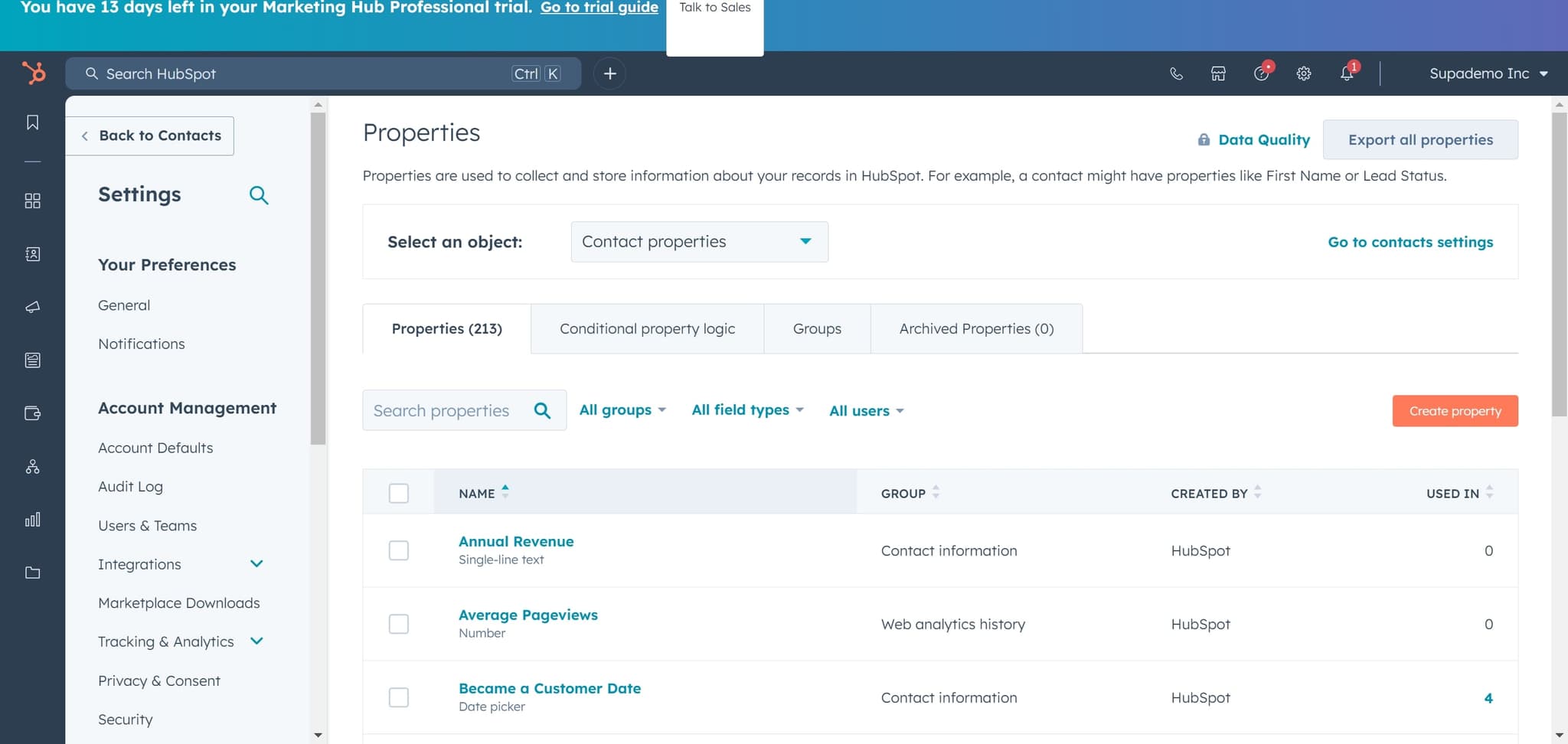
Access Contact Properties
Click on "Contact properties" to view the full list of existing and available properties. This is where you can manage all custom and default contact fields.
- 8
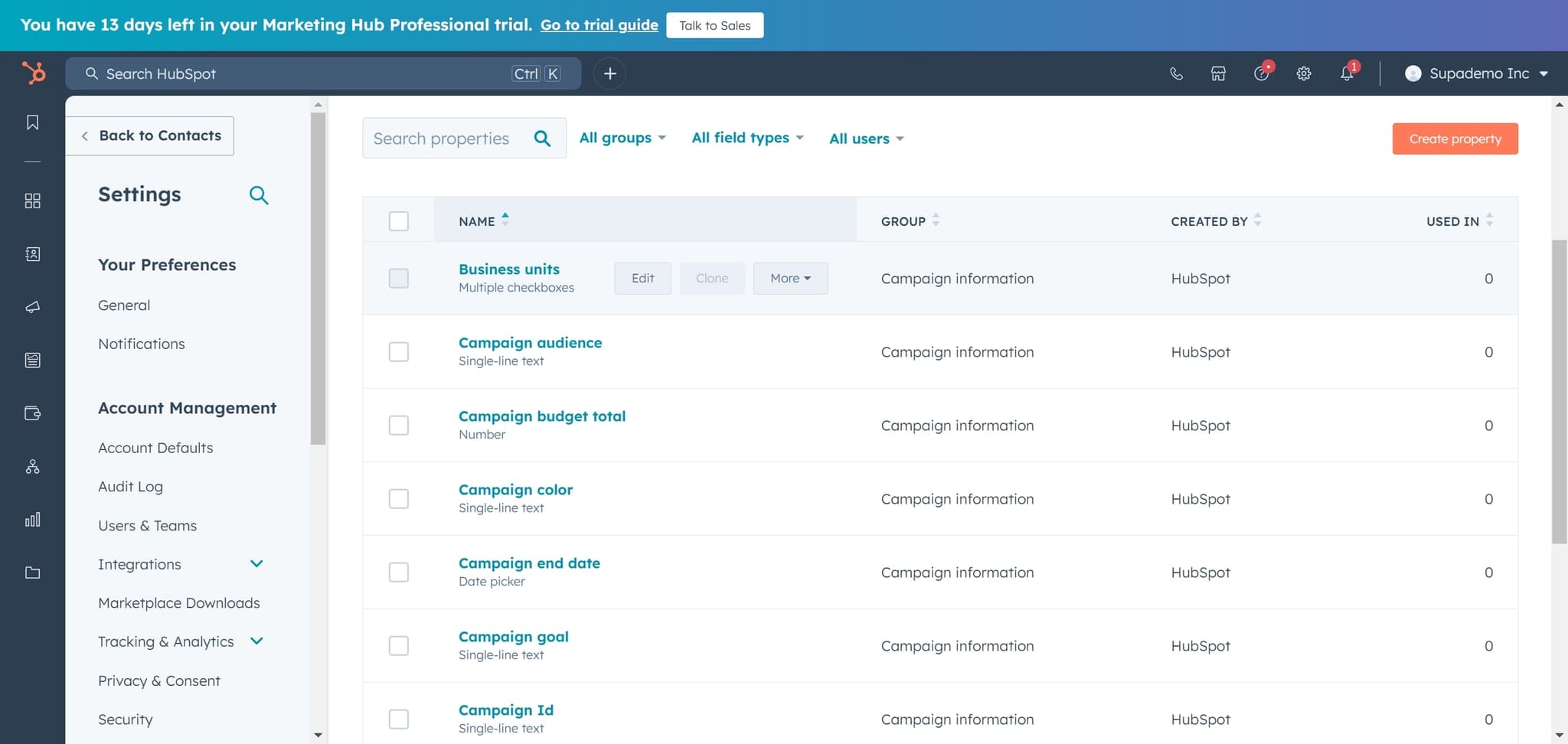
Locate Property Options
Click on the element that triggers the property creation interface. This prepares you to add a new custom property to your contact records.
- 9
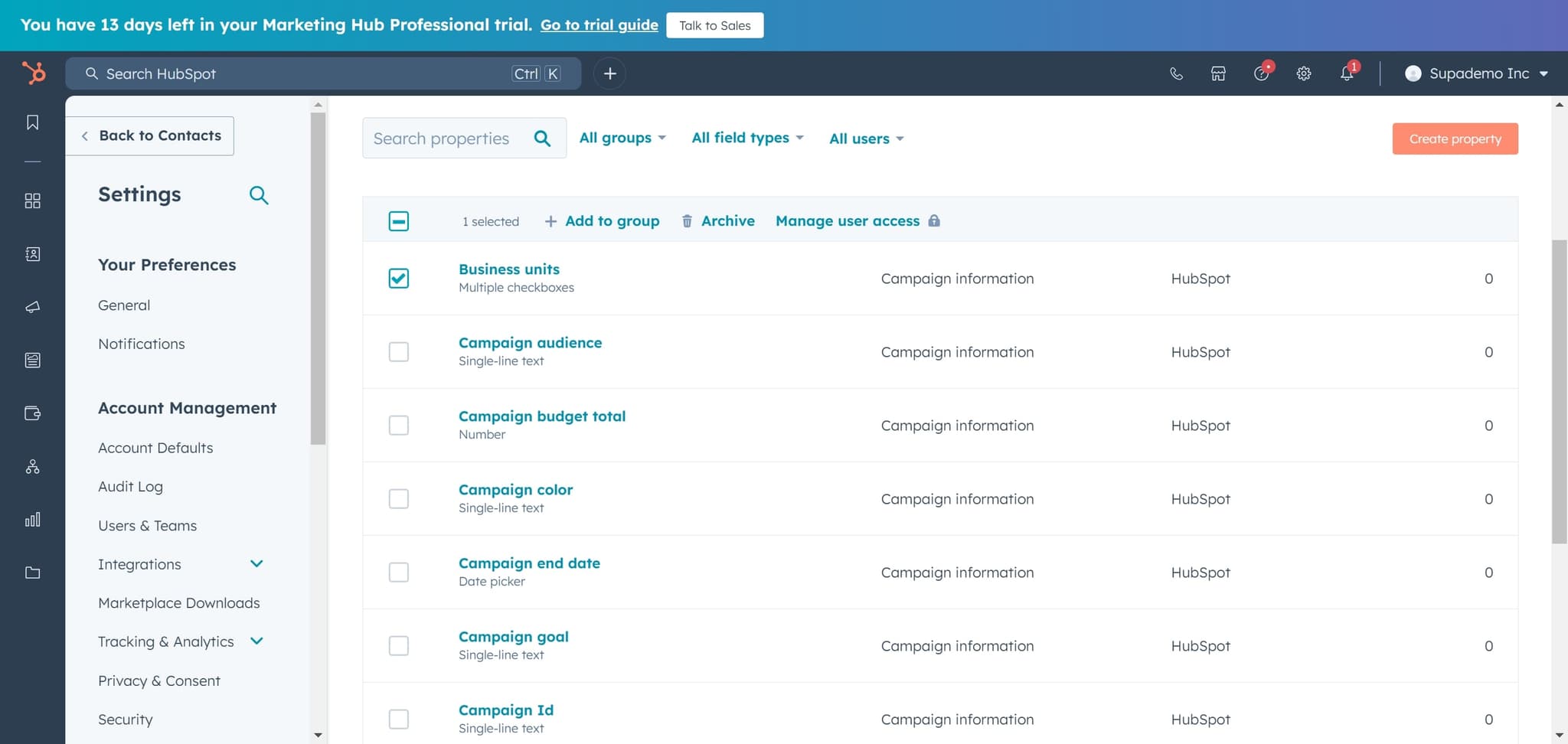
Initiate Property Creation
Click on "Create property" to start building your new marketing contact status property. The property creation form will open with configuration options.
- 10
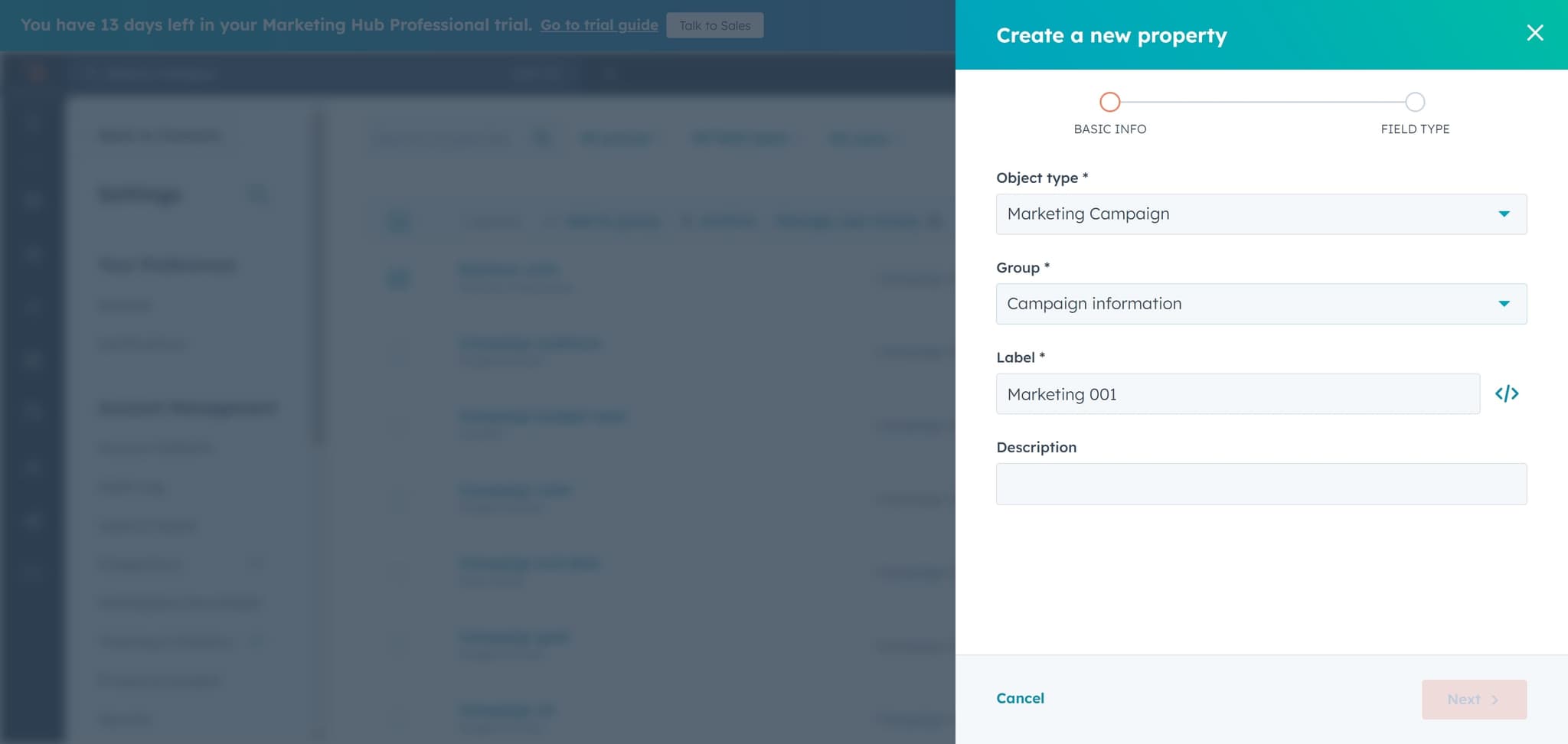
Select Property Group
Click on "Campaign information" to assign your new property to this logical grouping. This organizes your custom property with related campaign and marketing fields.
- 11
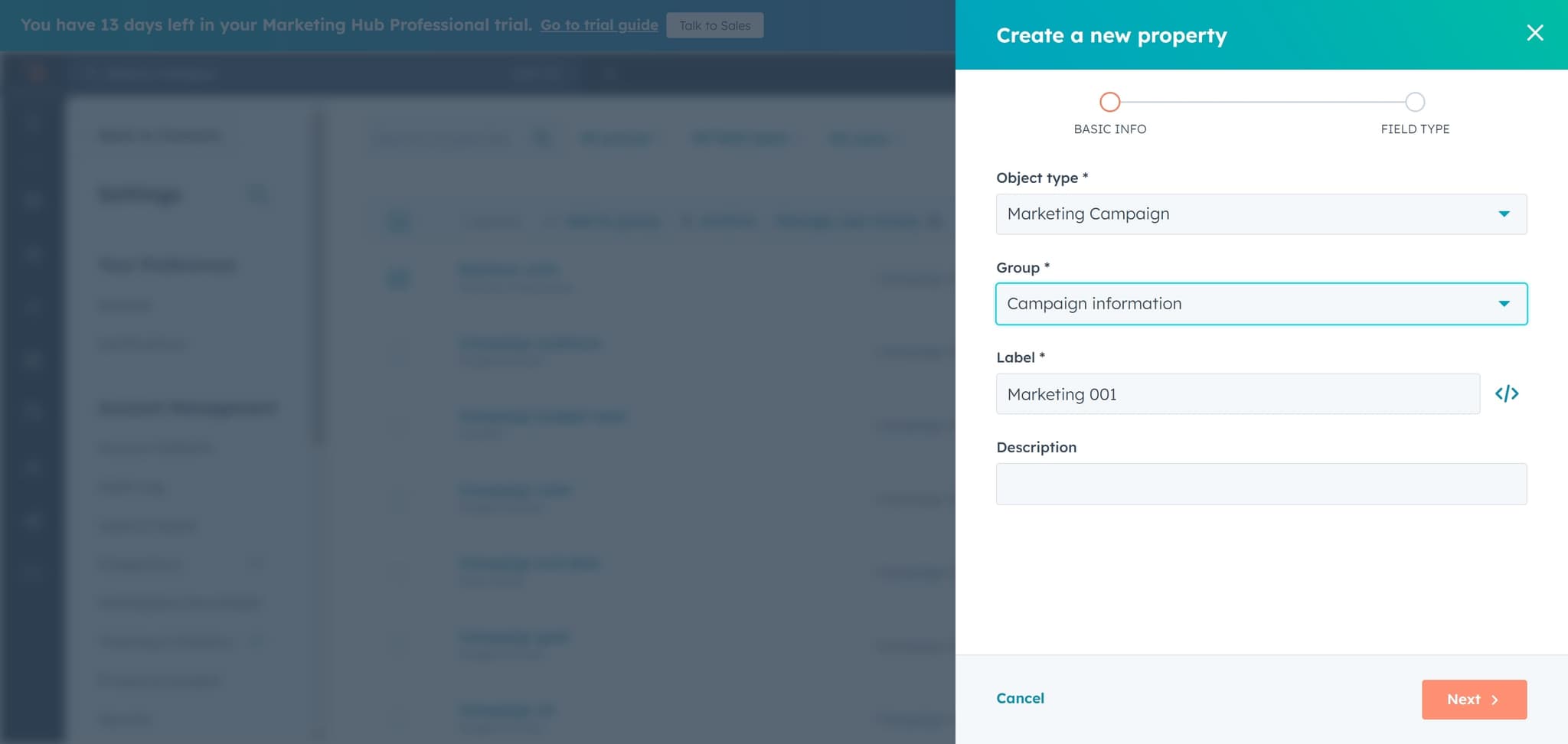
Proceed to Field Type
Click on "Next" to advance to the field type configuration step. You'll now specify what kind of data this property will store.
- 12
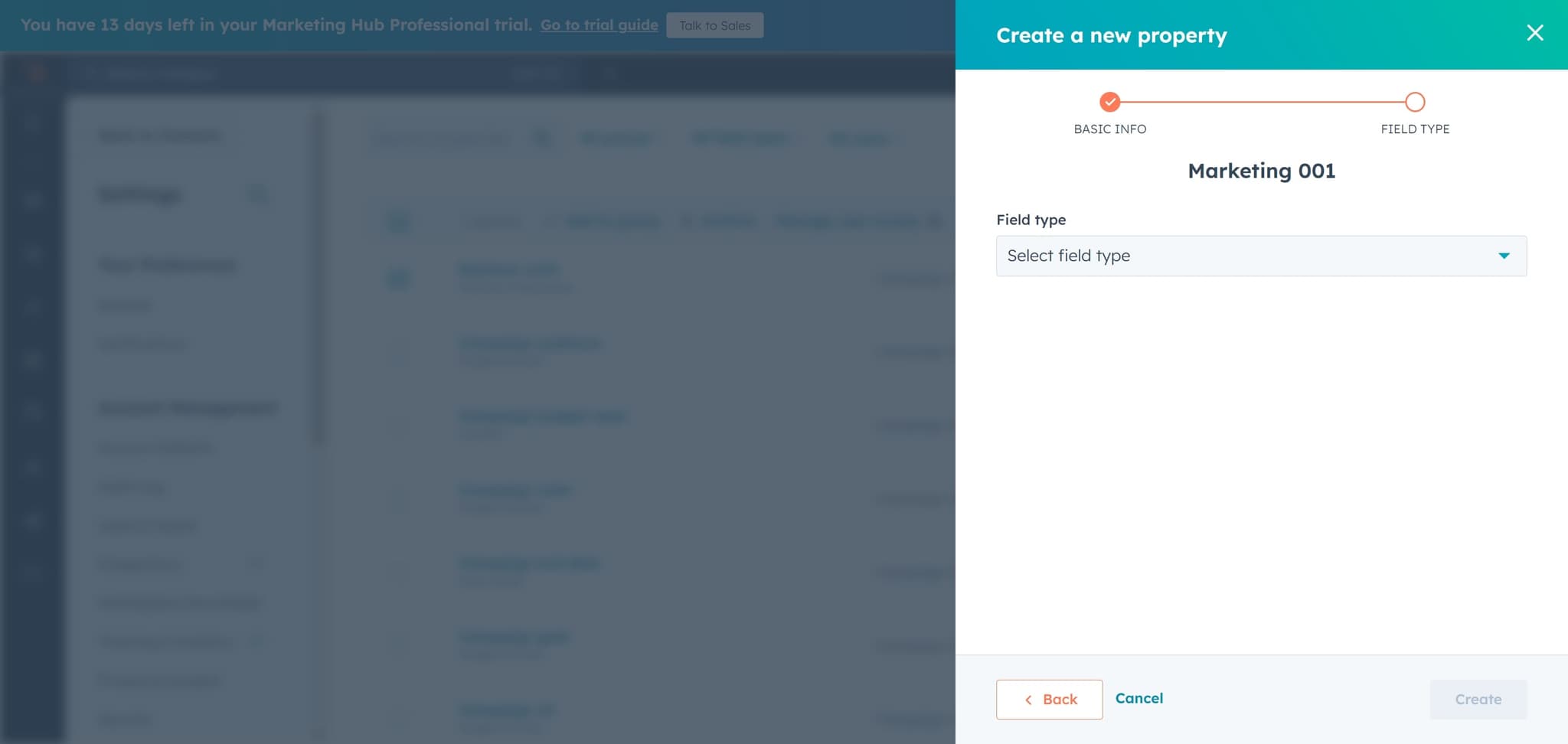
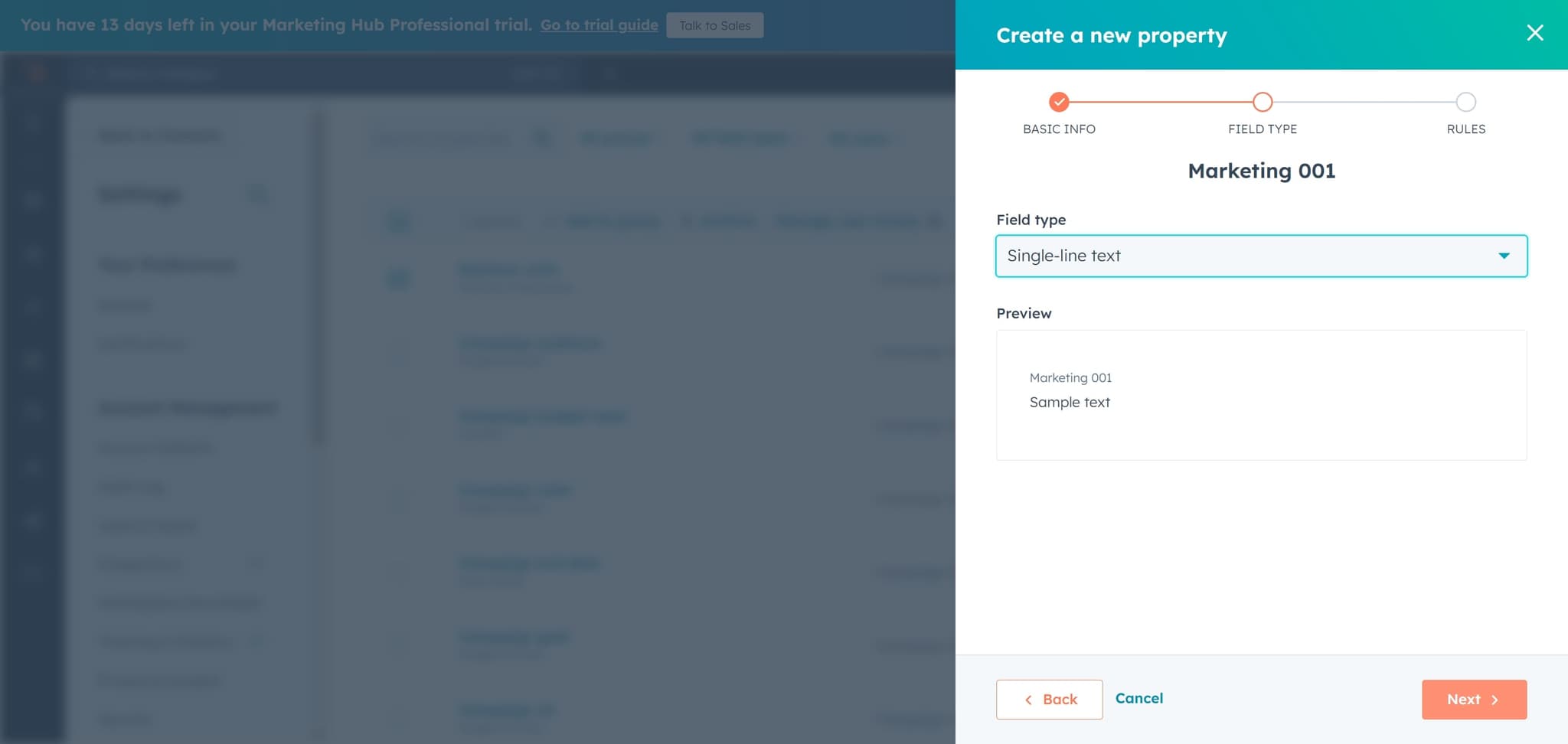
Choose Field Type
Click on "Select field type" to choose the data format for your property. Common options include text, dropdown, date, or number fields depending on your needs.
- 13
Continue Configuration
Click on "Next" to move forward with the remaining property settings. Additional configuration options will appear for fine-tuning your property.
- 14
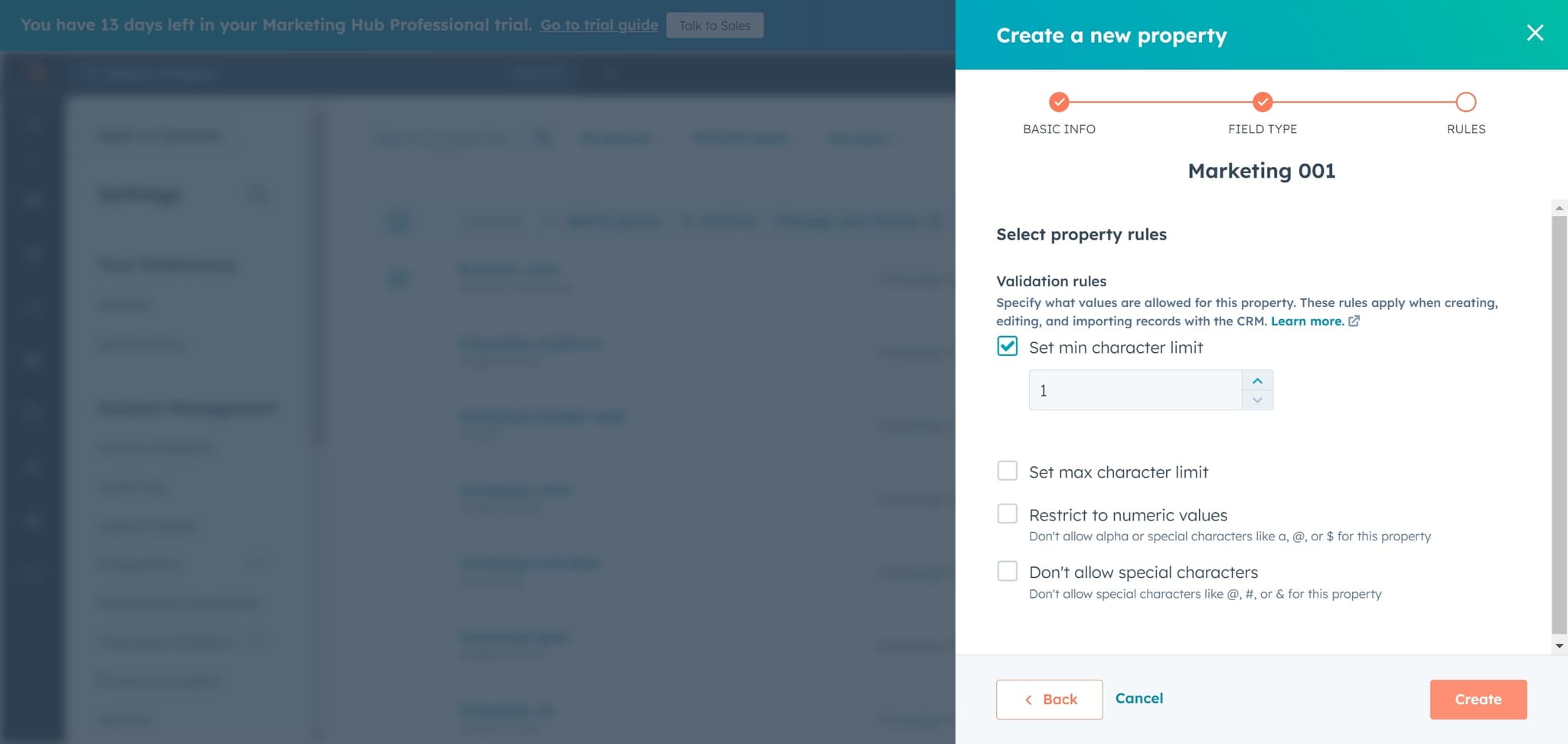
Set Character Limit
Click on "Set min character limit" to define validation rules for your property. This ensures data quality by requiring a minimum number of characters in the field.
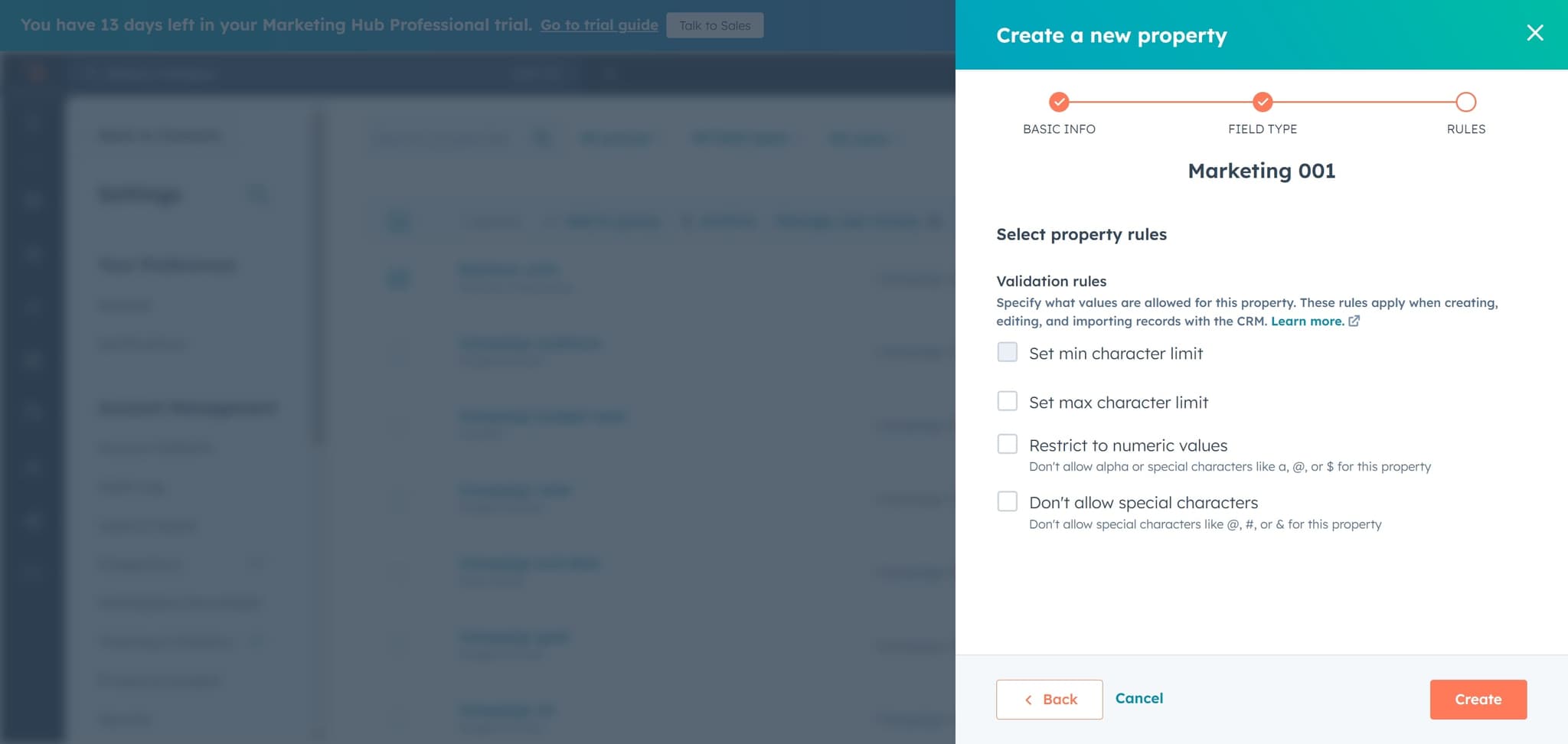
- 15
Finalize Property Creation
Click on "Create" to save your new marketing contact status property. The property is now available for use on all contact records.
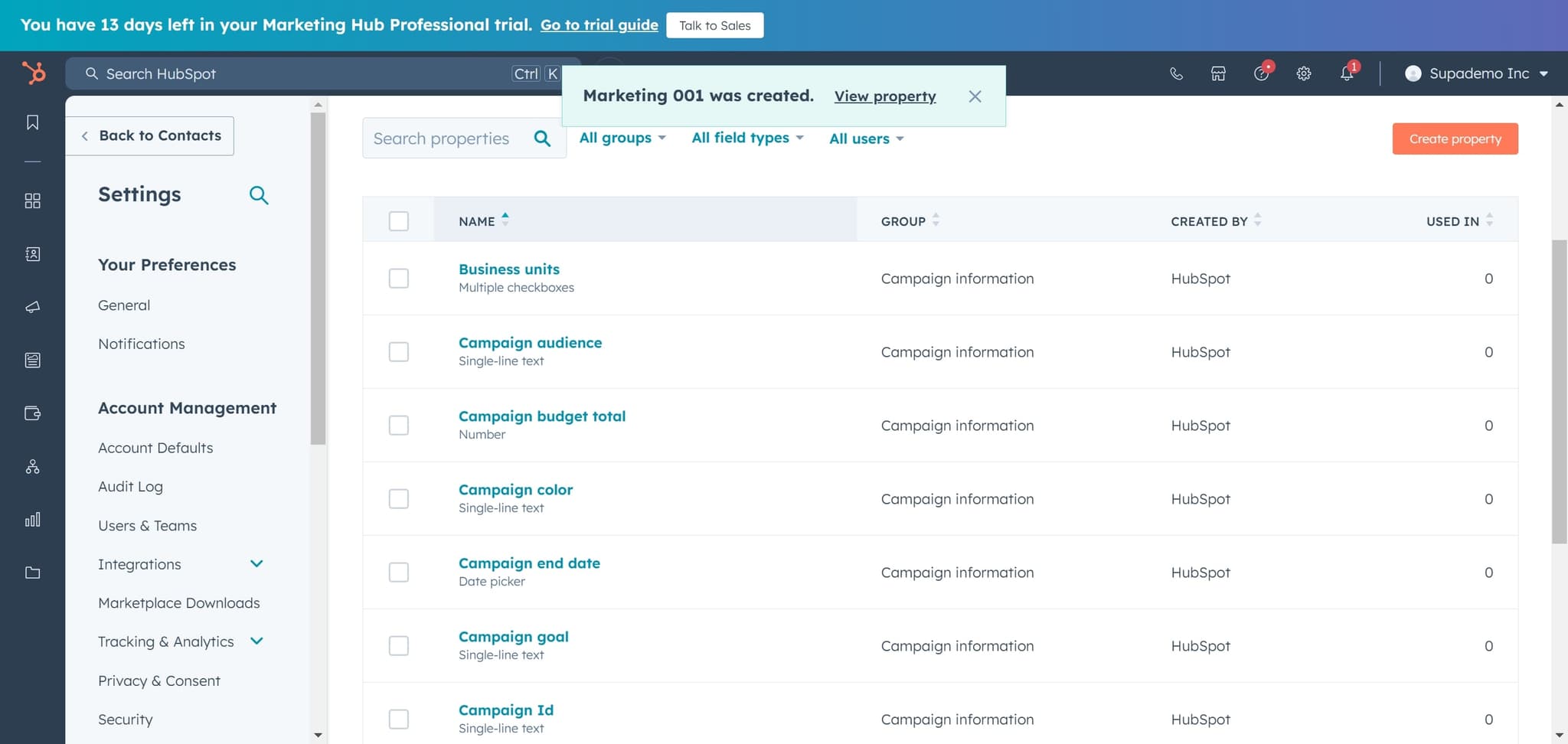
- 16
Complete Setup
Click the final element to confirm and close the property creation process. Your new custom property is now active and ready to use across your contacts.
Frequently asked questions
Common questions about how to change marketing contact status in hubspot.
A contact property is a data field that stores information about a contact in HubSpot. Properties can be default fields like email and phone, or custom fields you create to track specific information relevant to your business, such as marketing status or campaign participation.
Yes, custom contact properties are excellent for segmentation. Once created, you can use your new marketing contact status property in lists, workflows, and reports to segment and target specific groups of contacts based on their status.
Setting a minimum character limit enforces data quality by requiring users to enter at least that many characters when populating the field. This helps prevent incomplete or placeholder entries and ensures more consistent data across your contact records.
Yes, you can edit most property settings after creation, including the name, description, and validation rules. However, some settings like the field type may have restrictions depending on whether the property already contains data.
After creation, the property appears in your contact records where you can manually enter values. You can also populate it automatically using HubSpot workflows, bulk actions, or integrations with other tools to streamline your contact management process.