How to Connect HubSpot to Gmail

Connecting HubSpot to Gmail enables you to sync your emails, track communications, and manage your inbox directly within HubSpot. This integration streamlines your workflow by centralizing customer interactions and email history in one platform.
Quick summary
In this tutorial, you'll learn how to connect your Gmail account to HubSpot and authenticate your personal email inbox. By the end, you'll have a fully integrated email system that allows you to manage communications seamlessly across both platforms.
Why this matters
Integrating Gmail with HubSpot ensures that all customer emails are automatically logged and tracked within your CRM, improving visibility into customer interactions. This connection eliminates manual data entry and helps your team stay aligned on communication history and customer engagement.
Step-by-step guide
- 1
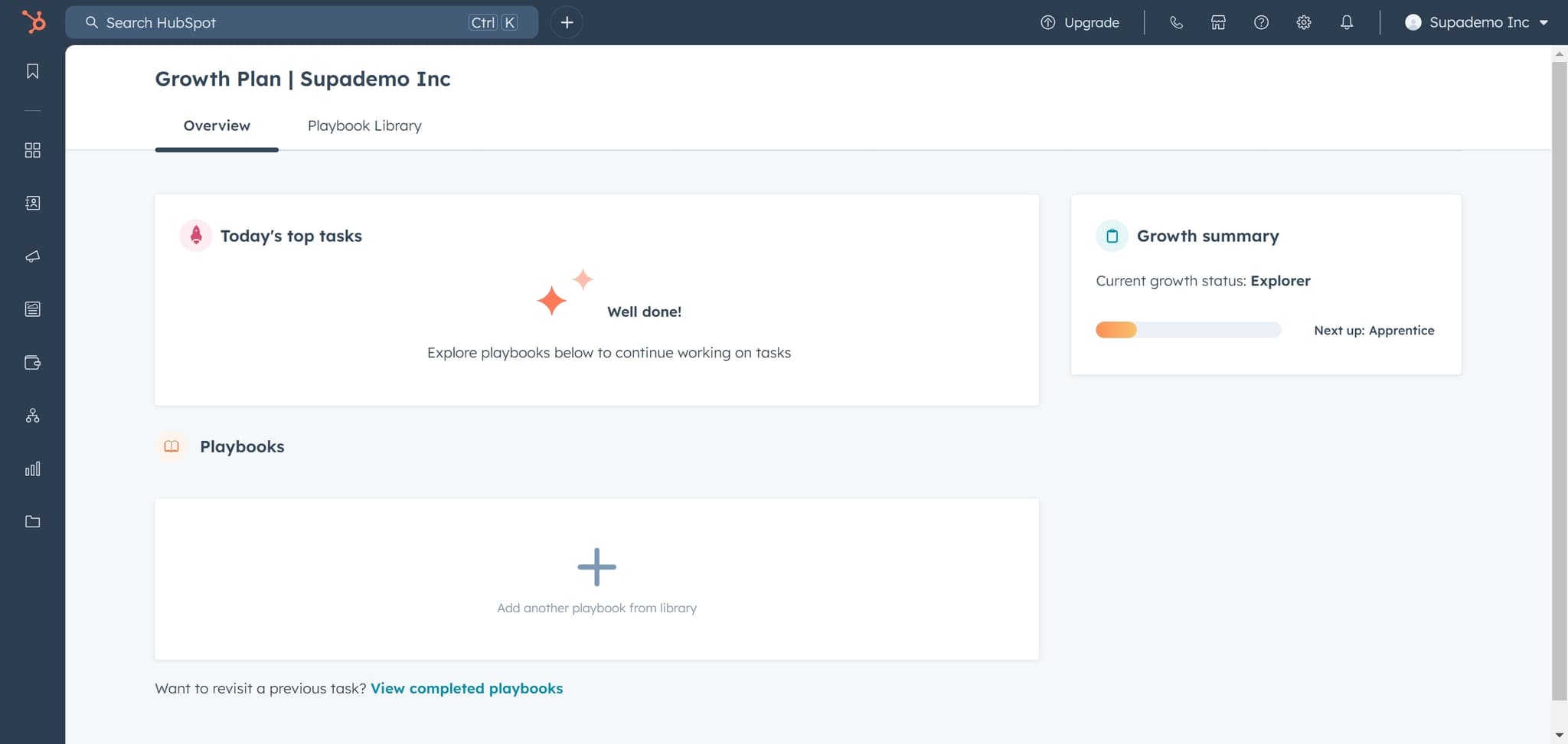
Access HubSpot settings
Click on the element to begin the connection process. This will take you to the HubSpot interface where you can manage integrations and account settings.
- 2
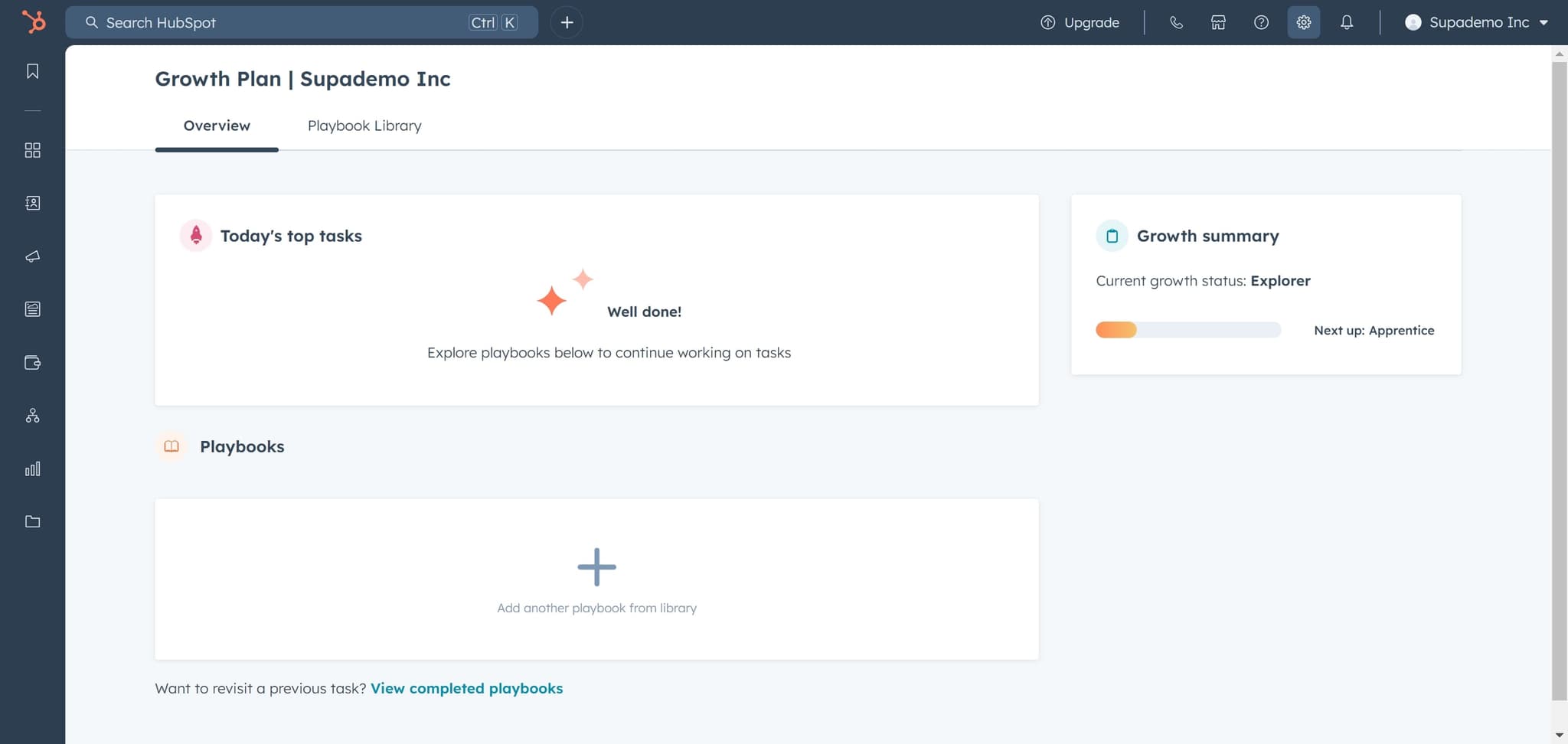
Navigate to email settings
Click on the next element to proceed. This action will guide you toward the email configuration section of your HubSpot account.
- 3
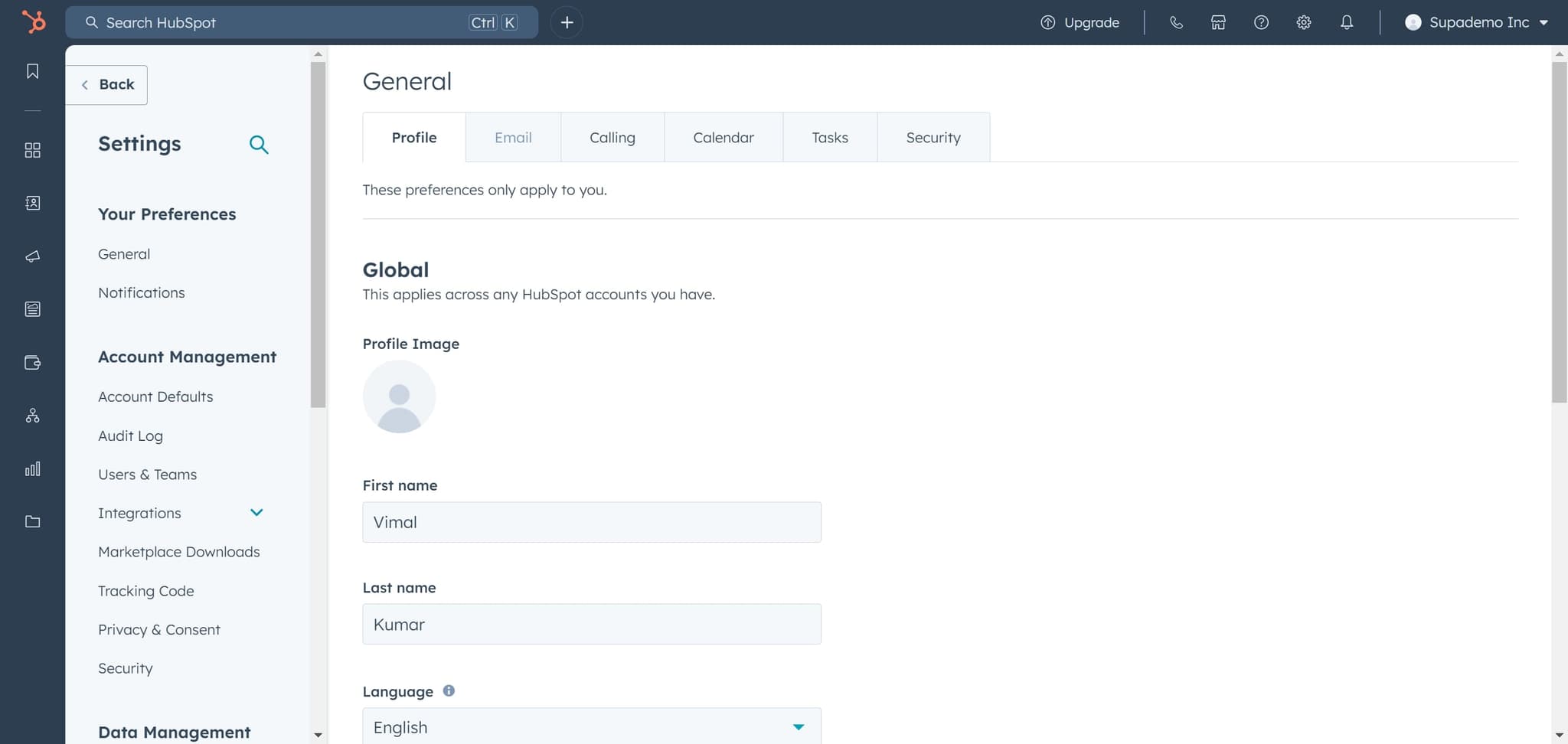
Select email option
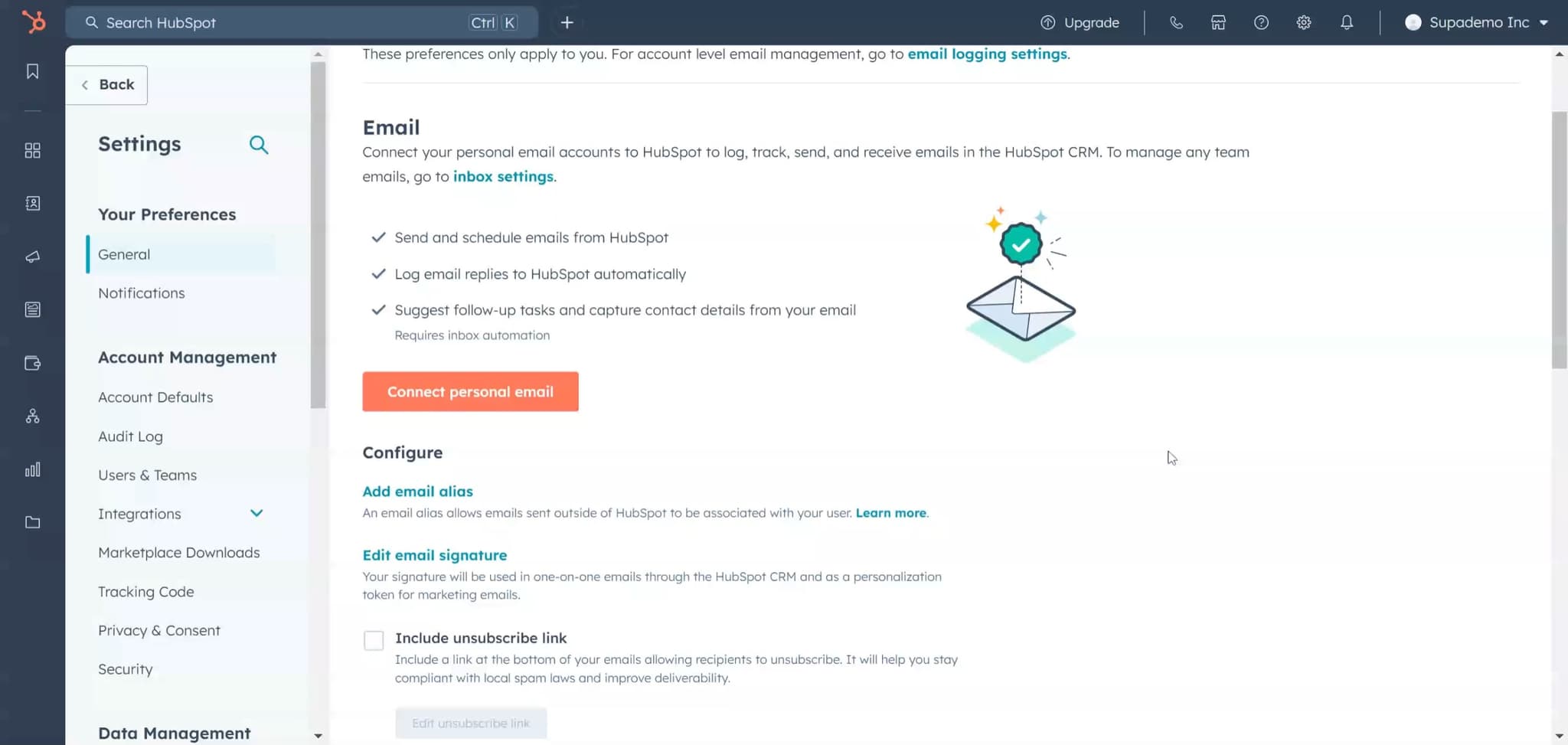
Click on 'Email' to access the email integration menu. You'll see various email-related options and settings available for your account.
- 4
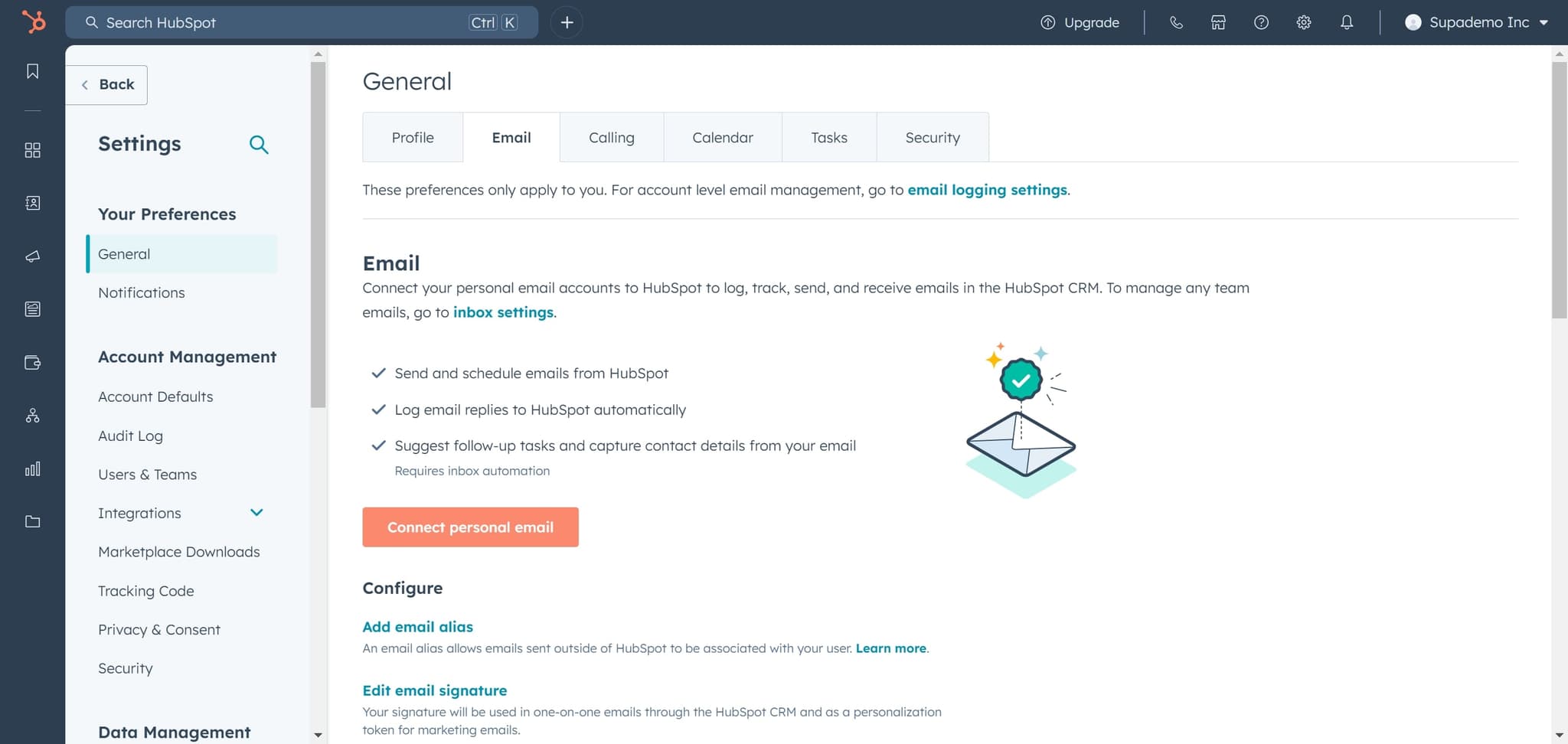
Choose personal email connection
Click on 'Connect personal email' to begin linking your Gmail account. This option allows you to connect your individual email inbox rather than a shared mailbox.
- 5
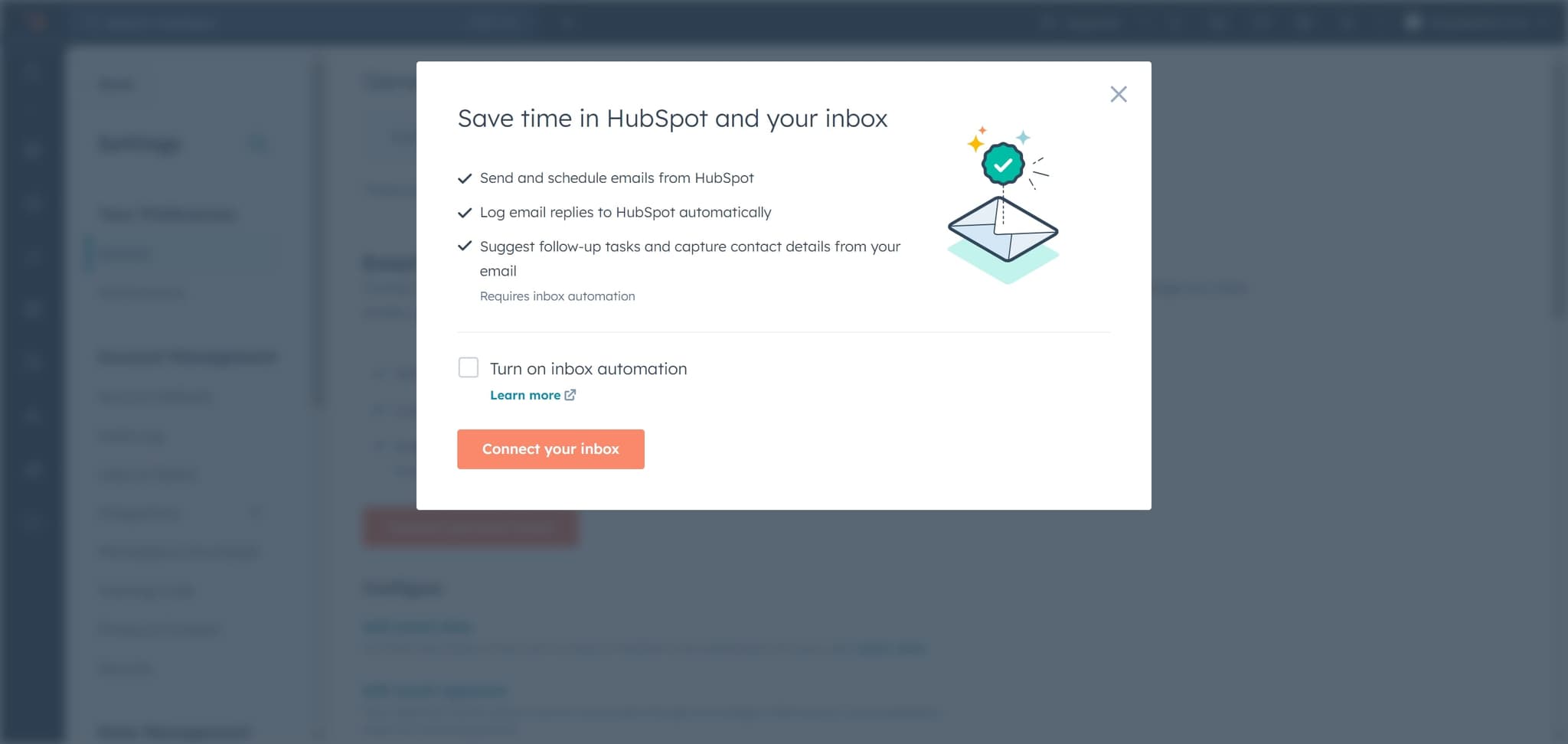
Connect your inbox
Click on 'Connect your inbox' to initiate the authentication process. HubSpot will now prepare to establish a secure connection with your Gmail account.
- 6
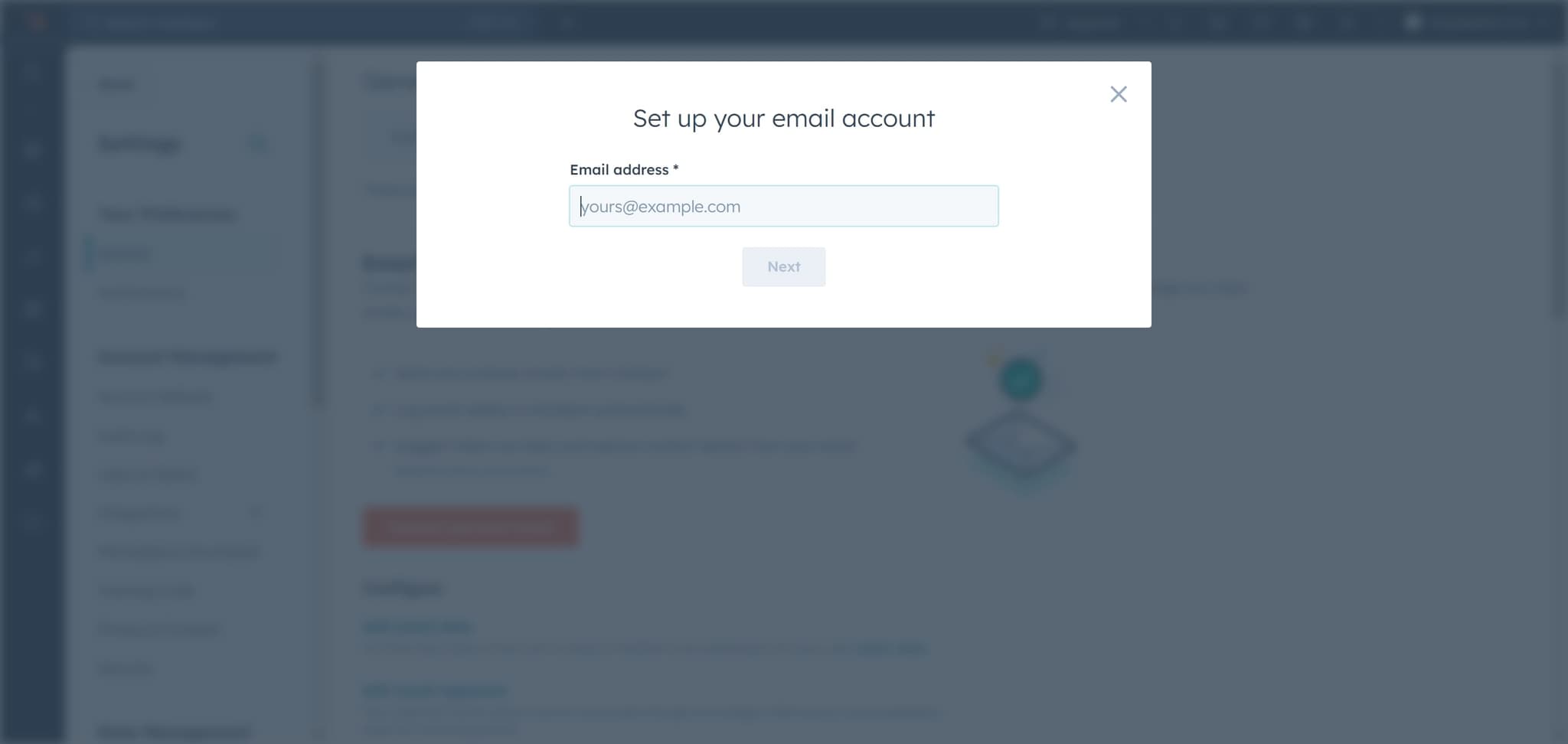
Proceed to Gmail authentication
Click on the element to move forward in the connection flow. This step sets up the bridge between HubSpot and Gmail for secure authentication.
- 7
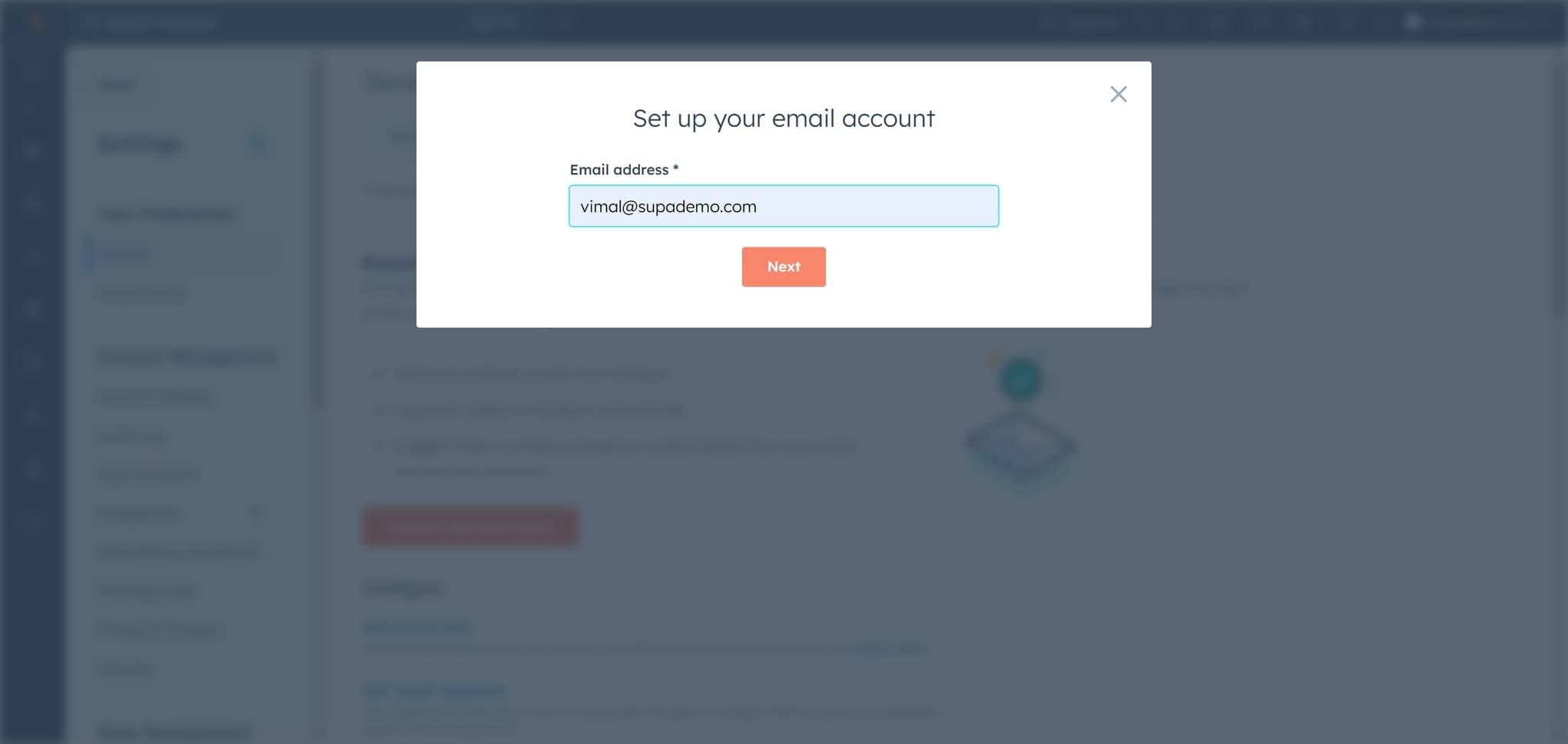
Click Next to continue
Click on 'Next' to advance through the integration wizard. You'll be one step closer to completing the Gmail connection setup.
- 8
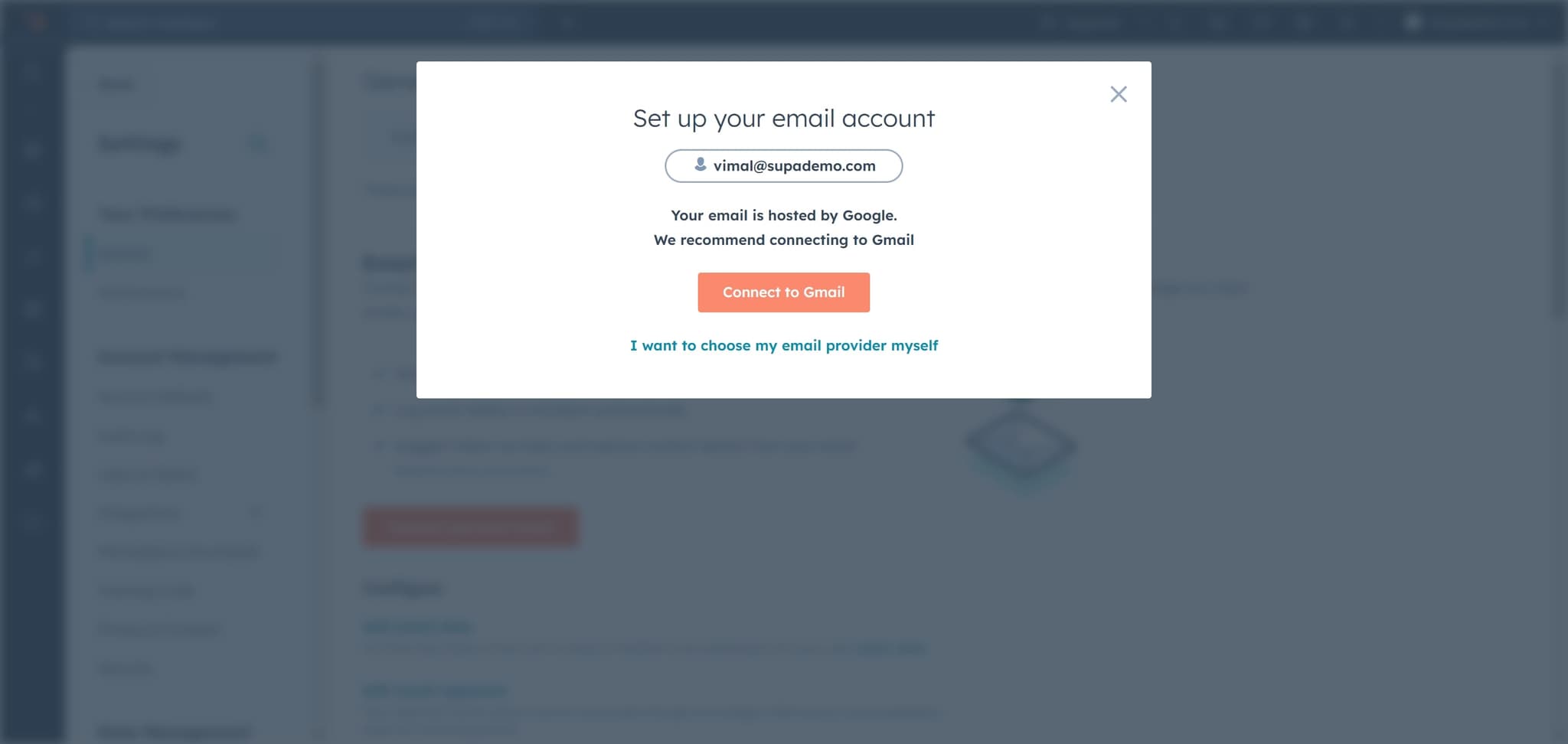
Select Gmail connection
Click on 'Connect to Gmail' to specify Gmail as your email provider. HubSpot will redirect you to Google's authentication page to verify your account.
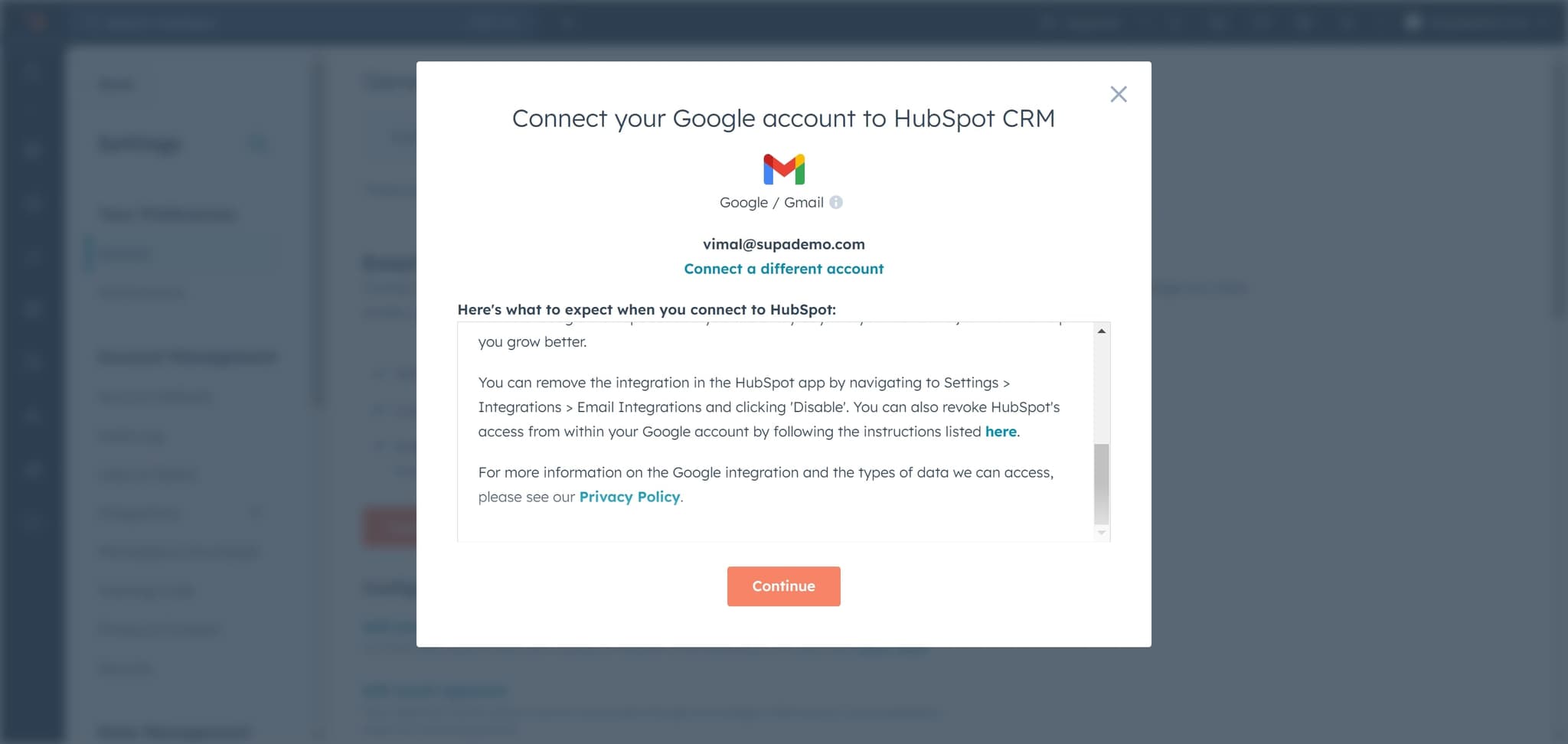
- 9
Authorize the connection
Click on 'Continue' to proceed with the authorization. This action will take you to Google's login page where you'll grant HubSpot permission to access your Gmail account.
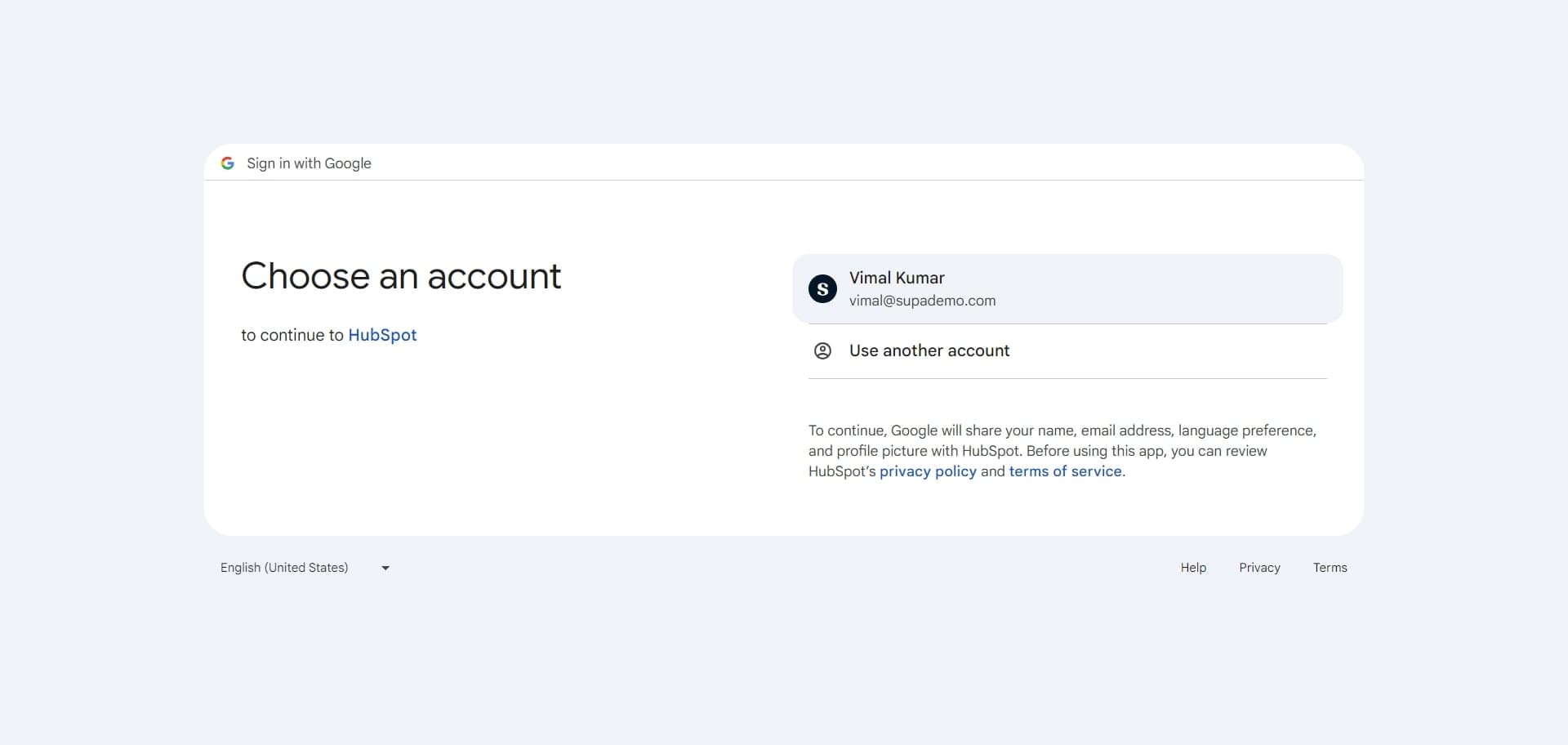
- 10
Select your Gmail account
Click on 'vimal@supademo.com' (or your Gmail address) to confirm the account you want to connect. HubSpot will use this email address to sync your messages and track communications.
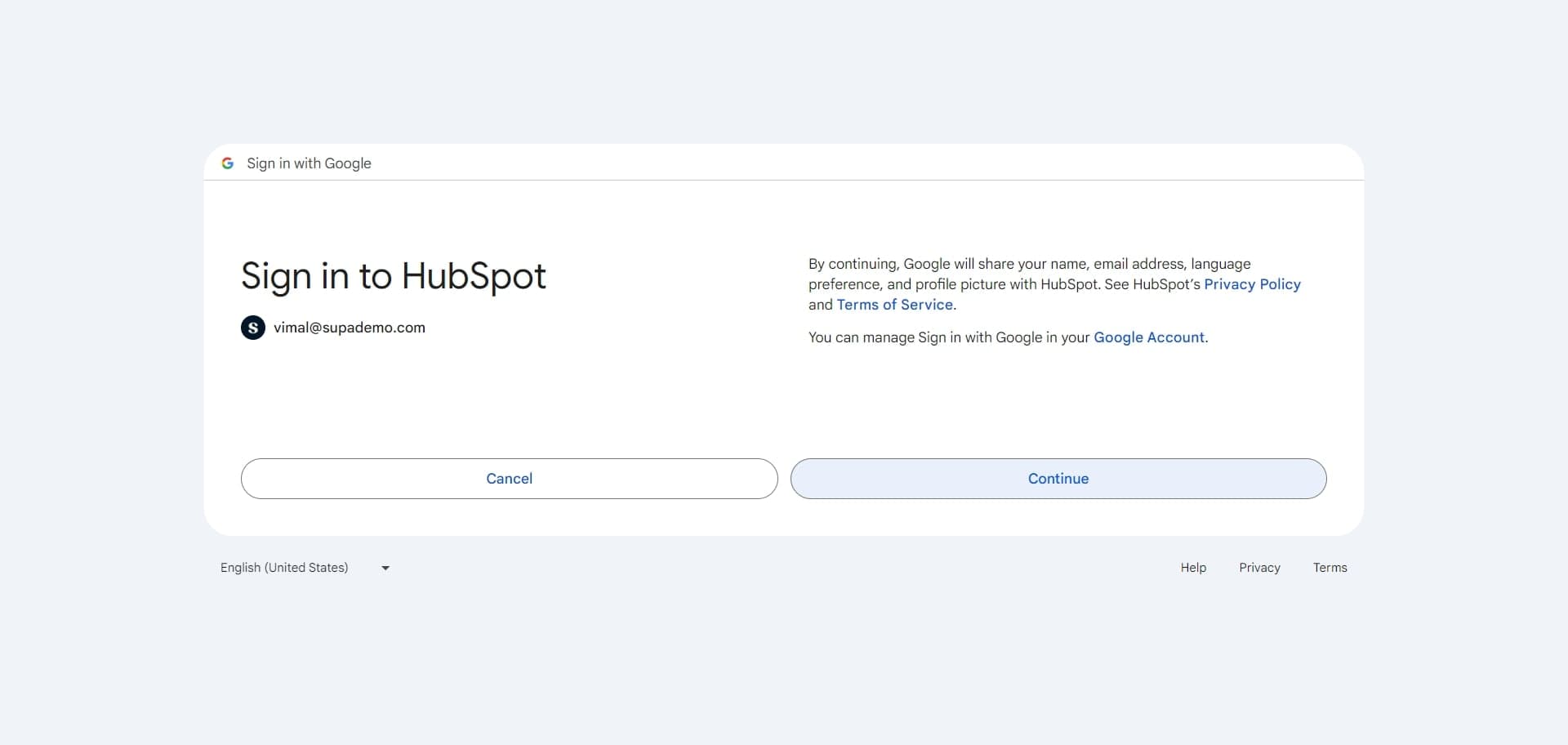
- 11
Grant HubSpot permissions
Click on the element to allow HubSpot the necessary permissions to access your Gmail inbox. This includes reading emails, managing labels, and syncing message data.
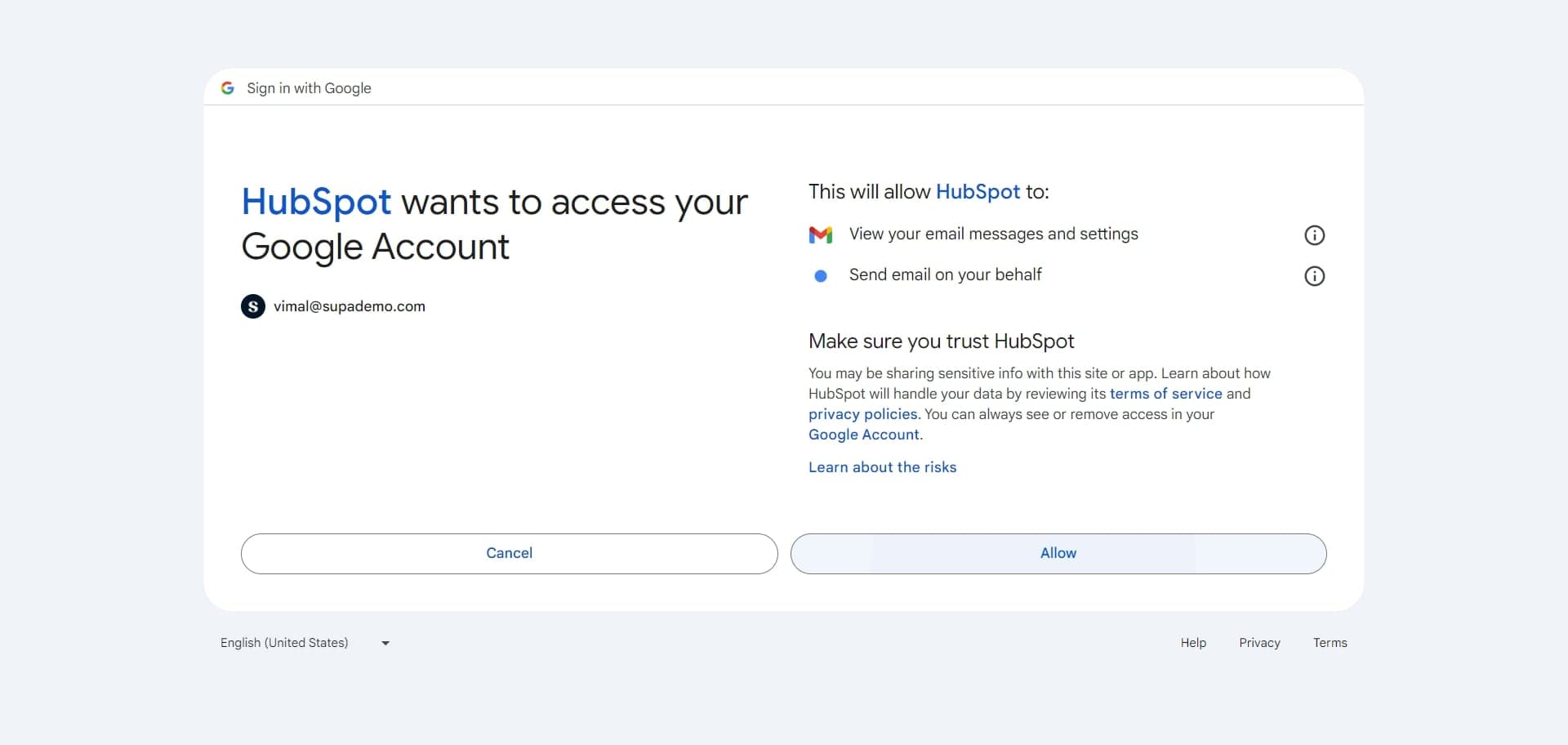
- 12
Finalize permission settings
Click on the element to complete the permission configuration. This ensures that HubSpot has full access to manage your email integration.
- 13
Upload and complete setup
Click 'Upload' to finalize the Gmail connection and begin syncing your emails with HubSpot. Your inbox is now integrated and ready to use within the platform.
Frequently asked questions
Common questions about how to connect hubspot to gmail.
No, connecting Gmail to HubSpot will not delete or modify your existing emails. The integration simply syncs your emails with HubSpot going forward, allowing you to track and manage communications within the CRM. Your Gmail inbox remains unchanged and fully functional.
Yes, HubSpot allows you to connect multiple personal email accounts depending on your subscription level and account permissions. You can repeat this process for each Gmail account you want to integrate with your HubSpot workspace.
HubSpot requires permissions to read your emails, manage labels and folders, and sync message metadata to your CRM. These permissions enable features like email tracking, logging, and automated workflows. HubSpot does not have access to your Gmail password and uses secure OAuth authentication.
Email syncing typically begins immediately after you complete the connection process. However, it may take a few minutes for historical emails to appear in HubSpot, depending on your inbox size. New incoming emails will be synced in real-time.
Yes, you can disconnect your Gmail account from HubSpot at any time through the email settings in your HubSpot account. Simply navigate to your email integration settings and select the option to disconnect or remove the connection. Your emails in Gmail will not be affected.