How to contacts to a list in HubSpot

Adding contacts to lists in HubSpot is a fundamental workflow for organizing and segmenting your audience. This tutorial walks you through the process of selecting a contact and assigning them to a static list for targeted campaigns and management.
Quick summary
In this tutorial, you'll learn how to navigate to a contact record, access the list management options, and add that contact to a static list in HubSpot. By the end, you'll be able to efficiently organize your contacts into meaningful segments for better campaign execution and reporting.
Why this matters
Organizing contacts into lists enables you to run targeted email campaigns, segment your audience by characteristics or behavior, and maintain better data hygiene. This practice is essential for personalizing your outreach and measuring the performance of specific contact groups within your HubSpot account.
Step-by-step guide
- 1
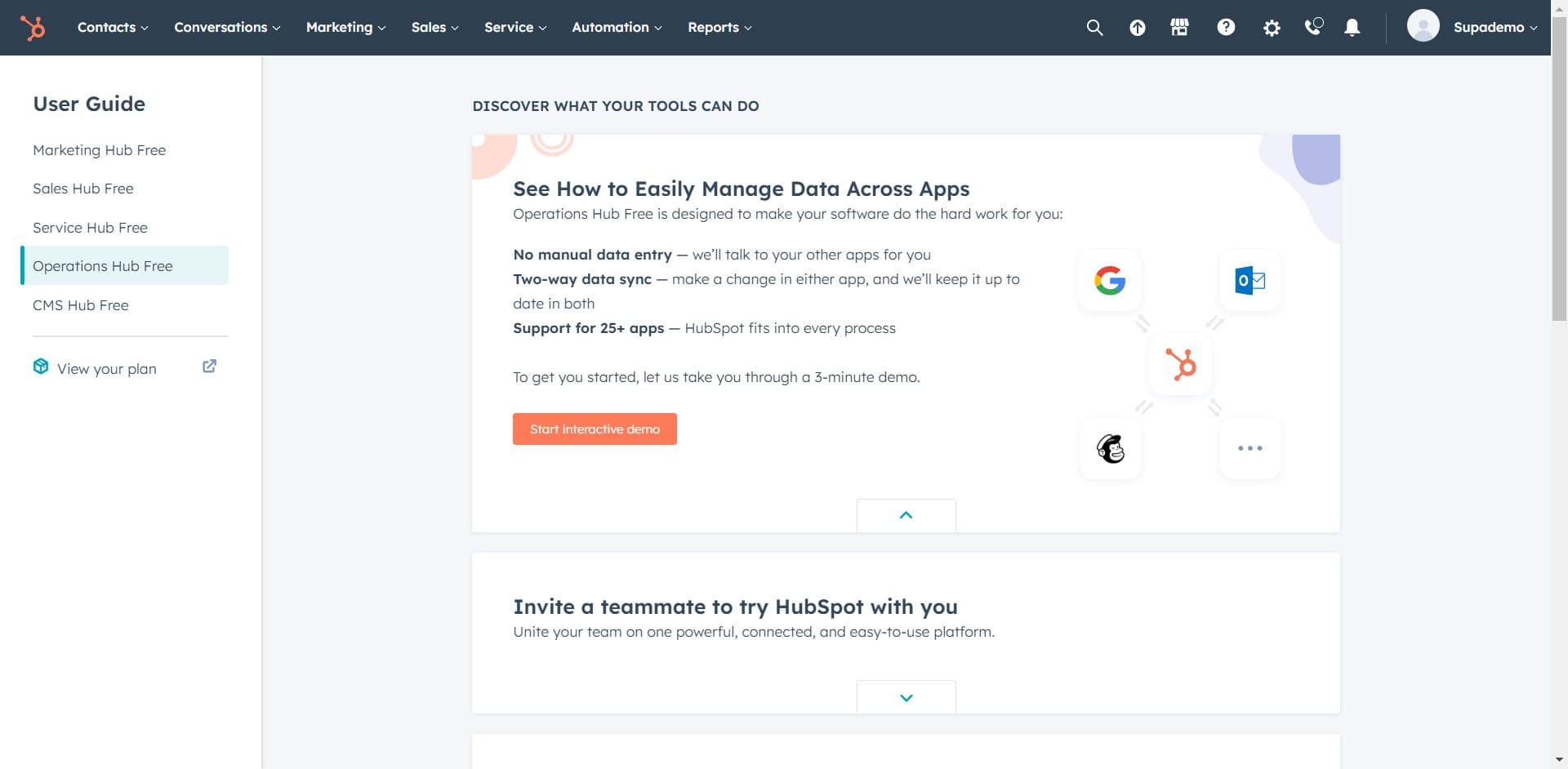
Access the main navigation menu
Click on the "DISCOVER WHAT Y..." menu option to open HubSpot's primary navigation. This expands the main menu where you can access different tools and sections of your account.
- 2
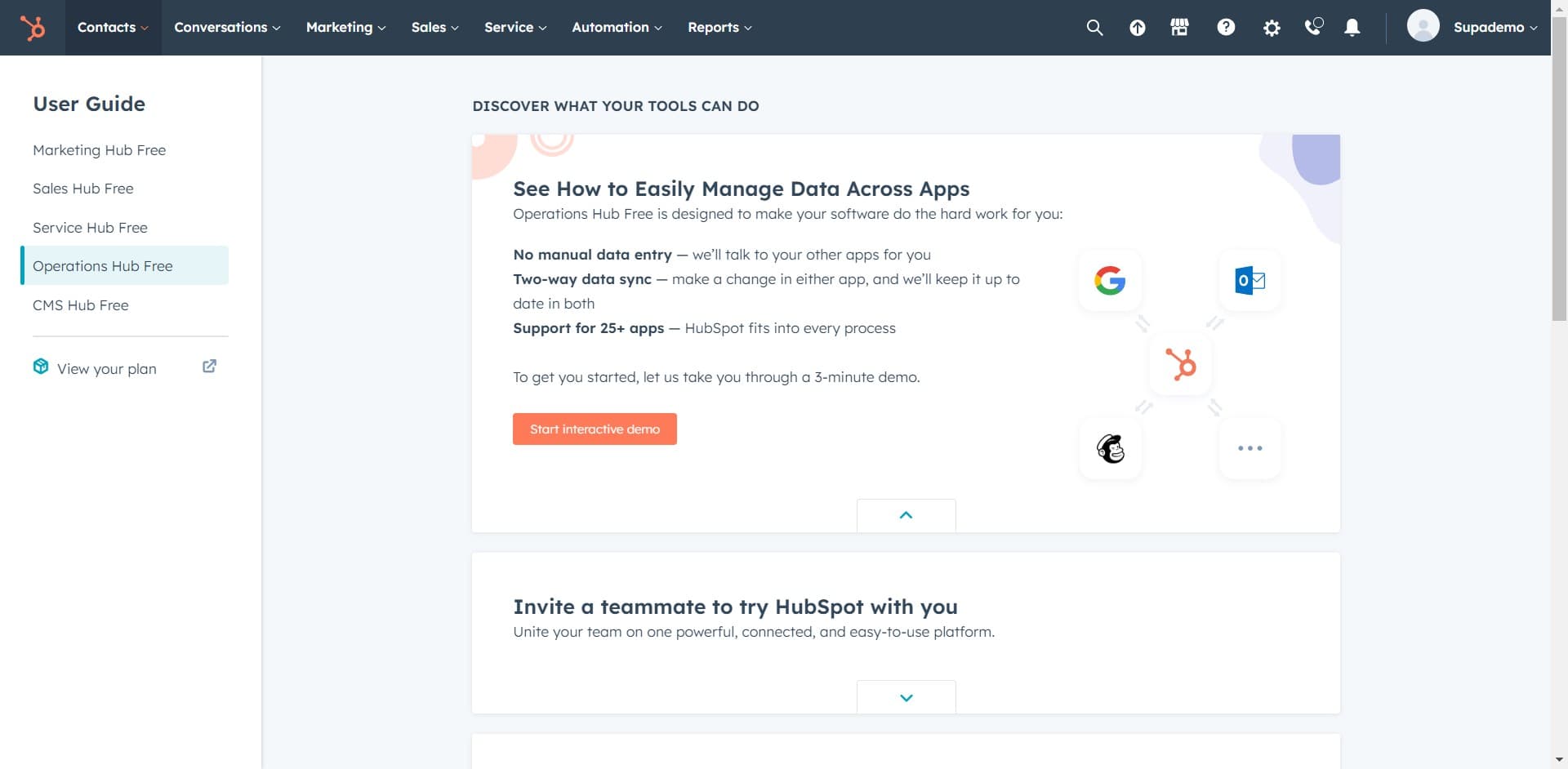
Navigate to Contacts section
Click on "Contacts" from the navigation menu. This takes you to the contacts management area where you can view and manage all contacts in your HubSpot account.
- 3
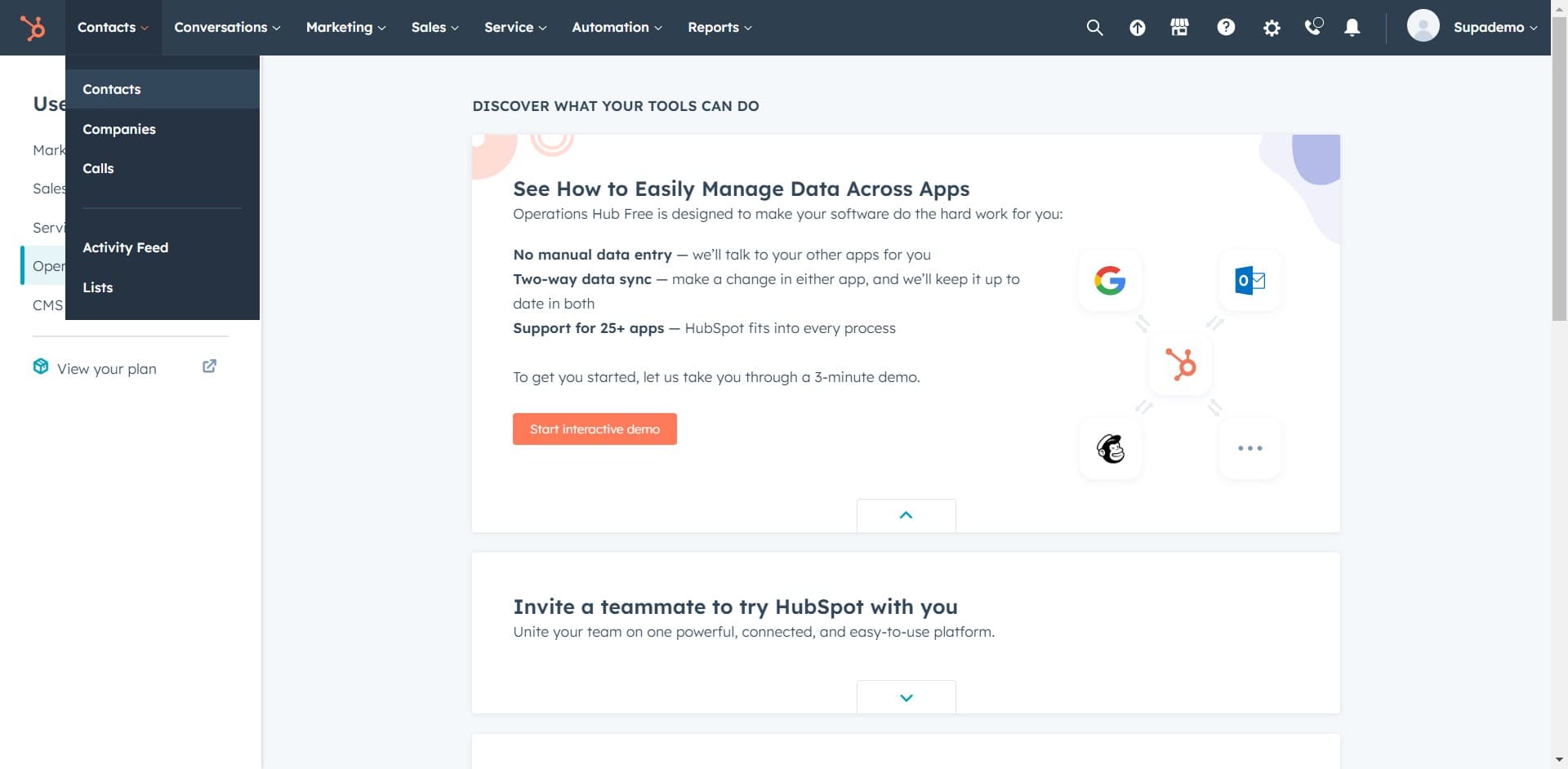
Select Contacts again
Click on "Contacts" once more to ensure you're viewing the full contacts list or dashboard. This confirms you're in the correct section to search for and select individual contacts.
- 4
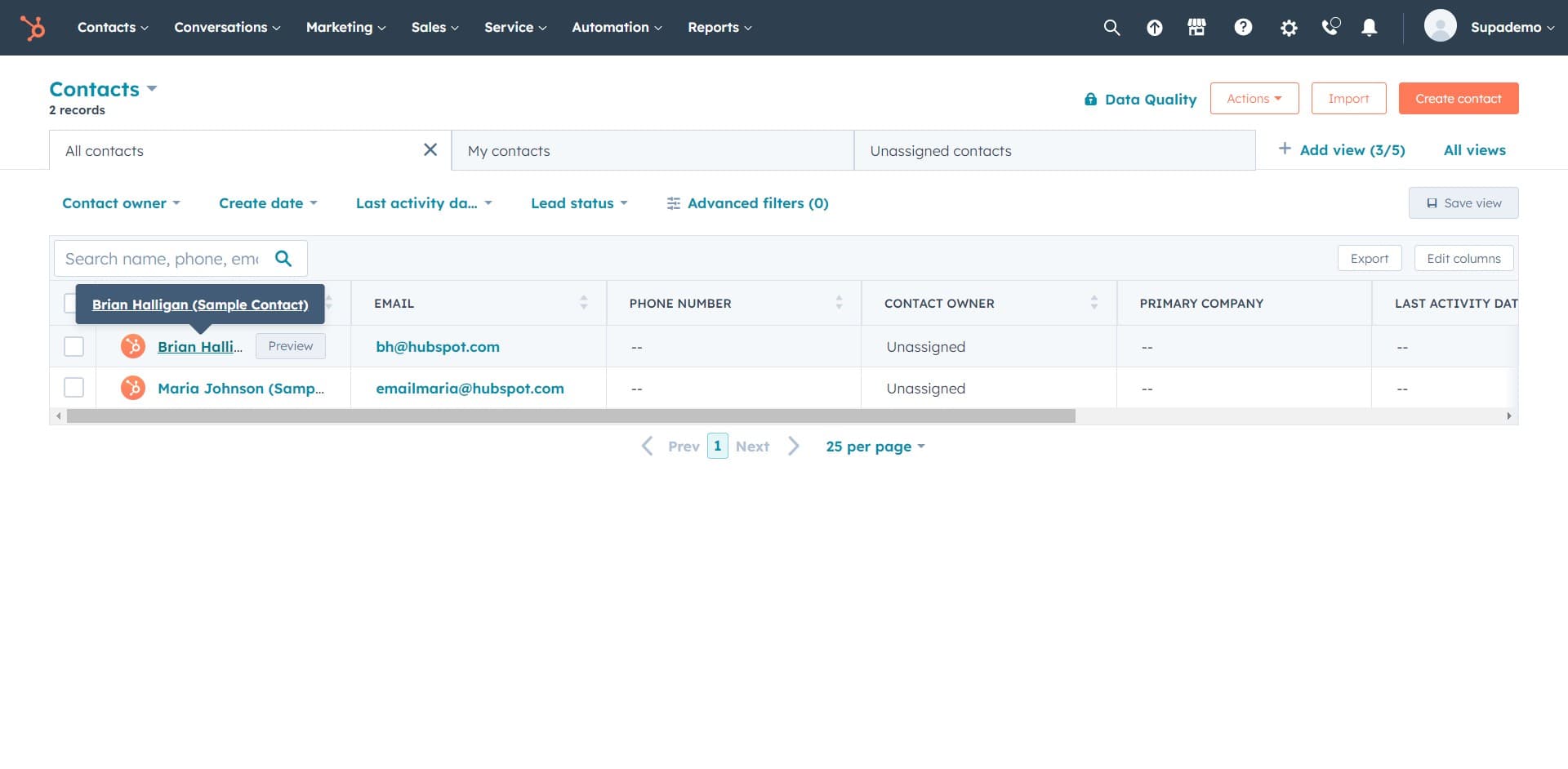
Open the target contact
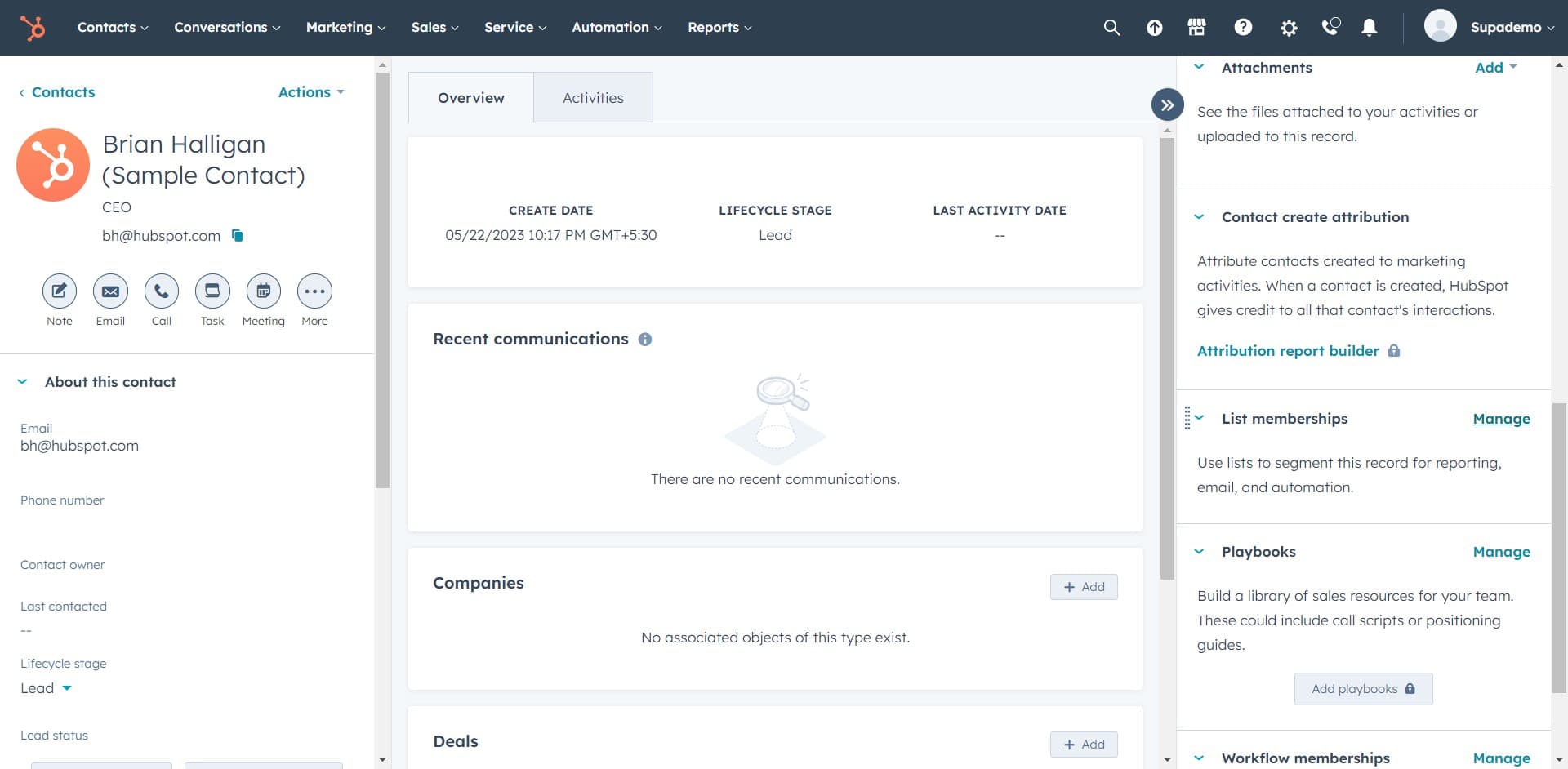
Click on "Brian Halligan (Sample Contact)" to open the contact's detailed profile. This displays all information and options associated with that specific contact record.
- 5
Access contact management options
Click on "Manage" to reveal additional actions available for this contact. This button opens a menu of operations you can perform on the contact, including list management.
- 6
Upload contact information
Click on "Upload" if you need to import or update contact data. This option allows you to bulk upload or modify contact details as needed.
- 7
Initiate adding to list
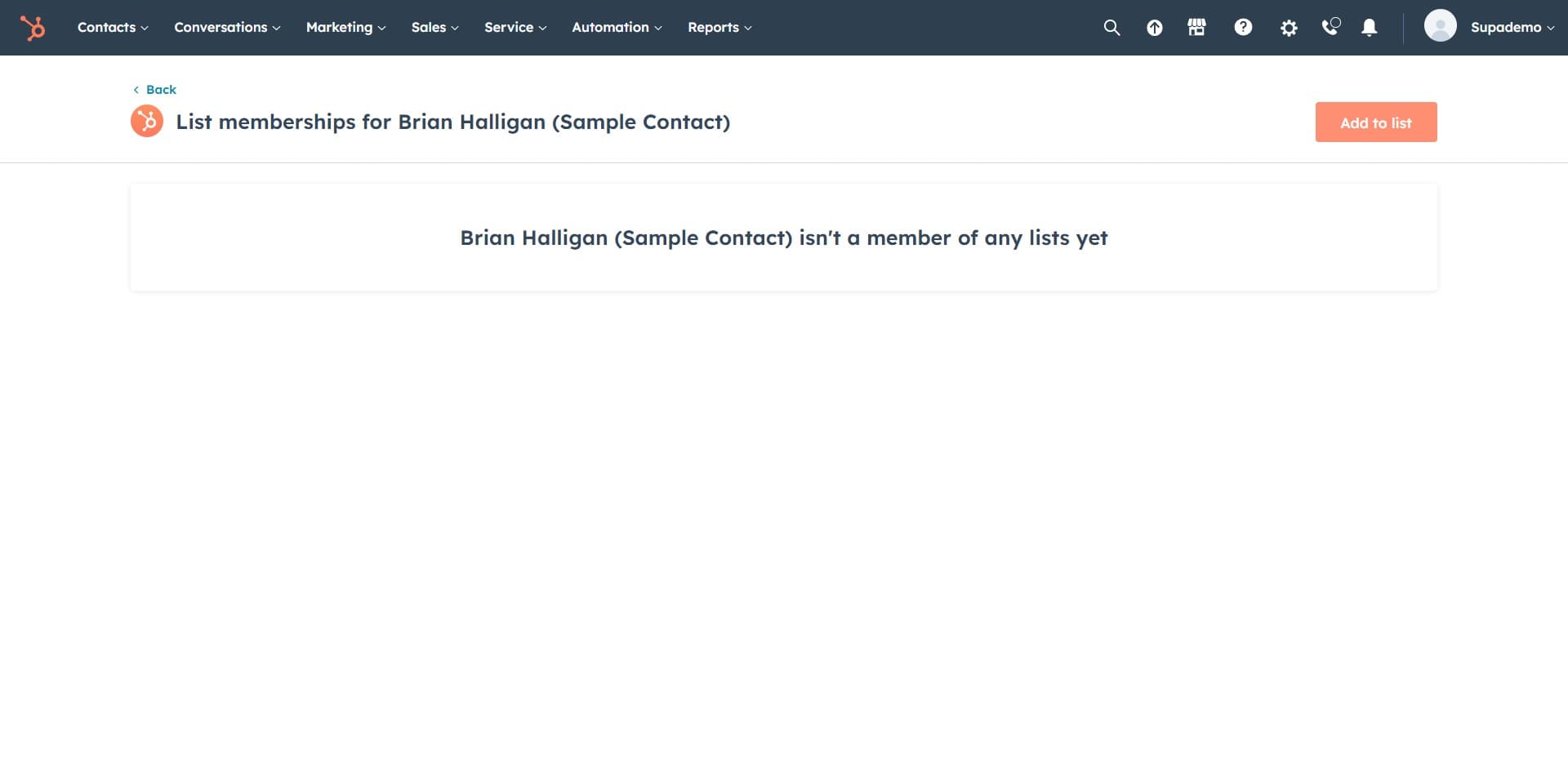
Click on "Add to list" to begin the process of assigning this contact to one or more lists. This opens the list selection interface.
- 8
Search for a static list
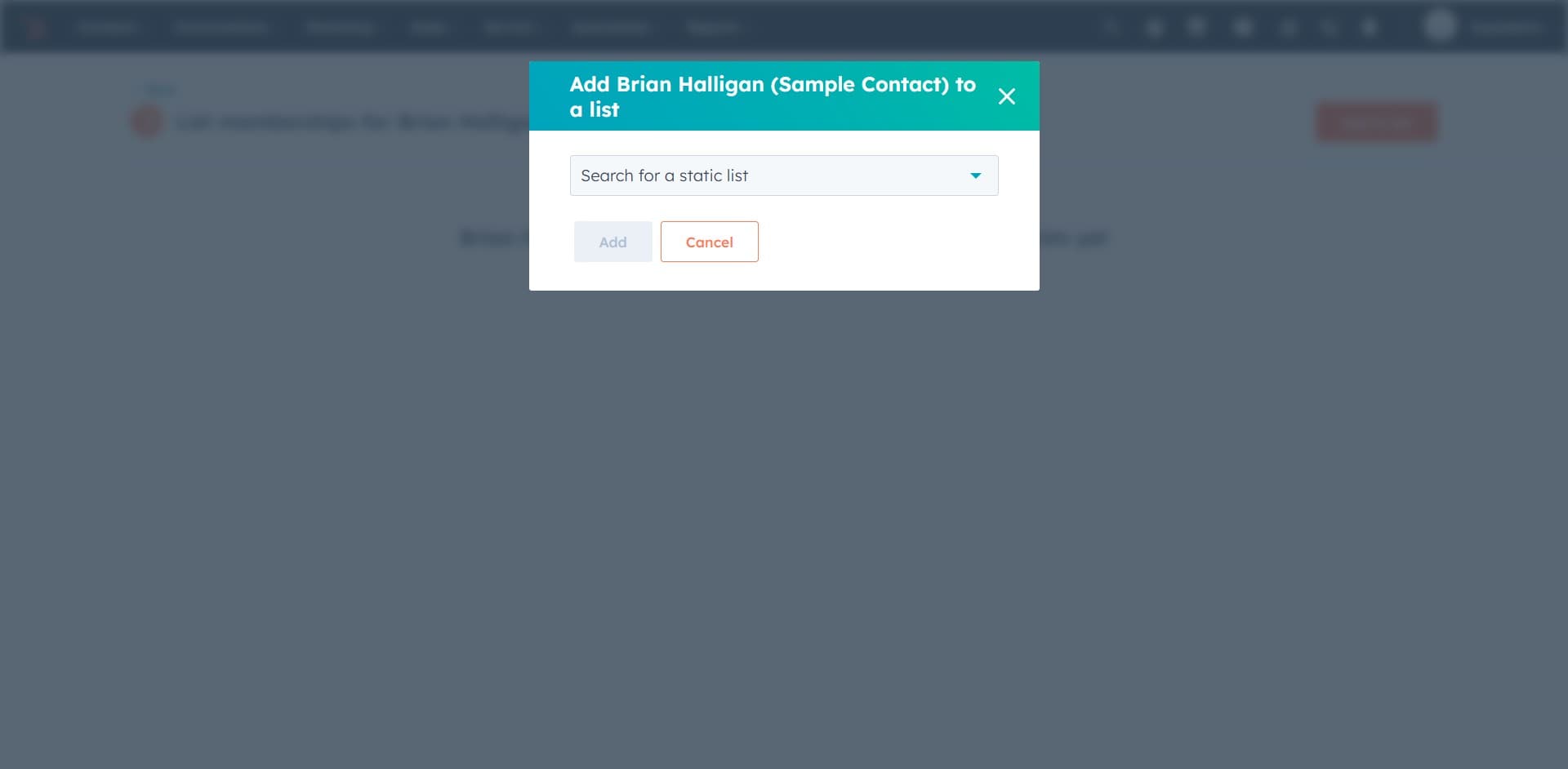
Click on "Search for a static list" to display the search field. This allows you to find the specific list you want to add the contact to.
- 9
Enter list search criteria
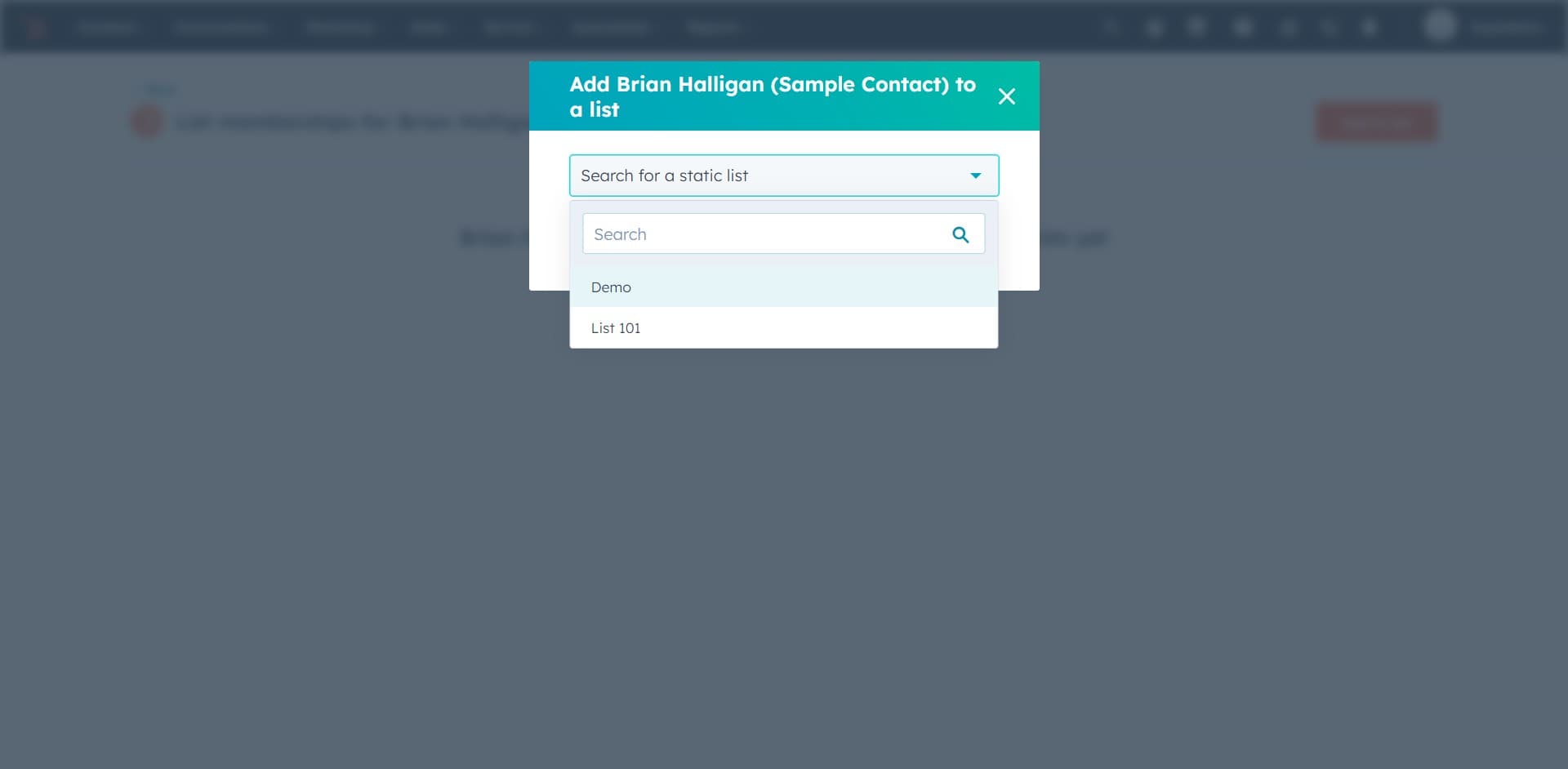
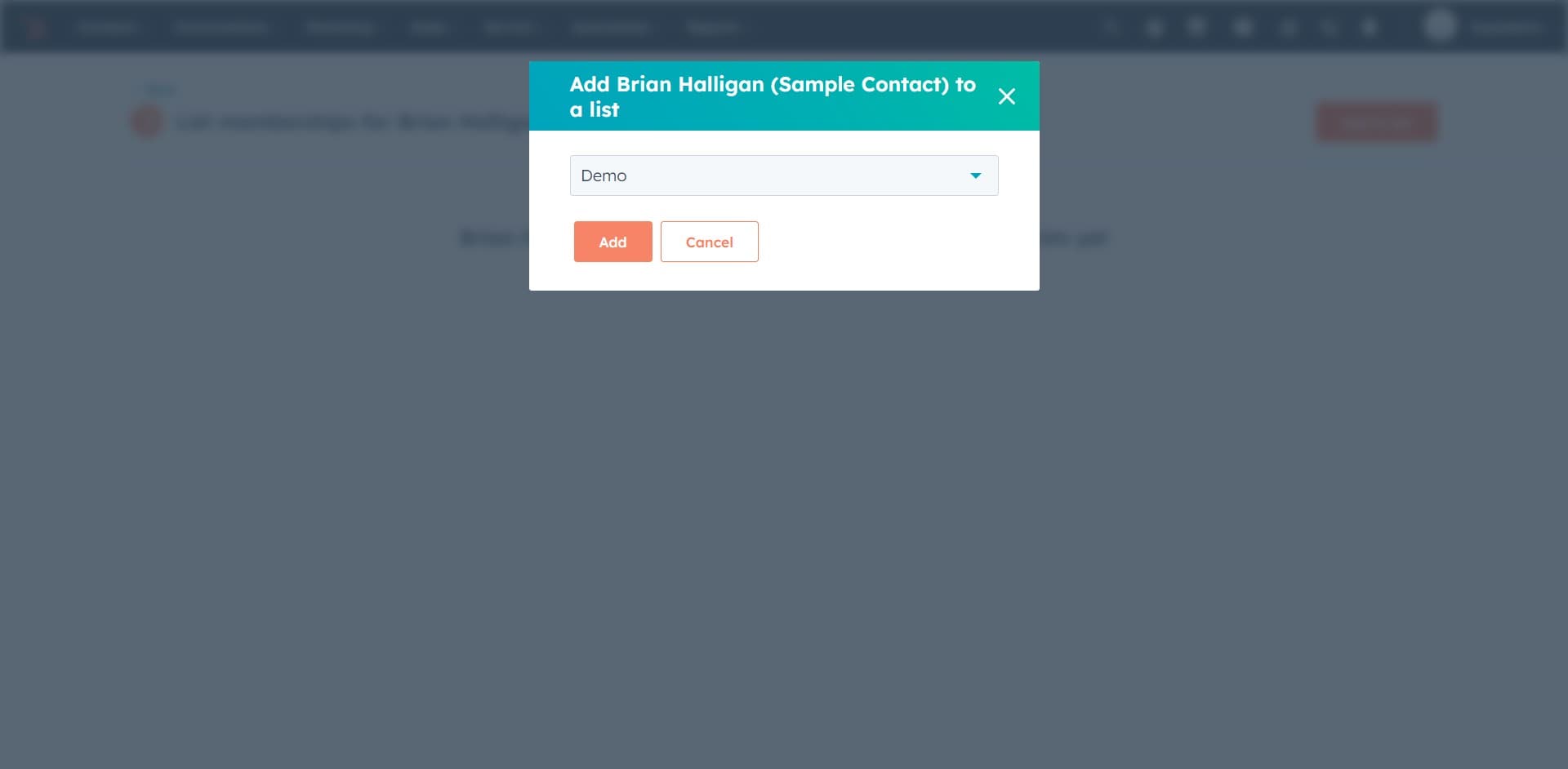
Click on the search field again and type or select the list name you wish to add the contact to. HubSpot will display matching lists based on your search.
- 10
Confirm adding the contact
Click on "Add" to finalize adding the contact to the selected list. The contact will now be associated with that list and included in any list-based actions or campaigns.
- 11
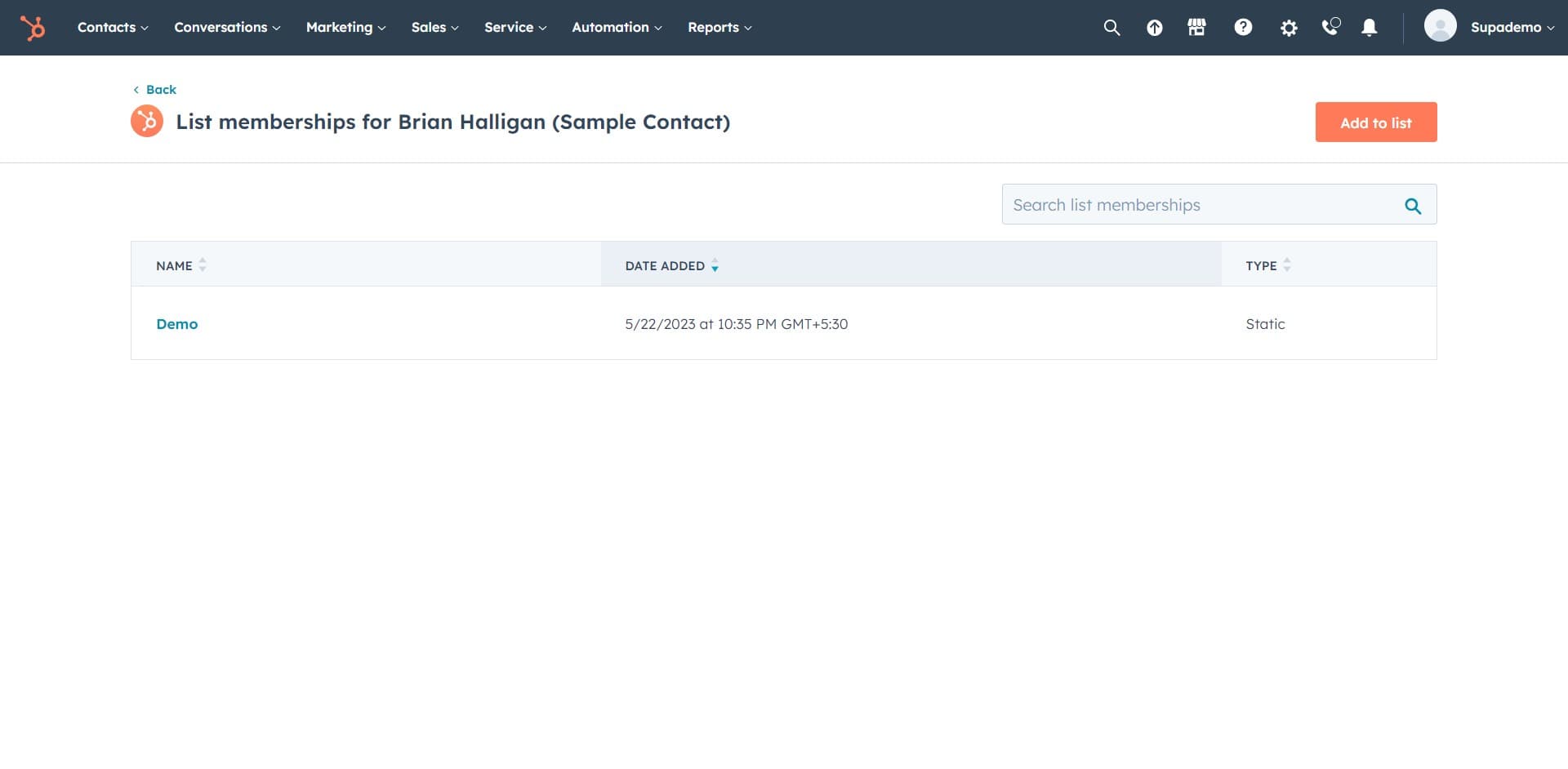
Review list assignment
Click on "NAME DATE ADD..." to view or verify the details of the list assignment, including the date the contact was added. This confirms the action was completed successfully.
Frequently asked questions
Common questions about how to contacts to a list in hubspot.
Static lists contain contacts that you manually add or import, and they remain in the list until you remove them. Dynamic lists automatically add or remove contacts based on criteria you define, such as contact properties or behaviors. Choose static lists when you want full control over membership and dynamic lists when you want automatic updates based on changing conditions.
Yes, you can add a contact to multiple lists. After adding a contact to one list, you can repeat the process to add them to additional lists. This is useful for organizing contacts by different segments, such as industry, location, or engagement level.
HubSpot will recognize that the contact is already a member of that list and typically won't create a duplicate entry. The system maintains the original list membership date and status. Adding them again won't change their list assignment.
Open the contact's profile, click on the list management options, and select the option to remove the contact from the desired list. The contact will be immediately removed from that list but will remain in your HubSpot account with all other data intact.
Yes, lists are the primary way to segment contacts for targeted email campaigns in HubSpot. When creating a campaign, you can select one or more lists as your recipient audience, allowing you to send personalized messages to specific contact groups based on their list membership.