How to Create a Sequence in HubSpot

HubSpot sequences are automated email workflows that nurture leads and guide prospects through your sales process. This guide walks you through creating a sequence from scratch, specifically using the Event Follow-Up template to automatically engage contacts based on triggered actions.
Quick summary
In this tutorial, you'll learn how to navigate HubSpot's automation features and set up your first sequence using the Event Follow-Up template. By the end, you'll have a working automated workflow ready to deploy to your contacts.
Why this matters
Sequences save your sales team time by automating repetitive follow-ups and ensuring no lead falls through the cracks. They increase consistency in your outreach and improve response rates by delivering timely, targeted messages at scale.
Step-by-step guide
- 1
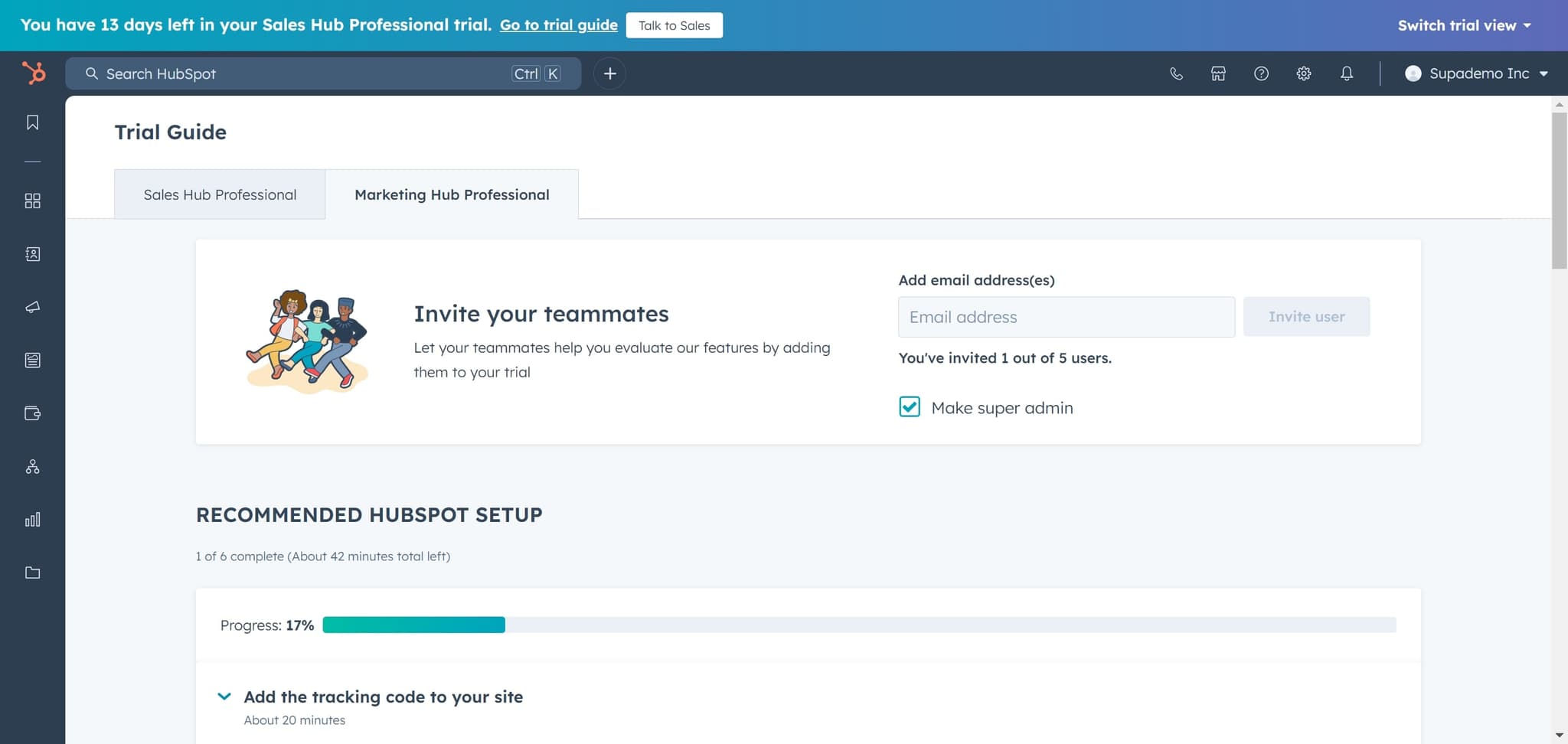
Access the Trial Guide
Click on 'Trial Guide' from your HubSpot account navigation. This section provides guided access to HubSpot's key features and onboarding resources.
- 2
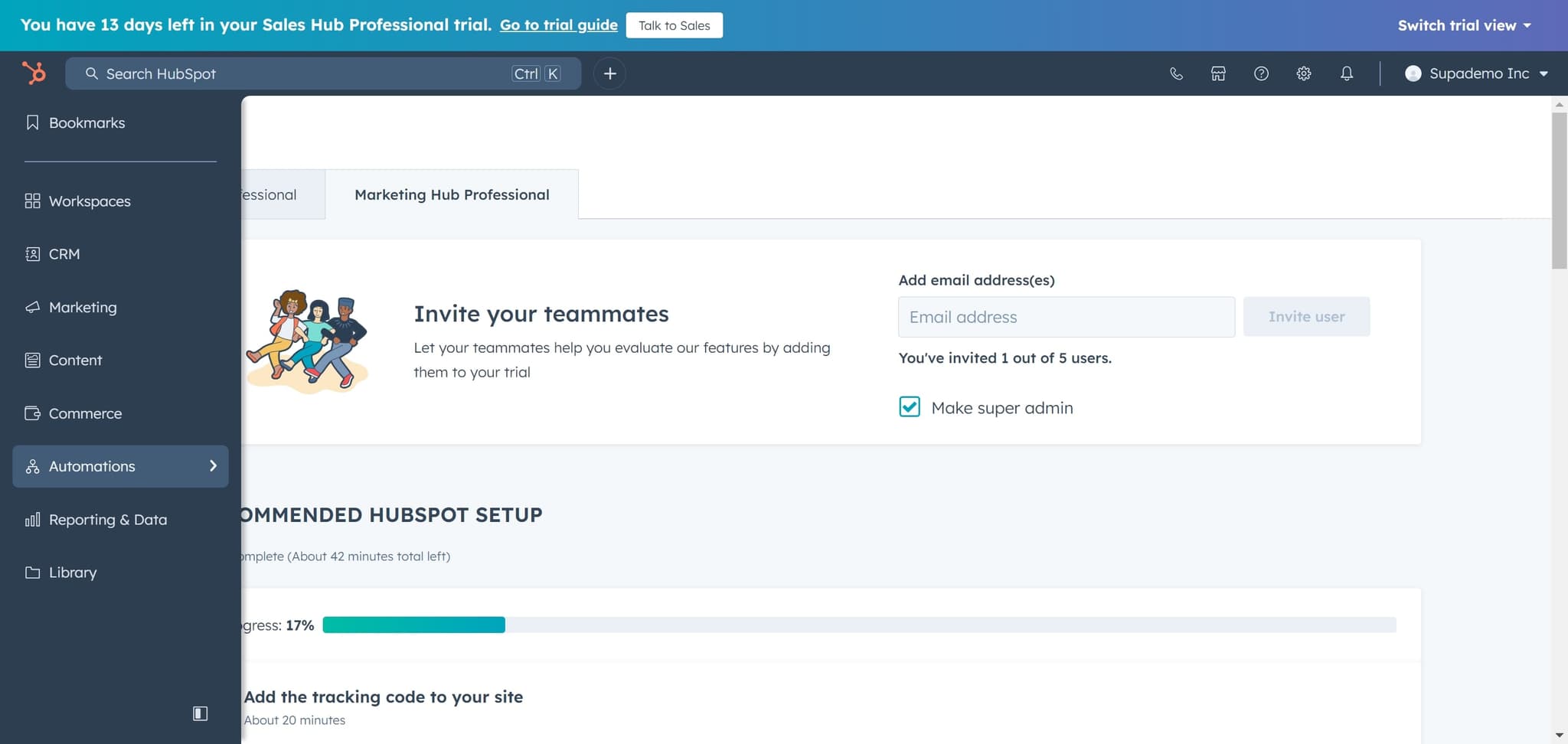
Navigate to Automations
Click on 'Automations' in the menu. This is where all of HubSpot's automation features, including sequences, workflows, and marketing automation tools, are located.
- 3
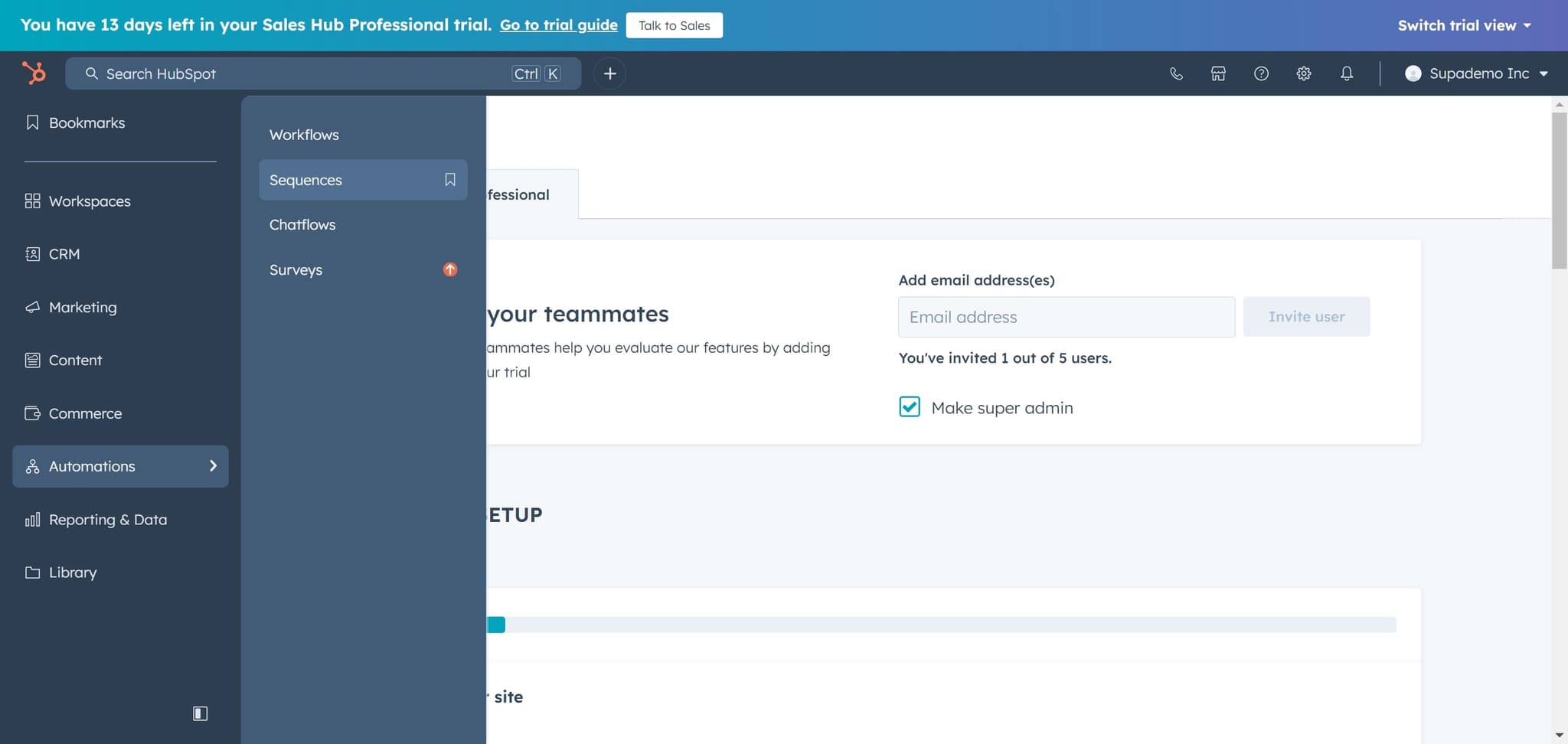
Select Sequences
Click on 'Sequences' to access the sequences management page. Here you'll see all existing sequences and the option to create new ones.
- 4
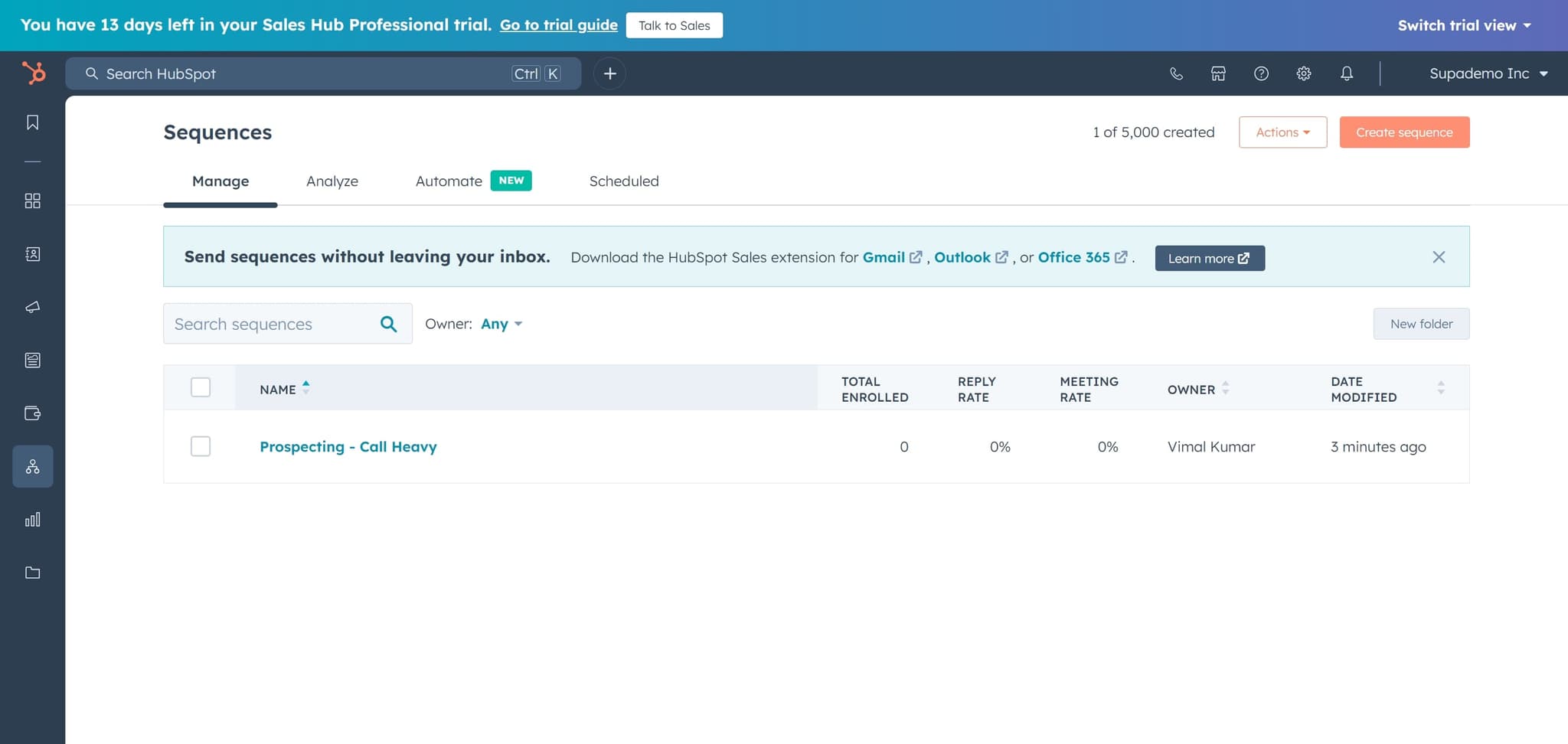
Initiate Sequence Creation
Click on 'Create sequence' to begin building your new automation. HubSpot will present you with template options to choose from.
- 5
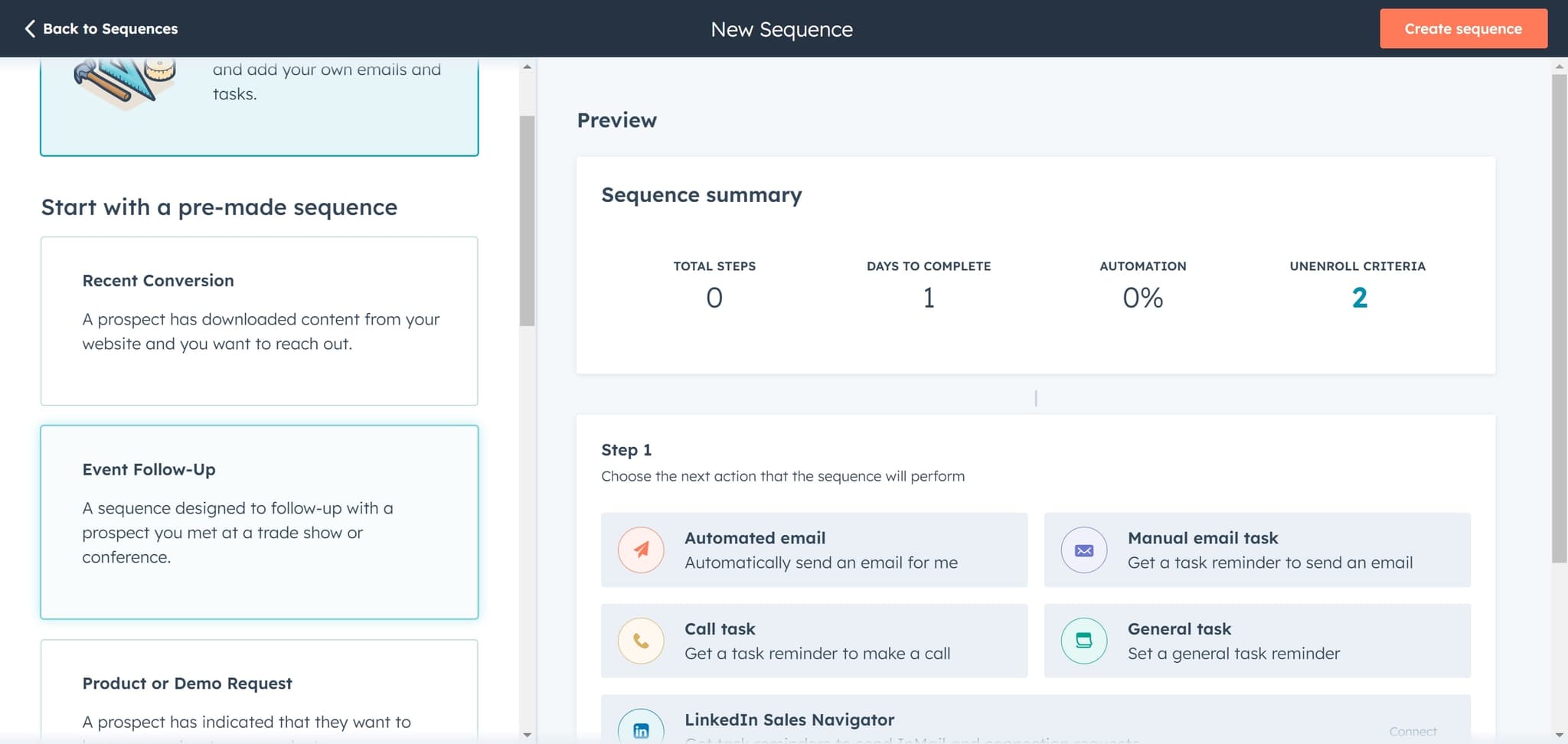
Choose Event Follow-Up Template
Click on 'Event Follow-Up' to select this pre-built template. This template is designed to automatically send emails after a specific event occurs, such as a contact visiting a page or registering for a webinar.
- 6
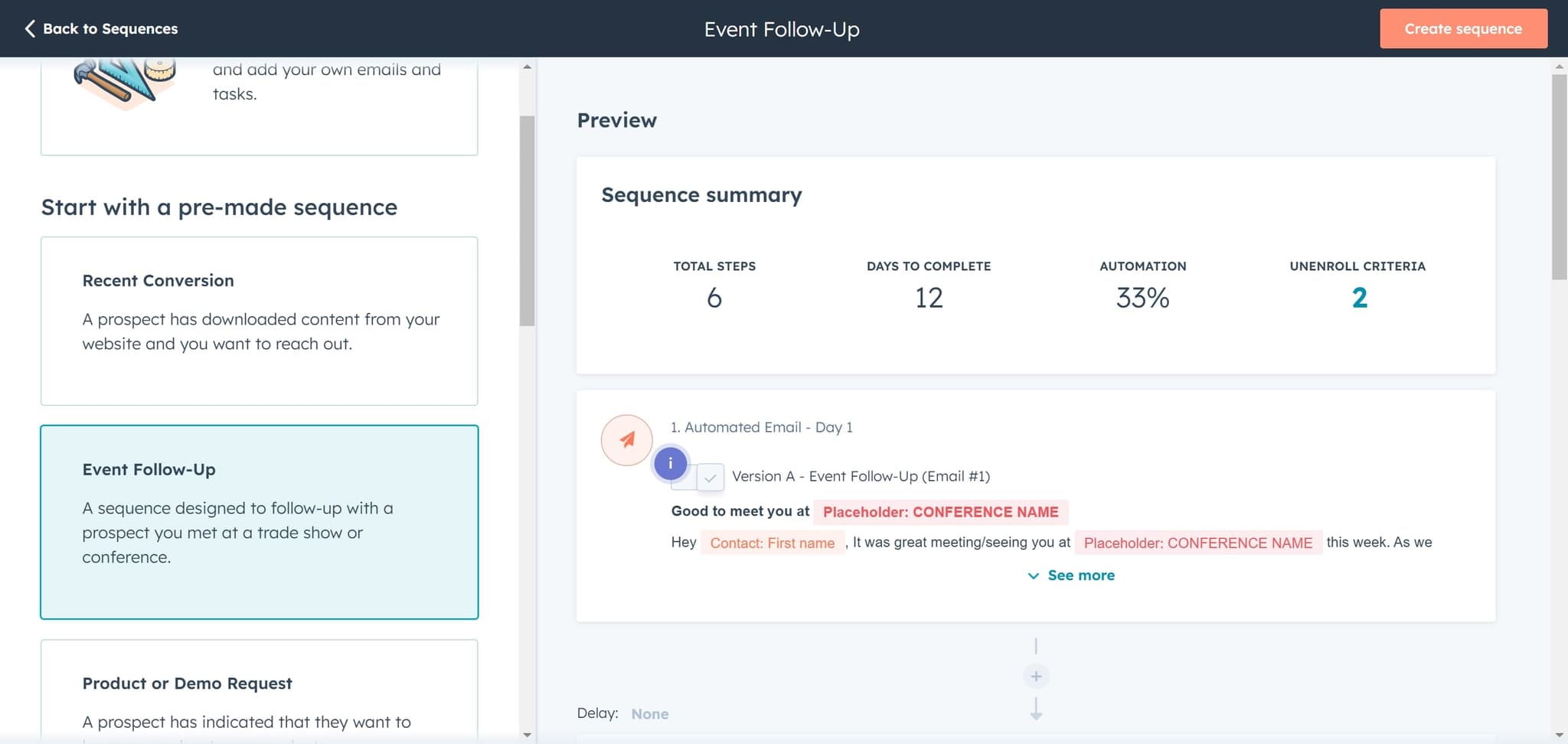
Confirm Sequence Creation
Click on 'Create sequence' again to finalize your selection. HubSpot will now open the sequence editor where you can customize the template to match your business needs.
- 7
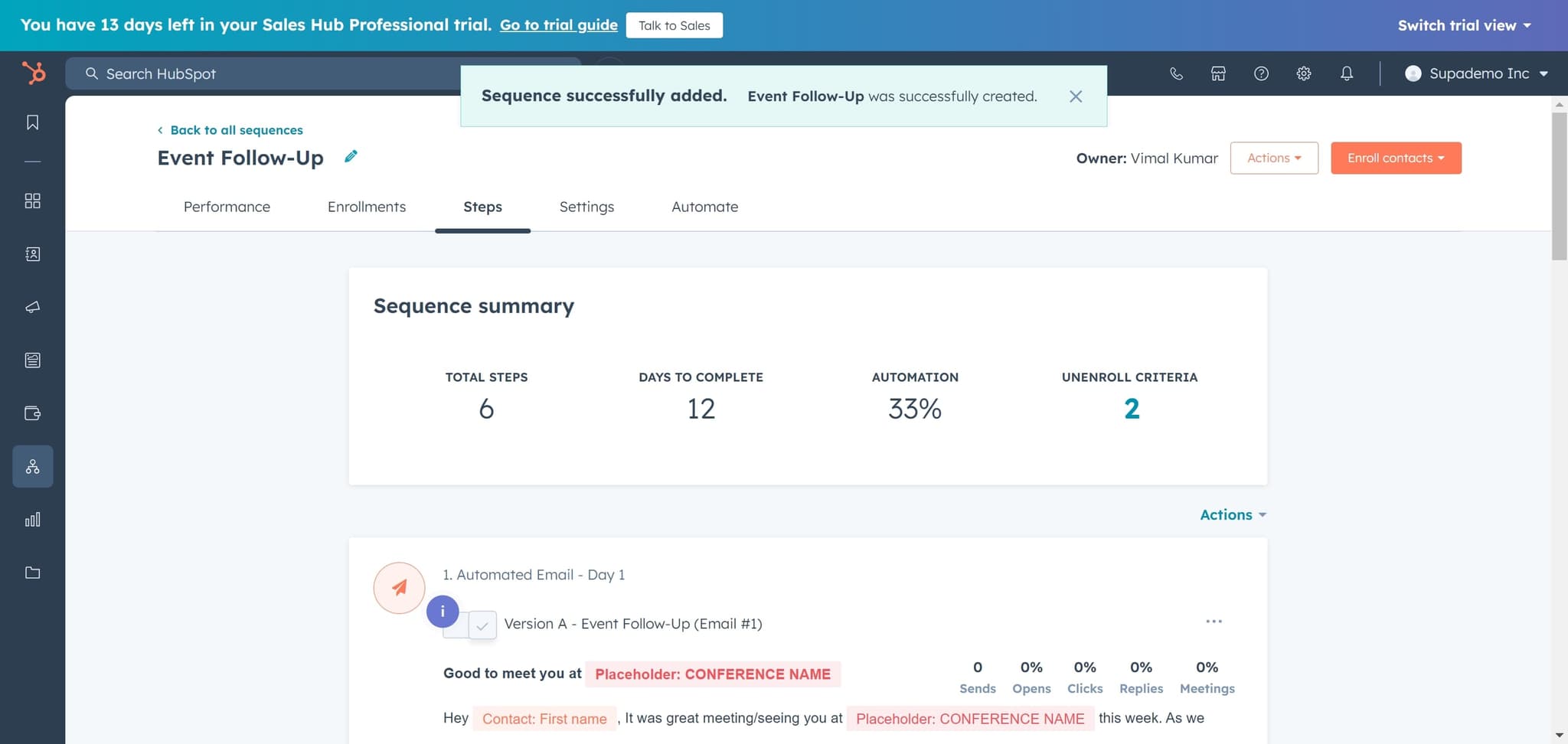
Select and Customize Element
Click on the element (email, delay, or condition block) you want to edit. You can now modify the content, timing, and logic of your sequence workflow.
Frequently asked questions
Common questions about how to create a sequence in hubspot.
Sequences are focused on one-to-one sales outreach with manual enrollment, while workflows are automated based on triggers and can handle bulk actions. Sequences are ideal for personal sales follow-ups, whereas workflows are better for marketing automation at scale.
Yes, you can edit sequences at any time. However, changes only apply to new enrollments, not contacts already in the sequence. You can also pause or stop a sequence if needed.
HubSpot sequences can include multiple steps with emails, delays, and conditions. There's no strict limit, but best practice is to keep sequences focused and avoid overly long chains that may reduce engagement.
Once a contact unsubscribes, they're automatically removed from the sequence and won't receive any further emails from it. This respects their communication preferences and complies with email regulations.
Yes, HubSpot provides email templates that you can customize or create your own from scratch. Templates help maintain brand consistency and save time when setting up multiple sequences.