How to Export Contacts from HubSpot

Exporting contacts from HubSpot is essential for data management, reporting, and integration with external systems. This guide walks you through the process of exporting your contacts in CSV format, enabling you to use your contact data across multiple platforms and tools.
Quick summary
In this tutorial, you'll learn how to navigate HubSpot's CRM interface, access your contacts list, and export them as a CSV file. You'll also discover how to organize your export by contact owner for more granular data management.
Why this matters
Exporting contacts is critical for maintaining data backups, conducting targeted analysis, and sharing contact information with team members or third-party applications. CSV exports provide a universal format that works with spreadsheet applications, email marketing platforms, and CRM migration tools, making this workflow fundamental to contact management.
Step-by-step guide
- 1
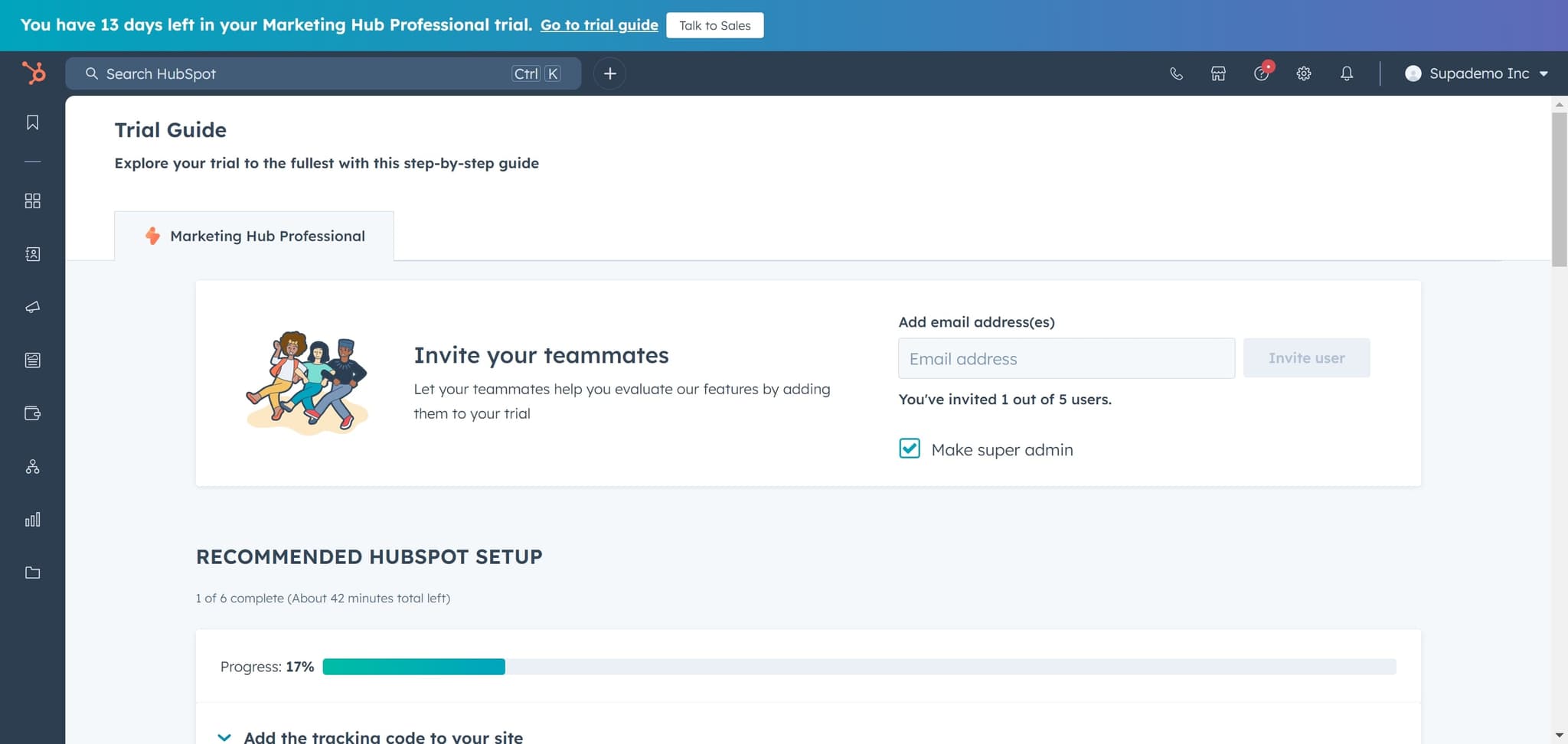
Open the Trial Guide
Begin by clicking on 'Trial Guide' to access the HubSpot navigation menu. This will open the main dashboard where you can access all core features.
- 2
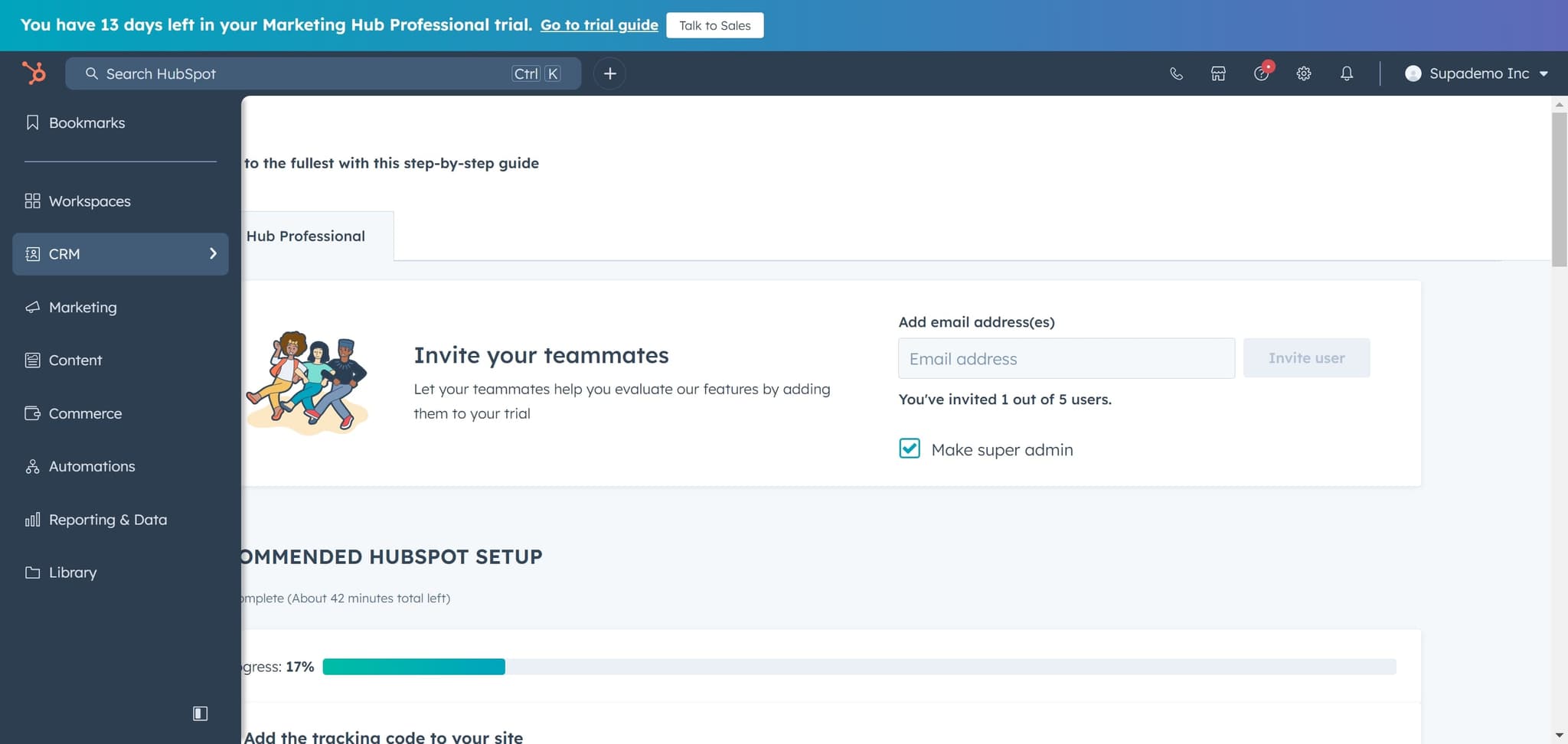
Navigate to CRM section
Click on 'CRM' to expand the customer relationship management tools. This section contains all contact, company, and deal management features.
- 3
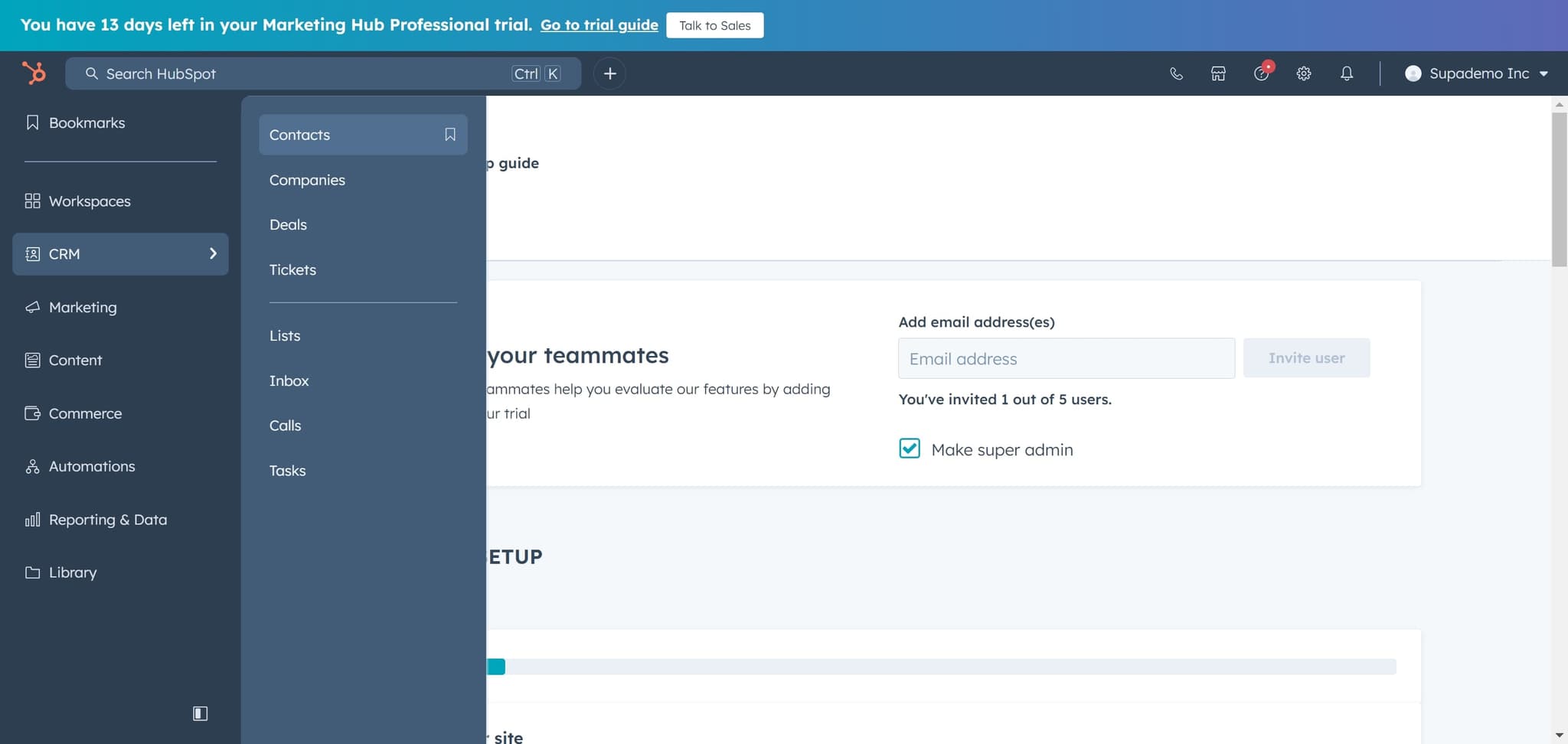
Select Contacts
Click on 'Contacts' to view your complete contact database. You'll see a list of all your stored contacts with various sorting and filtering options.
- 4
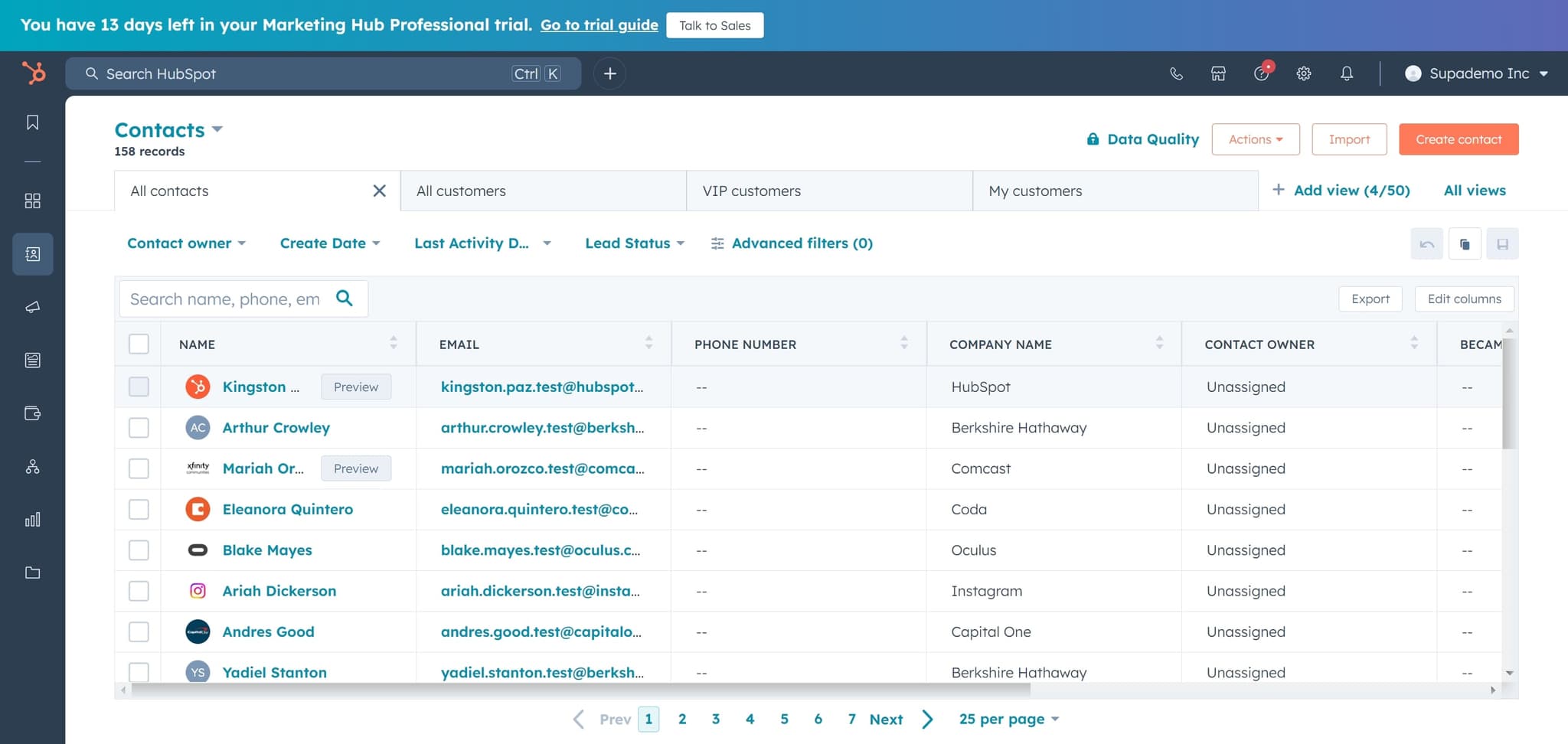
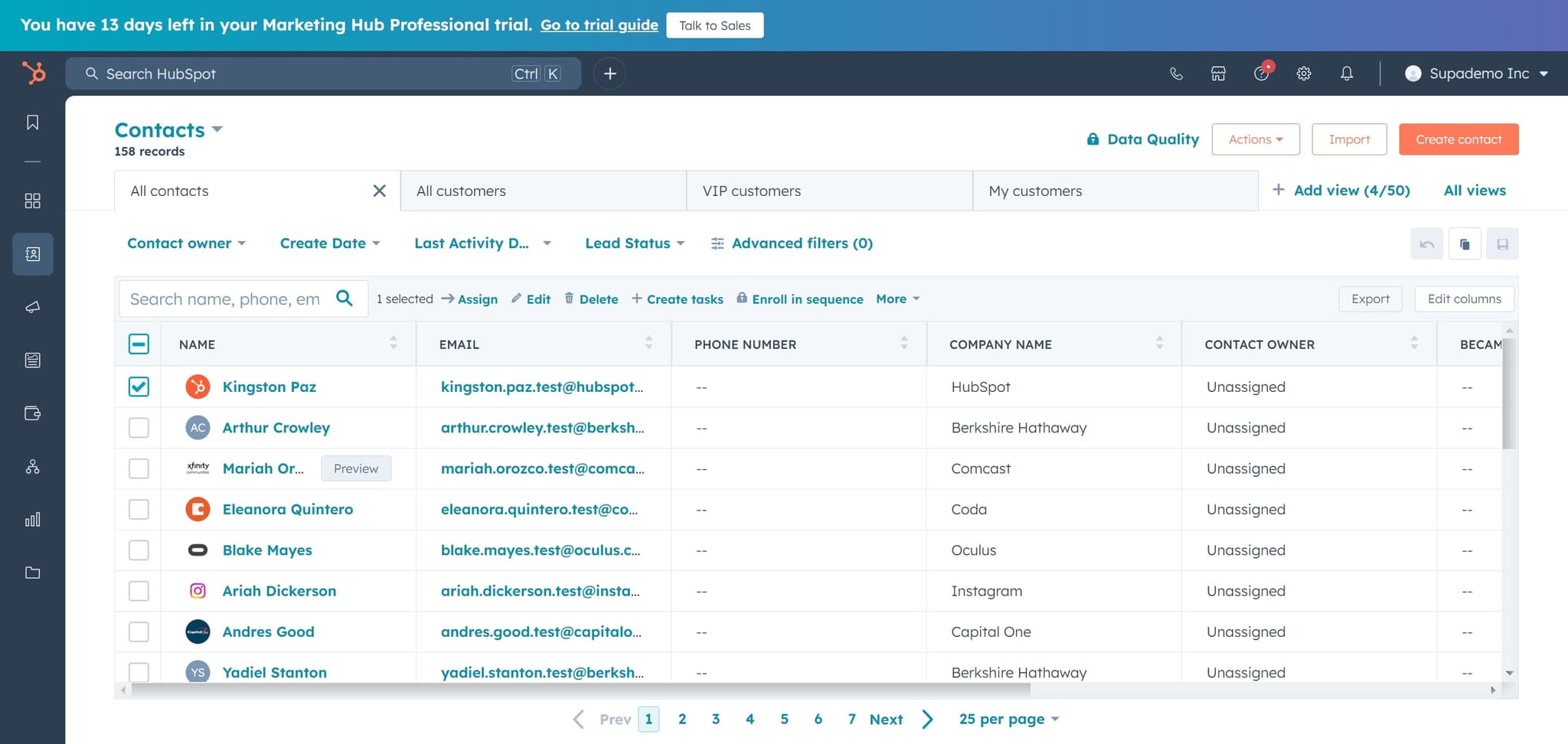
Access the export menu
Click on the designated menu option to open the export dialog. This button typically appears at the top of your contacts list and provides access to all export functionality.
- 5
Choose Export option
Click on 'Export' to initiate the export process. This will present you with format and configuration options for your contact export.
- 6
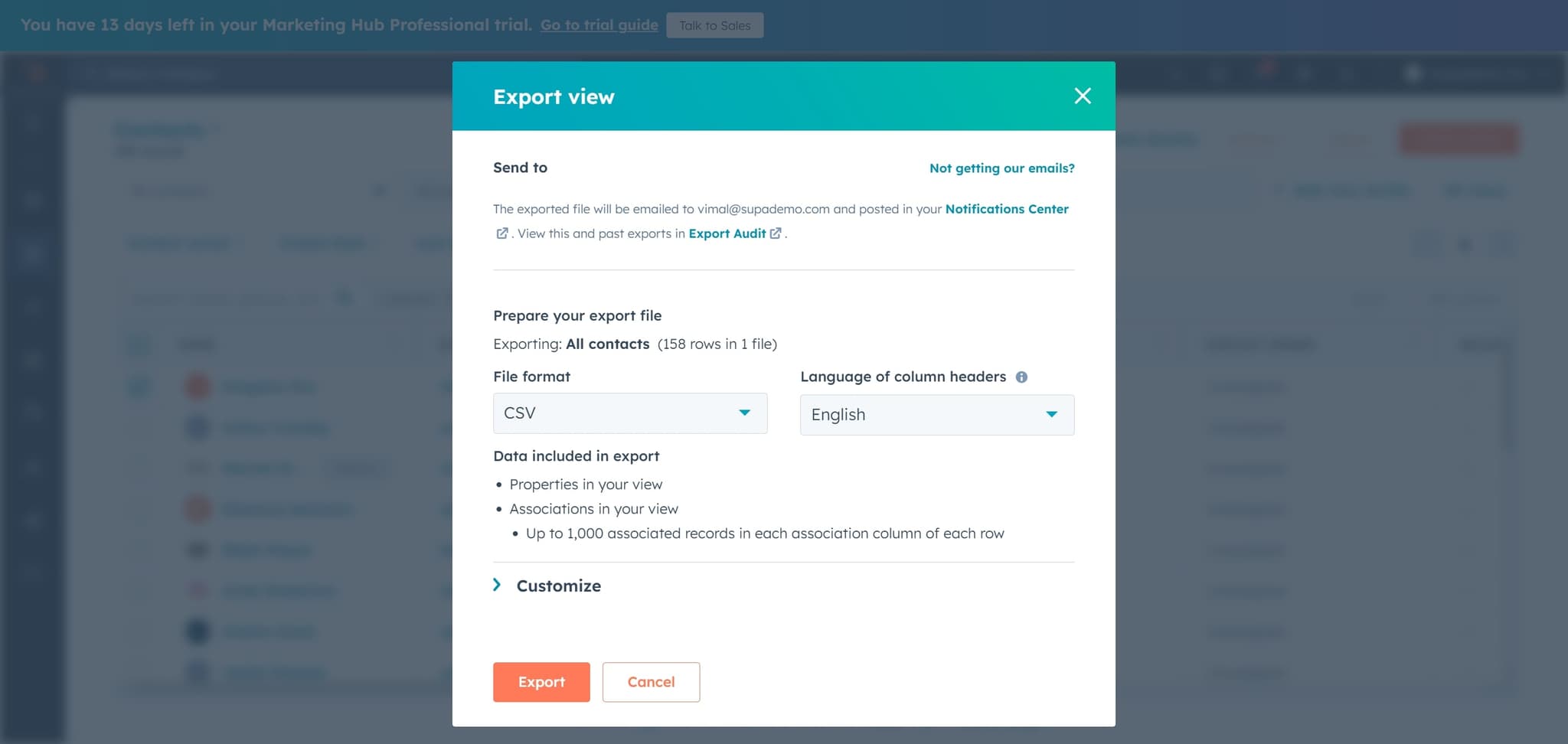
Select CSV format
Click on 'CSV' to choose the comma-separated values format for your export. CSV is the most universally compatible format for use in spreadsheets and other applications.
- 7
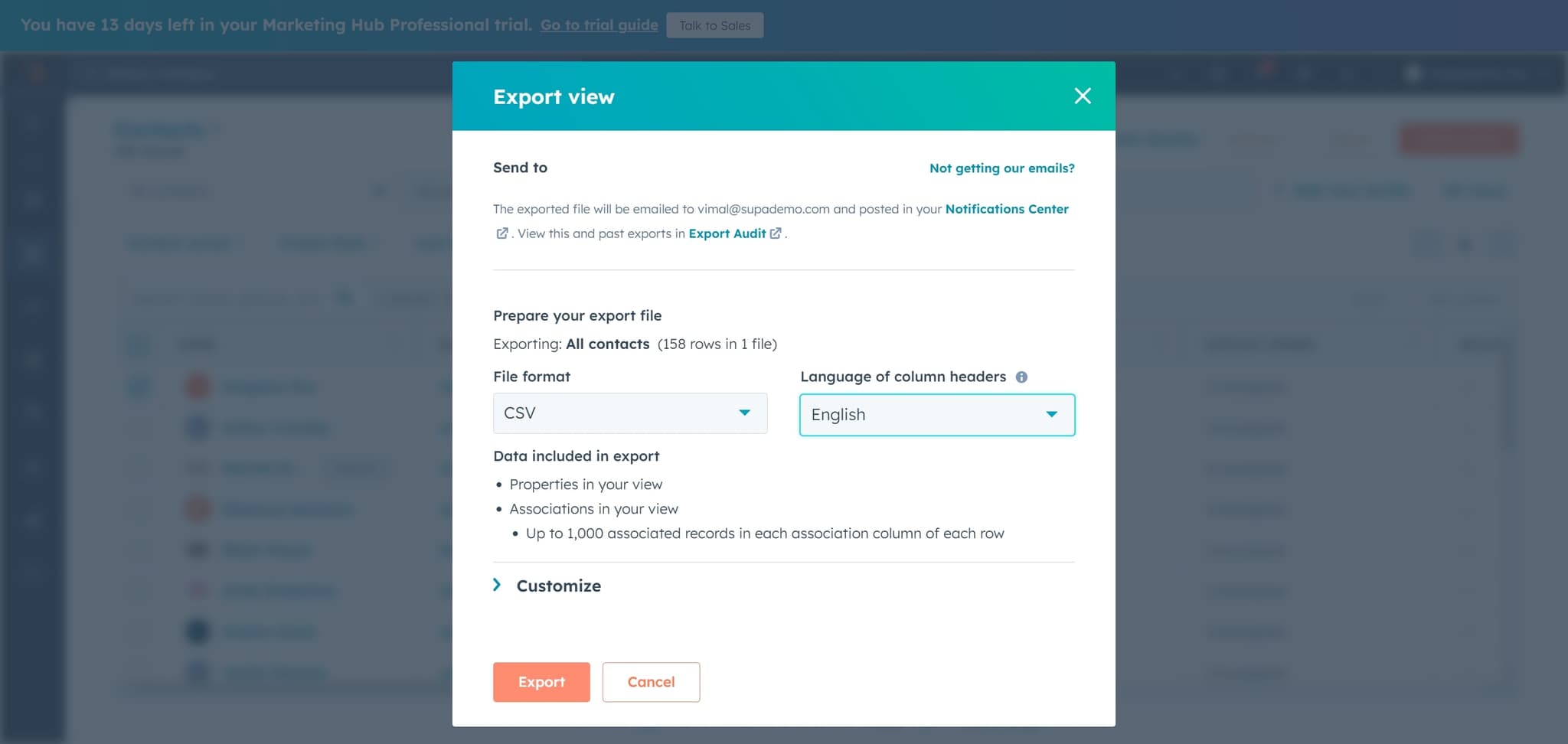
Confirm the export
Click on 'Export' to finalize and download your contacts as a CSV file. The file will be processed and made available for download immediately.
- 8
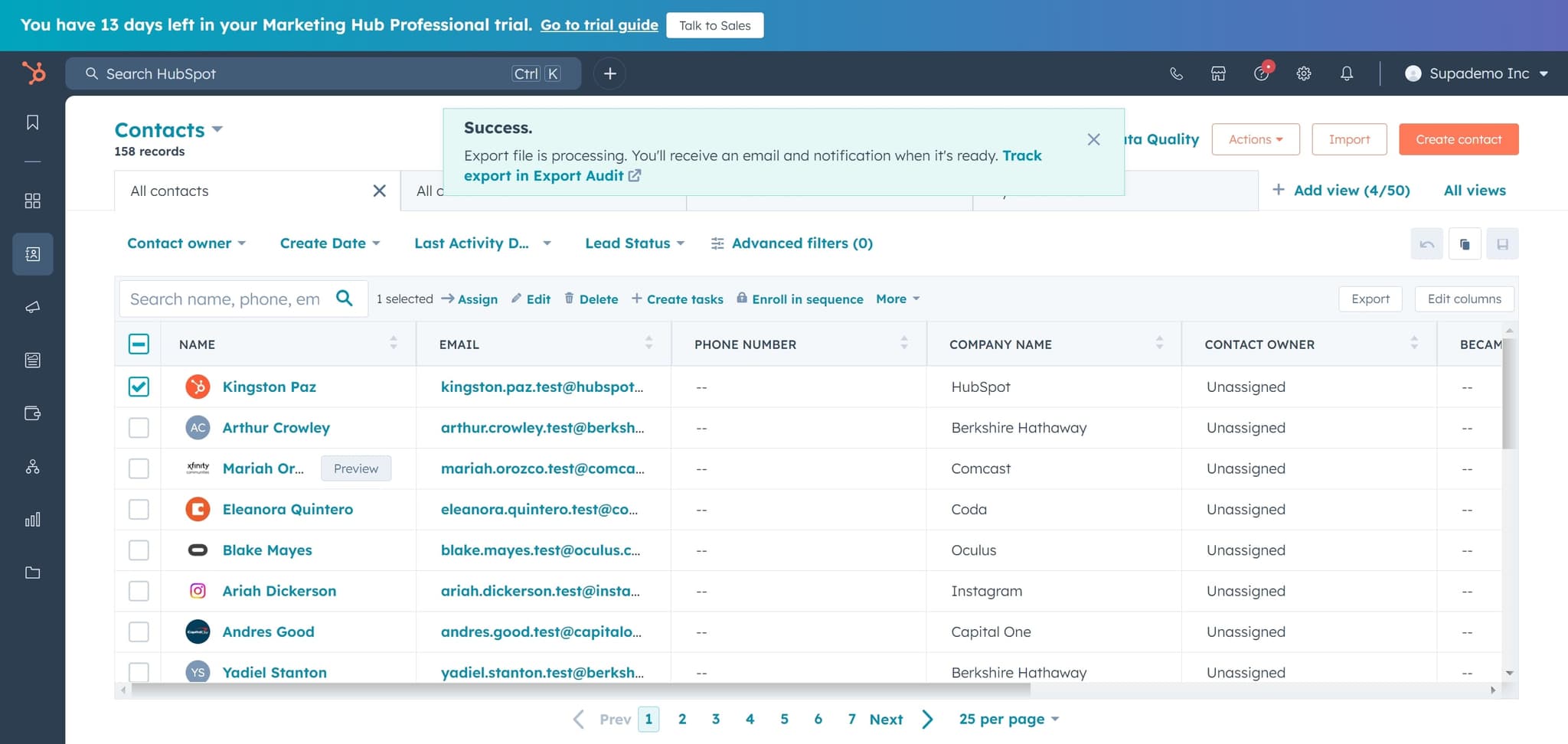
Filter by contact owner
Click on 'Contact owner' to organize or filter your exported data by the team member responsible for each contact. This allows for segmented exports if needed.
Frequently asked questions
Common questions about how to export contacts from hubspot.
HubSpot primarily supports CSV format for contact exports, which is compatible with Excel, Google Sheets, and most third-party applications. CSV is the standard format for data portability and ensures your contacts can be easily imported into other systems.
Yes, you can filter your contacts list before exporting to include only specific contacts based on criteria like contact owner, company, or custom properties. Apply your filters before initiating the export process, and only the filtered contacts will be included in your CSV file.
For most contact lists, the export completes within seconds to a few minutes depending on the total number of contacts. Very large contact databases with thousands of records may take longer, but HubSpot will provide a download link once processing is complete.
The CSV export includes all standard contact fields such as name, email, phone number, company, and any custom properties you've configured in HubSpot. You can typically customize which fields are included in the export before finalizing the download.
You can export your contacts as often as needed without any restrictions. This allows you to maintain regular backups and keep external systems synchronized with your current HubSpot contact data.