How to import contacts into Hubspot

Importing contacts into HubSpot is one of the most efficient ways to populate your CRM with customer data at scale. This guide walks you through the import process step-by-step, from initiating the import to mapping your data fields correctly.
Quick summary
In this tutorial, you'll learn how to import contacts into HubSpot using a file upload. You'll navigate through the import wizard, select your file, choose your import settings, and map your contact fields to ensure data accuracy.
Why this matters
Manually entering contacts one by one is time-consuming and prone to errors. Bulk importing contacts allows sales and marketing teams to quickly build their database, segment audiences, and launch campaigns without delays. This workflow is essential for scaling your outreach efforts efficiently.
Step-by-step guide
- 1
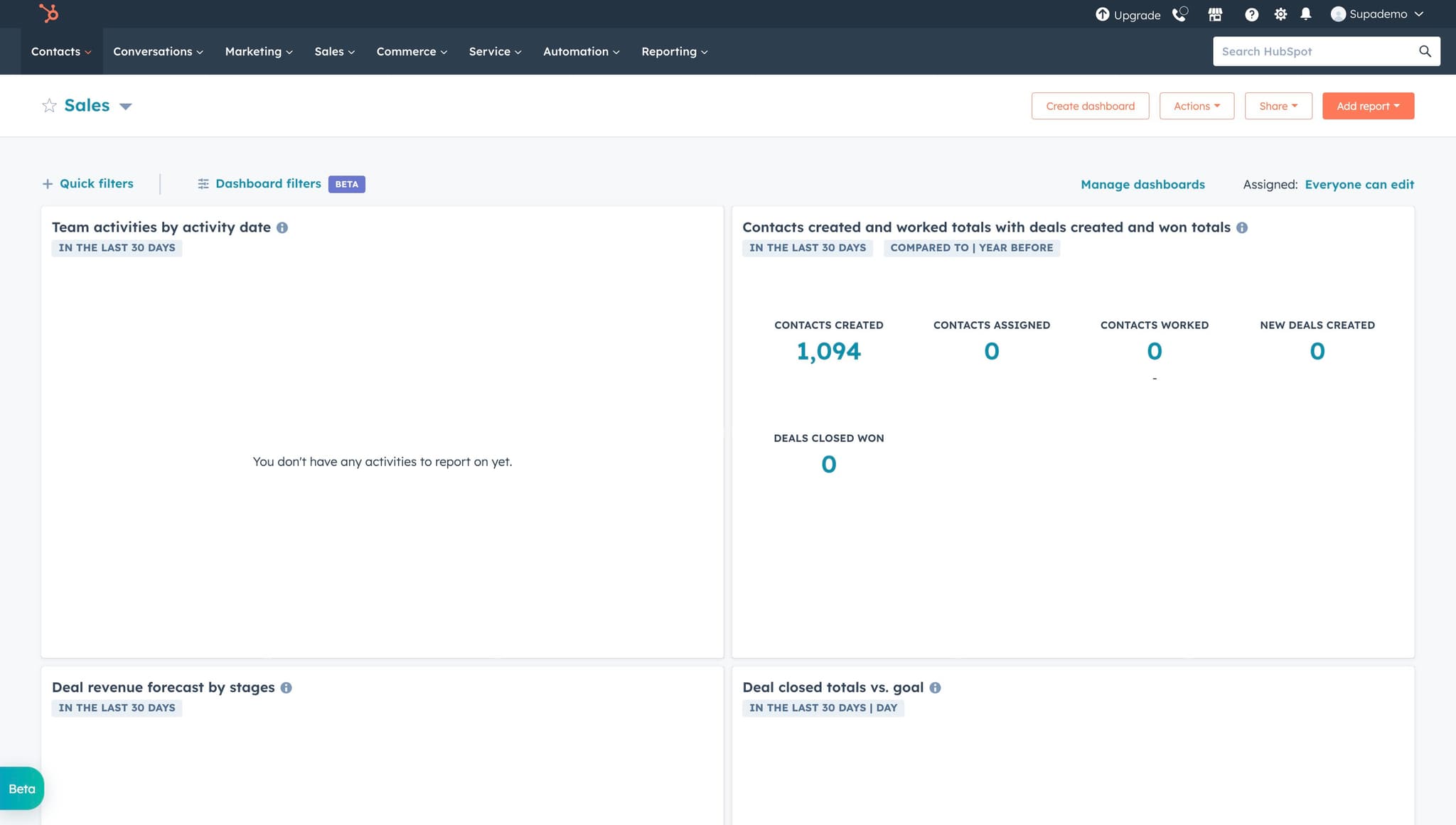
Access the Contacts menu
Click on "Contacts" in the main navigation menu. This will take you to your HubSpot contacts dashboard where you can manage all your customer and prospect data.
- 2
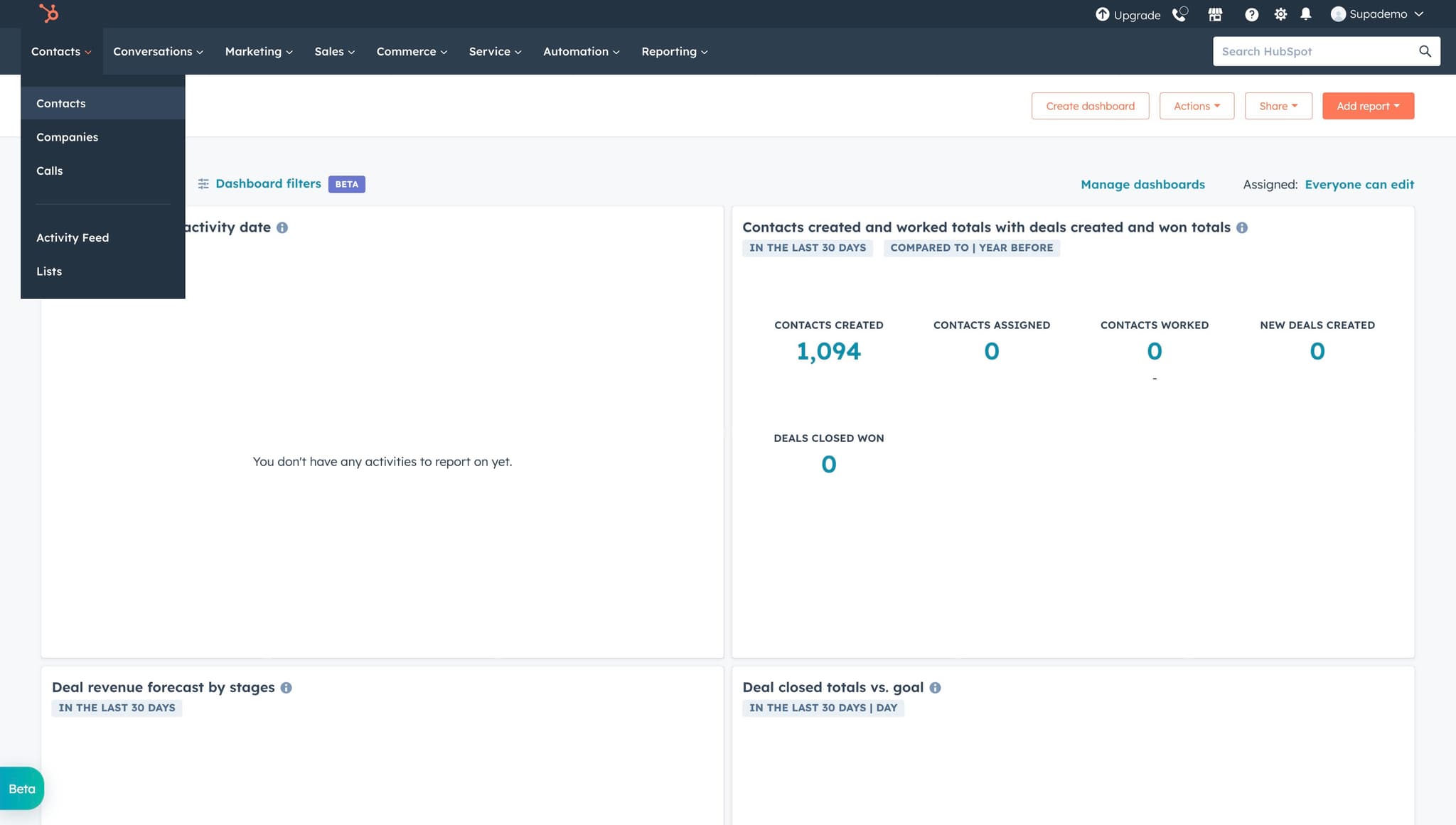
Navigate to Contacts section
Click on "Contacts" again to ensure you're in the correct section. You'll see a list view of your existing contacts and access to import options.
- 3
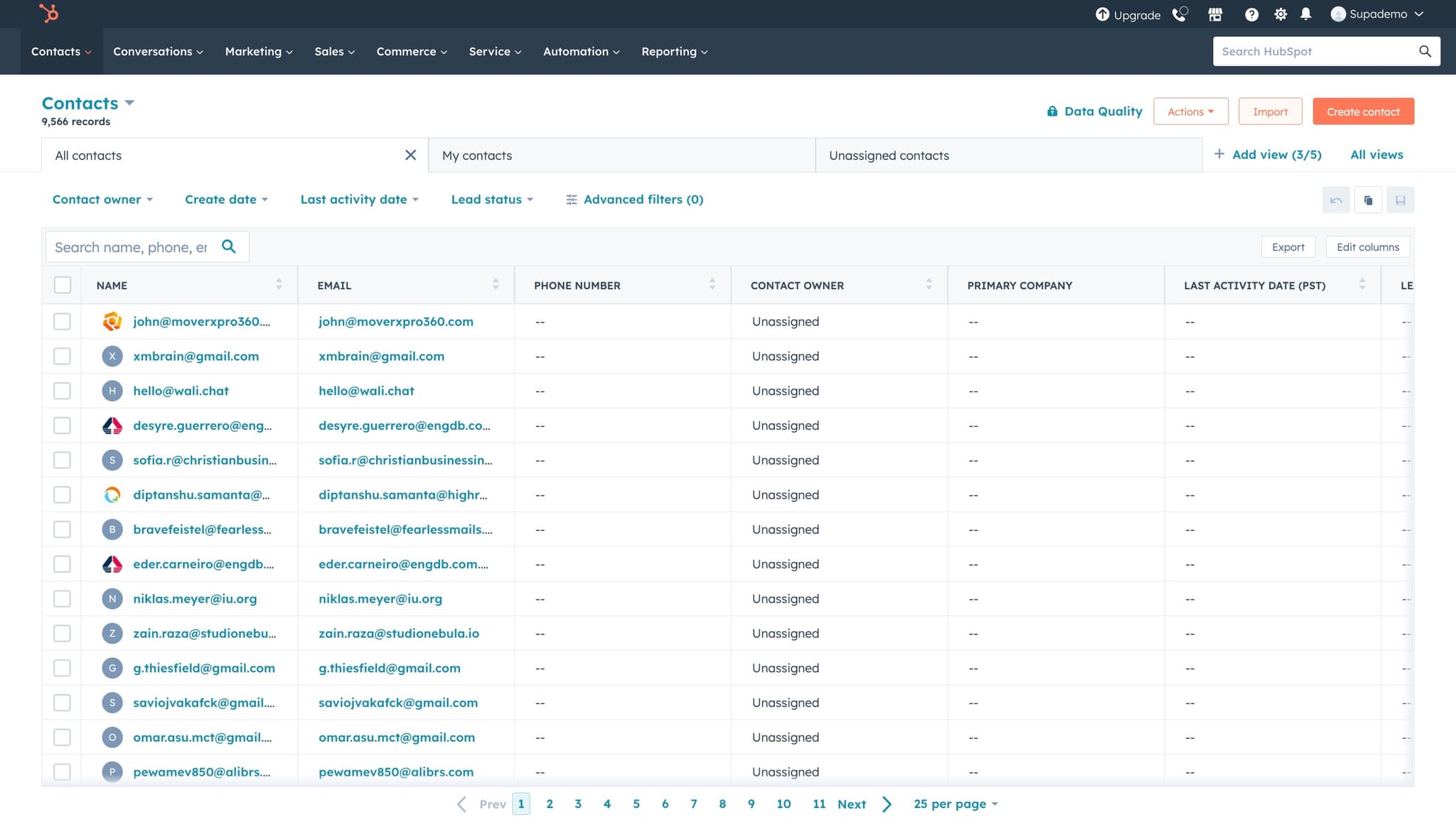
Open the Import option
Click on "Import" to begin the contact import process. This will open the import wizard interface where you can upload and configure your contact data.
- 4
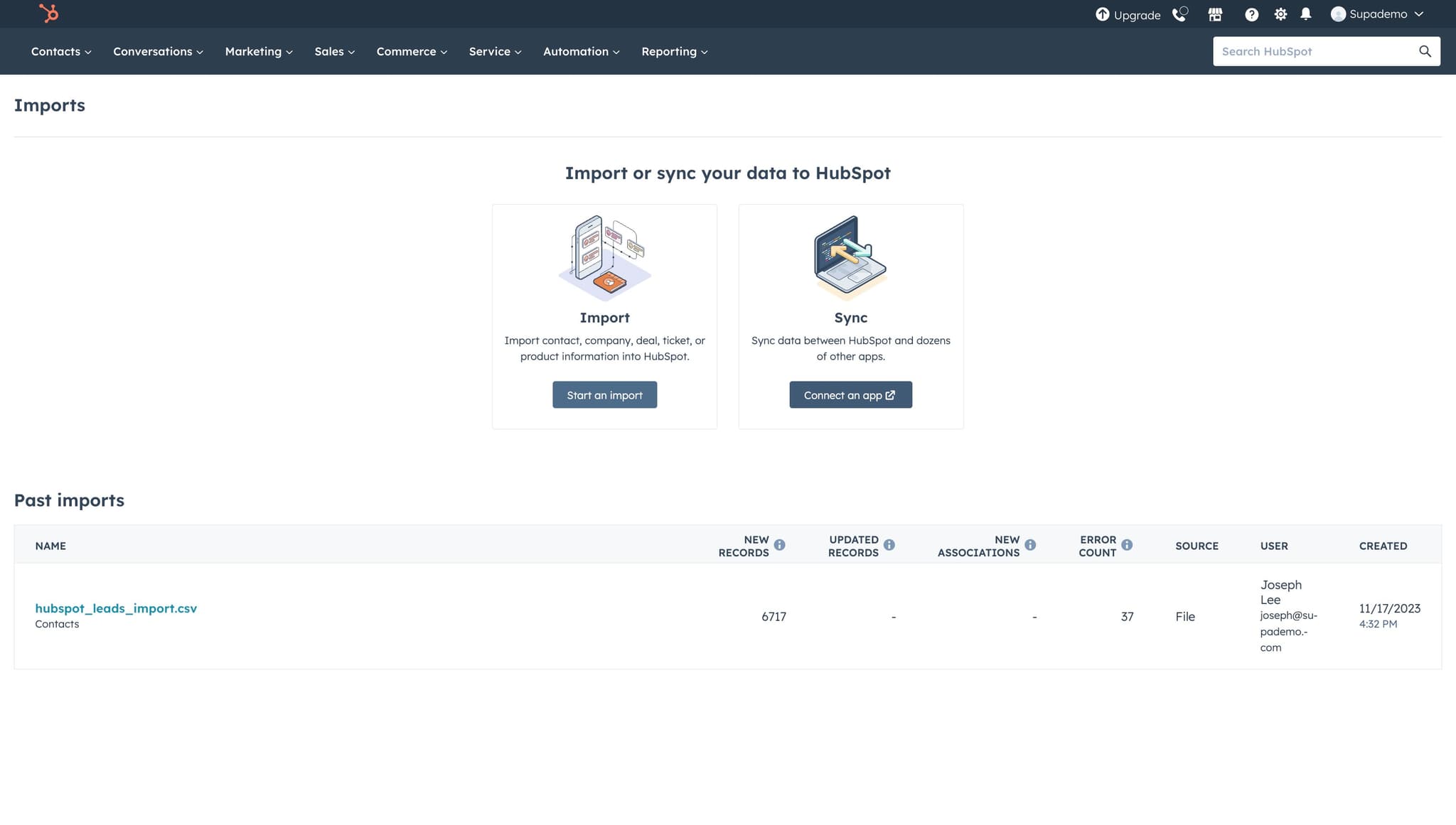
Start a new import
Click on "Start an import" to initiate the wizard. HubSpot will guide you through a series of steps to configure your import settings and map your data fields.
- 5
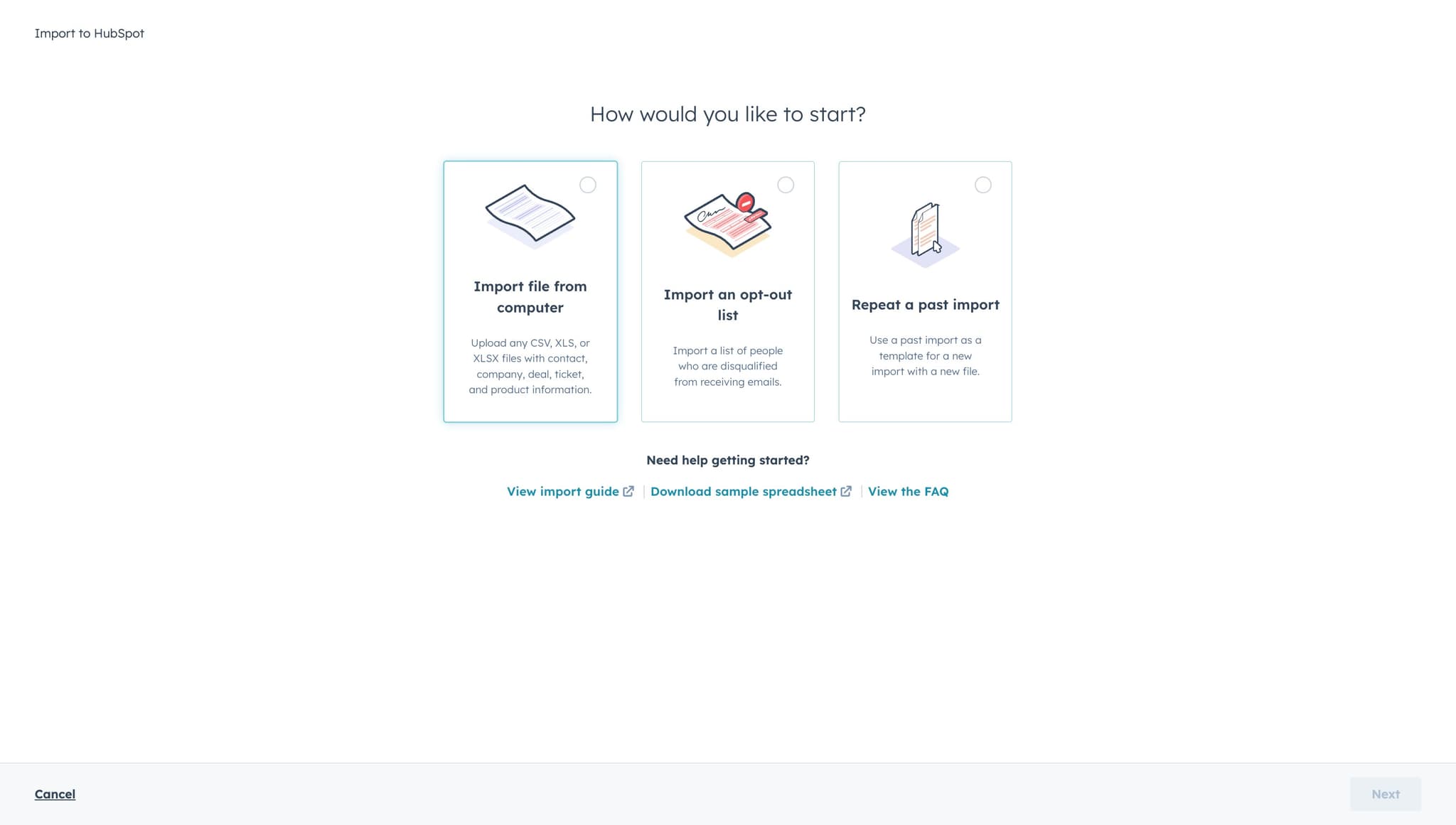
Choose file import method
Click on "Import file from..." to select your upload source. You can choose to upload a CSV or Excel file from your computer or connect to an external data source.
- 6
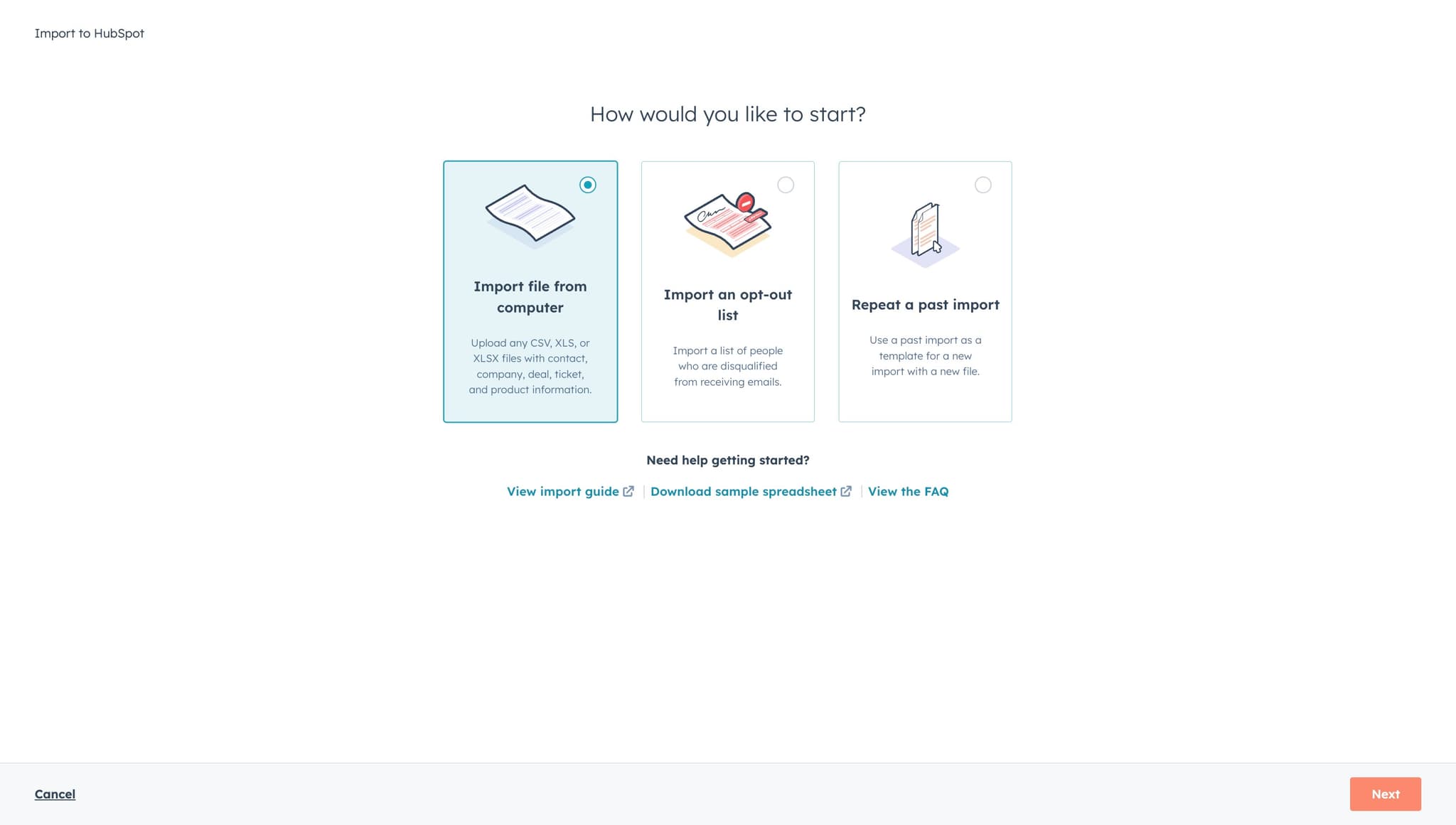
Proceed to next step
Click "Next" to continue to the file selection screen. This will advance you through the import wizard configuration process.
- 7
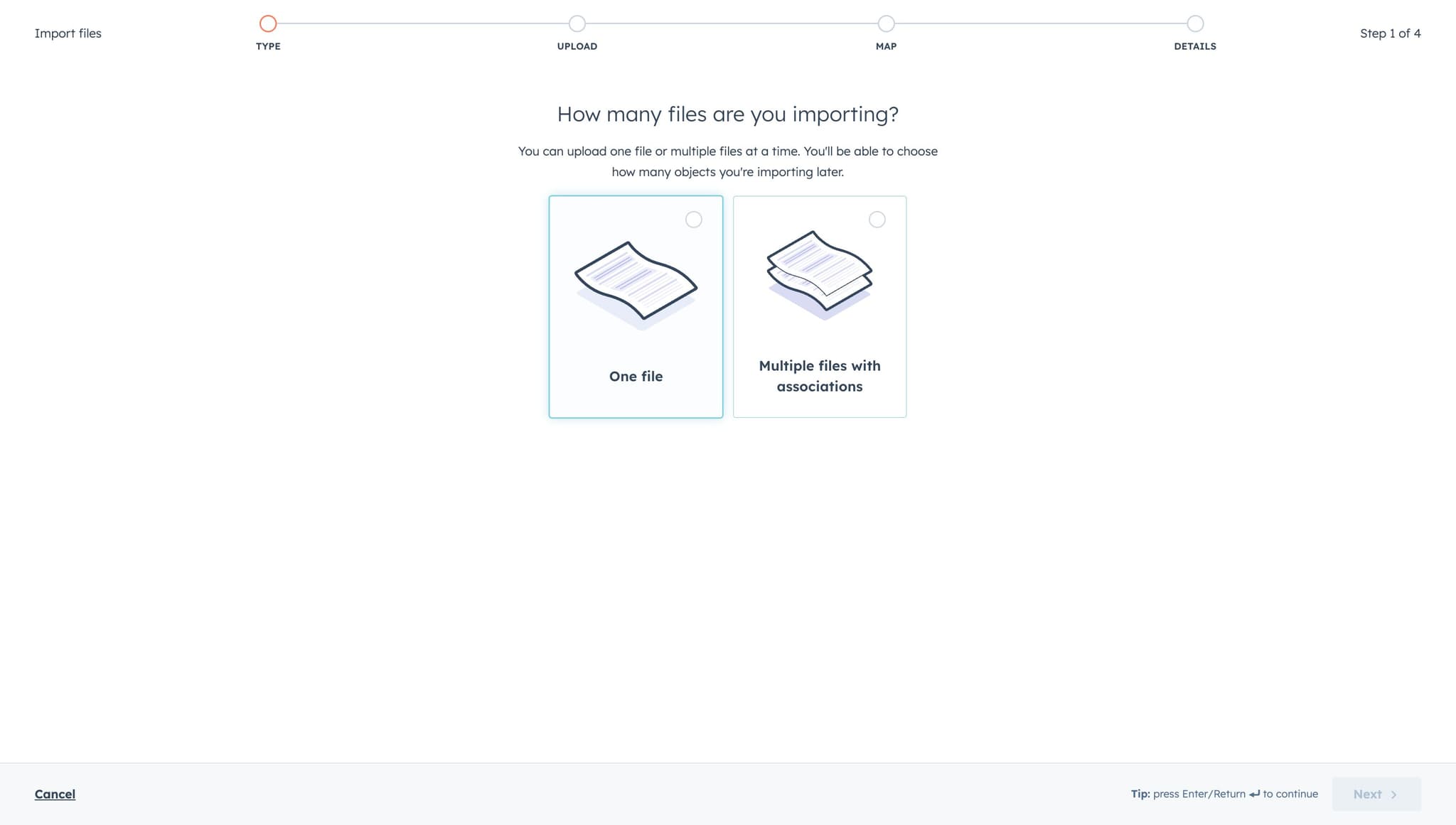
Select single file option
Click on "One file" to indicate you're importing a single file. This is the standard option for most contact imports.
- 8
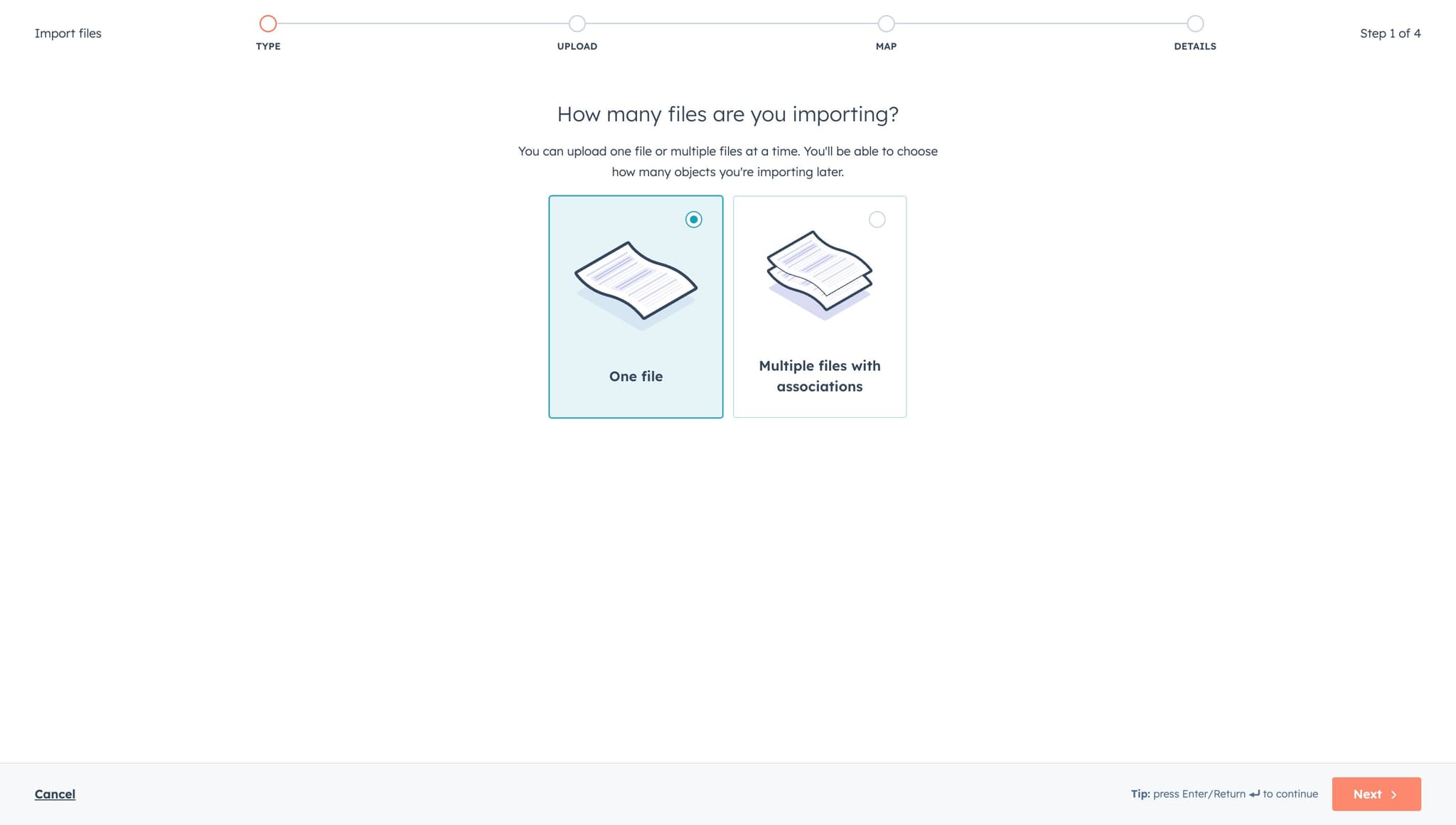
Continue to object selection
Click "Next" to move forward in the import process. You'll now specify what type of object you're importing.
- 9
Choose object type
Click on "One object" to confirm you're importing a single object type. This means all rows in your file will be imported as the same object type.
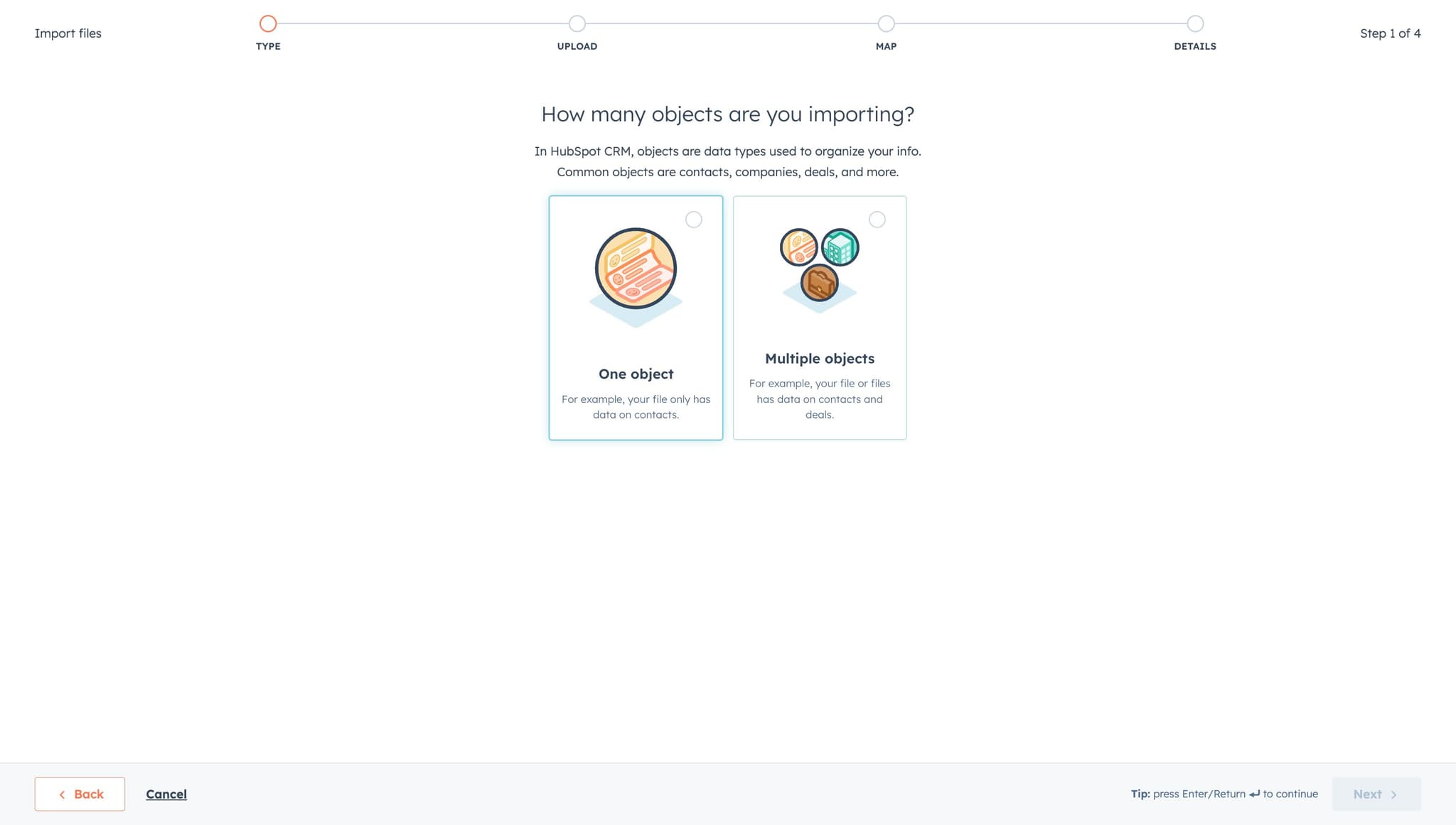
- 10
Advance to object mapping
Click "Next" to proceed to the next configuration step. You're getting closer to mapping your contact fields.
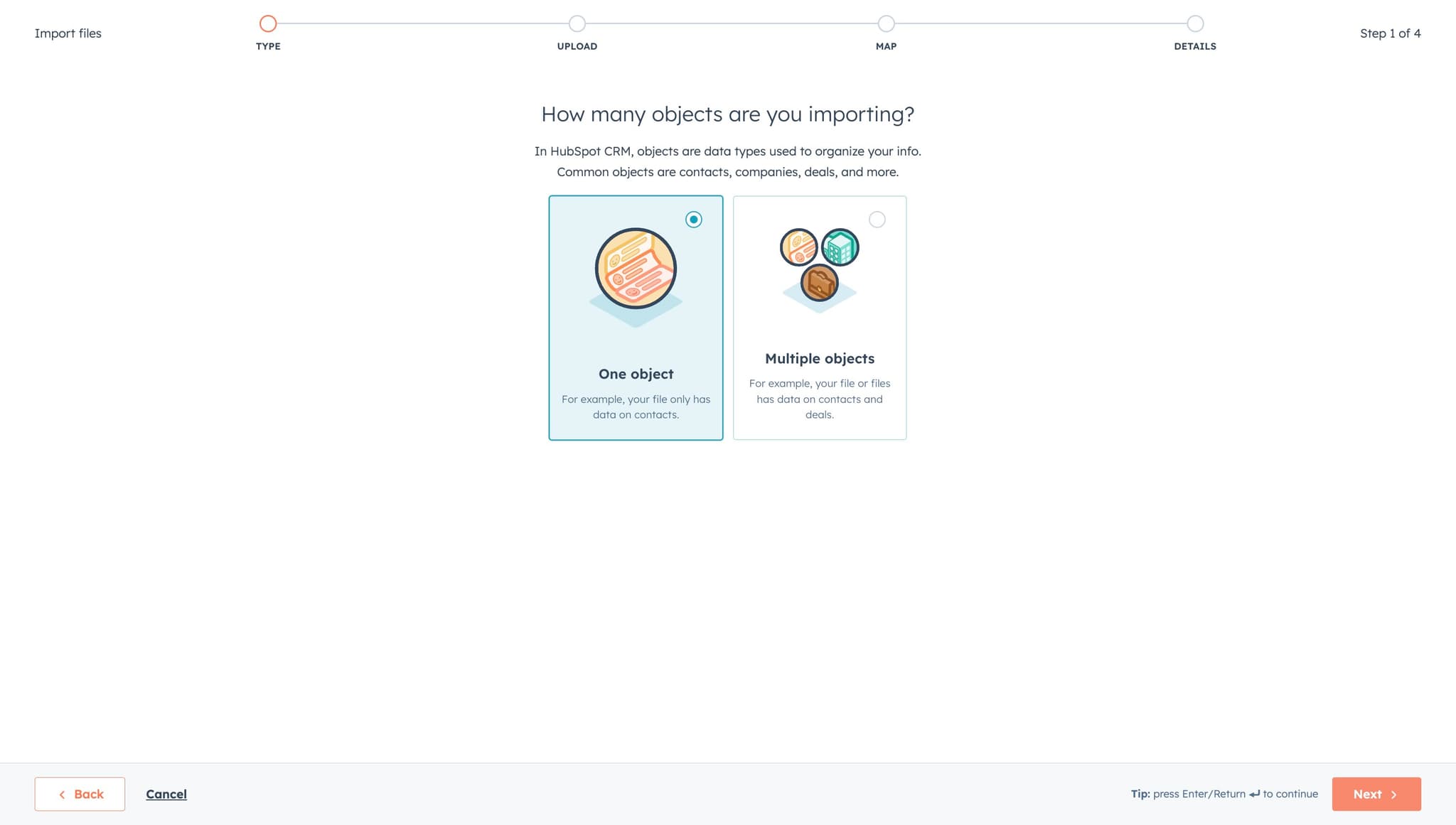
- 11
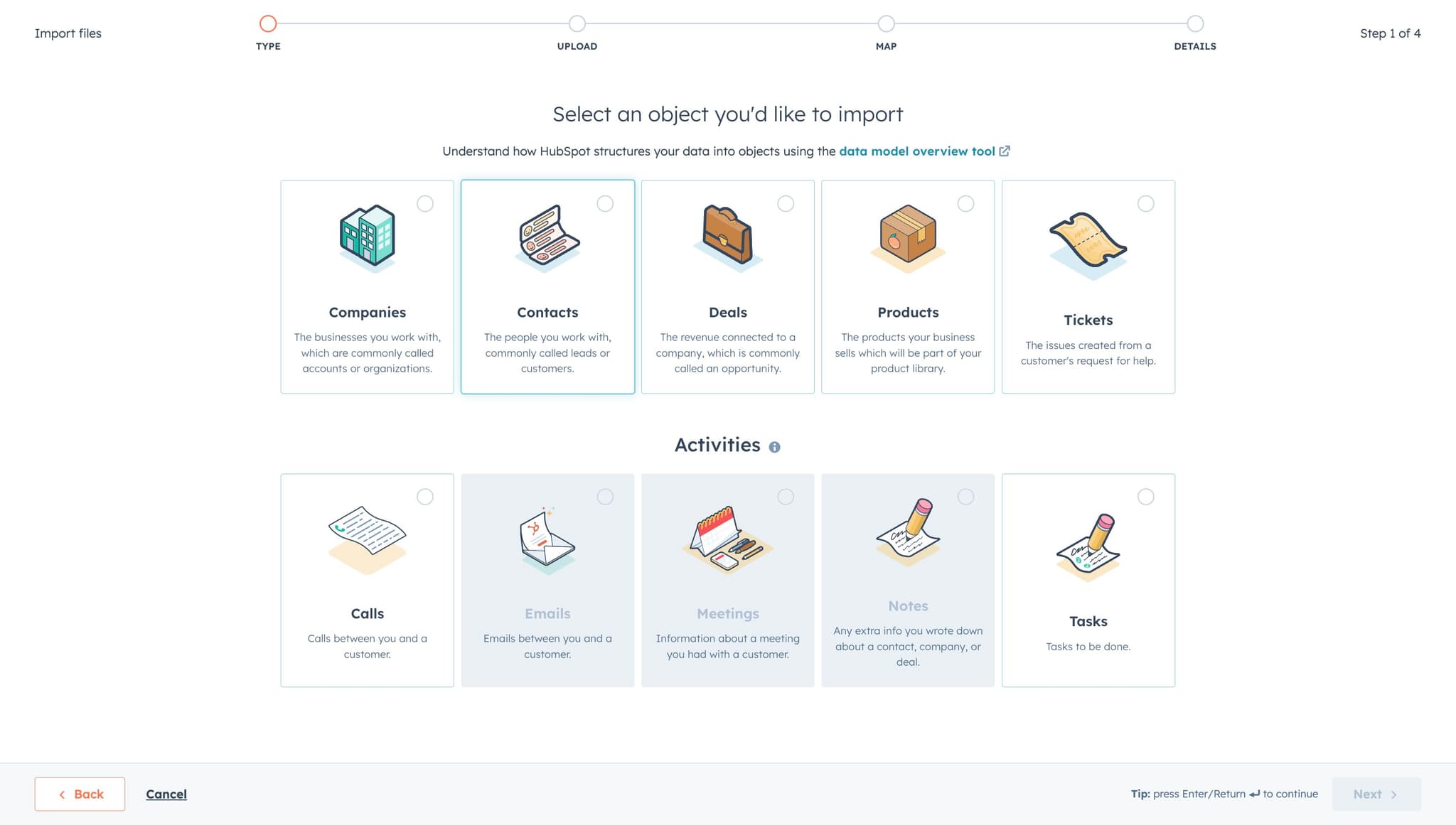
Select Contacts as object
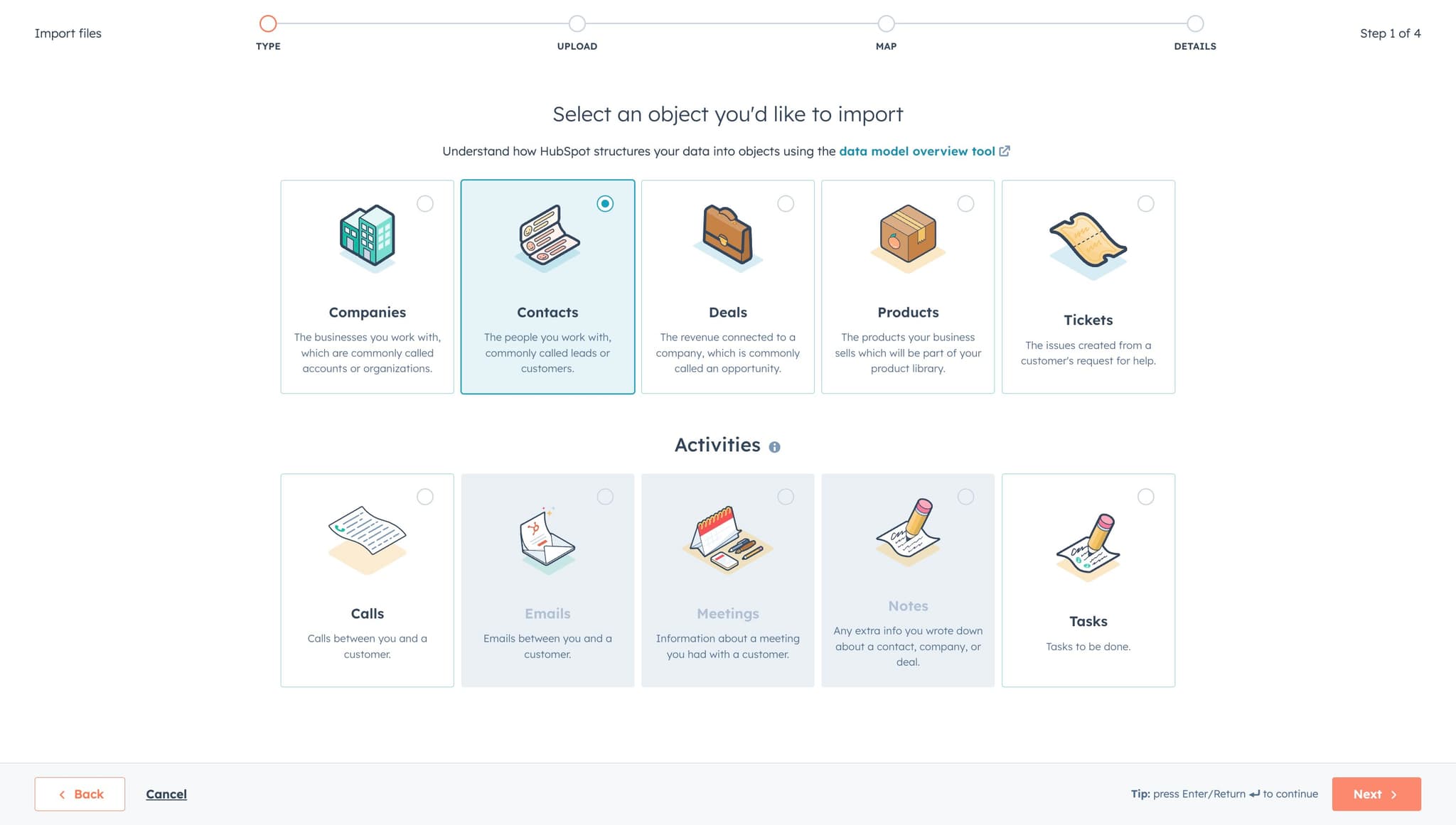
Click on "Contacts" (the option showing "The pe...") to designate that you're importing contact records. This ensures your data is properly categorized in HubSpot.
- 12
Move to file selection
Click "Next" to advance to the screen where you'll select the specific file to upload. This is where you'll browse and choose your contact data file.
- 13
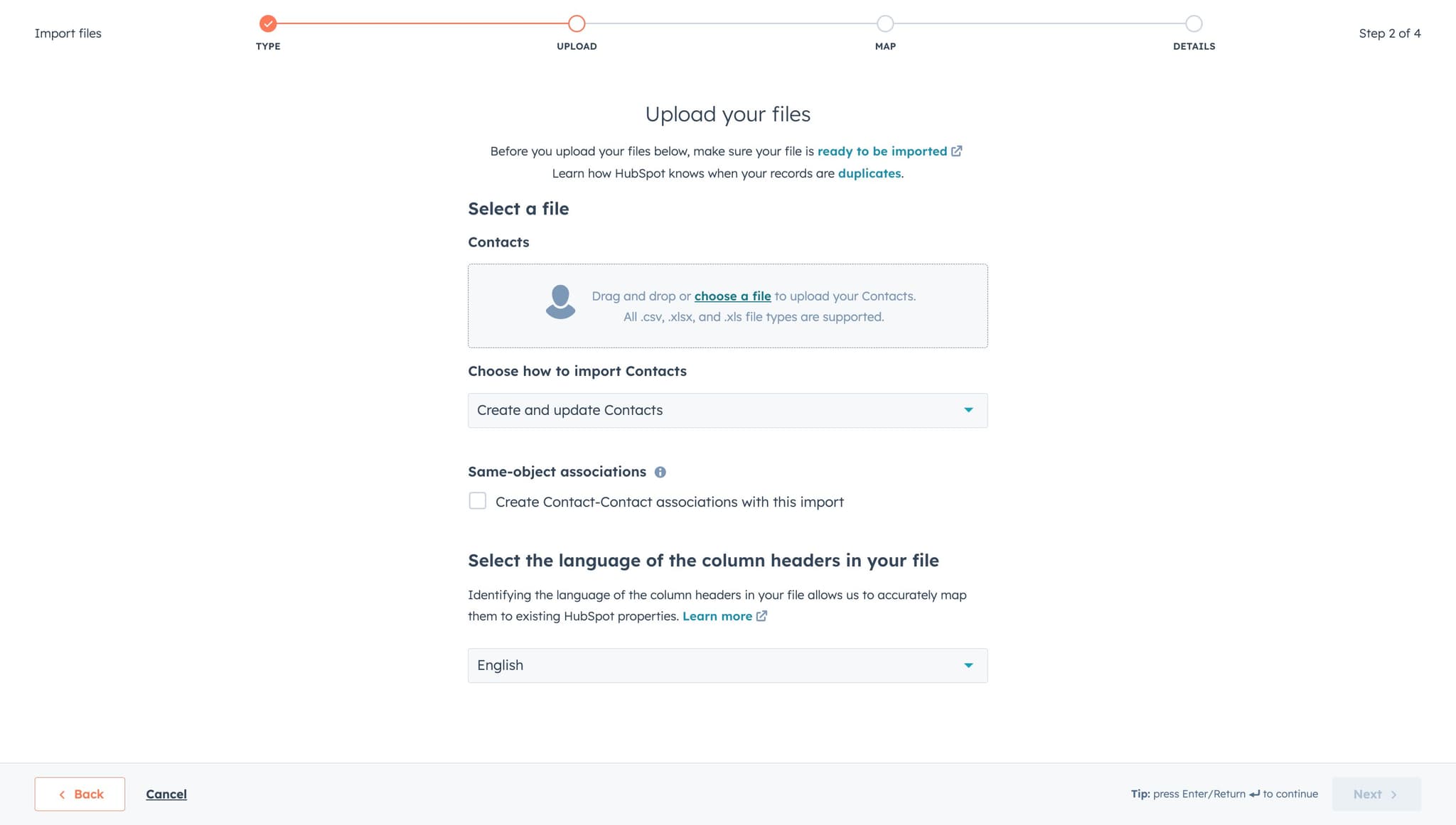
Upload your contact file
Click on "choose a file" to open your file browser. Navigate to and select the CSV or Excel file containing your contact data.
- 14
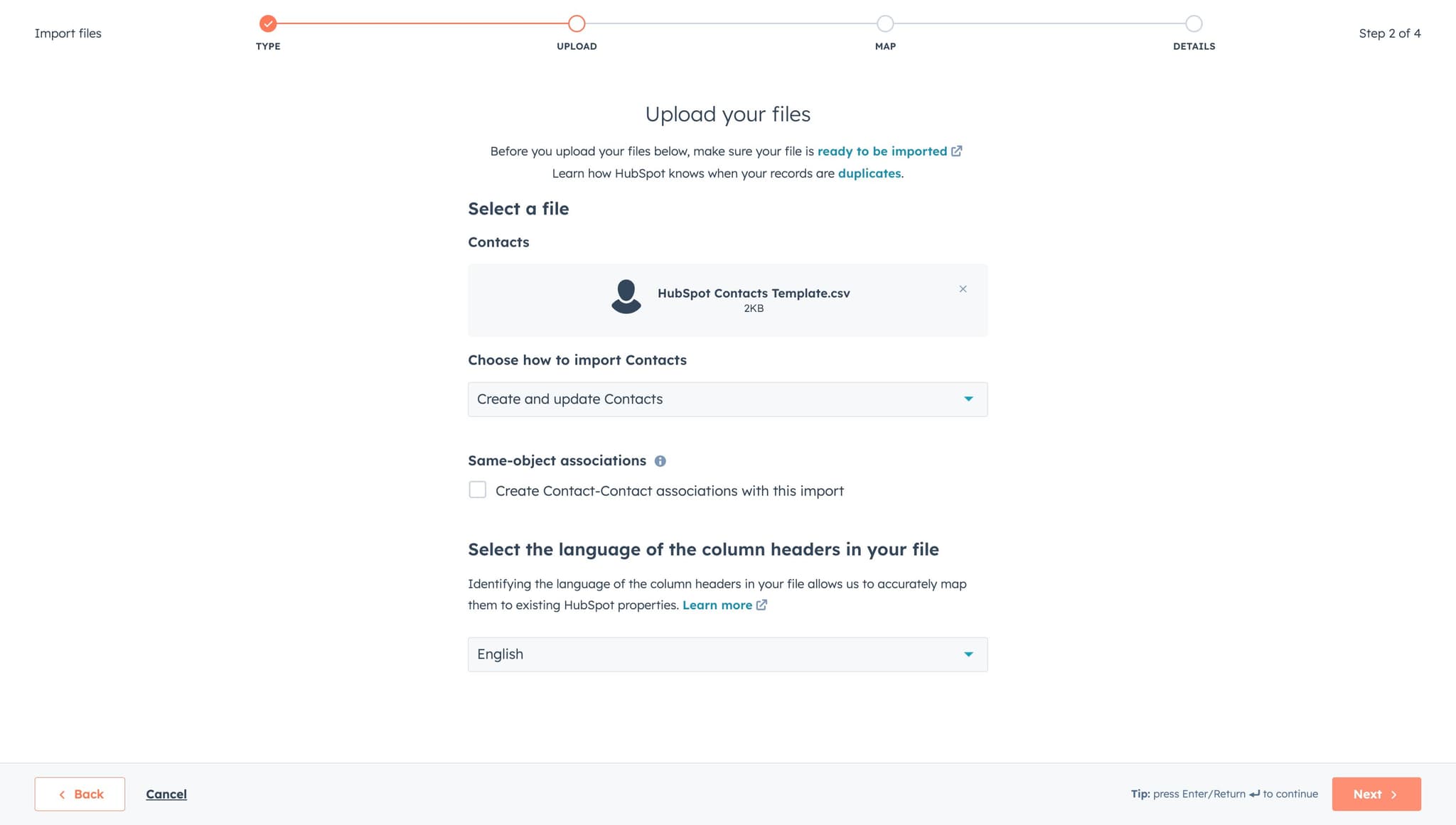
Proceed to field mapping
Click "Next" after selecting your file. HubSpot will analyze your file and prepare it for the field mapping step.
- 15
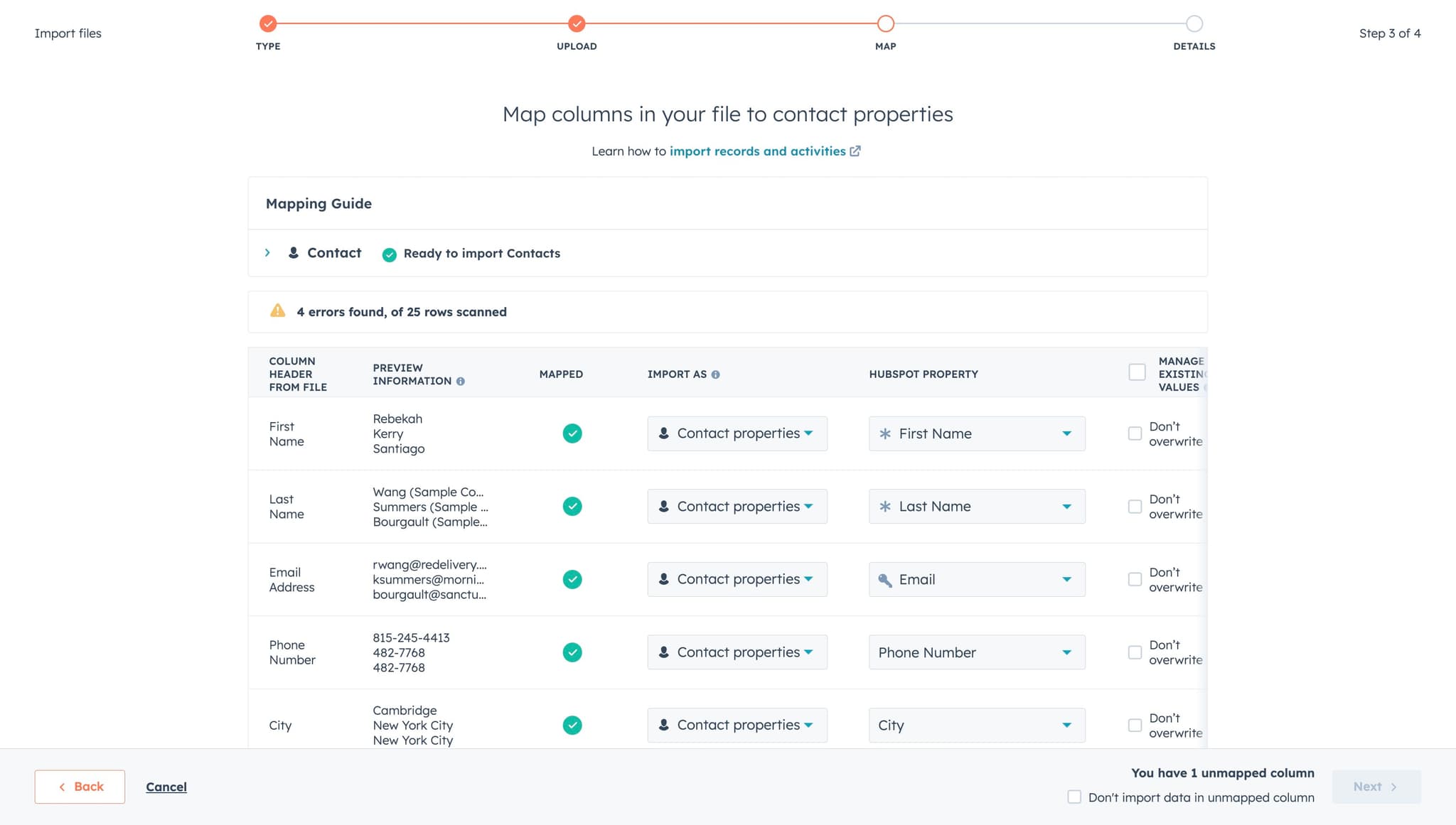
Configure initial mapping settings
Click the appropriate option on this screen to configure how HubSpot should handle your import. This might include duplicate handling or data validation settings.
- 16
Continue to final mapping
Click "Next" to move to the column mapping interface. This is where you'll match your file columns to HubSpot contact fields.
- 17
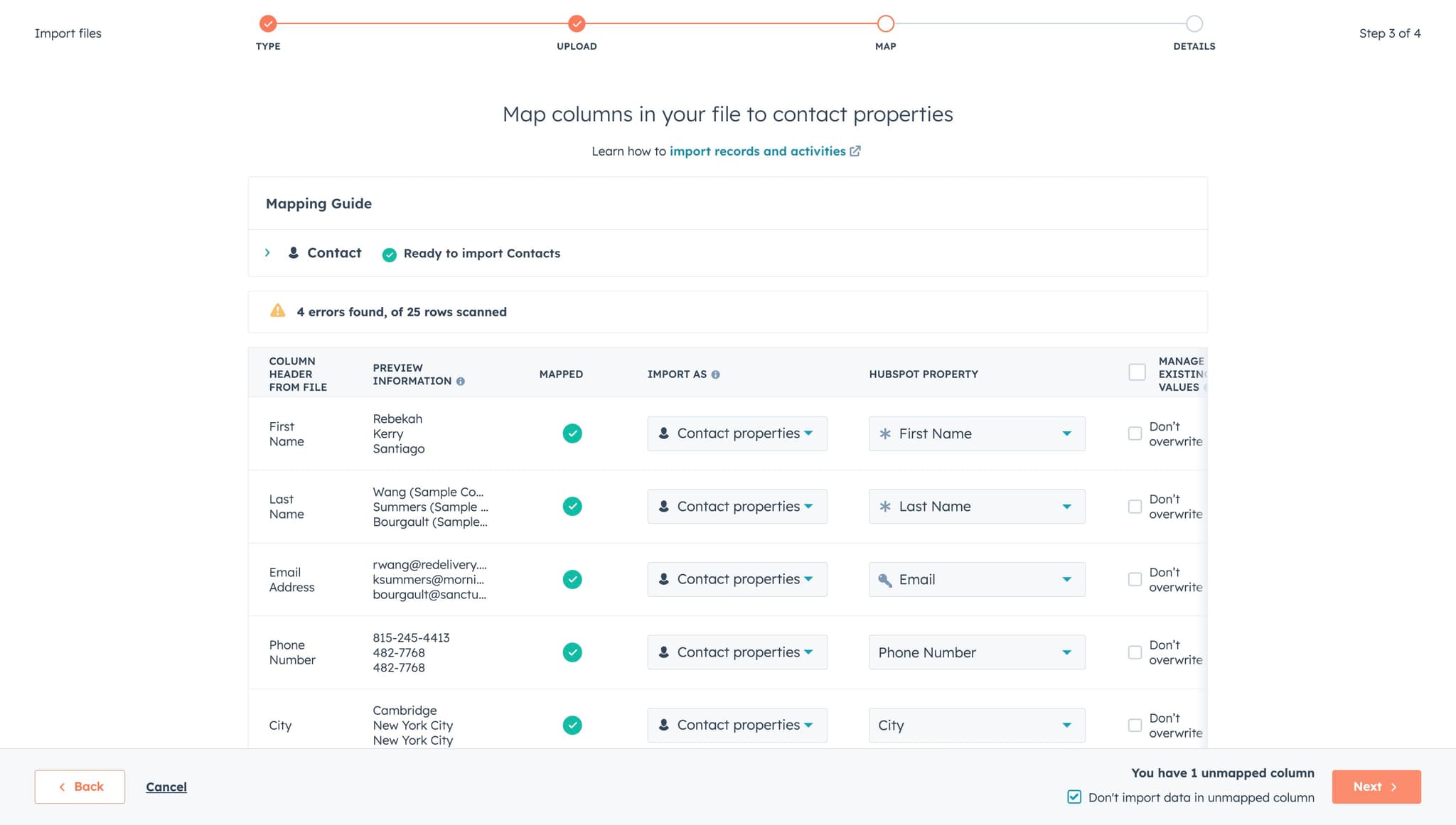
Complete field mapping
Click on the appropriate mapping options to match each column in your file to the corresponding HubSpot contact field (such as First Name, Last Name, Email, etc.). Ensure all critical fields are mapped correctly.
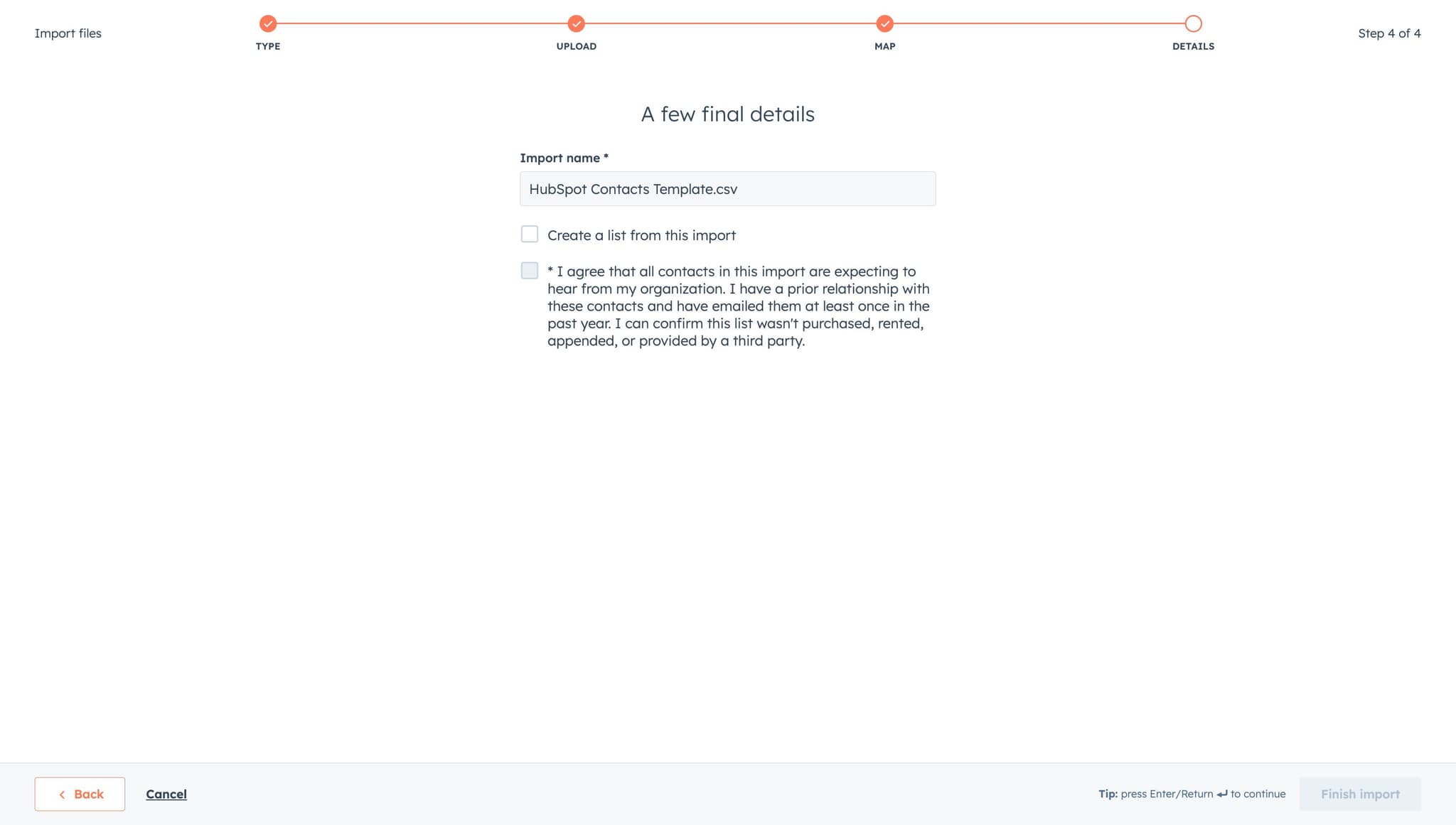
- 18
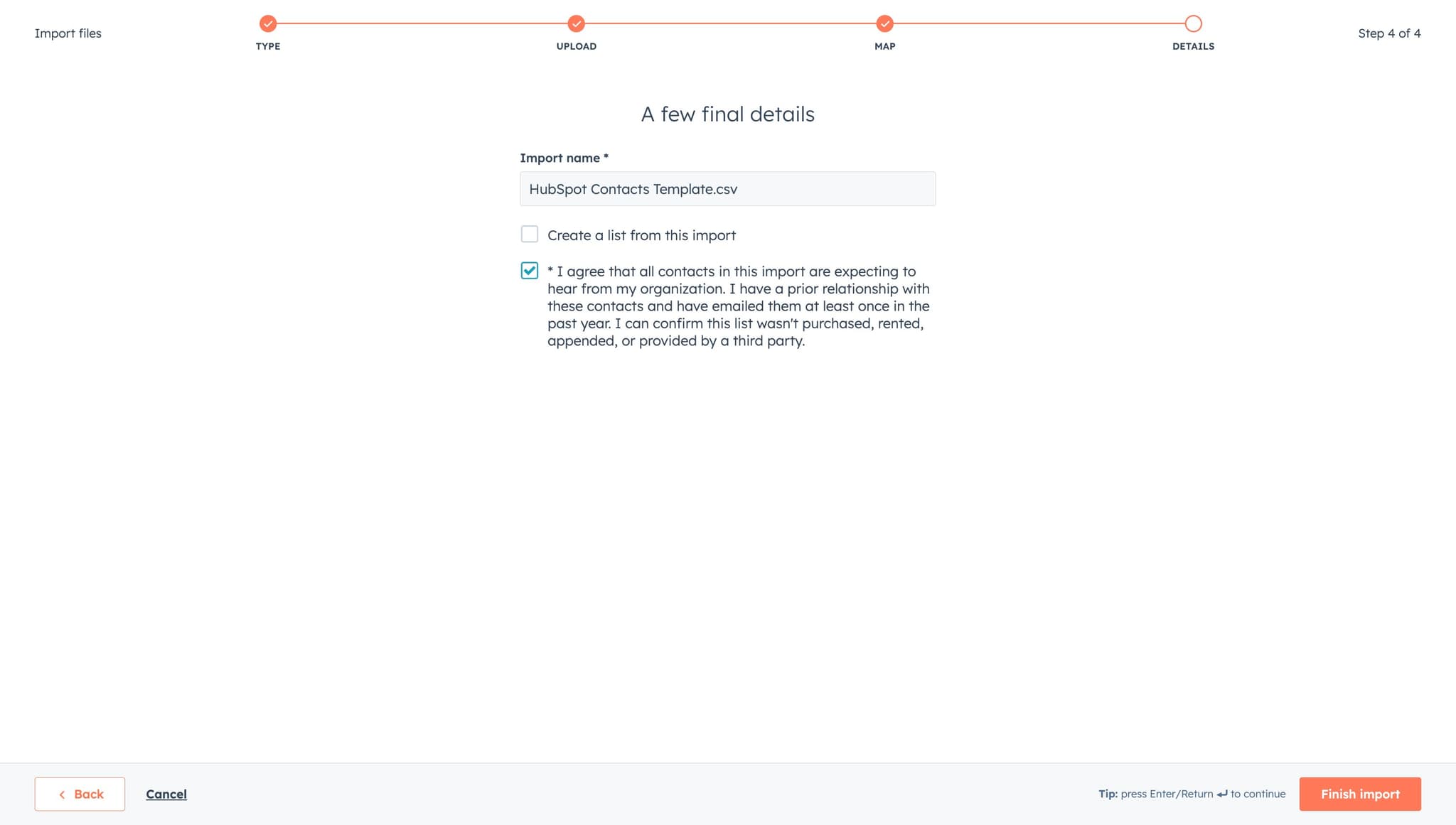
Finalize and import contacts
Click on "Tip: press Ente..." or the final import button to complete the import process. Your contacts will now be uploaded to HubSpot and will appear in your contacts list.
Frequently asked questions
Common questions about how to import contacts into hubspot.
HubSpot accepts CSV (Comma-Separated Values) and Excel files (XLS and XLSX formats). Make sure your file is properly formatted with headers in the first row and data in subsequent rows. Avoid special characters that might cause parsing issues.
HubSpot can detect and handle duplicates based on email address or other identifying fields. During the import process, you can choose to skip duplicates, update existing records, or create new records. Review your duplicate settings carefully to avoid data loss or unwanted overwrite of existing contact information.
After the import completes, HubSpot will show you a summary report highlighting any failed imports and the reasons why. Common issues include missing required fields, invalid email formats, or data type mismatches. Review the error log, correct your file, and try importing again.
Yes, HubSpot allows you to map your file columns to custom properties you've created. During the field mapping step, you can select custom fields alongside standard HubSpot properties. This ensures your imported data aligns with your CRM's structure.
HubSpot can handle large imports, but file size and the number of records may vary based on your plan. For very large contact lists (10,000+ records), consider breaking your import into smaller batches to ensure optimal performance and easier troubleshooting.