How to add a comment in Jira

Adding comments in Jira is essential for team collaboration, allowing you to provide feedback, ask questions, and keep stakeholders informed on issue progress. This guide walks you through the process of locating the comments section and posting your first comment to keep your team aligned.
Quick summary
In this tutorial, you'll learn how to navigate to a Jira issue, access the comments section, and save your comment to the issue. By the end, you'll be able to communicate effectively with your team directly within Jira issues.
Why this matters
Comments are the backbone of asynchronous communication in Jira, enabling team members to discuss requirements, share updates, and resolve blockers without scheduling meetings. This workflow ensures all context and decisions are documented in one place, making it easier for current and future team members to understand the issue's history and status.
Step-by-step guide
- 1
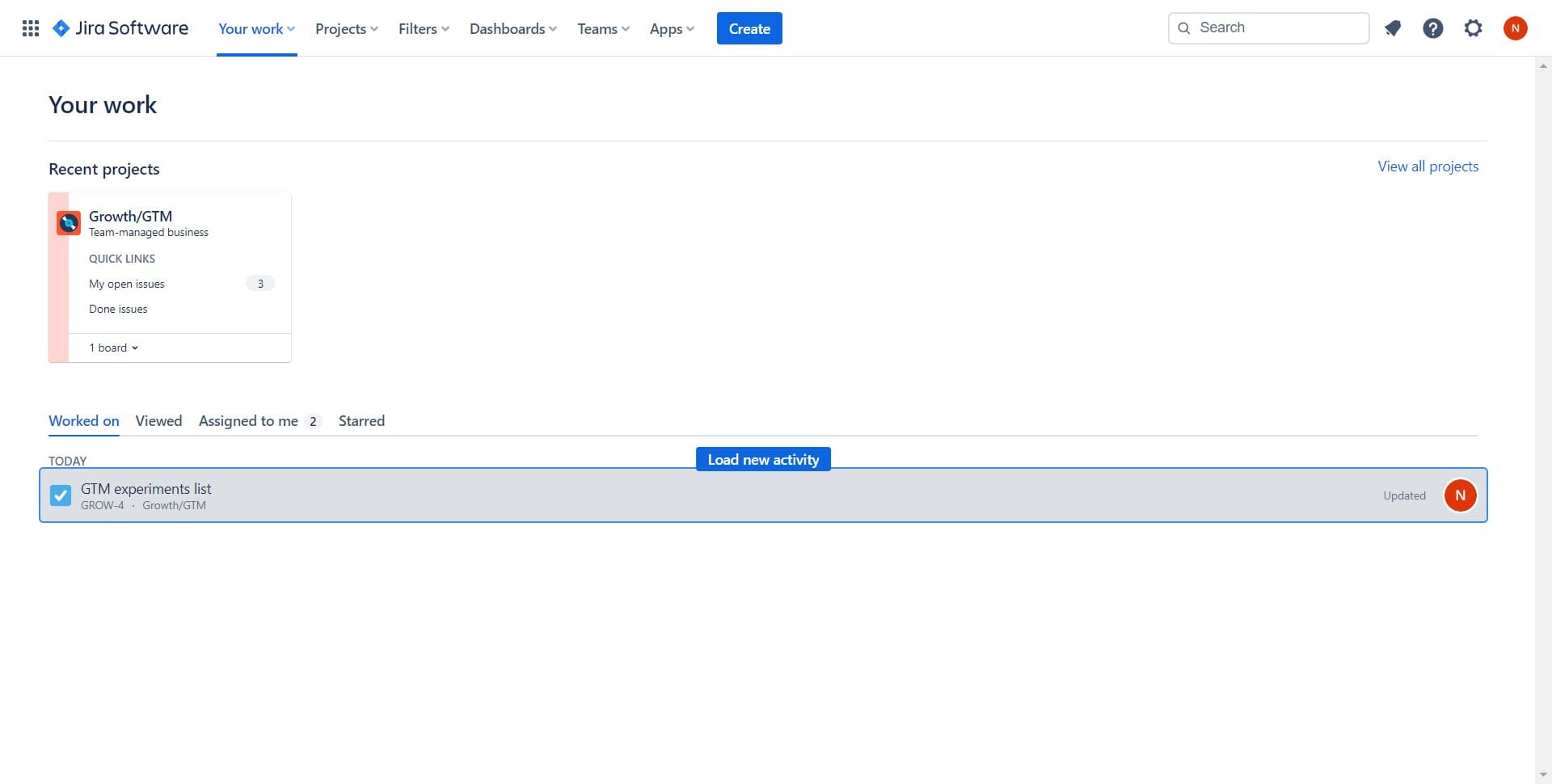
Open the GTM experiments list
Click on 'GTM experiments list' to navigate to the project or board containing your issues. This displays the collection of tasks and issues you need to work with.
- 2
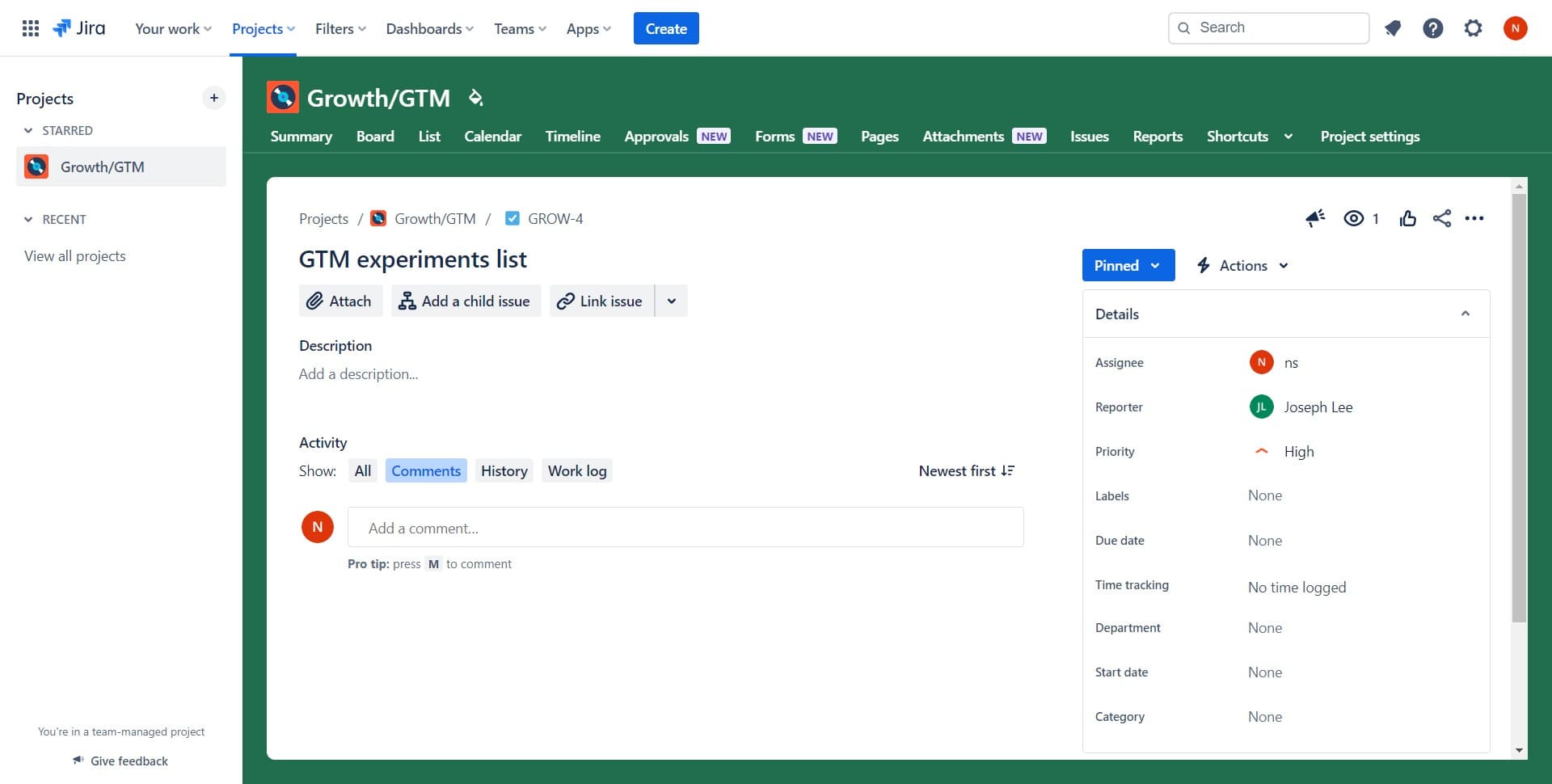
Navigate to the Comments section
Click on 'Comments' within the issue details. You'll see the existing comments on the issue and a text field where you can add your own.
- 3
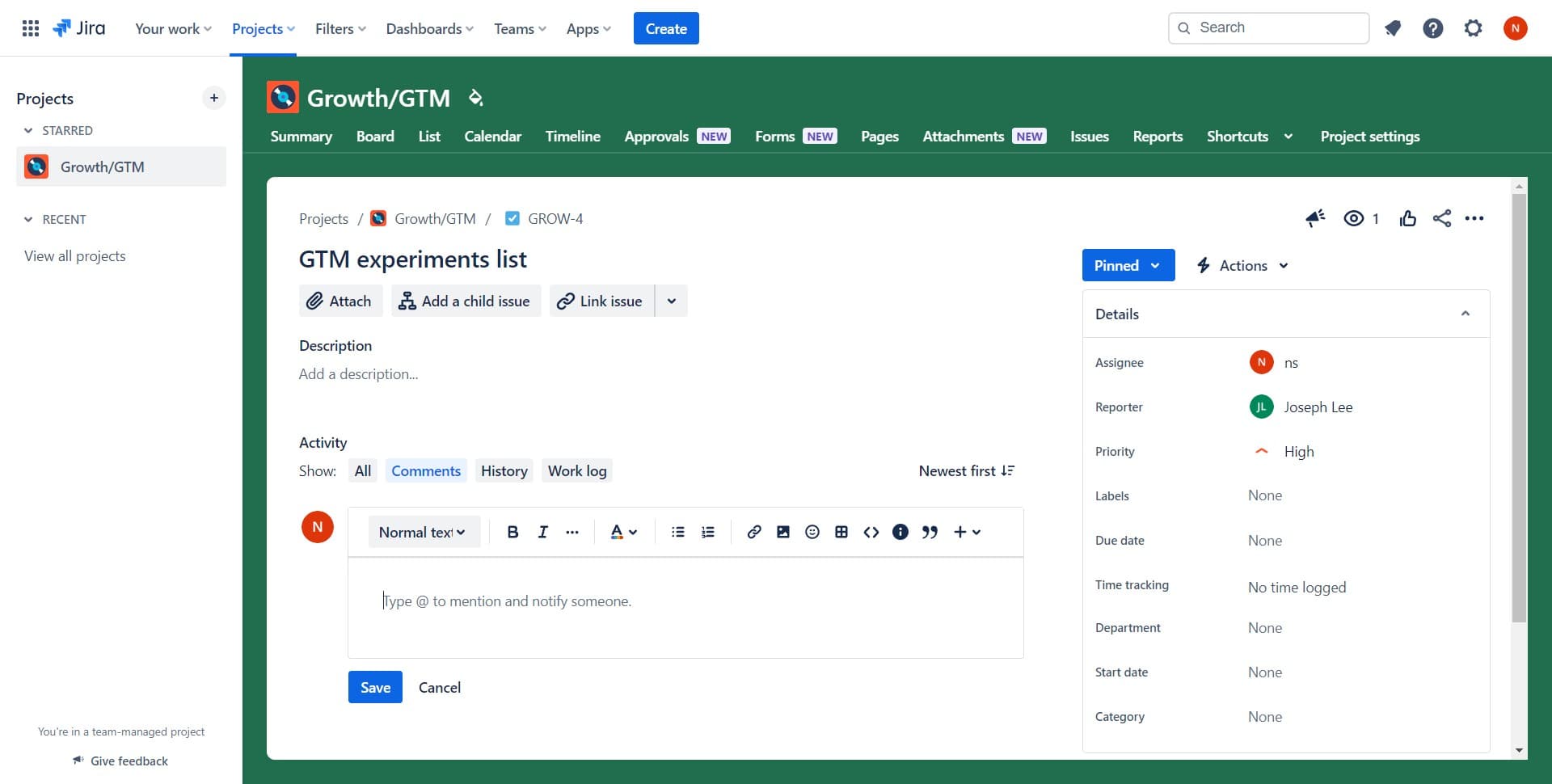
Enter your comment text
Click in the comment input field and type your message. This is where you'll compose your feedback, question, or status update for your team.
- 4
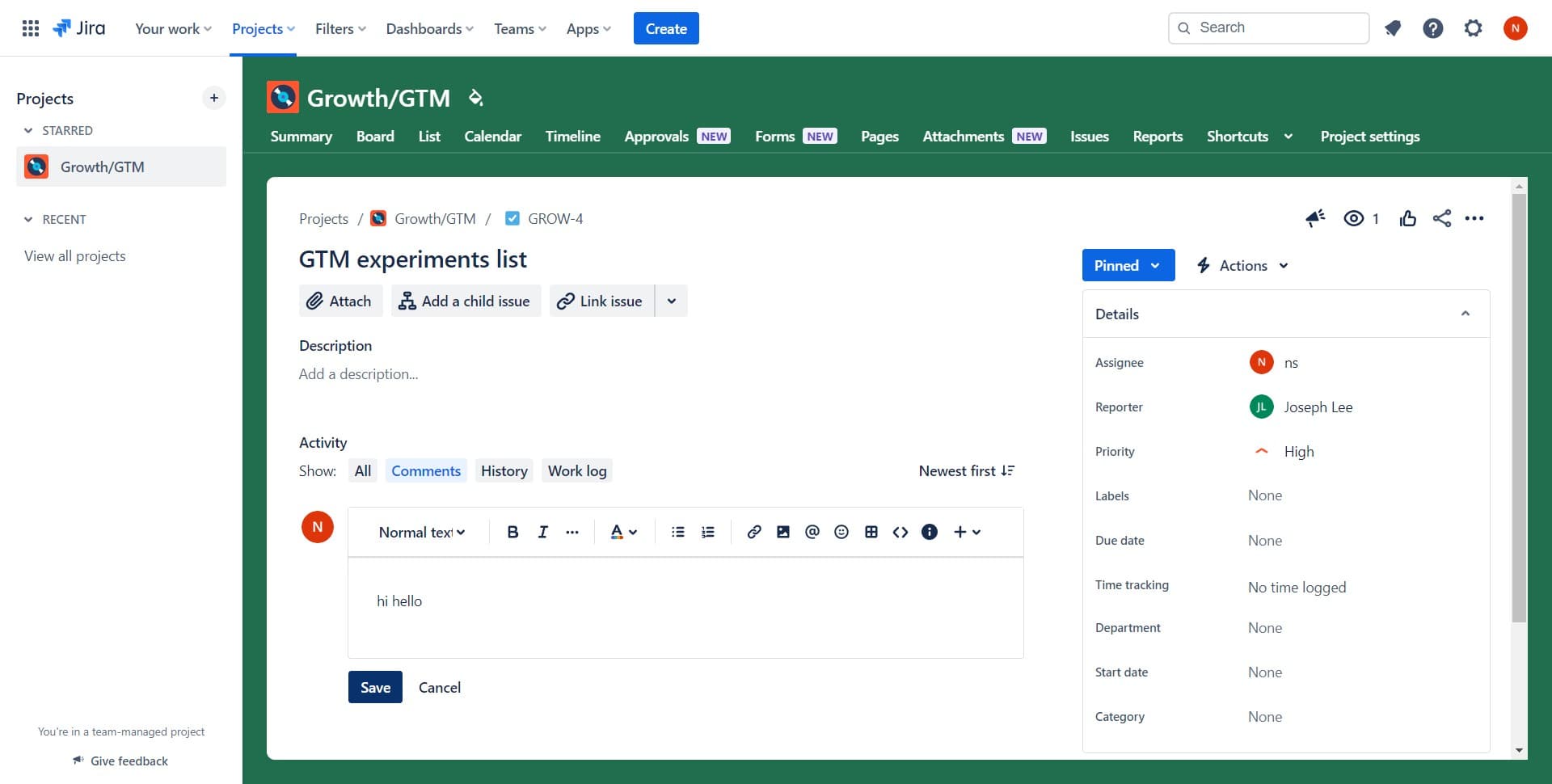
Save your comment
Click the 'Save' button to post your comment to the issue. Your comment will now be visible to all team members with access to the issue.
Frequently asked questions
Common questions about how to add a comment in jira.
Yes, most Jira configurations allow you to edit comments you've created. Look for the edit option (typically represented by a pencil icon) that appears when you hover over your comment. Note that some Jira instances may have permissions restrictions on editing comments.
Yes, you can use the @ symbol followed by a team member's name to mention them in your comment. This will notify them of your comment and help ensure they see your message. Mentioned users will receive a notification depending on their Jira settings.
Jira comments support a large amount of text, typically up to several thousand characters. However, it's best practice to keep comments concise and focused for readability. If you need to share lengthy documentation, consider linking to a document or using Jira's description field instead.
Yes, Jira supports markdown and wiki markup formatting. You can use asterisks for bold, underscores for italics, and dashes for lists. Most formatting options are available through the toolbar above the comment field or by using keyboard shortcuts.
If you save a comment by mistake, you can edit it immediately by clicking the edit option on your comment. Simply modify the text and save again. However, if you want to delete the comment entirely, you may need to contact a Jira administrator depending on your project's permissions.