How to bulk change the status of multiple issues directly from the backlog on Jira

Managing multiple issues in Jira can be time-consuming, especially when you need to update their statuses across your backlog. This tutorial shows you how to efficiently bulk change issue statuses directly from the backlog view, saving you time on repetitive status updates.
Quick summary
In this tutorial, you'll learn how to select multiple issues in your Jira backlog and change their statuses in bulk. You'll discover how to streamline your workflow by performing batch operations without opening individual issue details.
Why this matters
Bulk status changes are essential for managing agile workflows effectively. Whether you're transitioning multiple items through your pipeline or preparing for a sprint, this capability helps teams work faster and maintain consistency across their backlog without manual, item-by-item updates.
Step-by-step guide
- 1
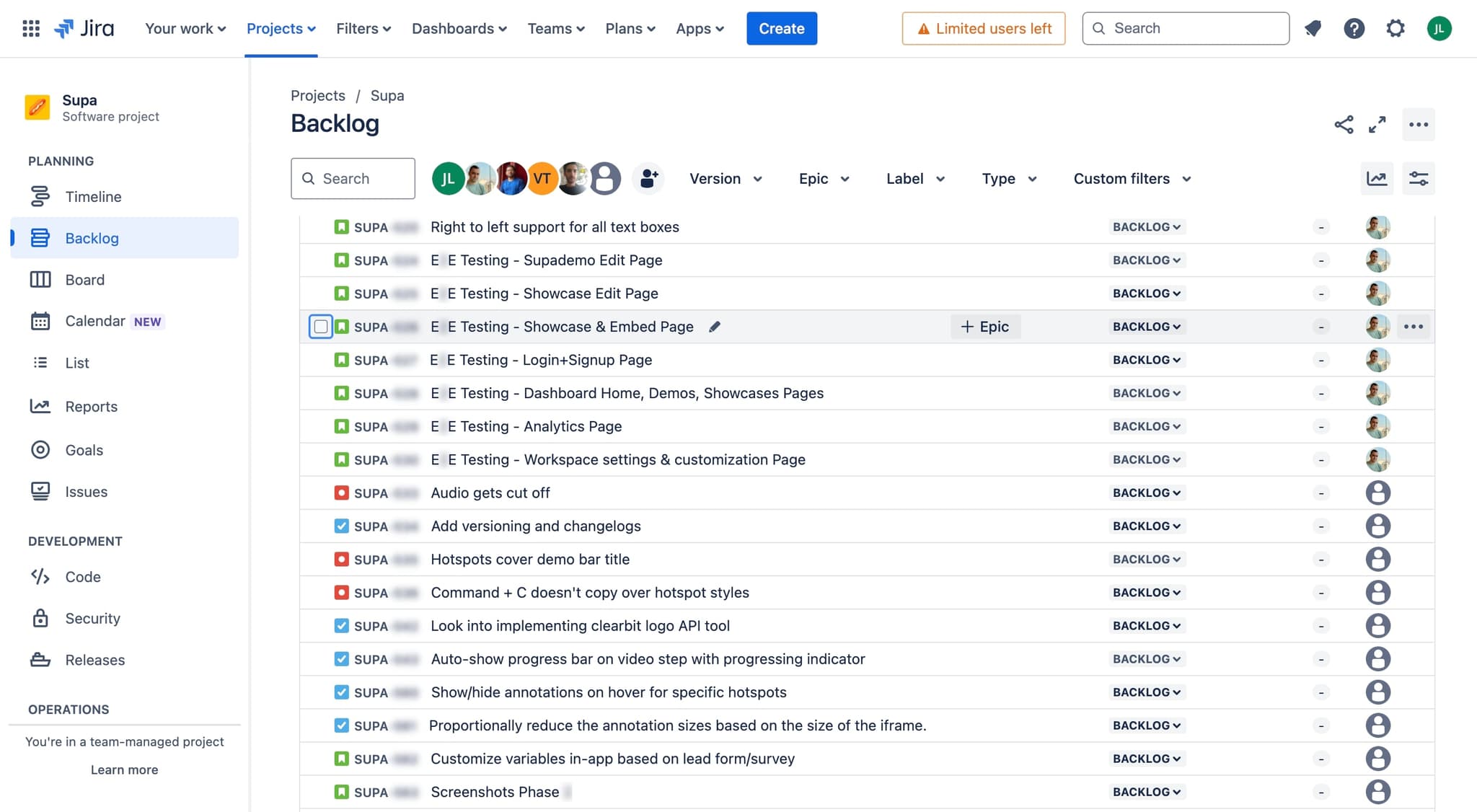
Access your Jira backlog
Navigate to your project and click on the Backlog tab. You'll see all your issues listed in the backlog view, organized by epic or sprint depending on your project settings.
- 2
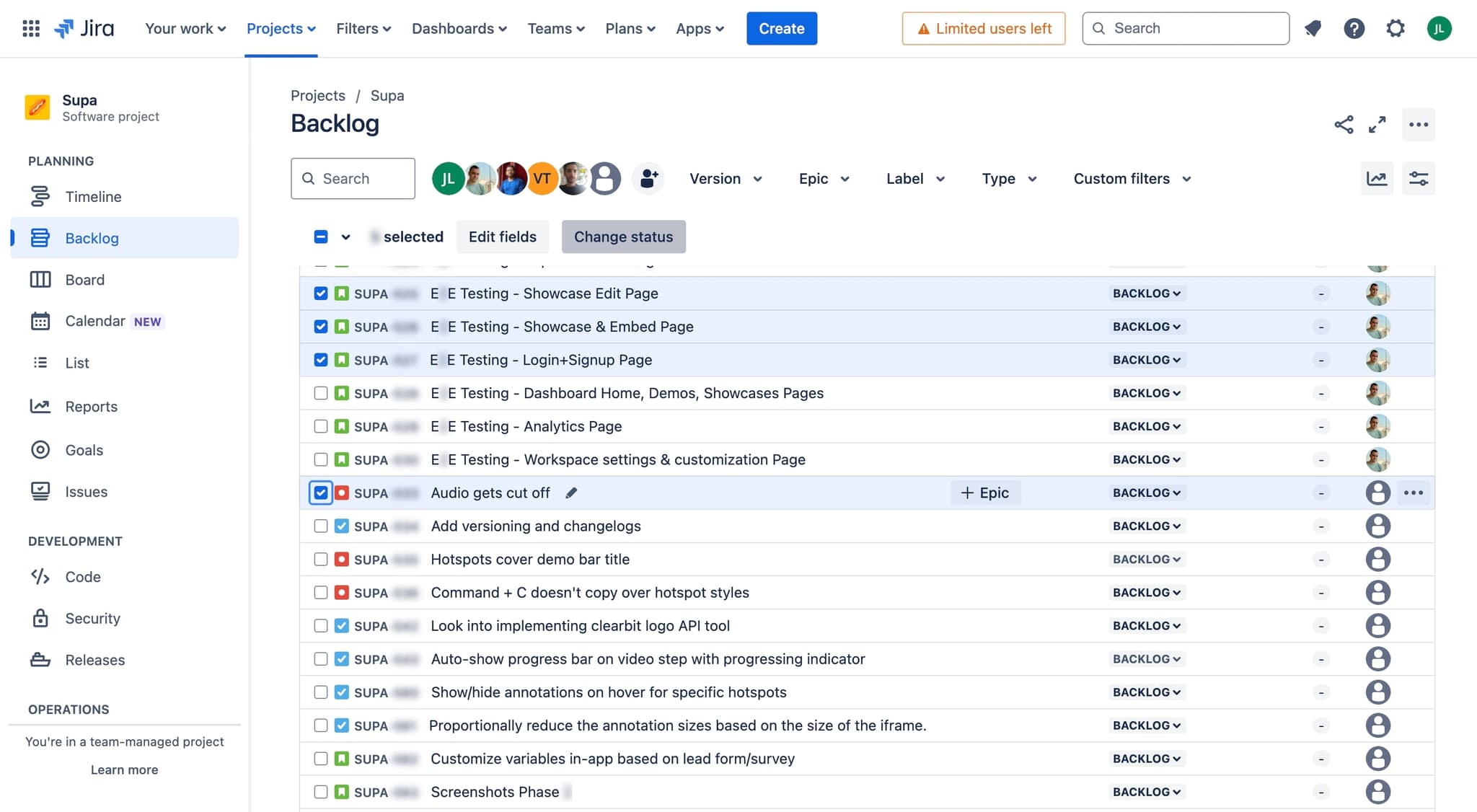
Select multiple issues
Use the checkboxes next to each issue to select the ones you want to update. You can select issues individually or use keyboard shortcuts to select multiple items at once for faster selection.
- 3
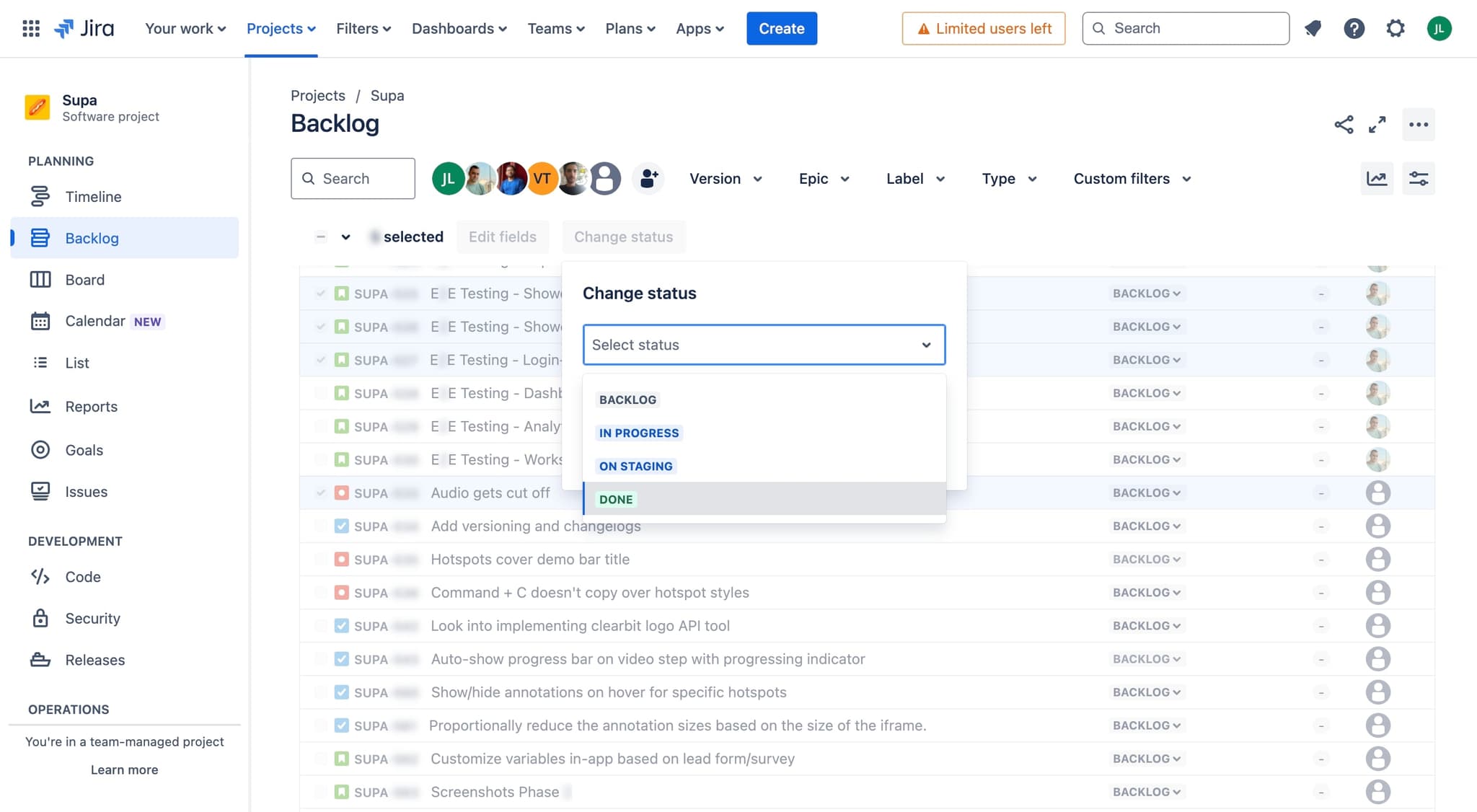
Open the bulk action menu
Once you've selected your issues, look for the bulk actions toolbar that appears. Click on the status or workflow action option to reveal the available status transitions for your selected items.
- 4
Change status and apply
Select the new status you want to apply to all selected issues from the dropdown menu. Click the Apply or Confirm button to execute the bulk status change across all selected items.

Frequently asked questions
Common questions about how to bulk change the status of multiple issues directly from the backlog on jira.
Yes, you can select and bulk update issues across different sprints in your backlog view. The bulk action applies to whatever issues you've selected, regardless of their sprint assignment.
Jira will only transition issues that have a valid workflow path to the selected status. Any issues that can't make that transition will remain unchanged, and you'll typically see a notification about which items were skipped.
While there's no strict limit, bulk updating very large numbers of issues at once may affect performance. It's generally best to work with reasonable batches of 20-50 issues depending on your Jira instance.
Yes, you can undo bulk changes using Jira's undo function immediately after the action, or you can manually revert the statuses. However, if you've closed your browser or session, you may need to manually update the issues.
Yes, bulk status changes typically trigger the same notifications as individual updates, so assigned team members will be notified of the status change. Check your Jira notification settings to control how these alerts are sent.