How to change priority of the ticket in Jira

Changing ticket priority in Jira is essential for managing your team's workload and ensuring critical tasks get attention first. This guide walks you through the process of updating a ticket's priority level from start to finish.
Quick summary
In this tutorial, you'll learn how to locate a ticket in Jira, access its priority settings, and change the priority level to match your team's current needs. You'll see exactly where to click and what options are available at each stage.
Why this matters
Priority levels help your team focus on what matters most. By adjusting ticket priorities, you can ensure urgent work gets done first and prevent critical issues from being overlooked in a crowded backlog.
Step-by-step guide
- 1
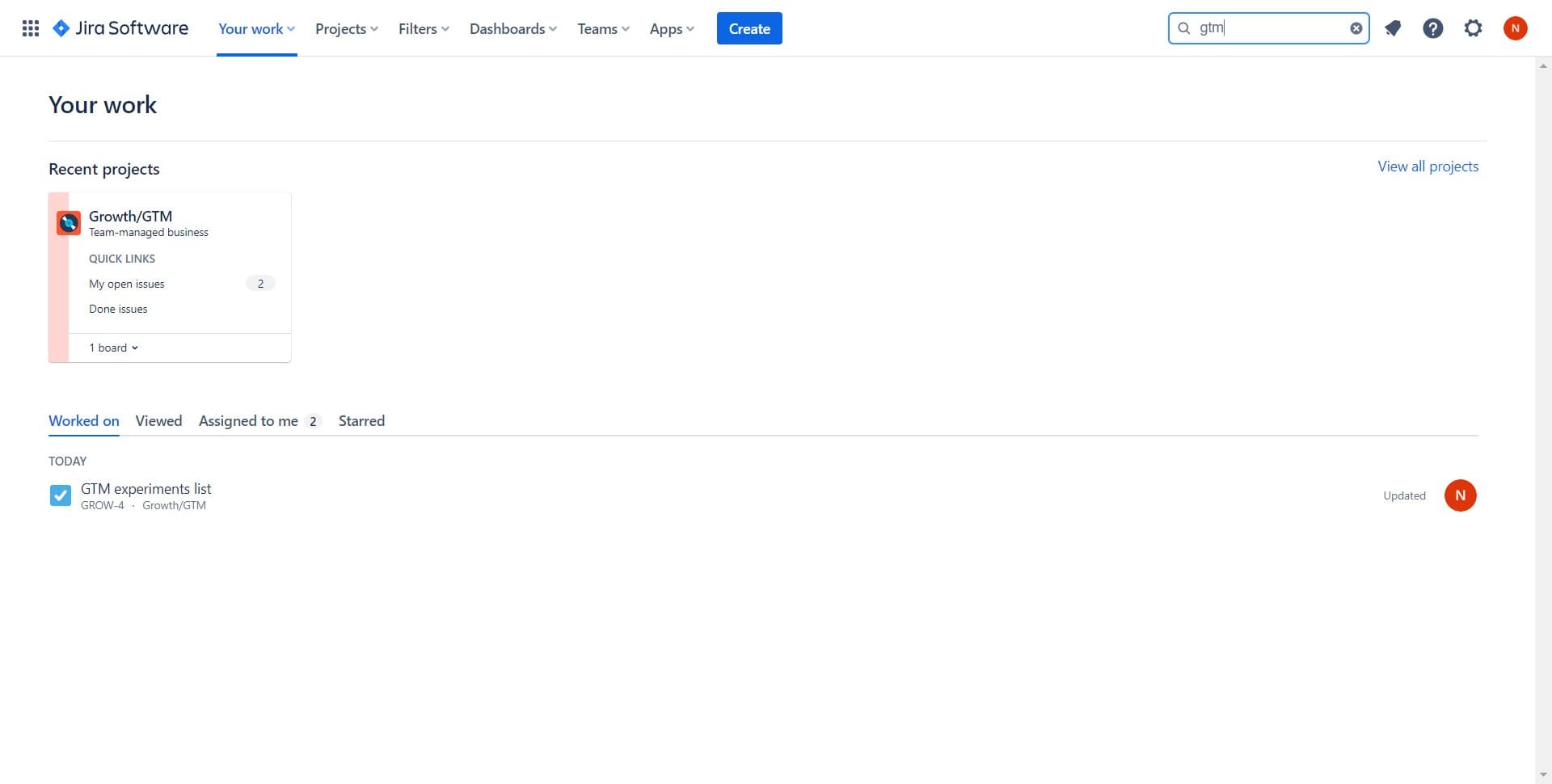
Open the ticket details
Begin by clicking on the ticket you want to modify. This will open the ticket's detail view where you can access all its properties, including priority.
- 2
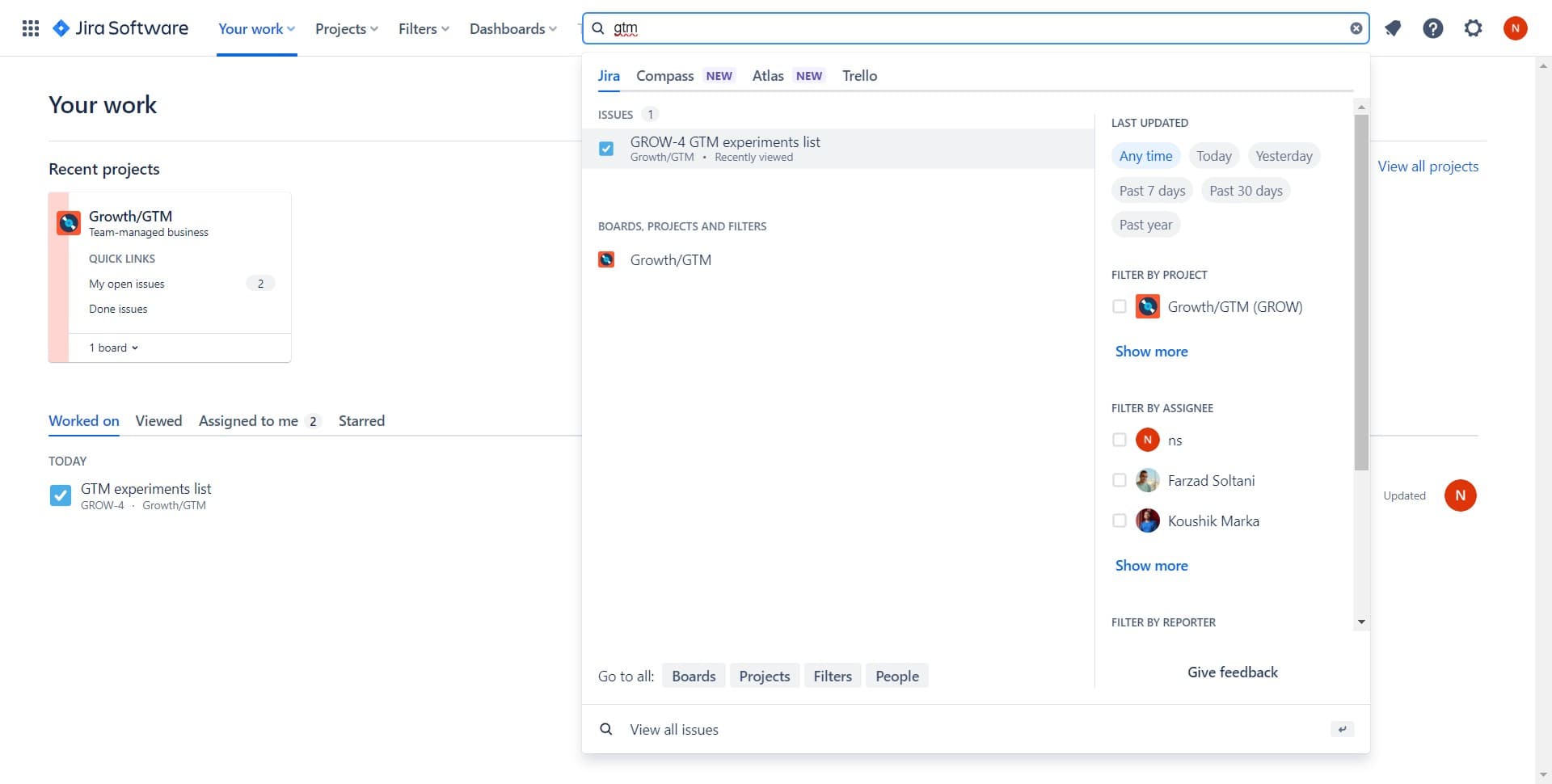
Select the ticket from your project
Click on the specific ticket, such as GROW-4 GTM experiments list, to view its full details and settings in the main panel.
- 3
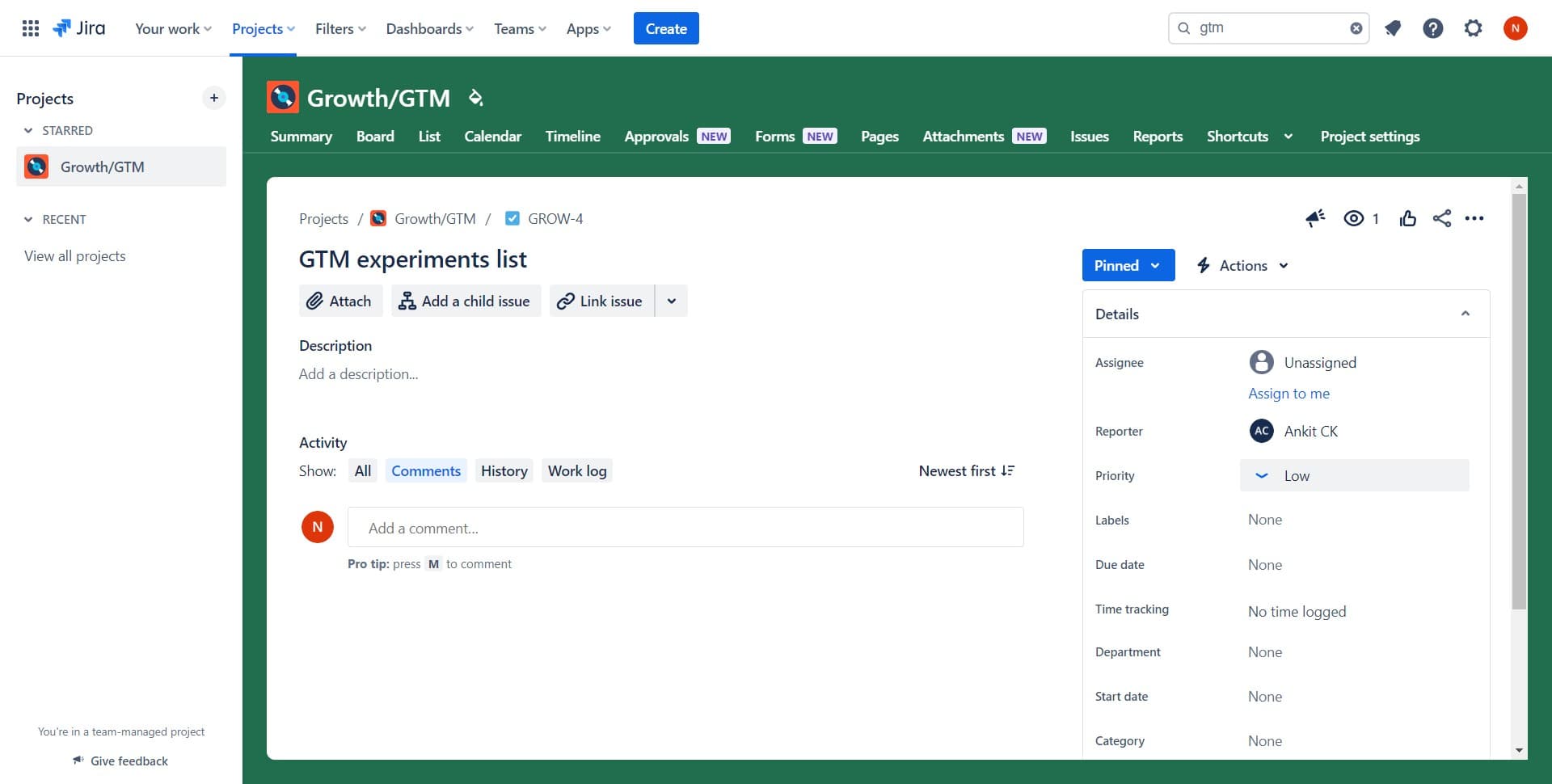
Click on the current priority level
Locate the Priority field in the ticket details and click on it. The current priority, such as Low, will be displayed and clickable.
- 4
Confirm your selection
Once you've selected a new priority level, the system will process your update. Look for confirmation that the change has been applied.
- 5
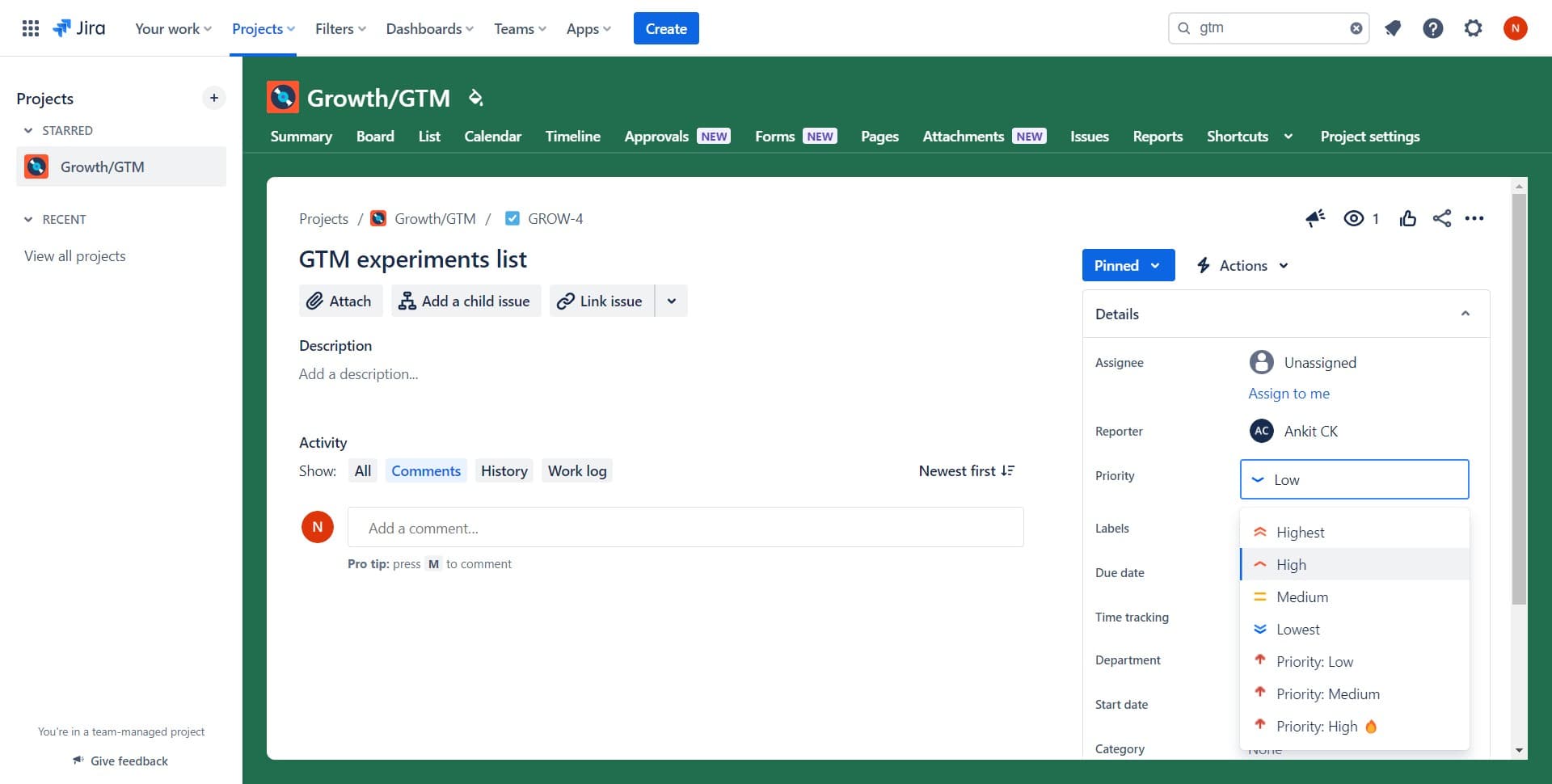
Select the new priority
From the priority dropdown menu, click on your desired priority level, such as High, to update the ticket immediately.
Frequently asked questions
Common questions about how to change priority of the ticket in jira.
Jira typically offers priority levels including Lowest, Low, Medium, High, and Highest. Your organization may customize these values, so check your Jira configuration for the exact options available in your instance.
This depends on your project's permission settings. Most team members can change priority on tickets they own or have edit permissions for. Contact your Jira administrator if you're unable to modify priorities.
Yes, when you change a ticket's priority, team members watching the ticket typically receive notifications. This ensures everyone stays informed about important updates to task urgency.
Yes, Jira supports bulk editing. You can select multiple tickets from your backlog or search results and change their priorities together using the bulk edit feature in the Tools menu.
Use priority to reflect business impact and urgency. High priority should be reserved for critical issues affecting users or revenue, while Low priority is for minor enhancements or non-urgent tasks.