How to create a board in Jira

Creating a board in Jira is the first step toward organizing and tracking your team's work. Boards provide a visual workspace where you can manage tasks, monitor progress, and collaborate effectively. This guide walks you through the process of setting up a Kanban board in Jira.
Quick summary
In this tutorial, you'll learn how to navigate to the boards section, create a new board, and configure it as a Kanban board. By following these steps, you'll have a functional board ready to start managing your team's projects and workflows.
Why this matters
Boards are essential in Jira because they provide a visual representation of your workflow and help teams track work in progress. A well-configured board improves transparency, reduces bottlenecks, and enables better collaboration across your team. Setting up your first board correctly ensures you can immediately begin using Jira to its full potential.
Step-by-step guide
- 1
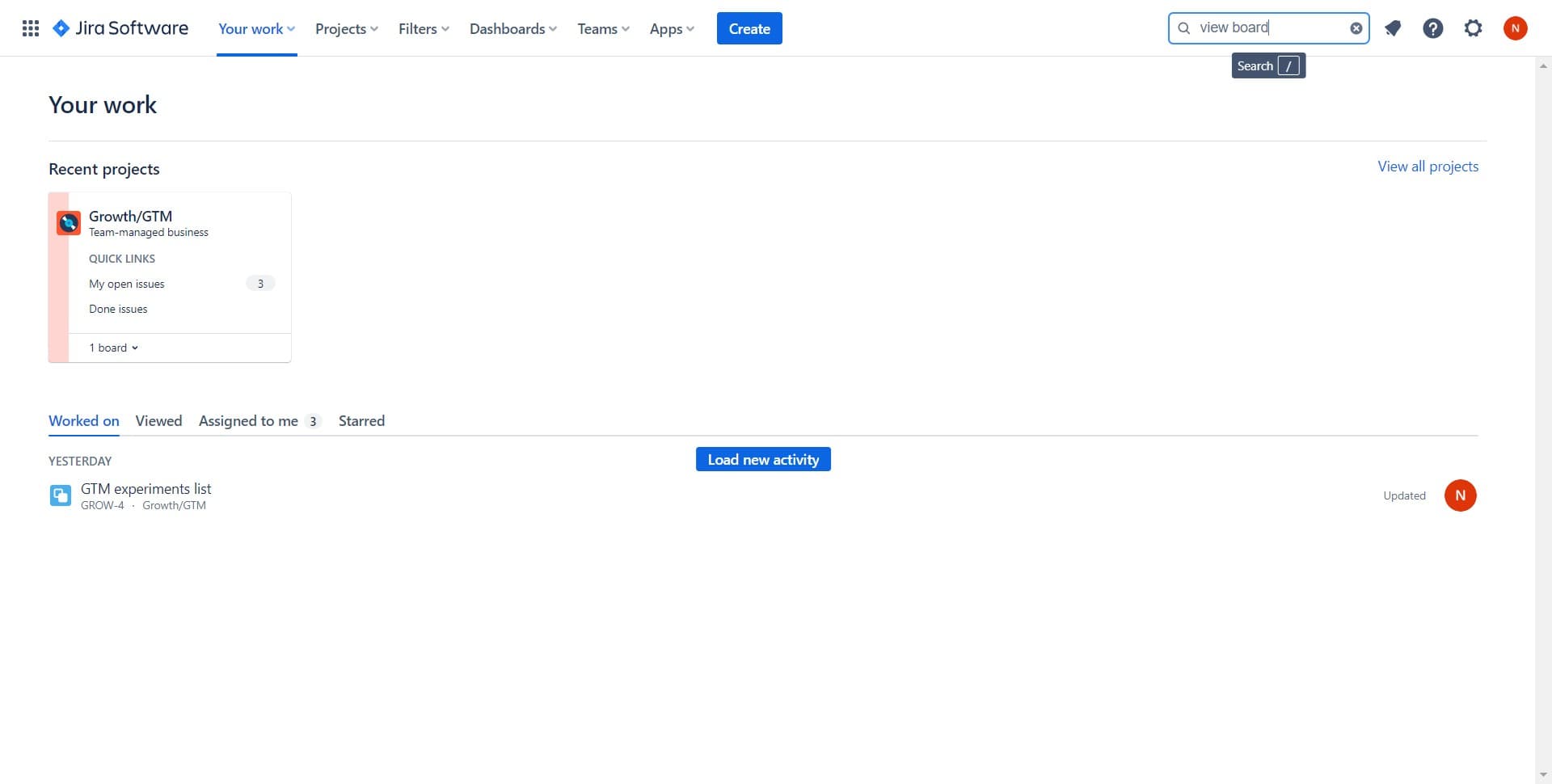
Access the main navigation
Start by clicking the designated navigation element to enter the main menu. This will give you access to the core features and options available in Jira.
- 2
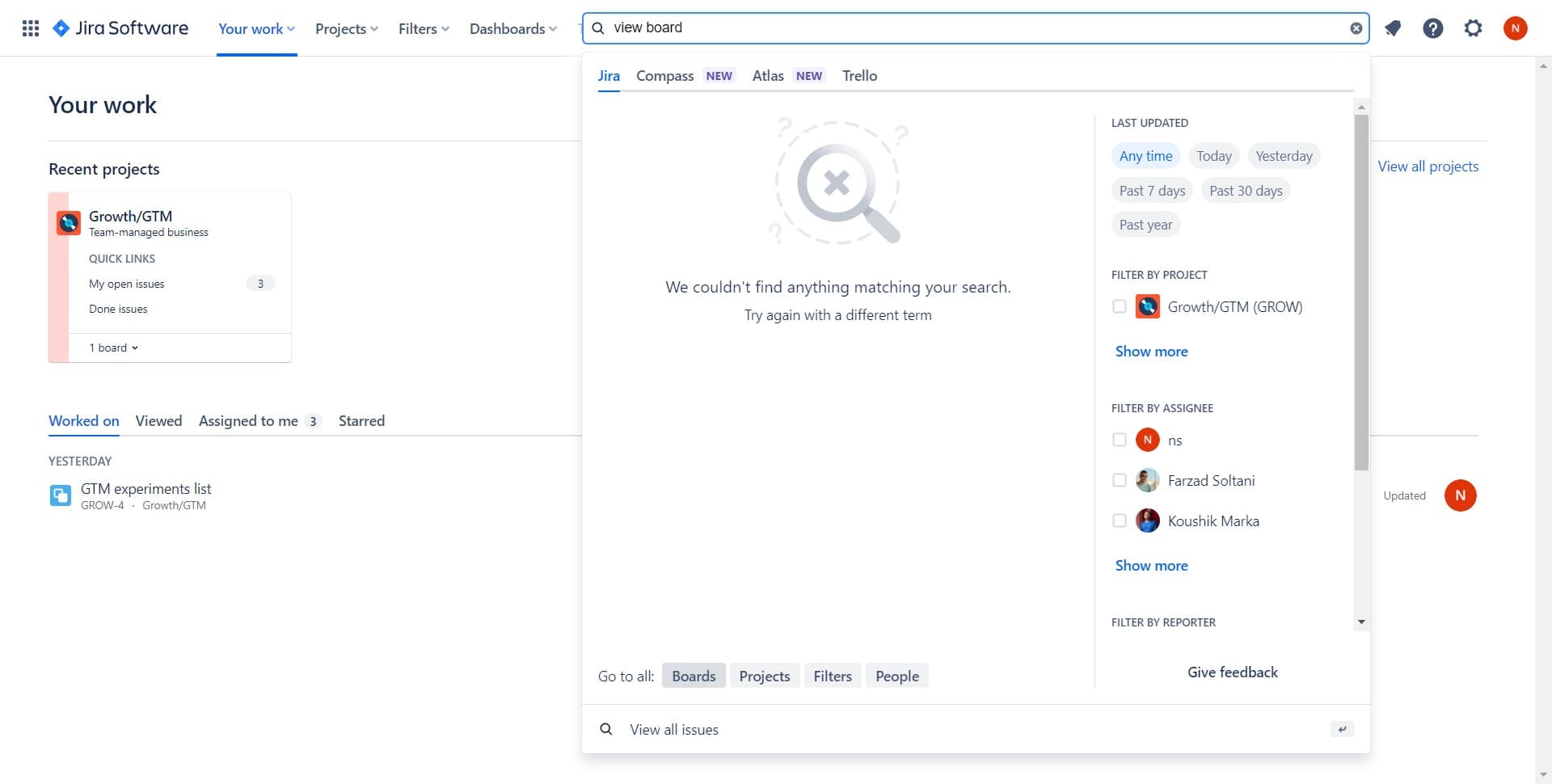
Click on Boards
Select the 'Boards' option from the menu to navigate to the boards section. You'll see any existing boards and options to create new ones.
- 3
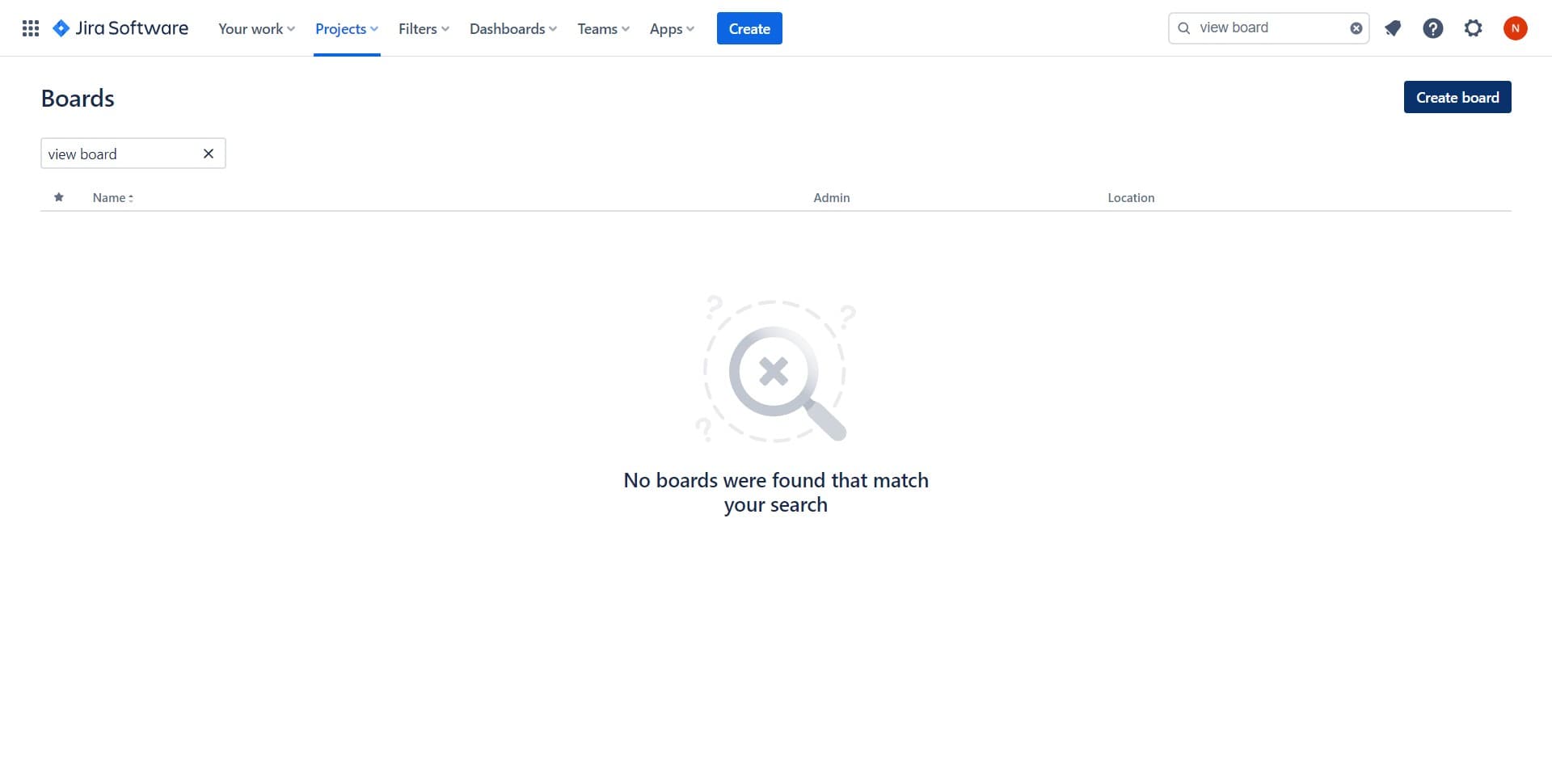
Click on Create board
Look for the 'Create board' button and click it to begin the board creation process. This will open a dialog with different board type options.
- 4
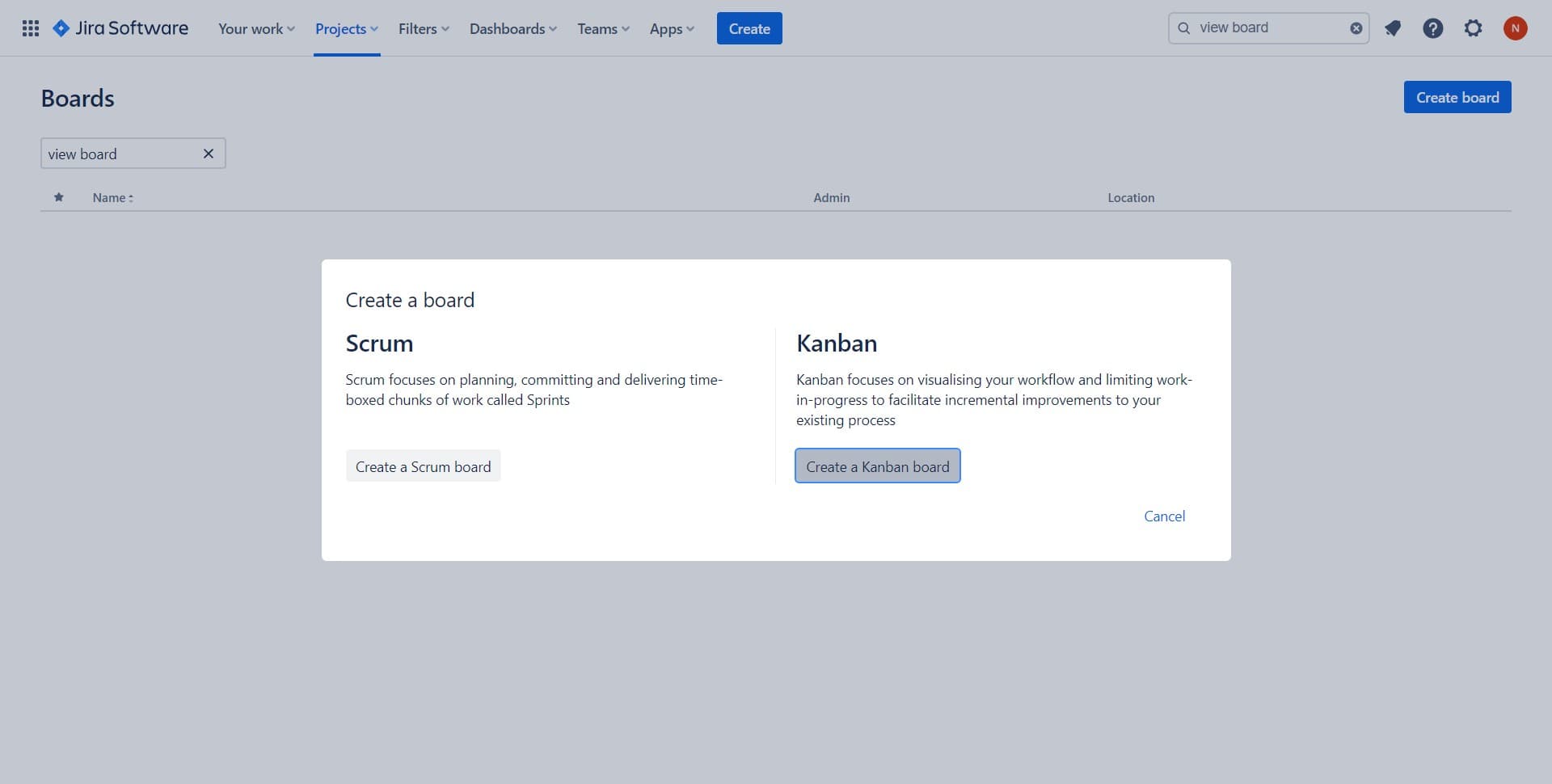
Select Create a Kanban board
Choose 'Create a Kanban board' from the available board types. Kanban boards are ideal for visualizing workflow stages and managing continuous delivery of work.
- 5
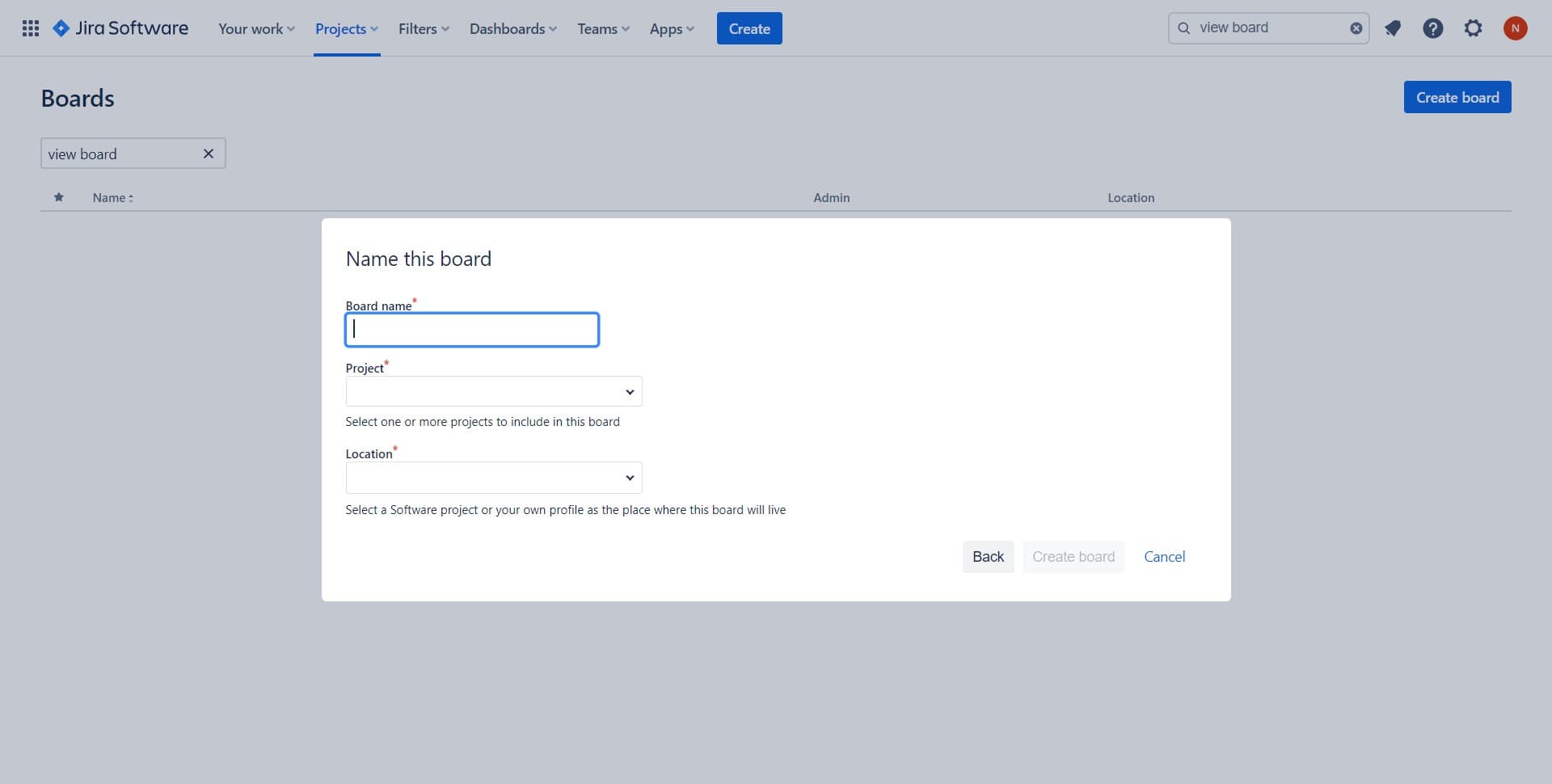
Configure board settings
Enter your board configuration details, such as the project and board name. Review the default settings to ensure they align with your team's workflow.
- 6
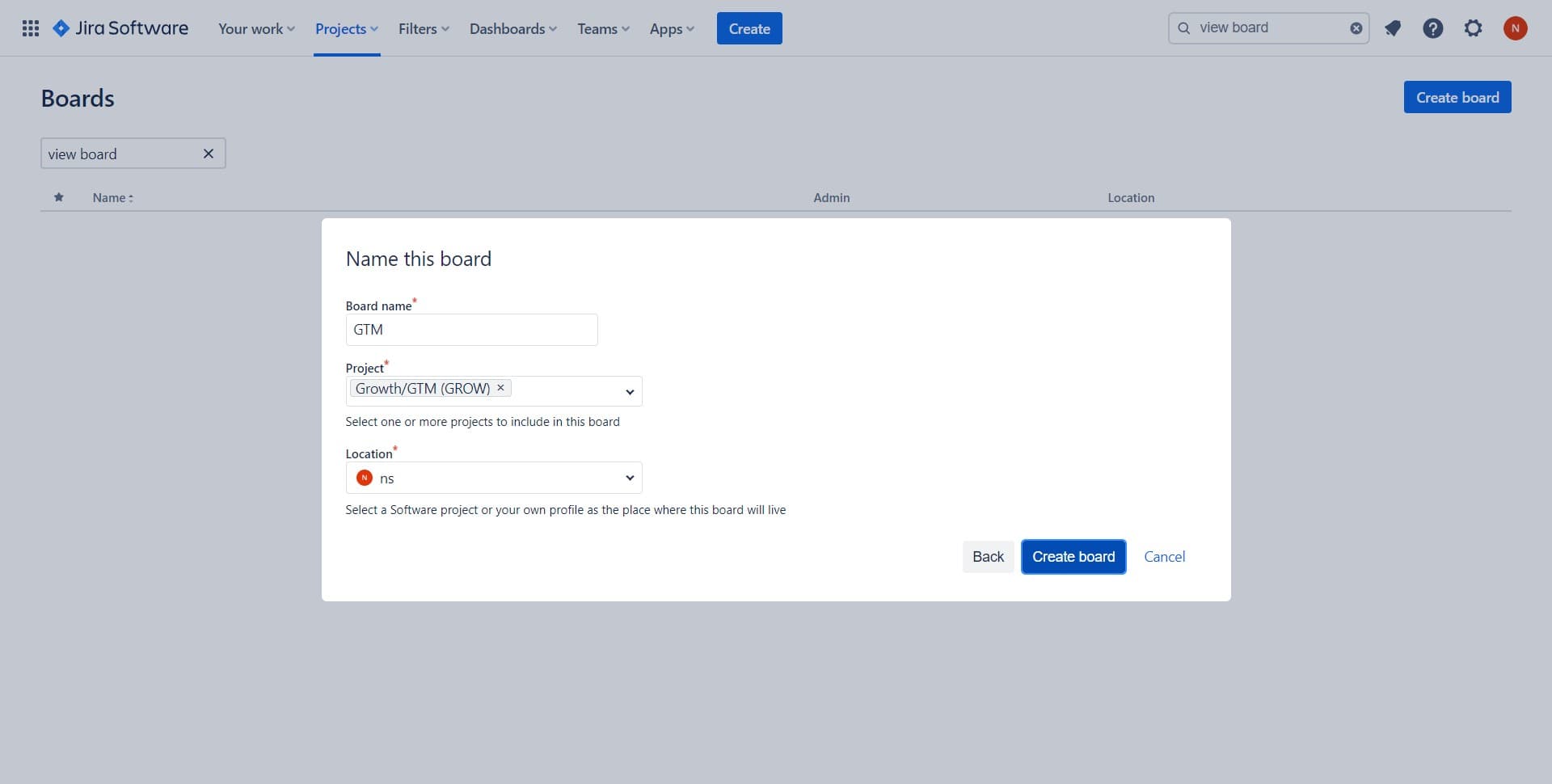
Finalize and create board
Click the 'Create board' button to complete the setup. Your new Kanban board will be created and ready for your team to start using.
- 7
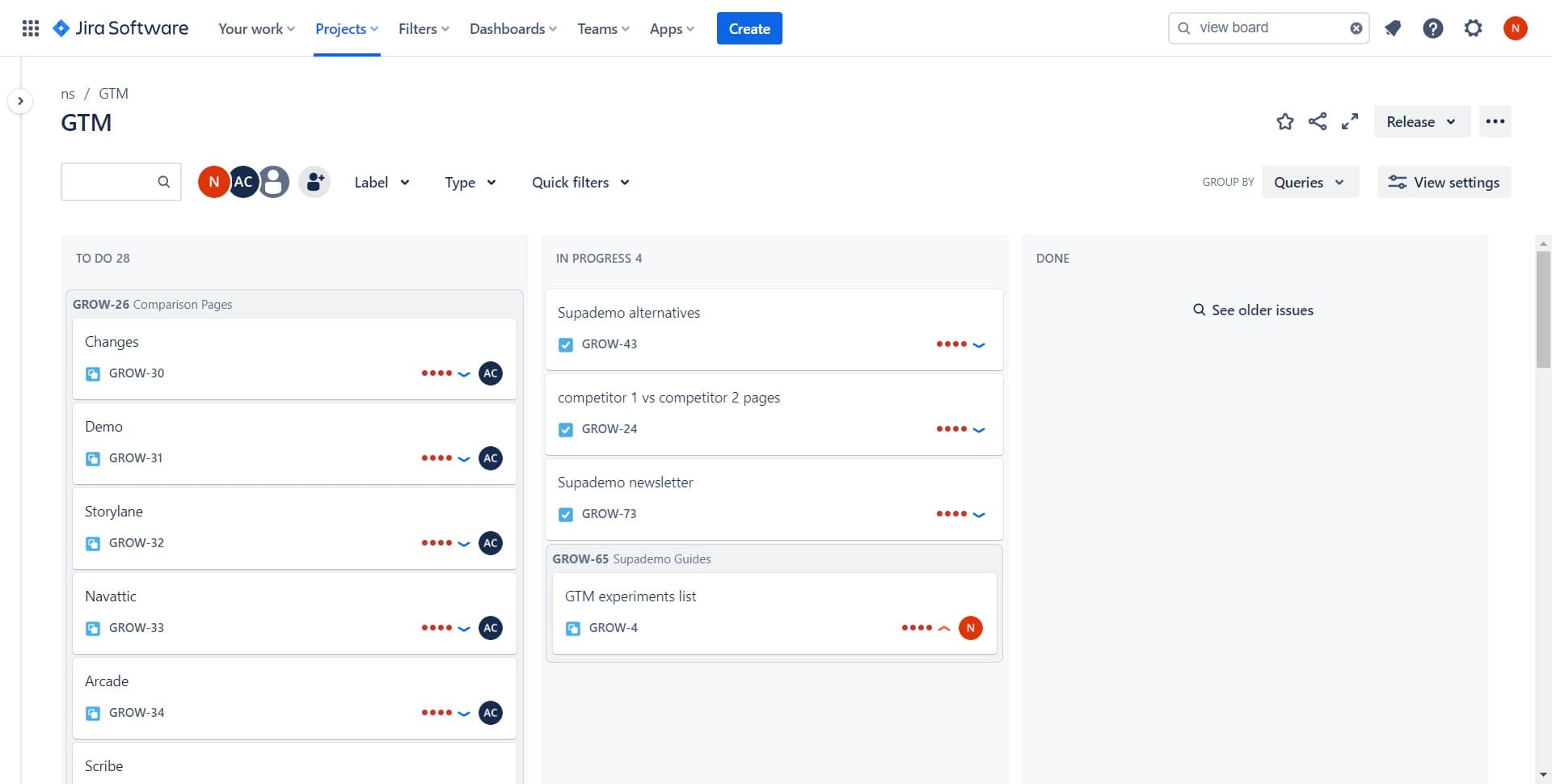
View and manage issues
Once your board is created, you can click 'See older issues' to view historical or archived issues. This helps you maintain a complete view of your project's work history.
Frequently asked questions
Common questions about how to create a board in jira.
Kanban boards are designed for continuous workflow management with columns representing different stages of work. Unlike Scrum boards, they don't use sprints and allow work to flow continuously. Kanban is ideal for teams that prefer ongoing delivery over time-boxed iterations.
You can modify board settings and workflows after creation, but converting between board types (Kanban to Scrum or vice versa) typically requires creating a new board. It's best to choose the right board type during initial setup based on your team's workflow.
After creating your board, you can add issues by clicking 'Create issue' directly on the board or by linking existing project issues to it. Issues will appear in the appropriate columns based on their status in your workflow.
Yes, multiple team members can collaborate on the same board if they have access to the project. You can manage permissions and visibility through your Jira project settings to control who can view and edit the board.
The Boards option may not appear if you don't have the necessary permissions or if it's not enabled in your Jira instance. Check with your Jira administrator to ensure you have the correct access level and that the Boards feature is enabled for your projects.