How to create a dashboard in Jira

Jira dashboards provide a centralized view of your projects, tasks, and team progress in one customizable space. This guide walks you through creating a dashboard from scratch, enabling you to monitor key metrics and workflows at a glance.
Quick summary
In this tutorial, you'll learn how to create a Jira dashboard by navigating to the Dashboards section, initiating a new dashboard, configuring its layout, and adding gadgets to display relevant project data. By the end, you'll have a personalized dashboard tailored to your team's needs.
Why this matters
Dashboards are essential for project visibility and decision-making in Jira. They allow teams to track progress, identify blockers, and maintain alignment without diving into individual issues, saving time and improving communication across stakeholders.
Step-by-step guide
- 1
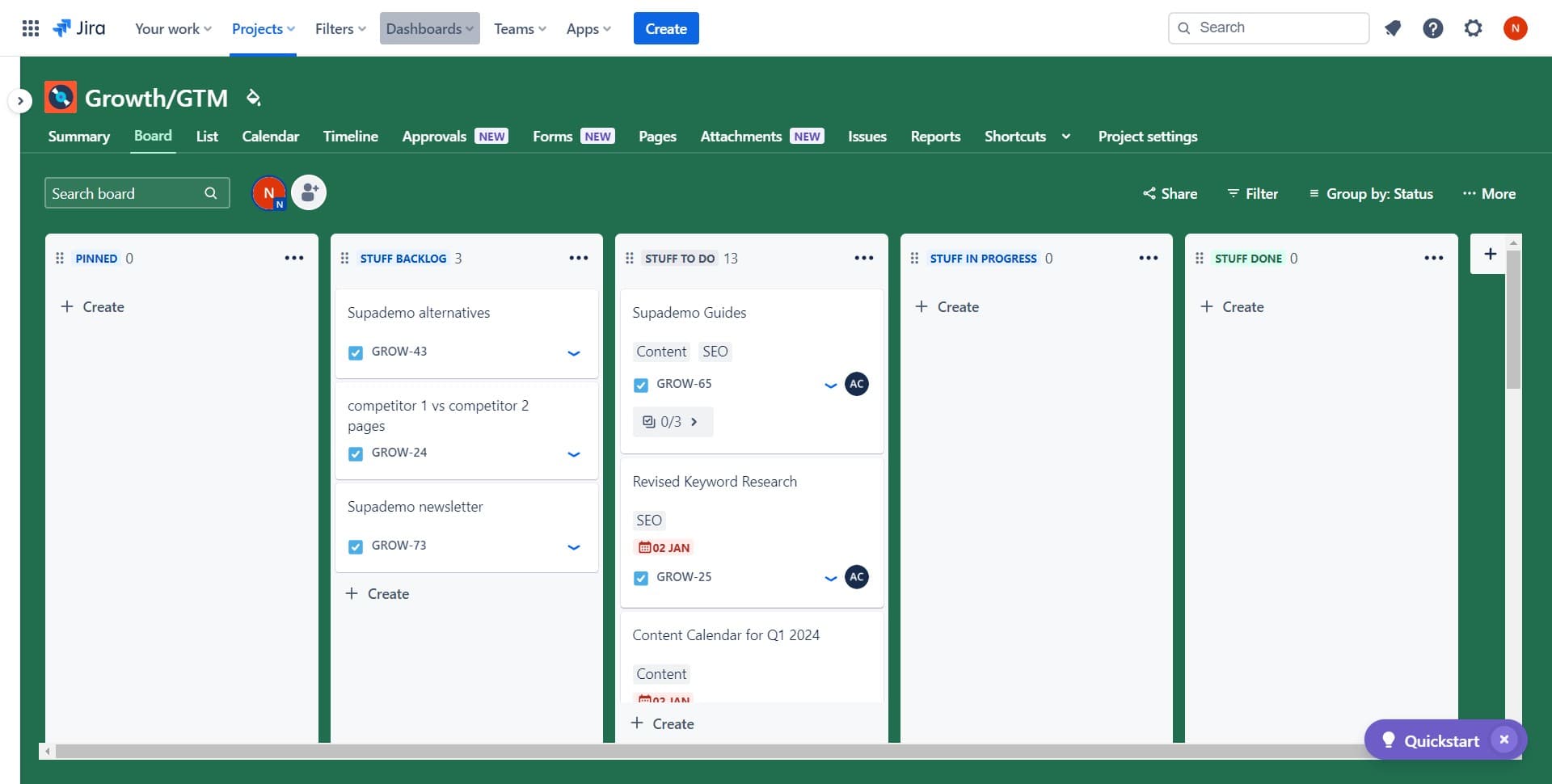
Navigate to Dashboards
Click on the 'Dashboards' option in the main Jira navigation menu. This takes you to the Dashboards hub where you can view existing dashboards or create new ones.
- 2
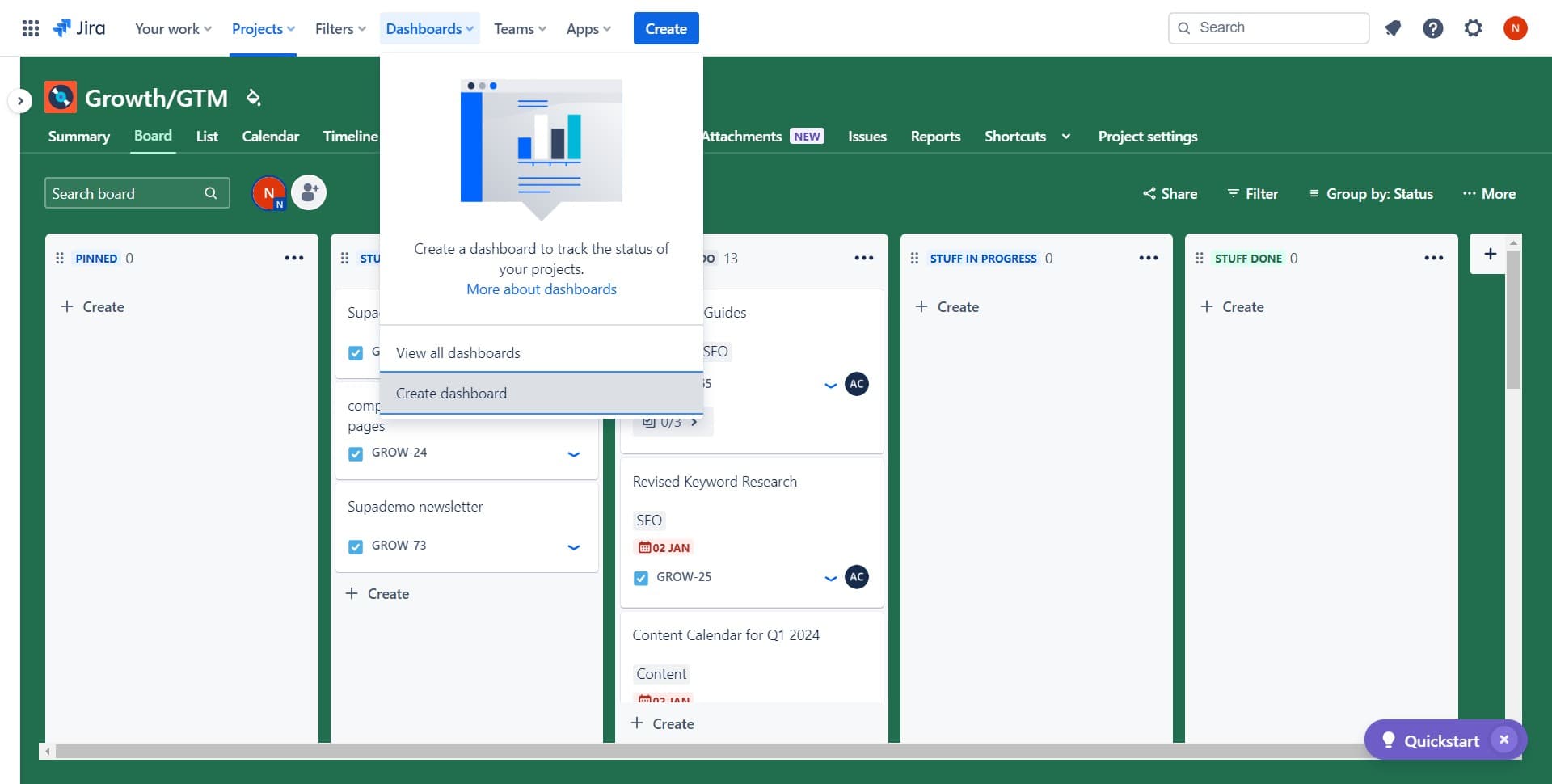
Start creating a new dashboard
Click the 'Create dashboard' button. You'll be prompted to enter a name and description for your dashboard, which helps you and your team identify its purpose.
- 3
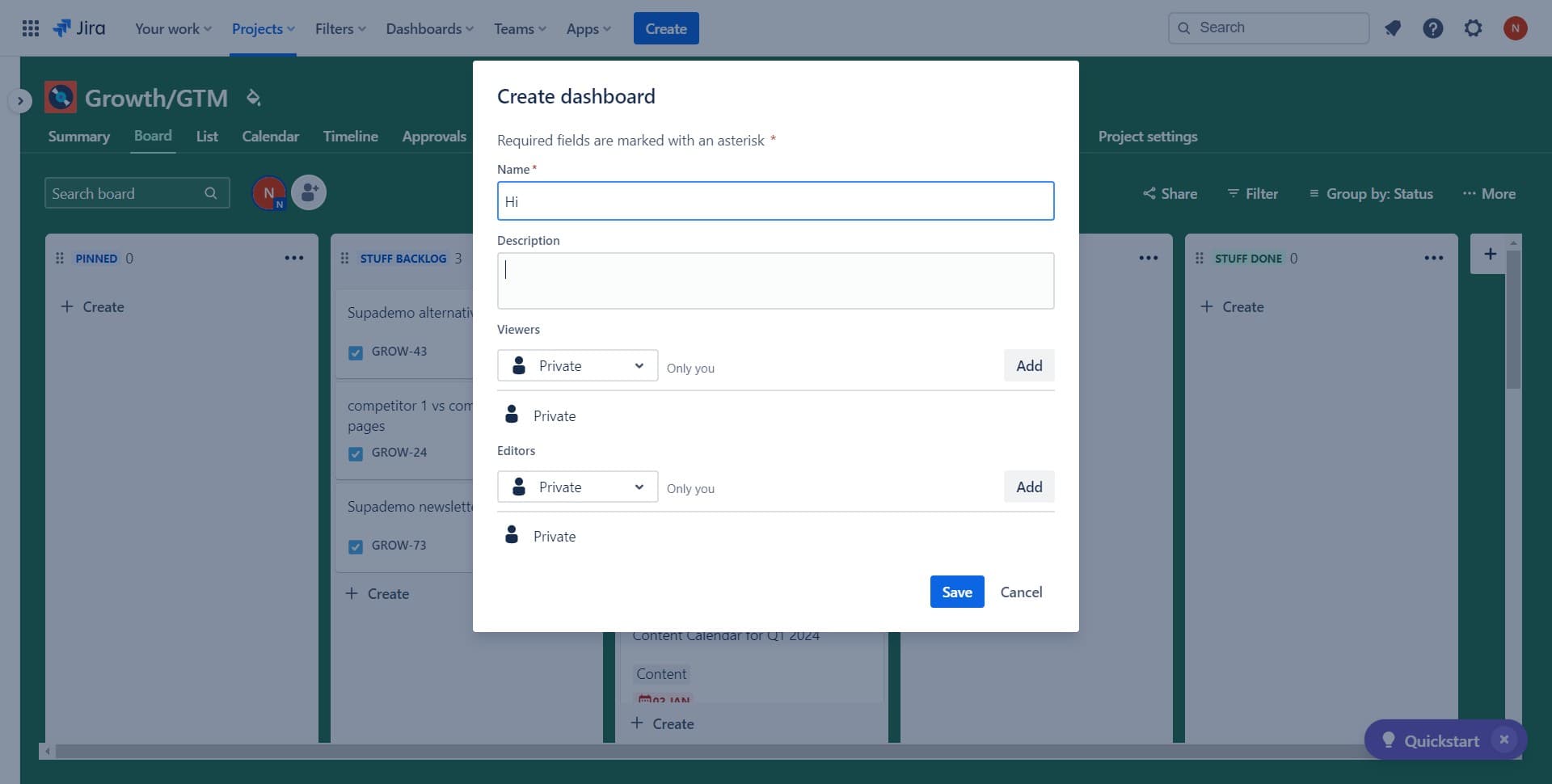
Configure the dashboard layout
Select your preferred layout configuration for the dashboard. Jira offers various column arrangements to suit different display preferences and gadget combinations.
- 4
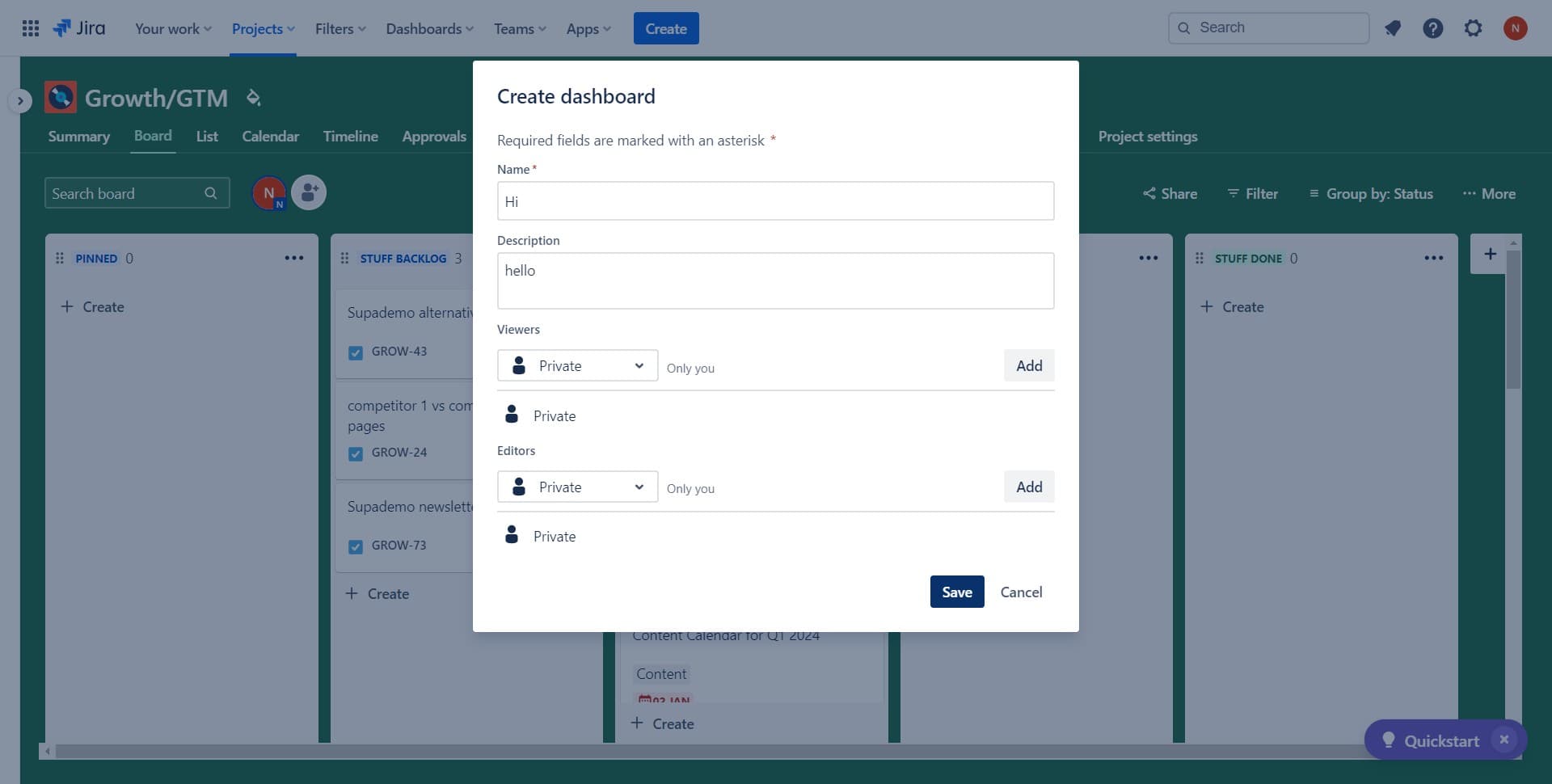
Save your dashboard
Click the 'Save' button to confirm your dashboard creation and layout settings. Your new dashboard is now ready for customization.
- 5
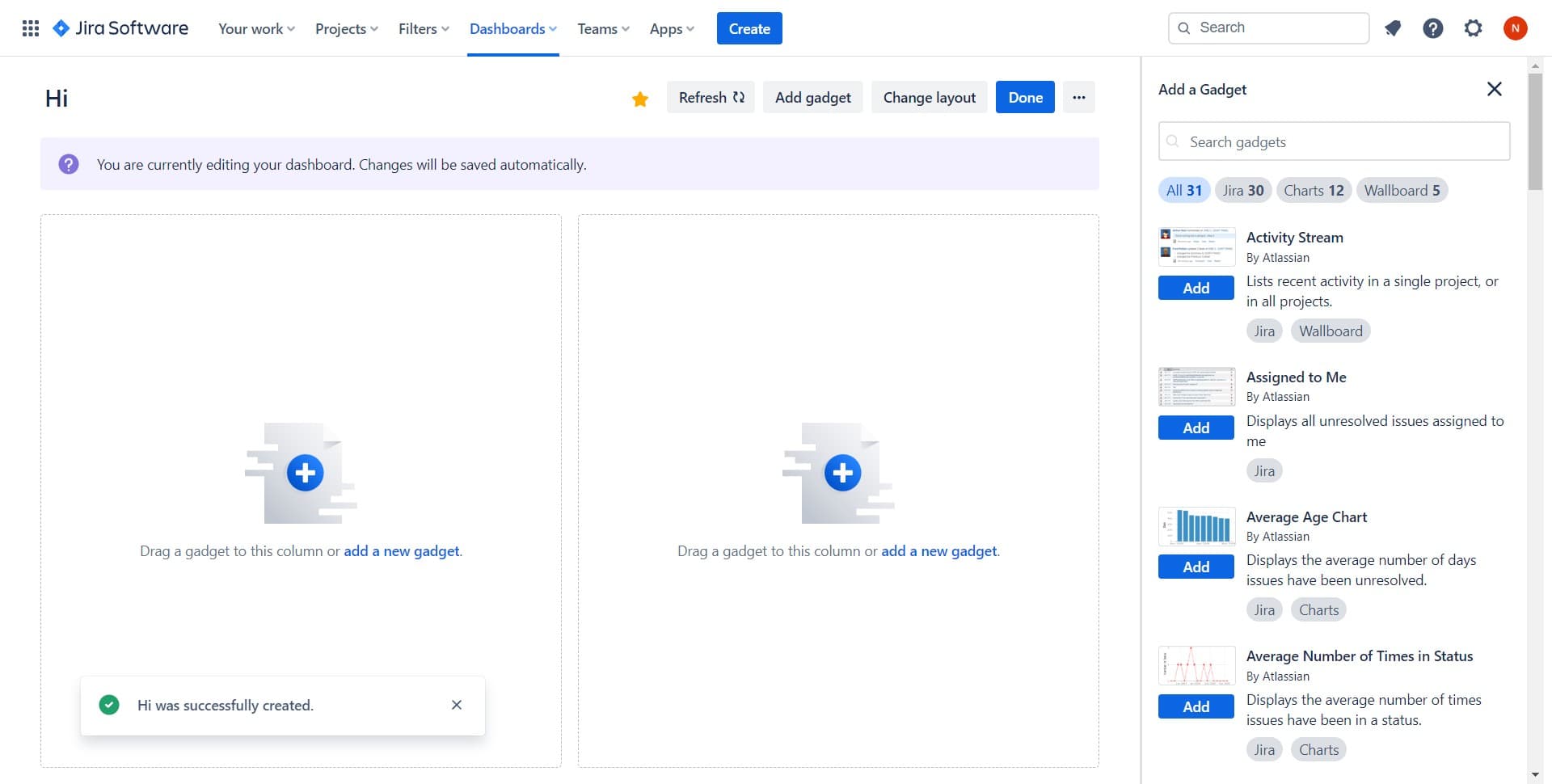
Add gadgets to your dashboard
Click 'Drag a gadget' to begin adding widgets to your dashboard. You can select from various gadget types such as issue lists, charts, calendars, and custom reports to display the metrics that matter most to your team.
Frequently asked questions
Common questions about how to create a dashboard in jira.
Yes, Jira dashboards are fully editable. You can change the layout, add or remove gadgets, and modify settings at any time by clicking the Edit button on your dashboard.
Most Jira instances allow users to create multiple dashboards. Check with your Jira administrator if you encounter limits, as permissions and restrictions may vary based on your organization's setup.
Yes, dashboards can be shared with specific users or groups. Use the Share button on your dashboard to set permissions and ensure your team has access to view the data you've configured.
Choose gadgets based on your team's priorities. Common options include Sprint status, Issue statistics, Recently updated issues, and Pie charts. Start with metrics most relevant to your workflow and adjust as needed.
Jira provides a default dashboard, but creating custom dashboards tailored to your team's specific needs is recommended. Custom dashboards improve efficiency by displaying only relevant information for your workflows.