How to create a new project in Jira

Creating a new project in Jira is the foundation for organizing and tracking work across your team. Whether you're starting a software development initiative, managing a marketing campaign, or handling any other project-based work, this guide walks you through the process step by step.
Quick summary
In this tutorial, you'll learn how to set up a new Jira project from start to finish. You'll navigate through the project creation interface, explore available options, and configure your project settings to match your team's workflow.
Why this matters
Projects in Jira serve as containers for organizing issues, tracking progress, and collaborating with your team. Creating a well-configured project ensures your team has a centralized place to manage work, monitor timelines, and maintain visibility across tasks and deliverables.
Step-by-step guide
- 1
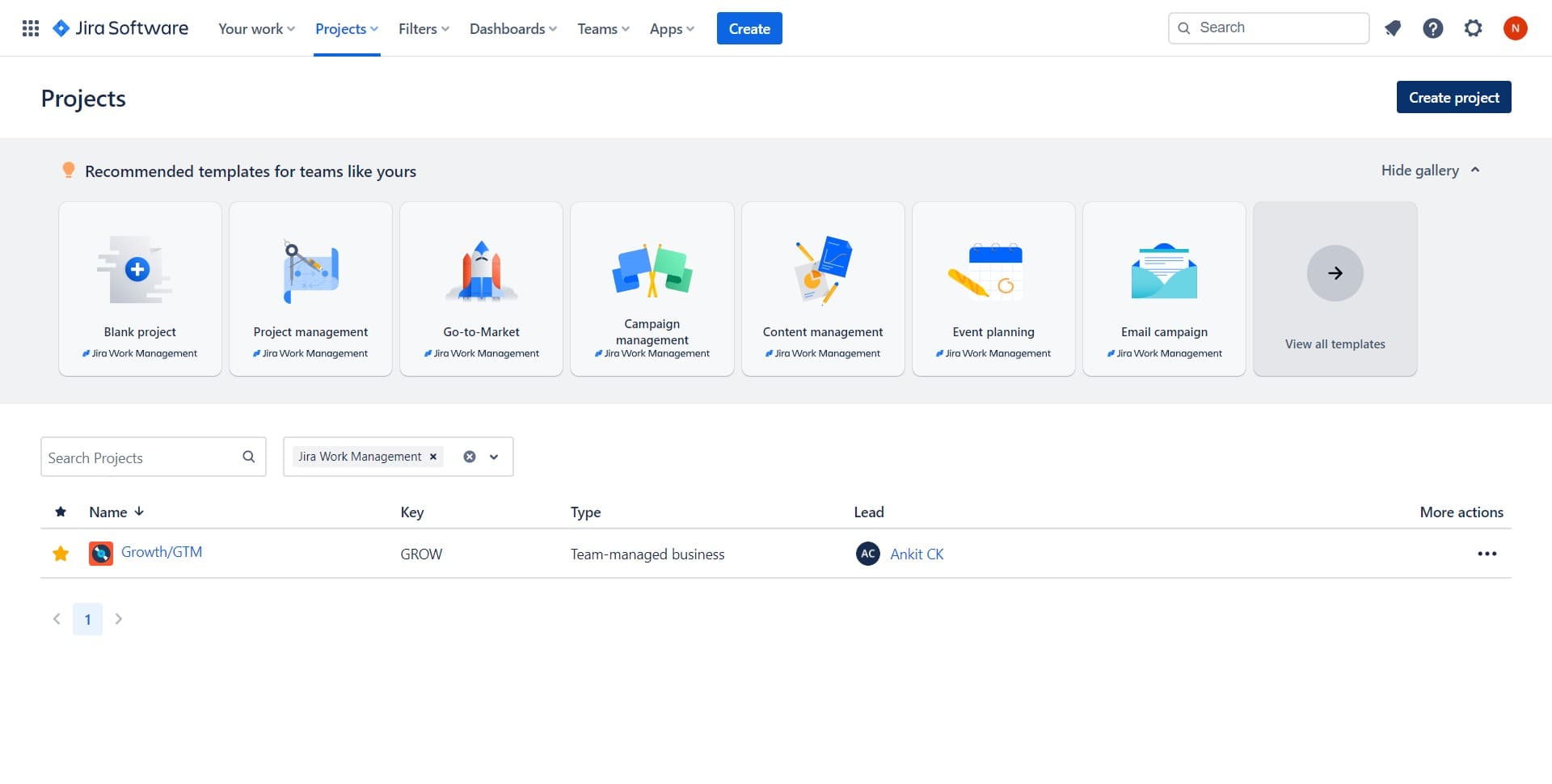
Click on Create project
Start by locating and clicking the "Create project" button in your Jira workspace. This button is typically found on the main dashboard or in the navigation menu, and it initiates the project creation workflow.
- 2
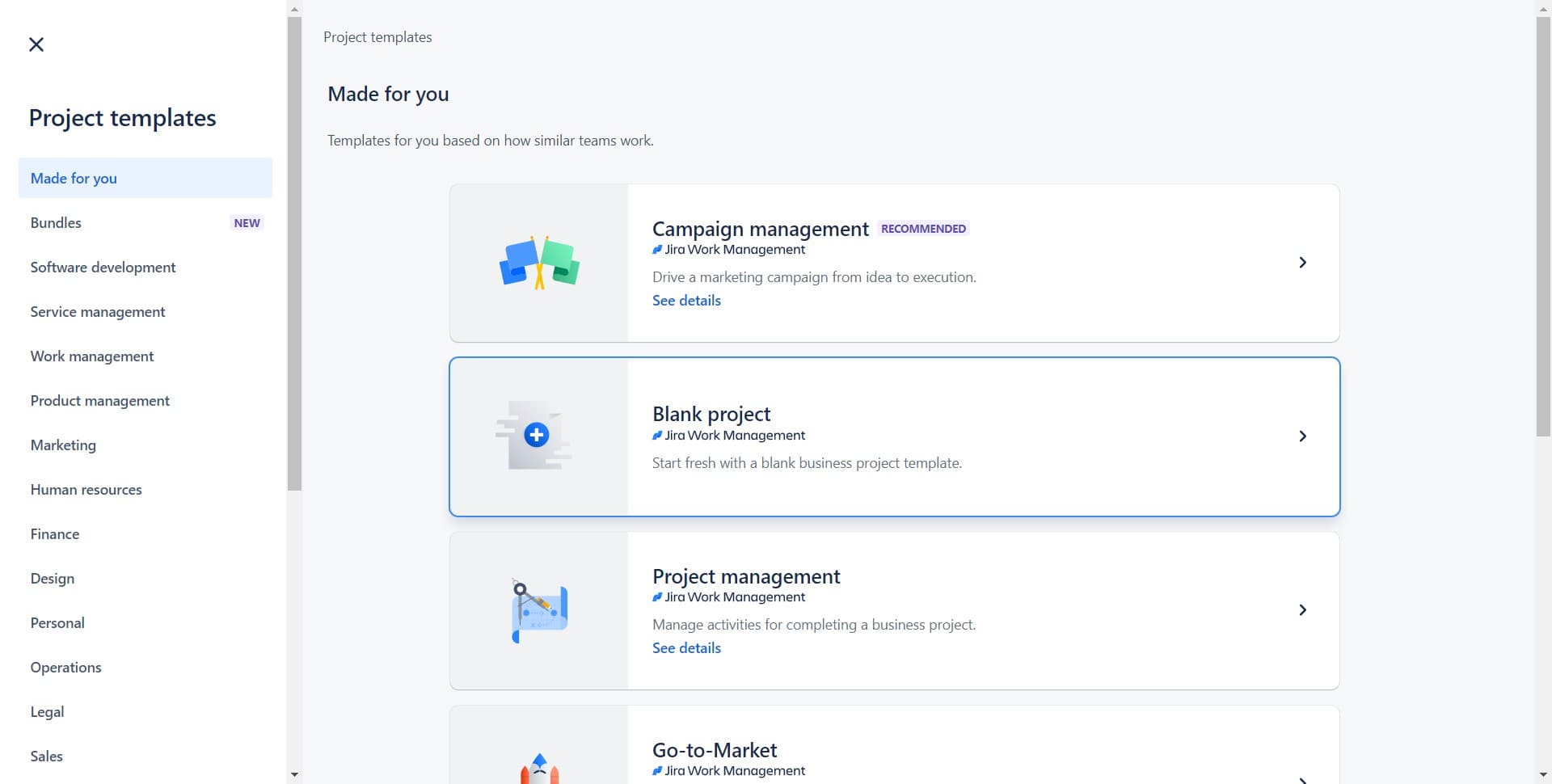
Select your project template
You'll be presented with a selection of project templates tailored to different workflows. Choose the template that best matches your team's needs and click to proceed.
- 3
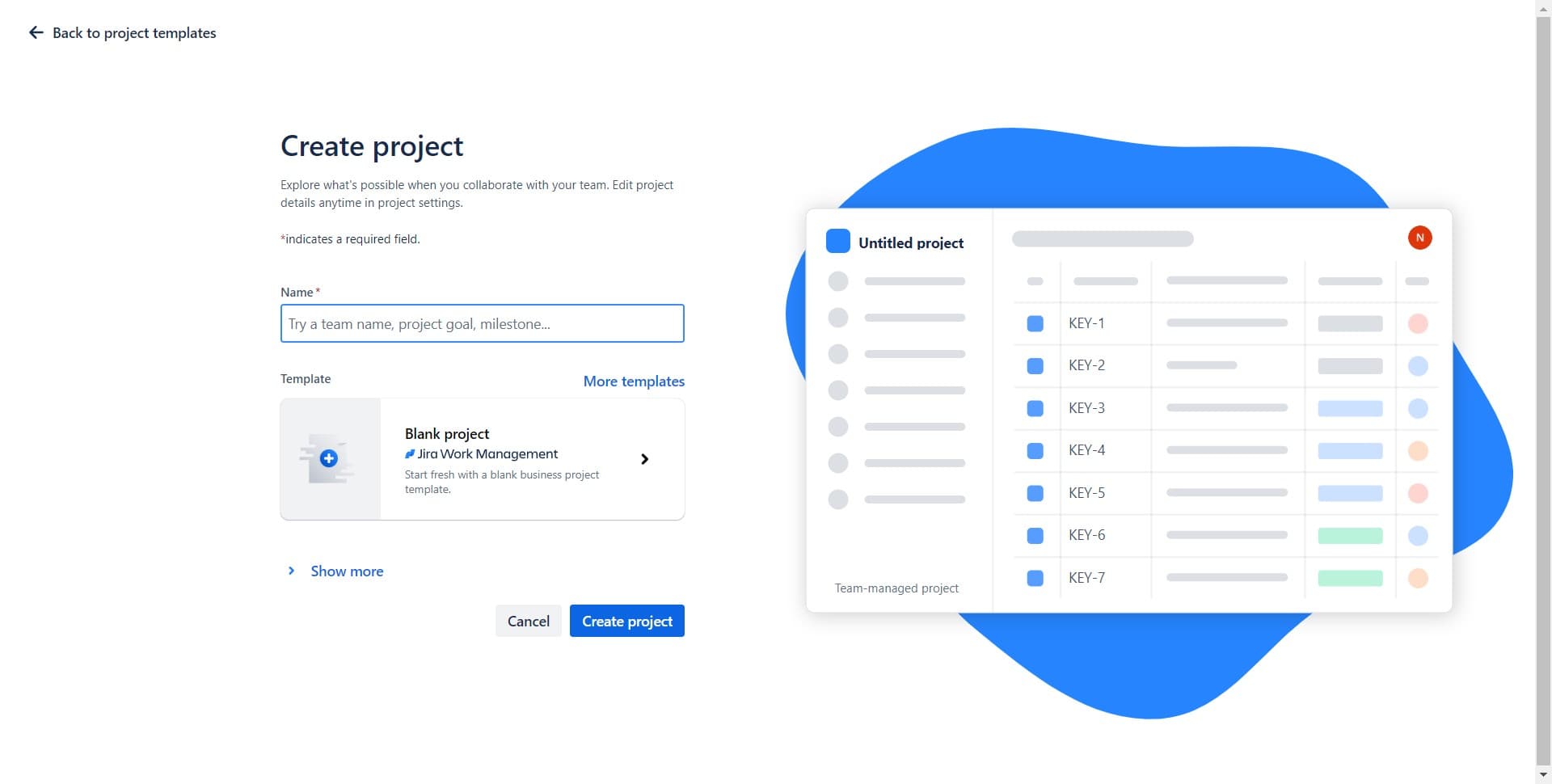
Configure basic project settings
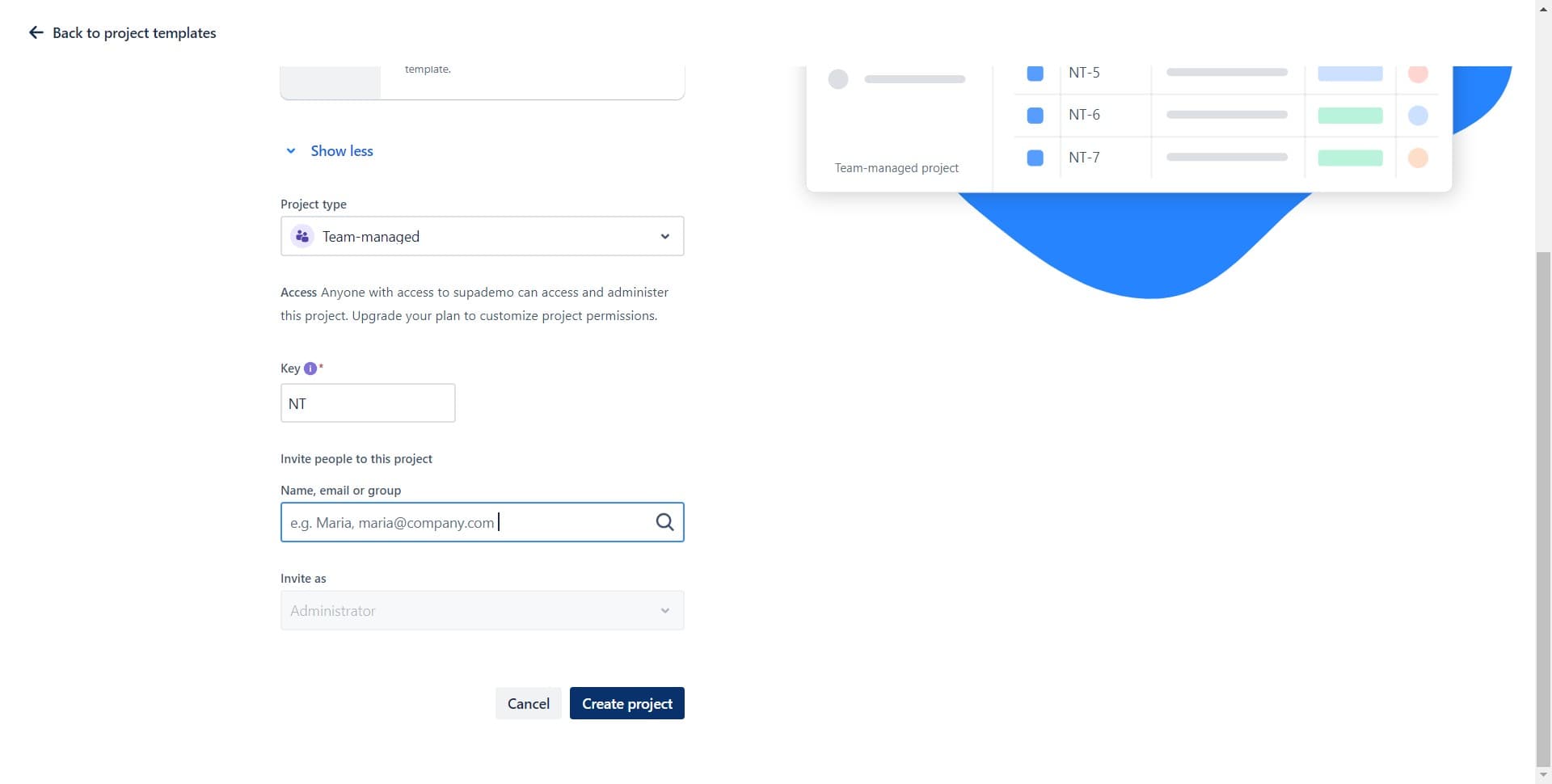
Enter your project name, key, and description. These details help your team identify and understand the purpose of the project at a glance.
- 4
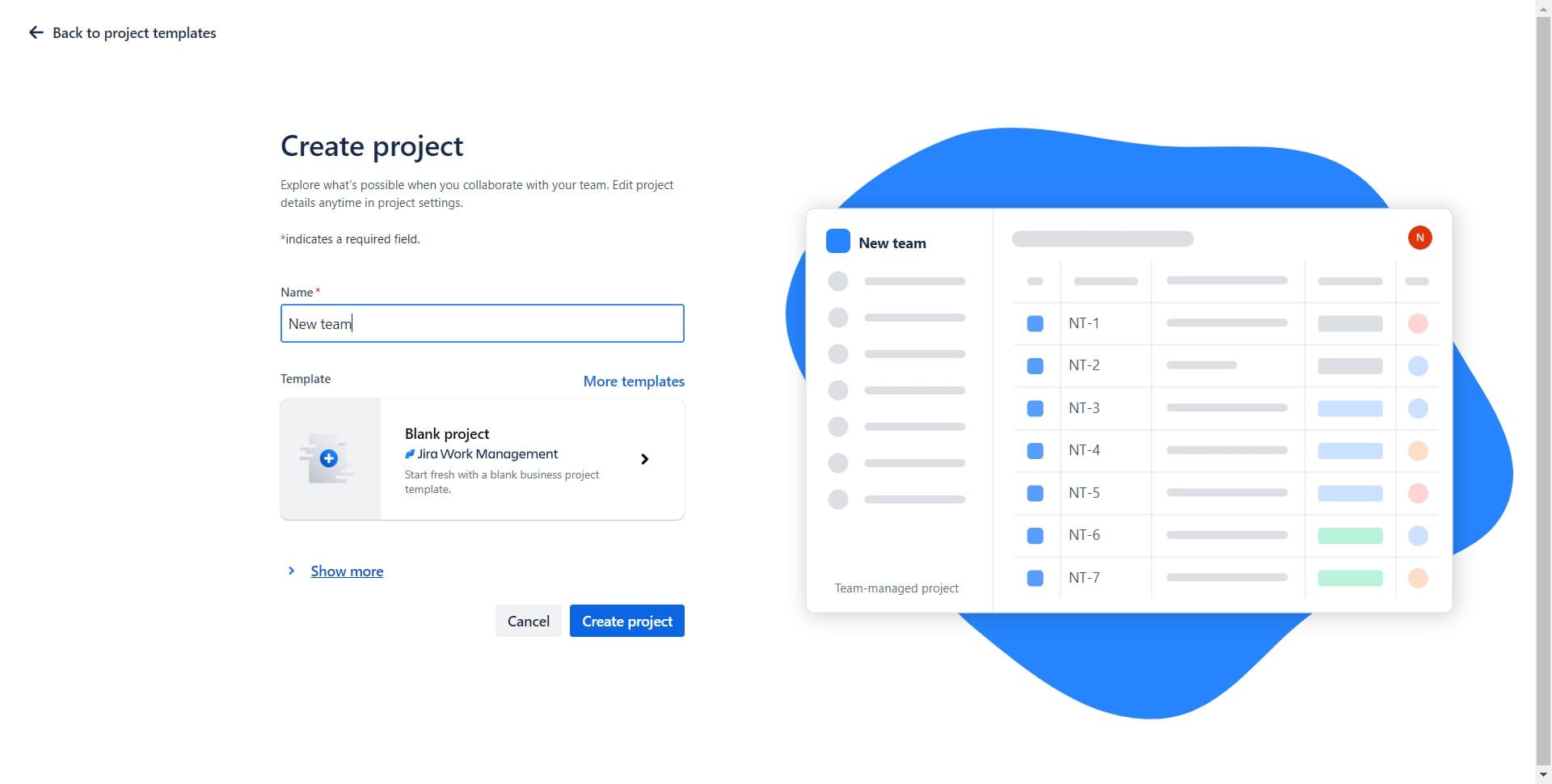
Click on Show more
Expand the additional options by clicking "Show more" to access advanced configuration settings. This reveals more detailed customization options for your project structure.
- 5
Review and finalize project creation
Click on "Create project" to complete the setup process. Jira will now provision your new project and prepare it for your team to begin adding issues and organizing work.
- 6
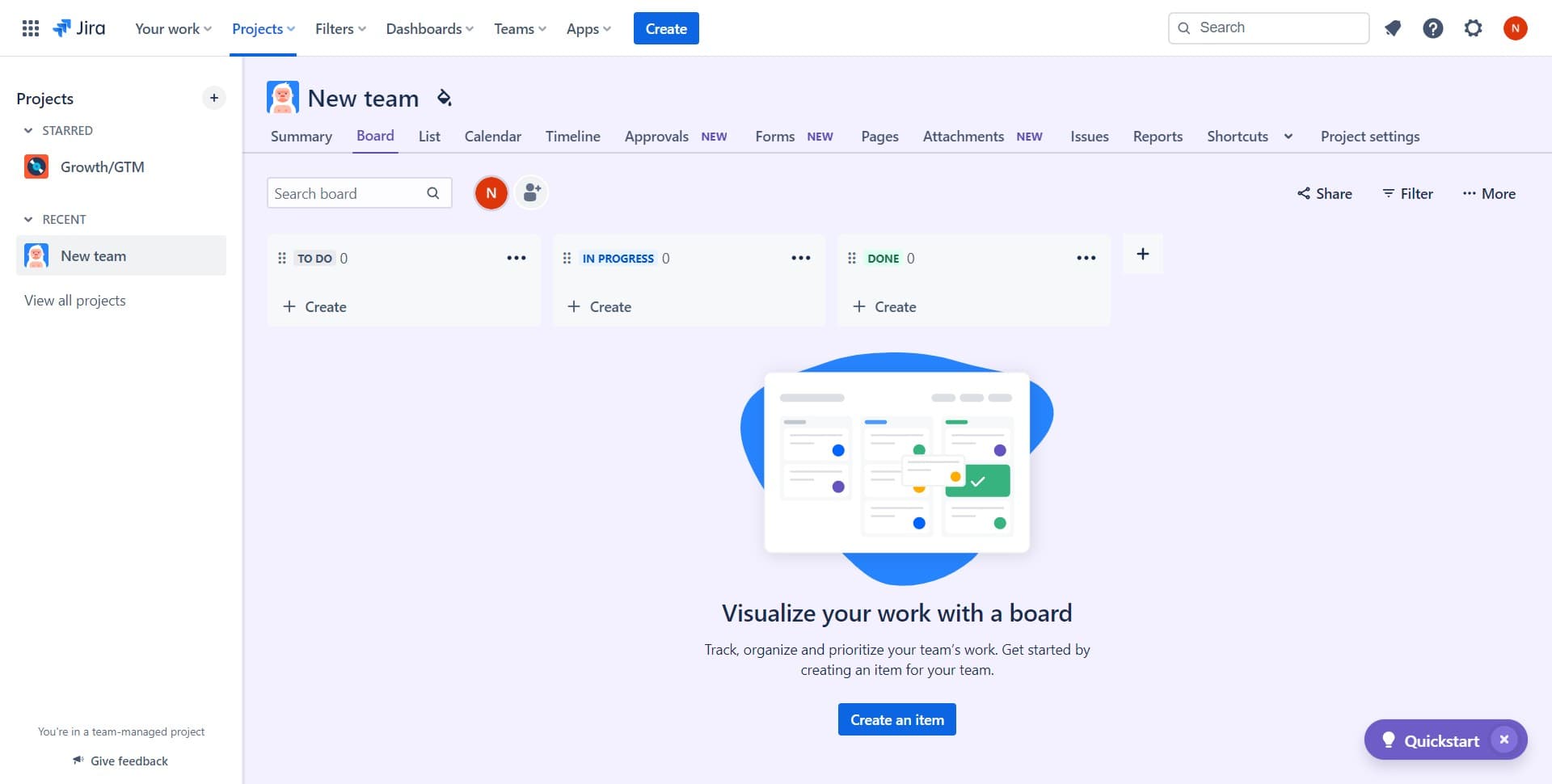
Access Track and organize features
Once created, click on "Track, organize..." to explore features for managing issues, setting up workflows, and configuring boards. This unlocks the full range of project management capabilities available in Jira.
Frequently asked questions
Common questions about how to create a new project in jira.
Jira offers templates like Scrum, Kanban, and Bug Tracking, each designed for different workflows. Scrum templates include sprints and velocity tracking, Kanban focuses on continuous flow, and Bug Tracking is optimized for defect management. Choose based on your team's methodology and process.
Yes, most project settings can be modified after creation by accessing the project settings panel. You can update the project name, description, and many configuration options, though some settings like the project key may be restricted depending on your Jira plan.
A project key is a short, unique identifier (usually 2-5 uppercase letters) assigned to your project. It appears in every issue created within that project, making it easy to identify which project an issue belongs to and enabling quick filtering and searching.
You don't need to add team members during initial project creation, but you should do so shortly after. Team members can be added through the project settings, and they'll gain access to create issues, collaborate on tasks, and participate in project activities.
If you choose the wrong template initially, you can create a new project with the correct template. However, switching templates on an existing project is not straightforward, so it's best to choose carefully during creation or create a fresh project if needed.