How to create a team in Jira

Creating a team in Jira is essential for organizing your workspace and enabling collaboration across projects. This guide walks you through the process of setting up a new team, from accessing the Teams section to configuring team members and finalizing the setup.
Quick summary
In this tutorial, you'll learn how to create a team in Jira by navigating to the Teams section, initiating team creation, and inviting team members to collaborate together. By the end, you'll have a fully functional team ready to work on Jira projects.
Why this matters
Teams in Jira help you organize work more efficiently by grouping people who collaborate on specific projects or initiatives. Creating dedicated teams ensures better permission management, clearer communication, and streamlined project oversight across your organization.
Step-by-step guide
- 1
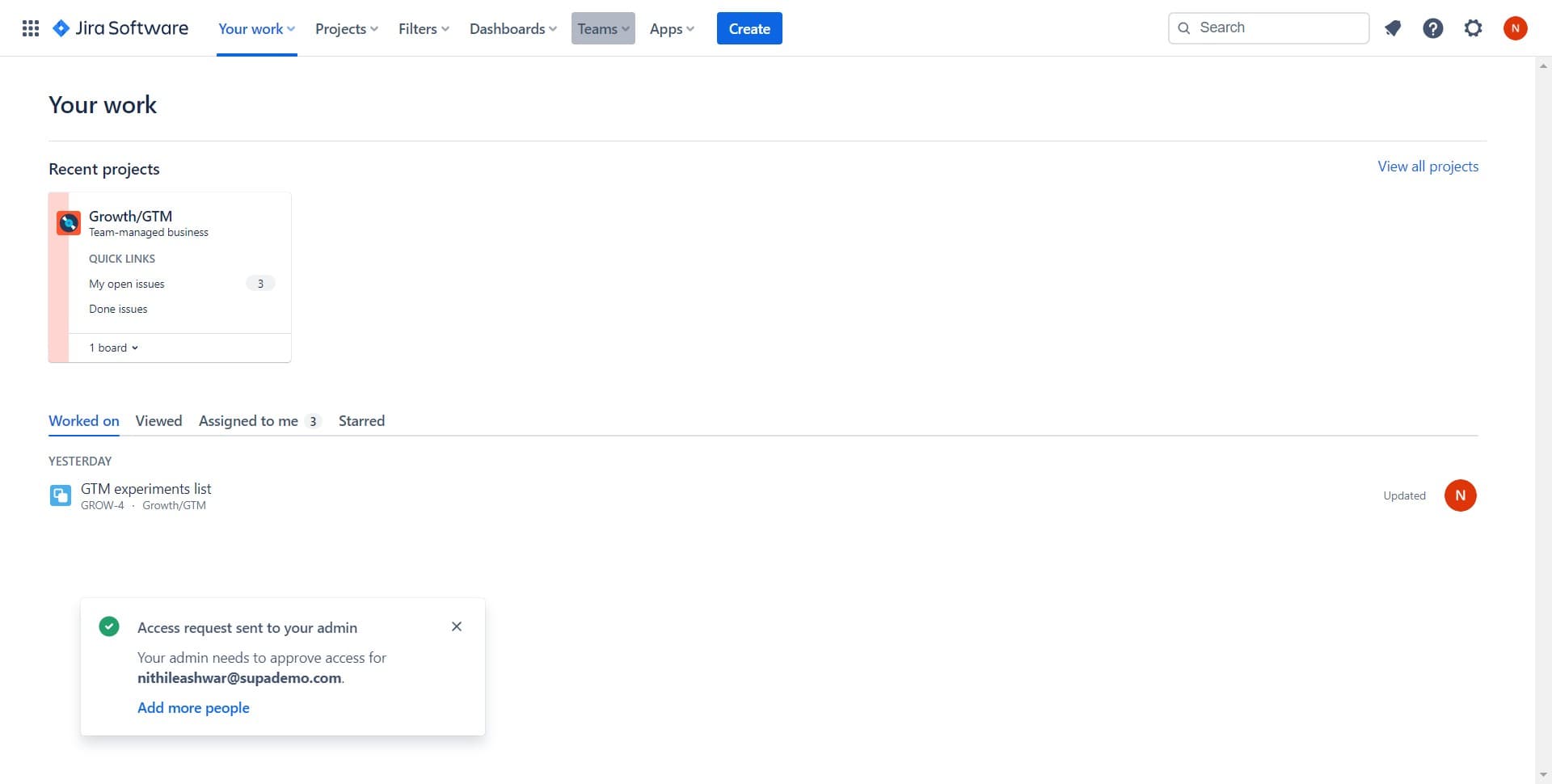
Navigate to the Teams section
From your Jira dashboard, locate and click on the 'Teams' option in the main navigation menu. This will take you to the Teams management area where you can view existing teams and create new ones.
- 2
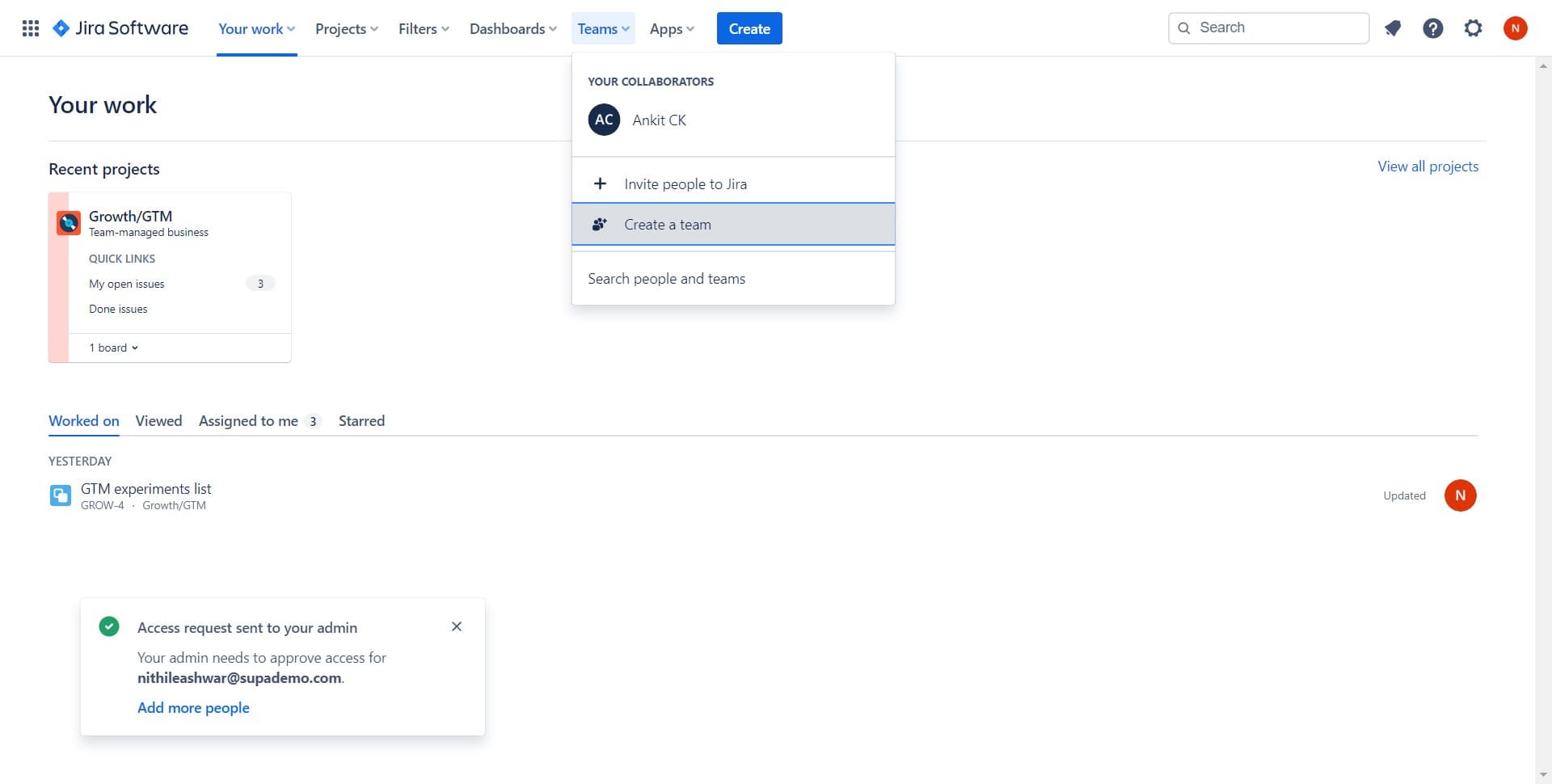
Click Create a team
In the Teams section, find and click the 'Create a team' button to initiate the team creation process. This will open a form or dialog where you can configure your new team.
- 3
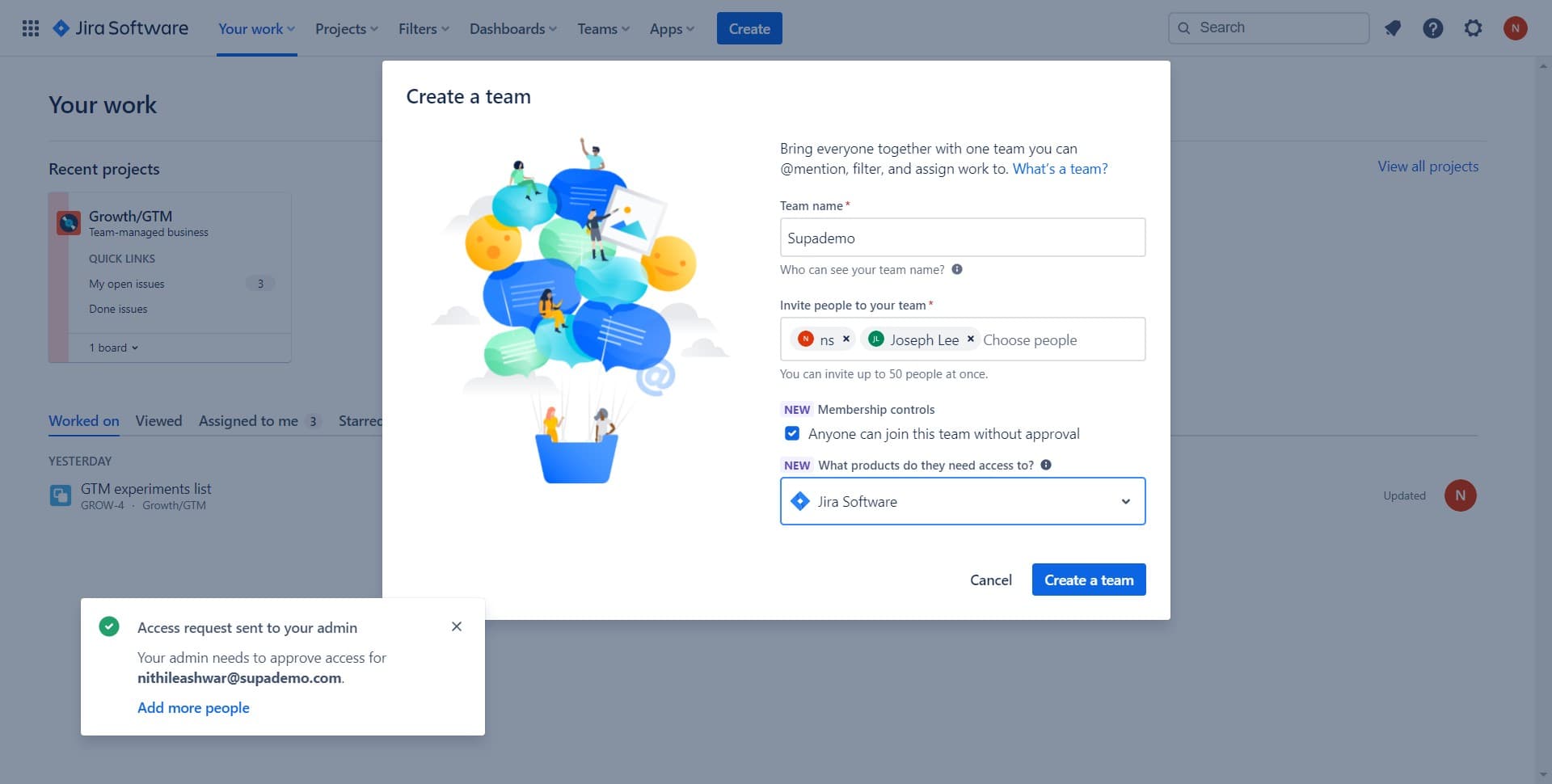
Bring everyone into the team
Click on the 'Bring everyone...' option to add team members to your new team. This step allows you to select and invite users from your organization to join the team.
- 4
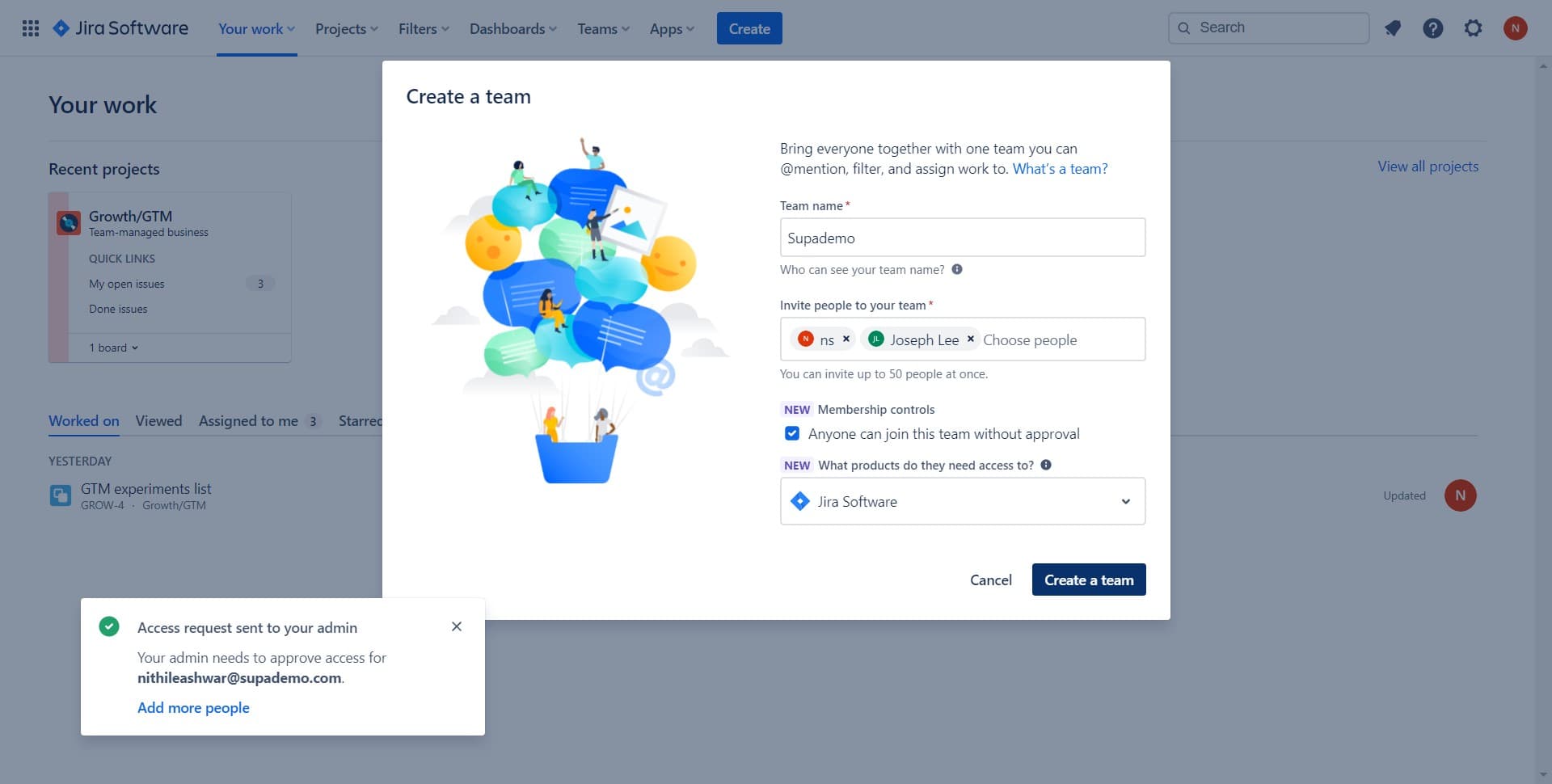
Finalize team creation
Click the 'Create a team' button to complete the setup and confirm all your team settings. Your new team will be created and ready for collaboration on Jira projects.
Frequently asked questions
Common questions about how to create a team in jira.
Yes, you can manage team membership at any time after creation. Simply access your team settings and use the member management options to add new members or remove existing ones as your team needs change.
Team members inherit permissions based on their role and the projects they're assigned to. You can configure specific permissions for each team member through project settings and team-level access controls.
Yes, users can be members of multiple teams in Jira. This flexibility allows for cross-functional collaboration and ensures employees can work on different projects with different teams as needed.
Teams are not mandatory for creating projects in Jira, but they are useful for organizing people and managing access at scale. You can create teams before or after establishing projects, depending on your organizational structure.
You can delete a team from the Teams management section by accessing the team's settings and selecting the delete option. Note that deleting a team doesn't delete the projects associated with it, only the team structure itself.