How to create an issue in Jira

Creating issues in Jira is a fundamental workflow for tracking work, bugs, and tasks across your projects. This guide walks you through the process of setting up a new issue from start to finish, ensuring your team can quickly log and organize work items.
Quick summary
In this tutorial, you'll learn how to create a new issue in Jira by navigating to the create function, filling in the necessary details, and confirming your submission. By the end, you'll be able to generate issues that appear immediately in your project backlog.
Why this matters
Creating issues efficiently is critical for maintaining visibility across your team's work. Well-documented issues serve as a single source of truth for project tracking, helping teams prioritize tasks and maintain accountability throughout development cycles.
Step-by-step guide
- 1
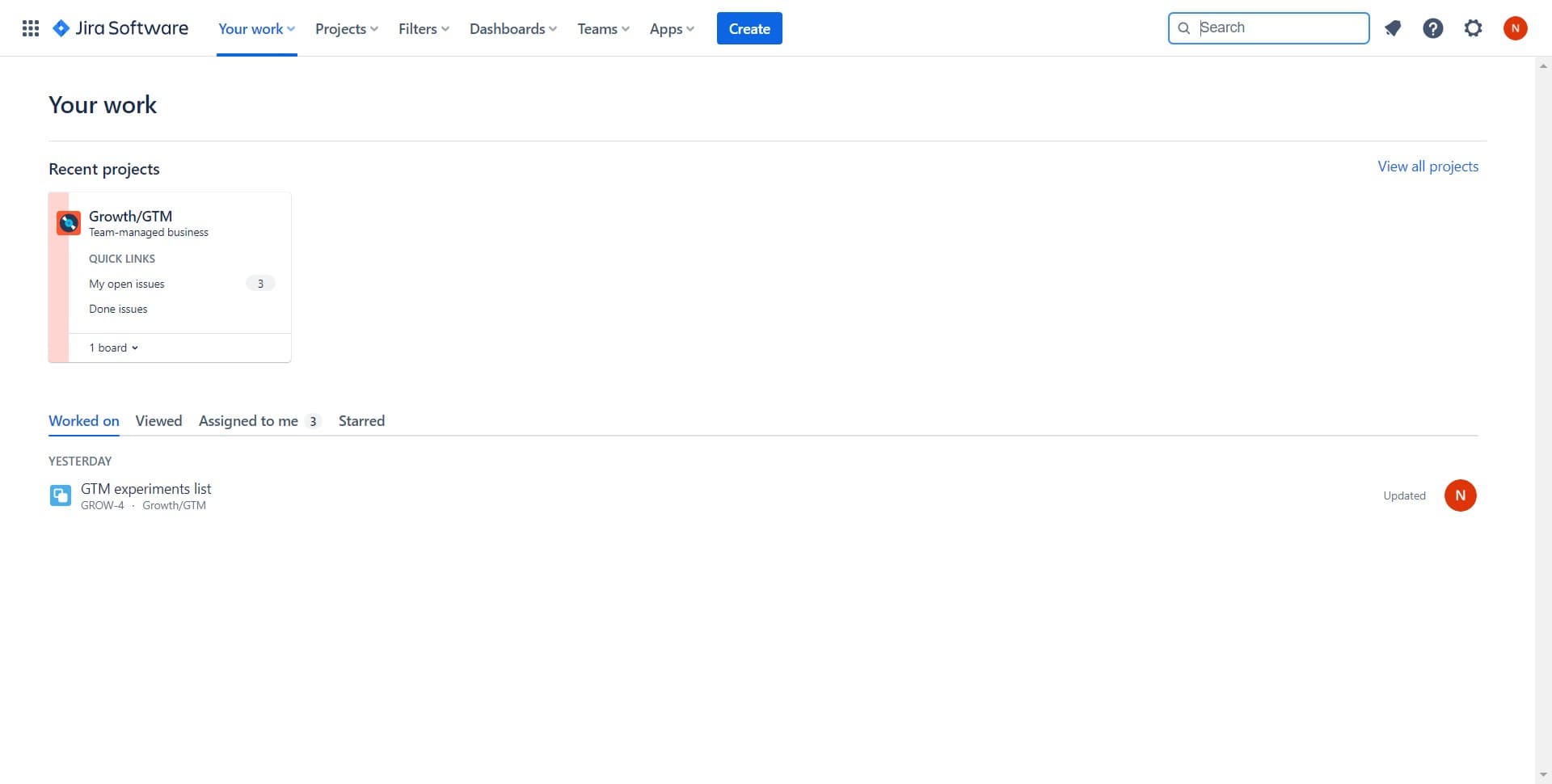
Navigate to the create function
Start by locating and clicking the designated create button in your Jira interface. This action opens the issue creation dialog where you'll enter your issue details.
- 2
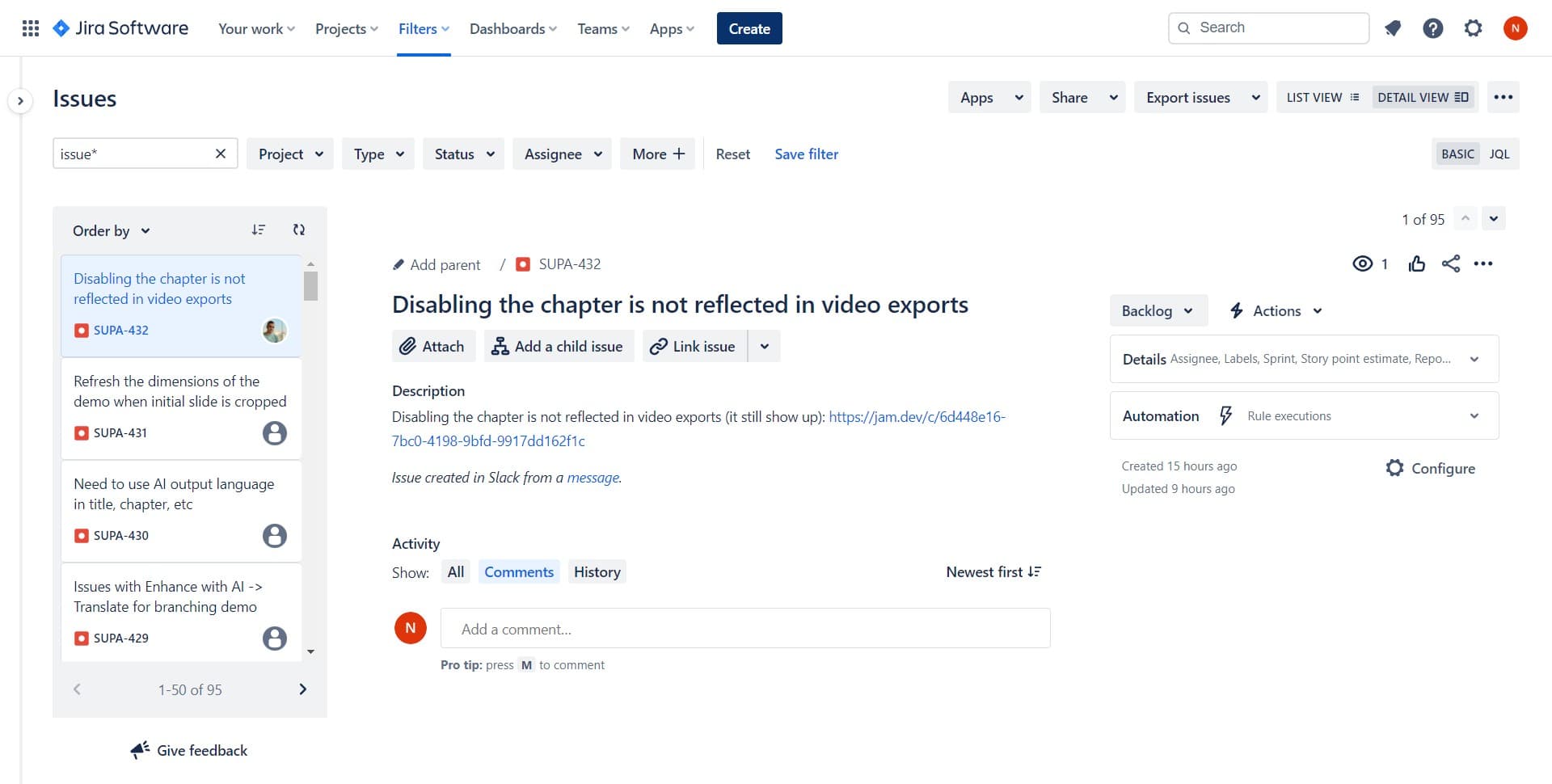
Click on Create button
Select the Create option to proceed with setting up your new issue. This will present you with fields to configure the issue type, summary, and other relevant details.
- 3
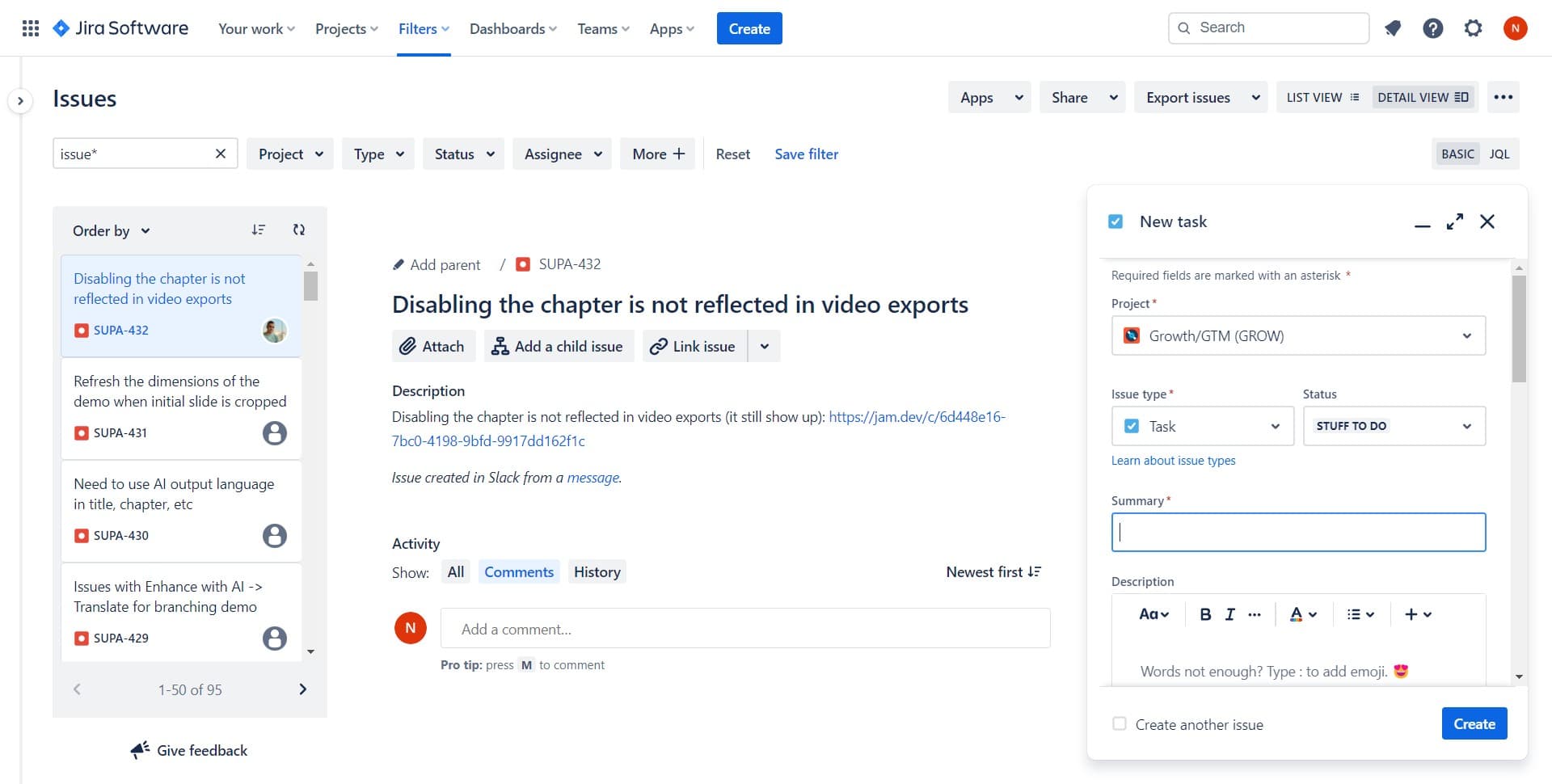
Access the issue details form
Click to expand or navigate to the detailed form where you can specify all issue parameters. Here you'll enter information such as the issue title, description, assignee, and priority level.
- 4
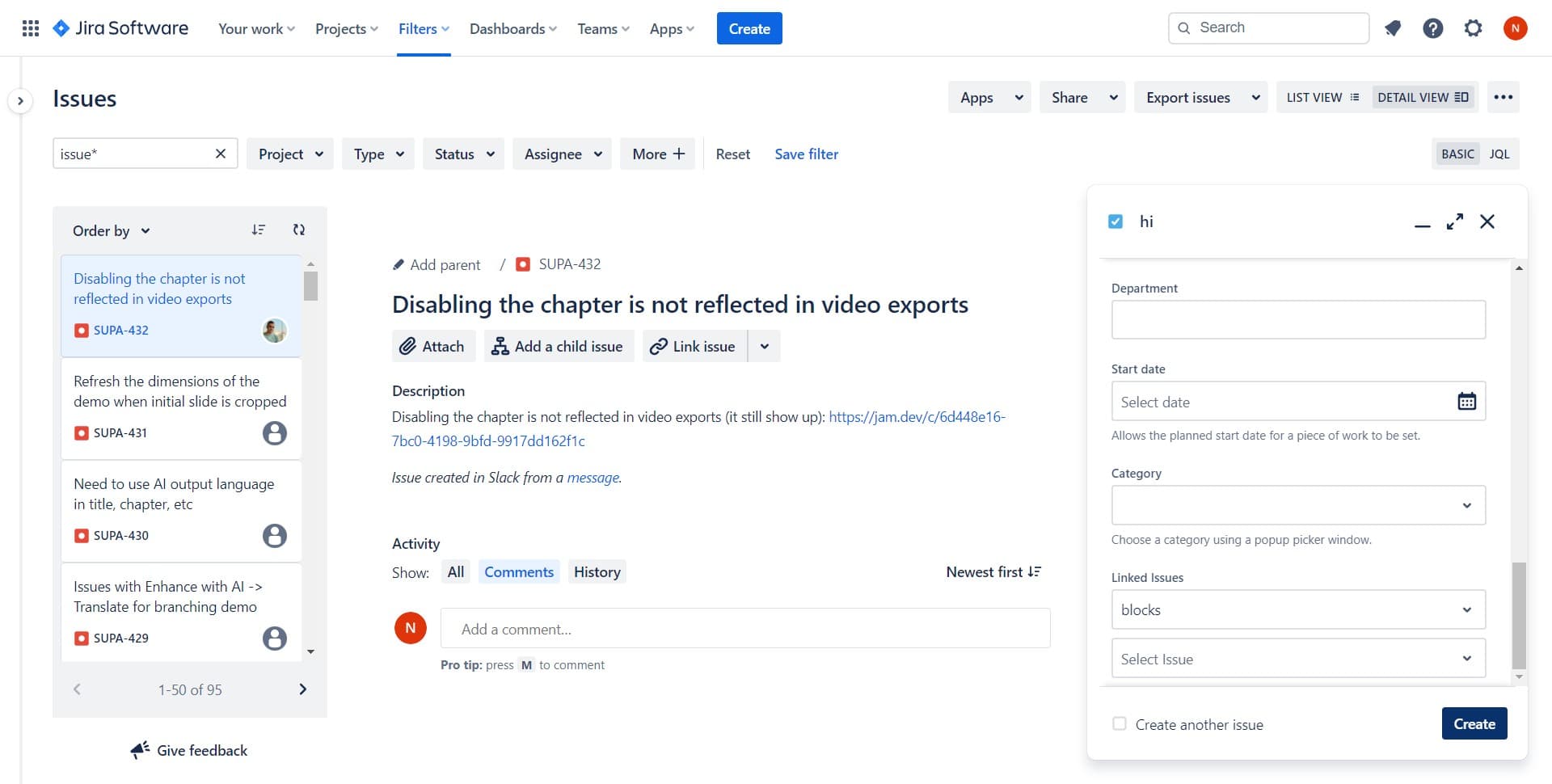
Confirm issue creation
Click the final Create button to submit your issue. Jira will process your submission and add the issue to your project.
- 5
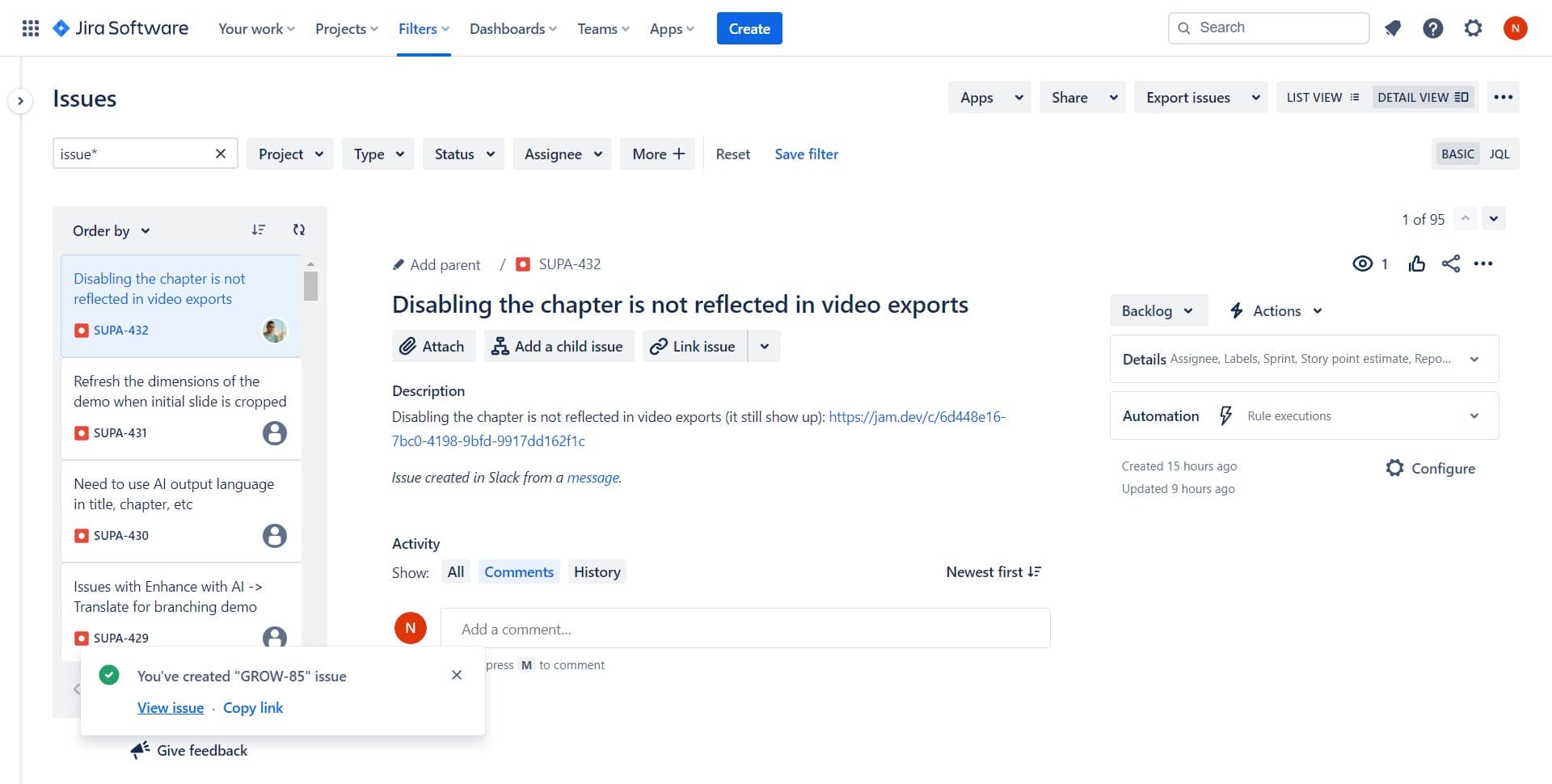
View the newly created issue
Click on View issue to see your newly created item with all assigned details and metadata. This confirms the issue has been successfully added to your project and allows you to verify all information is correct.
Frequently asked questions
Common questions about how to create an issue in jira.
Jira supports multiple issue types including Bug, Task, Story, Epic, and Subtask, depending on your project configuration. Your Jira administrator may have customized which issue types are available for your specific project. You can select the appropriate type during the creation process.
Yes, you can assign the issue to a team member during the creation process by selecting their name from the assignee field. If you don't assign it immediately, you can always update the assignee after the issue is created.
At minimum, you typically need to provide a project, issue type, and summary. Other fields like description, priority, and assignee may be optional depending on your project's configuration. Check your team's workflow to see if additional required fields are set up.
Some Jira projects support issue templates that pre-populate fields with standard information. If your project has templates available, you may be able to select one during creation to save time and ensure consistency.
You can add attachments and link issues either during creation or after the issue is created by viewing it. In most cases, these options appear in the detailed view after your issue is submitted.