How to delete a Jira ticket

Deleting a Jira ticket is a straightforward process that helps keep your project board clean and organized. Whether you need to remove duplicate tickets, test entries, or items that are no longer relevant, this tutorial walks you through the exact steps to safely delete a ticket from Jira.
Quick summary
In this tutorial, you'll learn how to navigate to your ticket queue, locate the ticket you want to delete, and confirm its removal. By following these seven steps, you'll be able to permanently delete any Jira ticket from your project.
Why this matters
Maintaining a clean Jira board is essential for team productivity and accurate project tracking. Removing obsolete or duplicate tickets prevents confusion, reduces noise in your backlog, and ensures your team is always working with current, relevant items. This workflow is a core maintenance task that keeps your project management system reliable and efficient.
Step-by-step guide
- 1
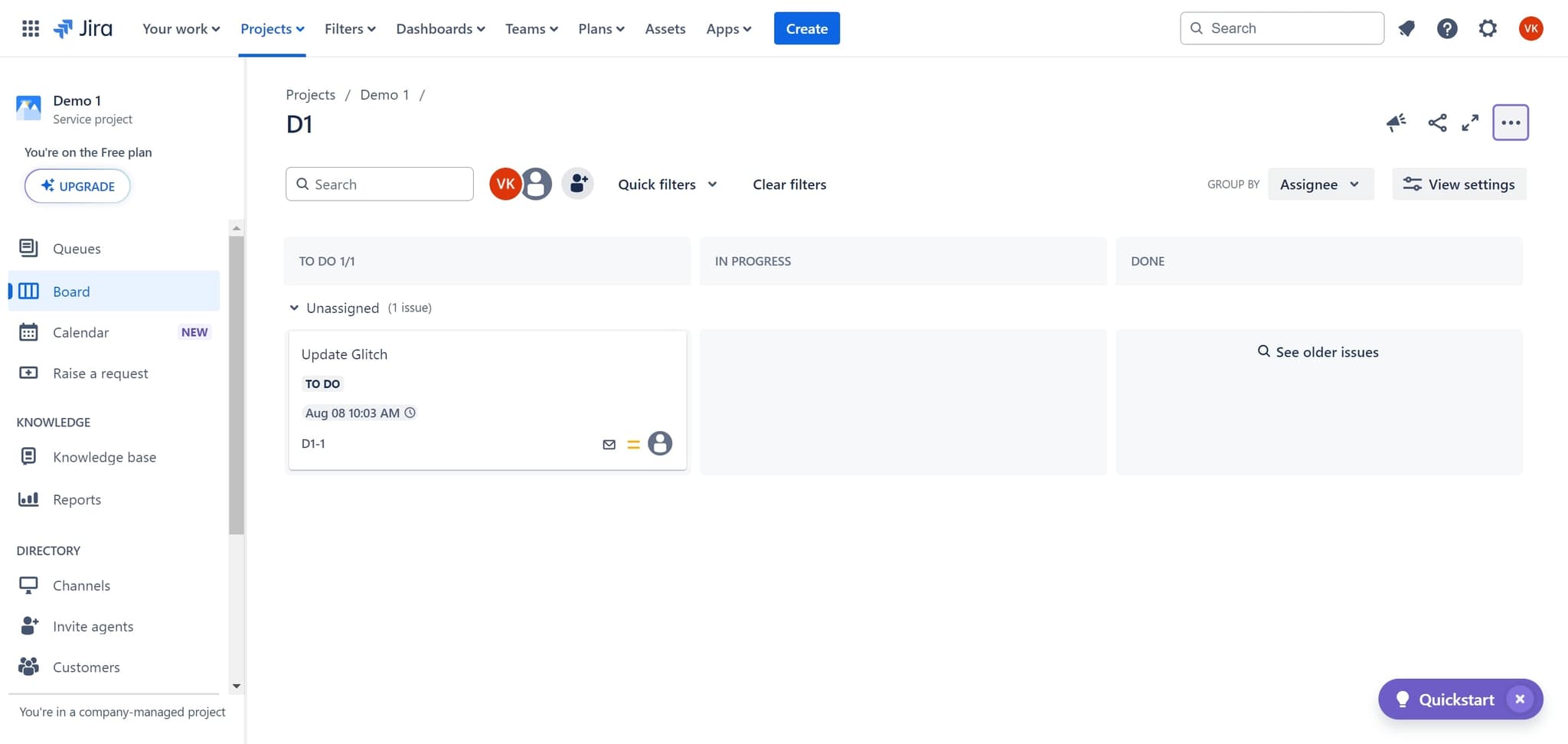
Click on To Do
Start by clicking the 'To Do' section in your Jira project. This displays all tickets currently in the To Do status.
- 2
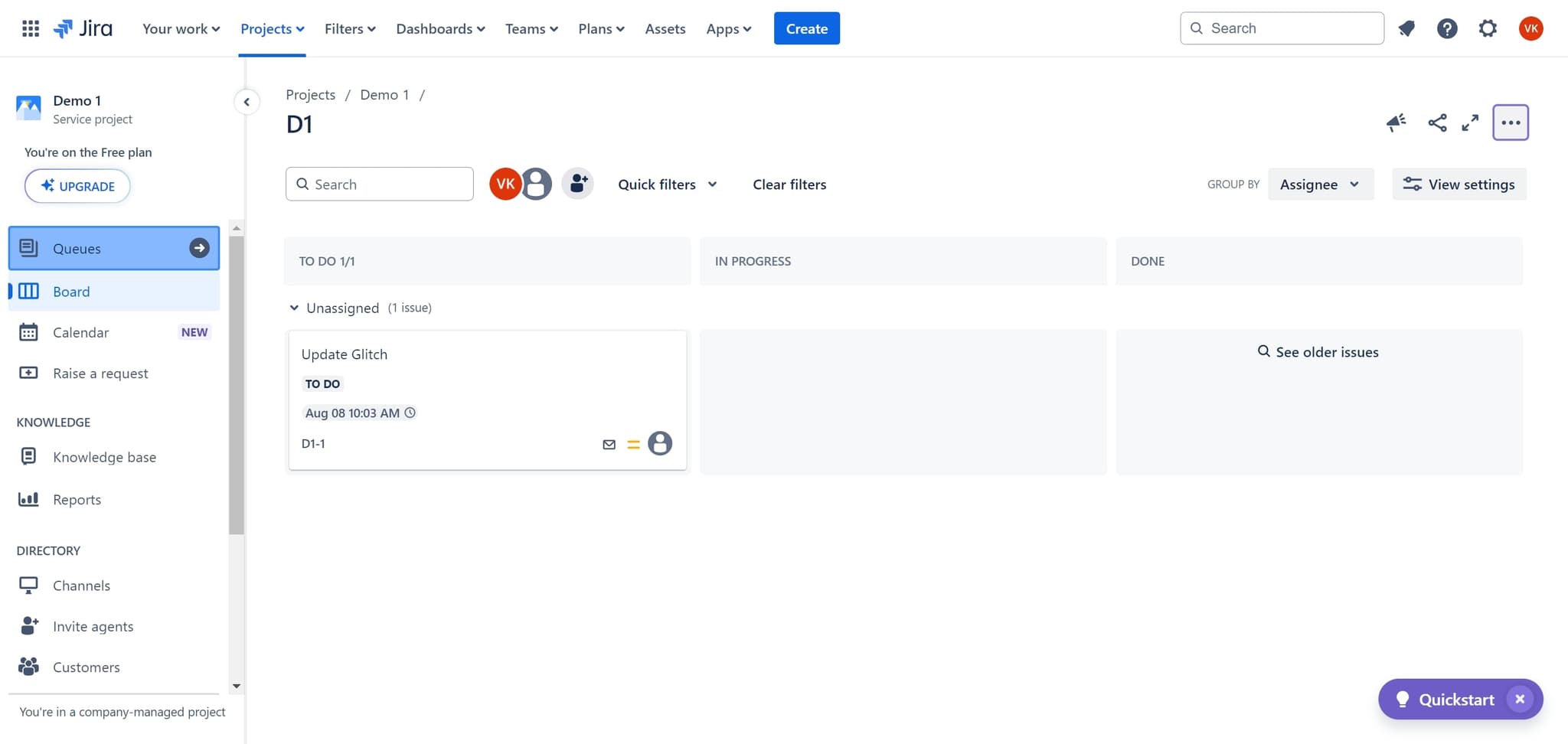
Click on Queues
Next, click on the 'Queues' option. This opens a filtered view of your tickets organized by queue.
- 3
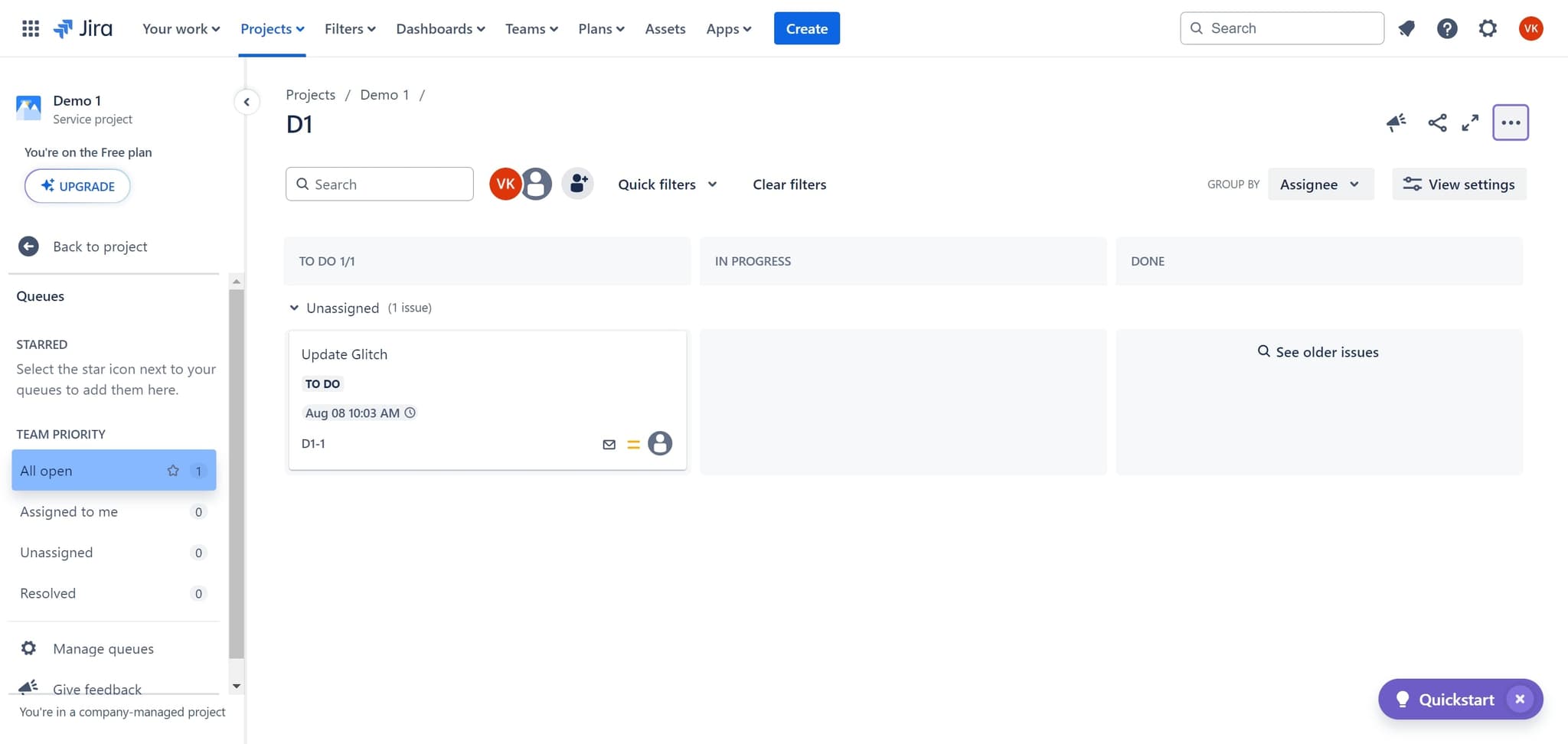
Click on All open
Select 'All open' to display all open tickets across your queues. This gives you a comprehensive view of active work items.
- 4
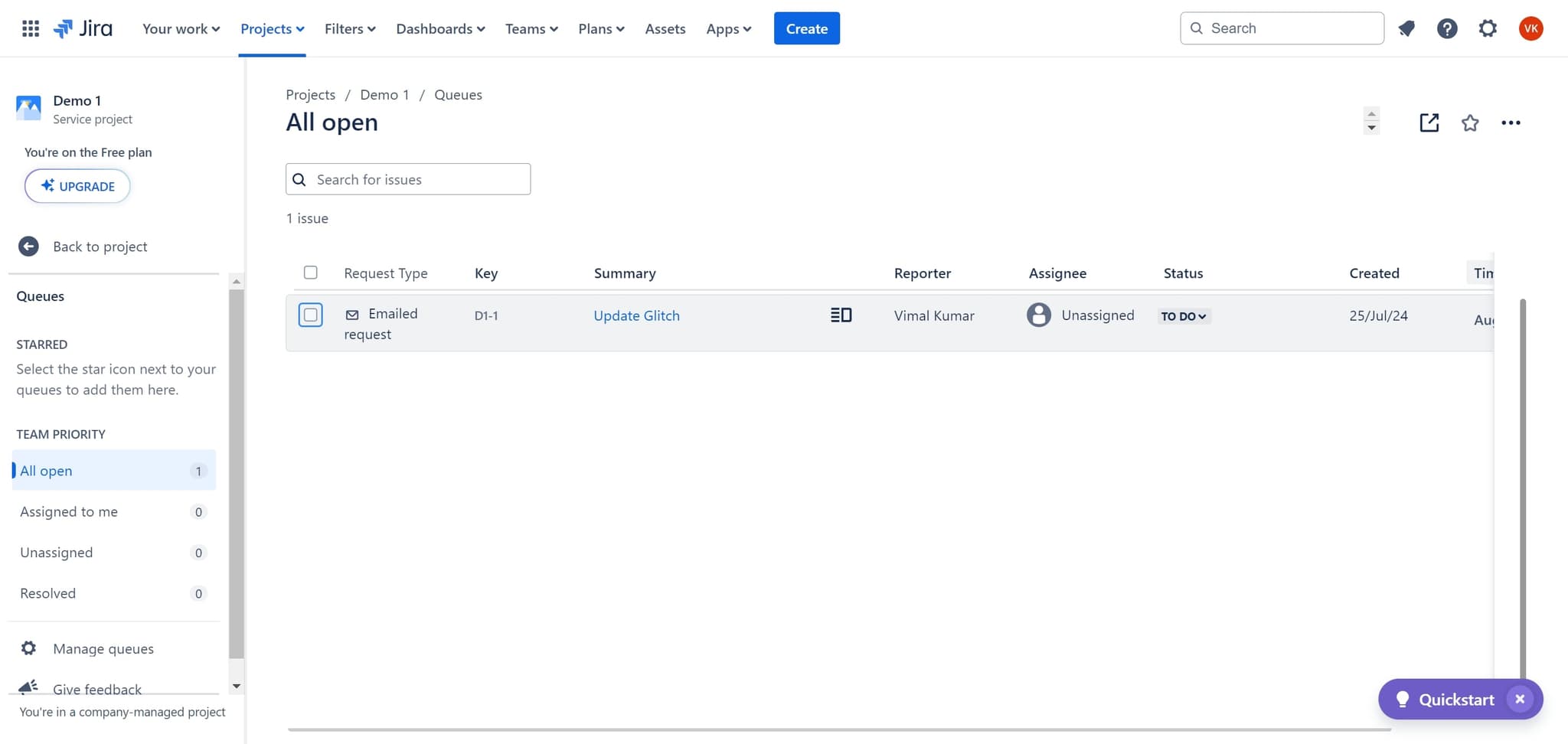
Click on the target ticket
Click on the specific ticket you want to delete. This opens the ticket details where you can perform actions on it.
- 5
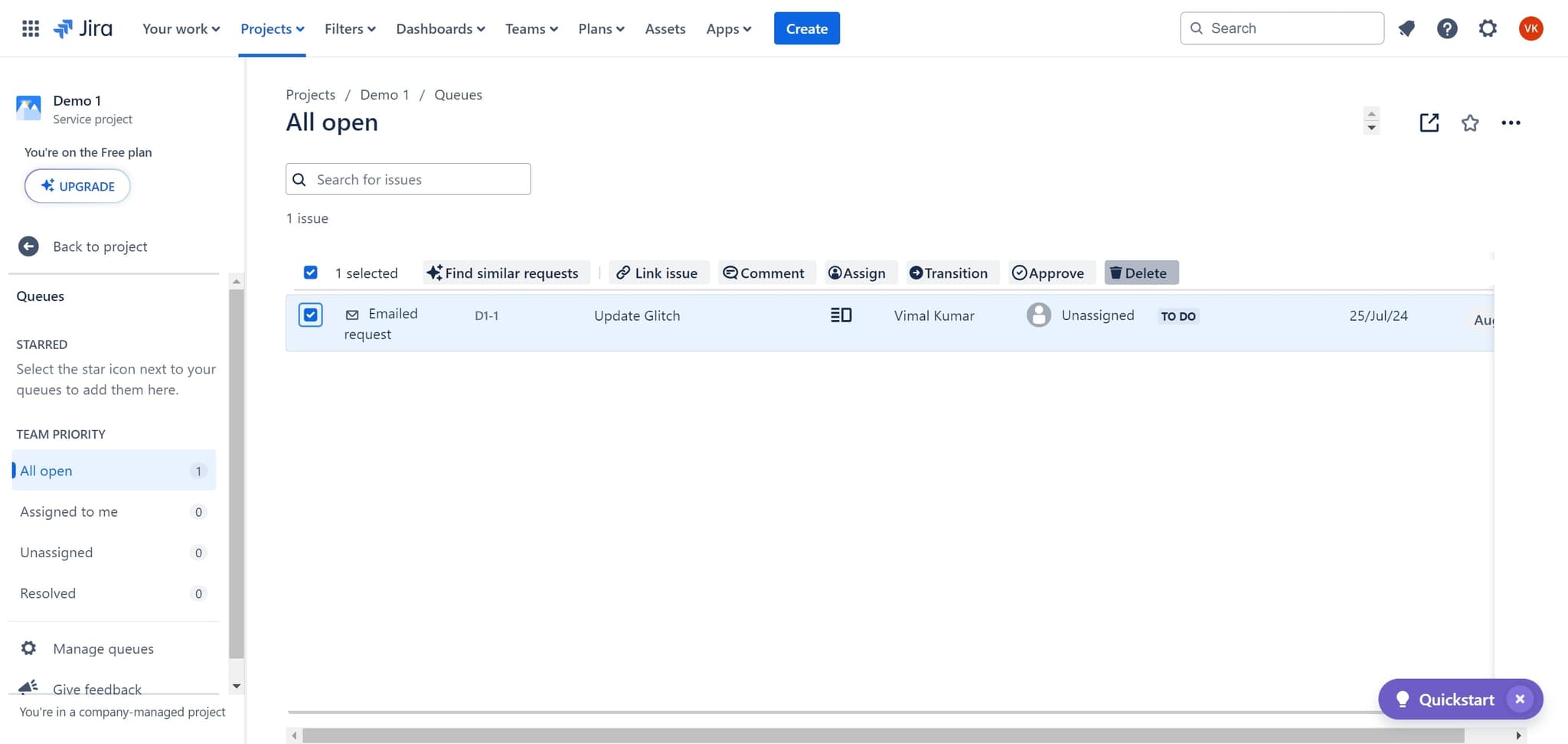
Click on Delete
Look for and click the 'Delete' button, typically located in the ticket's action menu or toolbar. This initiates the deletion process.
- 6
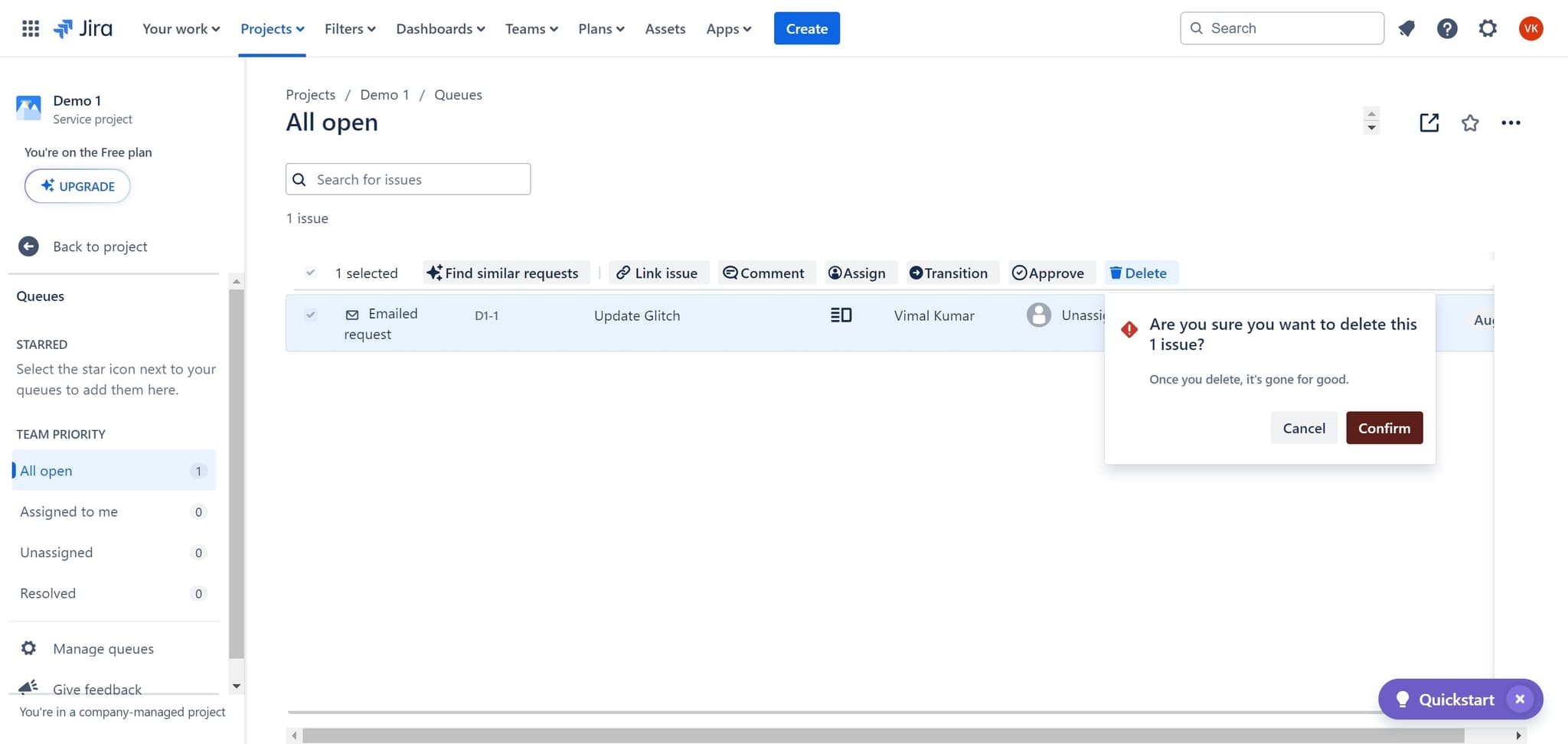
Click on Confirm
A confirmation dialog will appear asking you to verify the deletion. Click 'Confirm' to permanently remove the ticket from your Jira project.
- 7
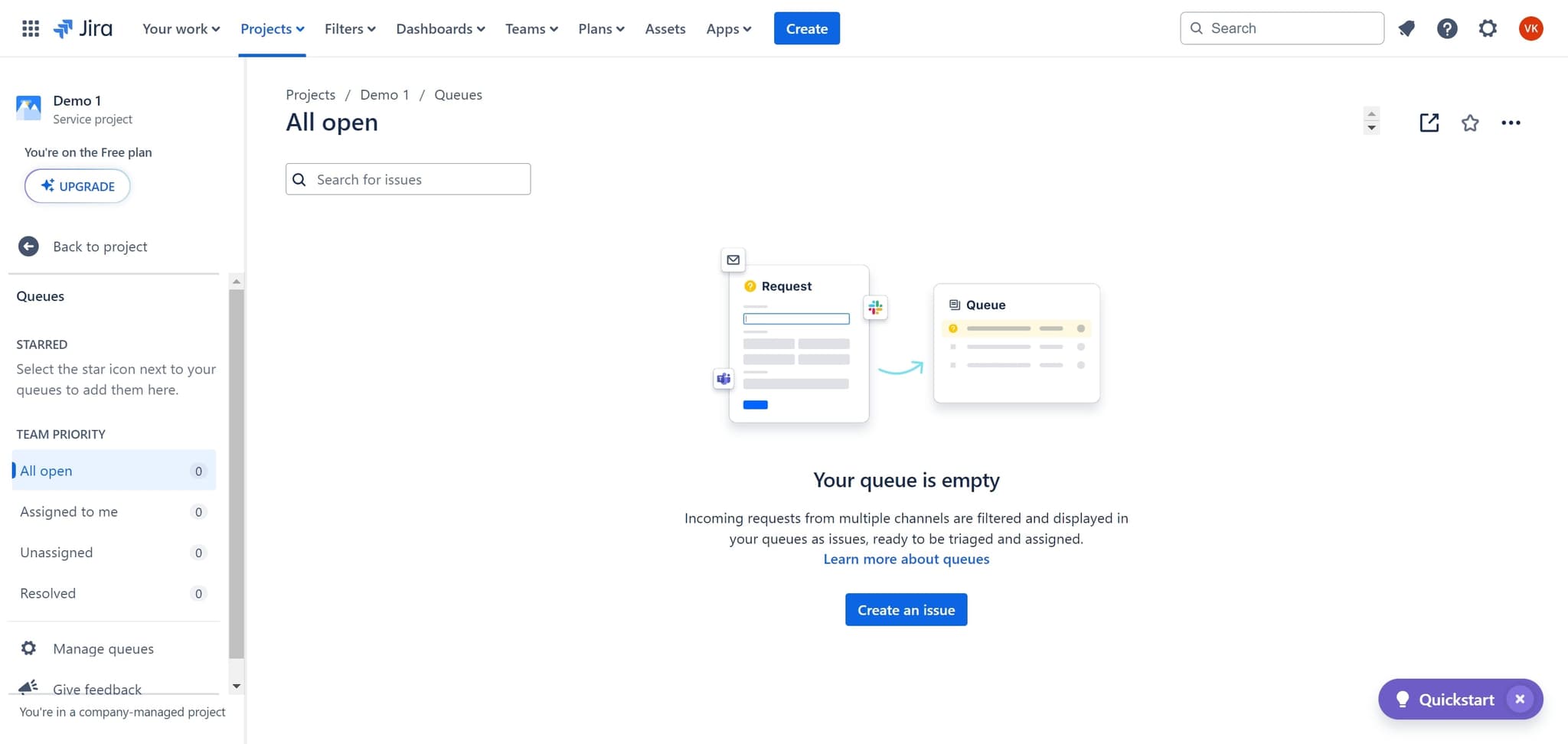
Click on Projects
After confirming, click on 'Projects' to return to your main project view. The deleted ticket will no longer appear in your board or backlog.
Frequently asked questions
Common questions about how to delete a jira ticket.
Once a ticket is deleted in Jira, it cannot be recovered through the standard interface. However, your Jira administrator may be able to restore it from backups if the deletion was recent. It's always wise to double-check before confirming deletion.
Yes, deleting tickets in Jira typically requires appropriate project permissions. Usually, project administrators and issue creators can delete tickets, but your team's specific permissions may vary. Check with your Jira administrator if you don't see the Delete option.
Resolving a ticket marks it as complete but keeps it in your Jira history for reference and reporting. Deleting a ticket permanently removes it entirely. Use resolve for completed work and delete only for unwanted entries like duplicates or test tickets.
Yes, deleted tickets will no longer appear in reports, dashboards, or historical data. If you need to maintain records of all work attempted, consider resolving tickets instead of deleting them, or archiving them if that option is available in your Jira setup.
Most Jira instances allow bulk deletion by selecting multiple tickets using checkboxes in the list view, then using a bulk action menu to delete them together. This is faster than deleting tickets individually, but always review your selections carefully before confirming.