How to invite a teammate in Jira

Collaborating effectively in Jira requires having the right team members on board. This guide walks you through the process of inviting a teammate to your Jira workspace so they can start contributing to your projects right away.
Quick summary
In this tutorial, you'll learn how to invite a teammate to Jira by navigating to the invite feature and adding a new person to your workspace. By the end, you'll be able to quickly onboard team members and get them access to your projects.
Why this matters
Inviting teammates to Jira is essential for building collaborative teams and ensuring everyone has visibility into project work, timelines, and assignments. Without proper team setup, communication gaps and duplicated efforts can slow down project delivery. Streamlining this process helps you get new team members productive faster.
Step-by-step guide
- 1
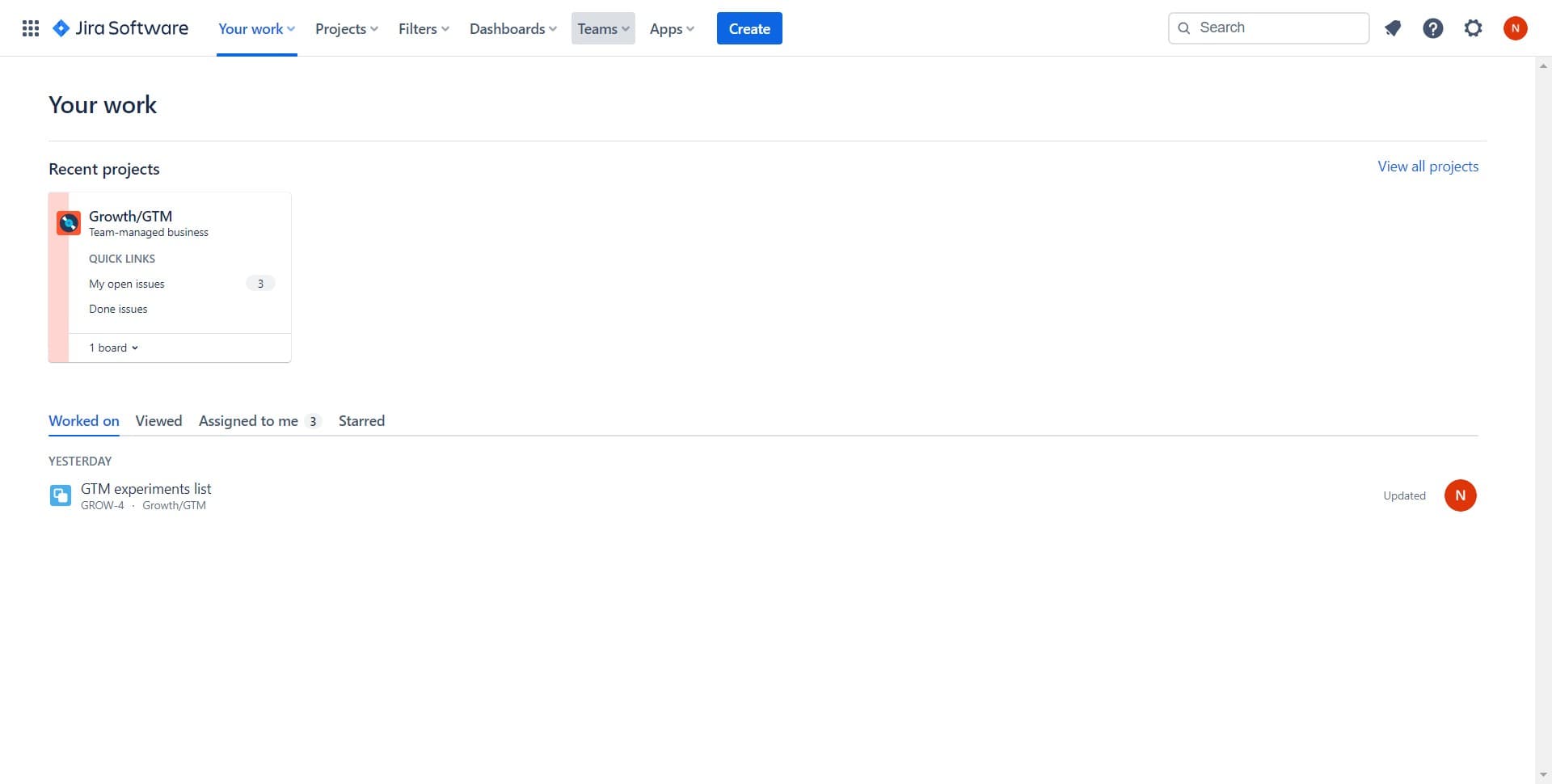
Access the team management area
Start by locating and clicking the designated area for managing team members in your Jira workspace. This will take you to the settings or administration section where you can control access and permissions.
- 2
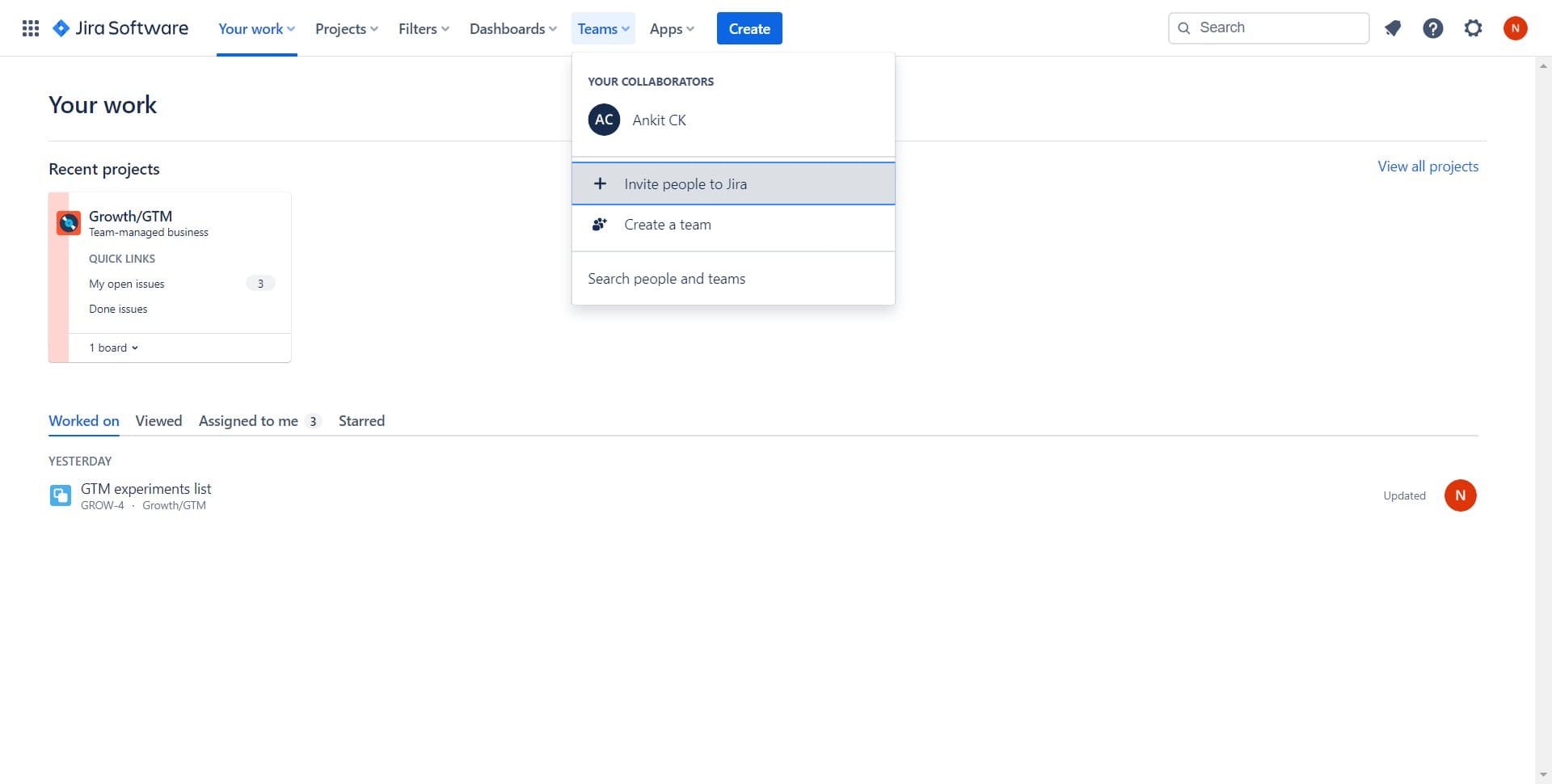
Click on Invite people to Jira
Look for and select the 'Invite people to Jira' option. This button or link opens the invitation interface where you can add new team members to your workspace.
- 3
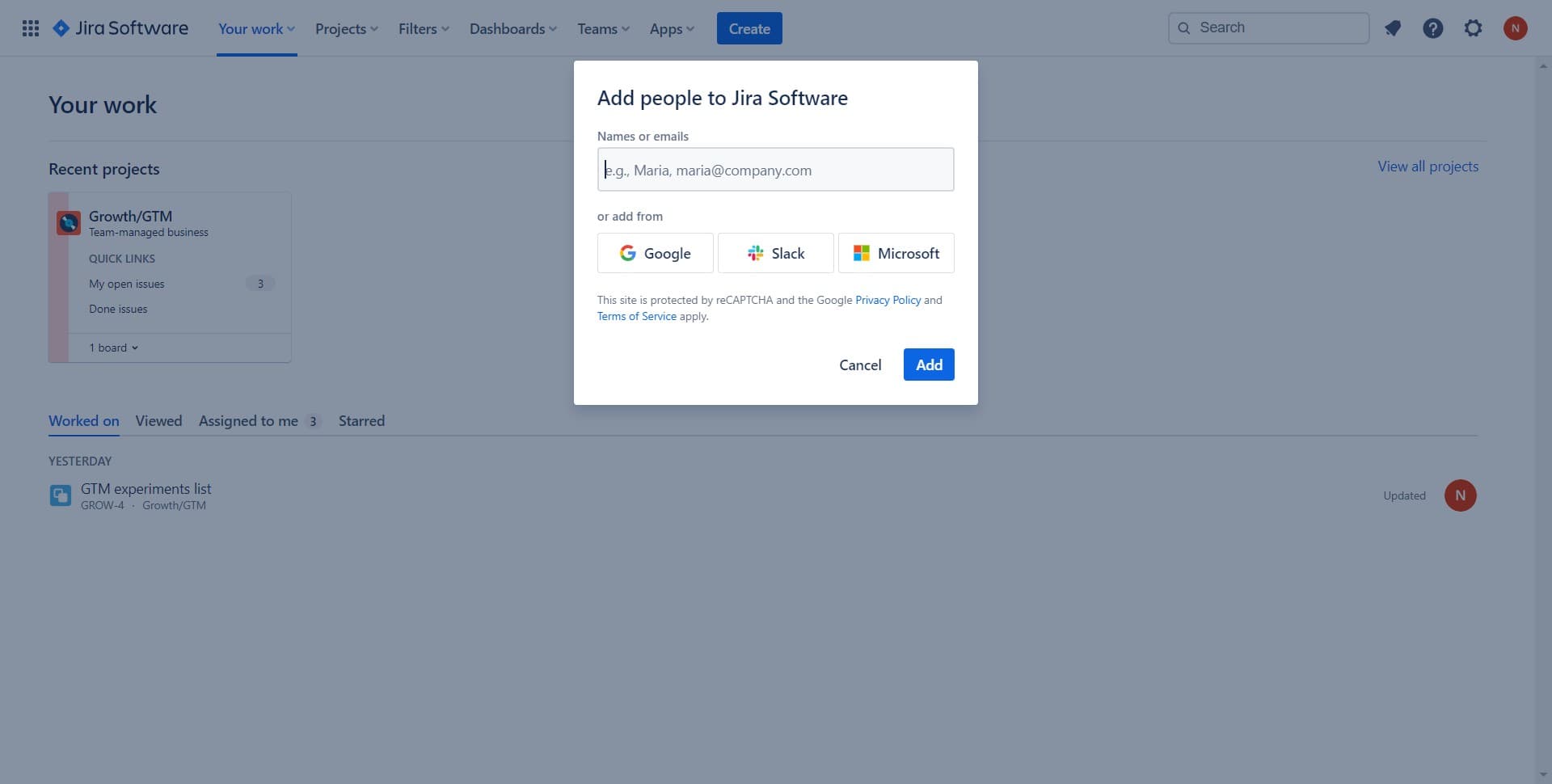
Navigate to the add person option
Click on the area designated for adding new invitations. This prepares the system to accept the details of the person you want to invite.
- 4
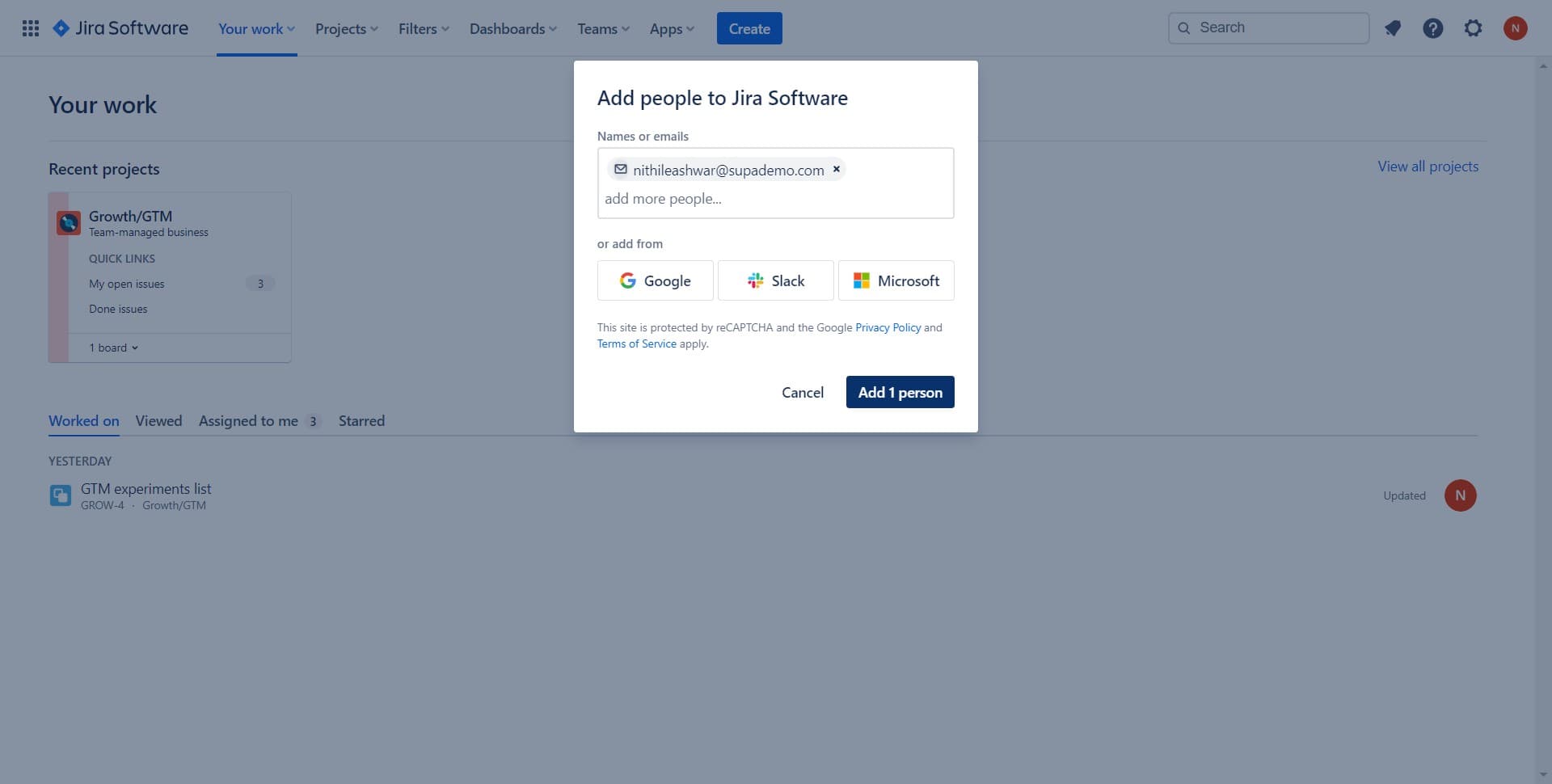
Add one person to your team
Click on 'Add 1 person' to initiate the invitation for a single teammate. Enter their email address and any relevant project or role assignments as prompted by the system.
Frequently asked questions
Common questions about how to invite a teammate in jira.
You'll need your teammate's email address at minimum. Depending on your Jira setup, you may also want to specify which projects they should have access to and what role or permission level they should receive. Having this information ready before starting the invitation process will speed things up.
Yes, most Jira workspaces allow you to invite multiple people in one session. After inviting the first person, you can continue adding more team members using the same invitation flow. Some versions also support bulk invitations via CSV file uploads.
Once you send an invitation, your teammate will receive an email with a link to join your Jira workspace. They'll need to click that link and complete the setup process to gain access. You can resend invitations if they don't receive the initial email.
Yes, during or after the invitation process, you can assign specific projects and set permission levels for your new teammate. This ensures they only have access to the work relevant to their role and responsibilities.
You can manage team member access and permissions from the same administration area where you send invitations. You can update their project assignments, change their roles, or remove them from the workspace entirely based on your team's needs.