How to export your board in Miro

Exporting your Miro board as an image is a simple way to share your work, preserve snapshots of your ideas, or integrate designs into presentations and documentation. This guide walks you through the export process in just a few clicks.
Quick summary
In this tutorial, you'll learn how to export your Miro board as an image file. We'll cover uploading your board, accessing the save options, and completing the export to download your work.
Why this matters
Exporting boards as images is essential when you need to share static versions of your work with stakeholders who don't have Miro access, create backups of completed projects, or embed your designs into reports and presentations. This workflow ensures your ideas are preserved in a portable, easy-to-share format.
Step-by-step guide
- 1
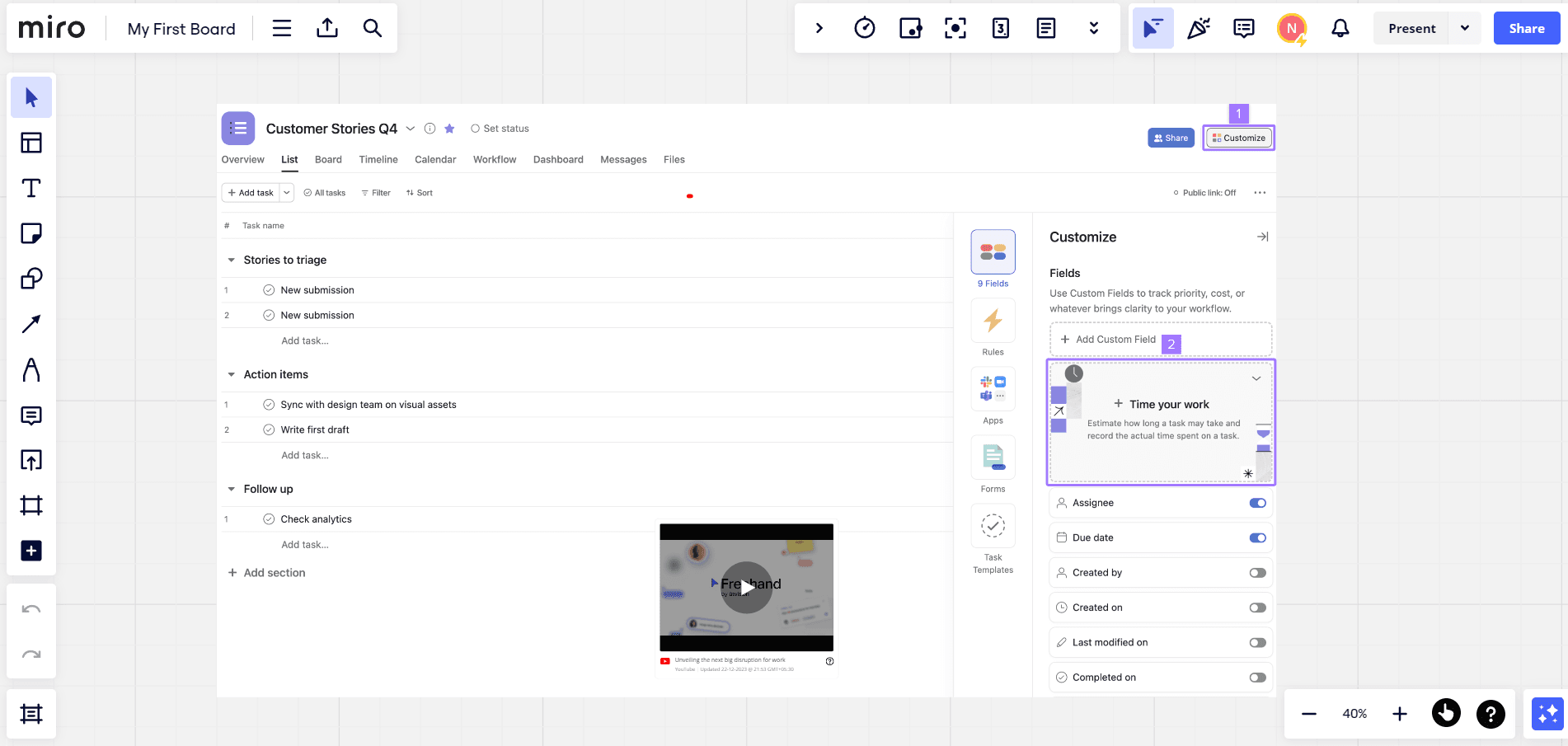
Upload your board
Begin by opening the board you want to export in Miro. Ensure all content is finalized and positioned as you'd like it to appear in the exported image.
- 2
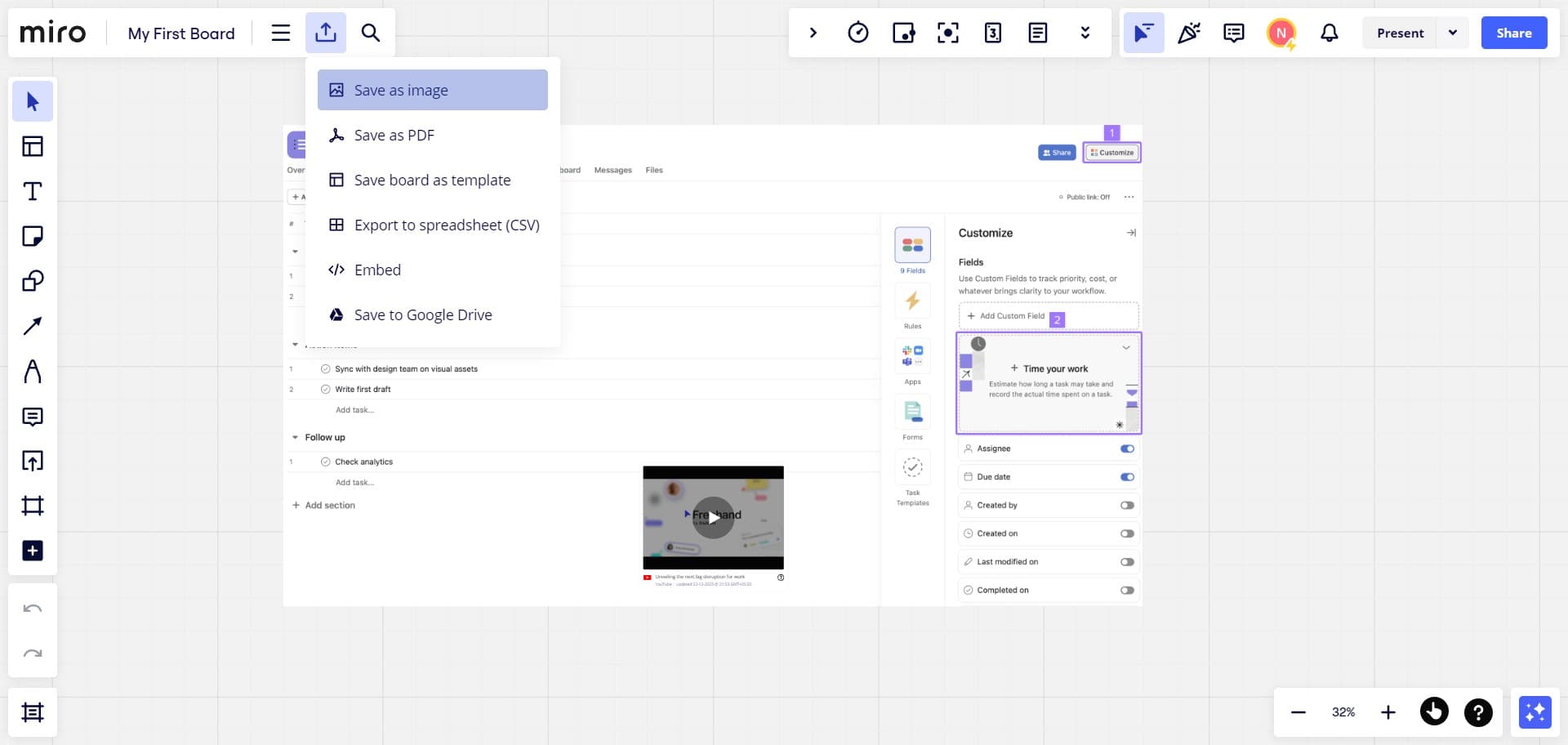
Click on Save as image
Navigate to the menu options and select 'Save as image' from the available export choices. This will prepare your board for image export with the current layout and content.
- 3
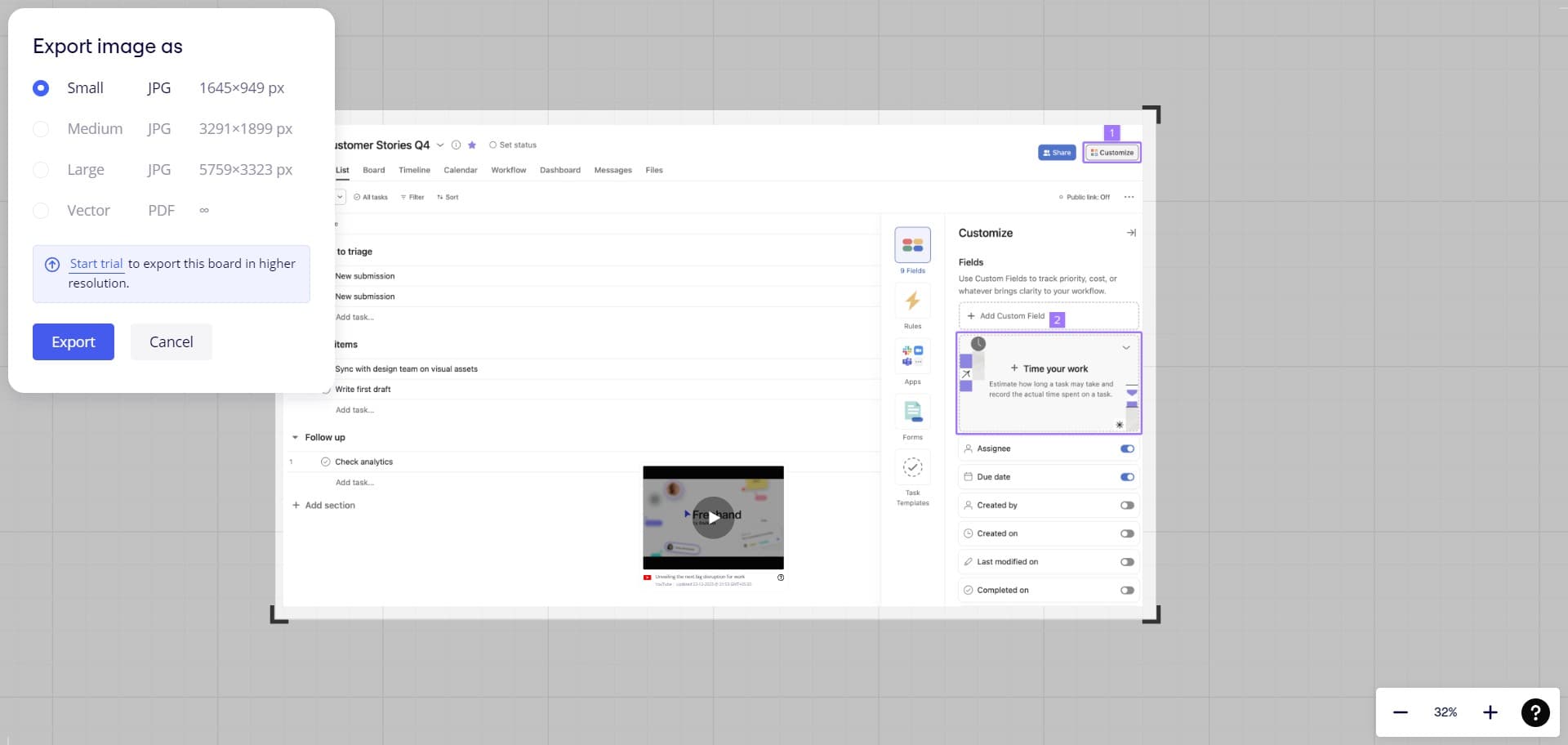
Click on Export
Click the 'Export' button to complete the process. Your board will be downloaded as an image file to your computer, ready to use in presentations, documents, or other applications.
Frequently asked questions
Common questions about how to export your board in miro.
Miro typically exports boards as PNG or JPG files, depending on your settings and preferences. PNG format preserves transparency and is ideal for presentations, while JPG offers better compression for file size.
Yes, you can select a particular area of your board before exporting to capture only that portion. Use the selection tools to highlight the region you want, then proceed with the export process.
The exported image quality depends on your export resolution settings. Higher resolution exports will maintain better detail and clarity, though they may result in larger file sizes.
Yes, Miro allows you to adjust the export dimensions before finalizing the download. You can customize the size to match your specific needs, whether for web, print, or presentation use.
No, there's no limit on the number of boards you can export from Miro. You can export as many boards as needed, with each export saved as a separate image file to your device.