How to make signups "invite-only" in Miro

Controlling who can join your Miro workspace is essential for maintaining security and ensuring your team stays focused. This tutorial walks you through enabling invite-only signups in Miro, allowing you to manage team membership and prevent unauthorized access.
Quick summary
In this tutorial, you'll learn how to configure invite-only signup settings in Miro by navigating to your team's permission controls. You'll discover how to restrict board and workspace access so that only invited members can join your team.
Why this matters
Making signups invite-only protects your workspace from unauthorized users and helps you maintain a controlled, secure environment for sensitive projects. This approach is especially important for agencies, enterprises, and teams handling confidential information who need strict access governance. By managing invitations directly, you can onboard team members intentionally and ensure everyone in your workspace is vetted and authorized.
Step-by-step guide
- 1
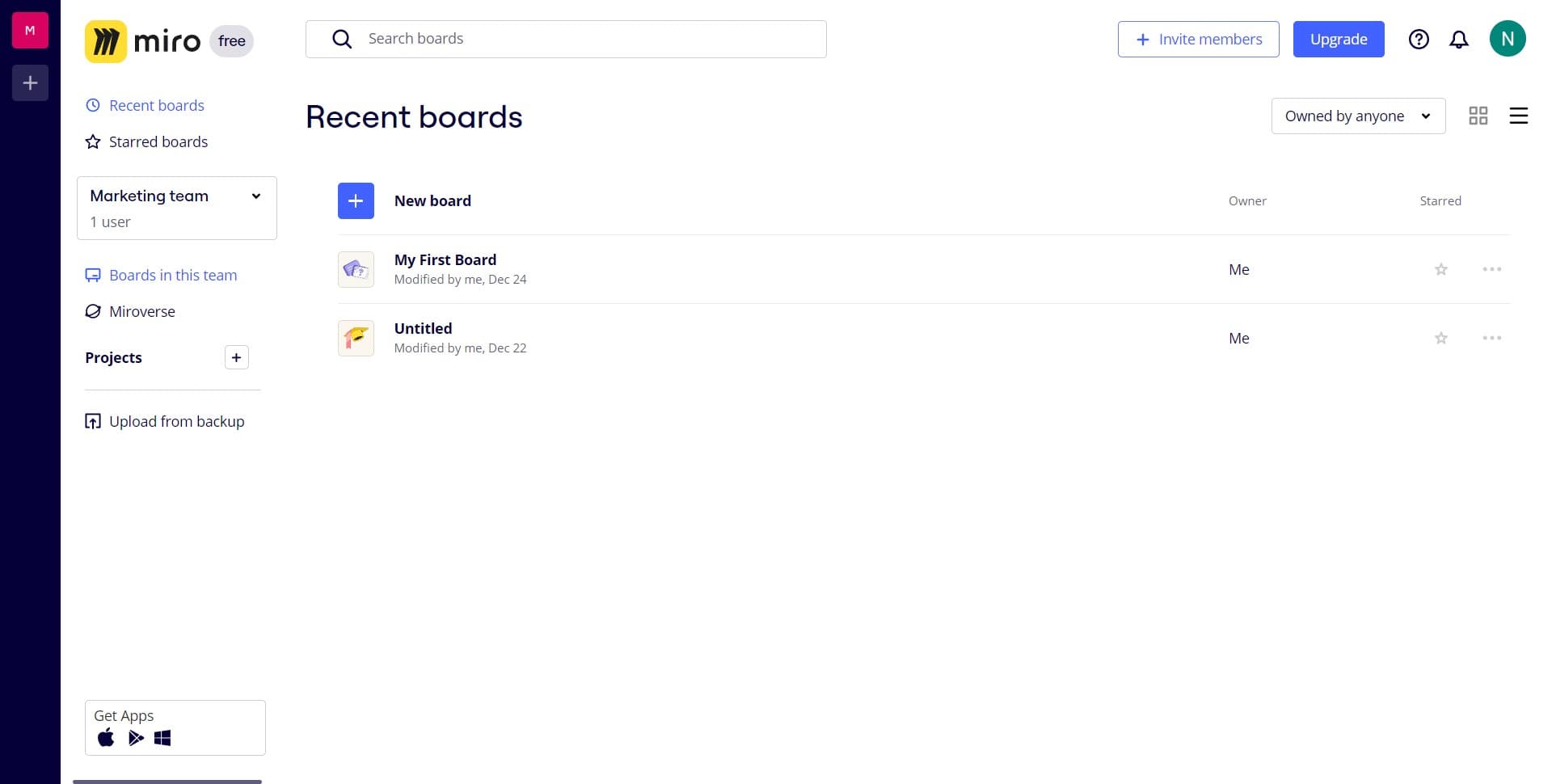
Click on Boards in this team
Start by locating and clicking the 'Boards in this team' option from your Miro dashboard. This will display all boards that belong to your current team workspace.
- 2
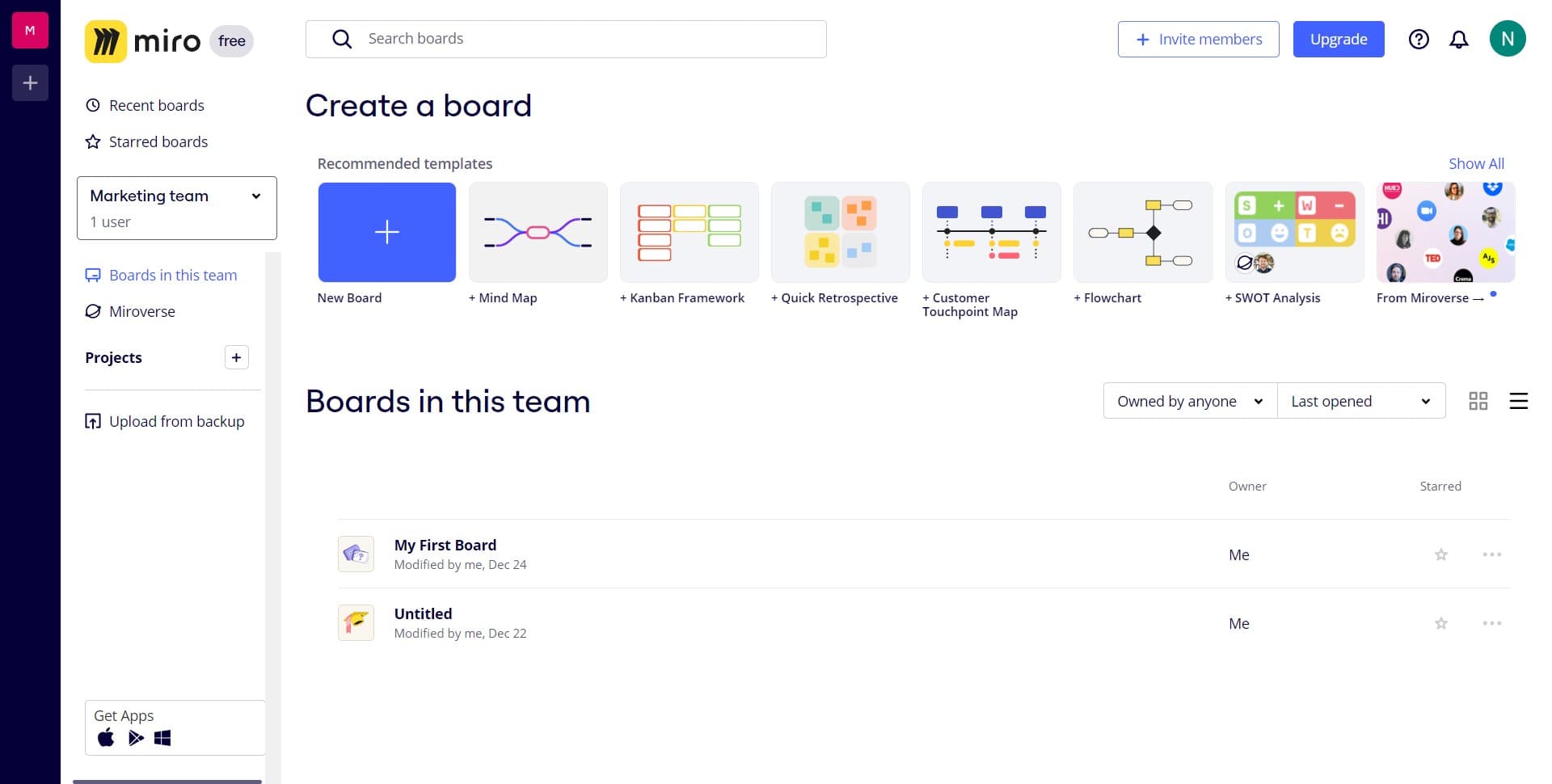
Click on Marketing team
Select the specific team for which you want to enable invite-only signups. In this example, we're selecting the Marketing team—choose the team name that matches your workspace.
- 3
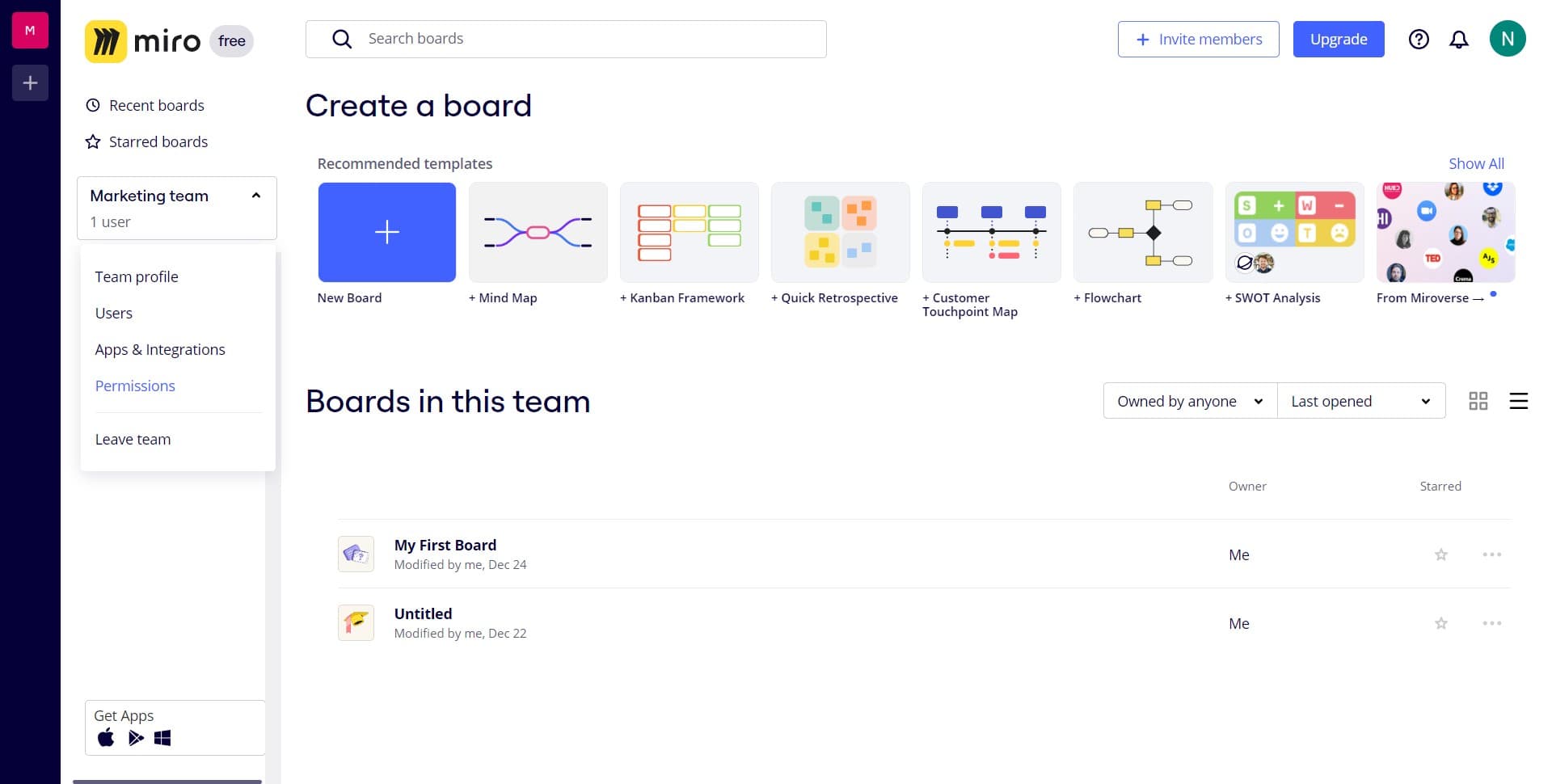
Click on Permissions
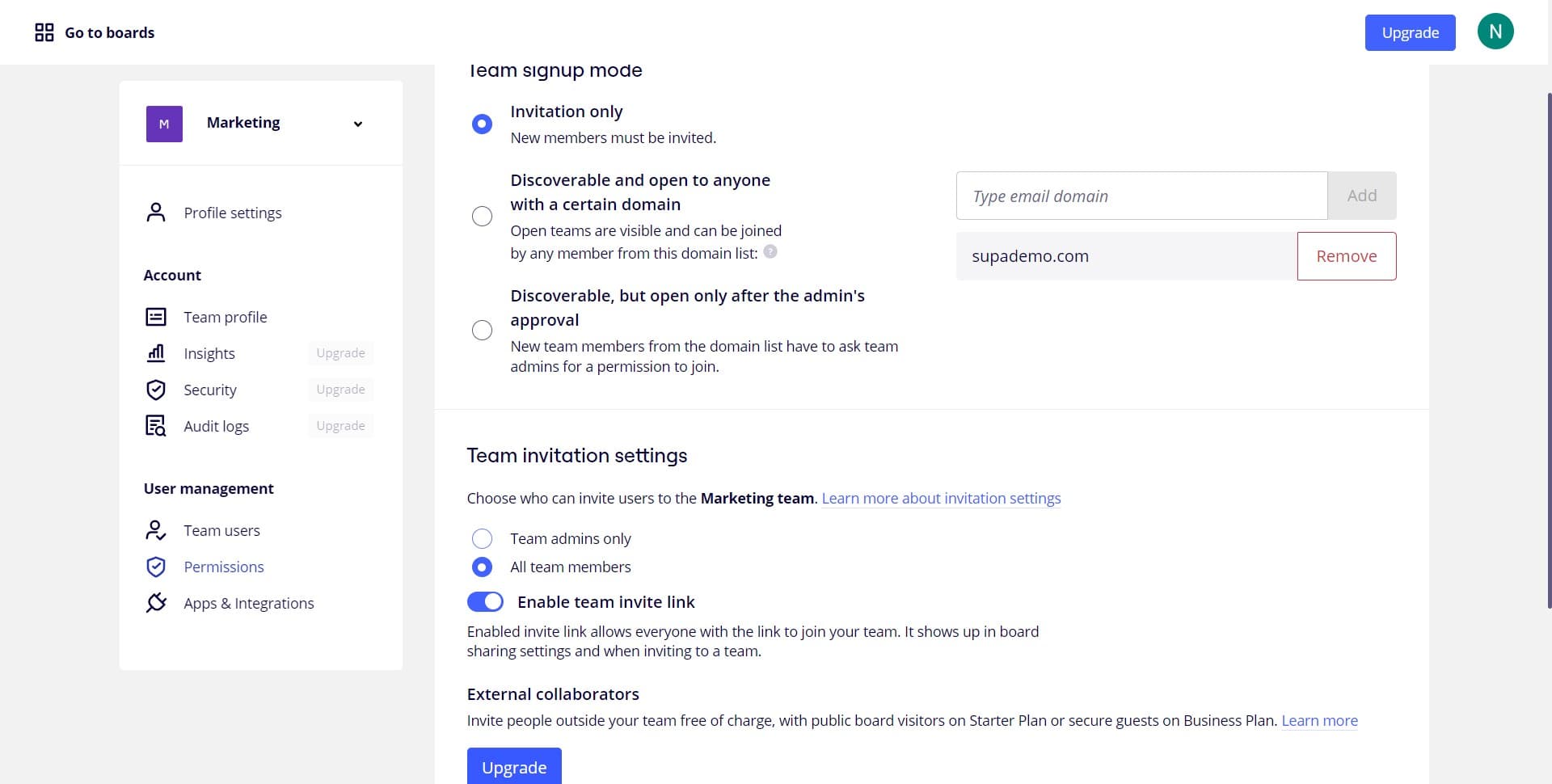
Navigate to the Permissions section where you can manage access controls and signup settings. This section contains all the controls needed to restrict who can join your team.
- 4
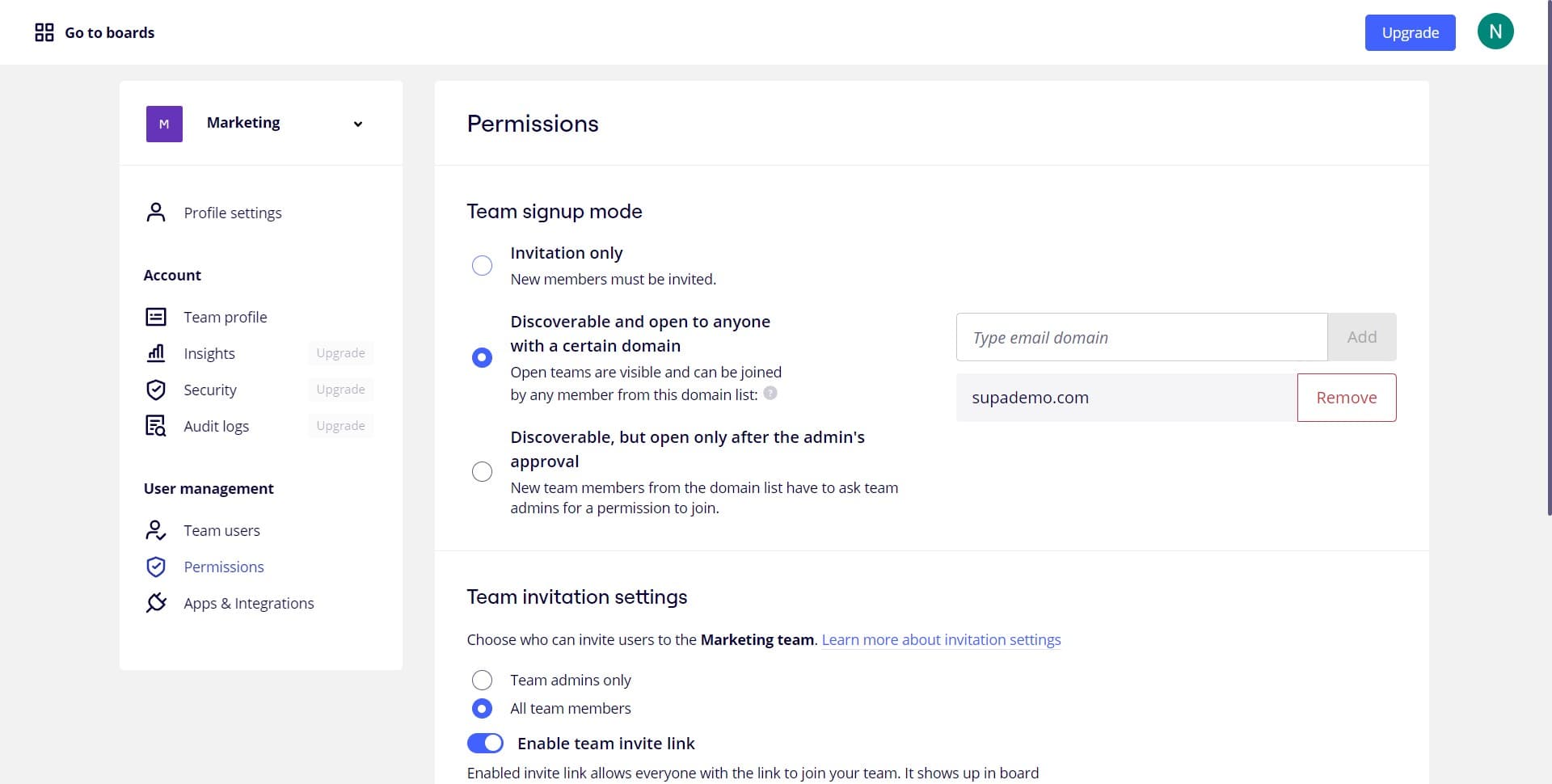
Configure invite-only access
Click the designated option to enable invite-only mode for your team signups. This setting will ensure that only users with direct invitations from team admins can access your workspace.
- 5
Save your permission settings
Confirm and save your changes to apply the invite-only signup restriction to your team. Your new permission settings will take effect immediately across your Miro workspace.
Frequently asked questions
Common questions about how to make signups "invite-only" in miro.
Invite-only settings in Miro are typically managed at the team level rather than individual boards. This means the setting applies to your entire team workspace. However, you can still manage individual board permissions separately by adjusting access for specific team members on each board.
After enabling invite-only signups, you'll need to send direct invitations to new members through Miro's invite function, usually found in team settings. Members can only access your workspace by accepting an invitation from a team admin or owner. They cannot sign up independently without an invitation.
Enabling invite-only signups does not affect existing team members—they retain their current access and permissions. The setting only applies to new users attempting to join your workspace going forward. Your current team structure remains unchanged.
Yes, you can disable invite-only signups at any time by returning to the Permissions settings and toggling off the invite-only option. This will revert your team to open signup, allowing new members to join without an invitation. Any changes take effect immediately.
Typically, only team owners and admins have the ability to enable invite-only signups and send invitations in Miro. Regular team members cannot modify these permission settings. Check your specific role and team permissions to confirm whether you have admin access to these controls.