How to align objects in Miro

Aligning objects precisely in Miro is essential for creating clean, professional diagrams and visual content. This tutorial walks you through the alignment features available in Miro to help you organize and position elements with consistency and ease.
Quick summary
In this tutorial, you'll learn how to align objects in Miro using the platform's built-in alignment tools. You'll discover how to access alignment options, upload content, and apply precise positioning to multiple elements on your canvas.
Why this matters
Proper object alignment is critical for creating visually polished presentations, flowcharts, and collaborative diagrams. When team members work with aligned elements, the final output looks more professional and is easier to read and understand at a glance.
Step-by-step guide
- 1
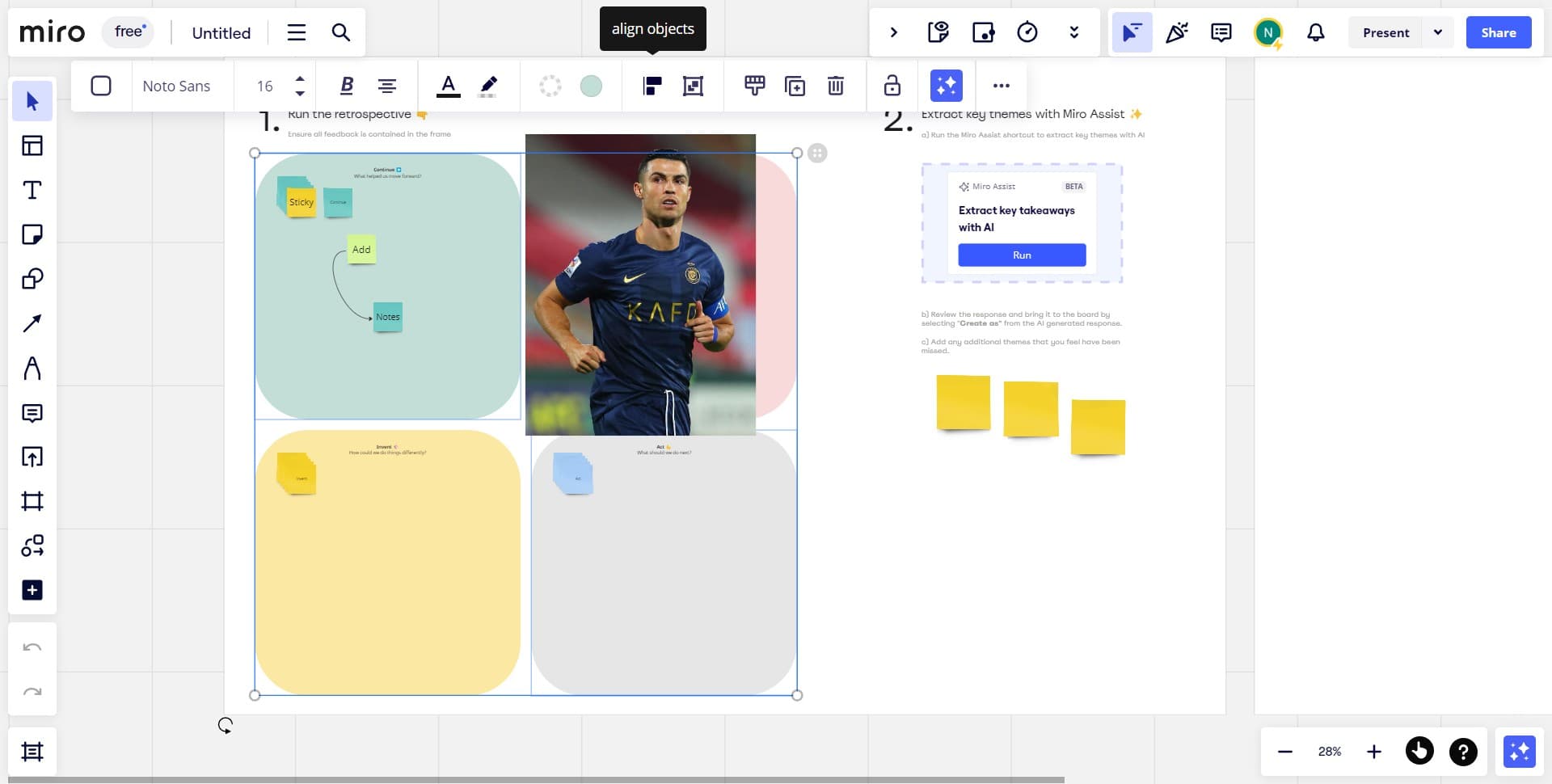
Click the alignment menu
Start by selecting the objects you want to align on your Miro canvas. Then click on the alignment menu to reveal the available alignment options for your selected elements.
- 2
Upload your content first
If you're working with imported images or files, upload your content to the canvas before attempting to align objects. This ensures all elements are available and ready for positioning.
- 3
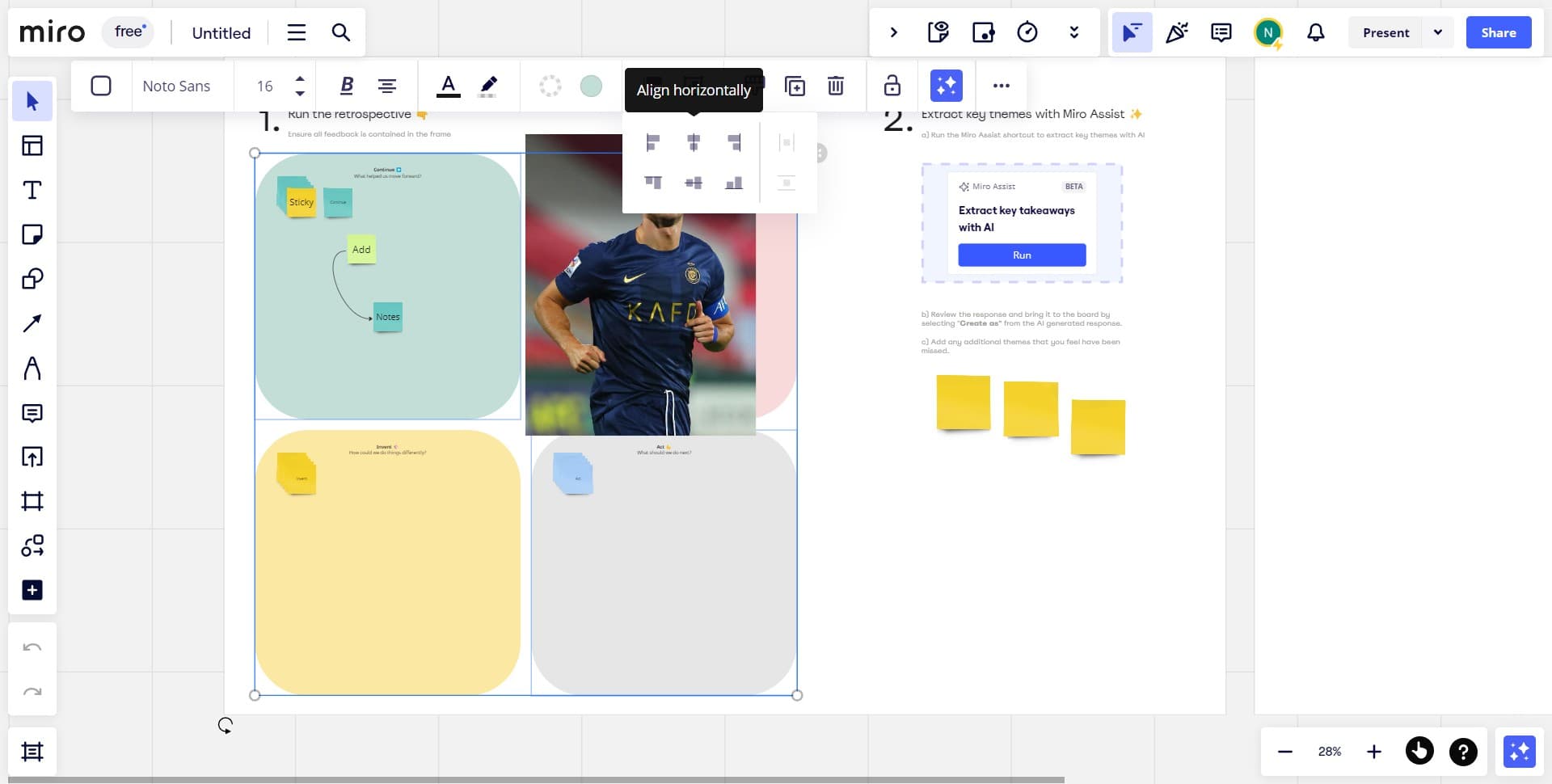
Select your alignment option
Choose from the alignment options that appear, such as left, right, top, bottom, or center alignment. Click the desired alignment tool to instantly position your selected objects according to that alignment.
- 4
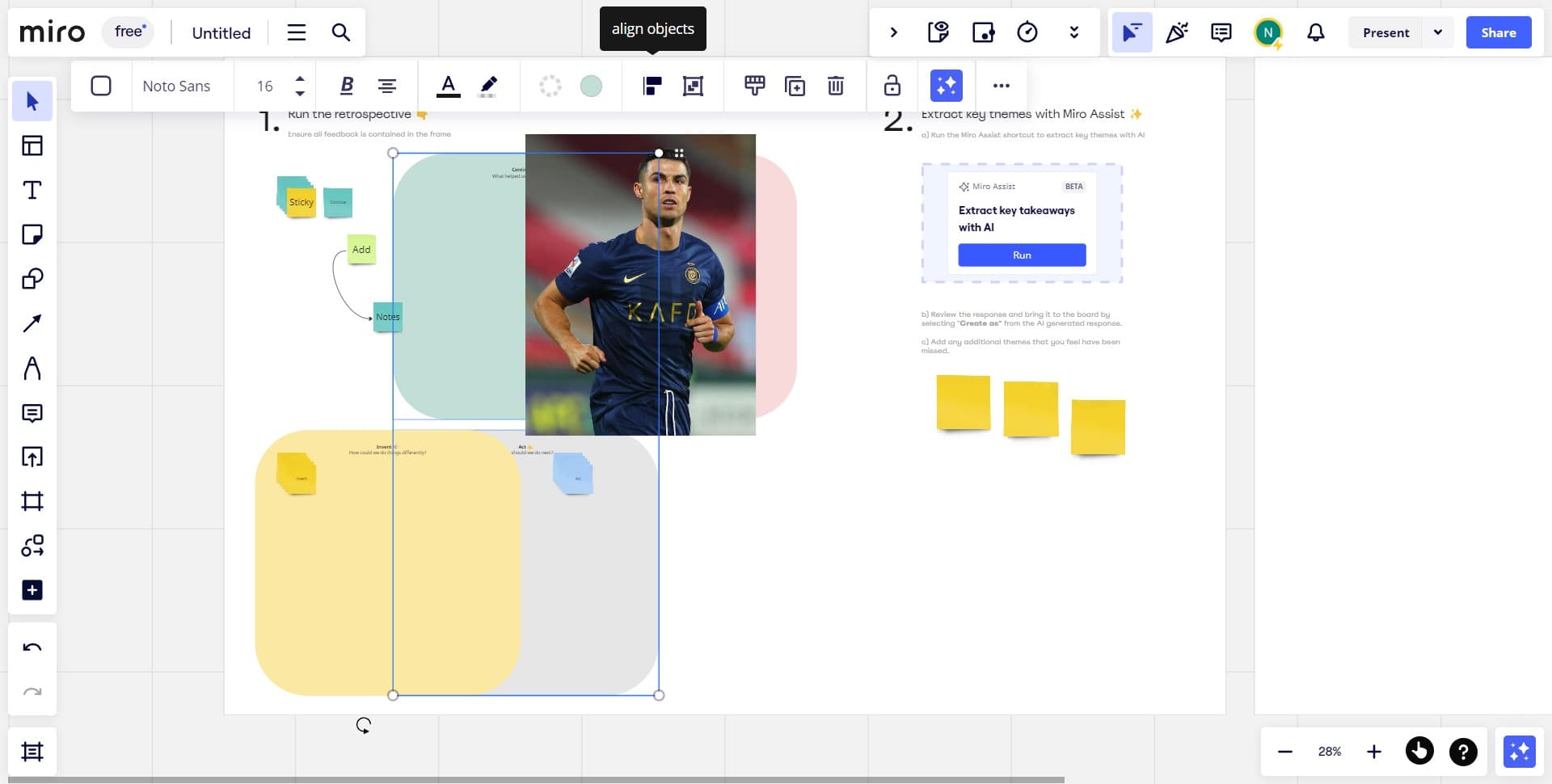
Verify alignment and adjust
Review the alignment of your objects to ensure they meet your requirements. If needed, click the undo option or reselect objects to apply a different alignment until you achieve the desired layout.
Frequently asked questions
Common questions about how to align objects in miro.
Yes, Miro's alignment tools work with objects of any size. When you apply alignment options like center or distribute, the objects align based on their edges or centers regardless of their dimensions. This is useful for creating organized layouts with varied content sizes.
Click on the first object, then hold Shift and click on additional objects to select multiple items. Alternatively, you can click and drag to draw a selection box around all the objects you want to align. Once multiple objects are selected, the alignment options become available.
Miro offers alignment options including align left, align right, align top, align bottom, align center horizontally, and align center vertically. Additionally, you can distribute objects evenly across your canvas using the distribute spacing options.
By default, Miro aligns objects relative to each other based on their selection. However, you can align objects to the canvas or frame by selecting the frame first, then using the alignment tools to position elements within that specific container.
Miro provides alignment options through the toolbar menu, though keyboard shortcuts may vary depending on your operating system and Miro subscription level. Check Miro's help documentation or use the toolbar to access alignment features, which is the most reliable method across all devices.