How to export a Miro board

Exporting your Miro board allows you to save your work in various formats for sharing, archiving, or use in other applications. Whether you need a static image or a complete project file, Miro provides flexible export options to meet your needs.
Quick summary
In this tutorial, you'll learn how to export a Miro board by navigating the export menu, selecting your preferred format, and completing the download process. By the end, you'll be able to save your boards as images or other formats depending on your requirements.
Why this matters
Exporting your Miro boards is essential for collaboration, documentation, and integration with other tools in your workflow. Having offline copies of your boards ensures you can share them with stakeholders who may not have Miro access and create permanent records of your planning sessions.
Step-by-step guide
- 1
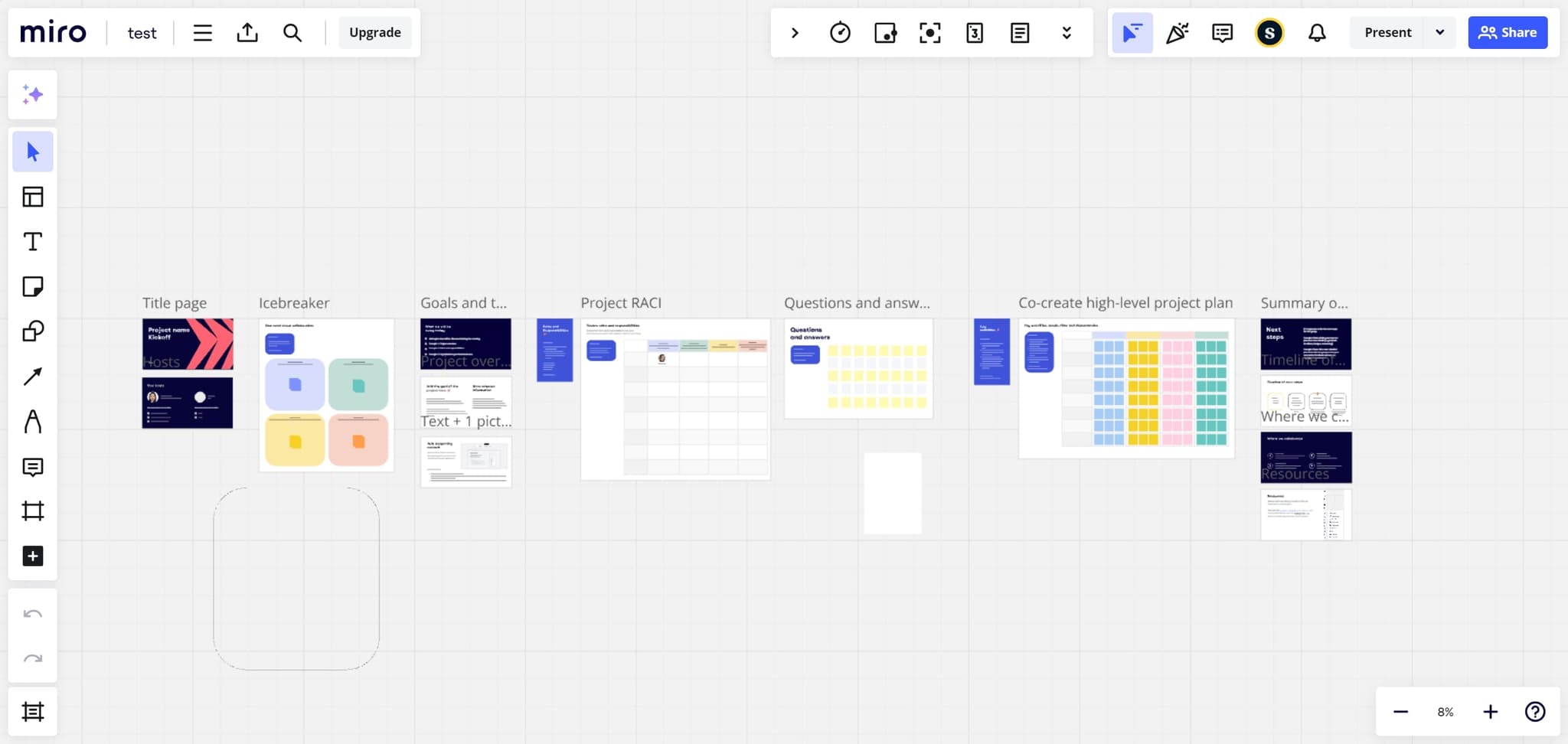
Click the initial menu option
Locate and click the primary menu or options button in your Miro workspace. This will open the main navigation menu where you can access export and save functions.
- 2
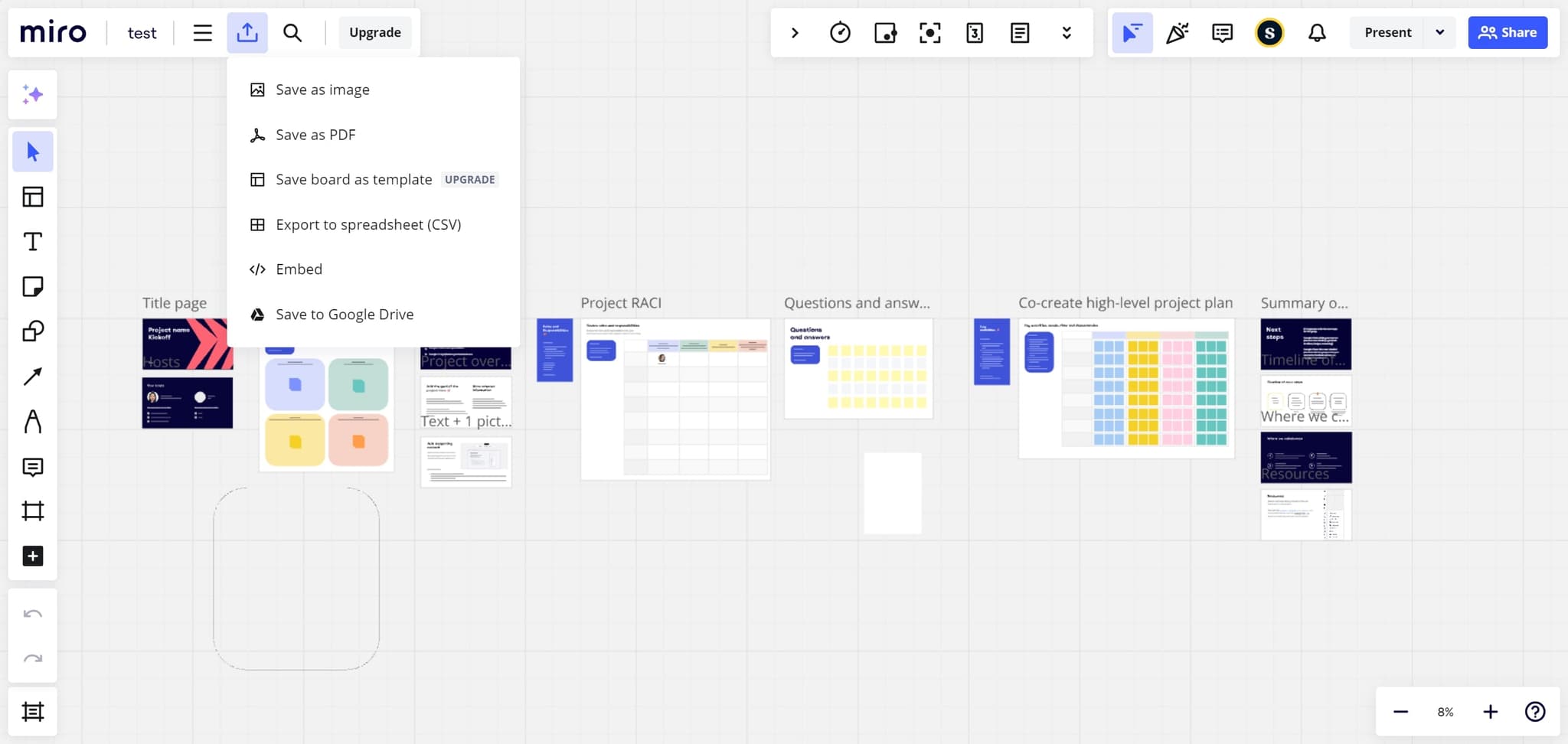
Navigate to export settings
From the menu, find and select the export or file options. This step prepares your board for exporting and displays available format choices.
- 3
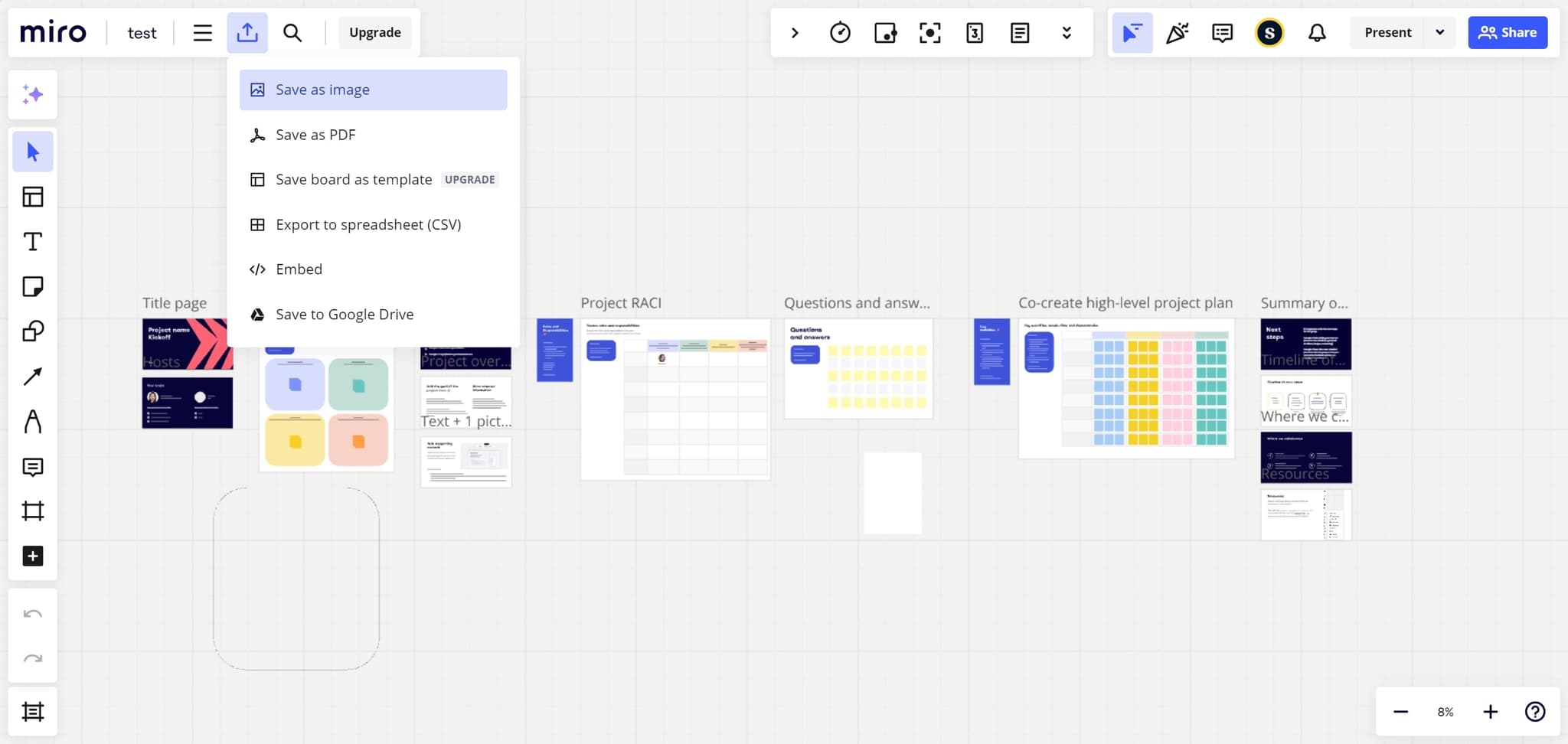
Select 'Save as image'
Click on the 'Save as image' option to export your board as a static image file. This format is ideal for sharing, printing, or embedding in presentations and documents.
- 4
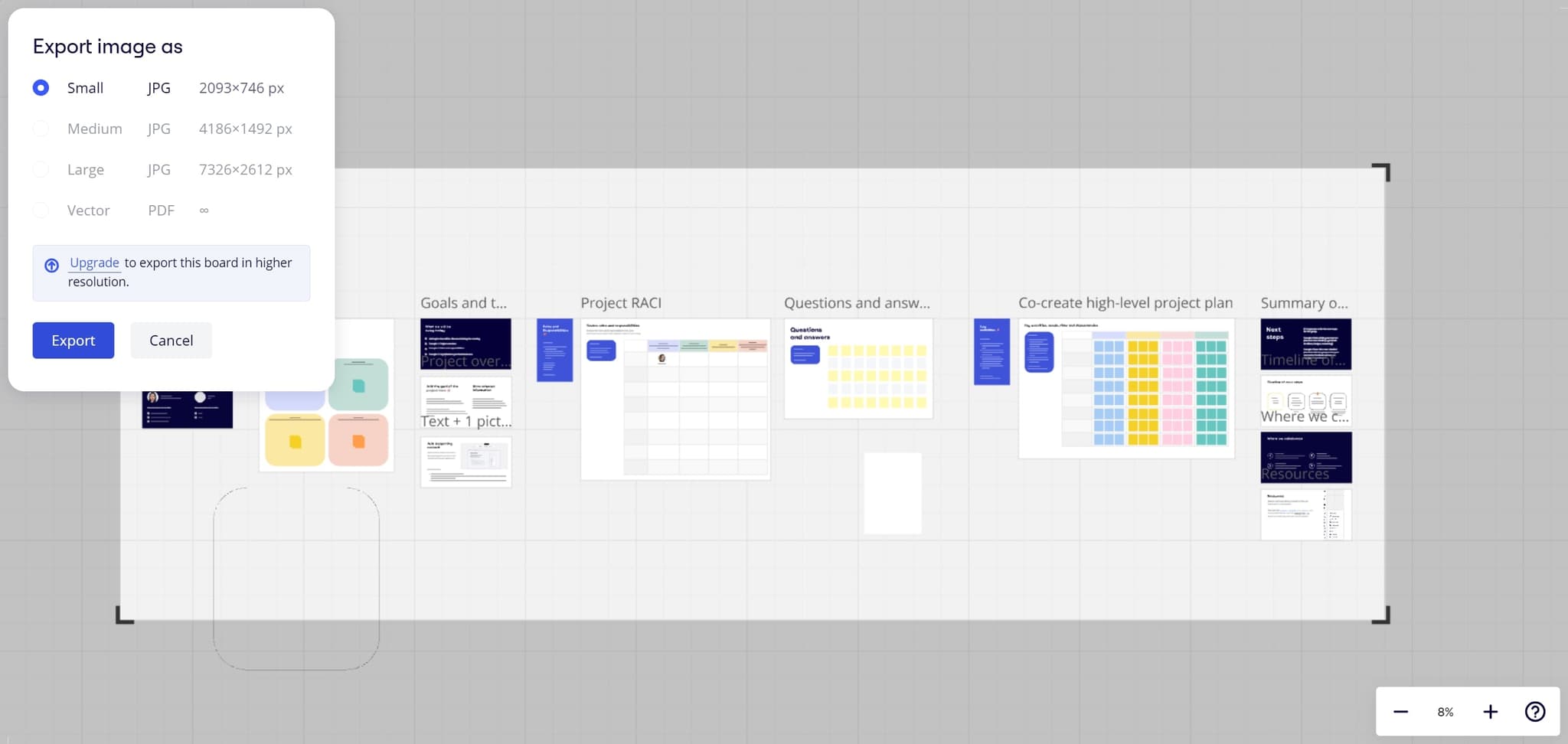
Click 'Export' to confirm
After selecting your desired format, click the 'Export' button to initiate the export process. Your browser will prepare the file for download based on your selections.
- 5
Complete the upload or download
Finish the export by uploading the file to your desired location or allowing the download to complete. Your Miro board is now saved in your chosen format and ready to use.
Frequently asked questions
Common questions about how to export a miro board.
Miro supports exporting boards as images (PNG, SVG) and as project files. The 'Save as image' option creates a visual snapshot of your board, while other export formats may preserve interactive elements or layers depending on your Miro plan.
Yes, you can select a particular area or object on your board before exporting to capture only that portion. Use Miro's selection tools to highlight the content you want, then proceed with the export steps to save just that section.
When you export as an image, the visual content of your board is captured, but comments and other metadata are typically not included in the image file. If you need to preserve comments, consider exporting as a project file or taking screenshots with additional tools.
The file size depends on your board's complexity, size, and the export format chosen. Image exports are generally smaller than project files. For very large boards, you may need to export sections separately to manage file sizes effectively.
You can export a shared board if you have viewing or editing permissions. Your access level determines what you can do with the exported file, so ensure you have the appropriate permissions before exporting sensitive or collaborative boards.