How to hide collaborator's cursor in Miro

Managing collaborator visibility in Miro helps you maintain focus during presentations and collaborative sessions. This guide walks you through the process of hiding a collaborator's cursor so you can control the viewing experience on your board.
Quick summary
In this tutorial, you'll learn how to hide a collaborator's cursor in Miro by navigating to your board and accessing the cursor visibility settings. This simple adjustment gives you greater control over the collaborative workspace and helps reduce visual clutter during presentations.
Why this matters
Hiding collaborator cursors is useful when you're presenting a board to stakeholders, conducting training sessions, or when multiple users are working simultaneously and cursor activity becomes distracting. This feature allows you to create a cleaner, more professional viewing experience without disrupting the collaborative workflow.
Step-by-step guide
- 1
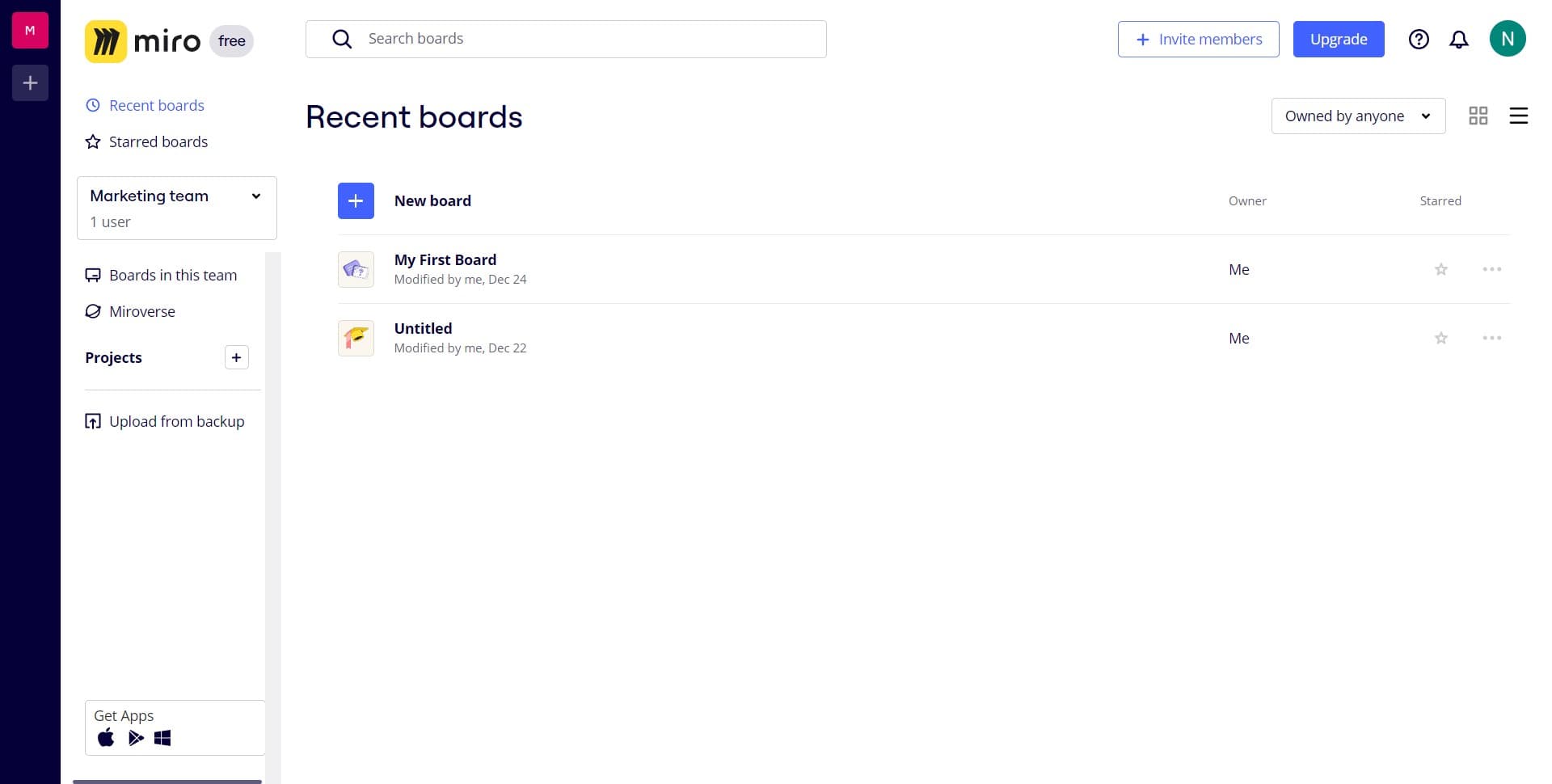
Click on My First Board
Open your Miro workspace and locate the board you want to manage. Click on 'My First Board' to enter the board view where you can adjust cursor visibility settings.
- 2
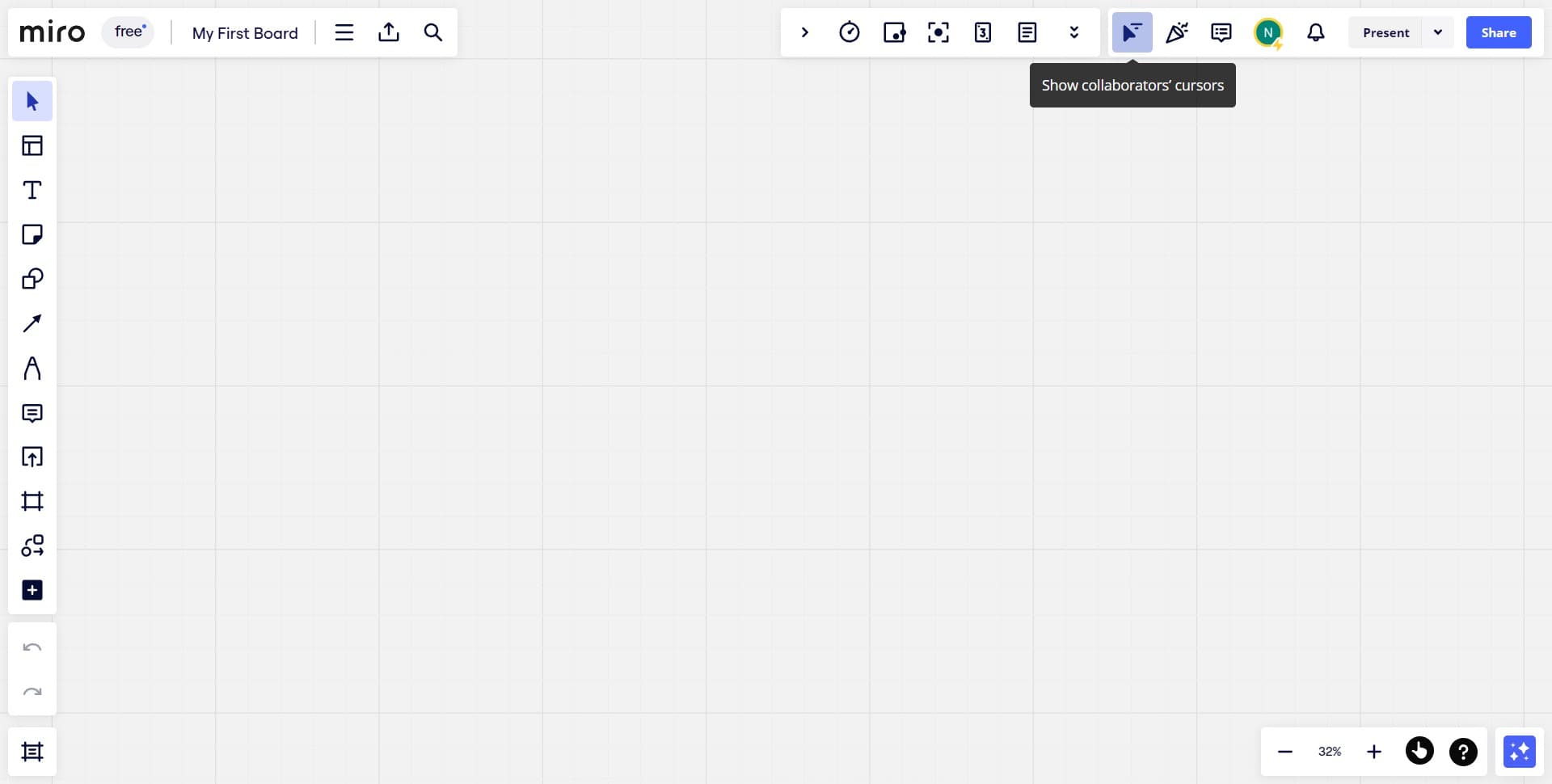
Access cursor visibility settings
Once inside the board, click on the designated settings area to reveal options for managing collaborator cursors. This will display the controls you need to hide or show collaborator cursors as needed.
Frequently asked questions
Common questions about how to hide collaborator's cursor in miro.
Miro allows you to control cursor visibility settings from the board preferences. You can typically manage cursor display as a board-level setting that applies to all collaborators, though specific options may vary depending on your board's sharing and permissions configuration.
Hiding a collaborator's cursor is a display setting on your end and does not notify them. Collaborators will continue to see their own cursor and the cursors of other participants based on their own visibility settings.
No, hiding cursors is purely a visual preference and does not impact the ability to collaborate, edit, or share the board. All collaborative features remain fully functional regardless of cursor visibility settings.
Yes, cursor visibility can typically be toggled on and off from the board settings without significant delay. This allows you to switch between showing and hiding cursors as needed during your work session.
Cursor visibility settings are available on most Miro plan levels, but specific features may vary. Check your current plan's documentation or contact Miro support to confirm which cursor management features are included with your subscription.